
To see your own review on Amazon, sign in to your account, go to Accounts and Lists, select Your Account, then click Profile under Ordering and Shopping Preferences. Scroll to the Community activity section and select the Reviews tab to view every review you have written. You can also access this page directly at amazon.com/gp/profile/. Sellers can monitor reviews through Seller Central by navigating to Performance then Feedback Manager, or through the Customer Reviews dashboard in the Brand Dashboard.
That quick answer covers the essentials, but there is much more to understand about managing your review on Amazon in 2026. Whether you are a buyer who wants to revisit, edit, or delete past feedback, or a seller trying to track what customers are saying about your products, the process differs depending on your role and the device you are using. This guide walks through every method available, with updated steps that reflect the current Amazon interface.
I have spent time testing these workflows on both desktop and mobile to make sure the instructions match what you will actually see on screen. Amazon has reshuffled its menus several times over the past couple of years, so older guides you find online may point you to pages that no longer exist in the same location. Everything below reflects the current layout as of 2026, including the updated Seller Central navigation paths and the latest mobile app interface.
Here is what you will learn in this guide:
- How to view your reviews as a buyer on desktop and mobile
- How to write, edit, or delete a review you have already posted
- How sellers can track product reviews through Seller Central and Brand Dashboard
- Amazon review policies including Verified Purchase, Vine, and fake review detection
- The difference between seller feedback and product reviews and why it matters
- How to request reviews as a seller using the Request a Review button and Buyer-Seller Messaging
- How to spot fake reviews and protect yourself as a shopper
How to View Your Review on Amazon as a Buyer
Reviews are one of the first things shoppers look at when deciding whether to buy a product on Amazon. If you have written reviews in the past, you might want to revisit them to check your own feedback, update your thoughts after more time with the product, or remove something you no longer agree with. Finding your own reviews is simple once you know where to look, but Amazon buries the option a few layers deep in your account settings.
Viewing Your Reviews on Desktop
On a computer, the path to your reviews goes through your Amazon profile page. Every review, question, and community contribution you have made lives in one centralized location. Here is the step-by-step process that matches the current Amazon desktop layout.
- Open Amazon.com in your browser and sign in to the account you used to write the reviews.
- Hover over Accounts and Lists in the top-right corner of the page.
- From the dropdown menu, click on Your Account.
- Scroll to the Ordering and Shopping Preferences section and click on Profile.
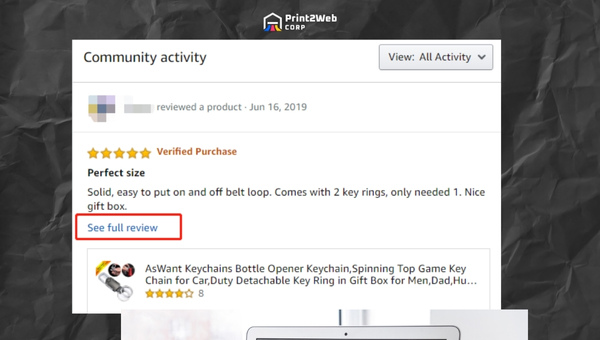
- You will land on your public profile page. Look for the Community activity section.
- Click on the Reviews tab within Community activity. This filters the list to show only the product reviews you have written.
- Each review displays the product name, your star rating, the text you wrote, and any photos or videos you attached.
You can also jump straight to your profile by visiting amazon.com/gp/profile/ while logged in. This shortcut saves a few clicks if you check your reviews regularly. Keep in mind that your profile page shows all community activity by default, so selecting the Reviews tab is what narrows the list to written reviews only.
Next to each review you will see a three-dot menu (the overflow icon). Clicking this menu reveals options to edit or delete your review, or to hide it from your public profile. We cover those actions in detail in the editing and deleting section later in this guide.
Viewing Your Reviews on the Amazon Mobile App
The Amazon Shopping app offers two paths to your reviews. The faster method uses the profile icon built into the bottom navigation bar. The second method goes through the hamburger menu, which is useful if your app version has a different layout. Both approaches work on iOS and Android, though the exact placement of icons can vary slightly between versions.
- Open the Amazon Shopping app and make sure you are signed in.
- Look at the bottom toolbar for the profile icon (a person silhouette). Tap it to open your account dashboard.
- Tap on Your Account, then scroll to find and tap Profile.
- Scroll down to Community activity and tap the Reviews tab.
- Your reviews appear in a list. Tap any review to see the full text and product page.
- To edit or delete, tap the three-dot icon next to the review and choose your action.
If you do not see the profile icon on the bottom toolbar, use the alternative path instead. Tap the hamburger menu (three horizontal lines, usually in the top-left or bottom-right corner depending on your version). Then navigate to Your Account and follow the same steps from there.
On iOS, the profile icon typically sits on the far right of the bottom toolbar. On Android, the layout is similar but Amazon occasionally tests different arrangements. If neither path works, try updating your app to the latest version from the App Store or Google Play, as older versions may use a different menu structure.
Desktop vs Mobile: Which Method Is Easier?
Both methods get you to the same destination, but each has trade-offs. The table below compares the two so you can pick the approach that fits your situation.
Buyer Review Methods Compared
- Desktop speed: The direct URL (amazon.com/gp/profile/) is the fastest option if you are already at a computer. Three clicks from the homepage gets you to your reviews list.
- Mobile convenience: The profile icon on the bottom toolbar makes mobile access quick once you know where to look. No typing URLs required.
- Editing ease: Desktop wins for editing long reviews because typing on a full keyboard is faster. Mobile is fine for quick fixes like changing a star rating.
- Photo uploads: Mobile has an edge here. You can snap a photo and attach it to your review in seconds, whereas desktop requires uploading from your computer.
- Deletion: Both platforms handle deletion identically through the three-dot menu. No difference in difficulty.
For most users, mobile is the better choice for viewing and quick edits, while desktop is preferable if you are writing or substantially rewriting a review.
How to Write a Review on Amazon
Writing a review on Amazon is just as important as knowing how to find one you already wrote. Your feedback helps other shoppers make informed decisions and gives sellers direct insight into what works and what does not. Amazon makes the review process straightforward whether you are on desktop or mobile.
Steps to Write a Product Review
- Sign in to your Amazon account on desktop or the mobile app.
- Go to Your Orders by hovering over Accounts and Lists (desktop) or tapping the profile icon and selecting Your Orders (mobile).
- Find the product you want to review and look for the Write a product review button next to it.
- Select a star rating from one to five stars.
- Write your review text in the box provided. Be specific about what you liked or disliked.
- Optionally, add photos or videos to support your review. Visual evidence adds credibility.
- Click or tap Submit to send your review for processing.
Amazon reviews all submissions before publishing them, which means your review will not appear immediately. The moderation process typically takes up to 72 hours. During this window, Amazon checks that your review complies with its community guidelines, which prohibit promotional language, conflicts of interest, and inappropriate content.
Tips for Writing Helpful Reviews
- Be specific: Mention particular features, how long you have used the product, and whether it met your expectations.
- Avoid generic praise: “Great product” tells readers very little. Explain what makes it great.
- Include drawbacks: Honest criticism builds trust. Even a five-star product usually has some downside worth mentioning.
- Add photos: Reviews with images receive significantly more helpful votes and are trusted more by other shoppers.
- Update over time: If your opinion changes after extended use, edit your review to reflect your current experience.
How to Edit or Delete Your Amazon Review
Circumstances change. Maybe you initially loved a product but discovered a flaw after a few weeks of use. Or perhaps you want to remove a review entirely because you no longer feel the same way. Amazon gives you full control over your own reviews, including the ability to edit the text, change the star rating, or delete the review completely. You can also hide a review from your public profile without deleting it.
Editing a Review on Desktop
- Go to your Profile page (Accounts and Lists then Your Account then Profile, or directly at amazon.com/gp/profile/).
- Scroll to Community activity and select the Reviews tab.
- Find the review you want to change and click the three-dot menu next to it.
- Select Edit review from the dropdown options.
- Modify the star rating, review text, or attached photos as needed.
- Click Save to update your review. Amazon may reprocess it briefly, but edits typically appear faster than new submissions.
Deleting or Hiding a Review
- Navigate to your Profile and find the review in the Reviews tab of Community activity.
- Click the three-dot menu next to the review.
- Choose Delete review to permanently remove it, or choose Hide review on my public profile if you want to keep it in your records but not display it publicly.
- Confirm your choice when prompted.
Deleting a review is permanent. Once you confirm, the review disappears from the product page and your profile, and you cannot recover it. If you think you might want the review later, use the hide option instead. On mobile, the process is identical: tap the three-dot icon next to any review in your profile and select edit, delete, or hide.
Reddit users have reported instances where Amazon removed their one-star reviews without explanation, even when the reviews followed guidelines. This usually happens when Amazon’s automated moderation flags certain patterns, such as review bombing or coordinated negative campaigns. If your review was removed and you believe it was a mistake, you can contact Amazon customer service to appeal the decision.
How to Write a Review on Amazon Without Purchasing
Many people assume you must buy a product on Amazon before you can review it. That is not entirely true. Amazon does allow reviews from people who did not purchase the item through their platform, though these reviews carry less weight than those with a Verified Purchase badge. Understanding the difference helps you decide whether writing a review without a purchase is worth your time.
Review Eligibility Without a Purchase
To write a review without purchasing, you need an active Amazon account in good standing. Navigate to the product page, scroll to the Customer Reviews section, and look for the option to write a review. If the option appears, you can submit your feedback. However, Amazon prioritizes reviews from verified buyers and displays them more prominently.
Reviews written without a purchase will not show the Verified Purchase badge. This badge signals to other shoppers that the reviewer actually bought the item through Amazon, which adds credibility. Non-verified reviews still appear in the review section, but they may be sorted lower than verified ones, and some shoppers filter them out entirely.
Amazon has tightened its review policies significantly over the past few years. In some categories, non-verified reviews may be delayed or rejected during moderation. If you received the product as a gift or purchased it elsewhere, you can still share your experience, but be aware that the lack of a verification badge may limit its visibility.
Amazon Review Policies and Guidelines
Amazon maintains strict review policies to keep feedback authentic and useful. These rules apply to both buyers and sellers, and violating them can result in review removal, account suspension, or legal action. Understanding the guidelines helps you write reviews that stick and helps sellers avoid practices that could jeopardize their accounts.
The Verified Purchase Badge
The Verified Purchase badge is Amazon’s way of confirming that the reviewer bought the product through their platform. When you see this badge, it means Amazon can verify the transaction and link the review to an actual order. Reviews without this badge are still allowed but carry less authority in Amazon’s ranking algorithm and in the eyes of other shoppers.
For sellers, the Verified Purchase system matters because it prevents competitors or paid reviewers from flooding a product page with fake positive or negative feedback. Amazon has invested heavily in automated detection systems that flag suspicious review patterns, including reviews from accounts with no purchase history or from buyers who received the product through unofficial channels.
What Amazon Prohibits in Reviews
- Incentivized reviews: Sellers cannot offer compensation, free products, or discounts in exchange for positive reviews. This was banned in 2016, and Amazon actively enforces it.
- Review manipulation: Asking friends, family, or employees to leave positive reviews violates policy, even if the reviews are genuine.
- Negative review campaigns: Coordinating negative reviews against a competitor is treated as seriously as fake positive reviews.
- Promotional content: Reviews cannot contain links, promotional language, or references to competing products.
- Conflicts of interest: Anyone with a financial connection to the product or seller cannot write a review, including the seller’s own employees and family members.
The Amazon Vine Program
Amazon Vine is Amazon’s official program for generating authentic reviews on new and pre-release products. Amazon invites trusted reviewers, called Vine Voices, to receive free products in exchange for honest feedback. The reviews are not required to be positive, and Vine Voices are chosen based on the helpfulness of their past reviews.
Vine reviews carry a special badge that identifies them as part of the program. This transparency lets shoppers know the reviewer received the product for free, so they can weigh the opinion accordingly. For sellers, Vine is one of the few legitimate ways to generate early reviews on a new product, though enrollment requires a Brand Registry and participation fees.
The program was revamped in recent years and is now called Vine Voices. Amazon periodically opens and closes enrollment based on capacity. Reddit discussions in the r/AmazonVine community reveal that many Vine reviewers take their responsibility seriously, though some shoppers view Vine reviews with mild skepticism because the reviewer did not spend their own money.
How to Become an Amazon Vine Reviewer
Amazon selects Vine Voices based on reviewer rank, which is determined by the number and helpfulness of reviews a person has written. There is no application process. The best way to increase your chances of receiving an invitation is to write detailed, helpful reviews consistently over time. Amazon looks for reviewers whose feedback has been voted helpful by the community.
Note that being a Vine reviewer is not a paid position. Reviewers receive free products but no monetary compensation. Any service claiming to pay you for Amazon reviews is likely a scam and violates Amazon’s terms of service. Stick to writing genuine reviews and let Amazon approach you if they want to invite you to Vine.
Spotting Fake Reviews on Amazon
Fake reviews remain a significant problem on Amazon, despite the platform’s enforcement efforts. Forum discussions across Reddit reveal deep user frustration with reviews that feel manufactured, especially on newer products that suddenly accumulate hundreds of five-star ratings within days of launch. Learning to identify suspicious patterns protects you from making purchases based on misleading feedback.
Warning Signs of Fake Reviews
- Repetitive phrasing: If multiple reviews use nearly identical wording, they may have been coordinated or generated by the same source.
- Sudden rating spikes: A product with almost no reviews that suddenly gains dozens of five-star ratings in a short window deserves scrutiny.
- Generic praise without specifics: Reviews that say “amazing product, highly recommend” without mentioning any features often signal low-effort or incentivized feedback.
- Reviewer profiles with no history: Check the reviewer’s profile. If they have only reviewed one product or all their reviews were posted on the same day, something is off.
- No Verified Purchase badge: A cluster of five-star reviews without verification badges is a red flag, especially on a new product.
- Unsolicited products: If you receive a package you never ordered, it may be part of a brushing scheme where sellers ship cheap items to generate fake verified reviews.
How to Report a Fake Review
If you encounter a review you believe is fake, you can report it directly to Amazon. On any review, look for the Report abuse link, usually found near the bottom of the review text. Click it and provide a brief explanation of why you believe the review violates Amazon’s guidelines. Amazon investigates reports and removes reviews that violate policy, though they do not always notify you of the outcome.
For sellers, the Brand Dashboard includes a more robust reporting tool. Brand-registered sellers can use the Customer Reviews dashboard to flag reviews that violate policy, including reviews that contain promotional content, competing product mentions, or evidence of incentivization. Amazon reviews these reports and takes action when warranted.
Trust signals that indicate a review is likely authentic include the Verified Purchase badge, detailed descriptions of specific product features, photos taken by the reviewer, and a balanced mix of positive and negative observations. Shoppers increasingly value negative reviews as a source of honest, practical information about potential downsides.
Product Reviews vs Seller Feedback: Understanding the Difference
One of the most common points of confusion for both new buyers and new sellers is the distinction between product reviews and seller feedback. These are two separate systems on Amazon, each serving a different purpose and appearing in different locations. Understanding the difference helps buyers leave the right type of feedback and helps sellers track the metrics that actually matter to their business.
What Is a Product Review?
A product review evaluates the item itself. It covers the product’s quality, features, design, and performance. Product reviews appear on the product detail page and contribute to the star rating shown beneath the product title. Multiple sellers offering the same product share the same review pool, because the reviews are about the product, not any individual seller.
What Is Seller Feedback?
Seller feedback evaluates the buying experience. It covers shipping speed, packaging quality, customer service, and the accuracy of the product listing. Seller feedback is tied to the specific seller who fulfilled the order, not the product itself. It appears in the seller’s performance metrics and contributes to their overall seller rating, which affects Buy Box eligibility.
Key Differences at a Glance
- Focus: Product reviews rate the item. Seller feedback rates the transaction experience.
- Location: Product reviews appear on the product page. Seller feedback appears in the seller’s account metrics.
- Sharing: Multiple sellers share product reviews for the same ASIN. Seller feedback is unique to each seller.
- Impact on Buy Box: Seller feedback directly affects Buy Box eligibility. Product reviews affect product ranking and visibility.
- Who can leave it: Any eligible buyer can leave both types of feedback, but they are submitted through different prompts after purchase.
Buyers often confuse the two and leave seller feedback when they meant to review the product, or vice versa. Amazon provides separate prompts for each type after delivery, so paying attention to which form you are filling out helps ensure your feedback reaches the right place.
How to View Your Reviews on Amazon as a Seller
Sellers need to monitor reviews and feedback for different reasons than buyers. A negative review can signal a product defect that needs fixing. A pattern of shipping complaints in seller feedback might indicate a fulfillment problem. Tracking this information regularly helps sellers protect their account health and improve their offerings over time. If you are new to selling on Amazon, our selling on Amazon guide covers the fundamentals of getting started.
Method 1: Manual Checking on Product Pages
The simplest way to see your product reviews is to visit each product listing page directly. Scroll down to the Customer Reviews section below the product description. Here you can read every review, filter by star rating, and use the Read reviews that mention feature to see reviews filtered by specific keywords. This method is accurate but time-consuming if you sell many products.
Manual checking works well for sellers with a small number of listings. It gives you the full context of each review, including photos, videos, and comments from other shoppers. The downside is scalability: visiting each product page individually becomes impractical as your catalog grows.
Method 2: Using Seller Central Feedback Manager
Seller Central provides a centralized location for monitoring seller feedback through the Feedback Manager. This tool shows feedback organized by order, with filters for date range and rating. The Feedback Manager is where you go to see your seller rating, request removal of invalid feedback, and track patterns in buyer complaints.
- Log in to Seller Central at sellercentral.amazon.com.
- Go to the Performance menu at the top of the dashboard.
- Select Feedback Manager from the dropdown options.
- You will see your overall feedback rating, recent feedback entries, and a breakdown by star rating.
- Use the filters to sort by date range, rating, or fulfillment channel.
- To request removal of feedback that violates Amazon policy, locate the entry and click Request removal.
The Feedback Manager retains data from the last 30 days for detailed review entries. For longer-term analysis, you can export feedback data to a CSV file. Keep in mind that Feedback Manager tracks seller feedback, not product reviews. For product review monitoring, you need the Brand Dashboard.
Method 3: Customer Reviews Dashboard in Brand Dashboard
The Customer Reviews dashboard is the most powerful tool for brand-registered sellers. It lives within the Brand Dashboard and provides detailed analytics on product reviews across your entire catalog. This is where you go for review management at scale, including filtering, searching, and responding to customer feedback.
- Log in to Seller Central and navigate to Brands in the main menu.
- Select Brand Dashboard and then click on Customer Reviews.
- You can also access it directly at sellercentral.amazon.com/brands/reviews.
- Use the star rating filter to focus on negative reviews that need attention.
- Search by ASIN to see reviews for a specific product.
- Filter by time period to track review trends over time.
- For critical reviews, use the Contact buyer feature to offer a replacement or refund through Buyer-Seller Messaging.
- Use Report abuse to flag reviews that violate Amazon’s policies.
- Click Mark as done to track which reviews you have already addressed.
This dashboard requires Brand Registry enrollment, which means you must own a registered trademark for your brand. If you sell under a private label, this tool is essential. Our Amazon private label guide covers brand registration and the review management strategies that matter most for private label sellers.
The dashboard retains review data for 30 days at a time, so regular monitoring is important. Sellers who check their dashboard weekly catch negative reviews early, before they drag down a product’s overall rating. For deeper analysis, many sellers export review data and track trends in spreadsheets or third-party tools.
Method 4: Third-Party Review Monitoring Tools
Amazon does not notify sellers when a new review is posted, which means negative feedback can sit unaddressed for days or weeks. Third-party tools solve this problem by sending review alerts the moment a new review appears. Tools like FeedbackFive, FeedbackWhiz, and SellerLabs offer automated monitoring, review requests, and analytics dashboards.
These tools typically offer features beyond what Amazon provides natively, including email automation for review requests, sentiment analysis on review text, competitor review tracking, and historical trend reporting across custom date ranges. For sellers managing more than a handful of ASINs, automation becomes essential rather than optional.
When choosing a third-party tool, look for one that integrates cleanly with Seller Central and complies with Amazon’s communication guidelines. Tools that send prohibited messages or use aggressive tactics can get your seller account restricted, so read reviews of the tool itself before committing.
Seller Review Methods Compared
- Manual checking: Free and always available. Best for small catalogs. Time-consuming and easy to neglect.
- Feedback Manager: Built into Seller Central. Tracks seller feedback, not product reviews. Limited to 30 days of data.
- Customer Reviews Dashboard: Requires Brand Registry. Most powerful native option. Includes filters, search, contact buyer, and report abuse.
- Third-party tools: Adds automation, alerts, and analytics. Monthly subscription cost. Best for sellers scaling beyond a few products.
How to See Your Seller Rating and Feedback
Your seller rating is a critical metric that affects your account health and Buy Box eligibility. Amazon calculates it based on buyer feedback, order defect rate, cancellation rate, and late shipment rate. Monitoring your rating regularly helps you catch problems before they escalate into account warnings or suspension.
Where to Find Your Seller Rating
- Log in to Seller Central.
- Go to Performance and select Account Health.
- Your overall performance metrics appear here, including your customer feedback rating, order defect rate, and policy compliance status.
- For detailed feedback, return to Performance and select Feedback Manager.
- The Feedback Manager shows your feedback score as a percentage of positive ratings over the last 30 days, 90 days, 12 months, and lifetime.
Amazon requires sellers to maintain a feedback rating above a certain threshold to remain in good standing. A sudden drop in your rating often signals a problem with a specific product or fulfillment method. Addressing the root cause quickly prevents long-term damage to your account health.
How Sellers Can Get More Reviews on Amazon

Getting more reviews is a top priority for most sellers, because reviews directly influence conversion rates and product ranking. Amazon provides two primary tools for requesting reviews, each with its own rules and limitations. Using them correctly can significantly increase your review volume without running afoul of Amazon’s policies.
The Request a Review Button
The Request a Review button appears on each order detail page in Seller Central. Clicking it sends an Amazon-generated review request email to the buyer. The email is generic and cannot be customized, which means you cannot incentivize or influence the content of the review. Amazon sends the request in the buyer’s preferred language and only within a specific window after delivery.
This method is fully compliant with Amazon’s policies because Amazon controls the message entirely. The main limitation is that you must click the button manually for each order, unless you use automation software. Third-party tools can automate this process, sending requests in bulk for all eligible orders within the allowed time frame.
Buyer-Seller Messaging
Buyer-Seller Messaging allows you to send custom messages to buyers, but with strict limitations. You cannot ask for positive reviews, offer incentives, or reference specific star ratings. Messages must be relevant to the order and cannot be purely promotional. Amazon monitors all buyer-seller communications and can restrict messaging privileges for sellers who violate the rules.
The advantage of Buyer-Seller Messaging over the Request a Review button is customization. You can provide product tips, customer service contact information, or order confirmation details alongside a general review request. The disadvantage is the risk of non-compliance, which can lead to a 30-day messaging restriction if a buyer reports your message.
Request a Review vs Buyer-Seller Messaging
- Compliance: Request a Review is always safe because Amazon controls it. Buyer-Seller Messaging carries risk if you cross policy lines.
- Customization: Request a Review allows zero customization. Buyer-Seller Messaging lets you personalize your message within guidelines.
- Automation: Both can be automated with third-party tools, but Buyer-Seller Messaging automation requires careful template management.
- Response rate: Buyer-Seller Messaging may generate slightly higher engagement because the message feels more personal, but the difference is modest.
- Risk level: Request a Review has no risk. Buyer-Seller Messaging carries the risk of a 30-day restriction if buyers report your message as inappropriate.
For most sellers, the Request a Review button combined with automated follow-up is the safest and most effective strategy. Reviews also play a major role in your search visibility. To understand the full picture, read our guide on how to rank high on Amazon, which explains how customer feedback feeds into Amazon’s ranking algorithm.
Why Your Review on Amazon Matters
Reviews shape the entire Amazon shopping ecosystem. For buyers, they provide social proof that helps separate quality products from disappointments. For sellers, they drive conversion rates, influence search ranking, and determine Buy Box eligibility. Understanding the weight of each review helps both groups use the system more effectively.
Why Reviews Matter for Buyers
When you are deciding between two similar products, the review section often tips the balance. Reviews reveal details that product descriptions gloss over, such as whether a garment runs small, how long a battery actually lasts, or whether a gadget is as durable as advertised. Reviews with photos are especially valuable because they show the product in real-world conditions, not a studio setting.
Negative reviews matter just as much as positive ones. A well-written critical review can save you from a bad purchase by highlighting flaws the seller would never mention. Many experienced shoppers sort reviews by most recent or filter for one-star and three-star ratings to get a balanced picture before buying. Pairing review research with strategies like the Amazon Price Match Policy helps you make the most informed purchasing decisions possible.
Why Reviews Matter for Sellers
For sellers, reviews are a direct line to customer sentiment. Positive reviews build social proof that increases conversion rates, while negative reviews highlight areas where a product or service needs improvement. Sellers who actively monitor and respond to reviews gain a competitive edge over those who ignore customer feedback.
Reviews also influence Amazon’s algorithm for product ranking and Buy Box placement. Products with higher ratings and more recent reviews tend to appear higher in search results. A strong review profile can mean the difference between a product that sells consistently and one that languishes on page five. If you are deciding between platforms, our eBay vs Amazon comparison covers how each platform handles reviews and seller feedback differently.
Statistics from Amazon seller surveys indicate that a significant majority of active sellers monitor their reviews regularly. This makes sense, because even a single critical review can influence a buyer’s decision. Sellers who respond to negative reviews through proper channels, such as the contact buyer feature in the Brand Dashboard, can often resolve the underlying issue and encourage the buyer to update their feedback.
Frequently Asked Questions About Reviews on Amazon
How do I see my reviews on Amazon?
Sign in to your Amazon account, go to Accounts and Lists, select Your Account, then click Profile. Scroll to the Community activity section and select the Reviews tab. You can also visit amazon.com/gp/profile/ directly while logged in.
How do I write a review on Amazon?
Go to Your Orders, find the product you want to review, and click Write a product review. Select a star rating, write your review text, optionally add photos or videos, and click Submit. Amazon moderates reviews before publishing, which can take up to 72 hours.
Can I edit or delete my review on Amazon after posting?
Yes. Go to your Profile, find the review in the Community activity Reviews tab, click the three-dot menu next to it, and choose Edit review or Delete review. You can also hide a review from your public profile without deleting it entirely.
How long does it take for my review to appear on Amazon?
After submitting your review, it typically takes up to 72 hours for Amazon to process and publish it. During this time, Amazon checks the review for compliance with its community guidelines. Reviews that flag potential policy issues may take longer.
Can I see who left a review on Amazon?
No, you cannot see exactly who left a review on Amazon due to privacy policies. Reviews display a username chosen by the reviewer, but Amazon does not reveal full identities to maintain unbiased and anonymous feedback.
Can a seller ask me for a positive review on Amazon?
Sellers cannot ask for positive reviews or offer incentives in exchange for favorable feedback. They can use the Request a Review button to ask for an honest review, but the request must be neutral and cannot reference star ratings or compensation. Violating this policy can result in account suspension.
Can you write a review on Amazon without purchasing the product?
Yes, Amazon allows reviews from people who did not purchase the item through their platform, as long as you have an active account. However, these reviews will not display the Verified Purchase badge and may be sorted lower than reviews from verified buyers.
How do I become an Amazon product reviewer and get paid?
Amazon does not pay reviewers. The Amazon Vine program invites trusted reviewers to receive free products in exchange for honest reviews, but there is no monetary compensation. Any service claiming to pay you for Amazon reviews is likely a scam and violates Amazon’s terms of service. To be considered for Vine, write detailed and helpful reviews consistently.
How do I report a fake review on Amazon?
On any review, click the Report abuse link near the bottom of the review text. Provide a brief explanation of why you believe the review is fake or violates policy. Brand-registered sellers can also use the Customer Reviews dashboard in the Brand Dashboard to report reviews that violate guidelines.
What is the difference between seller feedback and product reviews on Amazon?
Product reviews evaluate the item itself and appear on the product detail page. Seller feedback evaluates the buying experience, including shipping and customer service, and contributes to the seller’s rating. Both are submitted through separate prompts after a purchase.
Conclusion
Managing your review on Amazon is a skill that pays off whether you are a buyer or a seller. Buyers can revisit, edit, and delete their reviews through the Community activity section of their profile, accessible at amazon.com/gp/profile/ on desktop or through the profile icon in the mobile app. Sellers have a wider toolkit at their disposal, from the Feedback Manager in Seller Central to the Customer Reviews dashboard in the Brand Dashboard, plus third-party tools for automation and alerts.
If you are a buyer, start by checking your profile to see the reviews you have already written. If any need updating, use the three-dot menu to edit or delete them. If you are a seller, set up a weekly routine for checking your reviews and feedback, and consider using the Request a Review button to build your review volume over time. Understanding Amazon’s review policies, the difference between product reviews and seller feedback, and how to spot fake reviews will help you navigate the platform with confidence in 2026 and beyond.
Ready to put this knowledge to work? If you are thinking about starting an Amazon business, our complete selling on Amazon guide walks you through everything from account setup to scaling your operations. For existing sellers looking to grow, learning how to rank high on Amazon will show you exactly how customer reviews feed into your search visibility and sales.
Leave a Reply