
Managing your payment methods on Amazon is one of the simplest yet most impactful things you can do to protect your financial privacy. Whether you are switching to a new card, cleaning up an old account, or just tightening security after a data breach headline, knowing how to remove credit card details from Amazon gives you full control over who can charge your account. In this 2026 guide, I will walk you through every method available so you can confidently manage your Amazon Wallet on any device.
Amazon stores your payment information by default to make checkout faster, but that convenience comes with a trade-off. Many shoppers do not realize that a card saved to their Amazon account is also linked to Amazon Pay, the third-party checkout service used by thousands of independent websites. Removing a card from your Amazon account removes it from all of those sites at once, which is a detail that catches many people by surprise.
Here is exactly what this guide covers: desktop browser instructions, Android app steps, iOS app steps, what to do when Amazon will not let you delete a card, how Amazon Pay ties into the process, and actionable security best practices to keep your account safe in 2026 and beyond.
How to Remove Credit Card From Amazon Using a Desktop Browser
Removing a credit card from Amazon on a desktop browser is the fastest method and gives you the clearest view of all saved payment methods. The current Amazon interface uses a section called Your Payments, which consolidated the older “Payment options” page into a unified Amazon Wallet dashboard. I tested these steps on the latest desktop layout in 2026, and they reflect what you will actually see on screen.
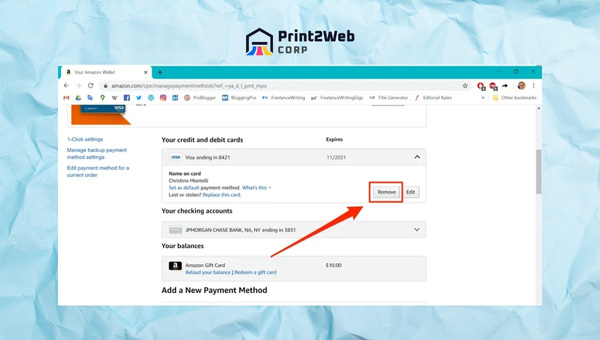
Sign in to Amazon: Open your browser and go to Amazon.com. Click the Sign In link in the top-right corner and enter your credentials.
Open the Accounts and Lists menu: Hover over the Accounts and Lists dropdown next to your name in the upper-right area. From the menu that appears, click Your Account.
Go to Your Payments: On the Your Account page, locate the section labeled Your Payments (it appears under the ordering and shopping preferences area). Click it to open your Amazon Wallet.
Select the card to remove: Under the Cards and accounts tab, you will see every credit card, debit card, and bank account saved to your profile. Click on the card you want to delete.
Click Edit, then Remove from wallet: When the card detail panel opens, click the Edit button. In the edit view, select Remove from wallet to initiate deletion.
Confirm the removal: A confirmation dialog will appear warning that this action cannot be undone. Click Confirm remove to permanently delete the card from your Amazon account.
Once confirmed, the card disappears from your Amazon Wallet instantly. If you have pending orders tied to that card, Amazon may prompt you to assign an alternative payment method before completing the removal.
Also Read: Share Amazon Product Link – Your Sales with Easy Sharing!
How to Remove a Credit Card From Amazon on Android
The Amazon shopping app for Android follows a similar path but uses the mobile navigation layout. The current app places the hamburger menu in a slightly different spot depending on updates, but the Your Payments destination is the same. Here is the current flow for 2026.
Open the Amazon app: Launch the Amazon app from your Android home screen or app drawer. Make sure you are signed in.
Tap the profile icon: Look for the person icon or hamburger menu (three horizontal lines) in the navigation bar. Tap it to open the main menu.
Go to Your Account: Scroll through the menu and tap Your Account to access your account settings.
Open Your Payments: Find and tap Your Payments in the account settings list. This opens your Amazon Wallet within the app.
Select the card: Under the Cards and accounts section, scroll to the credit card you want to remove and tap on it.
Tap Edit and Remove: Tap Edit on the card detail screen, then select Remove from wallet.
Confirm deletion: Tap Confirm remove in the dialog box to complete the removal.
The card is deleted immediately and will no longer appear at checkout. If you run into any trouble with a missing remove option, jump down to the troubleshooting section below, which covers the most common reasons Amazon blocks card deletion.
How to Remove a Credit Card From Amazon on iPhone and iPad
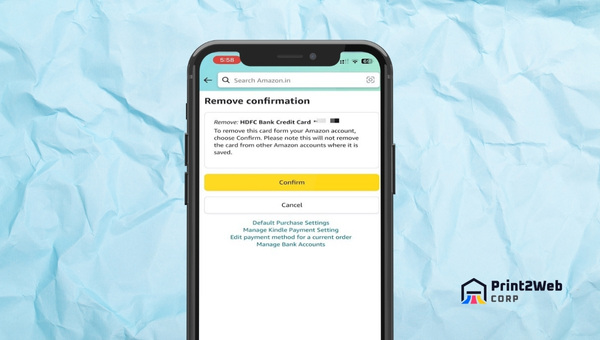
The iOS app offers the same card removal functionality as the Android version. Older guides sometimes claimed that Amazon did not provide a remove button on iOS, but the current app does include a straightforward delete flow through Your Payments. These steps work on both iPhone and iPad.
Launch the Amazon app: Open the Amazon app on your iPhone or iPad. Sign in if you have not already.
Access the menu: Tap the profile icon or hamburger menu at the bottom or top of the screen (the position varies with app version).
Navigate to Your Account: Tap Your Account from the menu options.
Tap Your Payments: Select Your Payments to open your saved cards and payment methods.
Choose the card: Tap on the credit card you want to delete from the list of saved payment methods.
Edit and remove: Tap Edit, then tap Remove from wallet, and finally tap Confirm remove to delete the card permanently.
The entire process takes under a minute once you know where to look. If you accidentally deleted the wrong card, you can always add it back through the same Your Payments section using the steps in the next section.
Adding a New or Different Credit Card to Your Amazon Account
After you remove credit card details from Amazon, you may need to add a replacement card to keep your account active for purchases. Amazon requires at least one payment method on file, so adding a new card is often the prerequisite for deleting your last remaining one. The process works identically across desktop and mobile browsers, and the app uses a similar flow.
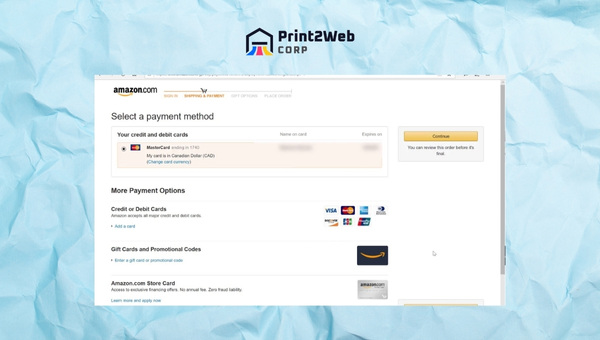
Go to Your Payments: Sign in to Amazon and navigate to Accounts and Lists, then Your Account, then Your Payments.
Click Add a payment method: On the Your Payments page, look for the Add a payment method button and click it.
Enter card details: Type in the cardholder name, card number, expiration date, and security code exactly as they appear on the card. You can also add or update the billing address at this stage.
Save the card: Click Add your card or Add payment method to save. The new card now appears in your Amazon Wallet and can be selected at checkout.
If you are adding a new card because a recent order ran into payment trouble, check out our guide on payment revision needed on Amazon to resolve the issue quickly.
Also Read: Amazon Return Pallets: Find Quality Deals for Resale
Why Can I Not Remove My Card From Amazon? Troubleshooting Guide
This is the single most common complaint in Amazon-related forums and Reddit threads. You click the remove button and nothing happens, or the option is missing entirely. Here are the most frequent reasons Amazon blocks card deletion and how to work around each one.
Active Subscriptions and Recurring Orders
If your card is linked to any active subscription, such as Amazon Prime, Kindle Unlimited, Subscribe and Save deliveries, or a third-party subscription billed through Amazon, the platform will not let you delete the card until you switch those subscriptions to a different payment method or cancel them outright. Go to Your Memberships and Subscriptions to review what is currently charging your card and update the payment method before attempting removal again.
Pending Orders
Amazon will lock a card to your account if it is the selected payment method for an order that has not yet shipped. You need to either wait for the order to complete or change the payment method on that specific order before the card can be removed. Many users discover this after removing a card and then seeing a payment revision needed warning pop up on an open order.
AWS Account Requirements
If you use Amazon Web Services, your AWS account has a separate payment preferences page. AWS requires at least one valid payment method to remain on file at all times. You cannot delete the last card on an AWS account without adding a replacement first. This is one of the most confusing scenarios because the card may seem impossible to remove from the regular Amazon interface when the real blocker is on the AWS billing side.
Last Remaining Payment Method
Amazon requires at least one payment method to keep your buyer account active. If the card you are trying to remove is the only payment method on file, the remove option will be grayed out or absent. Add a new card or bank account first, then delete the old one.
Amazon Prime Auto-Renewal Lock
Many Reddit users report wanting to remove a card specifically to prevent unwanted Prime renewal charges. If Prime is set to auto-renew on that card, Amazon will block removal until you either cancel Prime or switch the Prime payment method. Go to Your Memberships and Subscriptions, select Prime, and manage the renewal settings before trying to delete the card.
Amazon Pay: What Else Gets Removed When You Delete a Card
Here is something most guides fail to mention clearly: when you remove credit card information from your Amazon account, you are also removing it from Amazon Pay. Amazon Pay is the checkout service that lets you pay on third-party websites using your Amazon credentials, and it shares payment methods with your main Amazon account.
This means that if you use Amazon Pay on independent retailer sites, donation platforms, or subscription services, those merchants will lose access to that card immediately after you remove it. Any recurring charge a third-party merchant processes through Amazon Pay will fail until you add a new payment method. This is a feature, not a bug, because it gives you a single control point for every site that relies on Amazon Pay.
To manage which third-party merchants have permission to charge your Amazon account, go to Your Account, then Manage Merchant Payment Options under the Amazon Wallet section. There you can revoke authorization from specific merchants without deleting the card entirely.
Amazon Security Best Practices for Secure Shopping in 2026
Removing an old or compromised card is a great first step, but true account security requires a broader strategy. Here are the most effective security measures every Amazon shopper should enable this year.
Enable Two-Step Verification
Amazon offers two-step verification (also called two-factor authentication) that sends a code to your phone or authenticator app every time you sign in from a new device. Turn it on by going to Your Account, then Login and security, and selecting Turn on 2-Step Verification. This single setting prevents the vast majority of unauthorized account access, even if someone obtains your password.
Set Up Purchase Alerts
Amazon can send you text or email notifications for every order placed on your account. Go to Your Account, then Communication preferences, and enable order updates. If someone gains access to your account and tries to place an order, you will know within seconds.
Use Virtual Cards for Added Protection
Services like Privacy.com let you generate disposable virtual card numbers tied to your real bank account. Many Reddit users recommend this approach for Amazon because you can set spending limits, freeze cards instantly, and create separate card numbers for each merchant. If a virtual card is compromised, you simply delete it and generate a new one without ever touching your real credit card details.
Review Your Saved Cards Regularly
Make a habit of checking your Amazon Wallet every few months. Remove cards you no longer use, delete expired payment methods, and verify that no unfamiliar cards have been added. A quick audit takes under two minutes and can prevent fraudulent charges before they happen.
Frequently Asked Questions
How do I delete a credit card from my Amazon list?
Go to Your Account, click Your Payments, select the card under Cards and accounts, click Edit, then click Remove from wallet and confirm. The card is deleted immediately from your Amazon Wallet.
Why can I not delete a credit card from my Amazon account?
Amazon blocks card removal when the card is tied to an active subscription (like Prime), a pending order, an AWS billing requirement, or when it is the last payment method on file. Resolve those dependencies first, then the remove option will reappear.
How do I change my credit card on my Amazon account?
Go to Your Account, open Your Payments, click Edit on the card you want to update, and modify the card number, expiration date, or billing address. Alternatively, add a new card and remove the old one.
How do I remove my bank account from Amazon?
Navigate to Your Account, then Your Payments, find the bank account under Cards and accounts, click Edit, select Remove from wallet, and confirm. The same process applies as removing a credit card.
How do I remove my credit card from Amazon on my iPhone?
Open the Amazon app, tap the profile or hamburger menu, go to Your Account, tap Your Payments, select the card, tap Edit, then Remove from wallet, and confirm the deletion.
Does Amazon keep your credit card information after removal?
Amazon deletes the card from your active Amazon Wallet immediately after you confirm removal. The card is also removed from Amazon Pay on all third-party sites. Amazon may retain limited transaction records for legal and accounting purposes, but the card can no longer be used for new purchases.
Where can I see my saved cards on Amazon?
Sign in to Amazon, go to Accounts and Lists, click Your Account, then open Your Payments. All saved credit cards, debit cards, and bank accounts appear under the Cards and accounts tab in your Amazon Wallet.
Does removing a card from Amazon also remove it from Amazon Pay?
Yes. Amazon Pay shares payment methods with your main Amazon account. When you delete a card from Your Payments, it is immediately removed from every third-party website that uses Amazon Pay for checkout.
Can I block my card from being used on Amazon?
You cannot block a specific card from being added to Amazon globally, but you can remove it from your own account and enable two-step verification to prevent unauthorized users from adding cards. If someone else is using your card on their account, contact your bank to dispute charges and request a card replacement.
Conclusion: Take Control of Your Amazon Wallet Today
Removing a credit card from Amazon takes less than a minute on any device once you know the correct path through Your Payments. Whether you are cleaning up after a lost card, switching banks, or simply tightening your account security for 2026, the process is consistent across desktop, Android, and iOS. The key is knowing that Amazon may block removal if your card is tied to active subscriptions, pending orders, or AWS billing, and that adding a replacement card resolves most of those blockers.
Remember that deleting a card also removes it from every website that uses Amazon Pay, which is a powerful security feature rather than an inconvenience. Pair that with two-step verification, purchase alerts, and a regular Amazon Wallet audit, and you will have a significantly more secure shopping experience. If you want an extra layer of protection, consider using a virtual card service like Privacy.com for your Amazon purchases going forward.
Your financial data is yours to control. Take five minutes today to review your saved payment methods, remove anything you no longer use, and enable the security settings covered in this guide. Now that your payment methods are squared away, you might also enjoy learning how to share Amazon product links with friends, or find great deals through Amazon return pallets for resale. Stay safe and shop smart.
Leave a Reply