
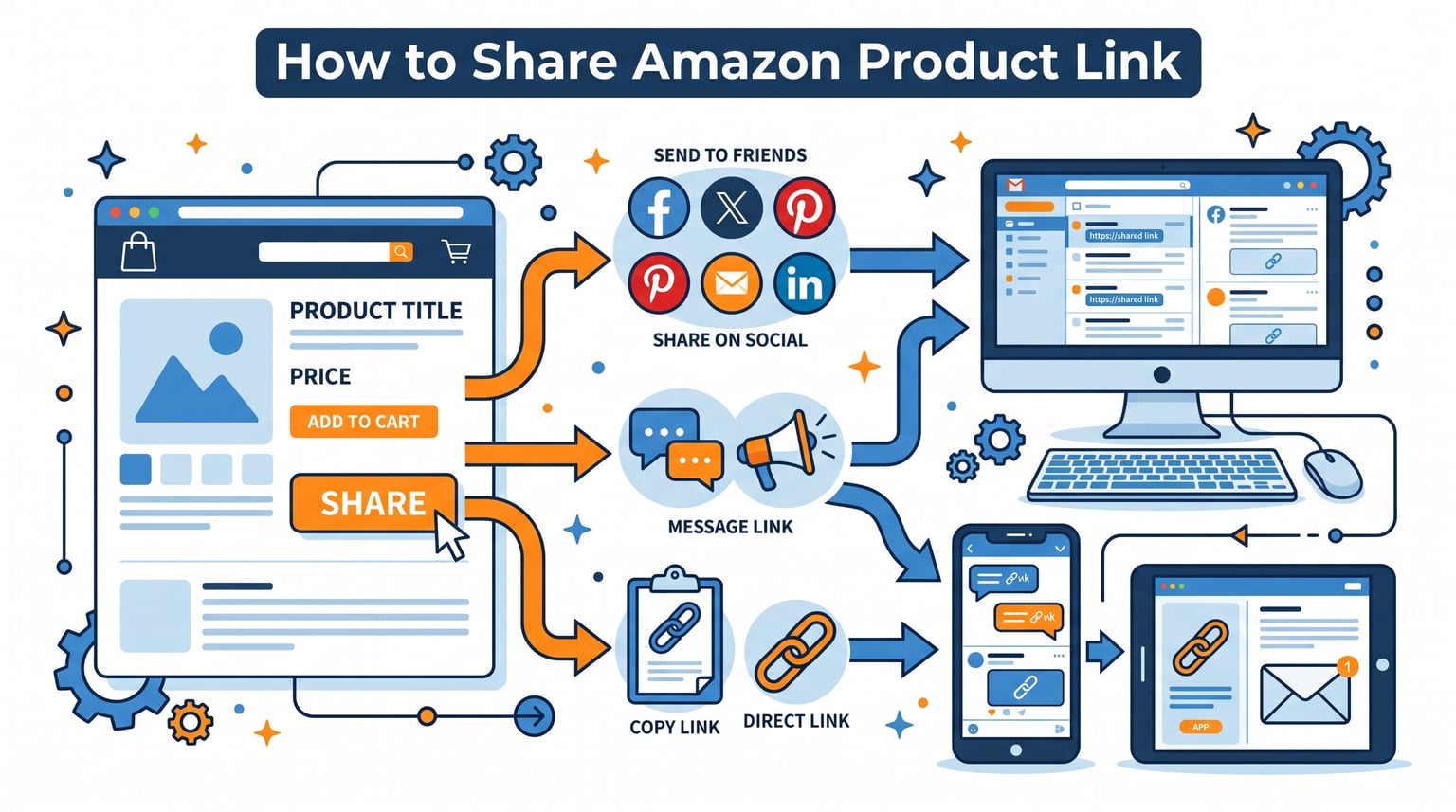
Found a brilliant deal on Amazon and want to send it to someone before it sells out? When you share Amazon product links with friends, family, or followers, you help them discover exactly what they need without the hassle of searching. I have spent years testing every sharing method Amazon offers across desktop, mobile, and social platforms, and this guide distills everything I learned into clear, actionable steps for 2026.
Amazon gives you several built-in tools for passing along product links, but not all methods produce the same result. Some create clean, short URLs that look professional. Others generate messy links packed with tracking parameters that can trigger spam filters on Reddit or look suspicious in a text message. Understanding which approach to use on each device saves time and makes sure your recommendations actually get clicked.
What you will learn in this guide:
- How to share Amazon product links from desktop browsers, iPhones, and Android devices
- The difference between the built-in Share button and manual URL copying
- How to send links through WhatsApp, email, SMS, and major social media platforms
- Amazon Associates tools like SiteStripe and Mobile GetLink for earning commissions
- URL cleanup tips for shortening long Amazon links into clean a.co short links
- How to share Amazon Wish Lists and shopping lists with groups
Understanding How to Share Amazon Product Links
Amazon handles millions of transactions every single day, and a huge portion of purchases start with a recommendation from someone else. Whether a friend texts you a link to a kitchen gadget or an influencer drops a storefront link in their bio, sharing drives discovery on the platform. The good news is that you do not need any technical knowledge to participate. Amazon built sharing tools directly into the product page on every device.

The key to every method is the share icon. On desktop, it looks like a curved arrow pointing to the right and sits below the product image on the left side of the page. On mobile apps, it typically appears as a box with an upward-pointing arrow. Tapping or clicking this icon opens a menu of sharing destinations and, on desktop, generates a short a.co link that is far cleaner than copying the URL from your browser’s address bar.
Before jumping into specific steps, it helps to know which situations call for which method. Quick texts to a friend work best from the mobile app. Blog posts and formal emails benefit from desktop-generated short links. Affiliate marketers need SiteStripe or Mobile GetLink to earn commissions. Social media creators should pair links with compelling visuals. I cover all of these scenarios in detail below.
Share Amazon Product Link Methodology at a Glance
Here is a quick comparison of every sharing method covered in this guide. Use it as a reference when deciding which approach fits your situation.
| Method | Device | Link Quality | Best For |
|---|---|---|---|
| Share Button (Desktop) | Computer | Clean a.co short link | Email, blogs, formal sharing |
| Share Icon (iPhone) | iOS App | Link with product title text | Quick messages, social posts |
| Share Icon (Android) | Android App | Link with product title text | Quick messages, social posts |
| WhatsApp Share | Mobile | Direct in-app delivery | Group chats, family recommendations |
| Email Share | Desktop or Mobile | Pre-filled message with link | Professional recommendations |
| Social Media | Any | Varies by platform | Facebook, Instagram, X, Pinterest |
| SiteStripe | Desktop Browser | Affiliate-tracked link | Amazon Associates earning commissions |
| Mobile GetLink | Mobile App | Affiliate-tracked link | Affiliates on the go |
Now let us walk through each method step by step, starting with the desktop approach that produces the cleanest links.
How to Share Amazon Product Links for Desktop
Sharing from a desktop browser is the method I recommend most often because it produces the cleanest, shortest links. Amazon added a dedicated Share button to every product page that generates a tidy a.co short URL. This link contains no tracking parameters, no question marks, and no messy ref tags. It looks professional in emails and passes through spam filters without issue.
Step 1: Open Amazon in your browser. Launch Chrome, Firefox, Safari, or Edge and navigate to amazon.com. Sign in to your account if prompted.
Step 2: Find the product you want to share. Use the search bar at the top of the page or browse categories until you locate the item. Click on the product title or image to open its full product page.
Step 3: Click the Share button. Look at the area directly beneath the product image on the left side of the screen. You will see a row of small icons. One of them is the Share button, which looks like a curved arrow pointing to the right. Click it.
Step 4: Copy the generated link. A small popup appears with a short a.co link already highlighted. You will also see icons for Facebook, X (Twitter), Pinterest, and email. To grab the raw link, simply copy the text in the popup box. You can now paste it anywhere you like.
This Share button method is superior to the old approach of copying the URL from the address bar. The address bar URL contains dozens of tracking parameters after the question mark, including ref tags, session IDs, and search query data. These parameters make the link look cluttered and can cause issues on platforms like Reddit, where they trigger automatic spam removal. The a.co short link avoids all of these problems entirely.
One thing to keep in mind: the Share button generates the short link only on desktop browsers. If you need a clean link and only have your phone, open Amazon in your mobile browser rather than the app, then use the desktop Share button method. The mobile app does not generate a.co links.
Techniques to Share Amazon Product Link from the App
The Amazon mobile app handles sharing differently than the desktop site. Instead of generating a short a.co link, the app copies both the product title text and the URL to your clipboard when you tap Copy Link. This extra text is helpful in some situations because it gives the recipient context about what the product is. However, it can also be annoying when you want just the raw URL for posting on Reddit or embedding in a blog.

Both iPhone and Android apps follow nearly identical steps. The main differences are cosmetic: the exact position of the share icon and the appearance of the native share sheet differ slightly between iOS and Android. I break down each platform below.
Sharing Product Links on the Amazon App from iPhone
Here is the exact process for sharing from an iPhone using the iOS share sheet.
- Open the Amazon app. Tap the Amazon icon on your home screen to launch the app.
- Navigate to the product. Search for the item using the search bar at the top, or browse until you find it. Tap the product to open its detail page.
- Tap the share icon. On the product page, look for the share icon. On iPhone it typically appears as a box with an upward-pointing arrow, located near the product title or in the action row beneath the image. Tap it.
- Choose your sharing destination. The iOS share sheet slides up from the bottom of the screen. You will see options for Messages, Mail, WhatsApp, Facebook, Instagram, X, and more. Tap whichever app you want to use.
- Or tap Copy Link. If you want the link on your clipboard for pasting elsewhere, tap the Copy Link option in the share sheet. The app copies both the product name and the URL as text.
- Paste and send. Open your target app, long-press in the text field, and select Paste. Edit the text if needed, then send.
A useful iPhone tip: if the copied text includes too much product description and you only want the URL, tap the share icon and scroll to the end of the iOS share sheet. There you will find a Copy Link option that may produce a slightly cleaner result. Some users also create iOS Shortcuts to strip everything except the URL from the clipboard contents after copying.
How to Share Amazon Product Links for Android
Android users follow essentially the same steps, but the share sheet looks different and the icon positions may vary depending on your device manufacturer.
- Launch the Amazon app. Open Amazon from your app drawer or home screen.
- Open the product page. Search for the item or browse categories. Tap the product image or title to open its full detail page.
- Tap the share icon. Look for the share icon on the product page. On most Android devices it appears as three connected dots or a curved arrow. The location varies slightly depending on your version of the Amazon app, but it is generally near the top of the product information section.
- Select Copy to Clipboard or an app. The Android share sheet appears with a list of apps and a Copy Link option. Tap Copy Link to put the URL and product title on your clipboard, or tap a specific app to share directly.
- Paste and send. Navigate to your messaging app, email client, or social platform. Long-press in the text field, select Paste, and send the link.
One advantage of Android is that some versions of the share sheet let you edit the copied text before sending. This makes it easier to strip out the extra product description and send just the clean URL if that is what you prefer.
If you are interested in other Amazon guides, you might also find our tutorial on how to redeem Amazon gift cards helpful for managing your Amazon account.
How To Share Amazon Product Links Via Communication Channels
Now that you know how to grab a link, the next step is sending it through the right channel. Different platforms work better for different situations. A WhatsApp message is perfect for casual family recommendations. Email works well for professional suggestions. Social media posts help you reach a wider audience. I cover the most common channels below.

How To Share An Item On WhatsApp
WhatsApp is one of the most popular messaging apps in the world, making it a natural choice for sharing product recommendations with friends and family. The Amazon app has WhatsApp built right into its share sheet, so you can send a link without ever leaving the Amazon ecosystem.
- Find the product in the Amazon app. Open the app and navigate to the item you want to share.
- Tap the share icon. On the product page, tap the share icon to open the share sheet.
- Select WhatsApp. Scroll through the app options and tap the WhatsApp icon. If you do not see it immediately, tap the More option to find it.
- Choose a contact or group. WhatsApp opens your contact list. Tap the person or group you want to send the link to.
- Edit and send. A chat window appears with the product link and title pre-filled. Add a personal message if you like, then tap Send.
Alternatively, you can copy the link using the Copy Link method described earlier, then open WhatsApp manually and paste it into any conversation. This approach gives you more control over the message formatting.
Emailing An Item The Right Way
Email is ideal when you want to send a product recommendation with more context, such as a detailed explanation of why you think someone would like the item. Amazon includes an email option directly in its share menu, which opens a pre-filled email draft with the product link included.
- Open the product page. Find the item you want to recommend on Amazon.
- Tap or click Share. Access the share menu using the methods described for your device.
- Select the email option. Choose your preferred email app from the share sheet.
- Add recipients and a message. Enter the email address of your recipient. Type a short note explaining why you are sharing this product, which increases the likelihood they will click.
- Send the email. Double-check that the product link is included, then hit Send.
For the cleanest email links, use the desktop Share button to generate an a.co short link first, then paste it into your email manually. Short links look more professional and are less likely to trigger spam filters on the receiving end.
Sharing Amazon Links on Social Media
Social media is where Amazon product sharing gets powerful, especially for creators, influencers, and affiliate marketers. Each platform has its own conventions for how product links perform best. Here is a quick breakdown of the major platforms.
Facebook: When you paste an Amazon product link into a Facebook post or comment, Facebook automatically pulls a product preview with the image, title, and price. This visual preview drives significantly more clicks than a bare URL. You can share to your personal timeline, in groups, or on a business page. If you are an Amazon Associate, always include a disclosure statement like “As an Amazon Associate I earn from qualifying purchases” somewhere in the post.
Instagram: Instagram does not allow clickable links in regular feed post captions. The standard workaround is to put the Amazon link in your bio and direct followers there with a caption like “Link in bio.” If you have a business or creator account with over 10,000 followers, you can use the Swipe Up feature in Stories or add link stickers. Amazon Associates can also use their Amazon Storefront URL in their bio for a curated shopping experience.
X (formerly Twitter): X works well for quick product shoutouts. Paste the link directly into your tweet. X will generate a preview card with the product image and title. Keep your tweet text short and engaging, since the link takes up character space.
Pinterest: Pinterest is a visual discovery engine, making it excellent for products with strong images. Use the Amazon Share button and select Pinterest to create a pin directly from the product page. You can also manually create a pin by uploading the product image and adding the Amazon URL as the destination link.
SMS and text messaging: For quick one-to-one sharing, text messages work perfectly. Use the Copy Link method from the Amazon app, open your messaging app, and paste the link into a text. The recipient sees the product preview bubble on most modern phones.
Amazon Associates: SiteStripe and Mobile GetLink
If you want to earn money from sharing Amazon products, the Amazon Associates program is the way to do it. Associates earn a commission on qualifying purchases made through their unique affiliate links. The program is free to join and provides specialized tools for creating tracked links that connect shares to your account.
Two tools matter most: SiteStripe for desktop and Mobile GetLink for phones. Both create affiliate-tracked links, but they work differently. Understanding the difference is essential for anyone serious about monetizing their Amazon product sharing.
Using SiteStripe on Desktop
SiteStripe is a browser overlay that appears when you visit Amazon while logged into your Amazon Associates account. It adds a strip of tools to the top of every Amazon page, giving you quick access to affiliate link creation without leaving the product page.
- Log in to Amazon Associates. Go to affiliate-program.amazon.com and sign in. Then navigate to Amazon.com in the same browser.
- Open any product page. The SiteStripe bar appears at the top of the page automatically.
- Click the Link button in SiteStripe. Choose the type of link you want: Text Only, Image Only, or Text and Image combined.
- Copy the generated HTML or short link. SiteStripe produces both a raw affiliate URL and an HTML snippet for embedding on websites.
- Paste it where needed. Use the short link in social posts or the HTML snippet on your blog or website.
SiteStripe also lets you link to any page on Amazon, not just individual products. You can create affiliate links to search results pages, category pages, or even the Amazon homepage. This flexibility is useful for building curated shopping guides on your site. If you want to dive deeper into Amazon’s business and analytics tools, check out our guide to Amazon Brand Analytics tools for sellers and affiliates.
Using Mobile GetLink on the Amazon App
Mobile GetLink is the mobile equivalent of SiteStripe. It lets Amazon Associates create affiliate links directly from the Amazon shopping app on iPhone and Android. This feature is a game-changer for influencers and creators who do most of their work on mobile devices.
- Open the Amazon app while logged into your Associates account. Make sure you are signed in with the same account that has Associates access.
- Navigate to a product page. Find the item you want to create an affiliate link for.
- Tap the share icon. The Mobile GetLink option appears in the share sheet when you are logged in as an Associate.
- Tap Copy Associates Link. This generates your unique affiliate-tracked URL and copies it to your clipboard.
- Paste and share. Paste the affiliate link into your social media post, blog draft, or messaging app.
One limitation of Mobile GetLink compared to SiteStripe is that it does not generate HTML embed code. You get a plain URL, which is fine for social media and messaging but requires manual formatting if you want to embed it as a clickable image link on a website. For full embedding capabilities, use SiteStripe on desktop.
Cleaning Up and Shortening Amazon Product URLs
One of the most common complaints about sharing Amazon links is the URL length. A typical Amazon address bar URL looks something like this: a long string of text followed by dozens of tracking parameters, ref tags, session identifiers, and search query data separated by question marks and ampersands. These messy URLs look unprofessional and can trigger spam filters on platforms like Reddit.
Reddit is notorious for auto-removing posts and comments that contain raw Amazon mobile app links. The platform’s spam filter treats them as suspicious because they contain tracking parameters. If you want to share an Amazon product on Reddit, always clean the URL first by using the desktop Share button to generate a clean a.co link.
Here are three approaches to cleaning up Amazon URLs:
- Use the desktop Share button. This is the easiest and most reliable method. It generates a clean a.co short link with zero tracking parameters.
- Trim the URL manually. If you only have the address bar URL, delete everything after the product ASIN. The ASIN is the 10-character code starting with B0 in the URL. For example, trim “amazon.com/dp/B0XXXXXXX/ref=sr_1_3?dchild=1&keywords=widget” down to just “amazon.com/dp/B0XXXXXXX”. This stripped URL still works and looks much cleaner.
- Use a URL shortener. Services like Bitly can shorten any Amazon URL, though they add another redirect layer. The a.co short links generated by Amazon itself are preferable because they are trusted and reliable.
Clean links build trust. When someone sees a tidy short URL, they are far more likely to click it than a suspicious-looking string of random characters. This matters especially in professional emails, blog posts, and social media where credibility affects engagement.
Sharing Amazon Wish Lists and Shopping Lists
Sometimes you want to share more than a single product. Amazon Wish Lists and shopping lists let you curate a collection of items and share the entire list with one link. This is perfect for wedding registries, birthday wish lists, holiday gift guides, or collaborative shopping with family members.
- Open your Wish List. Go to Accounts and Lists in the top right corner of Amazon, then select Your Lists.
- Choose the list you want to share. Click on the list name to open it.
- Click the Invite button. This is located at the top right of the list page. It opens sharing options.
- Choose your privacy level. You can make the list View Only, which lets people see and buy items but not edit. For collaborative lists, you can allow others to add items.
- Copy the share link or send via email. Amazon generates a unique URL for your list. Copy it and paste it wherever you like, or use the built-in email option to send it directly.
Wish List sharing is especially popular during the holiday season and for life events like baby showers and weddings. Amazon also has dedicated registry features for baby and wedding lists that include additional perks like completion discounts for the list owner.
Troubleshooting Common Amazon Sharing Problems
Even though sharing Amazon links is straightforward, a few common issues crop up. Here are solutions to the problems users encounter most frequently, based on discussions from Amazon forums and Reddit communities.
Problem: The share icon is missing from the product page. This can happen if the Amazon app is outdated or if you are viewing a product page in a non-standard format. Force-close and reopen the app, or check your app store for updates. On desktop, make sure your browser is not blocking JavaScript, since the Share button relies on it.
Problem: Copied link includes extra product text. When you use Copy Link from the mobile app, Amazon includes the product title and sometimes a short description alongside the URL. To get just the URL, use the desktop Share button instead, or manually delete the extra text after pasting.
Problem: Reddit or other platforms remove your Amazon link. This happens because the tracking parameters in raw Amazon URLs trigger spam filters. Always generate a clean a.co short link from the desktop Share button before posting on Reddit, Facebook groups, or any platform with strict link filtering.
Problem: Link does not work for the recipient. Some Amazon links are region-specific. If you share a link from Amazon.com to someone in another country, they may see a “product not available” message. Check which Amazon marketplace the recipient uses and share from that regional site instead.
Problem: Privacy concerns about logged-in links. When you share a product link from your logged-in Amazon account, the standard Share button and a.co short links do not expose your personal information. However, avoid sharing links from your account settings, profile, or order history pages, as those may contain personal data. If privacy is a priority, log out and then find the product to copy a generic URL.
If you are exploring Amazon business opportunities beyond sharing links, our comparison of Dropshipping vs. Amazon FBA breaks down two popular selling models.
Frequently Asked Questions
Conclusion
Learning to share Amazon product links effectively is a small skill that pays off in everyday convenience and, for some, real income. Whether you are sending a quick recommendation to a friend over WhatsApp, posting a curated gift guide on Pinterest, or building an affiliate business through Amazon Associates, the right sharing method makes all the difference in whether your links get clicked.
The key takeaways are simple. Use the desktop Share button whenever possible because it produces clean a.co short links. Master the mobile share sheet for fast sharing on the go. Join Amazon Associates and learn SiteStripe plus Mobile GetLink if you want to earn commissions from your recommendations. And always clean up your URLs before posting on platforms with strict spam filters.
Start practicing with the share icon on your next Amazon product page visit. Within minutes, you will be passing along great finds to friends, family, and followers with confidence. If you are ready to turn your sharing habit into income, sign up for the Amazon Associates program and put these techniques to work in 2026.
Leave a Reply