
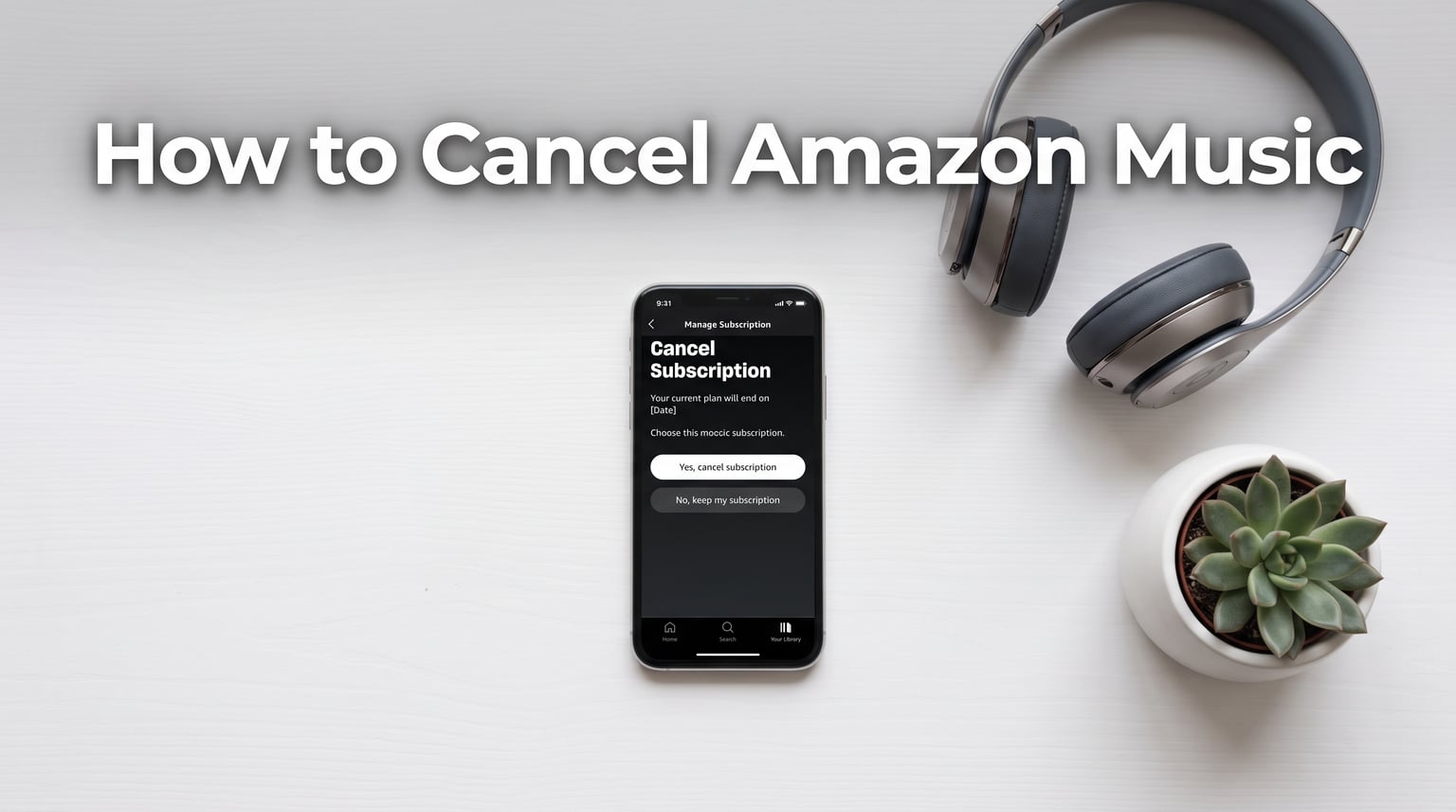
Trying to cancel Amazon Music but the button seems impossible to find? You are not imagining things. Amazon’s cancellation flow is buried several menus deep, and thousands of users search for help with this exact problem every month. Whether you are ending a free trial before the first charge hits, switching to a different music streaming service, or simply trimming your monthly budget, this guide walks you through every cancellation method available in 2026.
I have tested each approach across desktop browsers, the Amazon Music app on Android, iOS, Alexa-enabled devices, and even third-party billing platforms like iTunes and Google Play. Below you will find clear, step-by-step instructions for every platform, a troubleshooting section for when the cancel option refuses to appear, and details on exactly what happens to your library after you unsubscribe.
Quick Steps to Cancel Amazon Music (TL;DR)
If you just need the fastest path and are using a web browser, here is the short version. Detailed instructions for each platform follow below.
Go to Your Amazon Music Settings page (visit music.amazon.com and sign in).
Scroll to the Amazon Music Unlimited section under Subscription Renewal details.
Select the Cancel option and follow the prompts.
Click Confirm cancellation to finalize the process.
That is it. You will keep full access to ad-free listening and offline downloads until your current billing cycle ends.
Amazon Music Tiers Explained: Which One Are You Canceling?
Before you start the cancellation process, it helps to know exactly which tier you are paying for. Amazon currently offers several music plans, and each one has a slightly different cancellation path.
Amazon Music Unlimited is the flagship paid tier, giving subscribers access to a catalog of over 100 million songs in HD, Ultra HD, and Spatial Audio. It is a standalone subscription that does not require an Amazon Prime membership. Most people searching for cancellation steps are on this plan.
Prime Music is included at no extra cost with an Amazon Prime membership. It offers a smaller selection of tracks in shuffle mode plus All-Access playlists. If you are listening through Prime Music and want to stop, you would need to cancel Prime itself rather than a standalone music subscription.
Amazon Music Standard sits between the two, offering ad-free listening to a limited catalog without the full Unlimited feature set. You can check which plan you are on by visiting the Memberships and Subscriptions page in your Amazon account.
Also Read: How to Change Language on Amazon: Quick Guide for Everyone
How to Cancel Amazon Music on a Web Browser
The desktop browser method is the most reliable way to cancel your subscription. It works identically on Chrome, Safari, Firefox, and Edge, and avoids the interface quirks that sometimes hide the cancel button inside the mobile app.
Open your browser and go to music.amazon.com. Sign in with the Amazon account tied to your subscription.
Click the gear icon in the upper-right corner, then select Your Amazon Music Settings.
Locate the Amazon Music Unlimited section and look for the Subscription Renewal details block.
Click the Cancel option next to your renewal date.
Amazon may show a retention page offering a discounted rate or a pause option. Scroll past these offers and click Submit and Continue to Cancel.
Click Confirm Cancellation on the final screen to complete the process.
You should see an on-screen confirmation message and receive a cancellation email from Amazon within minutes. If neither appears, the cancellation may not have gone through, and you should repeat the steps or contact Amazon customer support.
Canceling Through Memberships and Subscriptions
Alternatively, you can cancel from the central Amazon account dashboard. Hover over Account and Lists on the main Amazon homepage, then click Memberships and Subscriptions. Find Amazon Music Unlimited in the list, click Cancel Membership, and follow the confirmation prompts.

How to Cancel Amazon Music on Android
Canceling from an Android phone or tablet requires the Amazon Music app, not the main Amazon shopping app. Make sure you are logged into the correct account before starting.
Open the Amazon Music app on your Android device.
Tap the gear icon or three-dot menu in the top-right corner to open Settings.
Under the Your Account section, tap Amazon Music Unlimited.
Scroll to Subscription Renewal details and tap Cancel Subscription.
Follow the on-screen prompts, select a reason if asked, and tap Submit to confirm.
Some Android users report that the cancel option does not appear inside the app. If that happens, switch to the browser method above, which works every time regardless of device.
How to Cancel Amazon Music on iPhone and iPad
The in-app process on iOS is nearly identical to Android. Open the Amazon Music app, tap the gear icon to reach Settings, navigate to the Amazon Music Unlimited section, and select Cancel Subscription from the renewal details screen.
However, if you originally subscribed through the App Store, Apple handles your billing rather than Amazon. In that case, you must cancel through your iPhone’s Settings app, not inside the Amazon Music app itself.
Canceling When Billed Through iTunes or Apple
Open the Settings app on your iPhone or iPad.
Tap your Apple ID name at the top of the screen.
Tap Subscriptions, then find Amazon Music in the list.
Tap it and select Cancel Subscription at the bottom.
Confirm your choice to stop recurring charges.
You can also manage this from a Mac by opening the App Store, clicking your profile in the bottom-left corner, selecting View Information, and navigating to the Subscriptions section.
Also Read: How to Track Your Etsy Order Easily? Ultimate Guide
How to Cancel Amazon Music Using Alexa Voice Commands
If you own an Alexa-enabled smart speaker or Echo device, you can try canceling by voice. Say, “Alexa, cancel my Amazon Music Unlimited subscription.” Alexa will walk you through the confirmation steps or send a cancellation link to your email.
Voice cancellation does not always work depending on your region and account type. If Alexa cannot process the request, she will direct you to the Amazon Music Settings page on the web.

What to Do If You Cannot Cancel Amazon Music
This is the most common complaint in Amazon Music forums, and there are several reasons why the cancel button might be missing or grayed out. Here is how to troubleshoot each scenario.
You Subscribed Through a Third Party
If you signed up through the Apple App Store, Google Play Store, or a mobile carrier like Verizon, Amazon’s website will not show a cancel option. You must cancel through whichever platform bills you. For Apple, use the iOS Settings app method above. For Google Play, open the Play Store, tap your profile icon, select Payments and Subscriptions, find Amazon Music, and tap Cancel Subscription.
You Are Logged Into the Wrong Account
Many people have multiple Amazon accounts and accidentally check the wrong one. Go to the Memberships and Subscriptions page and verify that the subscription actually exists on the account you are viewing. If you do not see Amazon Music Unlimited listed there, try signing in with a different email address.
The Cancel Button Is Hidden Behind a Retention Page
Amazon frequently shows promotional offers before letting you finalize the cancellation. Look for small text links like “Continue to Cancel” or “Submit and Continue to Cancel” rather than prominent buttons. These links are easy to miss and often appear below a discounted renewal offer.
Try a Different Browser or Clear Cache
If the Amazon Music Settings page is glitching or failing to load properly, try switching to a different browser. Safari sometimes fails to render the cancel button correctly, while Chrome or Firefox typically do not have this issue. Clearing your browser cache and disabling ad blockers can also resolve display problems.
Contact Amazon Customer Support
As a last resort, reach out to Amazon customer support through the Help section of your account. You can use live chat or request a phone call. Support agents can cancel the subscription on your behalf and process any applicable refund for a billing error.
Also Read: How to Freelance as a Student? Insider Tips for Success
What Happens After You Cancel Amazon Music?
Once your cancellation is confirmed, your subscription remains active until the end of the current billing cycle. If you cancel on the 15th of a monthly plan and your renewal date is the 1st, you keep full access through the last day of that period.
After the billing cycle closes, your account drops down to the free tier (if you have Prime) or basic ad-supported listening. You lose access to all offline downloads, and songs you saved through Unlimited will no longer play. Your playlists and library remain saved in your account, so if you resubscribe later, everything will be waiting for you.
There are no early cancellation penalties, and Amazon does not charge a fee for ending a subscription mid-cycle. If you prepaid for an annual plan, you will not receive a prorated refund for the unused months in most cases.

Save Your Playlists Before Canceling
One step many guides skip: export your playlists before your subscription ends. Once you drop off the Unlimited tier, you will not be able to see which tracks were in your curated playlists if they contained subscription-only songs.
Third-party tools like Soundiiz, TuneMyMusic, and FreeYourMusic let you transfer your Amazon Music library directly to Spotify, Apple Music, YouTube Music, or another service. Most offer a free tier for small transfers. Run the migration while your subscription is still active so all track data is accessible.
Amazon Music Alternatives Worth Considering
If you are canceling to save money, not because you are done with streaming, here is how the other major platforms compare. Each one offers a similar catalog depth and feature set to Amazon Music Unlimited.
Spotify Premium remains the market leader with unmatched playlist discovery algorithms, social sharing features, and Spotify Connect for multi-device playback. The free tier is ad-supported but functional for casual listeners.
Apple Music offers lossless audio and Spatial Audio at no extra charge, beating Amazon on sound quality for audiophiles. It integrates tightly with the Apple ecosystem and supports Android devices as well.
YouTube Music bundles ad-free YouTube viewing with its music subscription, making it a strong value pick if you already watch a lot of YouTube content. Its discovery engine leans heavily on music videos and live performances.
Tidal appeals to audiophiles with its HiFi and Master-quality tiers, offering high-resolution FLAC streaming that rivals or exceeds Amazon’s Ultra HD catalog.
Reasons to Reconsider Canceling
Before you finalize the cancellation, it is worth considering what you would be giving up. Amazon Music Unlimited currently offers over 100 million songs in HD and Ultra HD, making it one of the largest high-fidelity catalogs available. Prime members also get access to ad-free podcasts, Amazon Originals exclusive content, and select audiobooks from Audible bundled into certain plans.
If cost is the main concern, Amazon sometimes offers a retention discount when you start the cancellation flow. You may see an option to pause your subscription for one to three months or switch to a lower-priced plan instead of canceling outright.
Frequently Asked Questions
Why won’t Amazon let me cancel my Amazon Music subscription?
How do I find my Amazon Music subscription?
Do I lose access immediately after I cancel Amazon Music?
Can I restart my Amazon Music membership after canceling?
Will I get a refund if I cancel my annual Amazon Music plan early?
Does deleting the Amazon Music app cancel my subscription?
Conclusion
Canceling Amazon Music is straightforward once you know where Amazon has hidden the cancel button. The browser method through the Amazon Music Settings page is the most reliable approach, but the app, iOS Settings, Google Play, and Alexa voice commands all work depending on how your subscription is billed. If the cancel option is missing entirely, the troubleshooting steps above will help you track down the cause, whether it is a third-party billing issue, a wrong account, or a browser rendering glitch.
Remember to export your playlists before your billing cycle ends, and consider whether a pause or discount offer from Amazon might meet your needs without fully canceling. If you do decide to leave, Spotify, Apple Music, YouTube Music, and Tidal all offer competitive alternatives with their own strengths. And if you ever change your mind, your Amazon Music library will be waiting whenever you are ready to resubscribe in 2026.
Leave a Reply