
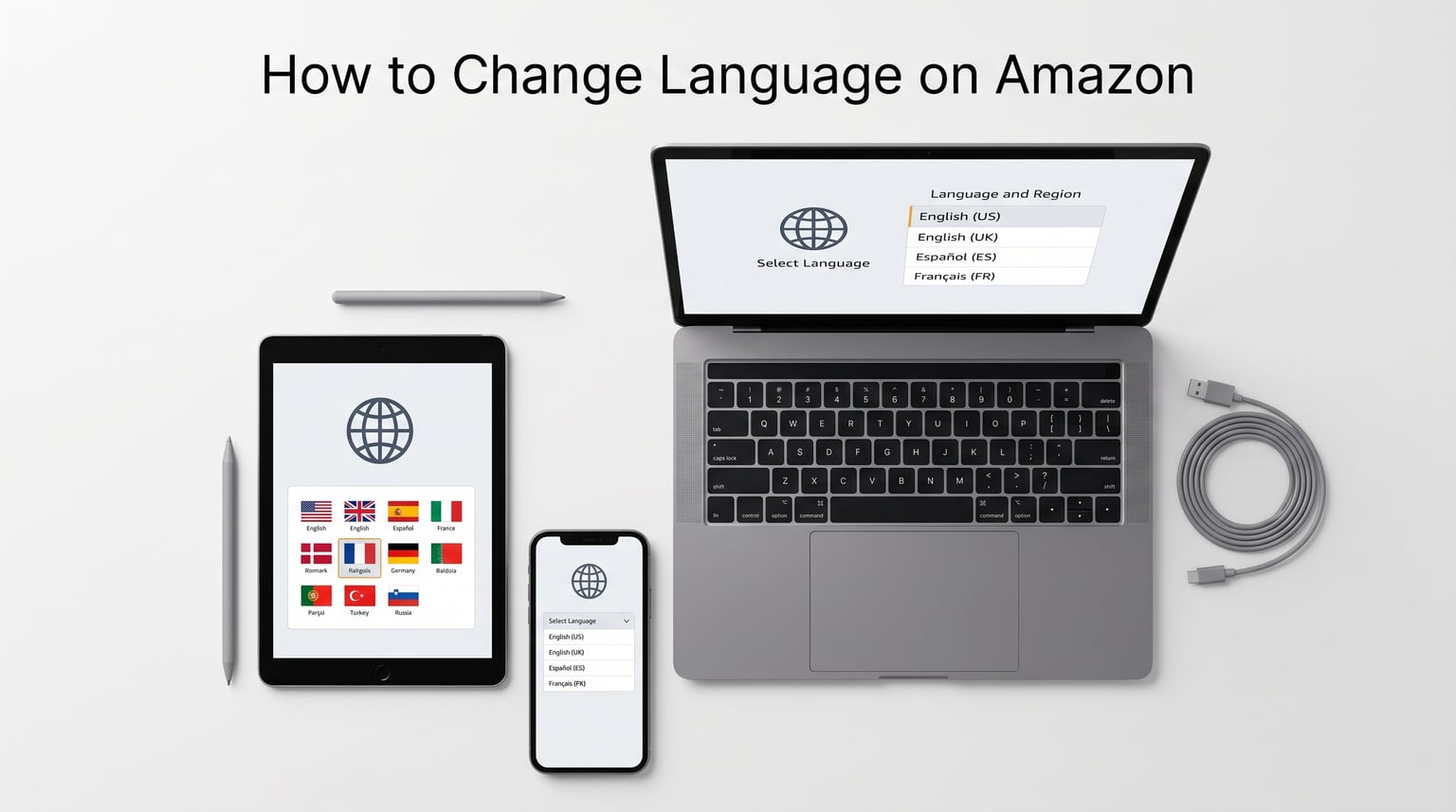
Amazon supports dozens of languages across its global marketplaces, but the language settings menu is buried in places most shoppers never check. Whether your account suddenly switched to Spanish on its own or you simply want to browse in your native tongue, knowing how to change language on Amazon takes less than a minute once you know where to look. This updated 2026 guide covers every method, from the mobile app to desktop browsers, Fire tablets, and even Prime Video.
Quick answer: On the Amazon app, tap the three-line menu icon, go to Settings, then Country & Language, and pick your preferred language. On desktop, hover over the flag icon near the search bar, click it, and select your language from the drop-down. Hit Save Changes and the entire interface updates instantly.
If Amazon switched to a language you cannot read, do not panic. Every step below includes visual cues like icon descriptions and menu labels so you can follow along regardless of what language your screen currently displays.
Why Change Language on Amazon?
Switching your Amazon display language makes product descriptions, reviews, checkout pages, and customer support interactions easier to follow. Shoppers who browse in their preferred language make fewer purchasing mistakes and feel more confident about their orders.
Beyond simple convenience, the right language preference improves account security. When you recognize every button and prompt on the screen, you are far less likely to click something you did not intend. It also helps you spot suspicious activity faster, since unfamiliar text can mask phishing attempts or unauthorized changes.
International shoppers benefit especially. If you are a Canadian spending time in Mexico or a US resident ordering gifts for family overseas, matching your Amazon region settings to your shipping country while keeping your display language in English solves a common headache.
How to Change Language on the Amazon App (iPhone and Android)
The Amazon mobile app uses the same Country & Language menu on both iOS and Android, so the steps below work regardless of your device. The exact language options you see depend on the Amazon marketplace region your account is currently set to.
- Step 1: Open the Amazon app and tap the three horizontal lines (the menu icon) at the bottom of the screen on iPhone or the top-left corner on Android.
- Step 2: Scroll down and tap Settings, then select Country & Language from the submenu.
- Step 3: You will see a list of available regions and the languages tied to each. Tap the region that matches your shopping needs, then choose your preferred language from the options beneath it.
- Step 4: Tap Done or the checkmark in the corner. The app refreshes immediately and switches to your selected language.
Amazon sends a confirmation email after you change your language preference. If you do not receive one, double-check that you tapped Done rather than just selecting a language without confirming.
One thing to keep in mind: the US Amazon marketplace currently offers English and Espanol as its primary display languages. If you need a different language, you may need to switch to a country-specific Amazon site (covered later in this guide).
How to Change the Amazon Language on Desktop
Changing your Amazon language on a desktop browser is just as quick. Start by signing in to your account at Amazon.com so your preference saves to your profile rather than just your current session.
- Step 1: Look for the flag icon or globe icon next to the search bar at the top of the homepage. Hover over it to reveal a small drop-down menu.
- Step 2: Click the flag icon. A panel titled Change Language Settings (or its equivalent in whatever language is currently active) opens.
- Step 3: Select your preferred language from the radio-button list. You may also see currency options on the same page if you are shopping from an international marketplace.
- Step 4: Click Save Changes at the bottom of the panel. The page reloads with the new language applied site-wide.
If you are using the Amazon mobile website in a phone browser rather than the app, the process is slightly different. Tap the flag icon if it appears in the top menu, or scroll to the very bottom of any Amazon page and look for a globe icon or language link in the footer. Tapping it opens the same language settings panel.
Related guide: While you are updating your Amazon preferences, you might also want to change your delivery date on Amazon to match your schedule.
How to Change Language on Amazon iPad and Fire Tablet
Tablet users have two paths depending on whether they use the Amazon app or a browser. On an iPad, the Amazon app follows the same Country & Language steps outlined above for iPhone. If you use Safari or Chrome on your iPad, follow the desktop browser method instead, since the tablet layout mirrors the full website.
Amazon Fire tablet and Kindle Fire users have an extra layer. The Fire tablet’s own system language is controlled separately from the Amazon shopping app. To change the device language, go to Settings on your Fire tablet, tap Keyboard & Language, then select your preferred language under the Language section. This changes the entire tablet interface, not just Amazon.
How to Change Language on Amazon Prime Video
Prime Video has its own language settings that are completely separate from your main Amazon account preference. This controls both the audio language for movies and shows, as well as subtitle languages.
On the Prime Video app, open any title and look for the small speech bubble icon or the Audio & Subtitles button in the playback controls. Tap it to switch the audio track between available languages or enable subtitles in your preferred language.
On desktop, hover over the video player during playback and click the speech bubble icon in the top-right corner. A menu appears with Audio and Subtitles tabs, each listing every available language for that specific title. Not every show offers every language, so options vary by title.
To change the Prime Video interface language itself (menus, category names, recommendations), go to My Stuff in the app, tap the gear icon for Settings, then select Language. On desktop, this option lives under your account profile page.
Why Is My Amazon Suddenly in Spanish?
This is the single most common Amazon language complaint, and it shows up constantly on Reddit and Amazon’s own user forums. Users report that Amazon seemingly switches to Spanish on its own, leaving them unable to navigate the interface. Several triggers cause this, and understanding them is the first step to fixing it for good.
Common Causes of the Spanish Language Switch
Currency and shipping address changes: If you change your shipping address to a location outside the US, Amazon may automatically reset the display language to match that region’s primary language. A Reddit user described it perfectly: changing a shipping address to Mexico caused Amazon to revert to Spanish every single time, regardless of how many times they set it back to English.
Clicked links from foreign-language sources: Amazon links shared in Spanish emails, messages, or websites can carry a language parameter that overrides your saved preference. One frustrated user noted that Amazon changes the language based on the original language of the link you clicked, which means simply opening a shared product link can reset your interface.
Browser language settings: If your web browser has Spanish listed as one of its accepted languages alongside English, Amazon may auto-detect it and display the site in Spanish. Check your browser’s language preferences and remove any languages you do not want Amazon to use.
Cookies and cached data: Old cookies from a previous Spanish session can keep pulling the interface back even after you switch to English. Clearing your browser cache and Amazon cookies often resolves persistent reversion issues.
How to Fix It and Prevent It
First, follow the desktop or app language change steps above to switch back to English. Then, check your browser language settings and remove Spanish if it appears. On Chrome, this lives under Settings, Languages. On Safari, check System Preferences under Language & Region.
If the problem keeps coming back, clear your Amazon cookies and site data entirely. Log back in, set English as your preference, and confirm you received the email notification. Avoid clicking Amazon links from unknown sources, since those links can carry language parameters that override your settings.
For mobile app users who are stuck in Spanish and cannot read the menus, look for the Country & Language option by counting menu positions. In the Spanish interface, it typically appears in the same spot in the Settings list. Tap it, look for Ingles (English), and confirm.
Country-Specific Amazon Sites and Language Availability
Sometimes the language problem is not a setting at all. You may simply be on the wrong Amazon marketplace. Each country-specific Amazon site has its own default languages, and visiting the wrong one can leave you staring at text you cannot read.
- Amazon.com (US): English and Espanol
- Amazon.ca (Canada): English and French
- Amazon.co.uk (UK): English
- Amazon.fr (France): French
- Amazon.de (Germany): German
- Amazon.es (Spain): Spanish
- Amazon.co.jp (Japan): Japanese and English
- Amazon.com.au (Australia): English
- Amazon.com.mx (Mexico): Spanish
- Amazon.it (Italy): Italian
If you are an English speaker who accidentally landed on Amazon.es or Amazon.com.mx, the fix is simple. Type Amazon.com directly into your address bar rather than clicking a link. Then change your language preference using the steps above so the site remembers your choice.
International shoppers can also take advantage of the Change Country/Region option in the Country & Language menu. This lets you shop on a different Amazon marketplace while keeping your preferred display language, provided that marketplace supports it.
For other Amazon account issues, our guide on payment revision needed on Amazon can help you resolve checkout problems that sometimes accompany international shopping.
Amazon Language Settings FAQs
How do I change the language on Amazon?
To change language on Amazon, open the app and tap the three-line menu icon, go to Settings, then Country u0026amp; Language, and select your preferred language. On desktop, click the flag icon near the search bar, choose your language, and click Save Changes.
Why is Amazon all of a sudden in Spanish?
Amazon may switch to Spanish if you changed your shipping address to a non-US location, clicked a link that originated from a Spanish-language page, or have Spanish listed in your browser’s accepted languages. Clear your cache, check browser language settings, and manually reset your language preference in Country u0026amp; Language settings.
How do you change the language back to English?
On the app, tap the menu icon, go to Settings, then Country u0026amp; Language, and select English. On desktop, click the flag icon next to the search bar, choose English from the language settings panel, and click Save Changes. If you cannot read the current language, look for the flag icon or globe icon, which stays in the same position regardless of language.
Why is my Amazon a different language?
Your Amazon display language can change due to browser language settings, cookies from a previous session, clicking international links, or changing your shipping address to another country. Check your browser language preferences and clear your Amazon cookies if the wrong language keeps appearing.
Will changing the language affect my account information?
No. Changing your Amazon display language only affects how text appears on your screen. Your order history, payment methods, saved addresses, and account details all remain completely unchanged.
What if I can’t find my preferred language in the options?
Amazon only offers certain languages based on the marketplace region you are shopping on. The US site offers English and Espanol. For more languages, try switching to a different country-specific Amazon site like Amazon.ca for French or Amazon.co.jp for Japanese.
Is it easy to switch languages in the Amazon app?
Yes. The entire process takes under a minute. Tap the three-line menu, go to Settings, select Country u0026amp; Language, choose your language, and tap Done. The app updates immediately.
Also Read: Amazon Delivered to Wrong Address – What’s Next?
Conclusion
Learning how to change language on Amazon is quick once you know where the Country & Language menu lives. Whether you use the mobile app, a desktop browser, an iPad, or a Fire tablet, the process follows the same pattern: find the menu icon, open Settings, and select your preferred language.
If Amazon keeps switching to Spanish on you, the culprit is almost always a shipping address change, a clicked foreign-language link, or a browser language setting. Clear your cookies, remove unwanted languages from your browser preferences, and manually reset your Amazon display language one more time to fix the problem for good.
Take control of your shopping experience today. A language you actually understand makes every part of Amazon better, from browsing deals to tracking orders. For more Amazon tips, check our guide on how to change your delivery date on Amazon and our breakdown of Amazon reviews best practices.
Leave a Reply