
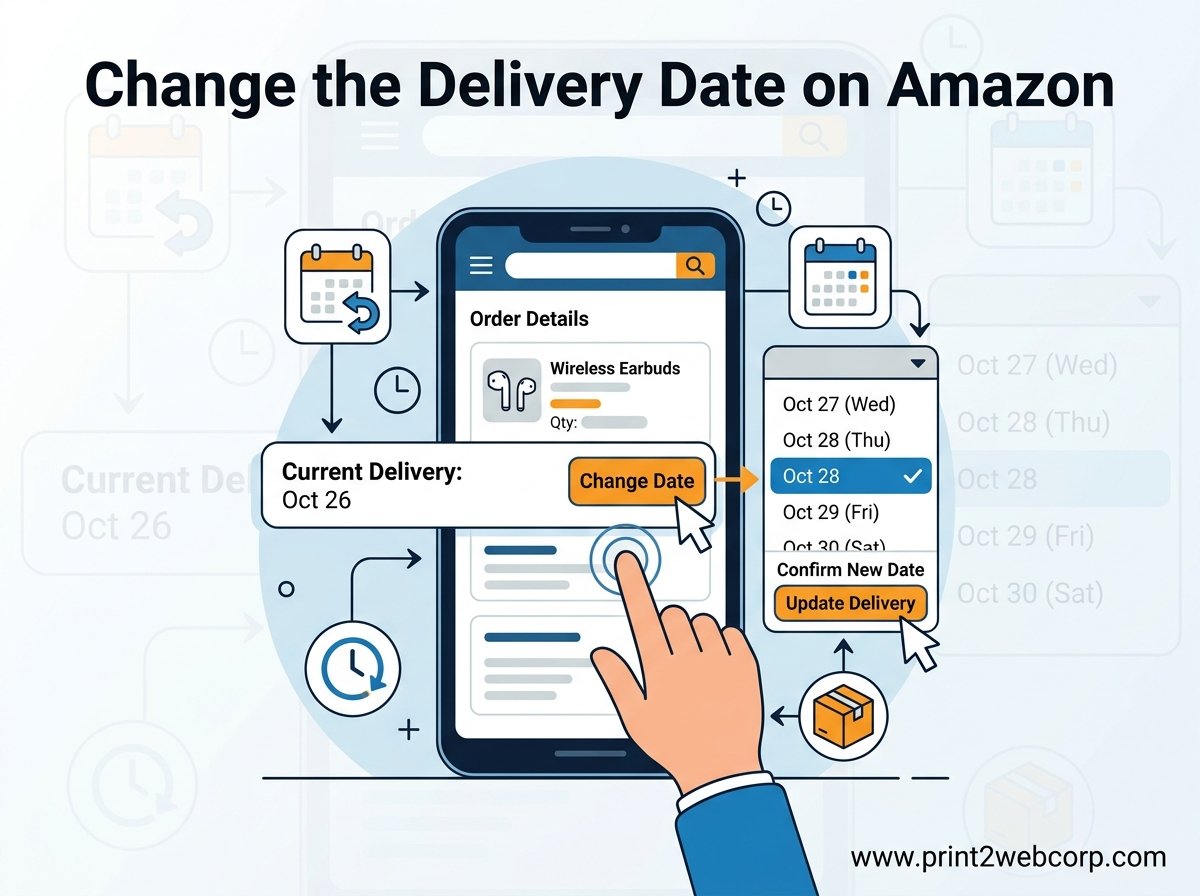
Missing a package because it arrived on the wrong day is frustrating, and learning how to change the delivery date on Amazon can save you from wasted trips, stolen parcels, and scheduling headaches. Amazon gives you more control over delivery timing than most people realize, from self-service rescheduling to choosing a dedicated delivery day each week. I have tested these methods across both desktop and mobile to confirm exactly what works in 2026.
The process is faster than you might expect. For most orders that have not yet shipped, you can pick a new date in under a minute without ever talking to a representative. For recurring subscriptions, scheduled large-item deliveries, and Prime orders, Amazon offers dedicated tools that put you in charge of when packages show up at your door.
This guide walks through every method available, starting with the quick answer below and then diving into desktop steps, mobile app instructions, Amazon Day setup, Subscribe & Save changes, and troubleshooting for when the reschedule button refuses to appear.
Quick Answer: How to Change the Delivery Date on Amazon
Here is the fastest way to reschedule an Amazon delivery in four steps:
Go to Your Orders on Amazon (desktop or app) and sign in.
Find the order you want to reschedule and click or tap on it.
Click “Reschedule” and pick a new date and time from the calendar popup.
Click “Confirm” to lock in your new delivery date.
If the Reschedule button is missing, the order may have already entered the shipping stage. In that case, Contact Customer Service is your fallback option. They can sometimes redirect a package or arrange for it to be held at a local facility. For more on this, jump to the troubleshooting section below.
Steps to Change the Delivery Date on Amazon (Desktop)
The self-service Reschedule button is the primary tool Amazon provides for changing a delivery date. It works on orders fulfilled by Amazon that have not yet been handed off to the carrier. I have used this method dozens of times, and it takes less than a minute once you know where to look.
Step 1: Open Your Orders Page
Sign in to your Amazon account on a desktop browser. Hover over the “Accounts & Lists” menu in the top-right corner and click “Your Orders.” This page shows every recent purchase organized by time period, usually defaulting to the last 30 days.
If the order you want to change is older, use the filter dropdown at the top to search by year or type the order history search term in the search bar. You can also search by product name to locate a specific item quickly.
Step 2: Locate the Order You Want to Reschedule
Scroll through your orders until you find the one that needs a date change. Each order card displays the item name, order date, current estimated delivery date, and status. Look for orders that show “Not Yet Shipped” or “Preparing for Shipment” as their status, since these are the ones most likely to be eligible for rescheduling.
Step 3: Click “Reschedule” and Choose a New Date
Click on the order to expand its details. If the order is eligible, you will see a “Reschedule” button (sometimes labeled “View Tracking” followed by a reschedule option). Click it, and a calendar popup appears showing available delivery dates and time windows.
Select the date that works best for you. Some dates may be grayed out if they fall outside the eligible window or if carrier capacity is full. Amazon typically allows you to push a delivery back by several days, though same-day or next-day rescheduling depends on your location and the item.
Step 4: Confirm Your New Delivery Date
After selecting your preferred date and time slot, click “Confirm.” Amazon updates the order immediately and sends a confirmation email with the revised delivery estimate. The change is reflected in Your Orders and in any tracking notifications you receive.
For a broader look at Amazon’s delivery windows and cutoff times, check out our guide on What Time Does Amazon Deliver? which breaks down every delivery time slot Amazon offers.
How to Change Delivery Date on the Amazon Mobile App
The Amazon mobile app follows the same logic as the desktop version, but the buttons are arranged slightly differently. Many users search specifically for app instructions, and the good news is that the Reschedule feature works identically on iOS and Android.
Rescheduling on iOS and Android
Open the Amazon app and tap the profile icon (the person silhouette) at the bottom navigation bar. Tap “Your Orders” to see your recent purchases. Find the order you want to change and tap on it to open the order details page.
If the order is eligible, you will see a “Reschedule” or “Change Delivery Date” option. Tap it to open the calendar selector, choose your new date and time window, and tap “Confirm.” The app saves the change instantly and pushes a notification to your phone confirming the updated delivery date.
One advantage of using the app is push notifications. Once you reschedule, Amazon sends a real-time alert so you have a digital record of the change. This is handy if you manage multiple orders or share an account with family members.
Amazon Day Delivery Program: Change Your Default Delivery Day
Amazon Day is a free Prime benefit that lets you choose a single day of the week for all your deliveries to arrive. Instead of getting packages spread across multiple days, everything lands on your chosen day. This is one of the most effective ways to control your delivery schedule before you even place an order.
How to Set or Change Your Amazon Day
To change your Amazon Day, go to “Your Account” and click “Amazon Day” under the shopping preferences section. You can also search “Amazon Day” in the Amazon search bar or navigate through the menu by tapping the hamburger icon on mobile. Select “Manage your Amazon Day” and choose any day of the week from the dropdown.
Once you pick a day, any future Prime-eligible orders will default to arriving on that day unless you choose a different delivery speed at checkout. You can change your Amazon Day at any time, and the update applies to all pending orders that have not yet shipped.
The Amazon Day program is especially useful if you want to reduce package theft by ensuring everything arrives when you are home. It also cuts down on multiple delivery trips, which is a small but real environmental benefit. I have personally found it invaluable for managing household supply orders.
How to Change Your Subscribe & Save Delivery Date
Subscribe & Save orders follow a different delivery schedule than standard purchases. Each subscription is tied to a monthly delivery date, and you can change that date without canceling the subscription. Many users on forums like Reddit report confusion about this process, so here is exactly how it works.
Changing Your Subscription Delivery Day
Go to “Your Account” and click “Your Subscribe & Save Items.” You will see a list of all active subscriptions along with the next delivery date for each. At the top of the page, there is an option to change your delivery day for all subscriptions or for individual items.
Click “Change” next to the delivery date, and Amazon shows you available dates for the next delivery cycle. Select your preferred date and confirm. The change applies to the upcoming delivery and all future deliveries unless you change it again. You can also skip a single delivery without canceling the subscription entirely.
One thing to keep in mind is that Amazon groups Subscribe & Save orders to arrive together when they share the same delivery date. This means if you change the date for one subscription, other items with the same original date may shift too. Amazon shows a preview of which items will arrive together before you confirm.
Reasons You Might Want to Reschedule Your Amazon Delivery
There are plenty of practical reasons to adjust when your Amazon packages arrive. Being able to reschedule gives you control over your own schedule and helps prevent common delivery headaches. Here are the situations I encounter most often.
Travel and Vacation Plans
If you are heading out of town, rescheduling a delivery ensures your package does not sit on a porch for days. Porch piracy is a real problem, and an unattended box is an easy target. Pushing the delivery date to after you return eliminates the risk entirely.
Gift Timing
When ordering gifts for birthdays, anniversaries, or holidays, timing matters. You might want a package to arrive on a specific day rather than early or late. Rescheduling lets you align the delivery with the event so the surprise is not ruined by an early arrival.
Avoiding Missed Deliveries
Some items require a signature, and missing that delivery means waiting for a reattempt or driving to a pickup location. If you know you will not be home on the scheduled day, changing it ahead of time saves an entire delivery cycle. For help with packages that have already gone missing, see our guide on Amazon Package Not Delivered solutions.
Coordinating Large or Heavy Items
Furniture, appliances, and other oversized items use Amazon’s Scheduled Delivery service, which includes a time window and sometimes a two-person delivery team. You may need to reschedule if you cannot be home during the original window, especially since these deliveries often require someone present to accept them.
Scheduled Delivery for Large Items
Amazon’s Scheduled Delivery is a separate system from standard package rescheduling. It applies to items too large for regular carriers, such as TVs, mattresses, exercise equipment, and furniture. When you buy one of these items, you choose a delivery date and time window at checkout.
To change a Scheduled Delivery date, go to Your Orders and find the item. Click “Reschedule” just as you would for a standard order. The calendar shows available delivery windows, which are typically broader than standard delivery options (for example, a four-hour window rather than a two-hour one). Confirm your new slot and Amazon updates the delivery team.
Keep in mind that large-item deliveries may have a smaller rescheduling window. Once the item is loaded onto a delivery truck, you usually cannot change the date and will need to refuse the delivery or request a return. Acting early is the best strategy.
FBA vs Third-Party Seller Orders: Does It Matter?
The type of seller fulfilling your order affects whether you can change the delivery date. Orders fulfilled by Amazon (FBA) generally offer the most flexibility because Amazon controls the entire shipping process. You get access to the self-service Reschedule button and can often adjust dates right up until the item enters the carrier network.
Third-party seller orders that are shipped directly by the seller (not through FBA) work differently. The seller sets their own shipping policies, and Amazon may not be able to intervene on delivery timing. In these cases, you may need to message the seller directly through Amazon to request a shipping delay, and there is no guarantee they can accommodate it.
If rescheduling is important to you, look for items marked “Ships from Amazon” or “Fulfilled by Amazon” at checkout. These orders give you the most control over delivery timing.
Amazon Hub Locker as an Alternative Delivery Option
When you cannot change a delivery date, redirecting your package to an Amazon Hub Locker is a practical workaround. Lockers are secure, self-service kiosks located in grocery stores, convenience stores, and apartment buildings. Your package sits safely in the locker until you pick it up with a unique pickup code.
To use a Hub Locker, go to Your Orders and find the eligible order. If the option is available, you will see “Add delivery instructions” or “Change delivery address.” Select a nearby locker location from the map. The package is rerouted there, and you get a six-digit code via email and text when it arrives.
Locker pickups give you a three-day window to retrieve your package, which is far more flexible than waiting for a specific home delivery date. This makes lockers an excellent backup plan when rescheduling is not an option. Not all items are locker-eligible, especially oversized products, so check availability for your specific order.
Troubleshooting: Why Can’t I Change My Delivery Date?
One of the most common complaints on Reddit and Amazon forums is that the Reschedule button is missing. If you cannot find the option to change your delivery date, one of these reasons is likely the cause.
The Order Has Already Shipped
Once a package is handed off to the carrier (UPS, FedEx, USPS, or Amazon Logistics), Amazon can no longer modify the delivery date through self-service. The tracking number has been assigned and the package is in transit. At this stage, your options are to contact the carrier directly or reach out to Amazon Customer Service as a last resort.
It Is a Third-Party Seller Order
Orders shipped directly by third-party sellers rather than through FBA may not show a Reschedule button. The seller controls shipping, and Amazon’s self-service tools do not always apply. Try messaging the seller through the order page to request a delay, or cancel the order and reorder with the correct delivery date if it has not shipped yet.
The Item Uses Scheduled Delivery
Large items with Scheduled Delivery have their own rescheduling flow. If you do not see the standard Reschedule button, look for a “Change Scheduled Delivery” or similar option specific to the freight carrier handling the item. This is a different system from standard package delivery.
Contacting Customer Service as a Fallback
When none of the self-service options work, Amazon Customer Service is your fallback. Go to the Help section of your account and choose “Something else” to start a chat or request a callback. Explain that you need to change a delivery date and provide the order number. Representatives sometimes have additional tools to redirect packages or place holds, especially for FBA orders that are still early in the fulfillment process.
Change the Delivery Date on Amazon: Key Takeaways
Amazon puts significant control in your hands when it comes to delivery timing. The self-service Reschedule button in Your Orders is the primary tool, and it works for most FBA orders that have not yet shipped. For recurring deliveries, Amazon Day and Subscribe & Save settings let you plan ahead so you rarely need to reschedule after the fact.
When the Reschedule button is missing, check whether the order has shipped, whether it is from a third-party seller, or whether it uses Scheduled Delivery. And when all else fails, Amazon Hub Lockers and Customer Service provide reliable backup options. For more on delivery timing details, our Amazon delivery time guide covers every cutoff and window you need to know.
Acting quickly is the single most important factor. The earlier you try to change a delivery date, the more options you will have. Once an order enters the shipping network, your flexibility drops sharply, so check Your Orders as soon as you know your schedule has changed.
Frequently Asked Questions
How do I get Amazon to deliver on a specific date?
Use Amazon Day to set a preferred delivery day, or choose a Scheduled Delivery date at checkout for eligible items. For existing orders, go to Your Orders and click Reschedule to pick a specific date from the calendar.
How do I change my Amazon Day delivery option?
Go to Your Account, select Amazon Day, and click Manage your Amazon Day. Choose any day of the week from the dropdown. All future Prime-eligible orders will default to arriving on that day unless you select a different delivery speed at checkout.
Can Amazon deliveries be rescheduled?
Yes. Most FBA orders can be rescheduled through Your Orders by clicking the Reschedule button and selecting a new date. Orders that have already shipped or are fulfilled by third-party sellers may not be eligible for self-service rescheduling.
How can I change my delivery on Amazon?
Go to Your Orders, find the order, and click Reschedule. Pick a new date and time from the calendar popup and click Confirm. If the Reschedule button is not available, try contacting Amazon Customer Service or redirecting the package to an Amazon Hub Locker.
Is there a way to change delivery day for Amazon after purchasing already?
Yes, as long as the order has not shipped. Go to Your Orders, locate the purchase, and click Reschedule. If the option is missing, the order may have entered the shipping process. Contact Customer Service as a fallback for orders that cannot be self-served.
Can I modify my Amazon delivery date?
Yes. Amazon allows you to modify delivery dates for most unshipped orders through the Reschedule button in Your Orders. You can also change your Amazon Day or Subscribe and Save delivery date for future orders.
Can you change shipping on Amazon after an order is placed?
You can change the delivery date and sometimes the delivery address before the order ships. Go to Your Orders and look for the Reschedule or Change options. Once the package is with the carrier, shipping changes are generally no longer possible through self-service.
Can I speed up Amazon delivery after placing an order?
In some cases, yes. If your order has not shipped, go to Your Orders and look for a Change Shipping Speed option. Prime members may be able to upgrade to faster delivery if the item is in a nearby fulfillment center. If the option is unavailable, the order has likely progressed too far in the fulfillment process.
Conclusion
Knowing how to change the delivery date on Amazon puts you back in control of your schedule. The self-service Reschedule button in Your Orders is your primary tool, and it works in under a minute for most eligible orders. Amazon Day, Subscribe & Save settings, and Hub Lockers round out the toolkit so you can handle nearly any delivery timing situation.
The key takeaway is simple: act fast. The earlier you reschedule, the more options Amazon gives you. Once an order ships, your choices narrow significantly, so make changes as soon as you know your plans have shifted. With the steps and troubleshooting tips in this guide, you should be equipped to handle any Amazon delivery date change in 2026.
Leave a Reply