
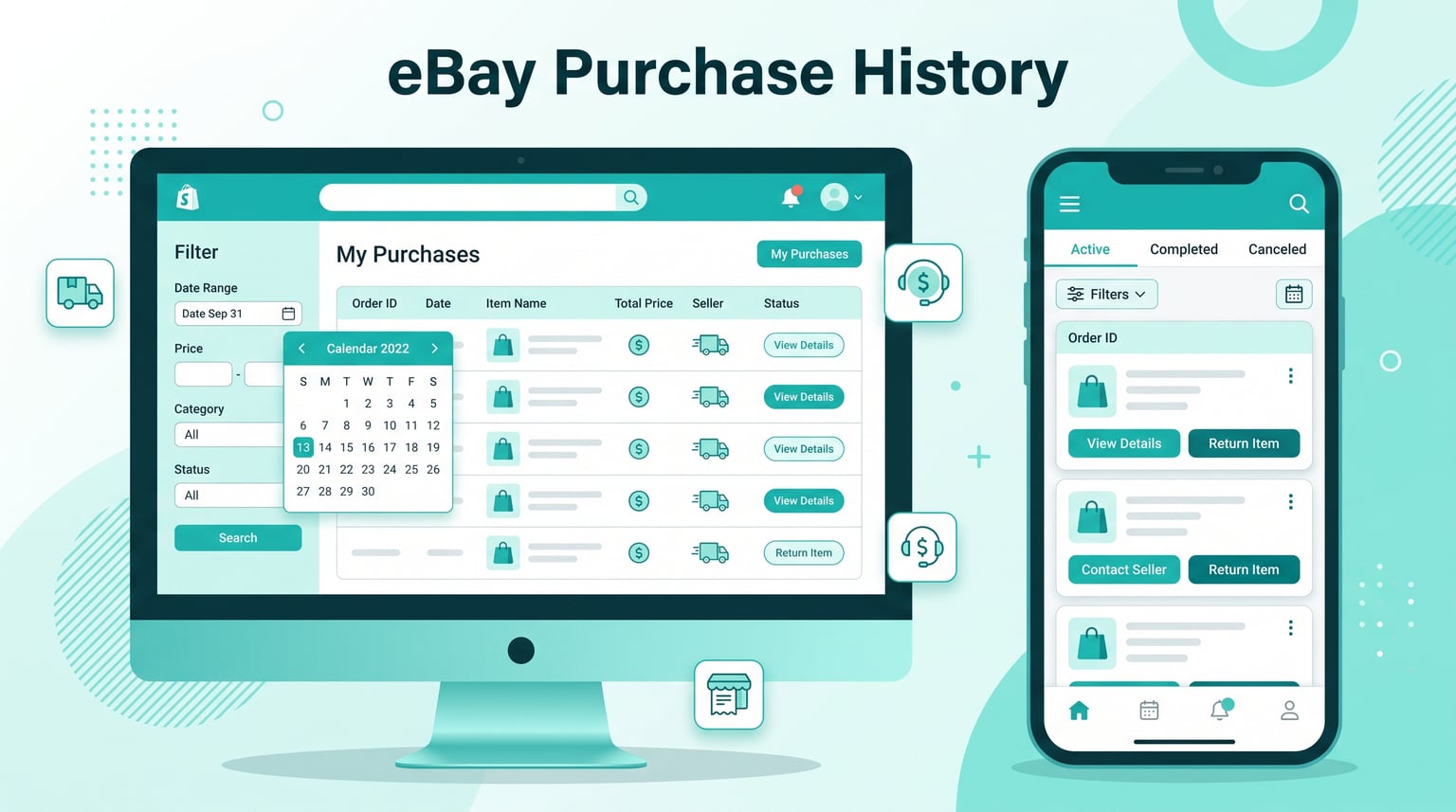
Tracking down something you bought months or even years ago on eBay can feel like searching for a needle in a digital haystack. Whether you need an order number for a warranty claim, want to reconcile your spending for tax season, or simply want to reorder a favorite find, your eBay Purchase History holds the key. The challenge is that eBay does not surface every transaction the moment you log in. Instead, it shows only your last 60 days by default, which trips up even experienced buyers.
I have spent years buying and selling on eBay, and I have navigated every quirk of the purchase history interface, from the confusing year-based dropdown to the frustratingly limited search function. In this updated 2026 guide, I walk you through every method available to find, filter, export, and manage your eBay order history. I also cover the troubleshooting steps that eBay’s own help pages leave out.
What You Will Learn From This Guide:
- How to access your full eBay purchase history on both desktop and mobile
- Why eBay only shows the last 60 days by default and how to view older orders
- How to search and filter your purchase history by date, seller, and item keyword
- Troubleshooting steps for missing, hidden, or invisible orders
- How to download your entire purchase history for tax or accounting purposes
Understanding eBay Purchase History
Your eBay purchase history is a comprehensive transaction record that eBay maintains for every item you buy through your account. It goes far beyond a simple list of past orders. Each entry functions as a full digital receipt containing the item title, final sale price, shipping cost, seller username, order date, order number, payment method, delivery status, and the tracking number once the seller ships it.
Think of it as a personal shopping ledger that eBay builds automatically every time you win an auction or complete a Buy It Now purchase. You never have to manually add anything. The platform logs each transaction in real time and organizes it chronologically so you can revisit any purchase at any point, even years after the fact.
What makes this record especially useful is the action set attached to every listing. From any individual order in your history, you can contact the seller, open a return request, leave feedback, view shipment tracking, report an item, or hide the order from your default view. This transforms purchase history from a passive log into an active order management hub.
What Is eBay’s Purchase History?
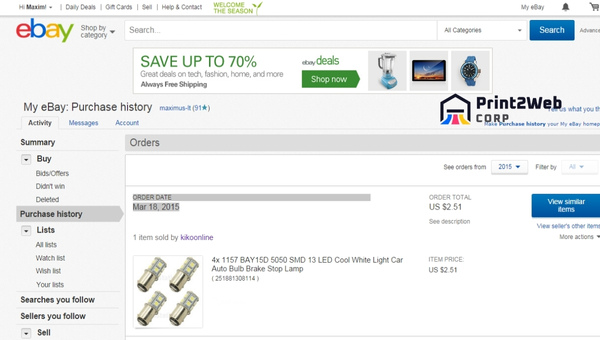
At its core, your eBay purchase history is a dedicated section within the My eBay dashboard that displays every transaction tied to your account. eBay officially retains this data for up to 7 years, meaning you can access orders placed as far back as seven years from the current date. This retention policy exists to comply with financial record-keeping regulations and to give buyers a long window for dispute resolution.
Each listing in your purchase history contains a structured set of details. You will see the listing title, the item’s photo thumbnail, the transaction date, the total amount paid (including shipping and taxes), the seller’s display name, the delivery address used, and the current order status. If the seller has uploaded tracking information, a clickable tracking link appears alongside the order.
It is worth distinguishing purchase history from your general eBay activity. Your My eBay page includes separate tabs for Watchlist, Saved Searches, Selling activity, and Messages. Purchase History is its own dedicated tab focused exclusively on completed buying transactions. Auctions you lost, items you watched but never bid on, and canceled orders all live elsewhere or appear with a distinct status label.
Why Your eBay Purchase History Matters
Having reliable access to your full transaction log serves a wide range of practical purposes. Here are the most common scenarios where purchase history becomes essential:
- Tax preparation: If you run a small business or file taxes with deductible expenses, your purchase history provides a transaction-by-transaction record of what you spent on inventory, supplies, and equipment throughout the year.
- Warranty claims: When a product breaks and you need to file a warranty claim with the manufacturer or eBay Money Back Guarantee, the order number and purchase date from your history serve as proof of purchase.
- Financial reconciliation: Matching eBay transactions against bank or credit card statements helps catch billing errors, unauthorized charges, or duplicate payments before they become bigger problems.
- Returns and refunds: If an item arrives damaged or not as described, your purchase history is where you initiate a return request and track its resolution.
- Security auditing: Reviewing your purchase history periodically lets you spot any unauthorized purchases made with your account before significant damage occurs.
- Reordering: When you find that perfect item and want to buy it again, the Buy Again shortcut within your purchase history takes you straight back to the seller’s listing or a similar active listing.
- Spending analysis: Power buyers and resellers can review yearly totals to understand buying patterns and adjust their budget accordingly.
If you need to return an item, your purchase history provides the proof of purchase and order details you will need. For shoppers who also buy on Amazon, understanding how return policies work across marketplaces can help you manage the returns process more effectively on both platforms.
Steps to View Your eBay Purchase History via the Website
Accessing your purchase history on a desktop or laptop browser is straightforward once you know where to look. The key thing to understand is that eBay displays only your last 60 days of orders by default. This is the single biggest source of confusion for buyers who think older purchases have disappeared. They have not gone anywhere. You just need to use the date range dropdown to reach them.
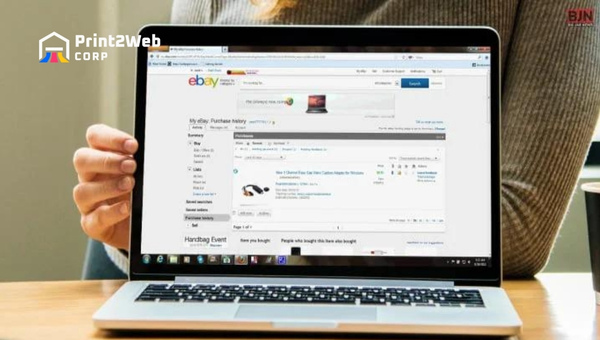
- Sign in to your eBay account: Go to ebay.com and enter your username, email, or phone number along with your password. If you have two-factor authentication enabled, enter the verification code sent to your device. You must be logged in to access any personal order data.
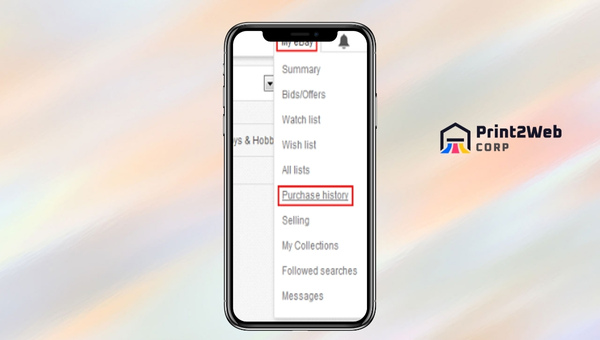
- Navigate to My eBay: Hover over or click the My eBay link at the top-right corner of the page. From the dropdown menu that appears, select Purchase History. This opens your main order dashboard.
- Review your default 60-day view: When the page loads, you will see orders from the last 60 days listed in reverse chronological order. Each entry shows the item thumbnail, title, price, seller name, and order status. If this is all you need, you are done.
- Use the See orders from dropdown for older purchases: To view orders older than 60 days, look for the dropdown menu labeled See orders from near the top of the orders list. Click it and select a specific year (such as 2024, 2023, or earlier) or a custom date range. eBay will reload the page with orders from that period.
- Access the More actions menu: Next to each order, you will find a More actions dropdown. Click it to reveal options including Contact Seller, Return This Item, View Order Details, Leave Feedback, Report Item, and Hide Order. These options let you manage each transaction directly from your history.
- Click any order for full details: Selecting an individual order opens a detailed view with the complete transaction breakdown, including shipping address, payment method, tracking number, and the full item description as it appeared at the time of purchase.
One important detail: the See orders from dropdown lets you filter by individual years, but you cannot load your entire 7-year history in a single view. You must navigate year by year. This is a known frustration among frequent buyers, and I address workarounds in the data export section later in this guide.
Guide to Explore Your Purchase History via the eBay App
The eBay mobile app for iOS and Android gives you full access to your purchase history on the go. The app supports biometric authentication, including Face ID and fingerprint login, so you can quickly check an order without typing your password each time. The overall navigation differs slightly from the desktop experience, but the core functionality is identical.
- Open the eBay app: Launch the eBay app on your iPhone, iPad, or Android device. If prompted, use Face ID, Touch ID, or your password to sign in. If you have not yet installed the app, download it from the App Store or Google Play.
- Tap the My eBay icon: Look at the bottom navigation bar and tap the My eBay icon. This opens your personal dashboard with tabs for Summary, Watching, Bids/Offers, and Purchases.
- Select the Purchases tab: Tap on Purchases at the top of the My eBay screen. Your recent orders from the last 60 days will appear in a scrollable list.
- Change the date range for older orders: Just like on the website, the app defaults to a 60-day view. Look for the Filter or Date Range option at the top of the purchases list. Tap it and select a specific year or custom range to view orders from further back.
- Tap any order for details: Selecting an individual order opens a full transaction view on your screen. You will see the item photo, price, seller name, shipping status, tracking number, and delivery address. From here you can also tap Contact Seller or Return Item.
- Use the More actions menu on mobile: On individual order cards, look for the three-dot menu icon. Tapping it reveals the same options available on desktop: Contact Seller, Return This Item, Hide Order, Leave Feedback, and View Order Details.
Also Read: Private-Label Credit Card Secrets: Unlock Shopping Benefits!
How to Search and Filter Your Purchase History
Once you have hundreds or thousands of transactions, scrolling through them year by year becomes impractical. eBay provides a built-in search bar within your purchase history page that lets you filter orders by keyword. Typing a seller name, item title, or category term will narrow the list to matching orders. However, be aware that this search function has limitations.
Forum users on Reddit consistently report that the purchase history search returns only about 30 results at a time, even when they have 200 or more matching orders. If your keyword is too broad, you may not see every relevant transaction. To work around this, combine the search bar with the year filter. First select a specific year from the See orders from dropdown, then type your search term. This narrows the pool and produces more complete results.
You can also filter by order status. At the top of the purchase history page, look for status tabs or filter chips that let you view only items that are Not yet shipped, In transit, Delivered, or Awaiting feedback. This is particularly useful if you are waiting for a package and want to check its tracking without scrolling past completed orders.
How Far Back Does eBay Purchase History Go?
This is one of the most frequently asked questions about eBay order history, and the answer has caused confusion for years. eBay’s official help documentation confirms that your purchase history retains order data for up to 7 years. Any item you purchased within the past seven years should be accessible through the year-based dropdown filter in your purchase history page.
The confusion arises because eBay shows only the last 60 days by default when you open purchase history. Buyers who do not realize they need to change the date range often assume their older orders have been deleted. They have not. Use the See orders from dropdown to select any year going back seven years, and your orders from that period will load.
For orders older than seven years, eBay no longer displays them in the standard purchase history interface. However, you may still be able to retrieve that data through a formal data export request from your account settings. Some long-time users have successfully downloaded purchase records going back to November 2001 through this method, though eBay does not guarantee data retention beyond the 7-year window.
Troubleshooting: Why Can I Not See My Purchase History?
If your purchase history looks incomplete or shows fewer orders than you expect, several factors could be at play. This is a major pain point reported across Reddit and eBay community forums, so you are not alone. Here are the most common causes and how to address each one.
You Are Viewing the 60-Day Default
The most common reason for missing orders is simply the 60-day default view. eBay loads only your most recent two months of purchases when you open the purchase history tab. Any order older than 60 days requires you to manually select a year from the See orders from dropdown. Check this first before assuming anything is wrong.
You Made a Guest Purchase
eBay allows checkout as a guest without creating an account. Guest purchases do not appear in any purchase history because they are not tied to an account. The only way to track a guest order is through the confirmation email eBay sent when you completed checkout. That email contains a link to track your shipment and view order details. If you lost the email, search your inbox for the seller’s name or the item title.
The Order Was Canceled or Removed
Canceled orders, refunded transactions, and removed listings may not appear in your standard purchase history view. Sometimes they show up with a Canceled or Refunded status label. Other times, if eBay removes a listing for policy violations, the associated order may disappear entirely from your history. In these cases, the transaction record may still exist in your PayPal or credit card statement.
Browser Cache or App Glitches
Occasionally, a stale browser cache or a buggy app update can prevent your purchase history from loading properly. Try clearing your browser cache, opening an incognito or private browsing window, or force-closing and reopening the eBay app. If the problem persists, log in from a different device or browser to determine whether the issue is account-related or device-specific.
Account Compromise
If orders are genuinely missing and none of the above explanations apply, your account may have been compromised. An unauthorized user could have changed your account settings or made purchases that were then hidden. Enable two-factor authentication immediately, change your password, and contact eBay customer support to investigate.

Alternative Methods: Find Orders via Email or PayPal
When an order does not show up in your eBay purchase history, you still have other ways to track it down. These alternative methods are especially useful for guest purchases, very old orders, or transactions that mysteriously disappeared from your account.
Search Your Email for Order Confirmations
Every time you complete a purchase on eBay, the platform sends an order confirmation email to the address associated with your account. Search your inbox for terms like eBay order, order confirmation, or the seller’s username. These emails contain the order number, item title, purchase price, and a direct link to view the order on eBay. This is often the fastest way to locate a specific transaction.
Check Your PayPal Transaction History
If you paid through PayPal, every eBay transaction appears in your PayPal account under Activity. Log in to PayPal, filter by date range, and search for the seller’s name or the payment amount. PayPal records include the transaction ID, payment date, seller information, and a link back to the eBay listing. This method works even for orders that no longer appear in your eBay purchase history.
Review Credit Card or Bank Statements
For a last resort, check your credit card or bank statements for eBay charges. The merchant descriptor will typically show EBAY *SELLERNAME along with the charge amount and date. While this method will not give you the full order details, it provides the transaction date and amount you need to cross-reference with other records.
How to Download or Export Your Purchase History
If you need your complete purchase history in a spreadsheet format, for tax preparation, accounting, or expense tracking, eBay provides a data export tool. This method pulls your entire transaction record, including orders that may be cumbersome to navigate through the year-by-year interface. Here is how to request your data.
- Go to Account Settings: Sign in to eBay on a desktop browser, hover over your profile name at the top-left, and select Account Settings from the dropdown.
- Navigate to Data Requests: Look for the Data and Privacy or Request Your eBay Data section within account settings. eBay may label this differently depending on your region.
- Create a new report: Click the option to create a new data request or download your data. Select the data types you want included, making sure to check Purchase History or Transaction History.
- Wait for processing: eBay typically takes about one week to compile your data. You will receive an email notification when the download is ready.
- Download the file: Once notified, return to the same account settings page and download your data as a CSV or spreadsheet file. The export includes fields such as Purchase Date, Item ID, Listing Title, Individual Price, Quantity, Transaction Shipping Fee, Total Price, Currency, and Seller Name.
Independent developers have also created Chrome extensions that attempt to scrape and download your purchase history directly from the browser. These tools can be useful but come with privacy and security considerations, since they require access to your logged-in eBay session. Use them cautiously and only if you trust the developer.
If you run a side business, keeping a downloaded record of your eBay purchases can simplify expense tracking at tax time. Similarly, tracking supply purchases through business accounting tools can help you stay organized across all revenue streams.
What You Can Do From Your Purchase History
Your purchase history is not just a read-only archive. eBay has built a full set of order management tools directly into each listing. The More actions dropdown next to every order provides access to the following features:
- View Order Details: Opens the complete transaction record including payment breakdown, shipping address, and seller notes.
- Contact Seller: Sends a message directly to the seller through eBay’s messaging system. Useful for asking about shipping delays, requesting combined shipping, or inquiring about a return.
- Return This Item: Initiates a formal return request through eBay’s resolution center. You will need a reason for the return, and the seller must respond within three business days.
- Leave Feedback: Rate your experience with the seller on a five-star scale across multiple categories. Feedback is permanent and visible to other buyers.
- Track Shipment: Click the tracking number to see real-time delivery progress through the carrier’s website.
- Report Item: Flag a listing for policy violations, counterfeit goods, or fraudulent activity. eBay’s trust and safety team reviews these reports.
- Hide Order: Removes the order from your default purchase history view for privacy or organization purposes. Hidden orders are not deleted and can be unhidden.
- Buy Again: Quickly find the same item from the same seller or a similar active listing without searching from scratch.
How to Hide Purchases From Your eBay Record
eBay does not allow you to permanently delete items from your purchase history because it serves as an official transaction record for buyer protection and dispute resolution. However, you can hide individual orders from your default view if you want to declutter your history or keep certain purchases private from anyone who might glance at your screen.
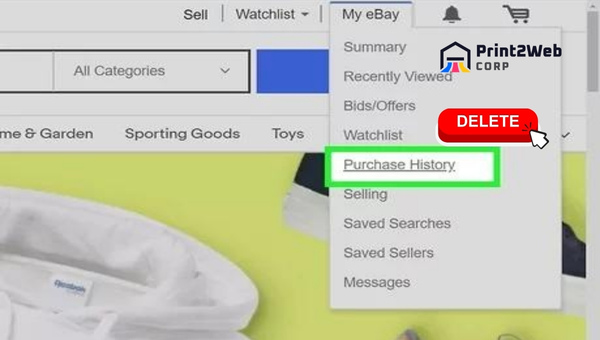
- Open Purchase History: Sign in to eBay, go to My eBay, and select Purchase History.
- Locate the item: Scroll or filter to find the order you want to hide.
- Open More actions: Click the More actions dropdown next to that order.
- Select Hide Order: Choose the Hide option. The item immediately disappears from your default view.
- To unhide: Use the filter or settings option to show hidden orders, then select Undo Hide for any item you want back in your default view.
Hidden orders are never truly deleted. They remain in eBay’s system and can be accessed through the hidden orders filter at any time. This ensures you can always retrieve proof of purchase if needed for a dispute or warranty claim, even if the order was previously hidden from view.
Also Read: Amazon Born to Run Program: Unlock E-Commerce Success!
eBay Purchase History FAQs
How do I see my purchase history on eBay?
Sign in to your eBay account, click My eBay at the top of the page, and select Purchase History. Your orders from the last 60 days appear by default. To view older purchases, use the See orders from dropdown to select a specific year or date range.
How far back does eBay purchase history go?
eBay retains purchase history data for up to 7 years. You can access any order placed within the past seven years by using the See orders from dropdown in your purchase history page. Orders older than 7 years may be retrievable through a formal data export request from your account settings.
Why can I only see 60 days of purchases on eBay?
eBay displays only your last 60 days of orders by default for performance and usability reasons. To view older orders, use the See orders from dropdown at the top of your purchase history page to select a specific year going back up to 7 years.
How can I track a guest order on eBay?
Guest purchases do not appear in any account purchase history. You must use the order confirmation email eBay sent when you completed checkout. That email contains a direct link to track your shipment and view order details. If you lost the email, search your inbox for the seller name or item title.
How do I hide items from my eBay purchase history?
You cannot permanently delete items from your purchase history. However, you can hide them by opening the More actions dropdown next to an order and selecting Hide Order. Hidden items disappear from your default view but can be unhidden at any time through the hidden orders filter.
Can I download or export my eBay purchase history?
Yes. Go to Account Settings, find the Request Your eBay Data or Data and Privacy section, and create a new data report. Select purchase history as the data type. eBay typically takes about one week to compile your data, then sends an email with a download link for a spreadsheet file.
Why are some purchases missing from my eBay purchase history?
Common reasons include viewing the 60-day default instead of selecting an older year, making a guest purchase that is not tied to your account, the order being canceled or removed for policy violations, or browser cache issues. Try clearing your cache or checking from a different device if orders seem genuinely missing.
Conclusion
Finding your eBay purchase history comes down to understanding one simple but easily overlooked detail: eBay shows only your last 60 days by default. Once you know to reach for the See orders from dropdown, you gain access to up to 7 years of transaction records spanning every auction won and every Buy It Now purchase completed. Whether you are reconciling expenses for tax season, filing a warranty claim, or simply hunting down an old favorite to reorder, the tools are all there in your My eBay dashboard.
If an order is genuinely missing from your history, remember the alternative methods. Check your email for order confirmations, search your PayPal transaction history, or review credit card statements for eBay charges. And if you need your full transaction log in spreadsheet form, the data export tool in your account settings can pull everything going back years, albeit with a processing wait of about a week.
Your eBay Purchase History is one of the most powerful tools available for managing your online buying activity in 2026. Take a few minutes to explore the filtering, hiding, and export options described in this guide, and you will never lose track of a purchase again. For buyers who also sell on Amazon, exploring cross-platform seller analytics can round out your e-commerce management toolkit.
Leave a Reply