
Logging out of your Amazon account seems like a simple task, but anyone who has ever hunted for that elusive Sign Out button knows it can be surprisingly tricky. Whether you are sharing a tablet with family members, switching between personal and business accounts, or wrapping up a shopping session on a public computer, understanding exactly how to log out of Amazon across every platform matters more than most people realize. Amazon keeps you signed in by design to speed up future purchases and personalize your experience, but that convenience comes with real privacy and security risks if left unchecked. In this updated guide, I walk you through every method for logging out of Amazon on mobile apps, desktop websites, smart TVs, and even remotely from a different device entirely. You will also learn what actually happens to your Prime Video queues, Kindle books, and Amazon Music playlists after you sign out, plus how to troubleshoot the most common issues that prevent people from logging out in the first place.
The steps for signing out vary depending on whether you are using the Amazon Shopping app on Android or iOS, browsing on a desktop browser, or managing your account through a Fire TV or smart TV. Each platform hides the Sign Out option in a slightly different place, and Amazon has even changed its mobile app interface in recent years, moving the button further down the menu for some users. If you have ever found yourself scrolling through the app settings wondering where the sign-out option disappeared to, this guide is for you. I have tested these steps on multiple devices and account configurations, and I will also cover advanced topics like remotely deregistering devices through the Manage Your Content and Devices portal, using the Switch Accounts feature as a faster alternative to a full logout, and locking down your account if you forget to log out on a shared or lost device.
Amazon is not just a shopping platform anymore. Your account controls access to Prime Video streaming, Kindle e-books, Audible audiobooks, Amazon Music, and even purchases on Fire tablets and Echo devices. Logging out of one Amazon app does not necessarily sign you out of the others, and understanding these overlapping account systems will help you make smarter decisions about when and how to sign out. By the end of this guide, you will have a complete playbook for managing your Amazon session across every device you own, plus the knowledge to handle edge cases like app glitches, UI changes, and forgotten public computer sessions.
In this guide:
- What actually happens when you log out of Amazon
- Step-by-step sign-out instructions for Android and iOS
- How to log out from the Amazon website on desktop and mobile browsers
- Remote sign-out using Manage Your Content and Devices
- Switch Accounts as a quick alternative to logging out
- Troubleshooting tips when the app will not let you sign out
- Security best practices for protecting your Amazon account
Table of Contents
- What Happens When You Log Out of Amazon
- How to Log Out of Amazon: A Step-by-Step Guide
- How To Log Out on Amazon App? (Android & iOS)
- How To Log Out on Amazon Website?
- How to Sign Out of Amazon From All Devices at Once
- Switch Accounts: An Alternative to Logging Out
- Troubleshooting: Amazon App Won’t Let You Log Out
- Security Tips for Amazon Account Logout
- FAQs
What Happens When You Log Out of Amazon
Before diving into the sign-out steps, it helps to understand exactly what logging out does and does not affect. Amazon uses a single unified account system across all of its services, so signing out of the shopping app also signs you out of Prime Video, Kindle, Audible, and Amazon Music on that same device. However, logging out of your phone does not automatically log you out of your Fire TV, a tablet in another room, or a desktop browser window you left open.
When you log out, the app or browser clears your session token and any locally cached credentials. This means the next person who opens the app will see the login screen instead of your account. Your Prime Video watch history, Kindle library, and Amazon Music playlists remain safe in the cloud and are still accessible the next time you sign in. What does disappear locally are any saved payment methods, delivery addresses, and one-click purchasing preferences that the app had stored for quick access. If you are logging out because you are selling or giving away a device, you should take the extra step of deregistering it through your Amazon account settings to remove it from your device list entirely.
Many users also worry that logging out will delete their wish lists, order history, or Prime membership benefits. None of that happens. Your account data is stored on Amazon’s servers, not on the device you are logging out from. Logging out simply severs the active session connection. You can always sign back in on the same device or a different one and pick up exactly where you left off. The only permanent changes come from actions taken through the account settings page, such as deregistering a device or removing a payment method.
Understanding this distinction matters for security. If you forget to log out of a shared or public device, simply logging out from another device does not help. You need to change your Amazon account password, which will invalidate all active sessions across every device instantly. Amazon also offers two-step verification, which adds a second layer of protection and prevents unauthorized access even if someone has your password. I cover these security measures in more detail later in this guide.

How to Log Out of Amazon: A Step-by-Step Guide
Logging out of your Amazon account is a simple process, but the exact steps depend on whether you are using the Amazon Shopping app on a mobile device or accessing Amazon through a web browser. Each platform groups account options differently, and Amazon has tweaked its interface multiple times over the past few years. Below, I break down the process for every major platform so you can find exactly the steps you need.
The core principle is the same across all devices: you open the Amazon app or website, navigate to your account menu, and select Sign Out. The differences lie in where those menu options are located and what they are called. On mobile, Amazon uses a hamburger menu icon (three horizontal lines) to access settings, while on desktop, the Account & Lists dropdown is the standard entry point. On iOS specifically, Amazon sometimes labels the option as “Not [Your Name]?” rather than a straightforward Sign Out label, which can be confusing at first glance.
How To Log Out on Amazon App? (Android & iOS)
Logging out of the Amazon Shopping app on your phone or tablet is the most common scenario, especially if you share your device with family members or want to switch to a different Amazon account. Amazon keeps you signed in to streamline the checkout process and personalize recommendations, but there are plenty of legitimate reasons to log out: maybe you let a friend borrow your phone, you are switching to a work account, or you simply want to stop seeing targeted ads based on your shopping history. The process is straightforward on both Android and iOS, with only minor UI differences between the two platforms.
One thing worth noting is that Amazon updated its mobile app interface in 2026, moving the Sign Out option to a slightly deeper menu path for some users. If you used to find Sign Out directly under the More tab, you may now need to look under Settings first. This change confused many long-time users, but the steps below cover both the current layout and the older interface patterns you might still encounter.
On Android devices, open the Amazon Shopping app and look for the menu icon consisting of three horizontal lines, usually positioned at the bottom right corner of the screen. Tap this icon to open the side menu. Scroll down the list until you see the Settings option, which typically appears near the bottom of the menu alongside other account-related entries. Tap Settings, then look for the Sign Out button. Amazon may prompt you to confirm before logging you out, so tap Sign Out or Confirm when the pop-up appears. The app will return to the login screen, and your session will be cleared from the device.
On iOS devices, the process is nearly identical but with a small naming difference. Open the Amazon app and tap the same three-line menu icon at the bottom right. Scroll to Settings and tap it. Instead of a Sign Out button, you will likely see an option that reads “Not [Your Name]?” where [Your Name] is your actual first name. Tapping this option triggers the sign-out flow. You may see a confirmation dialog asking if you want to sign out, so confirm to complete the process. Once confirmed, the app closes your session and returns you to the welcome screen where you can log in with a different account if needed.
It is important to remember that logging out of the app only affects the specific device you are using. If you are also signed in on a Fire tablet, a Kindle e-reader, or the desktop website, you will need to log out of each device separately. For a complete remote sign-out solution that covers every device at once, skip ahead to the section on managing your content and devices.
How To Log Out on Amazon Website?
Logging out of Amazon on a desktop or laptop browser follows a different path than the mobile app, but it is equally important, especially when you are using a shared or public computer. The Amazon website keeps your account active through browser cookies, which means staying signed in could allow anyone who opens the browser afterward to access your account, view your order history, and even make purchases with your saved payment methods. Logging out clears these session cookies and ensures your account stays private.
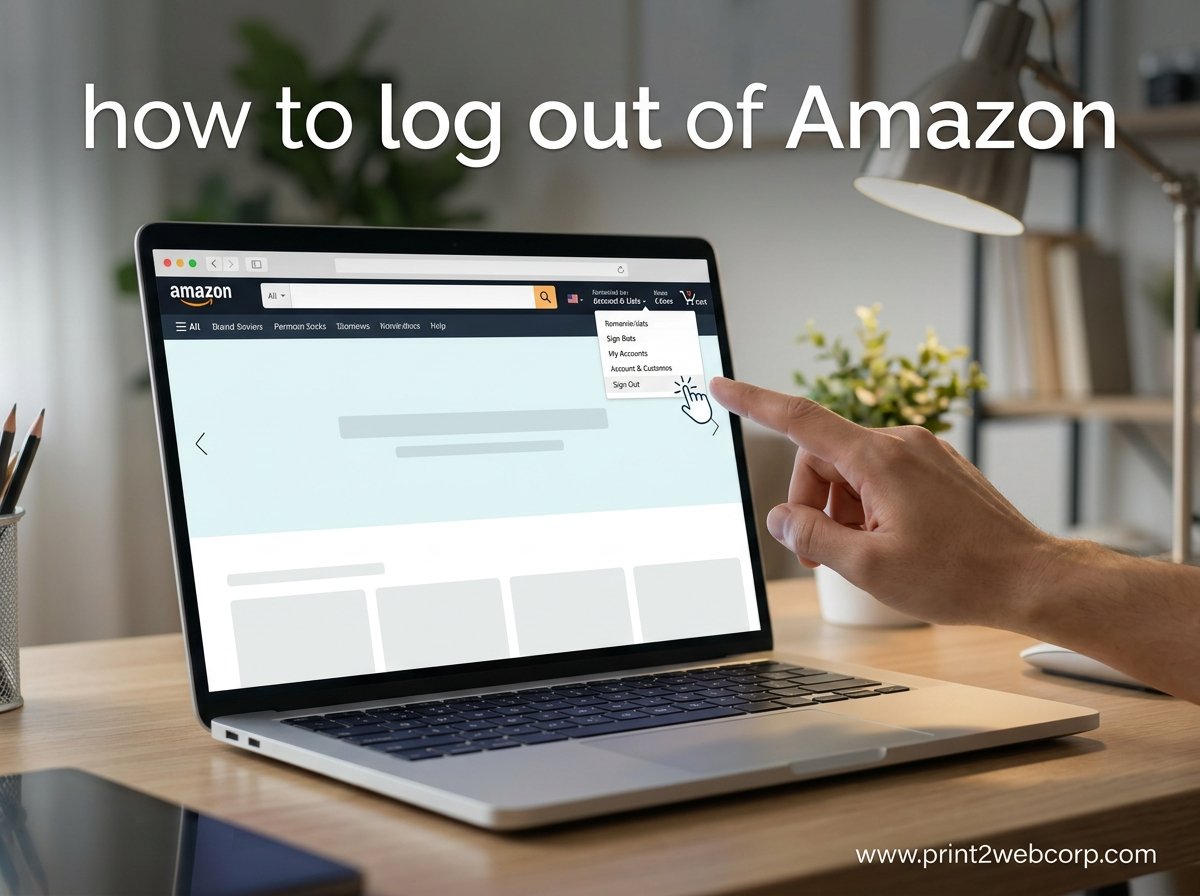
To sign out from the Amazon website, start by navigating to Amazon.com in your browser. Look for the Account & Lists option in the top navigation bar, usually located in the upper-right corner of the page. Hover your mouse cursor over Account & Lists to reveal a dropdown menu. In that menu, scroll down to the bottom where you will find the Sign Out link. It is positioned at the lower end of the dropdown, separate from your account details and order history links, which makes it easy to overlook if you are in a hurry.
Click the Sign Out link, and Amazon will immediately terminate your session. You will be redirected to the Amazon homepage, but your account name will no longer appear in the top right corner. Any attempt to access your account details, orders, or wish list will redirect you to the login page. If you are on a mobile browser instead of a desktop, the process is slightly different: tap your account name or the profile icon at the top, then scroll down in the menu to find the Sign Out option.
After signing out, it is also a good practice to clear your browser cookies and cached data if you are on a public computer. Simply clicking Sign Out removes your Amazon session, but browser cookies may still retain certain data that could be accessed by the next user. On shared family computers, clearing cookies ensures that your browsing activity and any auto-filled form data are also removed. On your own personal device, the standard Sign Out action is typically sufficient.
How to Sign Out of Amazon From All Devices at Once
If you have ever lost a phone, left your account logged in at a friend’s house, or simply want to perform a clean sweep across every device connected to your Amazon account, the standard per-device sign-out method is not practical. You need a way to sign out remotely, and Amazon provides exactly that through the Manage Your Content and Devices page. This tool is built directly into your Amazon account settings and gives you full control over which devices are currently authorized to access your account.
To sign out of all devices at once, start by visiting Amazon.com on a web browser and signing into your account. Hover over Account & Lists and select Your Account from the dropdown. On the account page, look for the Content & Devices section and click on it. This opens the Manage Your Content and Devices dashboard. Switch to the Devices tab to see a complete list of every device currently registered to your account, including phones, tablets, Fire TVs, Kindles, and desktop browsers.
Each device listing shows the device name, type, and the last time it was active. To remove a specific device, click the Actions button next to it and select Deregister. This immediately revokes that device’s authorization and signs the user out. You can repeat this process for every device you want to remove. If you want to sign out of absolutely everything at once, the most efficient method is to change your Amazon account password. Changing your password automatically invalidates all active sessions across every device, forcing a fresh login everywhere. Combine this with enabling two-step verification for maximum security.
The Manage Your Content and Devices page also lets you manage digital content tied to your account, such as Kindle books and Prime Video purchases. Deregistering a device removes it from your account but does not delete any purchased content. You can re-register devices later without losing access to your library. This remote sign-out capability is particularly useful if you have sold or given away a device and forgot to sign out first, or if you suspect unauthorized access to your account from an unknown device.
Switch Accounts: An Alternative to Logging Out
Not everyone who wants to change accounts needs a full sign-out and sign-back-in cycle. Amazon offers a Switch Accounts feature designed specifically for households and individuals who manage multiple profiles under one Amazon household. This feature lets you jump between accounts without entering passwords each time, which is much faster than logging out and logging back in.
To use Switch Accounts on the Amazon Shopping app, open the menu and go to Settings. Look for the Switch Accounts option and tap it. Amazon displays a list of accounts currently saved on the device. Select the account you want to switch to, and the app immediately loads that profile. If the account you want is not listed, you can tap Add Account to sign in with a new email and password. The Switch Accounts feature stores your credentials securely, so you do not have to re-enter them every time you toggle between profiles.
On the Amazon website, Switch Accounts works through a similar flow. Click on Account & Lists, then look for the Switch Accounts option in the dropdown menu. Choose the account you want to use, and the website loads that profile instantly. This feature is especially useful for families who share an Amazon Prime membership through an Amazon Household setup. Each household member keeps their own personal account while sharing Prime benefits, and switching between accounts takes just a tap or click.
Keep in mind that Switch Accounts is different from a full sign-out. Your accounts remain active and cached on the device, so anyone with physical access to the device can still switch between profiles without needing a password. If you are logging out for privacy reasons on a shared device, use the full Sign Out method instead. Switch Accounts is best suited for personal devices where you regularly toggle between your own multiple profiles.
Troubleshooting: Amazon App Won’t Let You Log Out
Most of the time, logging out of Amazon works without any issues. But occasionally, the Sign Out button seems to disappear, the app freezes when you try to confirm, or you simply cannot find the option at all. These problems are more common than you might think, and they usually stem from one of a few easily fixable causes.
The first thing to check is whether your Amazon Shopping app is up to date. Amazon rolls out UI changes through app updates, and if you are running an older version, the menu layout may look different from what guides describe. Head to the Google Play Store on Android or the App Store on iOS, search for Amazon Shopping, and tap Update if an update is available. After updating, restart the app and try the sign-out process again. In many cases, the Sign Out option reappears in the correct location after a fresh install or update.
If the app still will not let you log out, try clearing the app cache. On Android, go to Settings, then Apps, find Amazon Shopping, tap Storage, and select Clear Cache. Do not select Clear Data, as that will remove your saved login entirely and you will need to re-enter your credentials. On iOS, you can try offloading and reinstalling the app, which clears temporary files without deleting your account data. Another workaround is to log out from the Amazon website instead, which does not rely on the mobile app’s interface at all.
Some users report that the Sign Out button simply does not appear after a recent Amazon app redesign. This was a widespread issue following a 2026 UI update that moved the Sign Out option deeper into the Settings menu. If you cannot find it anywhere, the fastest solution is to go to Settings, then tap on the “Not [Your Name]?” option, which performs the same sign-out action under a different label. If that option is also missing, your best bet is to deregister the device remotely through the Manage Your Content and Devices page, which effectively signs you out without requiring the app to cooperate.
Security Tips for Amazon Account Logout
Logging out is a basic security step, but it is only one part of keeping your Amazon account safe. Here are additional measures you should combine with proper sign-out habits to protect your account from unauthorized access.
Enable two-step verification on your Amazon account. This feature requires a second authentication code every time you sign in from a new device, making it nearly impossible for someone who steals your password to access your account. You can set this up through the Login & Security section of your account settings. Amazon can send the verification code via SMS or through an authenticator app, and the setup takes only a few minutes.
Review your device list regularly. Log in to your Amazon account on a computer, go to Account & Lists, and select Your Account. Under the Security section, click on Login & Security and scroll down to the list of recognized devices and mobile phones. If you see any devices you do not recognize, click the Remove button next to them. This immediately revokes their access. Make this a monthly habit, especially if you use Amazon on multiple devices or have logged in on public computers recently.
Never save your Amazon password in a browser on a shared or public computer. Browser password managers are convenient, but they can leave your credentials exposed to the next person who uses that computer. If you accidentally saved your Amazon password on a public machine, change your password immediately from a different device and clear the browser’s saved passwords list.
Use a unique, strong password for your Amazon account specifically. Avoid reusing passwords across multiple sites, because a data breach at one service could compromise your Amazon account as well. A password manager makes it easy to generate and store complex passwords without having to remember them yourself. Combined with two-step verification, this dramatically reduces the risk of unauthorized access to your account and any stored payment methods.
Also Read: How to Promote Your Shopify Store: Expert Tips & Strategies
FAQs
How do I log out of Amazon on other devices?
On the Amazon app, tap the three-line menu icon, go to Settings, and select Sign Out. On the website, hover over Account u0026amp; Lists and click Sign Out at the bottom of the dropdown. To log out remotely, use the Manage Your Content and Devices page to deregister specific devices, or change your password to sign out of everything at once.
How do I sign out of the Amazon app on iPhone?
Open the Amazon app and tap the three horizontal lines icon in the bottom right corner. Tap Settings, then look for the option labeled Not [Your Name]? and tap it. Confirm the sign-out prompt, and your session will be cleared. This applies to all iPhone models including the iPhone 12 and newer.
What should I do if I forget to log out of Amazon on a public device?
If you left your account logged in on a public computer or device, do not panic. Immediately log in to your Amazon account from a different device, go to Account u0026amp; Lists u0026gt; Your Account u0026gt; Login u0026amp; Security, and change your password. Changing your password signs you out of every device instantly. Enable two-step verification afterward for added protection.
Why is Amazon not letting me log out?
This is usually caused by an outdated app version, a cached session glitch, or a recent Amazon UI change that moved the Sign Out button. Try updating the Amazon Shopping app from your app store, clearing the app cache, or logging out from the website instead. If none of those work, deregister the device remotely through the Manage Your Content and Devices page.
Can I sign out of Amazon remotely?
Yes. Visit Amazon.com on any device, go to Account u0026amp; Lists u0026gt; Your Account u0026gt; Content u0026amp; Devices, and switch to the Devices tab. Select the device you want to remove and click Deregister to sign out remotely. Changing your password also signs out all devices at once.
Should you always sign out of your Amazon account?
You should always sign out on shared or public devices. On your own personal phone or computer, staying signed in is generally safe, especially with two-step verification enabled. However, signing out after each session is a good habit that prevents accidental purchases and keeps your account private if your device is lost or stolen.
Also Read: How to Delete a Shopify Account & Cancel a Subscription?
Conclusion
Logging out of Amazon is one of those tasks that looks simple on the surface but has layers of nuance once you start considering all the devices, services, and account types involved. The good news is that Amazon provides consistent sign-out options across every platform, whether you are using the mobile app, a desktop browser, or the Manage Your Content and Devices portal for remote sign-out. Taking the extra minute to sign out properly after each session is a small habit that goes a long way toward protecting your personal data, payment information, and purchase history from prying eyes.
If you manage multiple Amazon accounts, explore the Switch Accounts feature to save time without compromising security. And if you ever lose a device or forget to log out on a public computer, act fast by changing your password to lock out all active sessions immediately. Pair that with two-step verification and regular device audits, and your Amazon account will be as secure as it can be. The steps outlined in this guide cover every common scenario, and the troubleshooting tips should handle any edge cases where the sign-out button seems to have disappeared. Stay proactive about your account security, and you will avoid the headaches that come with unauthorized access and unexpected charges.
Leave a Reply