
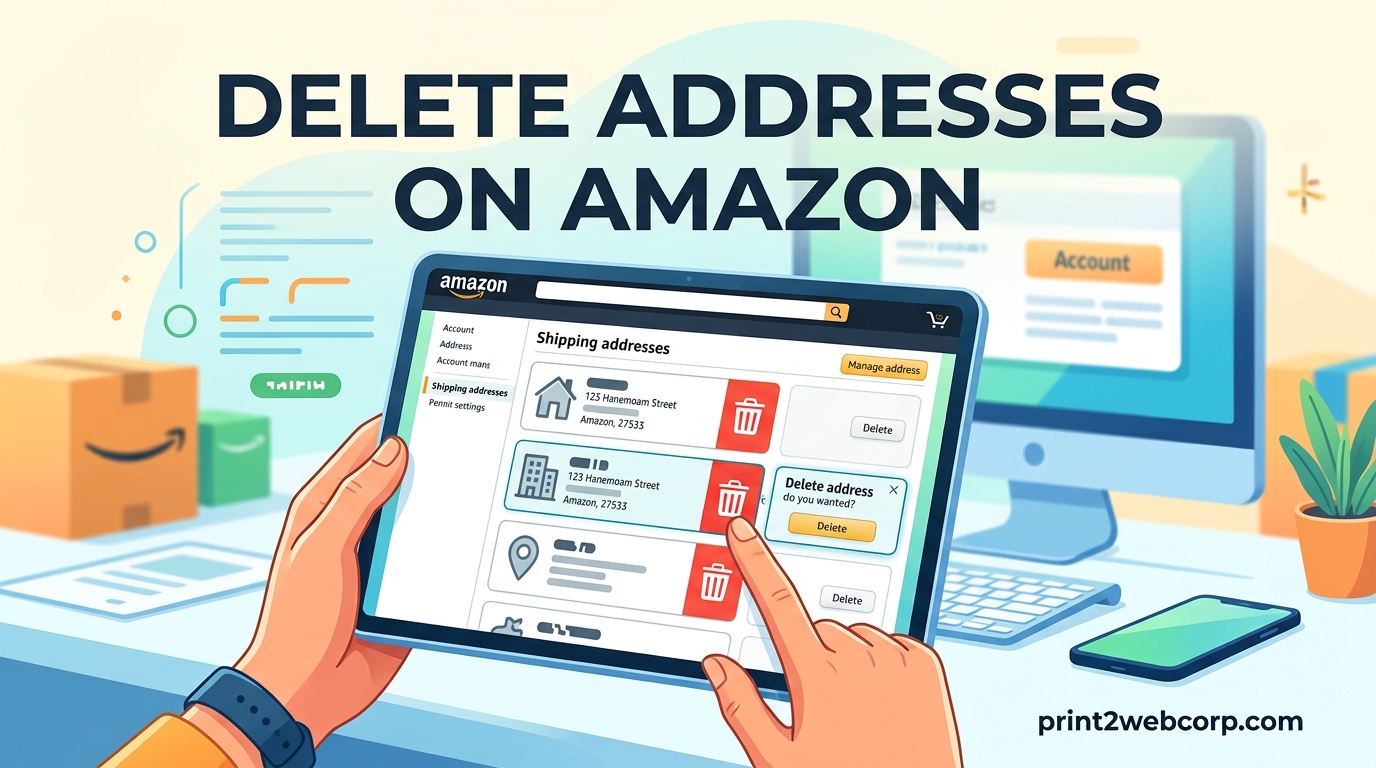
If you have ever scrolled through your Amazon address book and spotted entries for places you no longer live at, old workplaces, or a friend’s apartment from years ago, you are not alone. Learning how to delete addresses on Amazon is one of those quick account-management tasks that pays off immediately at checkout. A clean address book means fewer chances of accidentally shipping a package to the wrong location.
Over time, Amazon collects every shipping address you have ever used. That includes temporary delivery spots, Amazon Locker locations, and even Whole Foods counter pickups. While having multiple addresses stored can be convenient during checkout, an overloaded address book creates confusion and potential privacy concerns. I have spent more time than I care to admit scrolling past outdated entries trying to find the right one.
The good news is that removing unwanted addresses takes less than a minute per entry once you know where to look. This guide walks through the exact steps for both desktop and mobile, covers what to do when Amazon blocks deletion, and explains how pending orders and Subscribe and Save subscriptions affect the process. Everything here reflects the current Amazon interface as of 2026.
Quick Summary: How to Delete Addresses on Amazon
Before diving into the detailed steps, here is the short version. You can delete addresses on Amazon in three quick moves: go to Your Addresses, click Remove under the address tile, and confirm by clicking Yes. The fastest way to reach your address book is by visiting the direct URL https://www.amazon.com/a/addresses/ in any web browser.
Here are the key things to know before you start removing entries:
Deleting an address does not affect already-placed orders. If an order has not shipped yet, you need to update its shipping address separately through Your Orders.
You cannot delete an address tied to an active Subscribe and Save subscription. Update the subscription’s delivery address first, then delete the old one.
Your default address cannot be removed directly. Set a different address as default first, then delete the old one.
Amazon Locker and Whole Foods addresses may reappear. These are auto-generated based on your activity and can resurface after deletion.
Understanding Your Amazon Address Book
Every Amazon account comes with a dedicated address book that stores all the delivery locations you have ever entered. Amazon uses this address book during checkout to auto-fill your shipping details, which saves time but also means old entries linger indefinitely unless you manually remove them. The address book is separate from your billing address and your residential address for digital purchases, though all three can overlap.
Amazon stores addresses on secure servers and only displays them when you are logged into your own account. The platform also uses address verification to confirm that delivery details match real locations before packages are dispatched. This helps reduce delivery errors, but it also means Amazon sometimes holds onto addresses from past orders even if you try to clean them up.
Beyond shipping addresses, your account may include a residential address used for digital purchases like e-books, movies, and music. Amazon requires this to determine regional content licensing. This residential address behaves differently from regular shipping addresses and has specific deletion restrictions, which we cover later in this guide. You can manage all of these addresses from the same Your Addresses page.
How to Delete Addresses on Amazon Desktop
Removing an address from your Amazon account using a desktop browser is straightforward. The process works the same whether you are on Windows, Mac, or Chromebook. You can use any browser including Chrome, Firefox, Safari, or Edge.
Step-by-Step Desktop Instructions
Follow these steps to remove any saved address from your Amazon account on desktop:
Step 1: Open your browser and go to
https://www.amazon.com/a/addresses/to jump directly to Your Addresses page. Alternatively, log in to Amazon, hover over Account and Lists in the top-right corner, and click Your Addresses from the dropdown menu.Step 2: Scroll through your address tiles until you find the one you want to remove.
Step 3: Click the Remove button located below the address tile you wish to delete.
Step 4: A confirmation pop-up will appear asking you to confirm. Click Yes to permanently remove the address from your account.
Step 5: The address tile should disappear immediately from your address book.
That is the entire process. If the Remove button does not appear under a particular address, that usually means it is set as your default address or is tied to an active subscription. Jump down to the troubleshooting section below for solutions to both scenarios.
Using the Direct URL Shortcut
The fastest method to reach your address book is typing https://www.amazon.com/a/addresses/ directly into your browser’s address bar. This skips the navigation menus entirely and drops you straight onto the Your Addresses page. Bookmark this URL if you find yourself managing addresses frequently, especially if you are cleaning up entries from multiple past moves.
How to Delete Addresses on Amazon Mobile App
The Amazon Shopping app has a slightly different navigation flow than the desktop version. The current app interface uses a profile icon rather than the old three horizontal lines menu. The steps below reflect the updated Amazon Shopping app layout for 2026.
Step-by-Step Mobile Instructions
Step 1: Open the Amazon Shopping app on your iPhone or Android device.
Step 2: Tap the profile icon at the bottom of the screen. On most versions of the app, this is the second icon from the right in the bottom navigation bar.
Step 3: Select Your Account from the menu options that appear.
Step 4: Scroll down to the Account settings section and tap on Your Addresses.
Step 5: Browse through your saved address tiles and find the one you want to delete.
Step 6: Tap Remove below the address tile.
Step 7: Confirm by tapping Yes in the pop-up window to permanently delete the address.
The exact layout may vary slightly depending on whether you are using iOS or Android, and Amazon occasionally updates the app interface between versions. However, the core flow of profile icon followed by Your Account and then Your Addresses has remained consistent across recent updates.
If you prefer not to navigate through the app menus, you can also open your phone’s browser and visit https://www.amazon.com/a/addresses/ directly. This loads the same Your Addresses page and lets you remove entries using the same tap-and-confirm process.
How to Handle the Default Address Deletion Error
One of the most common frustrations users run into is being unable to delete their default address. Amazon prevents you from removing whichever address is currently set as your default for shipping. The platform also blocks deletion of your residential address for digital purchases. When you try, you will either see no Remove button at all or an error message saying the address cannot be deleted.
This restriction exists because Amazon needs at least one valid address on file for deliveries and digital content licensing. The workaround is simple but requires an extra step. Here is how to get past it:
Step 1: Go to Your Addresses at
https://www.amazon.com/a/addresses/.Step 2: Find the address you want to keep and click Set as Default below it. This makes it your new default shipping address.
Step 3: If you are trying to remove the residential address for digital purchases, click on the address you want to remove and look for the residential address designation. You need to set a different address as your residential address first.
Step 4: Once the new default or residential address is set, go back to the old address tile and click Remove.
Step 5: Confirm by clicking Yes.
Reddit users have also discovered a workaround where setting the address you want to delete as the default first, attempting to remove it, and then selecting a new residential address from the resulting prompt can force Amazon to let go of a stubborn residential address. This method is not officially documented but has worked for many users who were stuck in a deletion loop.
What Happens to Pending Orders When You Delete an Address
This is a critical point that many people overlook. Deleting an address from your address book does not change the shipping address on orders you have already placed. If you have a pending order heading to an address you just deleted, that order will still ship to the old address. The address removal only affects future orders.
This means if you are moving and want to update an unshipped order, you need to take a separate action through Your Orders. Amazon also notes that deleting an address will not affect open or pending orders in any way, so the delivery will proceed as originally planned unless you actively change it.
How to Change Shipping Address on a Pending Order
If you need to redirect an unshipped order to a different address, follow these steps:
Go to Your Orders from the Account and Lists menu.
Find the order you want to update and look for the View or edit order button.
If the order has not entered the shipping process yet, you will see an option to Change the shipping address.
Select a new address from your address book or enter a new one.
Confirm the change.
Keep in mind that once an order moves into the shipping phase, Amazon locks the address and no further changes are possible. This typically happens within hours of placing an order for items in stock, so act quickly if you need to redirect a package.
Subscribe and Save Address Restrictions
If you have active Subscribe and Save subscriptions, Amazon will not let you delete the delivery address associated with those subscriptions. This is a built-in safeguard to prevent recurring deliveries from going to an address you no longer use. You will need to update each subscription individually before the address can be removed.
To update a Subscribe and Save delivery address, go to Your Subscribe and Save Items from your account dashboard. Select the subscription, tap or click Edit next to the delivery address, choose a new address, and save your changes. Once every subscription using the old address has been updated, the Remove button will appear on that address tile and you can delete it normally.
How to Set or Change Your Default Address on Amazon
Changing your default address is useful when you move and want all future orders to use your new location automatically. It is also a prerequisite for deleting your old default address, as described in the earlier section.
Go to
https://www.amazon.com/a/addresses/or navigate to Your Addresses through Account and Lists.Find the address you want to set as your new default.
Click the Set as Default button below that address tile.
The address will immediately be marked as your default and will auto-populate during future checkouts.
On the mobile app, the process is identical. Navigate to Your Addresses through the profile icon, find the address tile you want as default, and tap Set as Default. The change applies across your account immediately.
Troubleshooting: When You Cannot Delete an Address on Amazon
Sometimes the Remove button is nowhere to be found, or an address stubbornly refuses to disappear even after you have confirmed deletion. Reddit threads and Amazon Forum posts are filled with users running into these exact issues. Here are the most common problems and their solutions.
The Remove Button Is Not Visible
If you do not see a Remove button under an address tile, it almost always means one of three things. First, the address may be set as your default shipping address. Second, it may be your residential address for digital purchases. Third, it may be tied to an active Subscribe and Save subscription. Follow the steps in the default address and Subscribe and Save sections above to resolve each scenario.
Amazon Locker and Whole Foods Addresses Keep Reappearing
Amazon Locker and Whole Foods counter addresses are auto-added to your address book when you use those pickup options. Even after you delete them, they can reappear if Amazon’s system still has them cached or if you have used them recently. Users on Reddit report that Whole Foods counter addresses in particular tend to come back within hours of deletion.
Unfortunately, there is no permanent fix for this behavior on the user side. The most effective approach is to stop using those pickup locations. Over time, Amazon’s system stops re-adding them. If the addresses continue to reappear and it bothers you, contact Amazon Support and ask them to manually purge the entries from the backend.
Addresses From Past Orders Cannot Be Removed
Amazon stores addresses from all past orders permanently in its system. In most cases you can delete them from your visible address book, but the underlying record may persist on Amazon’s servers tied to those historical orders. This is by design for order tracking and customer service purposes. The address simply will not appear at checkout once you remove it from Your Addresses page.
App Interface Glitches
If the Amazon Shopping app is displaying an outdated interface or the Remove button is glitchy, try clearing the app cache or reinstalling the app entirely. On iPhone, offloading and reinstalling the app can resolve display issues. On Android, clearing cache from Settings followed by Apps and then Amazon Shopping often fixes the problem. You can also switch to a browser and use the direct URL https://www.amazon.com/a/addresses/ as a reliable workaround.
Security: What to Do About Unfamiliar Addresses
If you spot an address in your account that you do not recognize, take it seriously. An unfamiliar address could indicate that someone else has accessed your account. This is a known concern that has been raised repeatedly on Amazon Forum and Reddit, and it warrants immediate action to protect your account and payment information.
Change your password immediately. Use a strong, unique password that you have not used on any other site.
Enable two-factor authentication. Go to Login and Security in your Amazon account settings and turn on two-step verification. This requires a code from your phone in addition to your password.
Check Your Orders for anything you did not purchase. Look for orders shipped to addresses you do not recognize and report them to Amazon immediately.
Review your payment methods. Remove any unfamiliar credit cards or bank accounts from your payment settings.
Contact Amazon Support. Call or chat with Amazon customer service and report a potential account compromise. They can review account activity logs and take protective action.
After securing your account, delete any unfamiliar addresses from Your Addresses page using the steps earlier in this guide. Taking swift action minimizes the risk of fraudulent purchases and protects your personal information from further exposure.
How to Delete Addresses on Amazon Business Accounts
Amazon Business accounts have a slightly different address management structure. Business addresses may be shared across multiple users within the same organization, which means you may need admin permissions to remove certain entries. The core deletion process is the same, but some addresses are designated as organizational shipping locations and require approval from the business account administrator.
To delete addresses on an Amazon Business account, go to Your Addresses at https://www.amazon.com/a/addresses/. If you see a Remove button, you have permission to delete that entry. If the button is missing, contact your business account administrator to request removal or to have them update your permissions. Business addresses tied to approved purchasing workflows may also have additional restrictions similar to the default address and Subscribe and Save limitations.
FAQs
How do I delete a saved address on Amazon?
Go to Your Addresses by visiting https://www.amazon.com/a/addresses/ or navigating through Account and Lists. Find the address tile you want to remove, click Remove below it, and confirm by clicking Yes. The address will be deleted from your address book immediately.
Why won’t Amazon let me remove an old address?
Amazon blocks address deletion in three situations: the address is set as your default shipping address, it is your residential address for digital purchases, or it is tied to an active Subscribe and Save subscription. Set a different address as default, update your subscriptions, or change your residential address first, then the Remove button will appear.
How do I remove the residential address on Amazon and add a new one?
Go to Your Addresses, add your new address first by clicking Add Address. Then click Set as Default below the new address. For the residential address used for digital purchases, you may need to set the new address as your residential address before the old one can be removed. Once the new residential address is active, click Remove under the old one and confirm.
What happens to my pending orders if I delete an address on Amazon?
Deleting an address from Your Addresses page does not affect any orders you have already placed. Pending orders will still ship to the address that was selected at checkout. If you need to change the shipping address on an unshipped order, go to Your Orders, find the order, click View or edit order, and change the address there before it enters the shipping process.
How do I delete old addresses and credit cards on Amazon?
To delete addresses, go to Your Addresses at https://www.amazon.com/a/addresses/ and click Remove under each unwanted entry. To delete credit cards, go to Account and Lists, select Your Payments, click on the payment method you want to remove, and select Edit or Remove. Confirm each deletion when prompted.
Can I delete my default address on Amazon?
No, Amazon does not allow you to delete your default address directly. You need to set a different address as your default first by clicking Set as Default under another address tile. Once the new default is active, the old address will show a Remove button and you can delete it normally.
Conclusion
Cleaning up your Amazon address book takes just a few minutes and makes every future checkout smoother. Whether you are deleting old shipping addresses after a move, removing a default address by setting a new one first, or troubleshooting a stubborn entry that refuses to disappear, the steps in this guide cover every scenario you are likely to encounter.
Remember that the direct URL https://www.amazon.com/a/addresses/ is your fastest shortcut to the address management page. For pending orders, always update the shipping address through Your Orders separately since deleting an address does not redirect packages already in the system. If you spot unfamiliar addresses, treat them as a security concern and change your password along with enabling two-factor authentication right away.
Looking to clean up other e-commerce accounts? You can also learn how to manage your eBay purchase history or explore selling on Amazon for additional account management tips. For more on how the Amazon Choice Badge works and how it influences your shopping experience, check out our Amazon Choice Badge guide. Keeping your digital accounts organized in 2026 is well worth the effort.
Leave a Reply