
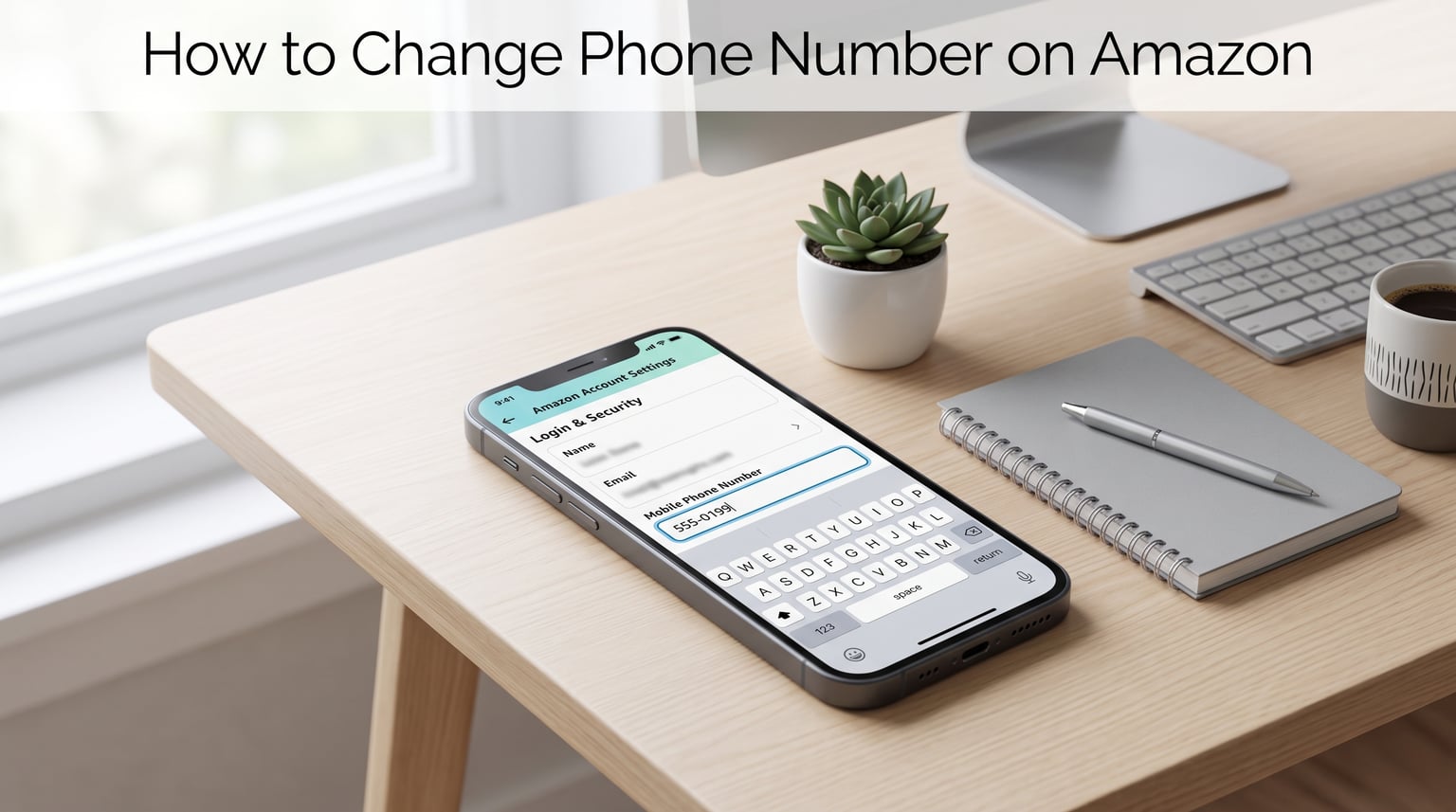
Switching to a new phone number means your Amazon account needs the same update, otherwise you risk getting locked out the next time a verification code is requested. Knowing how to change phone number on Amazon takes under two minutes, and the process works identically whether you are on a desktop browser, an iPhone, or an Android device. Here is the quick version: sign in to your account, open Account & Lists, select Login & Security, click Edit beside your mobile number, type the new number with the correct country code, enter the OTP verification texted to that phone, and hit Save Changes.
That short sequence is all most shoppers need. However, plenty of edge cases can trip you up, especially if you have lost access to the old number, rely on two-step verification, or recently moved to a different country code. This guide walks through every platform, then covers the follow-up tasks Amazon does not always remind you about: updating 2SV settings, refreshing the phone number tied to your shipping addresses, and recovering an account when the old SIM card is long gone.
I have tested each method below on a live Amazon account in 2026 to confirm the menu labels and verification prompts still match what you will see on screen. If anything looks slightly different in your app version, the underlying flow remains the same, so follow the intent of each step rather than the exact wording.
Why Update Your Phone Number on Amazon?
Your mobile number is the backbone of Amazon’s identity checks. It powers OTP verification at sign-in, acts as a recovery channel if you forget your password, and serves as the delivery point for delivery driver calls or shipping notifications. An outdated number quietly breaks all of those functions.
The most pressing reason to update is security. If you have two-step verification (2SV) enabled, Amazon texts a one-time code to whatever number is on file every time you log in from a new device. Lose that SIM and you effectively lose the keys to your account. Updating the number before you cancel your old plan is the single most important step, yet it is also the one shoppers forget until they are already locked out.
Even without 2SV active, Amazon still uses your number for suspicious-activity alerts, password resets, and the occasional identity check before a high-value order ships. Keeping the field current means those alerts reach you instead of a stranger who inherited your recycled number.
Finally, accurate contact details keep order communications flowing. Delivery updates, return confirmations, and customer-service callbacks all rely on the number stored in your account settings, not the one you typed at checkout last year.
Also Read: Selling on Amazon? Discover Potential Earnings Today!
How to Change Phone Number on Amazon via a Web Browser
The desktop site gives you the clearest view of every account field, which makes it the easiest route if you are already at a computer. The entire update takes about two minutes as long as you have the new phone nearby to receive a verification code.
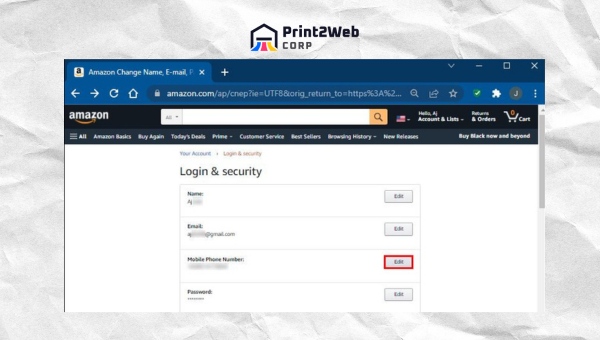
- Sign in at Amazon.com: Open your browser, head to the Amazon homepage, and log in with your email and password.
- Open Account & Lists: Hover over the Account & Lists menu in the top-right corner, then click Your Account from the dropdown.
- Choose Login & Security: On the account dashboard, click the Login & Security tile. Amazon may ask you to re-enter your password or solve a CAPTCHA at this point.
- Click Edit next to your number: Look for the Mobile Phone Number row and click the Edit button beside it.
- Select the country code and enter the new number: Use the dropdown to pick the correct international dialing code, then type your new mobile number in the input field. Double-check the digits before continuing.
- Pick a verification method: Amazon lets you receive the code by SMS text or by voice call. Choose whichever option works best given your current cell reception.
- Enter the OTP code: Type the six-digit verification code that arrives on your new phone. The code typically expires after ten minutes.
- Hit Save Changes: Click Save Changes (or Done) to lock in the update. Amazon confirms the change with an on-screen message and a confirmation email.
If you ever see a prompt saying the new number is already in use, that means another Amazon account is registered to it. You will need to remove the number from the other account first, or contact Amazon Customer Service to resolve the conflict before you can proceed.
Once the change goes through, take a moment to update any other area of your account that depends on a phone number. The shipping address section and two-step verification settings are both managed separately, and we cover both later in this guide.
How to Change Your Phone Number on the Amazon App (iOS)
iPhone and iPad users can handle the entire update without leaving the Amazon Shopping app. The menu layout changes slightly between versions, but the core path is the same as the desktop flow condensed into a smaller screen.
- Open the Amazon Shopping app: Tap the app icon on your iOS home screen. Make sure you are running the latest version from the App Store so the menu names match.
- Open the hamburger menu: Tap the three horizontal lines in the bottom-right corner to expand the navigation drawer.
- Go to Your Account: Scroll down and tap Your Account near the bottom of the list.
- Tap Login & Security: Select the Login & Security option. You may be asked to authenticate with your password, Face ID, or Touch ID.
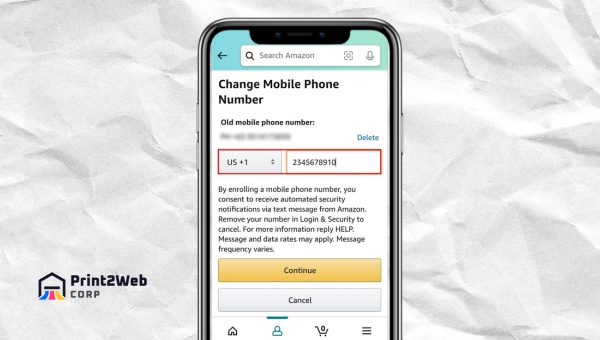
- Tap Edit beside the number: Find the Mobile Phone Number field and tap Edit.
- Enter the new number with country code: Clear the old number, select the correct country code from the dropdown, and type the new mobile number.
- Choose SMS or voice call verification: Pick how you want to receive the OTP code, then tap Continue.
- Enter the verification code: Type the six-digit code texted to your new phone, then tap Save Changes to confirm.
If the app prompts you to upload a screenshot of your ID or a utility bill, you have likely triggered an additional identity check. This is normal for accounts with recent password resets or suspicious login attempts, and the verification usually clears within 24 hours.
Also Read: Dropshipping vs. Amazon FBA: Ultimate Showdown for Entrepreneurs
How to Update Phone Number on Amazon Using an Android Device
The Android app mirrors the iOS experience almost exactly. Whether you are on a Samsung Galaxy, a Google Pixel, or another brand, the steps below apply across the board as long as you are signed in to the Amazon Shopping app.
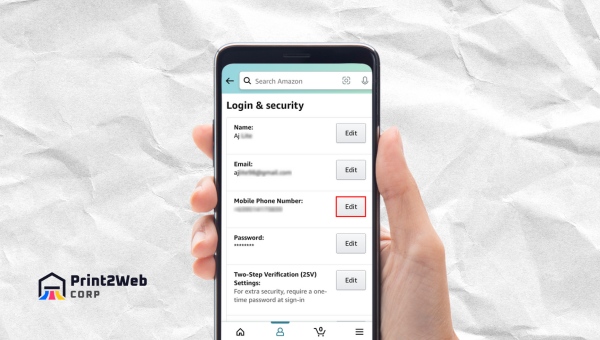
- Launch the Amazon app: Tap the Amazon icon on your Android home screen or app drawer.
- Open the menu: Tap the hamburger icon (three horizontal lines) in the bottom-right corner.
- Select Your Account: Scroll through the drawer and tap Your Account.
- Tap Login & Security: Choose Login & Security from the account settings list. Re-enter your password or use your device biometric if prompted.
- Tap Edit next to Mobile Phone Number: Locate the phone number field on the Login & Security page and tap Edit.
- Enter the new number: Remove the old digits, choose the right country code, and type the new phone number carefully.
- Verify and Save Changes: Pick SMS or voice call for the OTP, enter the code when it arrives, and tap Save Changes to finish.
Some Android skins place a system-level SMS permission prompt between steps six and seven. If the OTP never arrives, check that Amazon is allowed to read SMS in your app settings, or switch to the voice-call verification option as a fallback.
Two-Step Verification After Changing Your Phone Number
Updating your mobile number in Login & Security does not automatically update the phone receiving your 2SV codes. Amazon treats the account phone number and the two-step verification number as two separate fields, so you need to refresh both.
To update 2SV, head back to Login & Security, scroll to the Advanced section, and select Edit under Two-Step Verification Settings. You can then replace the old number with the new one or add an authenticator app such as Google Authenticator or Authy for a stronger, SIM-independent layer of protection.
If you skip this step, your next login from a new device will still text the old number, and you could find yourself locked out even though you updated the main account phone. Setting up an authenticator app is worth the extra minute because it removes your dependence on SMS entirely, which is especially useful for travelers who switch SIM cards often.
Amazon also lets you download backup codes during the 2SV setup. Store those codes in a password manager or a secure note so you have a fallback if both your phone and authenticator app are unavailable.
Updating Phone Number on Shipping Addresses
A common point of confusion is that the phone number stored under Login & Security is separate from the phone number attached to each shipping address. The account number handles logins and security alerts, while the address number is what delivery drivers and carriers see when they need to contact you about a package.
To refresh the address phone number, open Account & Lists, choose Your Addresses, and click Edit beside any saved address. Update the phone field, then Save Changes. Repeat the process for every address in your list, because each one stores its own number independently.
If you only update the account number and skip the addresses, you will still receive order confirmations and security alerts, but a courier trying to reach you about a gate code or a missed delivery will be calling your old line. Taking two minutes to sync everything avoids that headache.
Troubleshooting: Can’t Access Your Old Phone Number
Losing access to your old number before updating Amazon is the scenario that generates the most support-forum posts. If 2SV is enabled and the old number is gone, you cannot receive the login OTP, which means you cannot reach the settings page to change anything. Fortunately, there are established recovery paths.
First, try signing in from a device or browser you have already trusted. Amazon often skips the OTP on recognized devices, which gives you a window to update the number through Login & Security before the session expires. If you do get in, change the number and refresh 2SV immediately.
If no trusted device is available, visit Amazon’s account recovery portal at amazon.com/a/recover/upload. You will be asked to submit a photo of a government-issued ID so the verification team can confirm you own the account. Submission is encrypted, and the team typically responds within 24 to 48 hours. Once identity is confirmed, Amazon can disable the old 2SV method and let you set up a new phone number.
As a last resort, call Amazon Customer Service directly. Have your account email, billing address, and recent order numbers ready, because the representative will verify your identity before making any changes. The phone-based support team can override the OTP requirement in cases of confirmed identity, which is faster than waiting for the document-review queue when you need urgent access.
One important warning: never use a third-party service that promises to unlock your Amazon account for a fee. Those offers are almost always phishing attempts designed to steal your credentials. Amazon will never ask for your full password or payment details over the phone during a recovery call.
Why You Should Keep Your Phone Number Current on Amazon
Beyond the immediate login situation, keeping your contact details fresh pays off in smaller ways throughout the year. Amazon uses your number to flag suspicious purchases, confirm returns, and verify identity during high-value transactions. An outdated number means those safeguards silently stop working.
Carriers regularly recycle deactivated numbers, which means a stranger could end up receiving your OTP codes and delivery notifications if you abandon a line without updating Amazon. In rare cases, that person could even use the recycled number to attempt an account takeover if 2SV is off.
Treat a phone number change the same way you treat a password update: do it before you lose access, and pair it with a quick 2SV refresh so your security chain stays unbroken.
Also Read: Does Taco Bell Accept Apple Pay? Find Out Now!
Frequently Asked Questions
How do I remove an old phone number from my Amazon account?
Go to Account u0026amp; Lists u0026gt; Login u0026amp; Security, click Edit next to your Mobile Phone Number, delete the digits, and Save Changes. Amazon may send a final verification code to the old number before confirming the removal, so have the SIM handy if the line is still active.
What should I do if I no longer have access to my old phone number and cannot receive verification codes?
Try signing in from a previously trusted device first. If that fails, visit amazon.com/a/recover/upload and submit a photo of a government-issued ID so Amazon’s verification team can confirm ownership. You can also call Amazon Customer Service with your account email and recent order details for a faster override.
How can I change my phone number on Amazon if my account is locked or compromised?
Start with the account recovery portal at amazon.com/a/recover/upload and upload a government-issued ID. Once the team confirms your identity, they will unlock the account and let you reset both the phone number and password. Do not attempt to recover a compromised account through links in emails; always navigate to Amazon directly in your browser.
Will changing my phone number on Amazon affect my subscriptions or digital content?
No. Prime Video, Kindle Unlimited, Subscribe u0026amp; Save, and other subscriptions are tied to your account email, not your phone number. Your content, watch history, and active subscriptions remain untouched. Just remember to update 2SV separately if you use SMS codes for login.
Can I set up two-factor authentication with my new phone number right after changing it?
Yes. Once the new number is saved in Login u0026amp; Security, open the Advanced section of the same page, choose Edit under Two-Step Verification Settings, and add the new number. For stronger security, consider switching to an authenticator app instead of SMS so you are not dependent on any single SIM card.
What if Amazon says my new phone number is already in use?
That means another Amazon account is registered to the same number. Sign in to the other account (if it is yours), remove the number, and try again. If you do not recognize the account, contact Amazon Customer Service with proof of ownership of the phone number, such as a carrier statement, and they will investigate the duplicate registration.
Also Read: eBay Vacation Mode: Navigate Selling While Away!
Conclusion
Changing your phone number on Amazon boils down to a handful of steps: sign in, open Account & Lists, jump into Login & Security, edit the mobile number, verify via OTP, and hit Save Changes. The flow is identical on desktop, iOS, and Android, so pick whichever device is closest.
Do not stop there, though. Update the number inside Two-Step Verification settings so your next login OTP lands on the right phone, refresh the phone fields on every saved shipping address so couriers can still reach you, and, if you have already lost access to the old number, use the account recovery portal or call Amazon Customer Service to get back in safely.
Keep this page bookmarked for the next time your number changes. A two-minute update today can save you hours of recovery headaches tomorrow, and pairing the change with an authenticator app will make your account even harder to breach in 2026 and beyond.
Leave a Reply