
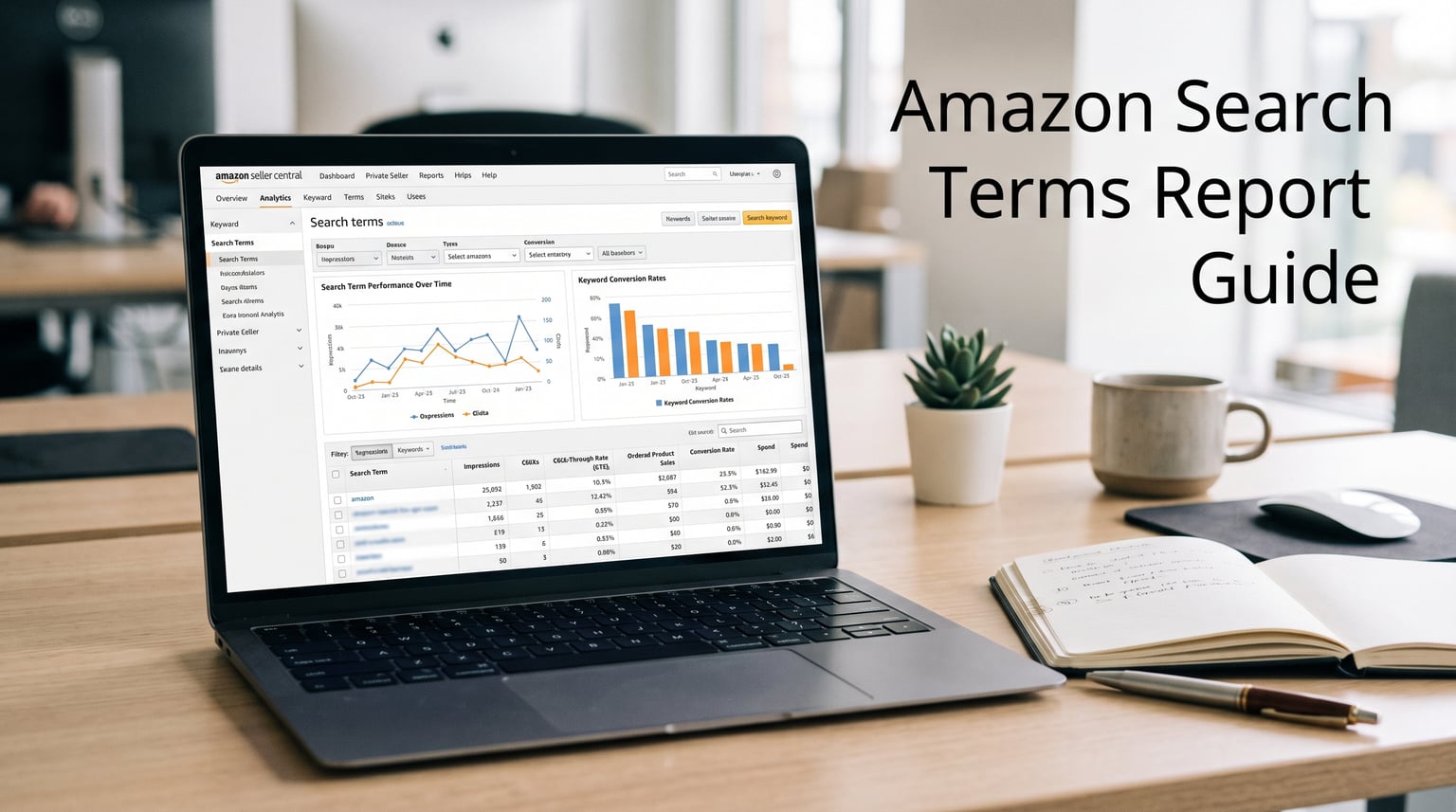
Every time a shopper types a query into Amazon’s search bar, the platform records it. The Amazon Search Terms Report hands you that recorded data so you can see the exact phrases real customers used before they clicked your ads or bought your products. For sellers running Sponsored Products or Sponsored Brands campaigns, this report is the single most valuable data source available inside Seller Central for understanding ad performance at the keyword level.
Here is the problem most sellers run into: they set up campaigns, pick some keywords, set bids, and hope for the best. Then they check sales numbers without ever looking at which specific search terms are actually driving those sales or burning through their budget. Without the search term report, you are essentially advertising blindfolded, unable to distinguish between a keyword that brings in profitable orders and one that quietly drains your ad spend on clicks that never convert.
In this updated 2026 guide, I will walk you through everything you need to know about the Amazon Search Terms Report. We will cover the two distinct reports that share this name, how to download each one, what every column means, how to identify wasted spend, and the keyword graduation workflow that experienced sellers use to scale their PPC results. Whether you are a new Amazon private label seller just starting your first auto campaign or an experienced advertiser auditing a complex account, this guide breaks down the process into clear, actionable steps.
What Is the Amazon Search Terms Report?
The Amazon Search Terms Report is a data export that reveals the actual search queries shoppers entered before clicking on your ads or purchasing your products. Rather than showing you the keywords you bid on, it shows you what real human beings typed into the search box. This distinction matters because a single keyword set to broad match can trigger your ad for hundreds of completely different search queries, some relevant and some wildly off-target.
There is a critical point that confuses many sellers: Amazon actually offers two different reports that both get called the “Search Terms Report.” Understanding the difference between them is essential before you can use either one effectively.
The PPC Search Term Report (Advertising)
This is the report most sellers mean when they talk about search term reports. It lives inside Campaign Manager under the Advertising section of Seller Central. It shows you the exact queries that triggered your Sponsored Products, Sponsored Brands, or Sponsored Display ads, along with performance metrics like impressions, clicks, spend, and attributed sales for each individual query.
If you ran a broad match keyword for “yoga mat” and your ad appeared for “extra thick yoga mat for travel,” “cheap gym equipment,” and “pilates pad,” the PPC Search Term Report would list each of those phrases individually with its own performance data. That visibility lets you see which queries deserve more investment and which ones need to be negative-keyworded immediately.
The Brand Analytics Search Terms Report
The second report lives in Brand Analytics under the Search Analytics section. This one is entirely different in purpose. Rather than showing you queries tied to your own ad campaigns, it reveals the most popular search terms across all of Amazon, ranked by search frequency. It also shows click share and sales share percentages for the top three clicked ASINs for each search term.
This report is invaluable for keyword research and competitive analysis. It tells you which products shoppers clicked on most often after searching a given term and which products actually captured the most sales from that term. Brand owners enrolled in Amazon Brand Registry use it to identify high-volume search terms they are not currently ranking for, spot competitor products dominating specific queries, and discover emerging search trends before competitors notice them.
Search Query Performance: The Newer Addition
Amazon also now offers the Search Query Performance report, which sits between the two reports described above. It shows the actual search queries that led to impressions and clicks for your brand, broken down by the ASINs shoppers ended up viewing or purchasing. This report provides impression share data, meaning you can see what percentage of total impressions for a given query your products captured compared to the marketplace overall.
For sellers who want to understand not just their own performance but their share of the market for specific queries, Search Query Performance fills a gap that neither the PPC Search Term Report nor the Brand Analytics report fully addresses on its own.
How to Download the Amazon Search Term Report
Downloading your search term report requires navigating through the current Amazon Seller Central interface. The process has changed over the years, so if you are following outdated tutorials, the navigation steps may look different from what you see on your screen today. Here are the current steps for the PPC Search Term Report.
Log in to your Seller Central dashboard.
Navigate to Campaign Manager under the Advertising menu.
Click on the Reports tab at the top of the Campaign Manager interface.
Select Search Term Report from the report type dropdown menu.
Choose your date range. Amazon recommends a minimum of 14 days to gather enough data, though 30 to 60 days gives a clearer picture of performance trends.
Select the campaigns you want included, or leave it set to all campaigns for a complete export.
Click Create Report. Amazon typically generates the file within one to two minutes, and it appears in your report download queue.
Once the status changes to Ready, click Download to save the CSV file to your computer.
One important detail to remember: Amazon only retains search term report data for approximately 60 days. If you do not download your reports regularly, that historical data is gone permanently. Many experienced sellers set a recurring calendar reminder to pull their reports weekly or bi-weekly to avoid losing valuable performance history. For advertising data in general, Amazon retains information for up to 15 months, but the search term level data has the shorter 60-day window.
Key Columns and Metrics Explained
When you open your downloaded search term report CSV, you will see a spreadsheet with multiple columns. Understanding what each column measures is the foundation of all analysis you will do with this data. Let me walk through the most important columns and the formulas behind the key derived metrics.
Customer Search Term
This column shows the exact phrase the shopper typed into Amazon’s search bar before clicking your ad. This is the raw, unedited query as the customer entered it, including misspellings, brand names, product identifiers, and even ASIN strings in some cases. Each row in your report represents a unique search term that triggered at least one click on your ad during the selected date range.
Impressions
Impressions count how many times your ad appeared in search results for that specific term. A high impression count with low clicks suggests your ad is showing frequently but failing to attract clicks, which usually points to a weak main image, uncompetitive pricing, or a relevance mismatch between the search term and your listing.
Clicks and Click-Through Rate (CTR)
Clicks tell you how many shoppers clicked on your ad for that search term. Click-through rate divides clicks by impressions to show what percentage of people who saw your ad decided to engage. A healthy CTR for Sponsored Products typically falls between 0.2 percent and 0.5 percent, though this varies by category. If your CTR falls well below 0.2 percent, your listing elements likely need improvement.
Spend and Cost Per Click (CPC)
Spend represents the total amount you paid in advertising costs for clicks on a given search term. Cost per click is calculated by dividing total spend by total clicks. CPC varies dramatically depending on how competitive the keyword is. Knowing your CPC per search term helps you set realistic bids when you move that term into a manual campaign.
7-Day Total Sales and 7-Day Total Units
This column shows the total sales revenue attributed to that search term within a 7-day window after the click occurred. Amazon uses a 7-day attribution model, meaning if a shopper clicked your ad on Monday and purchased on Thursday, the sale is attributed to that search term. However, if the purchase happened nine days after the click, it would not appear in this column, even though the ad likely contributed to the sale.
ACoS (Advertising Cost of Sales)
ACoS divides your ad spend by your attributed sales revenue to show what percentage of your sales went toward advertising costs. A search term with an ACoS of 25 percent means you spent one dollar for every four dollars in attributed sales. Every seller has a different break-even ACoS based on their profit margins, so knowing your threshold is essential before you can judge whether a search term is performing well or poorly. For a deeper understanding of this metric, check out our complete guide to ACoS on Amazon and how to calculate your target threshold.
Conversion Rate (CVR)
Conversion rate divides your attributed orders by your clicks to show what percentage of shoppers who clicked your ad actually purchased. A high CVR on a search term signals strong buyer intent and a well-optimized listing. When combined with strong Amazon review practices, high-converting search terms become the backbone of a profitable PPC strategy. Low CVR on high-impression terms suggests shoppers are arriving at your listing but not buying, which typically points to pricing, image, or review count issues.
Search Term Report vs Targeting Report
Many sellers confuse the Search Term Report with the Targeting Report, and Amazon does not make the distinction obvious. The Targeting Report shows performance data organized by the keywords or targets you actually set up in your campaigns. If you bid on “stainless steel water bottle” as a broad match keyword, the Targeting Report shows aggregate performance for that keyword as a single line item.
The Search Term Report, by contrast, breaks that same keyword down into every individual query it matched. So “stainless steel water bottle” might expand into “insulated steel water bottle 32 oz,” “stainless steel bottle for gym,” “metal water container,” and dozens of others. You need both reports: the Targeting Report for high-level campaign performance and the Search Term Report for granular query-level analysis that drives optimization decisions.
How to Find Wasted Spend
Wasted spend is the money flowing out of your ad budget on search terms that generate clicks but never produce sales. Industry benchmarks suggest that 15 to 25 percent of typical Amazon PPC budgets go toward terms with zero conversions. Identifying and eliminating this waste is the fastest way to improve your overall profitability without increasing your budget.
The 20-Click Rule
Experienced sellers apply what is commonly called the 20-click rule. When a search term accumulates 20 or more clicks without generating a single sale, that term becomes a prime candidate for negative keyword placement. Twenty clicks represents a statistically meaningful sample. If your conversion rate is even 5 percent, you would expect roughly one sale from every 20 clicks. Zero sales after 20 clicks strongly indicates the search term is reaching shoppers who are not interested in buying your specific product.
Step-by-Step Waste Identification
Open your search term report in a spreadsheet program and sort the spend column from highest to lowest. Filter for rows where the 7-Day Total Sales column is zero or blank. These rows represent terms where you spent money and received nothing in return. Focus on the terms with the highest spend first, as those represent the largest dollar amounts of waste.
Before negating a term, glance at its click count and impression count. A term with 200 impressions and 3 clicks has not had enough traffic to fairly evaluate. A term with 2,000 impressions and 30 clicks with zero sales, however, has been thoroughly tested and should be negated. Add these terms as negative exact or negative phrase matches in your campaign to prevent your ads from showing for them again.
How to Find Your Winning Search Terms
On the opposite end of the spectrum from wasted spend are your winning search terms. These are the queries that consistently generate sales at a profitable ACoS. Finding them follows a similar sorting approach but in reverse direction.
Sort your search term report by 7-Day Total Sales from highest to lowest. Look for terms that have generated multiple orders with a healthy ACoS below your break-even threshold. These are your proven performers. Pay attention to terms with three or more conversions, as that volume confirms the term is not a one-off purchase. The 3-conversion graduation threshold is widely used because it filters out coincidence and identifies genuinely reliable converting terms.
Also scan for long-tail terms you might not have expected. Sellers frequently discover that specific, detailed queries convert at much higher rates than broad category terms. A query like “organic cotton baby swaddle blanket gender neutral” might have low search volume but a conversion rate three times higher than “baby blanket.” These long-tail winners often represent your most efficient advertising opportunities.
The Keyword Graduation Strategy
Keyword graduation is the workflow of moving high-performing search terms from auto campaigns into dedicated manual campaigns with exact match bids. This is the primary use case for the search term report and the strategy that separates systematic sellers from those who treat Amazon PPC as guesswork.
The process starts with an auto campaign that uses Amazon’s algorithm to match your ads against a wide range of relevant queries. Auto campaigns cast a wide net, and they generate the raw search term data you need for analysis. Most Amazon private label sellers begin every new product launch with an auto campaign specifically to harvest this data.
Step 1: Identify Graduation Candidates
Review your auto campaign search term report for terms that have generated three or more conversions at an ACoS below your target. These terms have proven they convert reliably and deserve dedicated management rather than being left in the broad auto campaign pool.
Step 2: Create an Exact Match Campaign
Set up a new Sponsored Products manual campaign using exact match targeting for each graduated term. Set your initial bid approximately 10 to 15 percent above the current CPC the term is achieving in the auto campaign. This higher bid helps ensure the manual campaign wins the auction for that query rather than the auto campaign cannibalizing the impression.
Step 3: Negate in the Auto Campaign
This step is critical and frequently overlooked. Once a term moves to your exact match campaign, add it as a negative exact keyword in the original auto campaign. Without this negation, both campaigns compete for the same query, driving up your own costs through internal bidding competition.
Step 4: Monitor and Optimize
Over the following two to three weeks, monitor the graduated term’s performance in the new exact match campaign. Adjust bids based on whether ACoS is trending above or below your target. Terms that consistently outperform expectations can be expanded into phrase match campaigns to capture close variations of the proven query.
Using Search Term Data for Listing Optimization
Your search term report is not only a PPC tool. It also reveals the language your customers actually use, which is gold for listing optimization. If shoppers consistently find you through specific long-tail phrases, those phrases belong in your product title, bullet points, and backend search terms.
Review your high-converting search terms and compare them against your current listing copy. Are there relevant phrases with strong conversion rates that do not appear anywhere in your title or bullets? Adding those phrases can improve your organic ranking for those queries. Use this data to write product descriptions that sell by incorporating the exact vocabulary your buyers naturally use.
Backend Search Terms Limit
Amazon allows up to 250 bytes for backend search terms on each product listing. That is approximately 250 characters including spaces and commas. Going over this limit causes Amazon to reject the entire backend search terms field, leaving you with zero hidden keywords indexed. Use your search term report data to prioritize the highest-converting phrases for this limited space, and avoid wasting bytes on duplicate words already in your title or bullet points.
ASINs in the Search Term Column
One of the most common questions from new sellers is why their search term report contains strings of letters and numbers that look nothing like a search query. These are ASIN identifiers, and they appear most frequently in auto campaigns with product targeting enabled. When a shopper clicks on a competitor product and Amazon displays your Sponsored Product ad on that listing page, the search term report logs the ASIN of that competitor product rather than a text query.
Treat these ASIN entries the same way you treat text search terms. If a particular competitor ASIN consistently generates clicks and sales, it represents a product targeting opportunity worth expanding into a dedicated manual targeting campaign. If an ASIN generates dozens of clicks with zero conversions, add it as a negative target to stop wasting spend on that placement.
How Often to Analyze Your Search Term Report
The right analysis frequency depends on your campaign size and budget. For new product launches or campaigns spending significant daily budgets, reviewing search terms weekly prevents waste from accumulating. For mature, stable campaigns with lower daily spend, a bi-weekly or monthly review cadence is sufficient.
The key is consistency. Setting a regular schedule prevents the common scenario where sellers download a report after two months and discover they have been spending hundreds of dollars on irrelevant queries that should have been negated weeks earlier. Given the 60-day data retention window, downloading your report at least monthly ensures you never lose data permanently.
Common Mistakes to Avoid
Negating Too Quickly
The most frequent mistake is negative-keywording a search term after only a handful of clicks. Three or four clicks without a sale is normal statistical noise, not proof the term is unprofitable. Wait until a term accumulates at least 15 to 20 clicks before deciding it has failed. Premature negation removes potentially profitable terms before they have had a fair chance to convert.
Judging by ACoS Alone
ACoS is important, but it does not tell the full story. A search term with high ACoS might still be profitable if it drives repeat purchases, brand discovery, or new-to-brand customers who go on to buy other products from your catalog. Consider lifetime value and cross-selling effects when evaluating performance, not just the direct 7-day attribution window.
Ignoring Long-Tail Terms
Sellers naturally gravitate toward high-volume search terms because they generate the most clicks and impressions. But long-tail queries with low volume often carry the highest conversion rates and lowest CPCs. Do not sort these out of your view just because the absolute numbers are small. Twenty long-tail terms each generating two sales per month can collectively outperform a single high-volume keyword with mediocre conversion rates.
Keywords vs Search Terms: The Critical Difference
The terms “keyword” and “search term” are often used interchangeably, but on Amazon they mean fundamentally different things. Understanding this distinction is what makes the search term report useful in the first place.
A keyword is what you, the seller, choose to target in your advertising campaigns. You select keywords, assign match types to them, and set bids. A search term is what the shopper actually types into Amazon’s search bar. Amazon’s system takes the shopper’s search term and matches it against your campaign keywords based on your match type settings.
For example, if you bid on the broad match keyword “running shoes,” Amazon might display your ad when a shopper searches for “red running shoes size 10,” “best marathon sneakers,” or “athletic footwear for men.” Each of those is a distinct search term matched by a single keyword. The search term report lets you see all of these variations so you can decide which ones deserve continued investment and which ones should be excluded.
Match types control how loosely Amazon matches search terms to your keywords. Broad match allows the widest range of variations. Phrase match requires the keyword phrase to appear within the search term in the same word order. Exact match only triggers for search terms that closely match the keyword with minimal variation. Tighter match types give you more control but reduce the volume of queries your ads appear for.
Advanced Analysis: Competitors, Cannibalization, and Seasonal Trends
Competitor Brand Term Analysis
Your search term report often reveals when shoppers search for competitor brand names before clicking your ads. These competitor-branded queries can be highly valuable if your product is competitively priced or better reviewed. Conversely, if your ads consistently fail to convert on competitor brand searches, those terms may need negation. Analyzing this data helps you decide whether bidding on competitor names is a worthwhile strategy for your specific product.
Keyword Cannibalization
Cannibalization occurs when two of your own campaigns compete for the same search term, driving up the winning bid cost and wasting budget on internal competition. This commonly happens when sellers run both auto and manual campaigns simultaneously without proper negative keyword management. Look for the same search term appearing across multiple campaigns in your report, and consolidate bidding under a single campaign with the most appropriate match type.
Seasonal Trend Identification
Comparing search term reports across different time periods reveals seasonal patterns. Queries containing “gift,” “Christmas,” “stocking stuffer,” or “back to school” spike predictably each year. By analyzing historical search term data, you can anticipate which terms to increase bids on before the seasonal rush begins, and which terms to pause when the season ends. The Brand Analytics Search Terms Report is especially useful here because it shows search frequency rank changes over time.
FAQs
How do I get the Amazon Search Term Report?
Log in to Seller Central, go to Campaign Manager under the Advertising menu, click the Reports tab, select Search Term Report from the dropdown, set your date range and campaign filters, then click Create Report. The file typically generates within one to two minutes and appears in your download queue as a CSV.
Where can I find the search term report in Seller Central?
The PPC Search Term Report is located in Campaign Manager under Advertising. Click Reports at the top of the Campaign Manager screen to access it. The Brand Analytics Search Terms Report is found separately under Brand Analytics, then Search Analytics. Both reports share similar names but serve different purposes.
How long does Amazon retain search term report data?
Amazon retains search term level data for approximately 60 days. After that window, the data is permanently deleted and cannot be recovered. General advertising data is retained for up to 15 months, but the granular search term queries have the shorter 60-day retention period. Download reports regularly to avoid losing historical data.
What is the difference between a keyword and a search term on Amazon?
A keyword is what you target in your ad campaigns, chosen by you with an assigned match type and bid. A search term is the actual phrase a shopper types into the Amazon search bar. Amazon matches the shopper search term to your campaign keyword based on your match type settings. One keyword can match hundreds of different search terms.
Why do ASINs appear in my search term report instead of keywords?
ASIN strings appear when shoppers click on competitor product listings and Amazon displays your Sponsored Products ad on that detail page. This happens most commonly in auto campaigns with product targeting enabled. The report logs the ASIN of the product page where your ad appeared. Treat these ASIN entries like any other search term, graduating high performers and negating poor ones.
How often should I analyze my Amazon search term report?
For new product launches or high-spend campaigns, review search terms weekly. For stable, mature campaigns, a bi-weekly or monthly review is sufficient. The key is consistency and never letting more than 60 days pass without downloading, since Amazon permanently deletes search term data after that retention window.
What is the 250-byte limit for Amazon backend search terms?
Amazon allows up to 250 bytes for backend search terms per product listing, which is approximately 250 characters including spaces and punctuation. Exceeding this limit causes Amazon to reject the entire field. Prioritize your highest-converting search terms from your report data, and avoid repeating words already present in your title or bullet points.
Conclusion
The Amazon Search Terms Report is the most powerful diagnostic tool available to sellers who advertise on the platform. It converts advertising from a guessing game into a data-driven process where every bid change and keyword decision is backed by real shopper behavior. Whether you are hunting for wasted spend, harvesting high-converting long-tail terms, or graduating proven keywords into exact match campaigns, this report provides the raw data that makes systematic optimization possible.
If you are launching a new product, start with an auto campaign and review the search term report weekly to catch waste early and identify graduation candidates quickly. If you are managing a mature account, audit your search terms bi-weekly to maintain efficiency as shopper behavior and competitive landscapes shift. And regardless of where you are in your selling journey, always download your reports before the 60-day retention window expires, because once Amazon deletes that data, it is gone for good.
The sellers who win on Amazon PPC are not the ones with the biggest budgets. They are the ones who consistently read their search term reports, act on what the data shows, and refine their campaigns week after week. Start with your next download and turn raw query data into a measurable competitive advantage in 2026.
Leave a Reply