

That moment when you wonder how much you spent on Amazon over the years can be both exciting and terrifying. One quick-click purchase here, a Subscribe and Save there, and suddenly those small orders balloon into a number that catches you off guard. I have been there myself, staring at my order history trying to piece together where all my money went. The good news is that Amazon does not make this information impossible to find, you just need to know where to look.
Here is something to put your spending in perspective: Prime members spend an average of $91.75 per month on Amazon, while non-members average about $38 per month, according to data cited by Money Digest. That adds up to over $1,100 a year for Prime subscribers alone. When you multiply that across five or ten years of shopping, the lifetime total can be staggering. One Reddit user in the r/amazonprime community discovered they had spent over $48,000 across twelve years of orders.
Whether you are building a budget, preparing for tax season, or just satisfying a nagging curiosity, there are several reliable methods to uncover your total Amazon spending. This guide walks through five practical approaches: downloading an Amazon order history report, using a Chrome extension, checking credit and debit card statements, tracking spending on the mobile app, and exploring third-party spending tracker tools. If you also shop on other marketplaces, you can learn how to check your eBay purchase history with a similar process.
Each method has its own strengths depending on what you need. Some give you a quick ballpark figure, while others produce a detailed spreadsheet with every transaction going back to your very first order. I will cover the step-by-step instructions for all of them so you can pick the one that fits your situation. By the end of this article, you will have a clear picture of exactly how much money has flowed from your bank account into Amazon’s coffers.
Method 1: Download your Amazon order history report (CSV method)
Method 2: Use the Amazon Order History Reporter Chrome extension
Method 3: Check credit and debit card statements
Method 4: Track spending on the Amazon mobile app
Method 5: Explore third-party spending tracker tools
Why Tracking Your Amazon Spending Matters
Amazon makes buying things almost frictionless. One-click ordering, saved payment methods, and personalized recommendations all work together to separate you from your money before you even realize it. When purchases are that easy, months and years of spending can blur together into an invisible drain on your budget. Tracking what you actually spent on Amazon brings those hidden costs into sharp focus.
There are practical reasons beyond simple curiosity, too. If you run a small business, your Amazon purchases may be tax-deductible, and having a clear spending report makes filing much easier. If you share a Household account with family members, understanding who bought what can help you split costs fairly. And if you are evaluating whether your Prime membership is worth the cost, comparing your annual spending to the membership fee gives you real data to make that decision.
The biggest hurdle most people face is that Amazon does not display a running total anywhere on the main dashboard. There is no big number that says “Lifetime Spending: $X.” Instead, the data exists in your account, just buried under layers of menus. Once you know the right path, though, getting to your numbers takes only a few minutes. For comprehensive budget management after you see your totals, consider using budgeting apps that help track expenses across all your accounts.
Method 1: Download Your Amazon Order History Report (CSV Method)
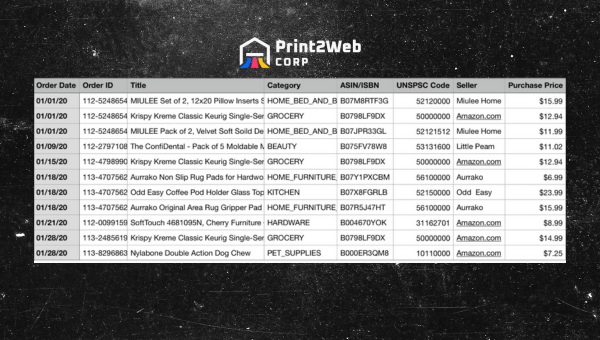
This is the most comprehensive and accurate method for finding out how much you spent on Amazon, and it is the primary approach recommended by the Google AI Overview for this topic. Amazon has a built-in feature called Download Order Reports that generates a CSV file containing every order you have ever placed. The file includes dates, item names, prices, tax amounts, shipping costs, and a column labeled “Total Charged” that gives you the final amount for each transaction. You can open this file in Excel, Google Sheets, or any spreadsheet program and calculate your grand total in seconds.
The beauty of this method is that it goes all the way back to when you first opened your account. Whether your first Amazon purchase was in 2006 or 2023, the order report captures everything. Many users describe the experience of seeing their lifetime total as a “gut punch” moment, but having that clarity is the first step toward better spending habits. One commenter on Blue Gurus noted they could only go back to 2006 despite opening their account in 2004, so there may be a limit depending on how far back Amazon stored your data.
Step-by-Step: How to Request Your Order Report
Log into your Amazon account on a desktop or laptop browser. The Download Order Reports feature is not available on the mobile app, so you need to use a computer for this method.
Go to Account settings: Hover over the “Account and Lists” menu in the top-right corner of the Amazon homepage, then click on “Account” from the dropdown.
Find the Ordering and Shopping Preferences section: Scroll down the Account page until you see this heading. Under it, look for a link that says “Download Order Reports.”
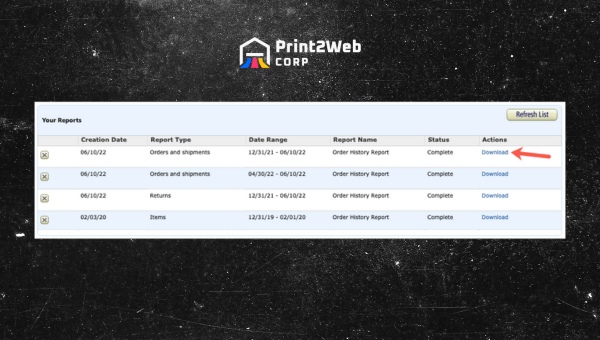
Select your report type: Choose “Orders and Shipments” from the Report Type dropdown menu. This is the correct report type for calculating total spending.
Set your date range: Enter a start date that goes as far back as you can (try January 1 of the year you created your account) and an end date of today. You can also run individual yearly reports if you prefer to see spending broken down by year.
Click “Request Report”: Amazon will generate the file, which may take anywhere from a few seconds to several minutes depending on how large your order history is. Accounts with years of data may take longer.
Download the CSV file: Once the report is ready, a download link will appear. Click it to save the CSV file to your computer.
Analyzing Your CSV File in Excel or Google Sheets
Once you have the CSV file downloaded, the real magic happens in a spreadsheet program. Open the file in Microsoft Excel, Google Sheets, Apple Numbers, or any tool that reads CSV format. The file will contain multiple columns including order date, website, order ID, item details, and several price-related columns.
Look for the column labeled “Total Charged”, which is typically the third column from the right. This column shows the final dollar amount for each order, including tax and shipping. To get your grand total, click on the empty cell immediately below the last number in that column and use the AutoSum function. In Excel, you can press Alt and the equals sign simultaneously. In Google Sheets, click the Sigma symbol in the toolbar. The spreadsheet will instantly add up every row and display your lifetime Amazon spending.
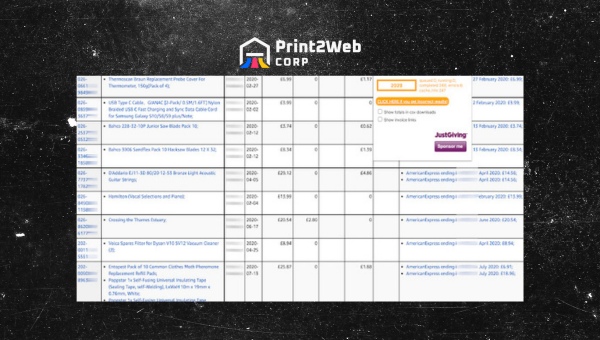
If you want to break your spending down by year, you can sort the spreadsheet by the date column and run separate AutoSum calculations for each year’s rows. This gives you a year-over-year view that shows whether your spending is trending up or down. Many people discover that their spending jumped significantly after subscribing to Prime, which is consistent with the data showing Prime members spend roughly 2.4 times more than non-members.
Method 2: Use the Amazon Order History Reporter Chrome Extension
If spreadsheets feel like too much work, a browser extension can do the heavy lifting for you. The most widely recommended tool is the Amazon Order History Reporter, a Chrome extension that scans your order pages and automatically calculates your total spending. This is the specific extension cited by the Google AI Overview and major publications like the Atlanta Journal-Constitution. Unlike the vague “Amazon Spend” extension you may see mentioned in older articles, this one is verified, actively maintained, and available directly from the Chrome Web Store.
The extension works by reading the data that Amazon already displays on your Orders page and summing it up for you. It does not transmit your data to any external server, which addresses a common privacy concern users have about granting third-party tools access to their Amazon accounts. Still, it is always wise to review the permissions any extension requests before installing it.
Step-by-Step: Installing and Using the Extension
Open Google Chrome on your desktop or laptop computer. The extension is built for Chrome and may also work in Chromium-based browsers like Edge and Brave.
Visit the Chrome Web Store and search for “Amazon Order History Reporter” in the search bar. Make sure you are installing the correct extension by checking the ratings and number of users.
Click “Add to Chrome” to install the extension. Chrome may ask you to confirm the permissions the extension requires. Review them and click “Add extension” to proceed.
Navigate to Amazon.com and sign into your account if you are not already logged in.
Go to Your Orders: Click on “Returns and Orders” at the top right of the Amazon homepage to open your order history.
Activate the extension: Click the extension icon in your browser toolbar. The tool will begin scanning your visible orders and may prompt you to load more order pages for a complete calculation.
Review your total: The extension displays a running total of your spending based on the orders it has scanned. Load additional pages of older orders to get a more complete picture.
One thing to keep in mind is that the extension can only scan orders that are loaded on your screen. Amazon paginates order history, so you may need to scroll and load multiple pages to capture older purchases. The extension typically shows a progress indicator so you can see how much data it has processed so far. For accounts with many years of history, this can take several minutes.
A limitation of browser extensions is that they can break when Amazon updates its website interface. If the extension stops working, check the Chrome Web Store page for updates or try the CSV download method as a reliable backup. Also, if you ever run into issues with incorrect items in your orders while reviewing your history, here is what to do when Amazon sends the wrong item.
Method 3: Check Your Credit and Debit Card Statements
Sometimes the fastest way to see how much you spent on Amazon is to look at the source of the money itself. Your bank and credit card statements record every Amazon charge as a transaction, and most banking platforms let you filter by merchant name. This method is especially useful if you want a quick monthly or annual figure without logging into Amazon at all.
The advantage of this approach is that it captures Amazon charges regardless of which payment method you used. If you sometimes pay with a Visa, sometimes with a Mastercard, and occasionally through a digital wallet like Apple Pay or Google Pay, each of those statements tells part of the story. The downside is that you need to check multiple accounts to get a complete picture, and some transactions may appear under slightly different merchant names like “AMZN” or “Amazon.com.”
How to Filter Your Statements for Amazon Charges
Most major banks and credit card issuers offer online dashboards with transaction search and filtering features. Log into your bank’s website or mobile app, navigate to your transaction history, and look for a search or filter option. Type “Amazon” into the search field, and the system should pull up every transaction from Amazon within your selected date range.
Once you have the filtered list, many banking platforms will display a total at the bottom of the results. If yours does not, you can export the transactions to a CSV file and use the same AutoSum technique described in Method 1. Some modern banking apps and fintech platforms even categorize your spending automatically, showing you an “Online Shopping” or “Retail” category that includes Amazon purchases.
Be aware that this method may not perfectly match the Amazon order report total. Refunds, partial order cancellations, and split shipments can create discrepancies between what you were charged and what appears on your card statement. The CSV method from Amazon remains the most authoritative source, but card statements are a solid cross-reference for spotting any major discrepancies.
Method 4: Track Amazon Spending on the Mobile App (iPhone and Android)
Not everyone wants to sit down at a computer to review their spending. The Amazon mobile app for iPhone and Android gives you access to your order history right from your phone, and while it does not offer a one-tap lifetime spending total, it does let you browse past orders by time period and see individual prices. This is a convenient option for a quick monthly check-in.
To view your orders on the mobile app, open the Amazon app and tap the account icon (typically represented by a person silhouette or three horizontal lines). Navigate to “Your Orders” from the menu. You will see your recent orders displayed with filter options at the top that let you narrow by time period, such as the last 30 days, the past three months, or the past year. Each order shows the total amount charged, including tax and shipping.
While the app does not sum these totals automatically, you can scroll through your filtered orders and get a rough sense of your spending for a given period. For a precise total on mobile, your best bet is to use the mobile browser version of Amazon to access the Download Order Reports feature, or pair the app with a mobile-friendly spreadsheet tool like the Google Sheets app to total up individual orders.
Multiple search trends show that users frequently look for ways to check Amazon spending specifically on iPhone, so you are not alone in wanting a mobile solution. Until Amazon adds a built-in spending dashboard to the app, combining the mobile order view with periodic desktop CSV downloads gives you the best of both worlds: quick checks on your phone and detailed analysis on your computer.
Method 5: Third-Party Amazon Spending Tracker Tools
Beyond Chrome extensions and manual methods, a growing ecosystem of third-party tools is designed specifically for analyzing Amazon spending data. These range from web-based dashboards to dedicated mobile apps that connect to your Amazon account and present your spending in visual charts and graphs. One example that ranks prominently in search results is AmazaSpend, a tool that pulls in your order history and displays every purchase, return, and item in a single filterable table.
These tools typically offer features that Amazon’s own interface lacks, such as spending breakdowns by category, visual trend charts, and comparisons month over month or year over year. Some can even identify subscriptions and recurring charges that you may have forgotten about. For users who want a polished dashboard experience rather than a raw CSV file, a third-party tracker can be worth exploring.
The main trade-off with third-party tools is privacy. Granting an external application access to your Amazon account data means trusting that company with your purchase history, which can reveal a lot about your personal life. Always research the tool’s privacy policy, check whether it stores your data on its own servers, and use Amazon’s own security settings to manage which apps have access to your account. You can revoke third-party access at any time from your Amazon account settings under “Login with Amazon” or connected applications.
For users who are also Amazon Business account holders, Amazon offers a built-in Spend Visibility dashboard accessible through the Business Analytics menu. This feature provides spending insights, category breakdowns, and procurement analytics designed for organizations tracking expenses across multiple buyers. If you have a Business account, this may be the most convenient option of all since it requires no third-party tools at all.
Tips for Reducing Your Amazon Spending
Once you know how much you spent on Amazon, the next natural question is how to spend less. Seeing the raw numbers can be a powerful motivator for change. Reddit users in the r/personalfinance and r/Fire communities frequently share how reviewing their Amazon totals led them to adopt concrete spending reduction strategies. Here are some practical tips backed by those real-world experiences.
Remove Saved Payment Methods
One-click buying relies on having your credit card information stored in your Amazon account. By removing saved payment methods, you force yourself to manually enter card details for every purchase. That small bit of friction is often enough to make you reconsider impulse buys. You can still add a card when you genuinely need something, but the extra step gives your brain time to ask whether the purchase is necessary.
Review Your Subscribe and Save Items
Subscribe and Save is convenient, but it is easy to forget about subscriptions that auto-deliver products you no longer need. Review your active subscriptions every month and cancel anything you are not using. Amazon sends a reminder email before each subscription shipment, so use that as a regular checkpoint to audit what is coming.
Set a Monthly Spending Limit
After reviewing your order report, calculate your average monthly Amazon spending and set a target to reduce it by a specific percentage. Track your progress by checking your order history at the end of each month. Some users find it helpful to use a dedicated budgeting tool to keep Amazon spending within an overall financial plan. You can explore options in our review of budgeting apps that help track expenses to find one that fits your workflow.
Use a Waiting Period for Non-Essential Purchases
Implement a 24-hour or 48-hour rule for any Amazon purchase that is not truly urgent. Add items to your cart or wishlist, but wait before clicking buy. Many impulse desires fade after a day or two, and you will often find that the urge to buy was temporary. This single habit can cut your Amazon spending significantly over the course of a year.
Compare Prices Before Buying
Amazon is not always the cheapest option. Before completing a purchase, do a quick search on Google Shopping or check other retailers. Browser extensions like Honey or Camelcamelcamel can alert you to price drops and show you price history charts so you know whether the current price is actually a good deal. Buying at the right time can save you a meaningful amount over time.
Amazon Spending Statistics and Benchmarks
Understanding how your spending compares to the average can provide helpful context. According to data cited by Money Digest and reported by the Atlanta Journal-Constitution, Prime members spend an average of $91.75 per month on Amazon, while non-Prime members spend roughly $38 per month. Over a year, that works out to about $1,101 for Prime subscribers and $456 for non-members.
These averages vary widely based on income level, household size, and shopping habits. Reddit community comparisons show some users spending under $100 per month while others report totals exceeding $500 per month. One r/Fire user shared they were spending approximately $250 per month due to some unusually large one-time purchases, which they recognized as their highest average ever. Another r/amazonprime user calculated over $3,100 in spending for just the first few weeks of a single year.
The key takeaway from these benchmarks is not to judge yourself against others, but to establish a personal baseline. Once you know your own average, you can set realistic goals for adjusting it. If you discover you are spending well above the Prime average and want to bring that number down, the tips in the previous section can help you get there.
Frequently Asked Questions
Can Amazon show me how much I spent?
Amazon does not display a built-in lifetime spending total on your main account dashboard. However, you can use the Download Order Reports feature in your Account settings under Ordering and Shopping Preferences to generate a CSV file with every order. Open the file in Excel or Google Sheets and use AutoSum on the Total Charged column to calculate your grand total.
How do I download my Amazon order history?
Log into Amazon on a desktop browser, go to Account, find the Ordering and Shopping Preferences section, and click Download Order Reports. Select Orders and Shipments as the report type, choose your date range, and click Request Report. Amazon will generate a CSV file you can open in any spreadsheet program.
Is there a way to track spending on Amazon?
Yes, there are several methods. The most accurate is downloading your order history report as a CSV file and totaling the Total Charged column. You can also use the Amazon Order History Reporter Chrome extension, filter your credit or debit card statements by Amazon charges, or use third-party spending tracker tools like AmazaSpend for visual dashboards.
Can I see my total Amazon spending on the mobile app?
The Amazon mobile app does not currently offer a one-tap lifetime spending total. You can browse your order history by time period on the app to see individual order totals, but for a precise grand total you will need to use the Download Order Reports feature through a browser or pair the app with a spreadsheet tool like Google Sheets.
How far back can I see my Amazon orders?
You can typically view and download orders going back to when you first opened your Amazon account. Some users have reported limits going back to around 2006 even if their account is older. The Download Order Reports feature allows you to set a custom start date, so try entering the earliest possible date to capture your full order history.
Conclusion
Finding out how much you spent on Amazon is simpler than it first appears. The Download Order Reports feature tucked away in your account settings gives you a complete CSV file of every purchase, and a quick AutoSum in your spreadsheet program reveals your lifetime total in seconds. If spreadsheets are not your thing, the Amazon Order History Reporter Chrome extension, credit card statement filtering, and third-party dashboards like AmazaSpend all offer alternative paths to the same destination.
The methods covered here work for different situations and comfort levels. Use the CSV download when you need precise, detailed data going back years. Use the Chrome extension for a quick browser-based calculation. Check your card statements when you want a cross-reference without logging into Amazon. And explore third-party tools if you prefer visual charts and category breakdowns. Whatever method you choose, the important thing is taking that first look at the numbers.
Once you have your total, the real work begins. Whether your number inspires a budget overhaul, a few small spending tweaks, or just a moment of reflection, you now have the data to make informed decisions about your Amazon habits going forward. If you also sell on Amazon and want to understand your advertising costs, learning about Amazon ACoS for sellers is a natural next step. And if you shop on other platforms too, our guide to checking your eBay purchase history covers the same ground for another major marketplace. Updated for 2026, this guide will keep you informed as Amazon’s features evolve.
Leave a Reply