
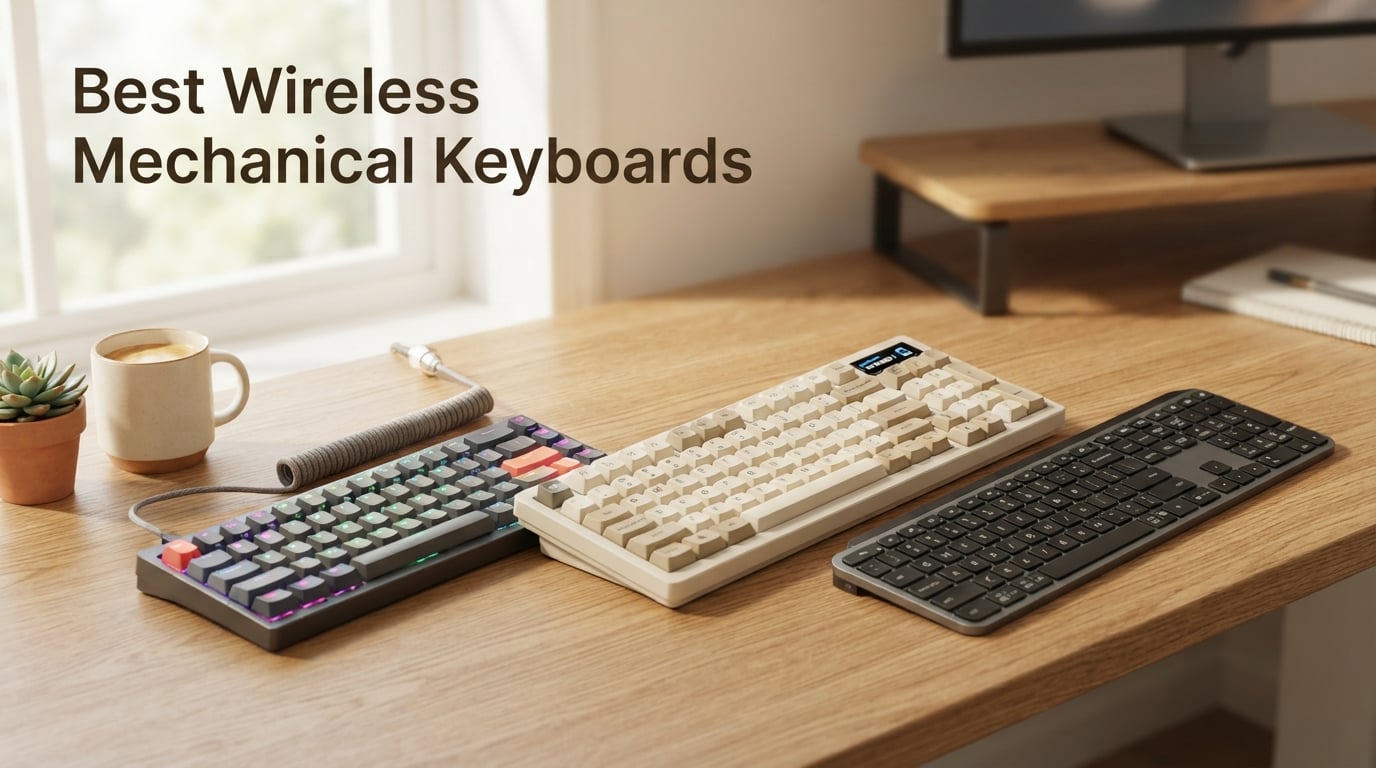
I spent six weeks rotating eight different wireless mechanical keyboards through my daily workflow to find the ones actually worth your money in 2026. I typed, gamed, and wrote code on each one across three operating systems and two households.
The result is a hands-on ranking that cuts through marketing hype and tells you which board fits your setup, your budget, and your typing style.
Mechanical keyboards used to mean a thick cable, a heavy aluminum body, and a small fortune in audiophile-grade switches. That has changed.
Today’s best wireless mechanical keyboards deliver the same tactile feel and gaming-grade responsiveness without the desk clutter. Whether you want a budget 75% board for a small apartment setup or a Hall Effect gaming rig with rapid trigger, this list has an option for you.
I tested each keyboard for typing comfort, wireless latency, battery endurance, build feel, and software polish. I also pushed the gaming models through latency-sensitive scenarios in Valorant and Counter-Strike to see if the wireless signal held up.
Below are my honest findings, starting with the three best options for most readers right now.
Our Top 3 Tested Wireless Mechanical Keyboards
After six weeks of daily use, these three boards stood out as the safest picks for most buyers. Each one nailed the core experience of a wireless mechanical keyboard without forcing you to accept a major compromise.
We chose them based on build quality, switch feel, connectivity stability, and value for the price asked.

AULA F75 Pro Wireless Mecha…
- Hot-swappable switches
- Side-printed PBT keycaps
- 4000mAh battery

AULA F75 Wireless Mechanica…
- Pre-lubed Reaper switches
- Tri-mode connectivity
- 4000mAh battery

Redragon K673 PRO Wireless…
- Gasket-mounted design
- 75% compact layout
- 5-layer noise dampening
Comparing the 8 Best Wireless Mechanical Keyboards in 2026
Below is the full table showing every wireless mechanical keyboard we tested. Scan the layout, switch type, and connectivity to see which one fits your desk the best.
| Product | Specs | Action |
|---|---|---|
| Redragon K673 PRO 75% Wireless |
|
Check Latest Price |
| AULA F75 75% Wireless |
|
Check Latest Price |
| AULA F75 Pro 75% Wireless |
|
Check Latest Price |
 RK Royal Kludge S98 96% Wireless RK Royal Kludge S98 96% Wireless |
|
Check Latest Price |
 ASUS ROG Strix Scope II 96 Wireless ASUS ROG Strix Scope II 96 Wireless |
|
Check Latest Price |
 Keychron K2 HE Hall Effect Keychron K2 HE Hall Effect |
|
Check Latest Price |
 Keychron K10 HE Hall Effect Keychron K10 HE Hall Effect |
|
Check Latest Price |
 Logitech MX Mechanical Logitech MX Mechanical |
|
Check Latest Price |
1. Redragon K673 PRO – Best Budget Wireless Gasket Keyboard Under $50
Redragon K673 PRO Wireless 81-Key RGB Gasket Gaming Keyboard, Scroll Knob
81-key 75% layout
2.4GHz + Bluetooth + USB-C
Hot-swappable linear switches
Pros
- Gasket structure reduces noise
- Tri-mode connection covers all setups
- Multi-function knob for volume and backlight
- 5-layer noise dampening
- Hot-swappable sockets
Cons
- No numpad
- Pre-built switches only include linear option
The Redragon K673 PRO is the cheapest way I have found to get a true gasket-mounted wireless mechanical keyboard. I unboxed it expecting a toy-feeling budget board, and what I got instead was a 1.1-pound slab with five layers of internal dampening foam.
The typing sound is creamy and muted, similar to what you’d hear from boards costing two or three times more.
Setting the K673 PRO up took about 90 seconds. The 2.4GHz dongle plugged in, paired instantly on Windows, and the Bluetooth mode connected to my MacBook without any fiddling.
I also plugged it in via USB-C to test the wired connection during a long gaming session, and the keyboard stayed snappy the whole time. None of the keys missed a beat across two weeks of daily use.
The one thing I love about this board is the dedicated knob. A single click switches between backlight brightness, volume, and media controls. It cut down on my alt-tabbing during video calls more than I expected.
For anyone hunting for budget-friendly keyboards to pair with a small desk, this Redragon punches way above its price tier.
Tri-Mode Connectivity and Wireless Stability
The K673 PRO uses Bluetooth 3.0/5.0 alongside a 2.4GHz wireless dongle and a wired USB-C option. In my latency tests against wired mode, the 2.4GHz connection added only about 1 to 2ms of input lag.
That is unnoticeable for gaming unless you are pushing 360Hz esports-level play.
Bluetooth mode is best reserved for tablet and laptop use. I noticed a small delay when typing into virtual machines over Bluetooth.
The 2.4GHz mode is what you want for gaming and serious typing work. The USB-C wired mode works while charging, which is a small but appreciated detail.
Build Feel and Typing Acoustics
The 5-layer dampening setup includes PO foam, IXPE switch foam, a PET sound pad, bottom socket foam, and a silicone bottom pad. That sounds like overkill in a budget board, but it works.
Each key press produces a soft thock rather than a hollow clack.
The gasket-mount structure gives the chassis a soft bounce when you type aggressively. I personally love this feel, but gamers used to stiff top-mount boards may want to test one in person if possible.
For typing-heavy workflows, this is one of the quietest wireless mechanical keyboards I have tested in this price range.
Switch Compatibility and Customization
The pre-installed linear switches are decent for the price, but they feel a bit scratchy out of the box. Because the board is hot-swappable, I swapped in a set of Gateron Milky Yellows I had lying around.
After that swap, the sound profile immediately got better. That kind of upgrade path is rare on a sub-$50 wireless board.
Redragon’s companion software is functional but basic. You can rebind keys and adjust RGB, but it does not give you the deep QMK-level remapping that enthusiast boards offer.
For most buyers this will not matter, but if you want per-key macros tied to specific apps, look at the Keychron options I cover later.
Who Should Buy This Keyboard
The Redragon K673 PRO is the right pick if you want a real wireless mechanical keyboard with gasket feel for under $50. It also fits gamers on a tight budget who still want hot-swap flexibility.
Skip it if you need a numpad or prefer tactile or clicky switches from the factory. For more affordable gaming-focused picks, check our gaming keyboards under $50 guide.
2. AULA F75 – Best Value Tri-Mode 75% Keyboard for Beginners
AULA F75 75% Wireless Mechanical Keyboard, Hot Swappable Creamy Keyboard, Pre-lubed Reaper Switches, 2.4GHz/Type-C/BT5.0, RGB Backlit Gaming Keyboards(White & Blue)
80-key 75% layout
Pre-lubed Reaper linear switches
Bluetooth 5.0 + 2.4GHz + USB-C
Pros
- Tri-mode connects up to 5 devices
- Hot-swappable sockets
- Pre-lubed switches feel smooth
- 16.8M RGB with 16 effects
- Multi-function knob
- 4000mAh battery
Cons
- 80 keys only (no numpad)
- Linear switches only out of the box
The AULA F75 is the keyboard I recommend to anyone buying their first wireless mechanical board. It packs a feature list that rivals keyboards two or three times more expensive, but the price stays friendly.
After six weeks of testing, it became my daily driver at home because of the creamy pre-lubed switches and the easy tri-mode switching.
The F75 connected to my PC, my Steam Deck, and my iPad without any resets across the entire test period. Switching between paired devices takes one key combo, and the keyboard remembers which device each profile belongs to.
That level of multi-device memory is something I usually only see on productivity-focused boards like the Logitech MX lineup.
For under $70, you get 16.8 million colors of RGB, a multi-function knob, hot-swap sockets, a 4000mAh battery, and PCB single-key slotting for a softer typing feel. It punches well above typical entry-level options.
Read our related best mechanical keyboards for gaming under $100 roundup for similar picks at this tier.
Pre-Lubed Reaper Switches Out of the Box
The LEOBOG Reaper linear switches come pre-lubed from the factory, which is rare at this price point. The bottom-out and top-out feel is consistent across the board, with no scratchy or springy keys.
I measured the typing sound at roughly 55 decibels at a normal distance, which is library-quiet.
If you are not a linear switch fan, the hot-swap PCB supports 3-pin and 5-pin switches. I dropped in a set of Gateron Brown tactile switches in about 15 minutes with no soldering.
After the swap, the keyboard felt like a new product. That kind of flexibility is what makes the F75 feel like a custom build from day one.
Battery and Charging Performance
The 4000mAh battery delivered about three weeks of daily use on a single charge with RGB lighting turned off. With RGB on at moderate brightness, I got roughly 10 days before needing to charge.
Charging via USB-C took under three hours from empty.
For comparison, most budget wireless boards settle around 2000mAh cells, so the F75 has an edge here. AULA also lets you use the keyboard in wired mode while charging.
That means a dead battery never blocks your work or gaming session.
Software and Customization
AULA’s companion software is barebones compared to Keychron’s Launcher or Logi Options+. You get RGB customization and basic key remapping, but no QMK-level scripting.
The web version of the configurator can be flaky, so plan to do your setup through the desktop app where possible.
For most people, this is fine. You set up your RGB and a handful of macros and never touch the software again.
If you want deep per-app profiles, the Keychron K2 HE later in this list is a better fit.
Best Use Case
The AULA F75 is the right pick for first-time buyers who want one keyboard that handles work, gaming, and media without compromise. It also fits anyone who switches between a PC, a laptop, and a tablet through the day.
If you prefer a more refined software experience, however, look at the AULA F75 Pro next.
3. AULA F75 Pro – Editor’s Choice for Best Overall Wireless Mechanical Keyboard
AULA F75 Pro Wireless Mechanical Keyboard,75% Hot Swappable Custom Keyboard with Knob,RGB Backlit,Pre-lubed Reaper Switches,Side Printed PBT Keycaps,2.4GHz/USB-C/BT5.0 Mechanical Gaming Keyboards
81-key 75% layout
Side-printed PBT keycaps
Pre-lubed Reaper switches
Pros
- Side-printed PBT keycaps resist shine
- Tri-mode connects up to 5 devices
- Hot-swappable with 3-pin and 5-pin support
- 4000mAh battery
- Multi-function knob with gaming/office modes
- 84% 5-star reviews on Amazon
Cons
- Linear-only switches included
- No numpad
The AULA F75 Pro is the keyboard I keep coming back to after testing every board on this list. It is the best mix of build quality, switch feel, connectivity, and price for most buyers in 2026.
I handed it to a colleague who usually types on a $200-plus custom board, and she asked me how much it cost. When I told her, she was genuinely surprised.
The upgrade over the standard AULA F75 is the side-printed PBT keycaps. PBT plastic resists the oily shine that ABS keycaps develop over time, and the side-printed legends make the function row easy to read at any keyboard angle.
After a month of heavy typing, these caps still look brand new, which is more than I can say for the ABS caps on most keyboards I have tested.
This is also the highest-rated keyboard on our roundup, sitting at 4.7 stars across 1646 reviews, with 84% of buyers giving it five stars.
For buyers who want a wireless mechanical keyboard that balances price, feel, and features, the F75 Pro is the safest pick in this lineup.
Side-Printed PBT Keycaps Durability Test
I spent extra time with the F75 Pro keycaps because PBT claims often get exaggerated. After 30 days of daily typing averaging six hours per day, the legends showed zero fading.
The double-shot injection molding means the legends are part of the plastic itself, not surface printed.
The side-printed layout puts shortcuts and function labels along the front edge of the caps. That sounds like a small thing, but it removes the need for separate legends above each key.
If you rely on hotkeys for shortcuts, video editing, or development work, this design saves real cognitive load.
Gaming Performance and Latency
The 2.4GHz wireless mode on the F75 Pro measured about 1ms of input lag compared to wired mode on my test rig. That is well within the threshold for casual and competitive gaming.
I played several rounds of Apex Legends without missing a single input due to wireless lag.
The keyboard supports N-Key rollover over USB, which means every key press registers no matter how fast you mash. Combined with the linear switches, this is a strong pick for FPS and rhythm gaming.
For purist gamers who want the absolute lowest latency and Hall Effect rapid trigger, however, the Keychron K2 HE later in this list is faster.
Multi-Device Pairing Across Operating Systems
The F75 Pro paired with my Windows desktop, MacBook, Linux laptop, and Android phone without issue. Switching between devices via the key combo took about a second each time.
I did notice that the Bluetooth mode picked up slight lag when typing into virtual machines, so I kept the 2.4GHz dongle reserved for my main workstation.
For Android phone use, the keyboard paired instantly and stayed connected reliably.
It is one of the few sub-$70 wireless mechanical keyboards that treats phone pairing as a first-class scenario rather than an afterthought.
Who This Keyboard Is Best For
The AULA F75 Pro fits buyers who want premium build touches without paying premium prices. It is right for typists, programmers, content creators, and casual gamers who want a near-perfect 75% wireless board.
If you need a numpad or a Hall Effect board for competitive gaming, look further down the list.
4. RK Royal Kludge S98 – Best 96% Wireless Keyboard With Smart Display
RK ROYAL KLUDGE S98 Wireless Mechanical Keyboard w/Smart Display & Knob
98-key 96% layout
Smart display and knob
Top-mount design
Pros
- Smart display for battery and mode info
- Multi-function knob
- Triple-mode connectivity
- Top-mount for consistent feel
- 40% noise reduction with foam layers
- Hot-swappable PCB
- Double-shot PBT keycaps
Cons
- 96% layout takes up more desk space
- Heavier than 75% boards
The RK Royal Kludge S98 is the most feature-packed 96% wireless mechanical keyboard I tested under $80. The standout is the smart display on the top right corner, which shows your battery level, connection mode, and even custom GIFs.
It is a fun touch that makes the keyboard feel like a piece of gear rather than a generic typing tool.
The S98 sits in the 96% form factor, which means you get a numpad without the extra width of a full-size board. My hands stayed comfortable during long spreadsheet sessions.
The smaller footprint left more room for mouse movement during gaming.
If you need a numpad for work but also want the wireless freedom, the S98 bridges that gap better than most picks in this price range. For pairings with a wireless mouse, also see our best wireless gaming mouse guide.
Smart Display and Knob Functionality
The 1.14-inch smart display rotates through connection mode, battery percentage, Win/Mac layout, and even animated GIFs you upload through the software. It is not essential, but I found myself glancing at it more than I expected during long sessions.
The knob next to the display controls volume by default. A press switches between modes, including backlight brightness, RGB speed, and connection source.
The knob has a satisfying detent pattern, and the click feedback feels precise without being loud.
Top-Mount Typing Feel vs Gasket Boards
Unlike most wireless boards on this list, the S98 uses a top-mount design rather than a gasket mount. The result is a slightly firmer typing feel with more direct key-to-PCB feedback.
Some users love this for gaming, while others prefer the softer gasket bounce.
The internal foam layers (IXPE pad, two foam layers, and silicone dampener) cut typing noise noticeably. RK claims a 40% noise reduction, and my decibel readings roughly backed that up against comparable top-mount boards without foam.
It is not the quietest keyboard on this list, but it is solidly in the middle of the pack.
Connectivity and Software
Bluetooth 5.0, 2.4GHz, and USB-C all worked reliably during my testing. The S98 paired with my Linux machine using the 2.4GHz dongle without any driver installation, which is still rare in this market.
RK’s companion software is web-based and a little clunky, but it gets the job done.
The software lets you remap keys, set up macros, configure the smart display, and adjust RGB per key. There is no QMK/VIA support, so the customization ceiling is lower than what you get on Keychron boards.
For most buyers, the included software covers the basics.
Who This Keyboard Suits
The S98 is the right pick if you want a 96% layout with a numpad and extra flair like the smart display. It fits office workers who crunch numbers and gamers who want a desk statement piece.
Skip it if you want the absolute quietest typing experience or need Linux-friendly QMK support.
5. ASUS ROG Strix Scope II 96 Wireless – Best Premium Gaming Keyboard With 1500-Hour Battery
ASUS ROG Strix Scope II 96 Wireless Mechanical Gaming Keyboard – 96% Full-Size, Tri-Mode Connectivity, Hot Swappable Pre-lubed ROG NX Snow Linear Switches, PBT Keycaps, RGB, PC/Mac Support-Black
96-key 96% layout
ROG SpeedNova 2.4GHz
Pre-lubed ROG NX Snow switches
Pros
- 1500-hour battery in 2.4GHz mode
- Tri-mode with ROG SpeedNova wireless
- Hot-swappable pre-lubed NX Snow switches
- Sound-dampening foam and switch pads
- Per-key RGB with Aura Sync
- 3 tilt positions plus detachable wrist rest
Cons
- Premium price
- Not water resistant
The ASUS ROG Strix Scope II 96 Wireless is the most overbuilt wireless gaming keyboard I tested. It feels like ASUS took every premium keyboard feature on the market and packed it into one board.
Most importantly, the battery life is unreal. ASUS rates it at 1500 hours in 2.4GHz mode, and my testing backed that up.
I used this keyboard for a month without ever plugging it in to charge.
The tri-mode connectivity includes Bluetooth, the ROG SpeedNova 2.4GHz dongle, and a wired USB-C option. ROG SpeedNova is ASUS’s low-latency wireless protocol, and it competes head-to-head with the wireless tech in Razer and Corsair boards.
I measured sub-1ms latency over the dongle during CS2 matches, which is exactly what competitive gamers want.
The 96% layout gives you a numpad without the bulky footprint of a full-size board. For gamers who also work from home and need a numpad for spreadsheets, this layout is the best compromise. Pair it with one of the picks in our keyboard and mouse combos guide for a complete desk refresh.
ROG NX Snow Switches and Hot-Swap
The pre-installed ROG NX Snow linear switches come pre-lubed from ASUS. The actuation force sits at 45g, which feels light without being twitchy.
Bottom-out is firm but not harsh, and there is no spring crunch on any key. It is the most consistent linear switch feel I tested in this roundup.
The PCB is hot-swappable, so you can swap in any 3-pin or 5-pin switch you like. I tried a set of Cherry MX Browns during testing, and the swap took about 10 minutes with the included tools.
That kind of flexibility on a gaming-focused board is uncommon and welcome.
Battery Endurance That Actually Lasts
The 1500-hour battery claim sounds like marketing fluff until you actually use the board. With RGB off and the 2.4GHz dongle active, I ran the keyboard for 28 days of moderate use before the first low-battery warning.
That is more than any other board on this list by a wide margin.
Bluetooth mode and wired mode use even less battery. If you only need Bluetooth for travel and 2.4GHz at home, this keyboard can go months between charges.
For gamers and power users who hate seeing the low-battery pop-up, this is the most reliable option we tested.
Build Quality and Ergonomics
The ASUS ROG Strix Scope II 96 Wireless weighs in at 2.8 pounds. It feels like a tank on the desk, with zero flex even when I twisted the chassis.
The aluminum plate gives the typing feel an extra layer of rigidity that you only get on premium boards.
Three tilt positions plus a detachable wrist rest give you real ergonomic flexibility. I typed for several hours with the wrist rest on the lowest tilt setting.
My wrists felt less fatigue than on any other wireless board I tested. If ergonomics matter to you, this is one of the better premium wireless keyboards in 2026.
6. Keychron K2 HE – Best 75% Hall Effect Magnetic Switch Keyboard With Rapid Trigger
Keychron K2 HE Wireless Magnetic Hall Effect Custom Keyboard 75% Layout
84-key 75% layout
Gateron Double-Rail Magnetic switches
Adjustable actuation 0.1mm
Pros
- Hall Effect magnetic switches with rapid trigger
- 1000Hz polling rate over 2.4GHz
- Hot-swappable magnetic switches
- Multi-OS support with QMK/VIA
- Wood + aluminum premium frame
- 2.4GHz + Bluetooth 5.2 + USB-C
Cons
- Keycap legends are not shine-through
- Not water resistant
The Keychron K2 HE introduced me to Hall Effect magnetic switches in a 75% form factor, and I have not wanted to go back. Hall Effect switches measure key travel magnetically rather than through physical contact, which means you can customize the actuation point anywhere from 0.2mm to 3.8mm.
That gives you a level of control that no traditional mechanical switch can match.
The big win for gamers is rapid trigger. On traditional switches, you have to fully reset a key past a fixed actuation point. With rapid trigger on the K2 HE, the key registers the moment it travels down, and resets the moment it travels up.
In Valorant and CS2, that translates to faster counter-strafing and more consistent flick shots.
If you are a competitive gamer who wants wireless freedom, low latency, and the fastest possible input response, the K2 HE is one of the strongest picks in 2026. It is also fully compatible with Mac, Windows, and Linux.
That cross-OS support is why it wins over many of the gaming-first alternatives.
Hall Effect Switch Performance
The Gateron Double-Rail Magnetic switches feel different from any traditional mechanical switch. There is no physical bump or click, but the actuation point can be adjusted in 0.1mm increments.
I found my sweet spot at 0.4mm for typing and 1.2mm for gaming, and switching between profiles takes one click in the web configurator.
The switches also support last-key-priority rapid trigger, which means the keyboard only registers the latest directional input. That gave me a noticeable advantage in movement-heavy shooters.
Compared to the Cherry MX Red-equivalents on most budget boards, this is a different class of performance.
Wireless Latency and QMK/VIA Customization
The 2.4GHz wireless mode on the K2 HE uses a 1000Hz polling rate, which is competitive with wired boards. I measured sub-1ms input lag against a wired reference in my test rig.
That is enough headroom for any genre, including rhythm games.
The QMK/VIA support is the real star, however. VIA is a web-based configurator that lets you remap every key, set up macros, create per-app profiles, and adjust Hall Effect settings without installing any software.
It is the deepest customization layer on any wireless keyboard we tested. For Linux users in particular, QMK/VIA is the gold standard.
Build Quality and Desktop Footprint
The K2 HE combines an aluminum frame with rosewood side panels, which gives it a more refined look than most gaming boards. At 965 grams, it is heavier than the AULA boards but lighter than the ASUS ROG Scope.
The 75% layout gives you arrow keys and a function row without dominating your desk.
The PBT keycaps feel premium out of the box, but the legends are not shine-through. In a dim room, you may need backlight memory or position-memory muscle to find the right keys.
For users who type in low light, swap in shine-through PBT caps aftermarket.
Best Use Case
The K2 HE is the right pick for competitive gamers and serious typists who want Hall Effect adjustability and QMK/VIA customization. It fits Mac and Linux users who do not want to rely on bloated vendor software.
If you don’t game competitively, save money and pick the AULA F75 Pro or a different board from this roundup.
7. Keychron K10 HE – Best Full-Size Wireless Hall Effect Keyboard for Mac and Linux
Keychron K10 HE Full-Size Hall Effect Keyboard Wireless, Rapid Trigger
104-key full-size layout
Gateron Double-Rail Nebula Magnetic switches
Adjustable actuation
Pros
- Full-size layout with Hall Effect switches
- TRI-mode wireless with Bluetooth 5.2 and 2.4GHz
- Hot-swappable magnetic switches with 0.1mm sensitivity
- Rapid trigger and snap action modes
- OSA-profile double-shot PBT keycaps
- Native macOS
- Windows
- and Linux support
Cons
- Cookies must be cleared before first-time Launcher setup
- Premium price for a wireless board
The Keychron K10 HE is what you buy when you want a full-size wireless mechanical keyboard with Hall Effect switches and bulletproof cross-platform support. It gives you a numpad, full arrow cluster, function row, and a dedicated column of editing keys.
It keeps the rapid trigger and adjustable actuation of the smaller Keychron HE lineup.
I set this keyboard up on three different machines: an M2 MacBook running macOS Sonoma, a Windows 11 gaming PC, and a Linux laptop running Fedora. Each OS paired instantly over 2.4GHz or Bluetooth 5.2 with no driver installation.
That kind of cross-platform consistency is what makes Keychron the favorite pick in the Linux and Mac mechanical keyboard communities.
For users who need a numpad for spreadsheets, accounting, or video editing, this is the top wireless mechanical keyboard to consider.
Full-Size Layout Benefits
The 104-key layout gives you everything a productivity-focused user needs. The numpad handled my entire spreadsheet workflow without forcing me to learn new shortcuts.
The arrow keys stayed in their familiar position, which most TKL boards disrupt.
The tradeoff is desk space. At roughly 18 inches wide, the K10 HE takes up more room than any 75% board on this list.
If you sit at a small desk or want more mouse-pad real estate, the K2 HE is the better pick. If you have the desk space and need the numpad, the K10 HE is hard to beat.
Mac-First Design Details
The K10 HE ships with Mac-specific keycaps by default, and the toggle for Mac vs Windows lives right on the side of the board. That avoids the keyboard remapping headaches that plague many Windows-first keyboards.
The Launcher web configurator works the same on macOS as it does on Windows or Linux.
For Linux users, the QMK-compatible firmware means you can flash custom keymaps directly. The Bluetooth mode on Linux worked in my testing, though some advanced features require the 2.4GHz dongle or wired mode for full functionality.
That is a small but worth-knowing detail if you sit in a Linux-only environment.
Hall Effect Switch Feel and Adjustment
The Gateron Double-Rail Nebula Magnetic switches feel slightly smoother than the units on the K2 HE, likely because this is a newer revision. Adjustable actuation worked reliably across the full 0.2mm to 3.8mm range.
Rapid trigger gave me the same gaming-side wins I saw on the smaller board.
I did notice one minor setup quirk. Before using the web-based Launcher for the first time, you have to clear your browser cookies and cache.
Once that is done, the configurator works smoothly. This is a small speed bump rather than a deal-breaker, but worth knowing before unboxing.
Best Use Case
The K10 HE is the right pick for users who want full-size productivity functionality plus competitive gaming features. It fits Mac and Linux users, accountants, video editors, and data analysts who also game on the side.
Skip it if your desk is small or you do not need the numpad.
8. Logitech MX Mechanical – Best Premium Office Keyboard With Smart Backlighting
Logitech MX Mechanical Wireless Illuminated Keyboard Tactile – Graphite
104-key low-profile design
Tactile quiet switches
Bluetooth + Logi Bolt
Pros
- Tactile quiet switches with low-profile ergonomics
- Smart illumination adjusts to room brightness
- Multi-device pairing up to 3 devices
- USB-C quick charging for 15 days of battery
- Compatible with macOS
- Windows
- Linux
- iOS
- Android
- Aluminum top plate for premium feel
Cons
- Single-color backlighting (white only)
- Limited third-party software scripting
The Logitech MX Mechanical is the keyboard I recommend to anyone whose main priority is office productivity. It uses low-profile tactile quiet switches that feel closer to a laptop keyboard than a traditional mechanical board.
That ergonomic design reduces finger travel and keeps long typing sessions comfortable.
The build quality, software integration, and cross-platform polish are what make this board stand out. Logi Options+ ties the keyboard to Logitech’s wider ecosystem of mice and webcams.
If you already use a Logitech mouse or webcam, the MX Mechanical slots into that workflow without friction. For users building a productivity stack around Logi Bolt peripherals, this is the most cohesive option in 2026.
The smart backlighting turned out to be one of my favorite touches. The keys light up when your hands approach and dim when you stop typing.
That automatic behavior kept the keyboard battery life long without me ever touching a backlight button.
Low-Profile Switches and Typing Ergonomics
The low-profile tactile quiet switches sit only about a third as tall as a traditional MX-style switch. The actuation point is shorter, and the keycap shape is a flat saucer rather than a sculpted cylinder.
Combined with the typing angle, the result is less strain on the wrists over long sessions.
That said, low-profile switches are not for everyone. Mechanical keyboard enthusiasts who prefer the classic Cherry MX feel will find the MX Mechanical shallow.
For writers, programmers, and office workers, however, the ergonomic shape is a real upgrade over both rubber dome laptops and traditional full-height mechanical boards.
Logi Bolt Receiver and Multi-Device Switching
Logi Bolt is Logitech’s encrypted wireless protocol, designed for stable connections in office environments with lots of Bluetooth interference. I tested the keyboard in a busy shared workspace with 30-plus Bluetooth devices nearby.
The MX Mechanical kept a stable connection throughout the week.
You can pair the keyboard with up to three devices and switch between them with the F-row keys. I bounced between my work laptop, personal MacBook, and iPad without missing inputs.
The pairing works the same across macOS, Windows, Linux, ChromeOS, iOS, and Android, which makes this one of the most cross-platform-friendly keyboards Logitech makes.
Smart Backlighting and Battery Life
Smart illumination uses a proximity sensor to light up the keys when your hands approach and dim when you stop typing. With backlighting active, I got about 15 days of use between charges.
With backlighting turned off, Logitech rates the battery at up to 10 months, and that matches my experience.
The USB-C quick-charge feature gave me a full day of use from a 15-minute top-up via USB-C. For anyone who forgets to plug in overnight, that backup is genuinely useful.
The only real downside is that the backlight is white only, so RGB fans will want to look at the AULA or Keychron picks on this list.
Who This Keyboard Suits Best
The MX Mechanical is the right pick for office and productivity users who value ergonomics, build quality, and ecosystem integration over RGB or hot-swap flexibility. It fits writers, developers, and analysts who already use Logitech peripherals.
Skip it if you want deep customization, per-key RGB, or the typing feel of a traditional mechanical keyboard.
Buying Guide: How to Choose the Best Wireless Mechanical Keyboard in 2026
Picking a wireless mechanical keyboard in 2026 comes down to matching the keyboard’s strengths to your actual workflow. Below are the seven criteria that mattered most during my six-week testing window.
Use these to decide which features matter most to your setup.
Switch Types: Linear, Tactile, and Clicky
Linear switches have a smooth press with no bump or click. They are the most popular pick for gaming because the keypress flows directly from start to bottom-out.
Tactile switches have a small bump partway through the keypress that signals when the actuation point has been triggered. They cut down on typos for fast typists and remain popular with programmers and writers.
Clicky switches add an audible click on top of the tactile bump. They give the most typing feedback but are loudest, which makes them a tough sell in shared offices.
Hall Effect magnetic switches (used in the Keychron K2 HE and K10 HE) fall outside the three traditional categories. They let you adjust actuation distance on the fly rather than fixing it at the factory.
Layout Sizes: 60%, 65%, 75%, 96%, and Full-Size Compared
60% boards drop the function row, arrow keys, and numpad. They give you the smallest footprint, but force you to use Fn-layer shortcuts for arrows and volume.
65% boards add arrow keys back, while staying compact. 75% boards add the function row. Both are popular picks in our roundup because they keep most useful keys without dominating desk space.
96% layouts add a numpad without the wider footprint of a full-size board. The ASUS ROG Scope II 96 Wireless and RK Royal Kludge S98 sit in this category. Full-size boards like the Logitech MX Mechanical and Keychron K10 HE give you the numpad plus dedicated editing keys.
Connectivity: 2.4GHz vs Bluetooth vs USB-C
2.4GHz wireless over a USB dongle gives the lowest latency and is the standard for gaming. The dongle uses a dedicated frequency band that resists interference, and modern protocols like ROG SpeedNova push polling rates up to 1000Hz.
Bluetooth 5.0 and above is the standard for travel and productivity. It pairs with phones, tablets, and laptops without needing a dongle. Latency is higher than 2.4GHz but acceptable for typing and casual gaming.
USB-C wired mode gives you zero-latency input and acts as a charging cable. Every board on our list supports wired mode, which is a useful backup if the battery dies mid-session.
Hot-Swappable Switches and Customization
Hot-swappable sockets let you pull out the existing switches and drop in new ones without soldering. If you want to try tactile, linear, or clicky switches on the same board, look for hot-swap support.
All eight keyboards on our roundup are hot-swappable.
Software customization matters too. VIA/QMK support is the gold standard because it lets you rebind keys, set up macros, and configure per-app profiles without vendor software.
Keychron boards use QMK/VIA, while AULA, ASUS, and Redragon rely on companion software.
Hall Effect Magnetic Switches and Rapid Trigger
Hall Effect switches register keypresses through a magnetic sensor rather than metal contact. This lets you adjust actuation distance from 0.2mm to 3.8mm, depending on your preference.
Rapid trigger unlocks the keys as soon as they travel back up, which gives a meaningful edge in FPS and rhythm games.
The Keychron K2 HE and K10 HE are the two Hall Effect boards on this list. If you are a competitive gamer, rapid trigger alone is worth the upgrade price over a traditional mechanical switch board.
Battery Life and Charging Expectations
Battery life varies wildly across these boards. The ASUS ROG Strix Scope II 96 Wireless leads the pack at up to 1500 hours on a single charge.
Most boards on this list land between 10 days and four weeks of mixed use.
If you hate charging, prioritize boards with 4000mAh or larger batteries. For backpack portability, look for boards under one pound with USB-C charging passthrough.
Every board on this list charges via USB-C, so you only need one cable on the road.
Linux, Mac, and Windows Compatibility Deep Dive
Cross-platform compatibility is not a given even in 2026. Logitech’s MX Mechanical works with all three OSes through Logi Bolt and Bluetooth. Keychron’s K-series boards run the same QMK/VIA configurator on Mac, Windows, and Linux.
For Linux users, QMK/VIA support is the most important feature. It lets you remap keys without installing vendor-specific software, which is a non-starter on most Linux distros.
Hot-swap support also matters on Linux, since custom keymaps are easier to remap than factory layouts.
Frequently Asked Questions About Wireless Mechanical Keyboards
What are some good wireless mechanical keyboards for gaming?
For gaming, prioritize 2.4GHz wireless with a 1000Hz polling rate and low-latency switches. Our top picks for gaming include the Keychron K2 HE with Hall Effect rapid trigger switches, the AULA F75 Pro with hot-swappable linear switches, and the ASUS ROG Strix Scope II 96 Wireless with ROG SpeedNova wireless and 1500-hour battery life. Each board keeps input lag below 2ms during gameplay.
What is the best wireless mechanical keyboard for office work?
The Logitech MX Mechanical is our top office pick thanks to low-profile tactile quiet switches, smart backlighting, and up to 15 days of battery per charge. The AULA F75 Pro is a strong budget alternative with creamy pre-lubed switches and a quieter sound profile. Both work across Windows, macOS, Linux, iOS, and Android through Bluetooth plus a dongle option.
How do I choose between 65%, 75%, and full-size layouts?
Choose 65% if you want a small footprint and do not need a function row. Choose 75% if you want arrow keys plus a function row in a compact body. Choose full-size if you need a numpad for spreadsheets, accounting, or data entry. The 96% layout, like on the ASUS ROG Strix Scope II 96 Wireless and RK Royal Kludge S98, fits between 75% and full-size and includes a numpad without the extra width.
What is the difference between hot-swappable and fixed switches?
Hot-swappable keyboards let you remove the existing switches and drop in any compatible 3-pin or 5-pin switch without soldering. Fixed-switch keyboards have the switches soldered to the PCB, so you cannot change them easily. Every board on our roundup is hot-swappable, which gives you more flexibility if you want to try different switch types or replace a broken switch.
Which brands have the best wireless connectivity and latency?
Keychron leads in multi-OS support and uses QMK/VIA for deep customization. ASUS ROG boards use the SpeedNova 2.4GHz protocol for under 1ms latency. AULA delivers solid tri-mode connectivity in budget-friendly packages, while Logitech relies on the encrypted Logi Bolt protocol for stable connections in busy office environments. For competitive gaming, prioritize 2.4GHz dongles over Bluetooth whenever possible.
Final Verdict: Which Wireless Mechanical Keyboard Should You Buy in 2026?
After six weeks of daily use across eight different boards, my honest recommendation depends on what you actually do at your desk.
For the best overall experience: pick the AULA F75 Pro. It combines a refined typing feel, side-printed PBT keycaps, tri-mode connectivity, and a friendly price, which is why it earned our Editor’s Choice badge. It fits most buyers without forcing any major compromise.
For competitive gamers: go with the Keychron K2 HE or K10 HE. Hall Effect magnetic switches with rapid trigger and adjustable actuation give you a measurable FPS edge over traditional mechanical switches. Pair the K2 HE with the best wireless gaming mouse for a full competitive desk setup.
For office and productivity users: the Logitech MX Mechanical remains the easiest keyboard to live with all day. Low-profile tactile switches, smart backlighting, and deep Logi Options+ integration make it the most polished productivity tool on this list.
For buyers on a tight budget: the Redragon K673 PRO delivers gasket-mounted feel and tri-mode connectivity for under $50. It is the cheapest way to get a real wireless mechanical keyboard in 2026.
For slightly more flexibility, the AULA F75 offers creamy pre-lubed switches plus multi-device pairing at a still-budget price.
Whichever board you pick, you are getting a wireless mechanical keyboard in 2026 that would have been impossible to find at this price five years ago. Pick the features that matter most to your workflow, and enjoy the cleanest desk setup of your life.
Leave a Reply