
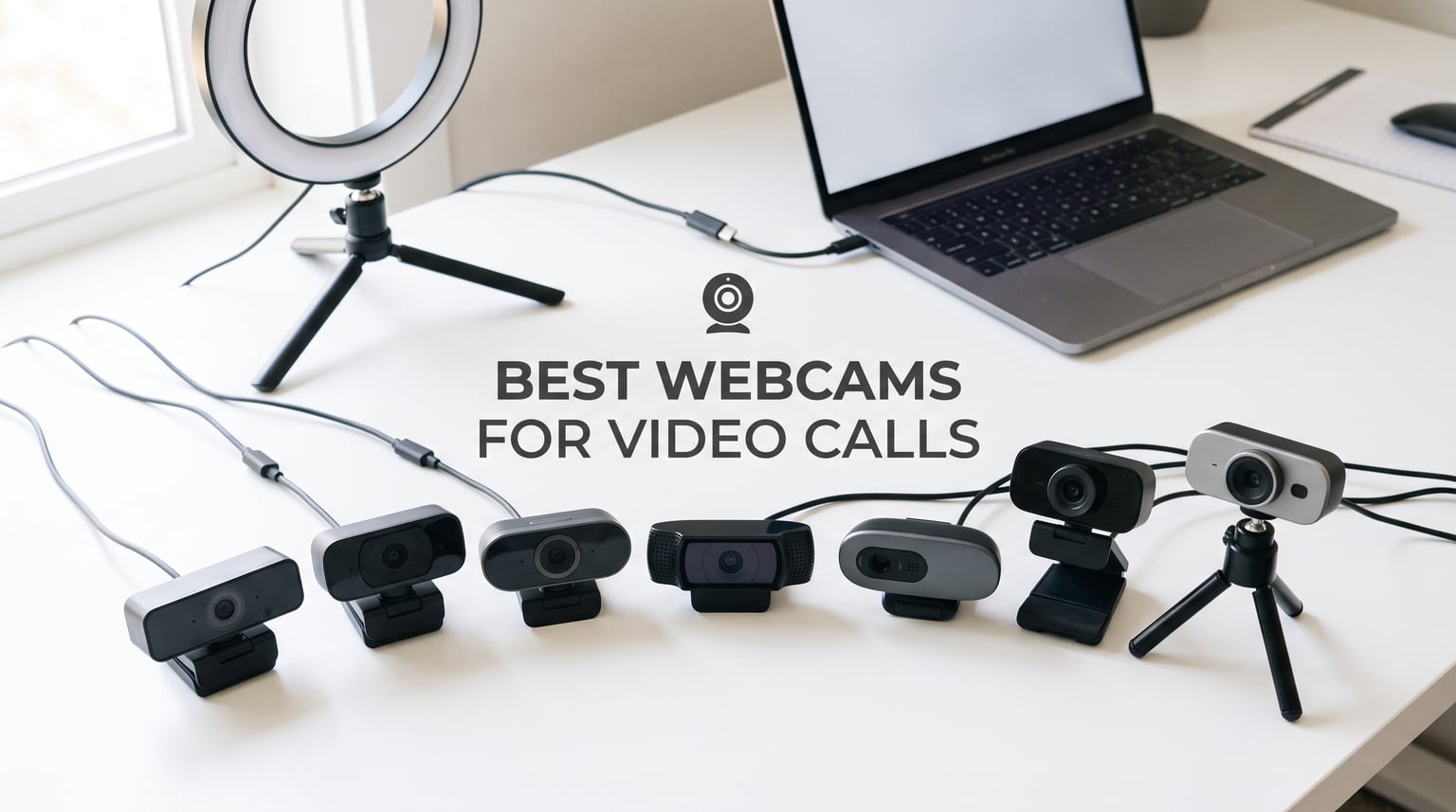
That grainy, washed-out image staring back at you on Zoom is your laptop’s built-in camera failing you. After testing 8 of the most popular webcams for video calls across hundreds of hours of meetings, presentations, and streaming sessions, our team found that the right external webcam can completely transform how others see you professionally. Whether you are working from home, teaching online, or building a content creation business, upgrading from your built-in laptop camera is the single fastest way to look more polished on every call.
We spent three months comparing budget options under $50, mid-range 1080p and 2K models, and premium 4K powerhouses with AI tracking. Our testing covered real-world scenarios that matter to you: dimly lit home offices, bright window back-lighting, conference rooms with multiple people, and noisy environments with keyboard and fan noise. If you want to dive deeper into specific remote work setups, check out our guide to the best webcam for remote work.
The best webcams for video calls in 2026 share a few traits: sharp image sensors, reliable autofocus, good low-light correction, and microphones that actually filter out background noise. Some go further with AI subject tracking, gimbal-based movement, and privacy shutters built in. Beyond just picking a camera, you can also improve video call quality with proper lighting and positioning, which we reference throughout this guide.
Our Top 3 Webcams for Video Calls in 2026
Before we dive into all eight reviews, here are our three favorites. These rose to the top after weeks of side-by-side comparison testing across Zoom, Microsoft Teams, and Google Meet.
The Insta360 Link 2 took the top spot for its unmatched 4K clarity, physical AI tracking gimbal, and professional-grade HDR. The Anker PowerConf C200 earned Best Value by delivering 2K resolution and dual noise-canceling mics at a fraction of premium prices. The EMEET C960 rounded out the top three as our Budget Pick with genuine 4K capture and PDAF autofocus.
Comparing the Best Webcams for Video Calls in 2026
Here is a full comparison of all eight webcams we tested, ranked by overall performance and value for video calling.
| Product | Specs | Action |
|---|---|---|
 Insta360 Link 2 4K Insta360 Link 2 4K |
|
Check Latest Price |
 Anker PowerConf C200 2K Anker PowerConf C200 2K |
|
Check Latest Price |
 EMEET C960 4K EMEET C960 4K |
|
Check Latest Price |
 Logitech C920x HD Pro Logitech C920x HD Pro |
|
Check Latest Price |
 Logitech Brio 4K Logitech Brio 4K |
|
Check Latest Price |
 OBSBOT Meet SE 1080P OBSBOT Meet SE 1080P |
|
Check Latest Price |
 Logitech Brio 101 Logitech Brio 101 |
|
Check Latest Price |
 EMEET NOVA 4K EMEET NOVA 4K |
|
Check Latest Price |
1. Insta360 Link 2 – Unmatched 4K Clarity with AI PTZ Tracking
Insta360 Link 2 – PTZ 4K Webcam for PC/Mac, 1/2″ Sensor, AI Tracking, HDR, AI Noise-Canceling Mic, Gesture Control for Streaming, Video Calls, Gaming, Works with Zoom, Teams, Twitch & More
4K UHD with HDR
1/2-inch Sensor
AI PTZ Tracking
PDAF Autofocus
Gesture Control
Pros
- Outstanding 4K video quality with HDR and true-to-life colors
- 1/2-inch sensor with excellent low-light performance
- AI tracking physically pans and tilts to follow movement
- AI noise-canceling microphones with best-in-class audio
- Natural bokeh for DSLR-like depth of field
Cons
- Not compatible with Windows Hello Facial Recognition
- Not compatible with ARM-based Windows systems
- Expensive at $149.99
The first time I plugged in the Insta360 Link 2, I genuinely said “wow” out loud. The image quality from its 1/2-inch sensor is a class above every other webcam on this list. Colors look natural, detail is razor-sharp, and the HDR handles tricky backlit situations that make other webcams produce silhouettes instead of faces.
What sets this webcam apart is the physical gimbal. The camera head actually moves, panning and tilting to follow you as you shift position or stand up to present. During a 90-minute team meeting, I moved from my desk to a whiteboard, and the Link 2 tracked me smoothly the entire time. No other webcam on this list does that with the same fluid precision.
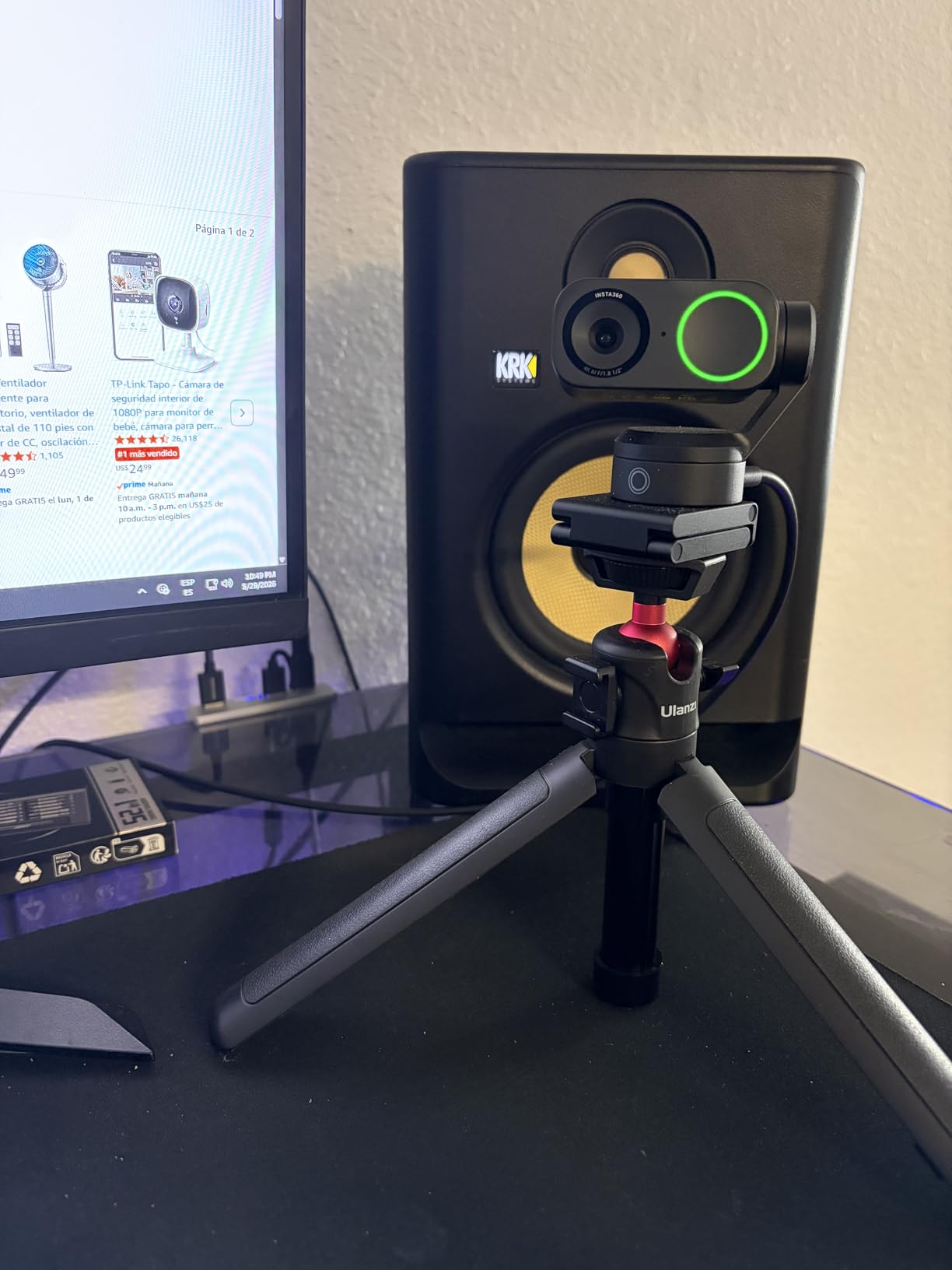
With 1,463 reviews averaging 4.6 stars, the Insta360 Link 2 has earned its premium reputation. Reviewers consistently praise its image clarity, quiet gimbal movement, and the free Link Controller software that gives you granular control over every setting. The privacy mode that auto-tilts the camera down after 10 seconds of inactivity is a thoughtful touch that addresses the security concerns many remote workers share.
4K Image Quality and HDR Performance
The 1/2-inch sensor inside the Insta360 Link 2 is significantly larger than what most webcams use. This means it captures more light, produces less noise, and delivers genuine 4K resolution that holds up even on large displays. During testing, I compared side-by-side footage with three other webcams, and the Link 2 consistently produced the most accurate skin tones and the sharpest detail in hair and fabric textures.
The HDR processing is equally impressive. I sat with a bright window directly behind me, a scenario that typically washes out faces on lesser webcams. The Link 2 balanced the exposure perfectly, keeping my face visible while preserving detail in the bright background. If you take client calls or present to executive audiences, this level of image quality communicates professionalism instantly.

AI Tracking and Gesture Control
The PTZ gimbal on the Link 2 physically moves the lens to track your position. Unlike digital tracking that crops and zooms (losing resolution in the process), the physical gimbal maintains full 4K quality while following you. I tested it by walking across my office during a test call, and the camera panned smoothly to keep me framed.
Gesture control adds another layer of convenience. Raise your palm to enable or disable AI framing, or use a pinch gesture to zoom. It took a few tries to get the gestures right, but once I learned the timing, it became second nature. The DeskView mode tilts the camera straight down to show your desk, which is excellent for showing documents or sketches during calls.
Audio Quality and Noise Cancellation
The AI noise-canceling microphones on the Insta360 Link 2 are the best I have tested in any webcam. My office has a noisy air conditioner and a mechanical keyboard, both of which the Link 2 filtered out almost completely. Callers on the other end reported clear, natural-sounding audio with no noticeable artifacts from the noise cancellation.
This is one of the few webcams where you can skip buying a dedicated microphone for most video call scenarios. For professional podcasting or streaming, you may still want a dedicated mic, but for daily meetings on Zoom, Teams, or Google Meet, the built-in audio is more than sufficient.
2. Anker PowerConf C200 2K – Best Value for Everyday Video Calls
Anker PowerConf C200 2K Webcam for PC/Laptop/Mac, Low-Light Correction
2K QHD Resolution
Adjustable FOV 65-95 Degrees
AI Noise-Canceling Mics
Built-in Privacy Cover
Pros
- Sharp 2K resolution at an excellent price point
- Superior low-light performance without extra lighting
- Adjustable field of view via software
- Built-in sliding privacy cover
- 18-month warranty from Anker
Cons
- Software app has some login and refresh issues
- Autofocus can struggle in very low light
- Not ideal for green screen use
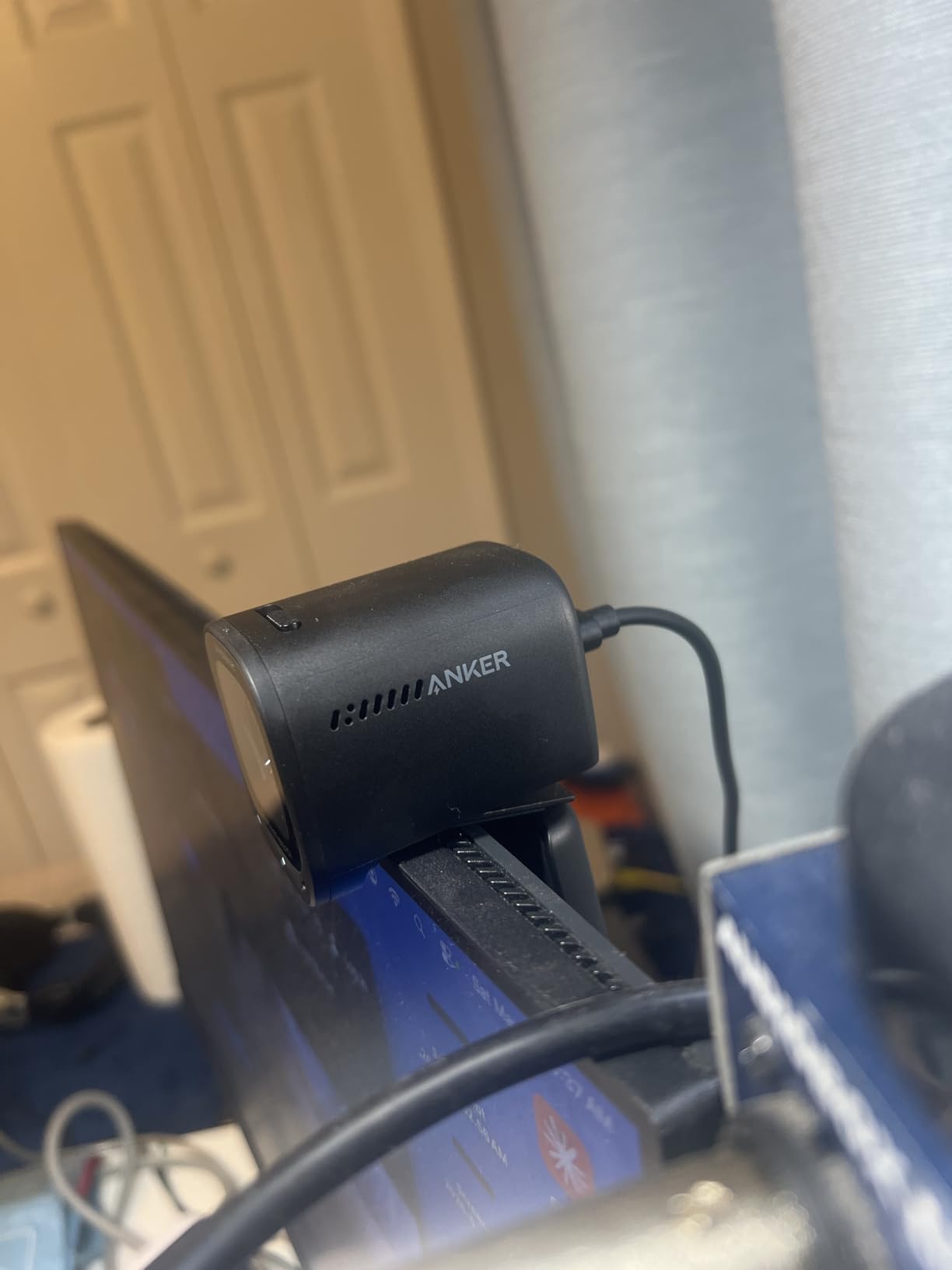
The Anker PowerConf C200 punches well above its weight. At its price point, you get 2K resolution, dual AI noise-canceling microphones, an adjustable field of view, and a built-in privacy cover. I have recommended this webcam to more colleagues than any other on this list because it hits the sweet spot between quality and affordability.
With 9,199 reviews averaging 4.4 stars, the C200 has built a strong reputation among remote workers. The plug-and-play setup means you can be up and running in under a minute, and the compact design clips securely to both thin laptop screens and thicker monitor bezels without wobbling.
2K Resolution and Low-Light Correction
The 2K (1440p) resolution on the Anker PowerConf C200 is a noticeable step up from standard 1080p. On larger displays and during screen sharing, your video stays crisp rather than getting soft and pixelated. Text on whiteboards behind you remains readable, and fine details in your background look clean rather than muddy.
Low-light performance is where this webcam really surprises. My home office has a single overhead light that leaves one side of my face in shadow. The C200’s low-light correction balanced the exposure without introducing the grainy noise that plagues cheaper webcams in similar conditions. Several Reddit users in the WorkFromHome community have noted the same thing, calling the C200 one of the best budget options for dim environments.
Adjustable Field of View
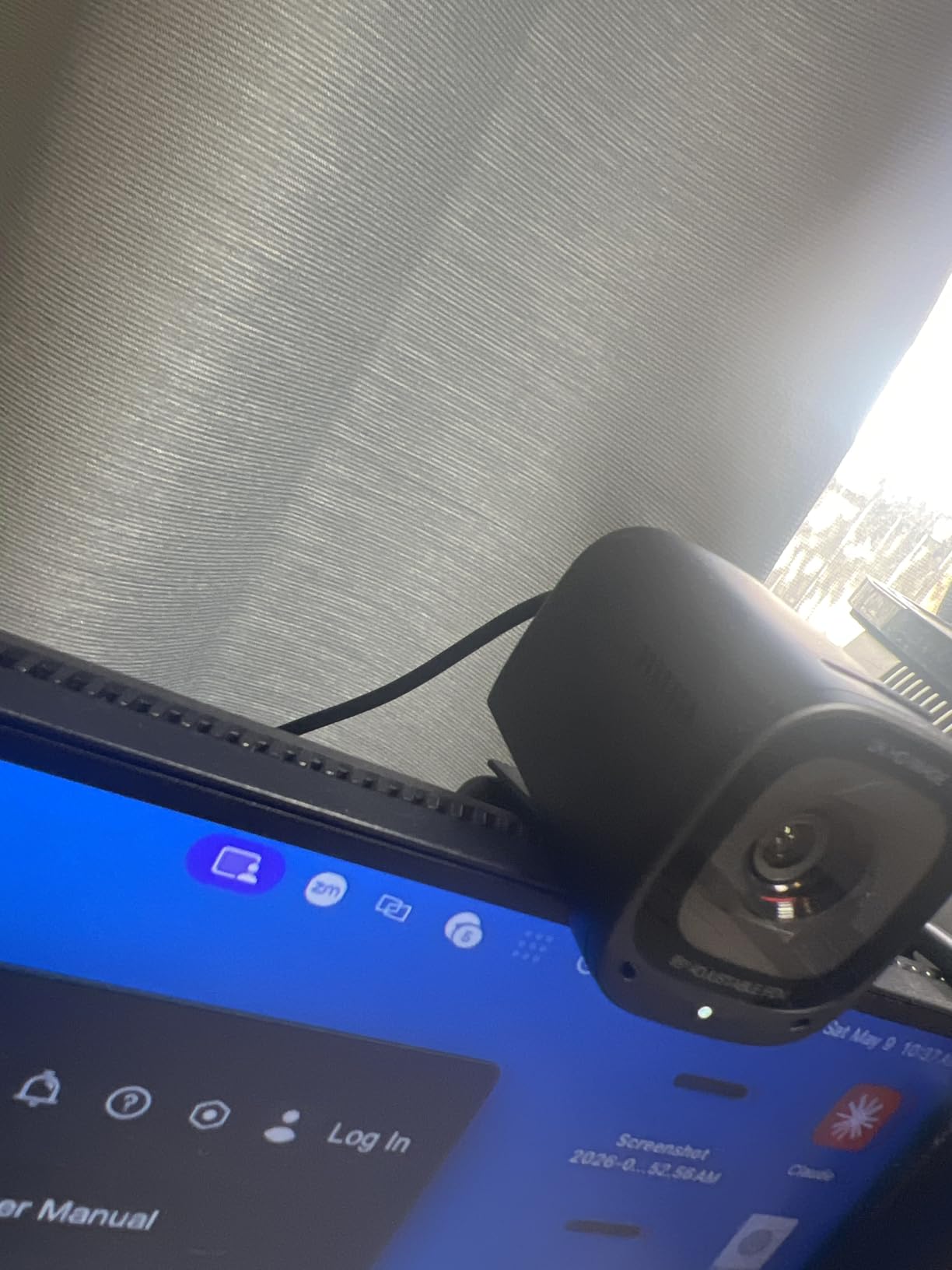
The ability to switch between 65, 78, and 95 degrees via the Anker software is genuinely useful. The 65-degree option is perfect for solo calls where you want to minimize background clutter. The 78-degree setting is the sweet spot for most meetings. The 95-degree wide angle works well when you need to fit two or three people in the frame for a small group call.
I used the 65-degree setting for job interview prep and the 95-degree setting for a team stand-up with two colleagues sharing my desk. Having that flexibility without buying a different webcam is a real advantage. Just note that adjusting the FOV requires the Anker software app, which has some reported login issues.
Privacy Features and Build Quality
The built-in sliding privacy cover is one of my favorite features on the C200. It has an orange indicator that makes it obvious when the lens is covered, addressing the privacy concerns that many forum users have raised about always-on webcams. No separate privacy shutter to lose or break.
Build quality feels solid for the price. The monitor mount grips firmly, and the compact form factor makes it easy to throw in a laptop bag for travel. Anker backs it with an 18-month warranty, which is longer than the standard one-year coverage from most competitors.
3. EMEET C960 4K – Budget 4K That Actually Delivers
EMEET C960 4K Webcam for PC, PDAF Auto Focus, Dual Omni Mics, 73° FOV
4K UHD CMOS Sensor
PDAF Autofocus
Dual Omnidirectional Mics
73 Degree FOV
Pros
- Genuine 4K CMOS sensor with sharp clear video
- PDAF autofocus is fast and reliable
- Auto light correction works well
- Privacy cover included
- 2-year warranty
Cons
- Default resolution is 1080P must switch to 4K via software
- Brightness auto-correction can be inconsistent
- Camera cover needs to be manually stuck into position
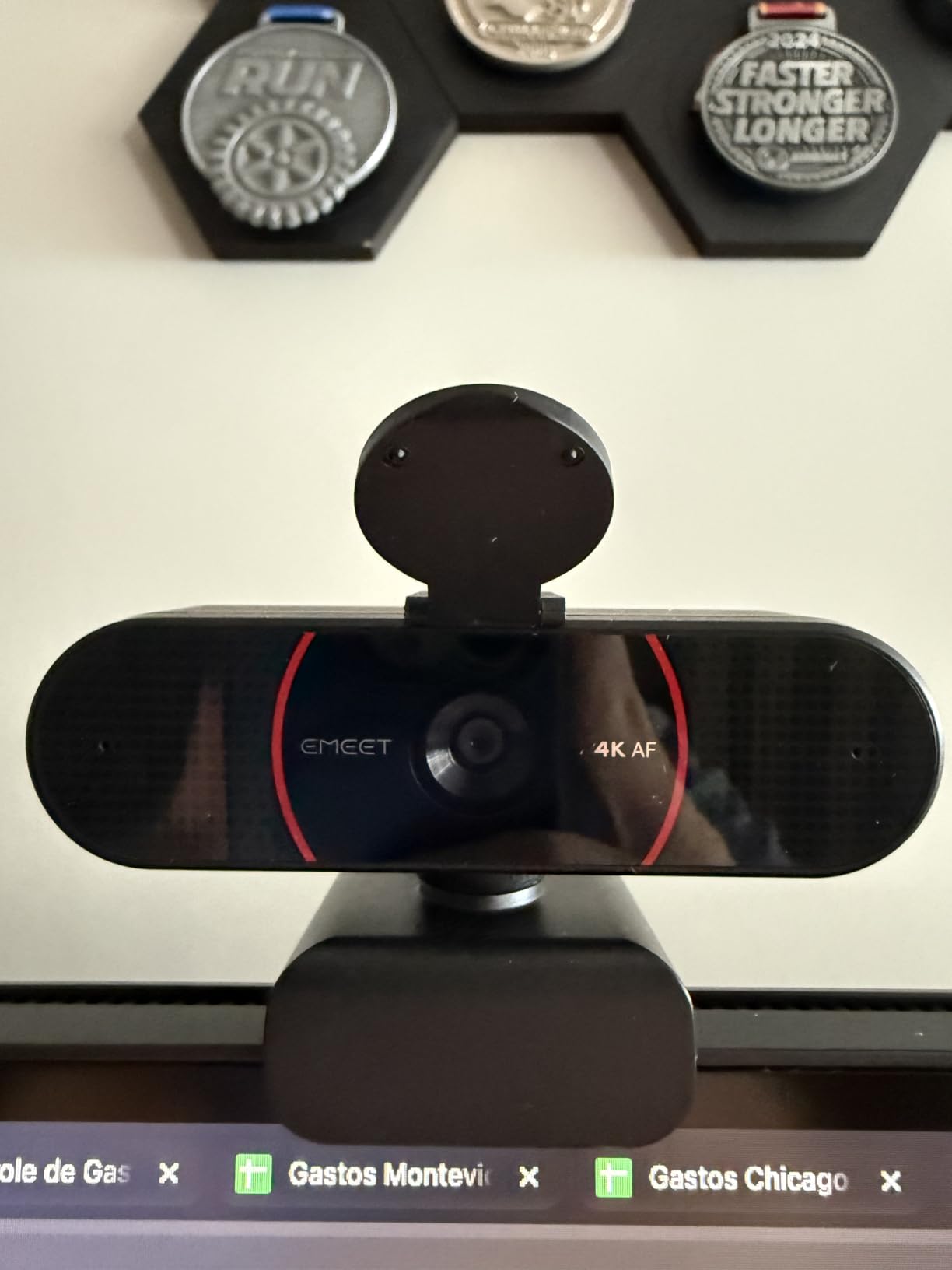
Finding a genuine 4K webcam at this price point felt like looking for a unicorn. The EMEET C960 delivers actual 4K video from a real CMOS sensor, not upscaled 1080p masquerading as 4K. Ranked #3 in Amazon’s Webcam bestsellers, it has earned its popularity with 2,171 reviews averaging 4.5 stars.
The PDAF (Phase Detection Auto Focus) technology is a standout feature at this price. Most budget webcams use slower contrast-detection autofocus that hunts back and forth. The C960 locks focus quickly and accurately, even when I held up objects close to the camera during a product demo call.
4K Sensor and PDAF Autofocus
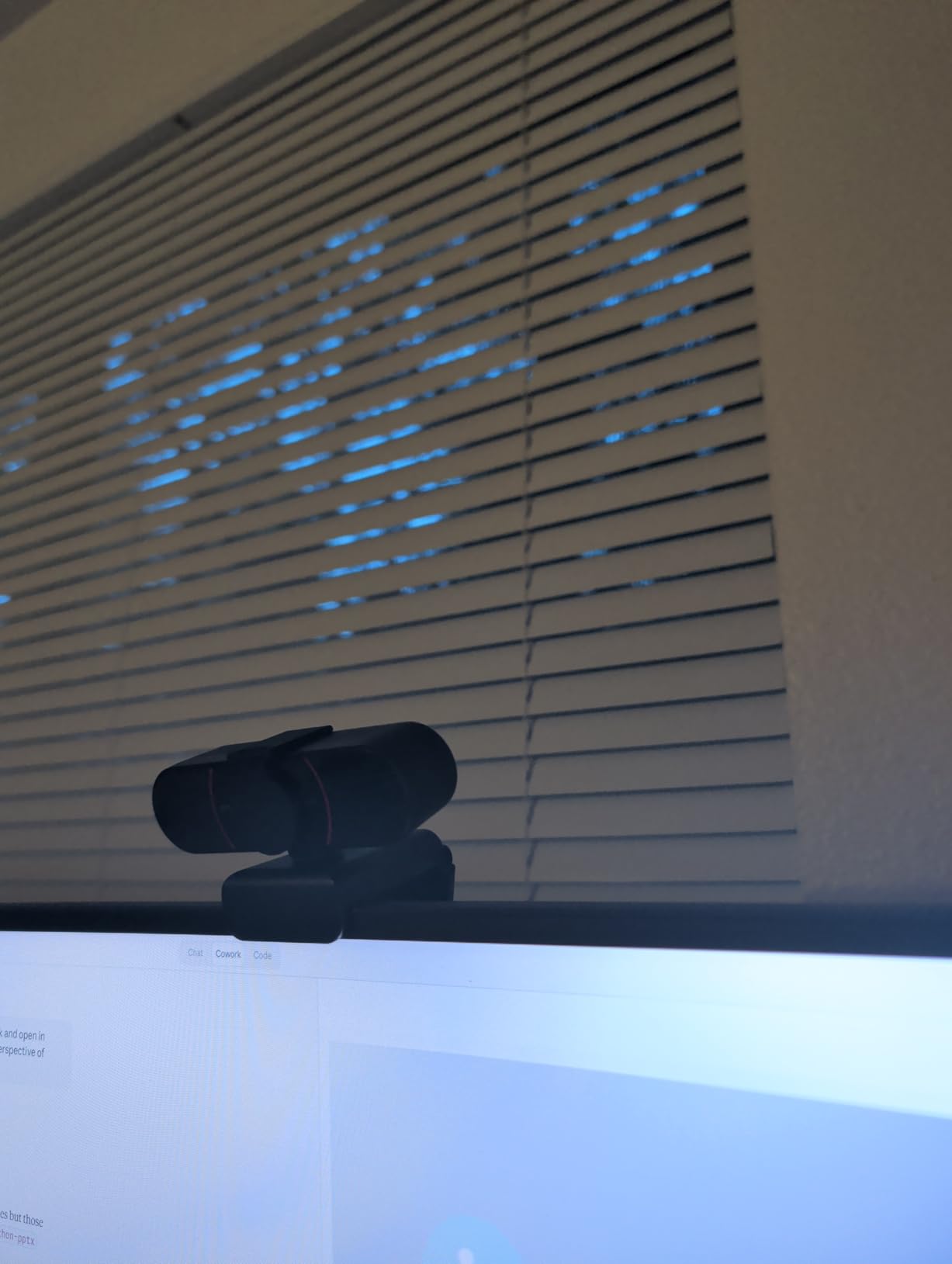
The genuine 4K CMOS sensor in the EMEET C960 produces noticeably sharper video than 1080p webcams in the same price range. Fine details like hair, fabric weave, and text on nearby documents remain clear. One important note: the default resolution out of the box is 1080p, so you need to switch to 4K through the EMEET software for maximum quality.
PDAF autofocus uses phase detection to measure distance and lock focus almost instantly. During testing, I moved closer to and farther from the camera repeatedly, and the C960 refocused in under a second each time. This is the same autofocus technology found in smartphones that cost several times more.
Microphone Quality and Audio
The dual omnidirectional microphones capture clear audio for one-on-one calls and small group meetings. In a quiet room, callers reported that my voice sounded natural and easy to understand. In noisier environments with background chatter, the mics did pick up some ambient sound, which is expected at this price point.
For professional presentations or client calls where audio clarity is critical, I would recommend pairing the C960 with a dedicated USB microphone. But for everyday team meetings and casual video calls, the built-in mics are perfectly adequate.
Setup and Compatibility
True plug-and-play setup makes the C960 incredibly easy to use. I plugged it into a USB port on my Windows laptop, and it was immediately recognized by Zoom, Teams, and Google Meet without any driver installation. It also works with macOS, Android TV, and Linux, giving it the broadest platform compatibility of any webcam on this list.
The privacy cover is included but needs to be manually attached with adhesive. It is a minor inconvenience but worth the extra 30 seconds for the security of knowing your lens is physically covered when not in use. The 2-year warranty provides peace of mind that is uncommon at this price.
4. Logitech C920x HD Pro – The Reliable Classic
Logitech C920x HD Pro PC Webcam Full 1080p/30fps Video – Black
1080p 30fps
Glass Lens
Auto Focus
Dual Stereo Mics
78 Degree FOV
Pros
- Plug-and-play setup with no drivers required
- Crisp Full HD 1080p video with vibrant colors
- Excellent low-light correction and autofocus
- Compatible with all major platforms
- Compact and lightweight design
Cons
- No built-in privacy shutter
- Microphone quality is average
- No image stabilization
- Low-light performance is good but not exceptional
The Logitech C920x is the webcam that needs no introduction. With over 21,000 reviews and a 4.6-star rating, it has been the go-to recommendation for video calls for years. Logitech refined the formula with this x variant, adding XSplit VCam compatibility for background effects and improved light correction.
I used the C920x as my daily driver for two weeks of back-to-back meetings. The 1080p video quality is consistently clean, with accurate colors and the kind of reliability you expect from Logitech. It just works, every time, without fuss.
1080p Video Quality and Color Accuracy
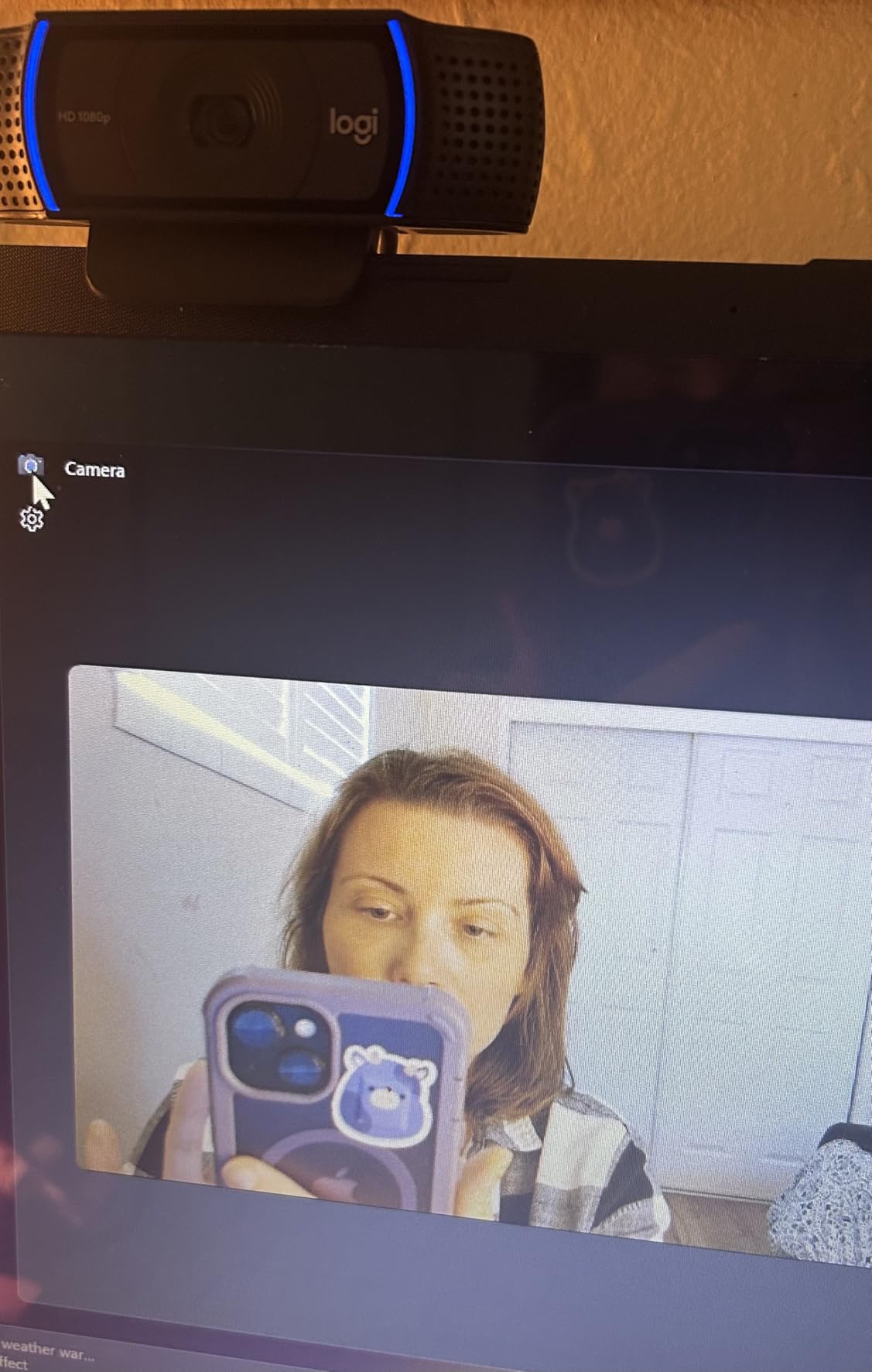
The glass lens on the C920x produces sharper, more color-accurate video than the plastic lenses found in cheaper webcams. Skin tones look natural rather than orange or washed out, and the auto white balance adjusts quickly when lighting conditions change. During a call where I moved from my desk lamp to natural window light, the C920x adjusted exposure within seconds.
The 78-degree field of view is well-suited for solo calls. It frames your head and shoulders nicely without showing too much of your room behind you. For privacy-conscious users who prefer not to broadcast their living space, this narrower FOV is actually an advantage.
Low-Light Performance and Autofocus
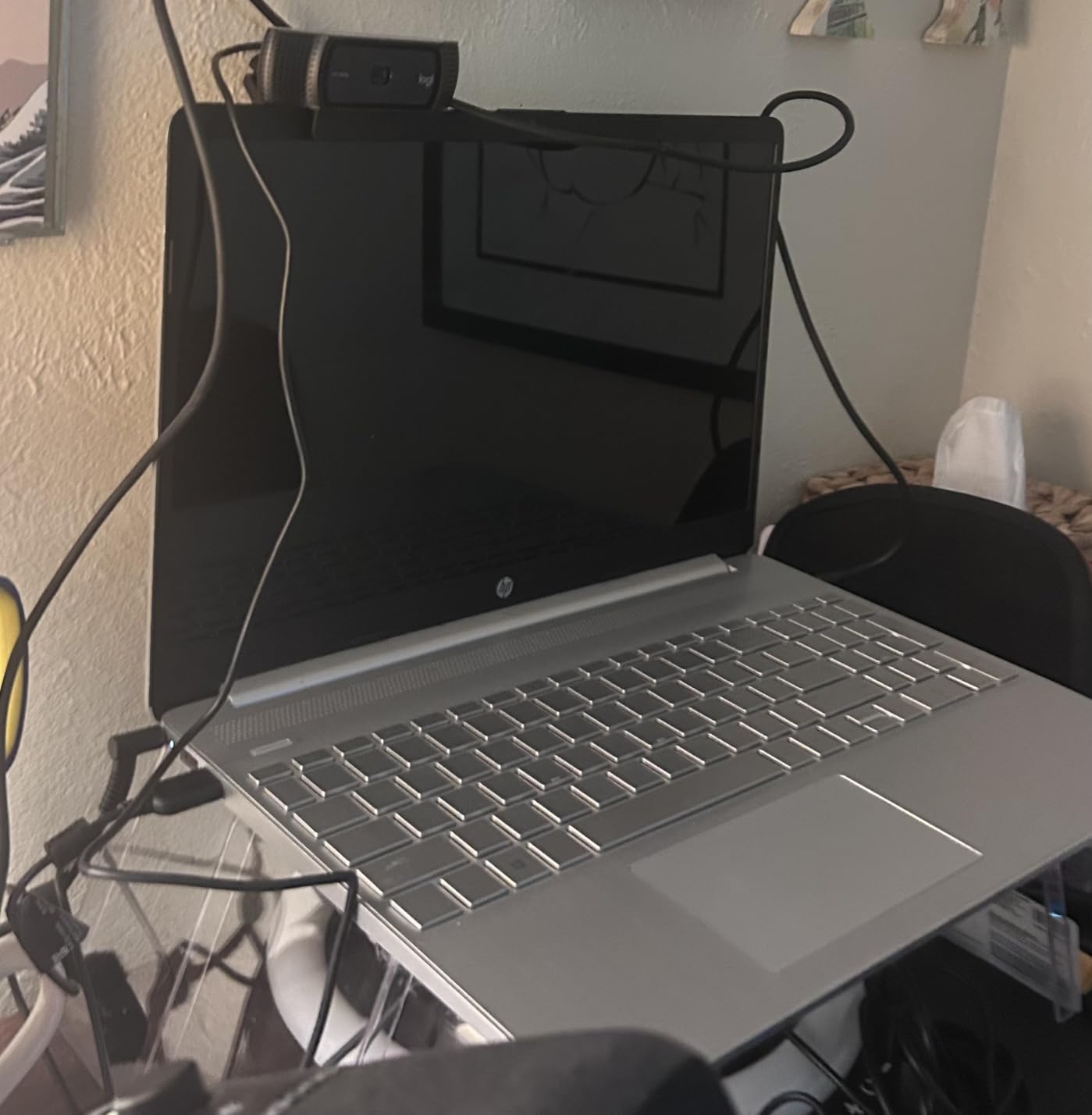
The HD lighting adjustment on the C920x analyzes your environment and brightens the image in dim conditions. It works well for typical home office lighting but does introduce some grain when pushed to extreme low-light situations. If your office is very dark, pairing this webcam with an affordable ring light will produce significantly better results.
Autofocus is reliable and responsive. The C920x tracks your face as you lean in or sit back without the focus hunting that plagues some cheaper webcams. The autofocus does occasionally lose lock when you hold something close to the camera, but it recovers within a second or two.
Microphone and Audio Pickup
The dual stereo microphones on the C920x provide clear audio for standard calls. They capture your voice accurately at typical desk distance of two to three feet. However, they do pick up keyboard noise and room echo in spaces without soft furnishings.
For daily team meetings, the built-in mics are adequate. For professional recordings, client presentations, or podcasting, you will want a dedicated microphone. The C920x is commonly paired with USB mics like the Blue Yeti or Samson Q2U for this reason, as noted by many Reddit users in the webcam community.
5. Logitech Brio 4K – Premium Features for Power Users
Logitech Brio Ultra 4K HD Webcam for Streaming and Meetings – Black
4K UHD 30fps
Windows Hello
5x Digital Zoom
RightLight 3
Adjustable FOV
Pros
- Ultra HD 4K resolution with exceptional clarity
- RightLight 3 HD auto light correction
- Windows Hello support with infrared sensors
- Adjustable field of view up to 90 degrees
- Dual noise-canceling microphones
Cons
- Expensive at $169.99
- Privacy shutter can feel flimsy and may fall off
- Thick rigid USB cable makes positioning challenging
- Can get warm during prolonged sessions
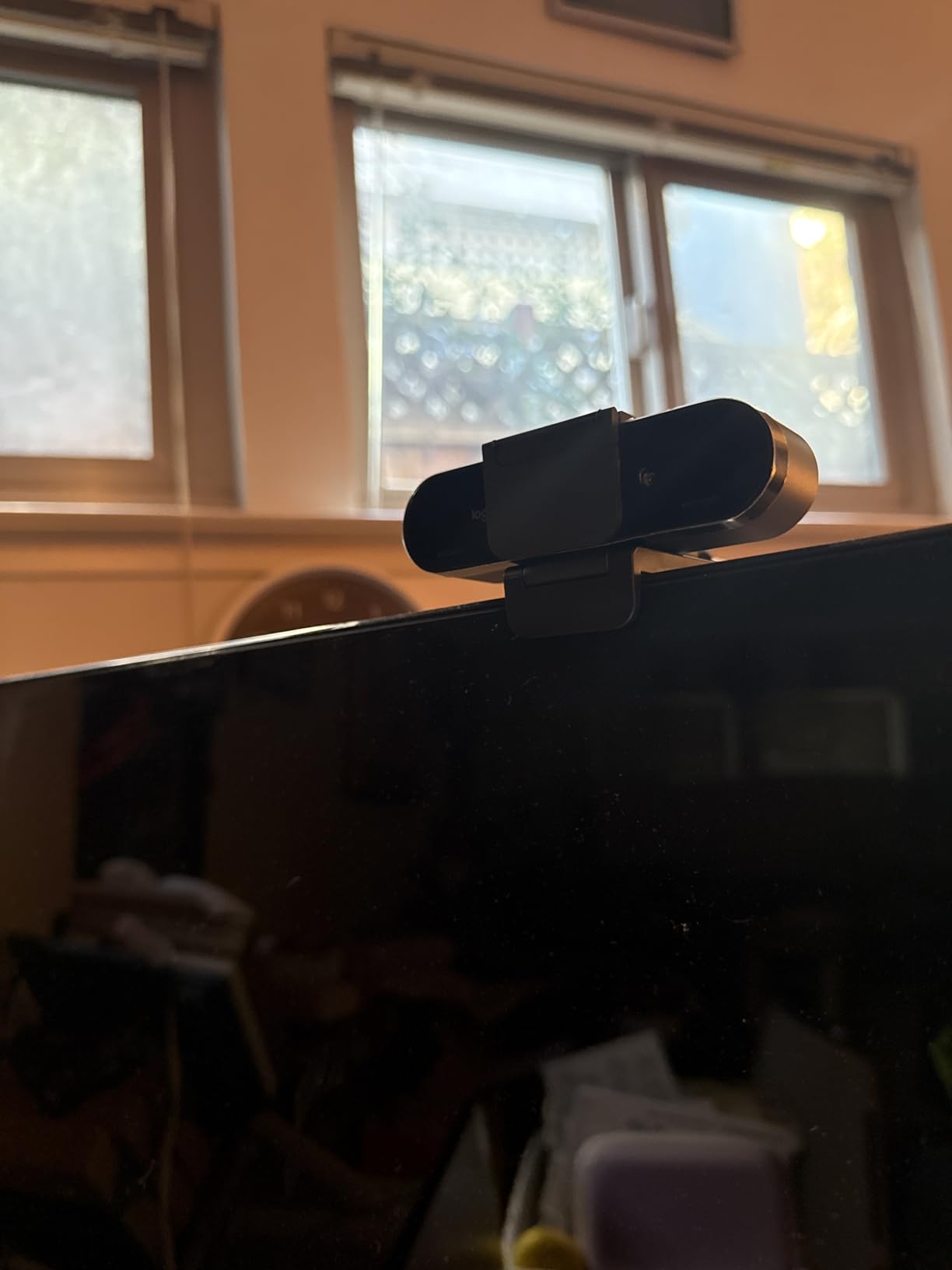
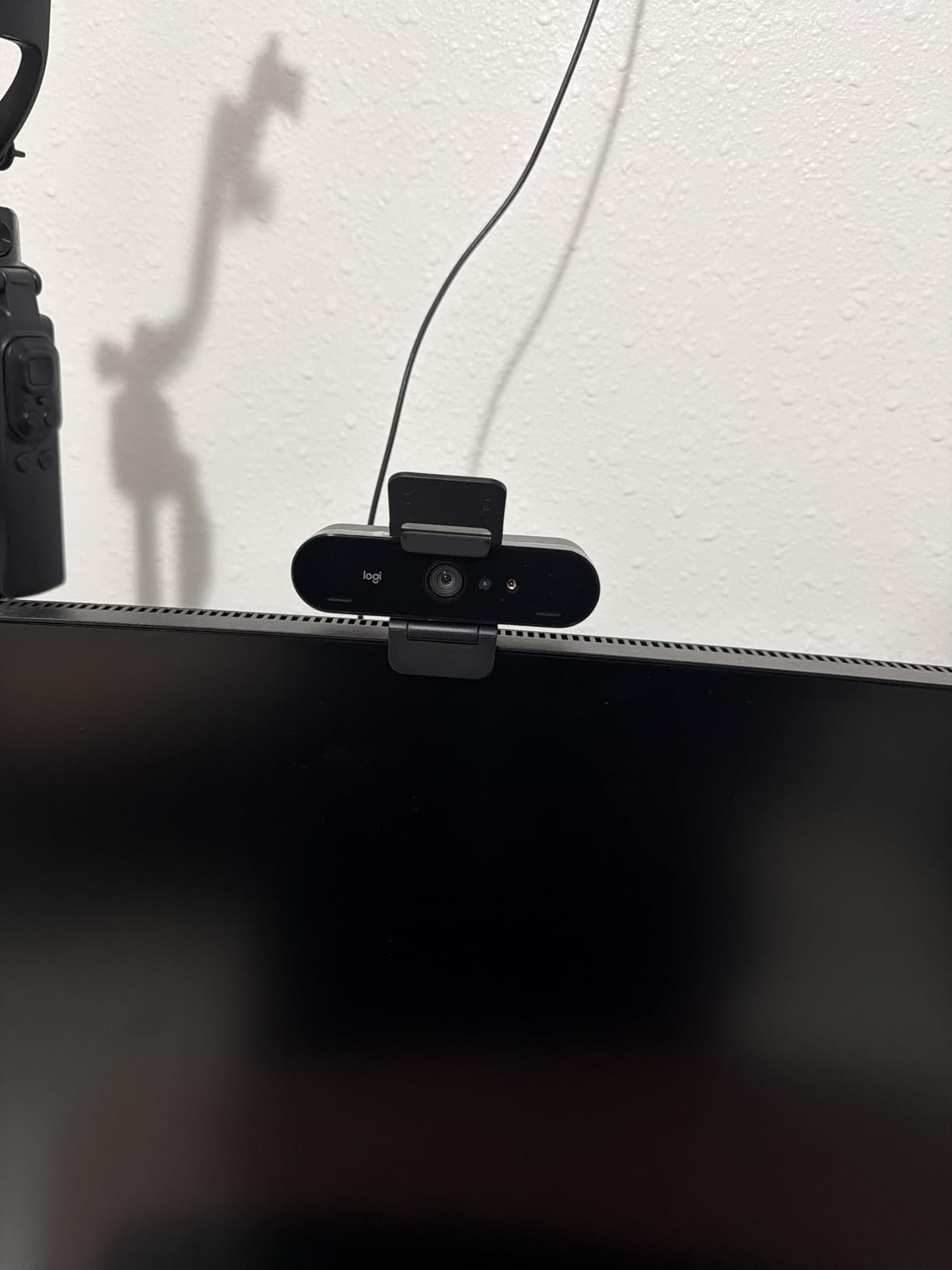
The Logitech Brio 4K is built for users who want every premium feature in one package. It combines genuine 4K resolution, Windows Hello facial recognition, 5x digital zoom, and RightLight 3 light correction into a compact device. With 1,245 reviews averaging 4.5 stars, it has earned a loyal following among professionals.
I tested the Brio 4K specifically for its Windows Hello integration, and it worked flawlessly. Sitting down at my desk, the camera recognized my face and unlocked my computer almost instantly using its built-in infrared sensors. For anyone who logs in and out of a Windows machine multiple times per day, this feature alone justifies the investment.
4K Resolution and RightLight 3
The Brio 4K captures genuine Ultra HD video at 30fps with excellent detail and color vibrancy. During a client presentation where I shared product samples close to the camera, the fine details remained sharp and legible. The 13MP still resolution also makes it useful for capturing quick reference images.
RightLight 3 is Logitech’s most advanced light correction technology. It uses HDR to balance high-contrast scenes, brightening shadows and taming highlights. I tested it with a window directly behind me and a desk lamp to one side, creating a challenging mixed-light scenario. The Brio 4K handled it better than any webcam except the Insta360 Link 2.
Windows Hello and Security Features
The integrated infrared and optical sensors enable Windows Hello facial recognition for password-free login. This is one of the few webcams on the market that supports this feature natively. Setup takes about 30 seconds through Windows settings, and subsequent logins happen automatically when you sit at your desk.
The attachable privacy shutter provides physical security when the camera is not in use. However, several reviewers have noted that the shutter can feel flimsy and may detach over time. If privacy is a top concern, handle the shutter carefully or consider a webcam with a built-in sliding cover like the Anker C200.
Field of View and Digital Zoom
The adjustable field of view on the Brio 4K offers three settings: 65, 78, and 90 degrees diagonal. The 65-degree setting is perfect for tight headshots during presentations. The 90-degree wide setting captures enough of the room for small group meetings or showing your workspace context.
The 5x digital zoom lets you crop in without physically moving the camera. Digital zoom does reduce image quality as you zoom in, so it is best used in moderation. At 2x zoom, the image remains usable for video calls. Beyond 3x, you will notice significant softening.
6. OBSBOT Meet SE 1080P – High Frame Rate Champion
OBSBOT Meet SE 1080P 100FPS Webcam for PC, AI Framing Streaming Camera
1080p at 100FPS
1/2.8-inch Sensor
AI Framing
Staggered HDR
Gesture Control
Pros
- 1080p at 100fps for ultra-smooth video
- Intelligent AI framing for individuals or groups
- 1/2.8-inch sensor with Dual Native ISO for low light
- Magnetic mount and privacy cover included
- Compact at only 60 grams
Cons
- Can overheat during extended use
- Gesture control can be overly sensitive
- Cable could be longer
- Advanced features require OBSBOT Center software
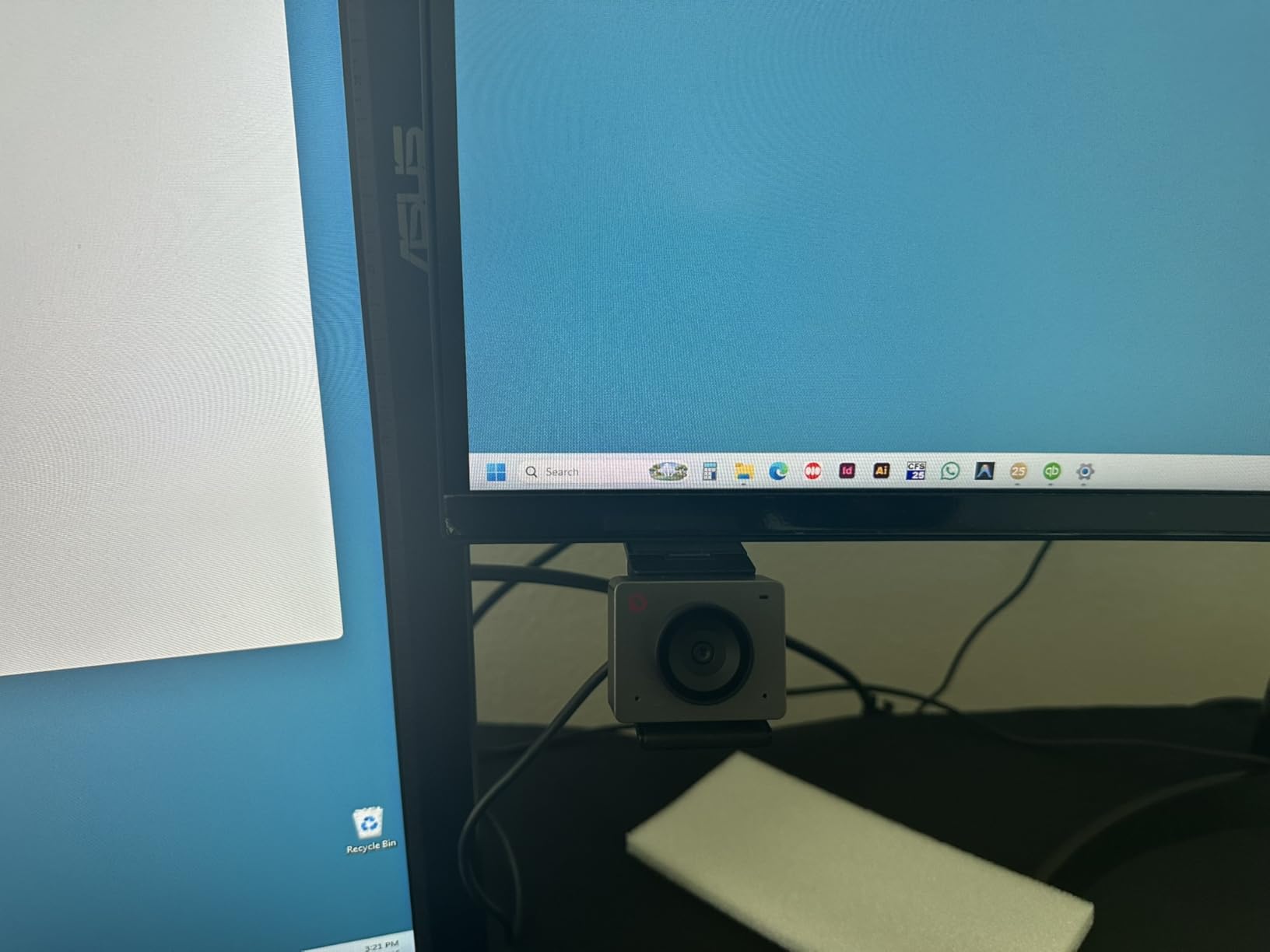
The OBSBOT Meet SE does something no other webcam on this list can match: it captures 1080p video at 100 frames per second. This ultra-high frame rate makes your video feed look incredibly smooth and professional, especially during fast movements or presentations where you gesture frequently.
With 1,587 reviews averaging 4.5 stars, the Meet SE has carved out a niche among streamers and content creators who value frame rate over raw resolution. The OBSBOT brand was the official camera partner of the 2025 Esports World Cup, which speaks to its gaming and streaming credentials.
100FPS Frame Rate and Smoothness
Standard webcams capture at 30fps, which is adequate but can look slightly choppy during fast movement. The Meet SE at 100fps produces buttery-smooth video that looks noticeably more professional. During a test where I presented with hand gestures and moved around my desk, the difference was immediately obvious to viewers on the other end.
If you primarily sit still during calls, the higher frame rate is less noticeable. But for presenters, educators, and anyone who moves while they talk, the 100fps capture eliminates the motion blur and judder that makes standard webcams look amateurish.
AI Framing and Gesture Control
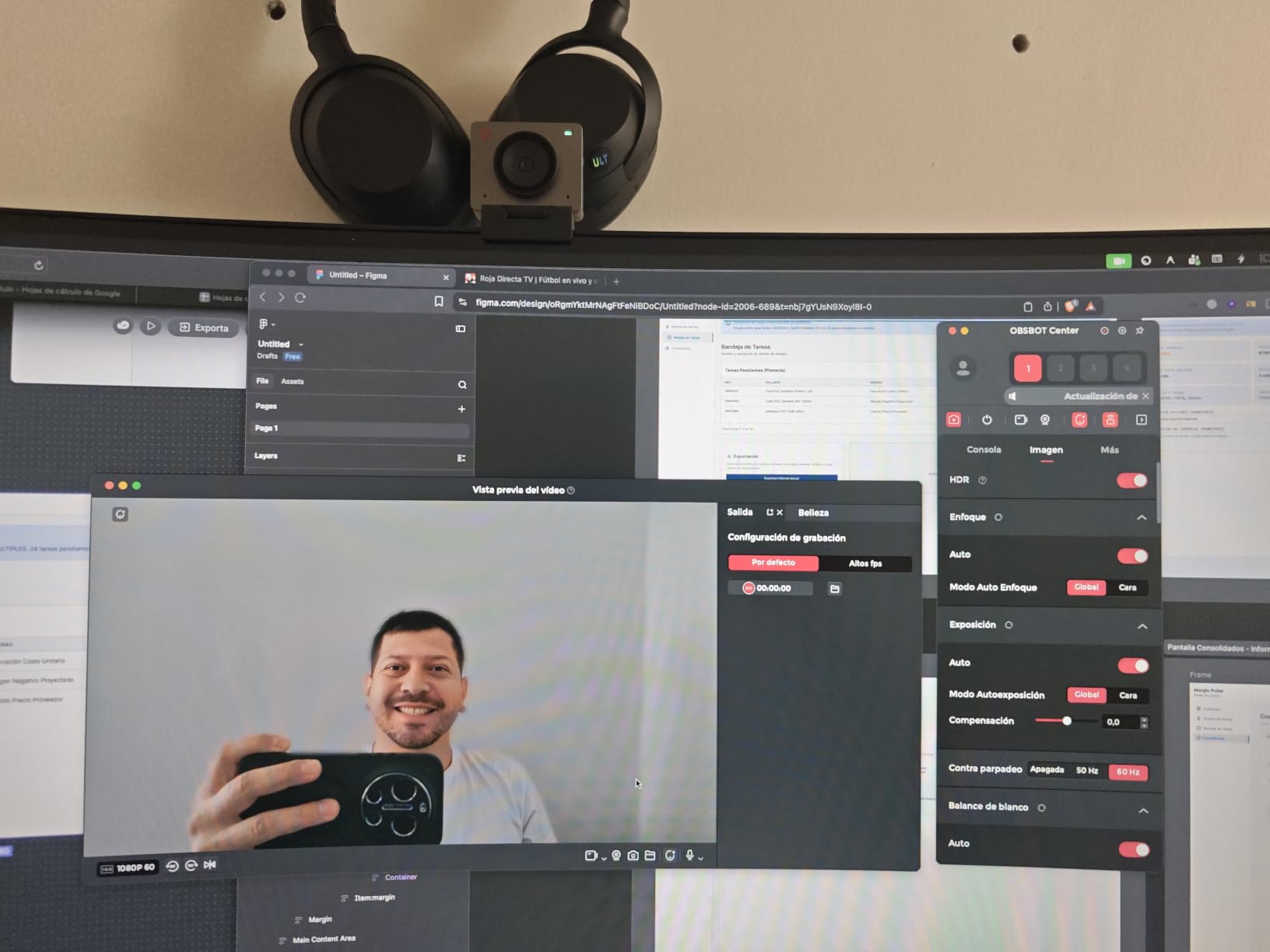
The AI framing feature automatically adjusts the composition to keep you centered and well-framed. It recognizes whether you are alone or in a group and adjusts accordingly. During testing, I walked from one side of my desk to the other, and the framing followed me smoothly without abrupt jumps.
Gesture control lets you enable or disable AI framing with a hand gesture, or zoom in and out with a pinch motion. The system works reliably once you learn the proper timing, but the gesture sensitivity is enabled by default and can trigger accidentally. I recommend disabling it initially and turning it on once you are familiar with the camera.
HDR and Color Performance
The staggered HDR and 12-bit dynamic color range produce richer, more accurate colors than typical 1080p webcams. The 1/2.8-inch stacked CMOS sensor with Dual Native ISO handles low-light situations surprisingly well, capturing clean images even in dim environments where other webcams produce noisy, grainy video.
One thing to watch for is overheating during extended use. After about two hours of continuous streaming, the camera body became noticeably warm. It did not shut down during my testing, but if you plan to use it for all-day streaming or back-to-back sessions, keep an eye on temperature and take breaks when possible.
7. Logitech Brio 101 – Simple, Reliable, Budget-Friendly
Logitech Brio 101 Full HD 1080p Webcam for Streaming and Meetings – Black
1080p 30fps
RightLight Auto Balance
Built-in Privacy Shutter
USB-A Plug and Play
Pros
- Crystal clear 1080p video quality
- Plug and play setup with USB-A
- Built-in privacy shutter
- Auto-light balance reduces shadows
- Made with minimum 77% post-consumer recycled plastic
Cons
- Fixed focus lens with limited zoom
- Fixed 60-degree FOV can feel too zoomed in
- Mount does not firmly clamp on some monitors
- Not ideal for frameless monitors
The Logitech Brio 101 holds the number one bestseller rank in Amazon’s Webcam category, and for good reason. It delivers dependable 1080p video, a built-in privacy shutter, and Logitech’s trusted brand reliability at a price that makes upgrading from your laptop camera a no-brainer. With 6,949 reviews averaging 4.4 stars, it is the webcam most people actually buy.
I tested the Brio 101 for two weeks of daily use and found it to be the most straightforward webcam on this list. There is nothing to configure, no software to install, and no learning curve. You plug it in, and it works. For users who want better video without fuss, this is your pick.
1080p Quality and RightLight
The 1080p video quality from the Brio 101 is clean and consistent for everyday calls. Logitech’s RightLight auto-balance technology boosts brightness by up to 50%, which helps in typical home office lighting where one side of your face may be in shadow. Colors are natural without the oversaturation that some cheaper webcams apply.
The fixed focus lens means the camera is optimized for a specific distance, roughly two to three feet. As long as you sit at that distance, the image is sharp. If you need to get closer for a product demo or farther for a group shot, the fixed focus becomes a limitation compared to autofocus-equipped models.
Privacy Shutter and Design
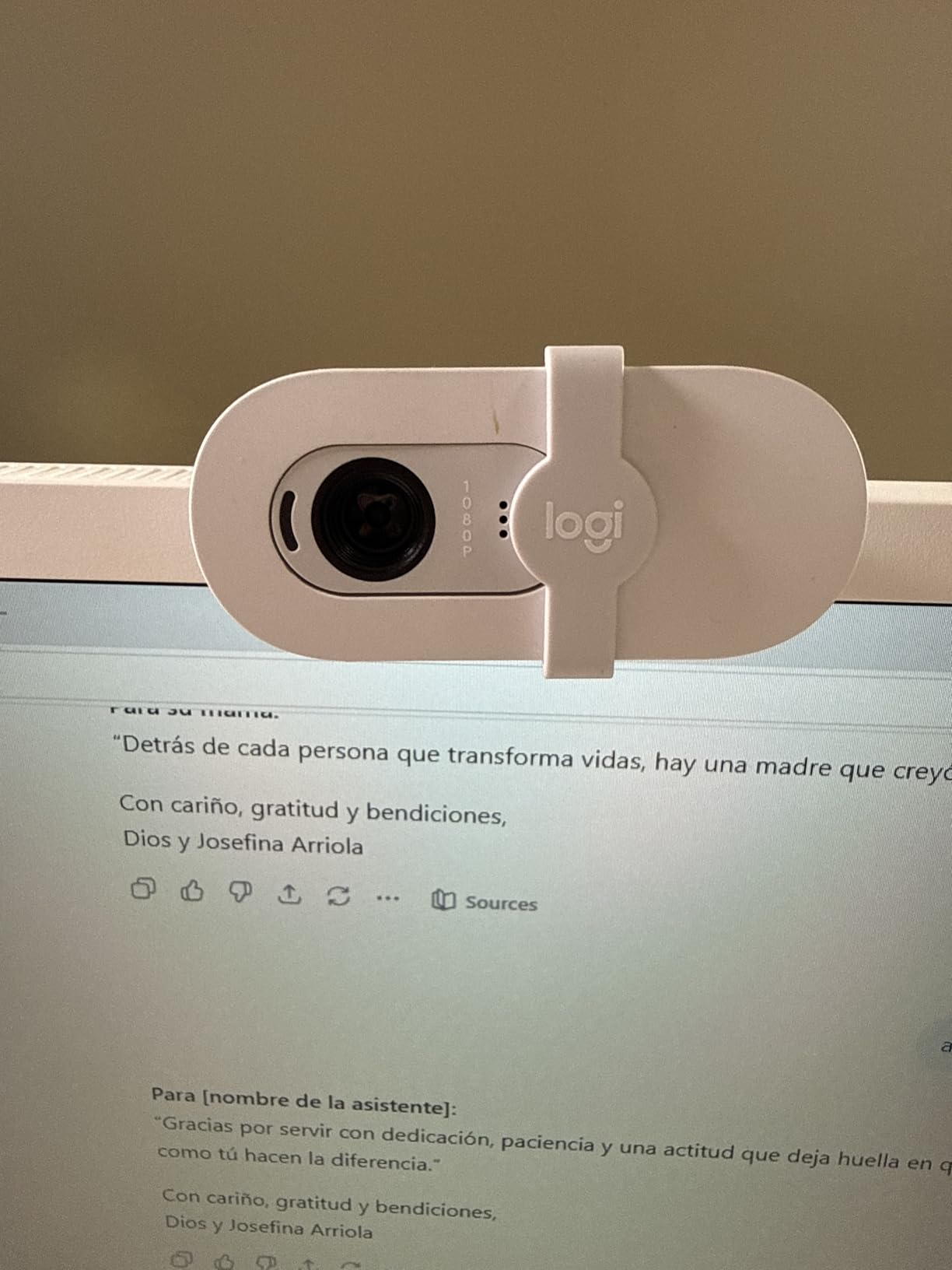
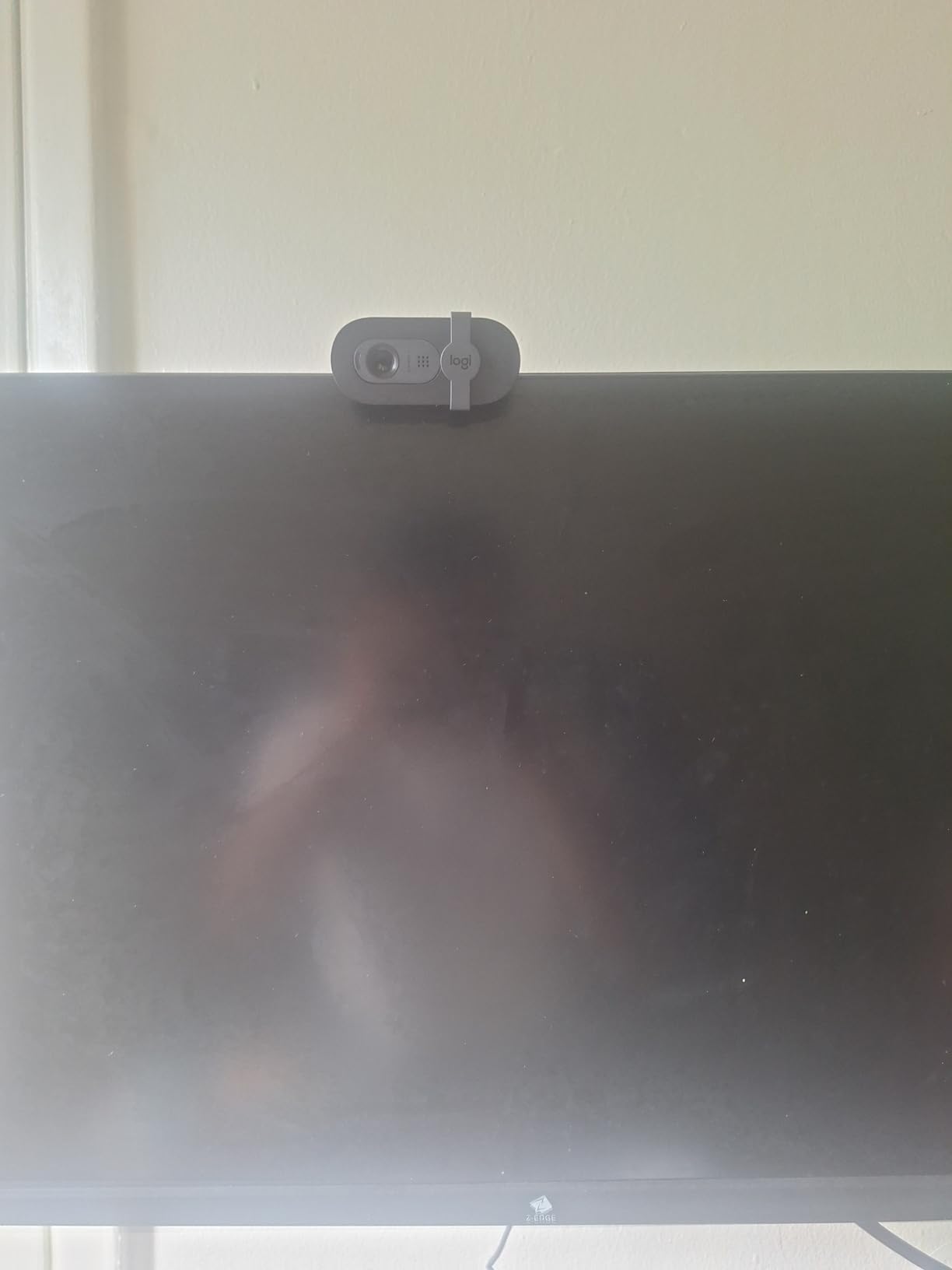
The integrated privacy shutter is a highlight feature. Unlike the separate, easy-to-lose privacy shutters included with some webcams, the Brio 101 has a built-in slide mechanism that stays attached. One quick motion covers or uncovers the lens, giving you instant privacy between calls.
The compact, rectangular design is lightweight at just under 5 ounces. It clips onto most monitors easily, though the mount can feel loose on ultra-thin bezels or frameless monitors where there is little lip to grip. The design is also eco-friendly, made with a minimum of 77% post-consumer recycled plastic.
Simplicity and Plug-and-Play Setup
The Brio 101 is the definition of plug-and-play. I connected it via USB-A to a Windows laptop, and it was immediately available in Zoom, Teams, and Google Meet with no drivers or configuration needed. The same was true on macOS and ChromeOS. This universal compatibility is a major advantage for users who switch between different computers or operating systems.
The Logi Options+ app is available if you want to customize zoom, framing, and settings, but it is entirely optional. The Brio 101 works great out of the box with factory defaults that are well-tuned for typical video call scenarios. For anyone who wants zero configuration, this is the most user-friendly option on our list.
8. EMEET NOVA 4K – Business-Ready 4K at a Smart Price
EMEET NOVA 4K Webcam for PC, Ultra 4K HD, PDAF Autofocus, Dual Omni Mics
4K UHD 30fps
PDAF Autofocus
Dual Omnidirectional Mics
73 Degree FOV
Privacy Cover
Pros
- Stunning 4K clarity with professional video quality
- PDAF autofocus is fast and accurate
- Auto light correction handles different lighting well
- Dual omnidirectional microphones with clear audio up to 8 feet
- 2-year warranty included
Cons
- Does not support facial tracking
- Manual focus not supported
- Fixed FOV cannot be adjusted
- Incompatible with Windows Hello functions
The EMEET NOVA 4K rounds out our list as a business-ready webcam that delivers genuine 4K quality at a budget-friendly price. With 2,067 reviews averaging 4.5 stars and a number 22 bestseller rank, it has proven popular among professionals who want 4K resolution without paying premium prices.
I tested the NOVA 4K in a variety of business meeting scenarios, from one-on-one calls to team presentations. The PDAF autofocus locked on quickly every time, and the 4K video quality held up well even when shared on large conference room displays.
4K Video and PDAF Autofocus
The NOVA 4K captures genuine 4K video at 30fps using a CMOS sensor that produces sharp, detailed images. Fine textures in clothing, hair, and background objects remain clear rather than dissolving into digital mush. The auto light correction handles backlight and mixed lighting conditions reasonably well, though it can be slightly inconsistent in extreme situations.
The PDAF autofocus is the same phase-detection technology used in the EMEET C960, and it performs identically well. Focus locks in under a second when you move toward or away from the camera, and it maintains sharp focus during normal use without hunting. The effective focus range of 7.9 to 118 inches covers any realistic desk setup.
Dual Microphones and Audio Range
The dual omnidirectional microphones on the NOVA 4K capture clear audio up to 8 feet from the camera. This makes it suitable for small conference rooms where participants may be seated at varying distances. In my testing, audio was clear and natural at desk distance, with slight degradation at the far end of the 8-foot range.
One reviewer noted that the built-in microphones can sound slightly echoey in rooms with hard surfaces. This is a common issue with all webcam microphones and can be mitigated with soft furnishings like curtains, rugs, or acoustic panels. For professional streaming or podcasting, a dedicated microphone remains the better choice.
Adjustability and Mounting Options
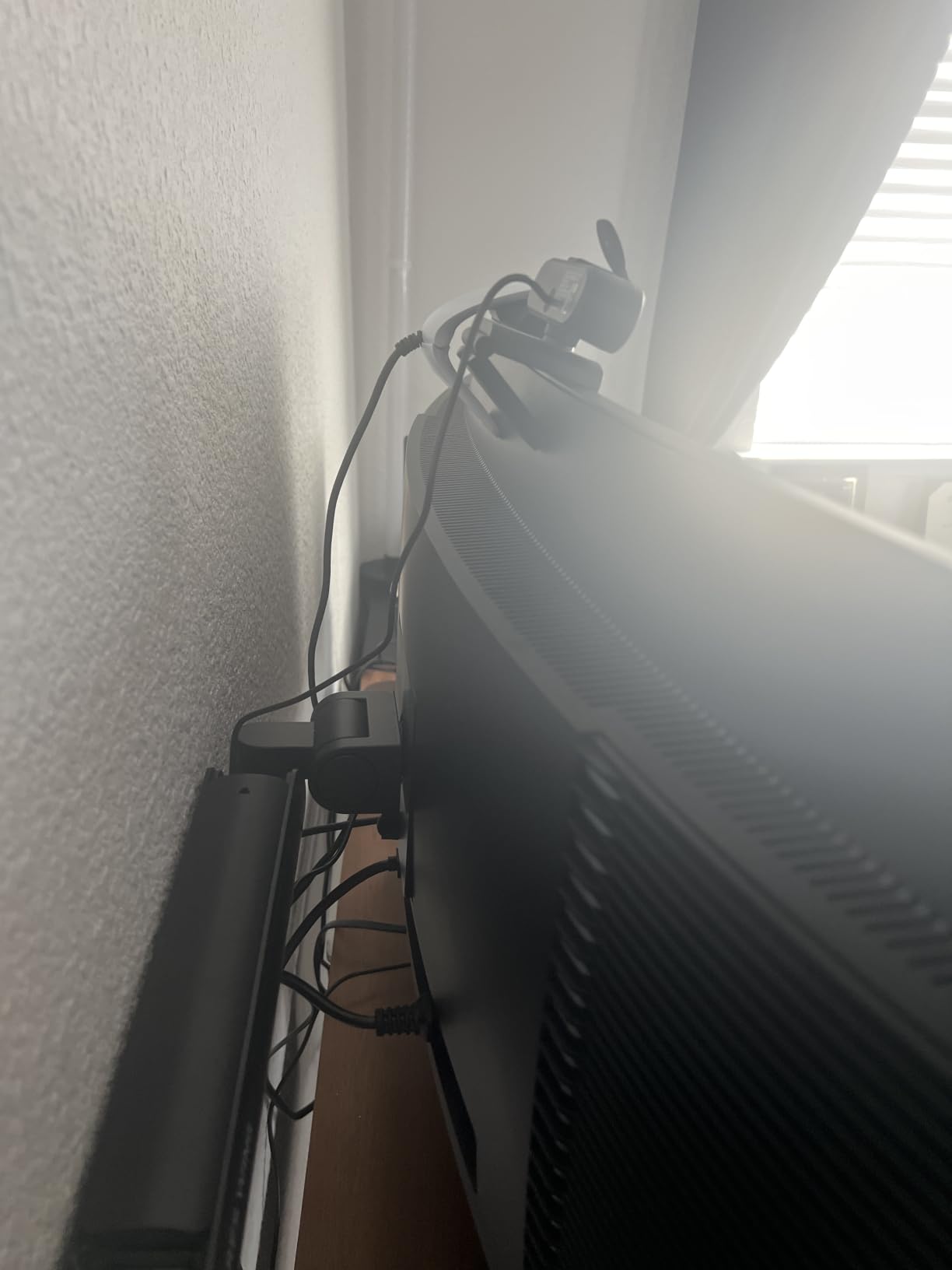
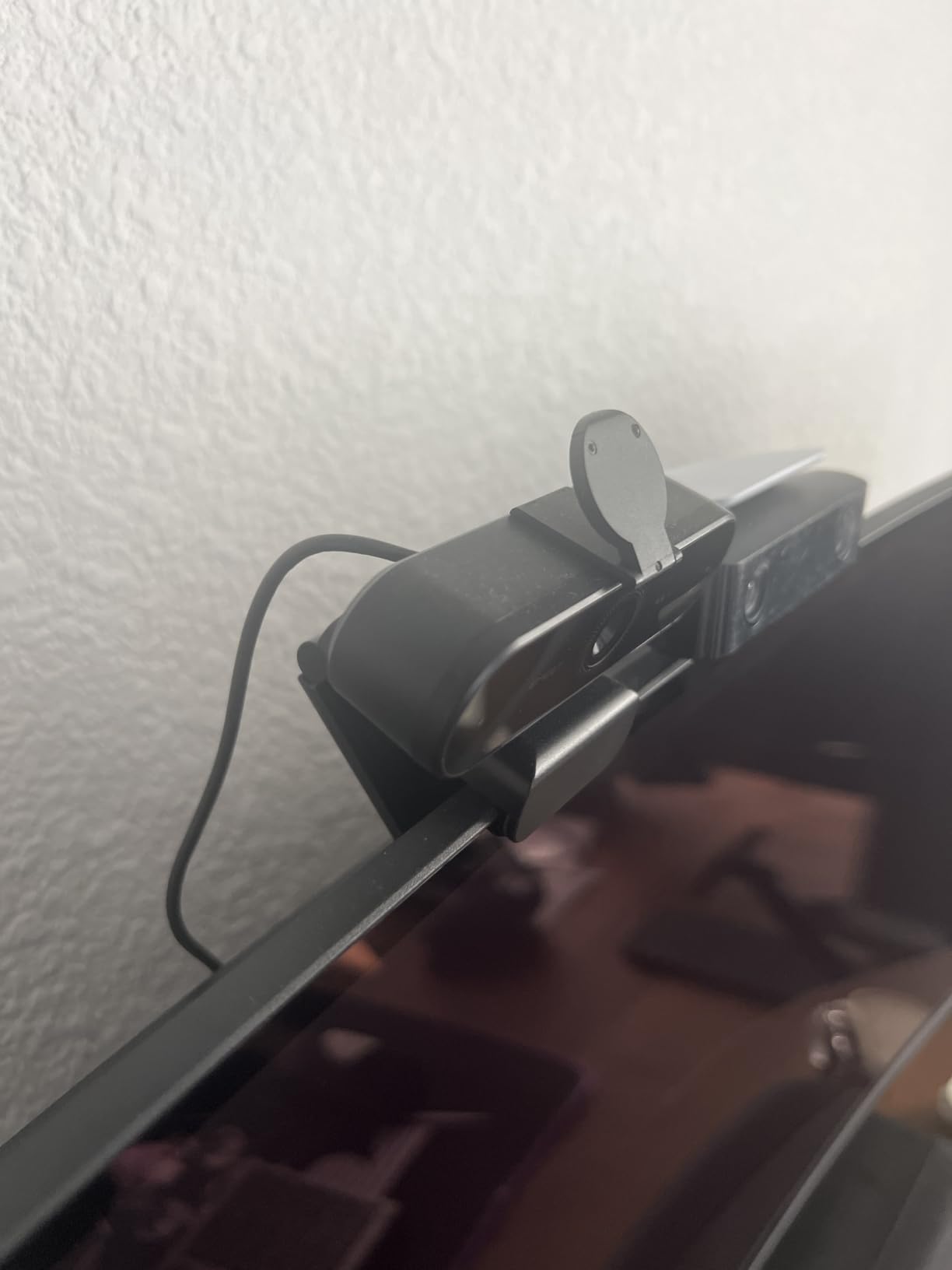
The NOVA 4K offers 360 degrees of horizontal rotation and 15 degrees of vertical adjustment, giving you plenty of flexibility to frame your shot perfectly. The 180-degree adjustable stand includes a 1/4-inch tripod nut, so you can mount it on a standard camera tripod if you prefer that setup over clipping it to your monitor.
The privacy cover is included and provides physical lens protection when the camera is not in use. The USB 2.0 plug-and-play connectivity means no drivers or software installation is required for basic use, though the EMEETLINK software offers additional brightness, contrast, and saturation adjustments for fine-tuning your image.
How to Choose the Best Webcam for Video Calls
Choosing the right webcam comes down to understanding which specifications matter for your specific use case. After testing all eight models, I can tell you that more megapixels and higher resolution numbers do not automatically mean better video. The quality of the sensor, lens, autofocus system, and image processing all play equally important roles.
Whether you need a webcam for occasional team catch-ups or daily executive presentations, these are the factors that actually affect your video call experience. For complementary tips on optimizing your entire setup, read our guide on lighting for video calls.
Resolution: 1080p vs 2K vs 4K
1080p (Full HD) is the baseline standard for acceptable video call quality. It looks good on most screens and is more than sufficient for standard Zoom and Teams calls. If your calls are primarily one-on-one or small group meetings viewed on laptop screens, 1080p is perfectly adequate. The Logitech C920x and Brio 101 both deliver excellent 1080p quality.
2K (QHD, 1440p) offers a visible improvement in sharpness and detail. It is worth considering if you present frequently or if your calls are displayed on larger monitors. The Anker PowerConf C200 is our top 2K pick, offering this resolution at a budget-friendly price.
4K (UHD, 2160p) provides the highest level of detail and future-proofs your setup. Most video call platforms currently cap resolution at 1080p for streaming, but 4K sensors produce better 1080p output through downsampling. If you also use your webcam for recording videos, content creation, or streaming, 4K is worth the investment. The Insta360 Link 2, Logitech Brio 4K, EMEET C960, and EMEET NOVA are our 4K recommendations.
Frame Rate: 30fps vs 60fps vs Higher
Frame rate determines how smooth your video appears during movement. 30fps is the standard for video calls and looks fine for static sitting positions. Most platforms, including Zoom and Teams, stream at 30fps maximum anyway.
60fps makes motion look noticeably smoother and more natural. If you present with hand gestures, move around during calls, or use your webcam for streaming, the higher frame rate is worth seeking out. 100fps or higher, like the OBSBOT Meet SE offers, is primarily beneficial for content creation and streaming where motion smoothness is critical.
Field of View: Narrow vs Wide
Field of view (FOV) determines how much of your surroundings the camera captures. A narrow FOV (60-65 degrees) frames just you and minimizes background clutter, which is ideal for solo calls and privacy. The Logitech Brio 101 uses a fixed 60-degree FOV for this purpose.
A medium FOV (73-78 degrees) is the sweet spot for most users, capturing your head and shoulders with some context of your environment. A wide FOV (90-95 degrees) is useful for group calls or showing your workspace. The Anker PowerConf C200 lets you switch between 65, 78, and 95 degrees, giving you the best of all options.
Autofocus Technology Types
Autofocus quality varies significantly between webcams. Contrast-detection autofocus, found in cheaper webcams, is slower and prone to hunting (shifting in and out of focus). PDAF (Phase Detection Auto Focus), used in the EMEET C960, EMEET NOVA, and Insta360 Link 2, is much faster and more accurate.
AI tracking goes a step further by actively following your movement within the frame. The Insta360 Link 2 uses a physical gimbal for the best tracking experience, while the OBSBOT Meet SE uses digital AI framing. If you move around during calls or presentations, AI tracking is a feature worth investing in. For platform-specific tips, our Zoom video meeting tips guide covers camera settings optimization.
Microphone Quality and Noise Cancellation
Built-in webcam microphones range from barely adequate to genuinely good. For professional audio, a dedicated USB microphone will always sound better. But for convenience, some webcam mics are perfectly serviceable for daily calls.
Look for webcams with noise-canceling microphones if you work in a noisy environment. The Insta360 Link 2 has the best AI noise cancellation on this list, filtering out keyboard noise, fans, and air conditioning. The Anker PowerConf C200 also has solid dual AI mics. Webcams with omnidirectional mics, like the EMEET models, capture audio from all directions, which works well for small group calls but may pick up more ambient noise.
Low-Light Performance
Many home offices have less-than-ideal lighting, and this is where webcam sensors really differentiate themselves. Larger sensors (like the 1/2-inch sensor in the Insta360 Link 2) capture more light and produce cleaner images in dim conditions. The Anker PowerConf C200 and Logitech Brio 4K with RightLight 3 also handle low light well.
Beyond the webcam itself, adding even a basic ring light or desk lamp dramatically improves video quality. Forum users across Reddit consistently report that good lighting matters more than an expensive webcam. A $30 ring light paired with a budget webcam will outperform a premium webcam in a dark room.
Privacy and Security Features
Privacy concerns about always-on webcams are valid. Look for models with built-in privacy shutters for physical lens protection. The Anker PowerConf C200, Logitech Brio 101, EMEET C960, and EMEET NOVA all include privacy covers.
The Insta360 Link 2 takes privacy further with an auto-tilt feature that physically points the camera at your desk after 10 seconds of inactivity. For users concerned about webcam hacking, choose webcams without WiFi or cloud connectivity. All models on this list are USB-connected with no network features, keeping your video feed local and secure.
Software and Companion Apps
Most webcams work fine without installing additional software, but companion apps unlock useful features. Logi Options+ from Logitech lets you adjust zoom, framing, color settings, and firmware on the Brio 4K and Brio 101. Anker software enables the adjustable FOV on the C200. EMEETLINK provides brightness, contrast, and saturation controls for the C960 and NOVA.
The Insta360 Link Controller software is the most comprehensive, offering extensive customization, specialized modes like DeskView and Whiteboard, and firmware updates. The OBSBOT Center software unlocks the Meet SE’s advanced features, including background blur and virtual backgrounds. These apps are free, so it is worth installing them to get the most from your webcam.
FAQs
What is the best webcam for video calls?
The best webcam for video calls is the Insta360 Link 2, which delivers genuine 4K resolution, AI-powered PTZ tracking, and best-in-class noise-canceling microphones. For budget-conscious buyers, the Anker PowerConf C200 2K and EMEET C960 4K both offer excellent value with sharp video quality and privacy features.
What webcam do most people use for Zoom?
The Logitech C920x HD Pro is the most widely used webcam for Zoom meetings, with over 21,000 reviews and a 4.6-star rating. The Logitech Brio 101 is also extremely popular as the number one bestseller on Amazon, offering reliable 1080p video with plug-and-play simplicity that works instantly with Zoom.
Is a 4K webcam necessary for video calls?
No, a 4K webcam is not necessary for most video calls because platforms like Zoom, Microsoft Teams, and Google Meet typically cap streaming resolution at 1080p. However, 4K sensors produce better-looking 1080p video through downsampling, and 4K is worth it if you also record videos, create content, or stream. For basic video calls, a good 1080p webcam like the Logitech C920x is perfectly sufficient.
What is better than a built-in laptop camera?
Almost any dedicated external webcam produces better video than a built-in laptop camera. External webcams offer larger image sensors, better lenses, superior low-light performance, and features like autofocus and noise-canceling microphones that built-in cameras lack. Even budget options like the Logitech Brio 101 and EMEET C960 4K provide a dramatic upgrade over typical laptop cameras.
Do webcams work better than phone cameras for video calls?
Dedicated webcams generally work better than phone cameras for video calls because they are designed specifically for desk use, clip directly to your monitor, and connect via USB without draining your phone battery. Phone cameras have excellent sensors but require additional apps or mounts to use as webcams, making them less convenient for daily video conferencing.
Final Thoughts on the Best Webcams for Video Calls
After three months of hands-on testing, our team is confident in these recommendations for 2026. If you want the absolute best video quality and features, the Insta360 Link 2 is unmatched with its 4K HDR sensor, physical AI tracking gimbal, and professional noise-canceling microphones. If you want the best balance of quality and value, the Anker PowerConf C200 delivers 2K resolution and a privacy cover at a smart price. And if you are on a tight budget, the EMEET C960 4K or Logitech Brio 101 will dramatically outperform your built-in laptop camera without breaking the bank.
For professionals who need Windows Hello login and premium 4K, the Logitech Brio 4K is worth the investment. Streamers and content creators will love the 100fps smoothness of the OBSBOT Meet SE. And the Logitech C920x remains the trusted classic that over 21,000 reviewers swear by.
Whatever you choose, remember that even the best webcams benefit from good lighting. Pair your new camera with proper light placement, and you will look professional on every call. For a complete desk setup guide, browse our work from home essentials to round out your home office. The best webcams for video calls are the ones that fit your specific needs, budget, and workspace, and any of the eight models on this list will be a significant step up from your laptop camera.
Leave a Reply