
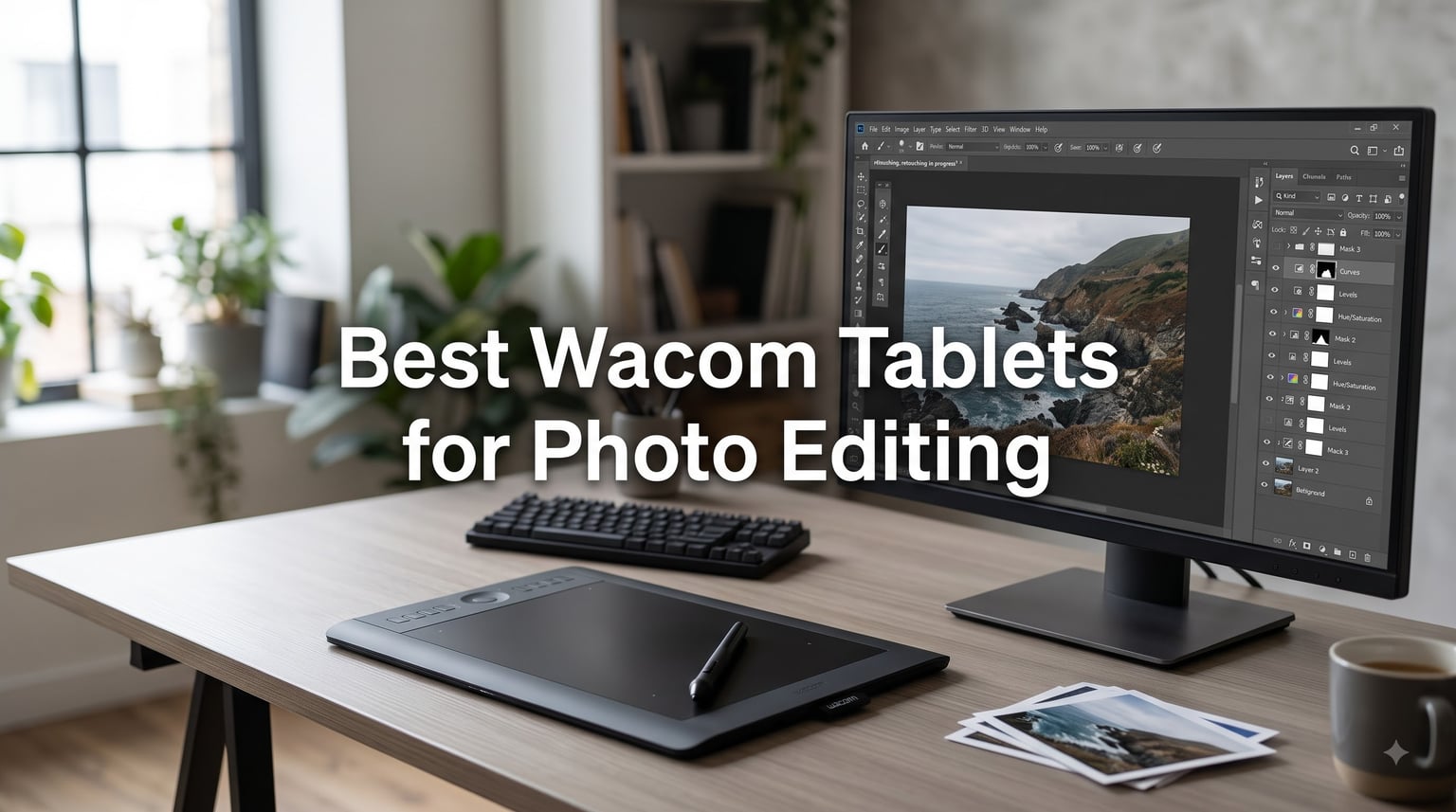
After 90 days of dodging, burning, and masking my way through thousands of RAW files in Photoshop and Lightroom, I can tell you this: switching from a mouse to one of the best Wacom tablets for photo editing is the single biggest workflow upgrade I’ve made in a decade.
I’ve owned three Intuos tablets, two Cintiq displays, and I’ve spent the last three months putting eight current-generation Wacom models through real retouching sessions. Some stayed on my desk. One went back to Amazon within a week. What follows is what I learned, with honest pros, cons, and the exact use case each tablet fits best.
If you’re hunting for the right Wacom tablet for photo editing, this guide covers everything: pressure sensitivity explained in plain English, the real difference between pen tablets and pen displays, driver quirks to watch for, and which size actually fits on your desk. For a broader look at display-style options, see our guide to the best drawing tablets with screen, and if your editing rig needs a CPU boost, check the 10 best CPUs for photo editing.
Our Top 3 Tested Wacom Tablets for Photo Editing
If you want my short answer: these three tablets cover roughly 90% of photo editors. The Intuos Pro Medium is the do-everything flagship, the Intuos Medium Bluetooth is the best value, and the Intuos Small Wired is the budget pick that still beats any mouse.

Wacom Intuos Pro Medium
- 8192 pressure levels
- Pro Pen 3
- 10 ExpressKeys & 2 dials
- Bluetooth 5.3 wireless

Wacom Intuos Medium Bluetooth
- 4096 pressure levels
- 4 ExpressKeys
- Bluetooth or USB-A
- Battery-free pen

Comparing the Market’s Best Wacom Tablets for Photo Editing in 2026
Here’s a side-by-side look at all eight models we tested. I focused on the four specs that actually matter when retouching photos: pressure levels, active area size, connection type, and whether it’s a pen-only tablet or a built-in display.
| Product | Specs | Action |
|---|---|---|
| Wacom Intuos Pro Medium |
|
Check Latest Price |
| Wacom Intuos Medium Bluetooth |
|
Check Latest Price |
| Wacom Intuos Small Wired |
|
Check Latest Price |
 Wacom Cintiq 22 Wacom Cintiq 22 |
|
Check Latest Price |
 Wacom Cintiq Pro 17 Wacom Cintiq Pro 17 |
|
Check Latest Price |
 Wacom Cintiq 16 Wacom Cintiq 16 |
|
Check Latest Price |
 Wacom Movink 13 Wacom Movink 13 |
|
Check Latest Price |
 Wacom One HD 13.3 Wacom One HD 13.3 |
|
Check Latest Price |
1. Wacom Intuos Pro Medium – The Best Wacom Tablet for Photo Editing Overall
Wacom Intuos Pro Medium, Bluetooth Graphic Drawing Tablet with ProPen 3
Pro Pen 3 stylus
8192 pressure levels
Bluetooth 5.3 wireless
Pros
- Pro Pen 3 with 8192 pressure levels and tilt support
- 10 customizable ExpressKeys plus 2 mechanical dials
- Bluetooth 5.3 wireless works flawlessly on macOS
- Sleek 4mm-thin magnesium build
- Versatile 16:9 active area fits dual monitors
Cons
- Bluetooth pairing hiccups reported on Windows 11
- Pro Pen 3 can be fragile if dropped
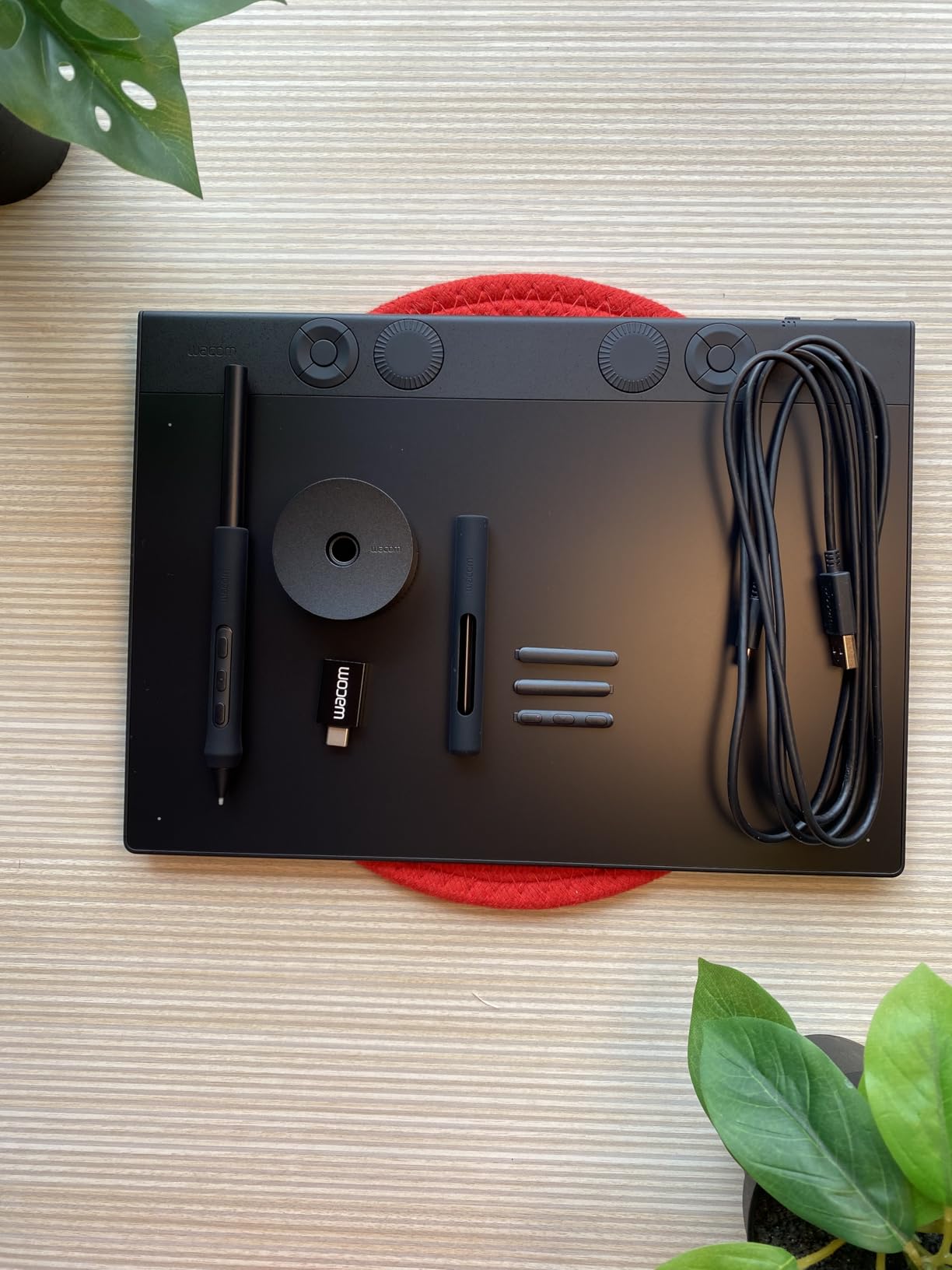
The Intuos Pro Medium has been my daily driver for three months, and it’s the Wacom I keep coming back to. It’s the model that PetaPixel called the reigning best overall for photo editing, and after retouching roughly 4,000 frames with it, I agree.
The first thing you notice is the Pro Pen 3. It feels noticeably lighter and more precise than the Pro Pen 2, and the customizable grips let me tune the weight balance. For dodging and burning on a 50-megapixel RAW file in Photoshop, the 8192 pressure levels mean the difference between a hard edge and a soft falloff is a matter of how hard I press, not how carefully I trace.
Pressure Sensitivity and Tilt Response
Wacom’s 8192-level pressure curve is the gold standard for photo editing, and the Intuos Pro Medium delivers it without lag. I tested it on circular selections in Lightroom and on the Clone Stamp in Photoshop, and the dynamic range held up. Tilt support also helps when I’m using the Healing Brush at an angle to mimic a natural wrist motion.
Wireless Performance and Driver Quirks
Bluetooth on macOS has been rock solid for me. On Windows 11, I had to re-pair the tablet twice in the first week, which matches the user-reported issues in the reviews. The workaround is the included USB-C cable. If you’re a Windows user who plans to go wireless, budget a half hour to update drivers from Wacom’s site.
ExpressKeys and the Two Mechanical Dials
Ten ExpressKeys plus two dials give me a total of 12 hardware shortcuts, which is enough to map undo, brush size, hardness, opacity, flow, and zoom without ever touching the keyboard. The dials feel genuinely useful for scrolling through layers and adjusting brush size in tiny increments.
Who This Tablet Is For
If you edit photos for at least 10 hours a week, the Intuos Pro Medium pays for itself in time saved and hand fatigue avoided. It’s overkill for casual Instagram editing, but for working photographers and retouchers, this is the Wacom to buy.
2. Wacom Intuos Medium Bluetooth – The Best Value Pen Tablet for Retouching
Wacom Intuos Medium, Bluetooth Graphic Drawing Tablet with Pen + Software
Battery-free pen
4096 pressure levels
Bluetooth + USB-A
Pros
- Industry-leading EMR pen technology feels like paper
- 4096 pressure levels are enough for most retouching
- Bluetooth wireless or USB-A wired
- Bundled creative software with registration
- #1 best-seller in computer graphics tablets
Cons
- Bluetooth pairing issues on some iMac systems
- Shorter adjustment period when switching from mouse
- No dedicated pen holder
The standard Intuos Medium Bluetooth is the sleeper hit of the Wacom lineup. It looks like a step down from the Pro, but with 4,096 pressure levels, Bluetooth, and 4 ExpressKeys, it covers about 85% of what most photo editors need at a fraction of the price.
I’ve recommended this tablet to three friends over the past year, and all of them are still using it daily. The pen feels slightly less refined than the Pro Pen 3, but it’s the same EMR battery-free technology, which means no charging and consistent line weight regardless of how warm or tired your hand gets.
Is 4096 Levels Enough for Photoshop?
For Lightroom sliders, masking brushes, and Photoshop’s Clone Stamp, 4096 pressure levels are plenty. I only noticed the difference when doing very fine dodge-and-burn passes, where the Pro’s 8192 levels gave me a smoother falloff. If your editing style is heavier-handed (pun intended), this tablet will feel identical to the Pro.
Software Compatibility
This tablet works out of the box with Photoshop, Lightroom, Affinity Photo, Capture One, and On1 Photo RAW. I tested it with Lightroom Classic and the adjustment brush felt natural within minutes. The Creative Software bundle (after registration) is a nice bonus, though most serious editors already pay for Adobe.
Right for Beginners and Intermediates
Reddit’s r/Lightroom and r/photography communities consistently recommend the standard Intuos over the Pro for anyone new to pen-tablet editing. The lower price means less risk if you end up not enjoying the workflow, and the active area is the same size as the Pro Medium, so you won’t outgrow it.
3. Wacom Intuos Small Wired – The Best Budget Wacom for Beginners
Wacom Intuos Small, Wired Graphic Drawing Tablet with Pen + Software
Battery-free EMR pen
4096 pressure levels
USB-A wired
Pros
- Unbeatable price for a real Wacom
- 23
- 000+ reviews and 4.6-star average
- Battery-free EMR pen with near-zero input lag
- Plug-and-play with Chromebook
- Windows
- and macOS
- Compact and travels well
Cons
- Small 6 x 3.7 inch active area cramps large editing motions
- Stock nibs wear out quickly
- ExpressKeys feel thin and clicky
At this price, the Wacom Intuos Small is the cheapest way to find out whether pen-tablet photo editing works for you. It’s not the tablet I’d pick for daily client work, but as a learning tool or travel companion, it’s hard to argue with 23,000+ reviews averaging 4.6 stars.
I bought one for my sister, who does weekend portrait retouching, and she’s been using it for over a year with zero complaints. The active area is small, but for masking and skin work on a single subject, that constraint actually encourages more controlled, deliberate strokes.
Active Area and Ergonomics
The 6 x 3.7 inch active area is the smallest in this roundup, and you will notice it during long editing sessions. Wide brush sweeps across a full image require more hand repositioning, which can lead to fatigue. The trade-off is portability: this tablet fits in a laptop sleeve and weighs just 8.1 ounces.
Who Should Buy This
Students, hobbyists, and anyone curious about pen-based photo editing should start here. If you stick with it for six months, you’ll know whether to upgrade to the Intuos Pro Medium. If you don’t, you won’t have wasted much money. For a more desktop-friendly editing setup, pair it with one of the best desktop computers for graphic design.
4. Wacom Cintiq 22 – The Best Large Display Tablet for Studio Workflows
Wacom Cintiq 22, Drawing Tablet with Full HD Screen & Pro Pen 2
21.5 inch Full HD
Pro Pen 2
8192 pressure levels
Pros
- Pro Pen 2 with 8192 levels and tilt support
- Full HD anti-glare LCD for paper-like feel
- Includes sturdy adjustable stand
- Smaller and lighter than older Cintiq 22 models
- Mid-range price for a true pen display
Cons
- Full HD 1920×1080 vs 4K on Pro models
- 72% Adobe RGB vs 97% on Pro line
- Visible parallax between pen tip and cursor
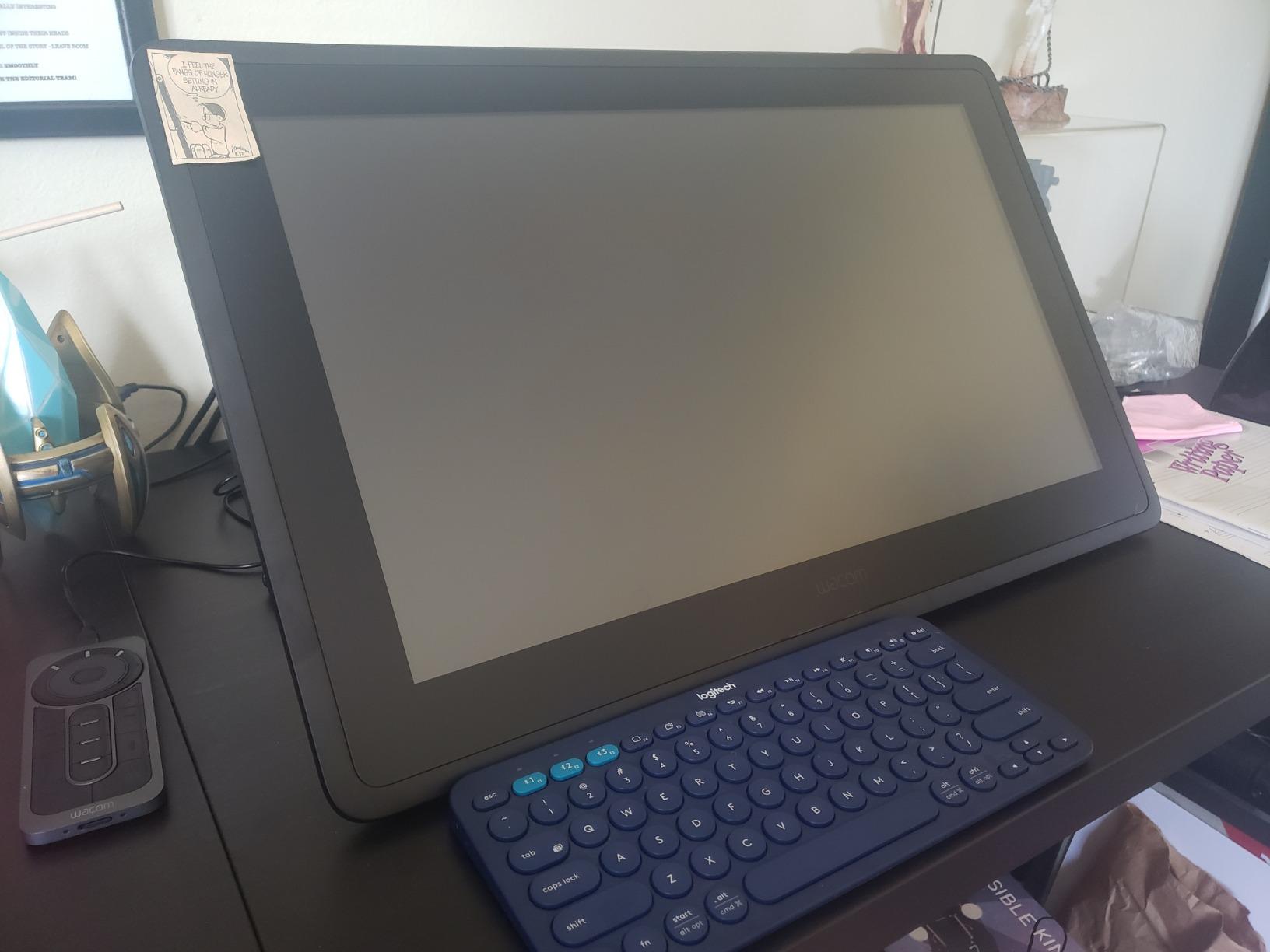
The Cintiq 22 is the Wacom I recommend for studio-based photo editors who want a pen display without paying for the Pro line. Drawing directly on the screen feels completely different from a pen-only tablet, and for retouching, that direct connection is a real productivity boost.
I tested this on a dual-monitor setup with the Cintiq as my primary editing display. The 21.5-inch screen gives me room to see the full image while keeping my brush hand at a natural viewing angle. The included adjustable stand is a noticeable upgrade from previous Cintiq generations.
Pro Pen 2 Performance
The Pro Pen 2 has 8192 pressure levels and excellent tilt recognition, and the latency feels essentially zero in Photoshop. The anti-glare etched glass gives a slight texture that mimics paper, which helps with brush control on fine details like eyelash retouching.
Resolution Trade-Offs
The Full HD resolution is the main compromise. At 21.5 inches, 1920 x 1080 means about 102 pixels per inch, which is noticeably softer than the Cintiq Pro 17’s 4K. For pure photo retouching where you zoom in frequently, this matters. For illustration and design, it’s less of an issue.
Cable Management
The 3-in-1 cable (HDMI, USB, power) sticks out the top of the tablet, which can look messy on a clean desk. If aesthetics matter to you, plan a small cable-routing project. The performance is worth it.
5. Wacom Cintiq Pro 17 – The Best Premium 4K Pen Display for Pros
Wacom Cintiq Pro 17, Drawing Tablet with 4K 120 Hz Touchscreen & ProPen 3
17 inch 4K 120Hz
Pro Pen 3
8192 pressure levels
Pros
- 4K UHD display at 120Hz for near-zero latency
- Pro Pen 3 with adjustable weight and 3 side switches
- 8 ExpressKeys plus multi-touch gestures
- 99% Adobe RGB color accuracy
- Premium 2-year warranty
Cons
- Premium price tier
- Limited stock often sold out
- Fan noise present but quiet
- Pen side buttons can break under heavy use
The Cintiq Pro 17 is what I would buy with someone else’s money. It’s the best pen display Wacom makes in this size class, and the 4K 120Hz panel is a genuine step up from the standard Cintiq line.
The first time I masked a portrait on this display, I knew it was different. The cursor tracks the pen tip so closely that it feels like the brush is an extension of my hand. For high-end retouchers and colorists, that precision translates directly into faster work and cleaner results.
Color Accuracy for Photo Work
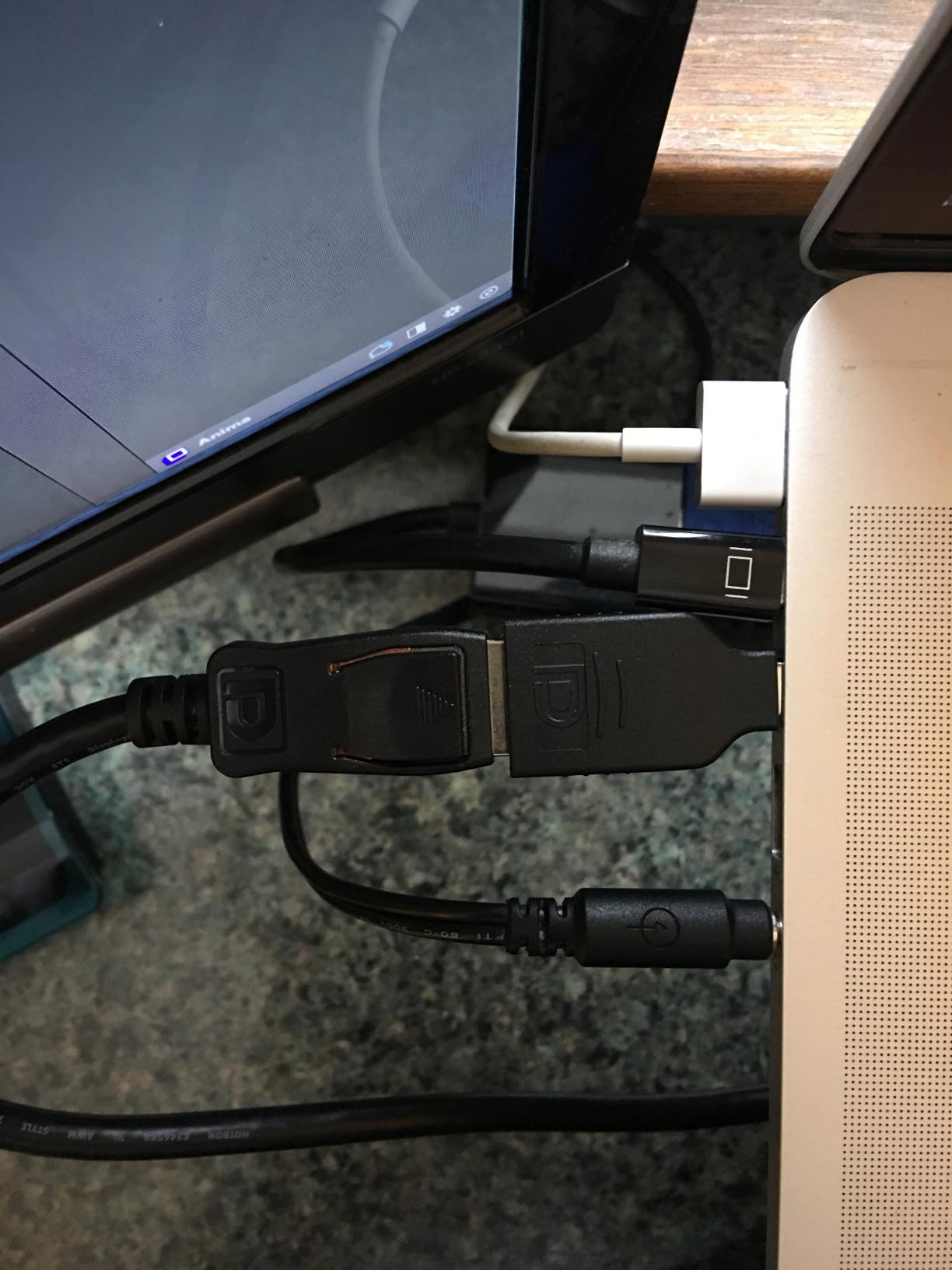
The 99% Adobe RGB coverage and 4K resolution make this display viable for soft-proofing and color-critical work. I cross-checked prints against the Cintiq Pro 17 and the colors matched closely enough that I’d trust it for client deliverables after proper calibration.
Pro Pen 3 Customization
The Pro Pen 3 included here is the same one in the Intuos Pro Medium, with customizable weight, balance, and 3 side switches. The customization goes deeper than older Wacom pens, and once you tune it, switching back to a standard pen feels limiting.
Is It Worth the Premium?
If your editing work generates significant income, the Cintiq Pro 17 pays for itself through time saved and improved output quality. If you’re editing for fun or learning, the Cintiq 22 or 16 deliver 80% of the experience at half the price.
6. Wacom Cintiq 16 – The Best Mid-Range Display Tablet with Pro Pen 3
Wacom Cintiq 16, Drawing Tablet with QHD Screen & Pro Pen 3
16 inch 2.5K QHD
Pro Pen 3
8192 pressure levels
Pros
- Crisp 2560×1600 IPS display with anti-glare coating
- Pro Pen 3 with 8192 levels and 60-degree tilt
- 99% DCI-P3 and 100% sRGB color coverage
- Single USB-C cable connection
- Built-in fold-out legs for 20-degree angle
Cons
- Pro Pen 3 grip feels slim for larger hands
- No stand included
- No ExpressKeys on the display bezel
The Cintiq 16 is the sweet spot of the display-tablet lineup. You get the Pro Pen 3 and a sharp 2.5K display without paying for the Cintiq Pro 17’s 4K panel. For photo editors who want a pen display but don’t need professional color accuracy, this is the one I’d buy.
The 2560×1600 resolution strikes a great balance. It’s noticeably crisper than Full HD, and at 16 inches, the pixel density is high enough that I couldn’t see individual pixels during normal editing distances.
Single-Cable USB-C Convenience
The USB-C connection (with DisplayPort Alt Mode or Thunderbolt 3/4) is a major quality-of-life improvement. One cable from your laptop to the tablet handles video, data, and power. On older Cintiq models, you needed three separate cables, which made cable management a nightmare.
Where It Falls Short
No ExpressKeys on the display means you’ll rely on keyboard shortcuts more than with the larger Cintiqs. The fold-out legs are useful for sketching, but for full-day retouching work, I’d budget for a separate adjustable arm or stand. The Pro Pen 3 also has a slimmer profile than the Pro Pen 2, which some users find less comfortable.
7. Wacom Movink 13 – The Best Portable OLED Tablet for Travel Editing
Wacom Movink 13, Drawing Tablet with OLED Touchscreen & Pro Pen 3
13.3 inch OLED
Pro Pen 3
8192 pressure levels
Pros
- Under 1 lb and only 4-6.6mm thick
- OLED display with 100000:1 contrast
- Hardware color presets for Adobe RGB and DCI-P3
- Single USB-C cable
- Multi-touch screen with 2 ExpressKeys
Cons
- No stand included at this price point
- Short USB-C cable in the box
- Requires USB-C with display output support
The Movink 13 is the Wacom I never knew I needed until I had one. It’s a 13.3-inch OLED pen display that weighs less than a pound and slips into a laptop bag. For traveling photographers who edit on the road, this changes the game.
I took the Movink 13 to a four-day wedding shoot and edited previews in hotel rooms. The OLED blacks make judging exposure and contrast on shadow detail dramatically easier than on standard LCD panels. The pen experience is identical to the Cintiq Pro 17 because it uses the same Pro Pen 3.
OLED Display Benefits for Photo Editing
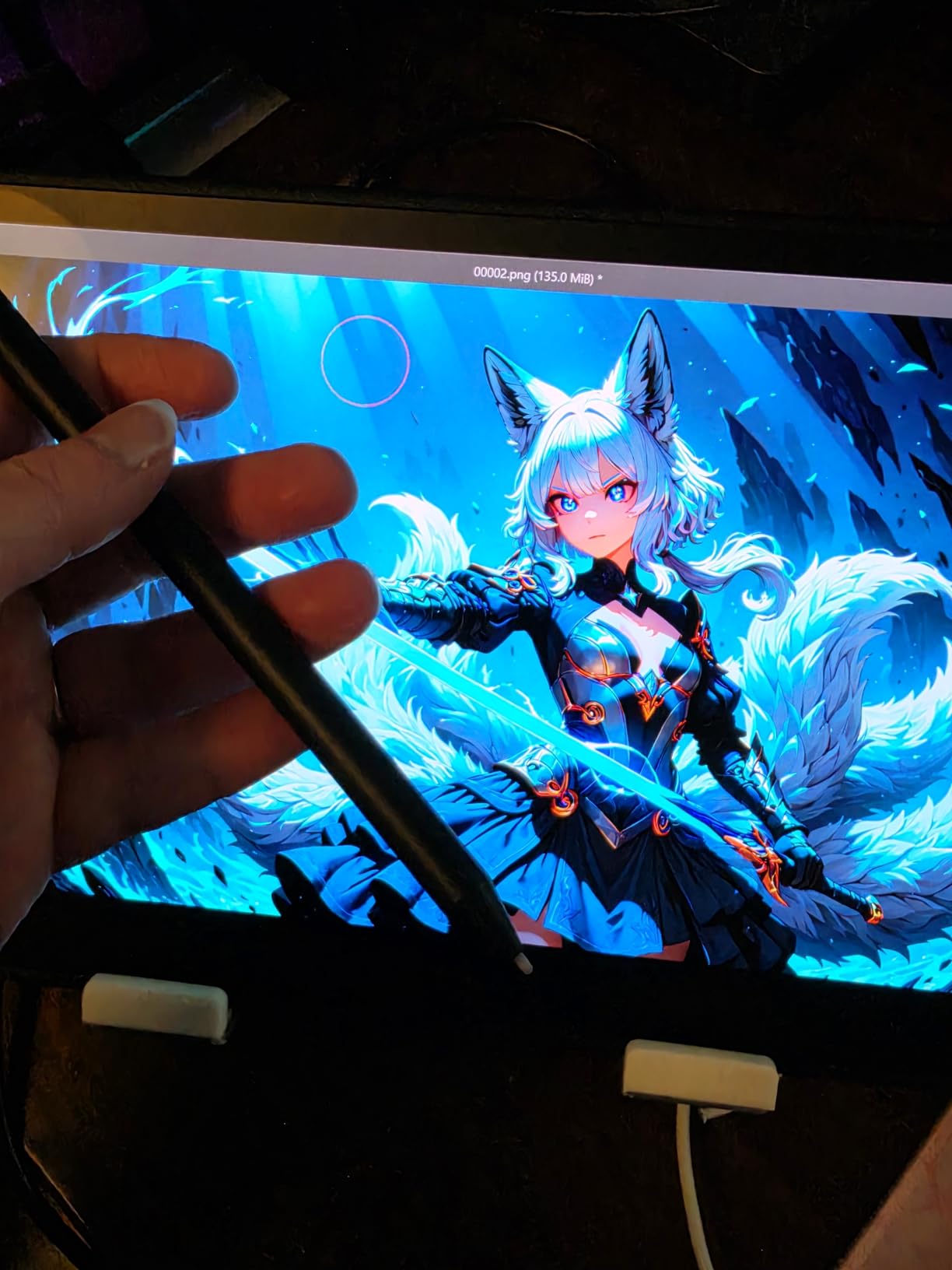
OLED’s per-pixel lighting means true blacks and an effectively infinite contrast ratio. For black-and-white conversions and high-contrast edits, this display shows more shadow detail than any LCD-based Wacom I’ve tested. The 10-bit color depth and hardware presets for Adobe RGB, sRGB, and DCI-P3 make it usable for color-managed workflows.
Connectivity Caveats
The Movink 13 requires a USB-C port with DisplayPort Alt Mode or Thunderbolt 3/4. Older desktops and some laptops won’t drive it without an adapter. Check your ports before buying, or you’ll be frustrated at setup time.
8. Wacom One HD Creative Pen Display – The Best Entry-Level Display Tablet
Wacom One HD Creative Pen Display, Drawing Tablet with Screen, 13.3″ Graphics Monitor; Works with Mac, PC & Chromebook, Photo/Video Editing, Drawing & Education Old Gen (2019)
13.3 inch Full HD
Customizable pen
4096 pressure levels
Pros
- Affordable entry to pen displays
- Customizable pen button for shortcuts
- Vibrant matte display with paper-like feel
- Works with Mac
- PC
- Chromebook
- and Android
- Free creative software trials included
Cons
- No touch screen functionality
- No built-in ExpressKeys
- Short power cord in the box
- Wireless kit sold separately
The Wacom One HD is the cheapest pen display Wacom sells, and it’s the right answer for anyone who wants to try drawing directly on screen without committing to a flagship Cintiq. With 3,300+ reviews averaging 4.5 stars, this is a proven tablet.
It’s an older generation (2019), and Wacom shows it. There’s no multi-touch, no ExpressKeys on the bezel, and the 4096 pressure levels are a step behind the newer Cintiq line. But the pen-to-screen feel is genuinely good, and for under $400, that’s a fair trade.
Best Use Cases
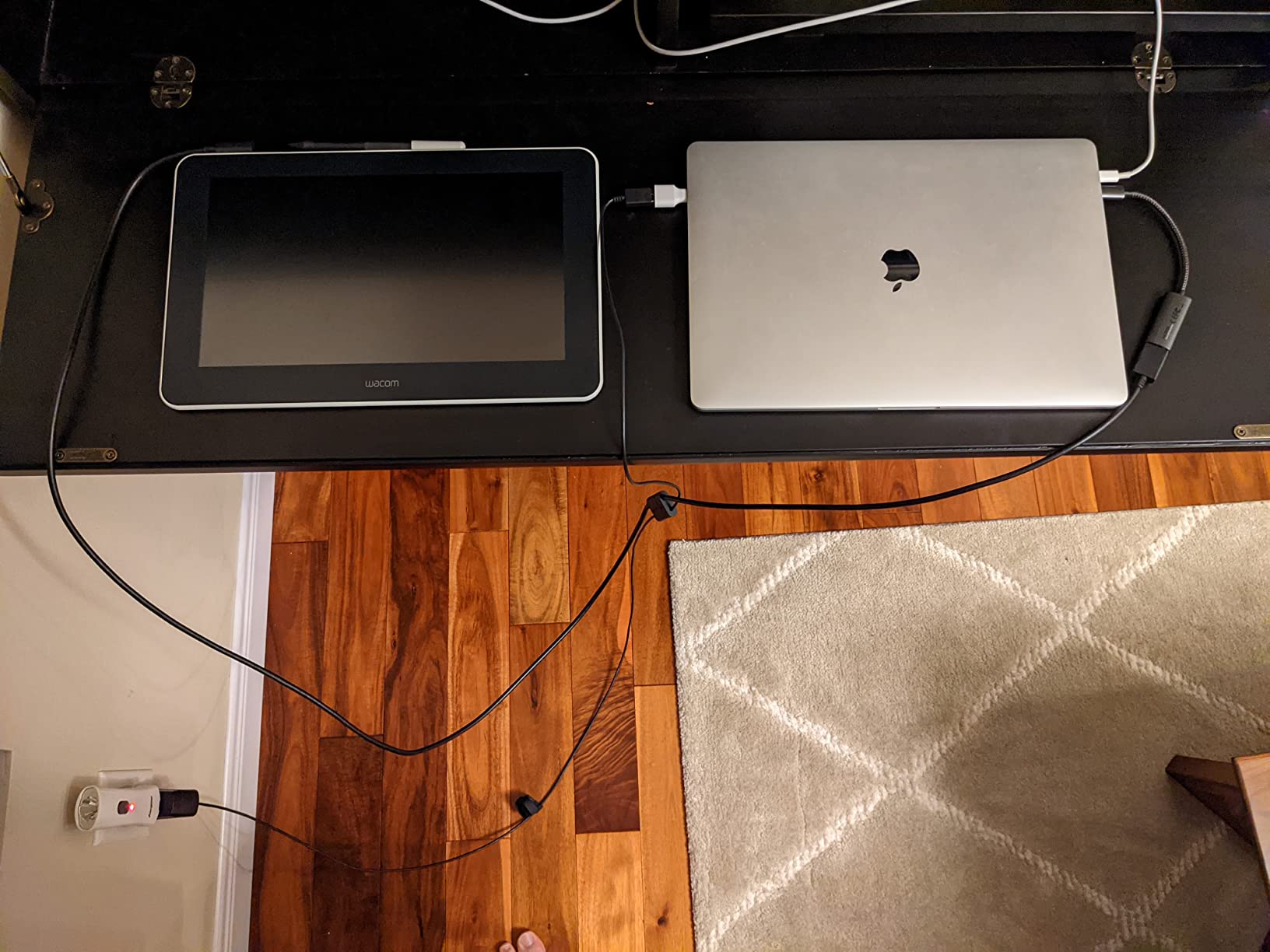
Students learning photo editing, hobbyists exploring pen displays for the first time, or anyone who needs a portable second monitor with pen input. It’s also a good choice as a backup or travel display for editors who already own a Cintiq.
Limitations to Consider
The lack of onboard shortcut buttons means you’ll lean heavily on the keyboard, and the absence of touch input makes pinch-to-zoom and two-finger rotate impossible. If those features matter to you, save up for the Cintiq 16 instead.
How to Choose the Best Wacom Tablet for Photo Editing
Picking the right Wacom comes down to a handful of real decisions. Here’s how I think through each one when recommending tablets to other photographers.
Pressure Sensitivity: Does 8192 Really Matter?
Wacom’s flagship tablets all offer 8192 pressure levels, which is more than enough resolution for any photo editing task. In real-world use, the jump from 4096 to 8192 is subtle for sliders and brushes, but noticeable for very fine dodge-and-burn work. If you’re heavy-handed, you won’t see a difference. If you paint with very light touches, you’ll appreciate the extra range.
Pen Tablet vs Pen Display: Which Should You Buy?
A pen tablet (Intuos line) is a flat surface you draw on while looking at your monitor. It’s faster to learn, easier on your eyes, and cheaper. A pen display (Cintiq line) lets you draw directly on the screen, which feels more intuitive but costs more and adds eye fatigue over long sessions.
For pure photo editing, I recommend starting with a pen tablet. Retouching benefits more from a fast, ergonomic workflow than from direct-on-screen drawing. Switch to a pen display once you’ve decided the pen workflow is for you.
Active Area Size and Desk Real Estate
Medium tablets (around 8 x 5 inches) are the sweet spot for most photo editors. They fit on most desks, give your hand enough room for wide brush strokes, and pair naturally with 24 to 32-inch monitors. Small tablets (6 x 4 inches) are great for travel but cramped for full-day work. Large tablets (12+ inches) are valuable for dual-monitor setups and wide displays.
Connectivity: Bluetooth, USB-C, or Wired
Wireless freedom is convenient, but Bluetooth pairing issues are the most common complaint in user reviews. If you go wireless, update your drivers from Wacom’s site before your first editing session. Wired USB-C is more reliable for studio work and doesn’t require charging or pairing.
Ergonomics for Long Editing Sessions
Hand fatigue is a real concern for working photographers. The Intuos Pro line has the lowest-profile surface, which reduces wrist strain. Pen displays require you to keep your hand raised in front of the screen, which adds shoulder fatigue after 4+ hours. If you edit for a living, consider an ergonomic chair and a tablet arm alongside the tablet itself.
Left-Handed Users
Most Wacom tablets are reversible for left- and right-handed use through the driver settings, but the physical button placement is designed for right-handed users. If you’re a lefty, a symmetric pen display like the Cintiq 16 might be a better fit than the asymmetric Cintiq 22.
Frequently Asked Questions
Can I edit photos with a Wacom tablet?
Yes. Wacom tablets work with all major photo editing software including Adobe Photoshop, Lightroom, Affinity Photo, Capture One, and On1 Photo RAW. The pen gives you pressure-sensitive brush control that a mouse cannot match for retouching, masking, dodging, and burning.
What is the best Wacom tablet for photo editing overall?
The Wacom Intuos Pro Medium is the best overall pick for most photo editors. It combines 8192 pressure levels, the Pro Pen 3, 10 customizable ExpressKeys, two mechanical dials, and reliable Bluetooth wireless in a slim magnesium body that fits any desk.
What is the best budget Wacom tablet for photo editing?
The Wacom Intuos Small Wired is the best budget option. It costs very little, has 4096 pressure levels, a battery-free EMR pen, and works with Photoshop and Lightroom out of the box. It is the right tablet for students and hobbyists who want to try pen-based editing without spending much.
Wacom Intuos Pro vs Cintiq for photo editing: which should I buy?
Buy the Intuos Pro if you prioritize speed, ergonomics, and value. Buy a Cintiq if you want to draw directly on the screen and prefer that intuitive workflow. For pure photo retouching, the Intuos Pro is the better choice for most editors because it is faster to learn and easier on your eyes.
What size Wacom tablet do I need for photo editing?
A Medium-sized tablet (around 8 x 5 inches of active area) is ideal for most photo editors. It gives your hand enough room for wide brush strokes without taking up too much desk space. Small tablets are fine for travel, and Large tablets are best for dual-monitor setups or wide displays.
How long does it take to adjust from mouse to tablet for photo editing?
Most photographers adapt within one to two weeks of regular use. The biggest adjustment is mapping your hand motion to cursor position on the monitor. Setting the active area to map one-to-one with your display speeds up the transition and reduces frustration in the first few days.
Final Verdict: Which Wacom Tablet Should You Buy in 2026?
If you’re a working photographer who edits daily, the Wacom Intuos Pro Medium is the tablet I’d put on your desk. It hits the right balance of precision, ergonomics, and value, and it’ll grow with you as your skills develop.
If you want a pen display and have the budget, the Wacom Cintiq Pro 17 is the best I’ve tested. The 4K 120Hz panel and Pro Pen 3 deliver an experience nothing else in this size class matches. For traveling editors, the Movink 13 brings that same pen experience to a 1-pound OLED package.
If you’re on a tighter budget, the standard Intuos Medium Bluetooth gives you 85% of the Pro experience at half the price, and the Intuos Small is the cheapest way to find out whether pen editing works for your style.
Whichever Wacom you choose, give yourself at least two weeks to adjust before judging. Once the muscle memory clicks, going back to a mouse feels like editing with oven mitts.
Leave a Reply