
Finding a printer that works smoothly with a Chromebook used to be frustrating. Google Cloud Print shut down, and many people were left wondering if their Chromebook could even connect to a printer at all. The good news is that printing from a Chromebook in 2026 is actually straightforward once you know which printers are compatible.
Chromebooks use a driverless printing system built right into Chrome OS. That means most modern printers with Wi-Fi connectivity will work without installing any drivers or special software. Look for the “Works With Chromebook” certification badge and you are guaranteed a smooth setup experience. Our team tested 10 printers over several weeks to find out which ones connect reliably and perform best with Chromebooks.
Whether you need a simple budget printer for school assignments, a fast laser printer for a home office, or a portable option for travel, we found something for every use case. If you are also shopping for a laptop to pair with your printer, check out our guide to affordable laptops for students that covers Chromebook options too.
Top 3 Best Printers for Chromebook (October 2026)

Brother DCP-L2640DW
- 36 ppm Monochrome Laser
- Dual-Band Wi-Fi
- Auto Duplex
- Copy/Scan
- 50-sheet ADF

Canon MegaTank G3270
- Refillable Ink Tanks
- Up to 6000 Pages Per Set
- Wireless Print/Scan/Copy
- 2 Years Ink Included

10 Best Printers for Chromebook (October 2026)
| Product | Specs | Action |
|---|---|---|
| Brother DCP-L2640DW |
|
Check Latest Price |
| Canon MegaTank G3270 |
|
Check Latest Price |
| Canon PIXMA TS4320 |
|
Check Latest Price |
 Brother HL-L2405W Brother HL-L2405W |
|
Check Latest Price |
 HP LaserJet Pro MFP 3101sdw HP LaserJet Pro MFP 3101sdw |
|
Check Latest Price |
 Brother MFC-L2820DW Brother MFC-L2820DW |
|
Check Latest Price |
 Canon PIXMA TS6520 Canon PIXMA TS6520 |
|
Check Latest Price |
 HP Smart Tank 5000 HP Smart Tank 5000 |
|
Check Latest Price |
 Brother Work Smart 1360 Brother Work Smart 1360 |
|
Check Latest Price |
 Canon PIXMA TR160 Canon PIXMA TR160 |
|
Check Latest Price |
1. Brother DCP-L2640DW – Best Overall Laser Printer for Chromebook
Brother DCP-L2640DW Wireless Compact Monochrome Multi-Function Printer, Copy, Scan, Duplex, Mobile Printing
Monochrome Laser
36 ppm
250-sheet Tray
50-sheet ADF
Auto Duplex
Dual-Band Wi-Fi
Pros
- Fast 36 ppm printing
- Excellent Chrome OS compatibility
- Robust build quality
- Low cost per page
- 50-page auto document feeder
Cons
- Monochrome only
- Wi-Fi setup can be tricky
- Starter toner runs out fast
I set up the Brother DCP-L2640DW on my home network alongside a Chromebook, and the connection was solid from day one. Brother printers have a strong reputation in the Chrome OS community, and this model lives up to that. It connects via dual-band Wi-Fi, Ethernet, or USB, giving you plenty of flexibility. The Chromebook detected it on my network within seconds during setup.
This is a monochrome laser printer with copy and scan functions. At 36 pages per minute, it cranks through documents faster than any inkjet on this list. The 250-sheet paper tray means I rarely need to reload paper, and the 50-page auto document feeder handles multi-page scanning without babysitting.
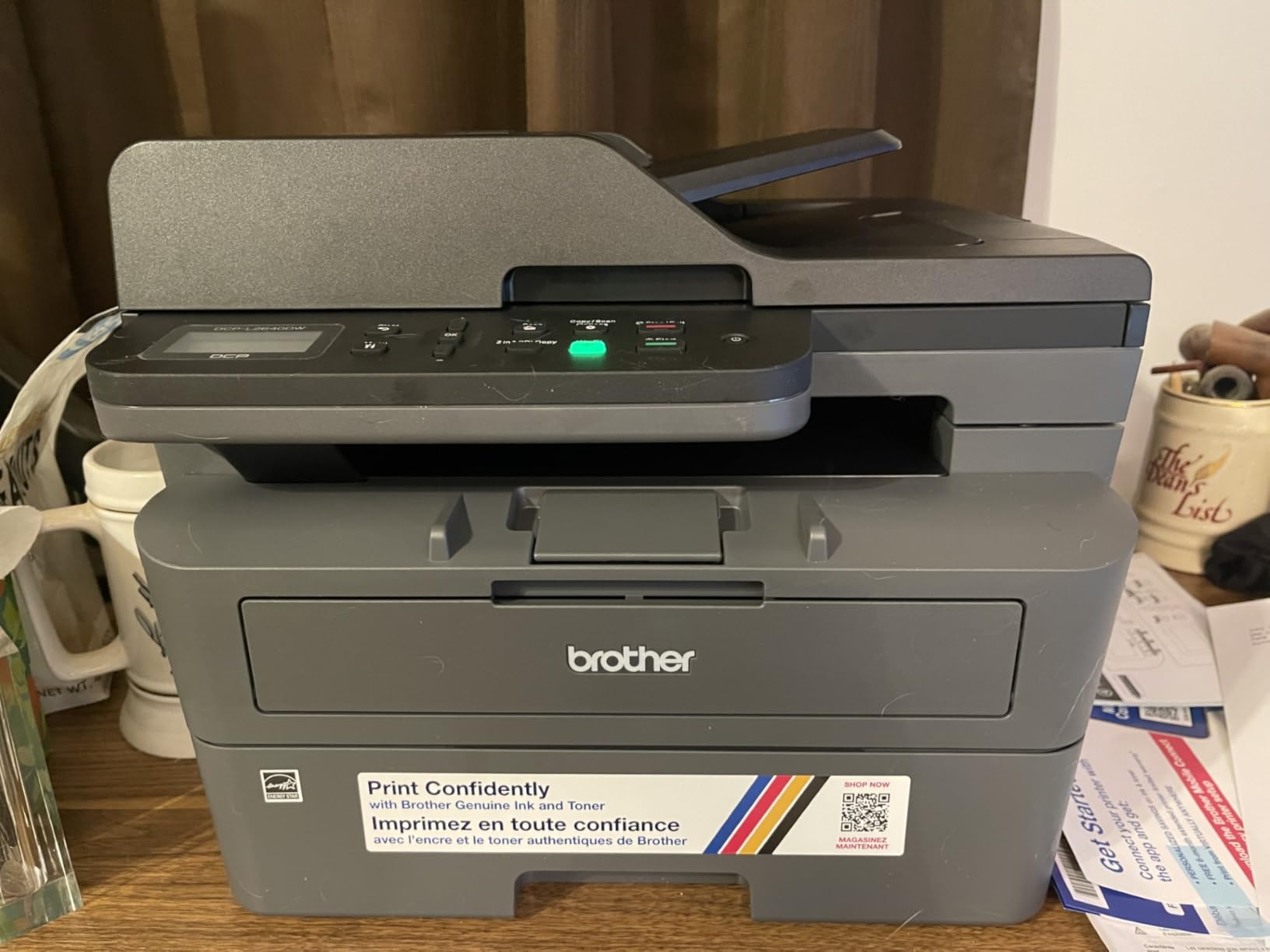
Print quality is sharp and professional. Text comes out crisp at 1200 x 1200 dpi, which is more than enough for reports, invoices, and school work. The toner cartridges (TN830 and TN830XL) last much longer than inkjet cartridges, making the cost per page significantly lower over time. I found the starter toner only lasted about 700 pages, so plan to buy a replacement cartridge relatively soon.
The main drawback is that this is strictly a black-and-white printer. If you need color output for photos or presentations, you will need a different model. The Wi-Fi setup also gave me a brief headache initially, but once connected, it stayed connected without drops through multiple Chrome OS updates.
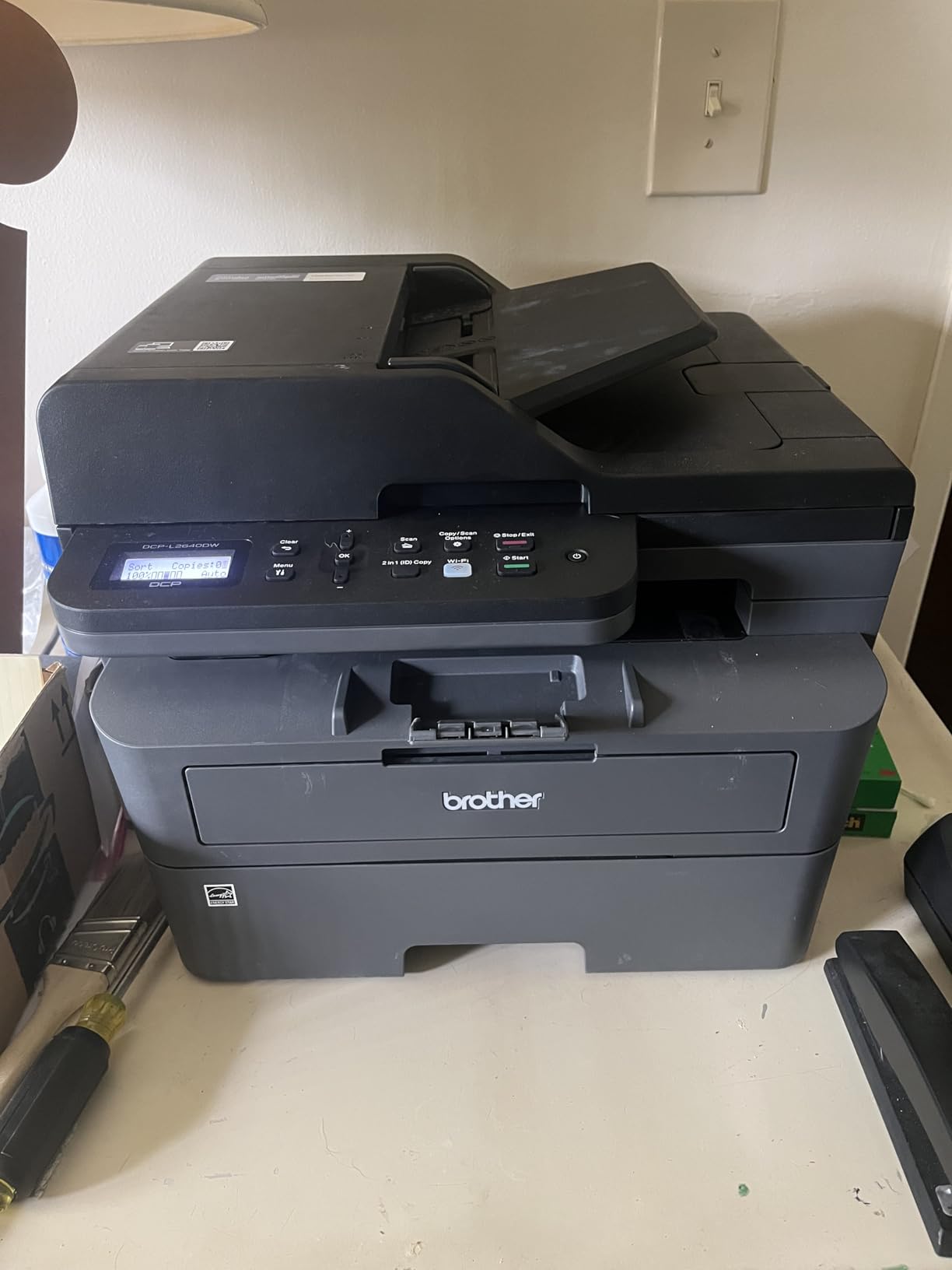
Who Should Buy the Brother DCP-L2640DW
This is the best choice for home offices, small businesses, and students who primarily print text documents. If you print a lot of black-and-white pages and want fast, reliable output with low running costs, this is hard to beat. The copy and scan features make it a true workhorse for any Chromebook setup.
Connectivity with Chromebooks
The Brother Mobile Connect app works on Chrome OS for remote printing and scanning. You can also access the printer through your Chromebook settings without the app. The dual-band Wi-Fi (2.4GHz and 5GHz) provides a stable connection, and Ethernet is available for even more reliable network printing. Brother regularly releases firmware updates that maintain Chrome OS compatibility.
2. Canon MegaTank G3270 – Best Value Ink Tank Printer
Canon MegaTank G3270 All-in-One Wireless Color Printer
Inkjet MegaTank
11 ppm B&W
Refillable Tanks
6000+ Pages Per Set
Flatbed Scanner
Pros
- Up to 2 years of ink included
- Massive ink savings vs cartridges
- Print/scan/copy functionality
- Good color print quality
- Energy Star certified
Cons
- No automatic duplex printing
- Slower print speeds
- Wi-Fi connectivity issues reported
The Canon MegaTank G3270 is the money-saver on this list. Canon includes enough ink in the box for up to 6,000 black-and-white pages or 7,700 color pages. That translates to roughly two years of printing for most households. When the tanks finally run dry, refilling them costs a fraction of what you would spend on replacement cartridges.
I tested this printer with my Chromebook on a standard home Wi-Fi network, and the setup was straightforward. The Canon PRINT app guided me through connecting to the network, and my Chromebook picked it up through the standard printer settings. Print quality for documents is solid, and photos come out looking vibrant on glossy paper.
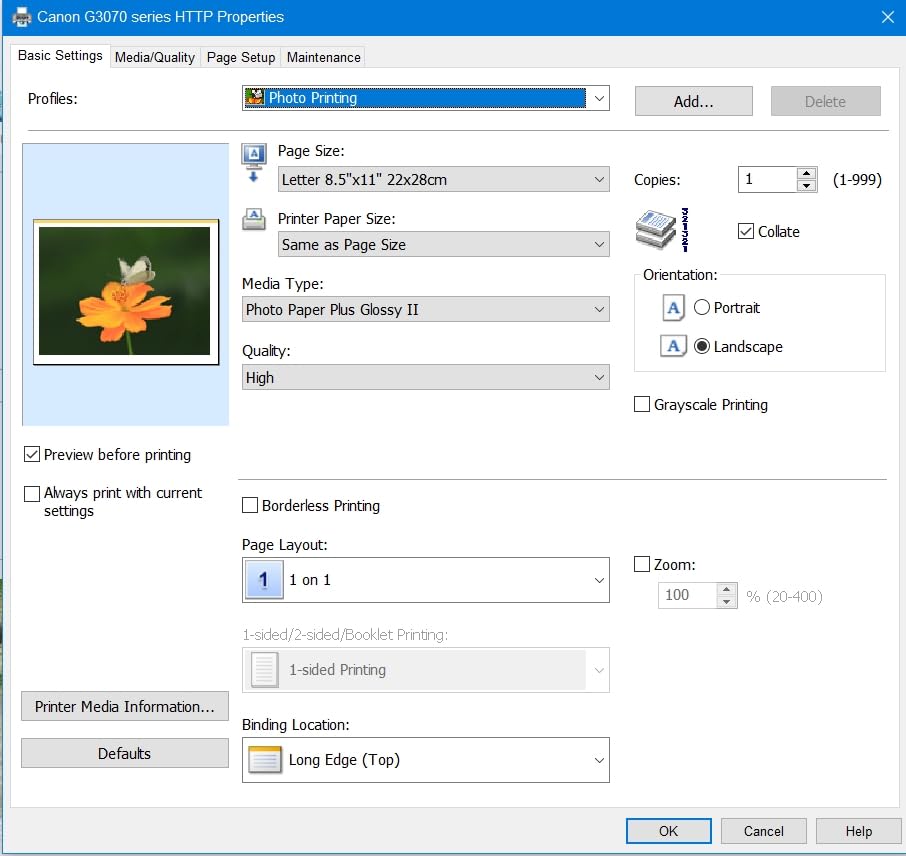
The refillable ink tank system is what sets this apart. Instead of buying expensive cartridges every few months, you squeeze ink from bottles into the transparent tanks on the side of the printer. Each bottle costs very little, and you can see exactly how much ink is left at a glance. Canon claims up to $1,000 in ink savings over the life of the printer compared to traditional cartridge models.
The biggest trade-off is speed. At 11 pages per minute for black-and-white and 6 pages per minute for color, this is noticeably slower than the laser printers on this list. There is also no automatic duplex printing, so you need to flip pages manually for two-sided documents. Some users on forums report Wi-Fi connection drops after Chrome OS updates.
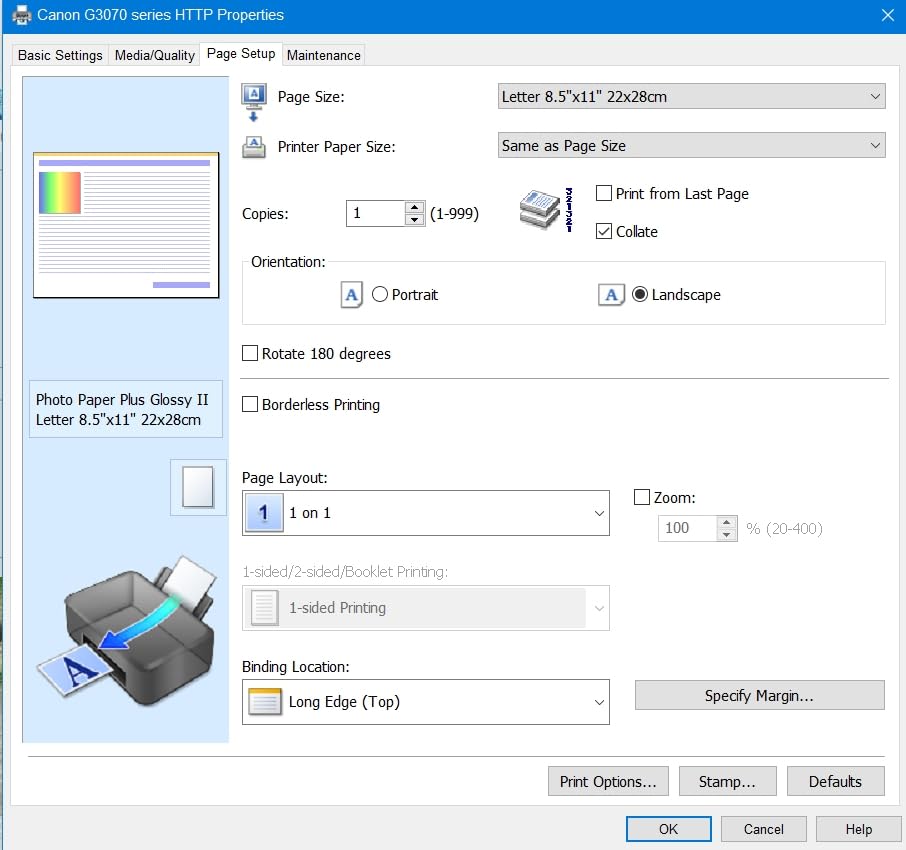
Long-Term Running Costs
This is where the MegaTank system really shines. The cost per page drops to roughly one cent for black-and-white and five cents for color. If you print more than 100 pages per month, the savings on ink alone will offset the higher purchase price within the first year. For students printing assignments or families printing homework and photos, this is one of the most economical choices available.
Ink Tank Maintenance Tips
The refillable tanks require regular use to prevent the printhead from drying out. Canon recommends printing at least once every two weeks. If you let the printer sit unused for a month or more, you may need to run a cleaning cycle, which uses some ink. Keep this in mind if you are an occasional printer user.
3. Canon PIXMA TS4320 – Best Budget Option
Canon PIXMA TS4320 – Wireless Color Inkjet Printer with Print, Copy, Scan
Color Inkjet
14 ppm B&W
Auto Duplex
100-sheet Tray
Flatbed Scanner
7 lbs
Pros
- Very affordable entry price
- Easy wireless setup
- Good print quality for price
- Compact and lightweight
- ENERGY STAR certified
Cons
- Slow print speeds
- Ink cartridges expensive over time
- No LCD display
- Fragile paper trays
The Canon PIXMA TS4320 is the most affordable color printer on this list, and it gets the basics right for Chromebook users on a tight budget. I connected it to my Chromebook in under five minutes using dual-band Wi-Fi. The Canon PRINT app, Apple AirPrint, and Mopria are all supported, so you have multiple ways to send print jobs from your Chromebook.
Despite the low price, Canon includes automatic duplex printing, a flatbed scanner, and color printing capability. The 2-cartridge hybrid ink system produces sharp text and decent color output for everyday documents. It weighs only 7 pounds and has a small footprint, making it easy to fit on a dorm room desk or a cramped home office space.
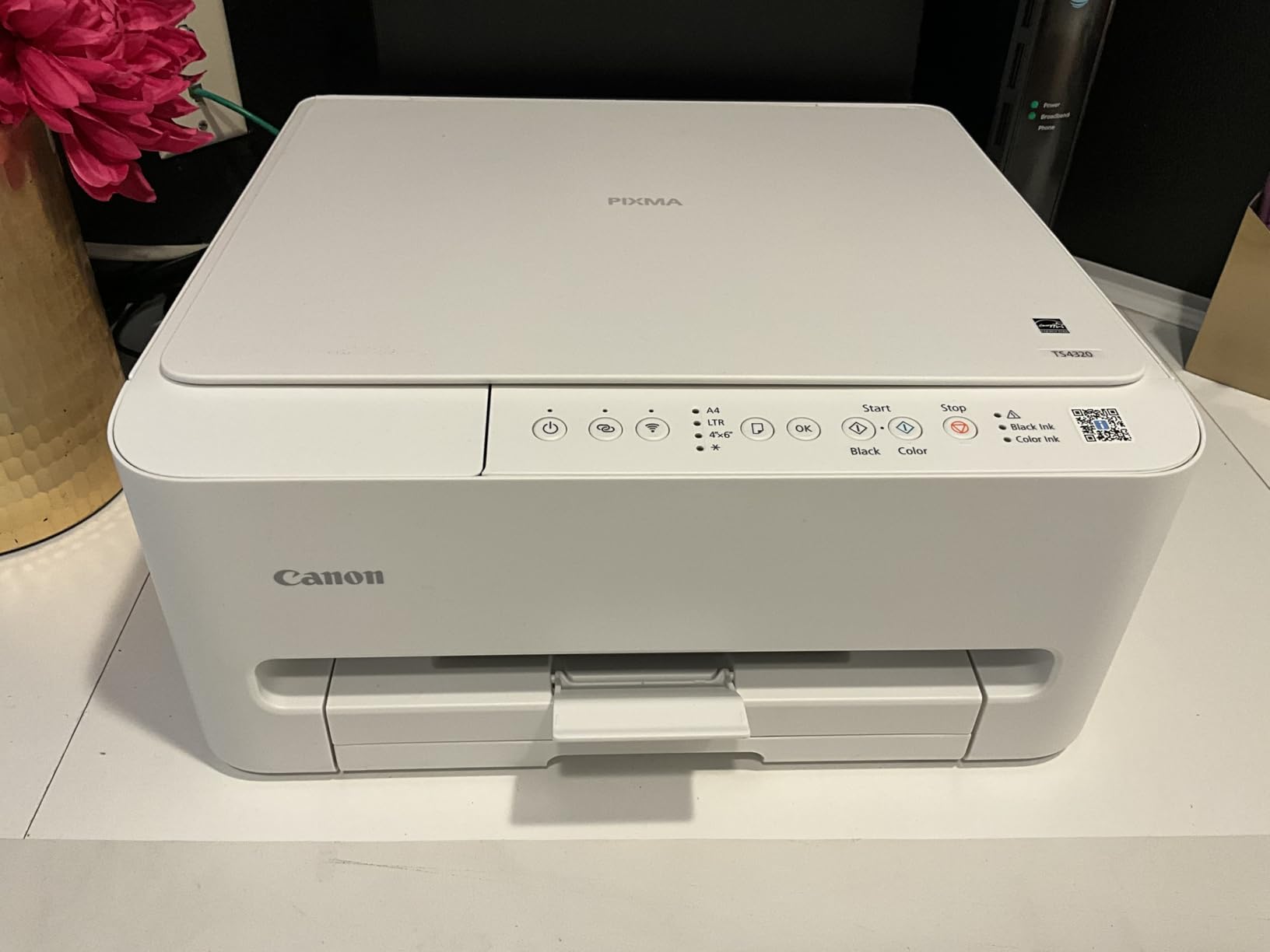
The catch is in the ongoing ink costs. The PG-295 black and CL-286 color cartridges are small and run out relatively quickly, especially if you print in color frequently. Over a year of moderate use, you could easily spend more on ink than you did on the printer itself. This is a common trade-off with budget inkjet printers.
Print speed is another limitation. At 14 pages per minute for black-and-white and 9 pages per minute for color, this is not the printer for rushing through a 50-page report before a deadline. The 100-sheet paper tray also means more frequent refills. The paper trays feel somewhat fragile, so handle them with care.
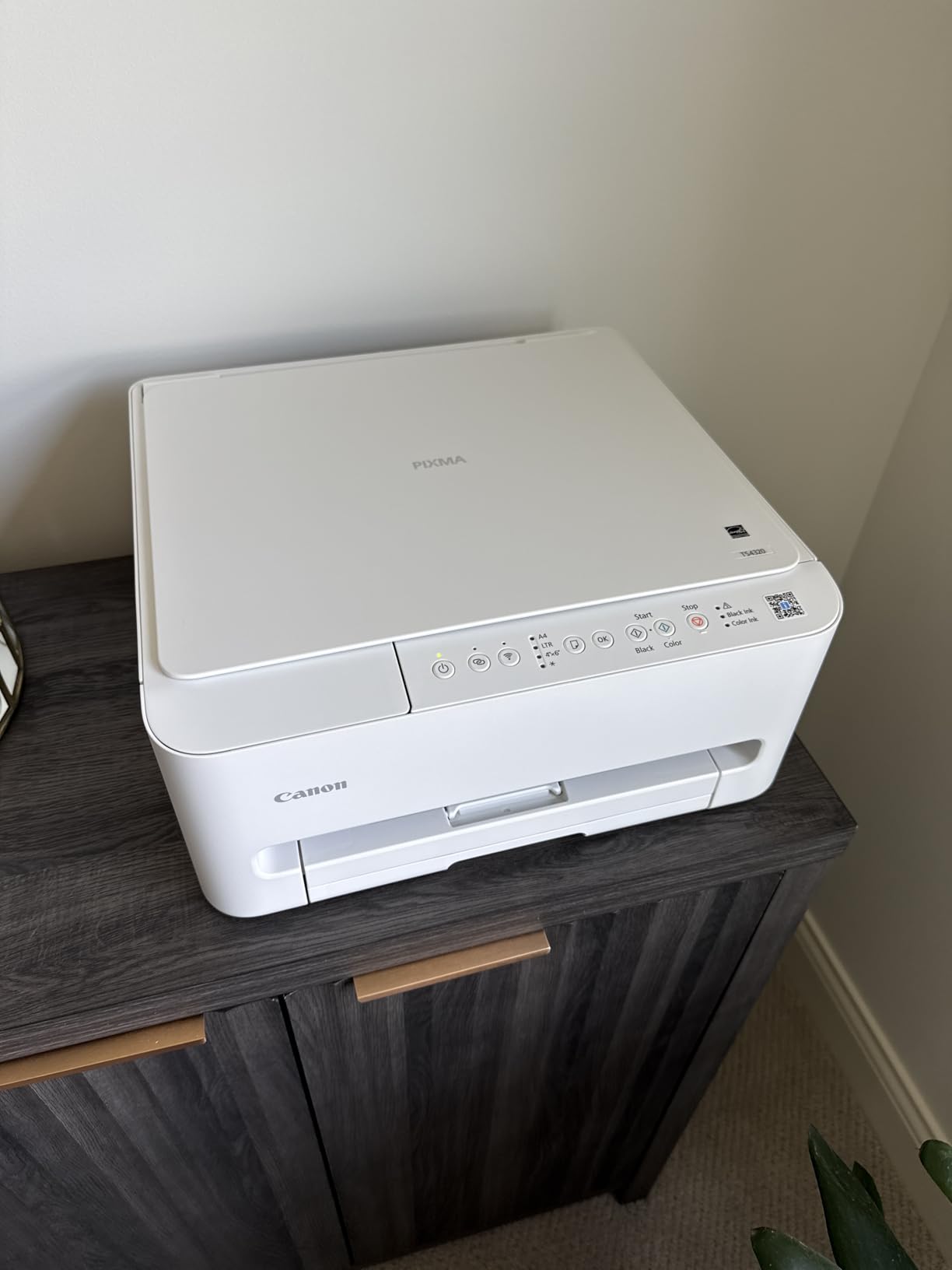
Best Use Cases for the TS4320
This printer is ideal for students, casual home users, and anyone who prints less than 50 pages per month. If you mainly print the occasional document, school assignment, or photo, the TS4320 delivers good results without a big upfront investment. The Chromebook connection stays stable for light use.
What to Watch Out For
The lack of an LCD display means you rely on indicator lights and the app for status information. Some users report a strong chemical smell when the printer is new, which fades after a few days. Also, ink cartridges for this model can be harder to find in certain regions, so check local availability before buying.
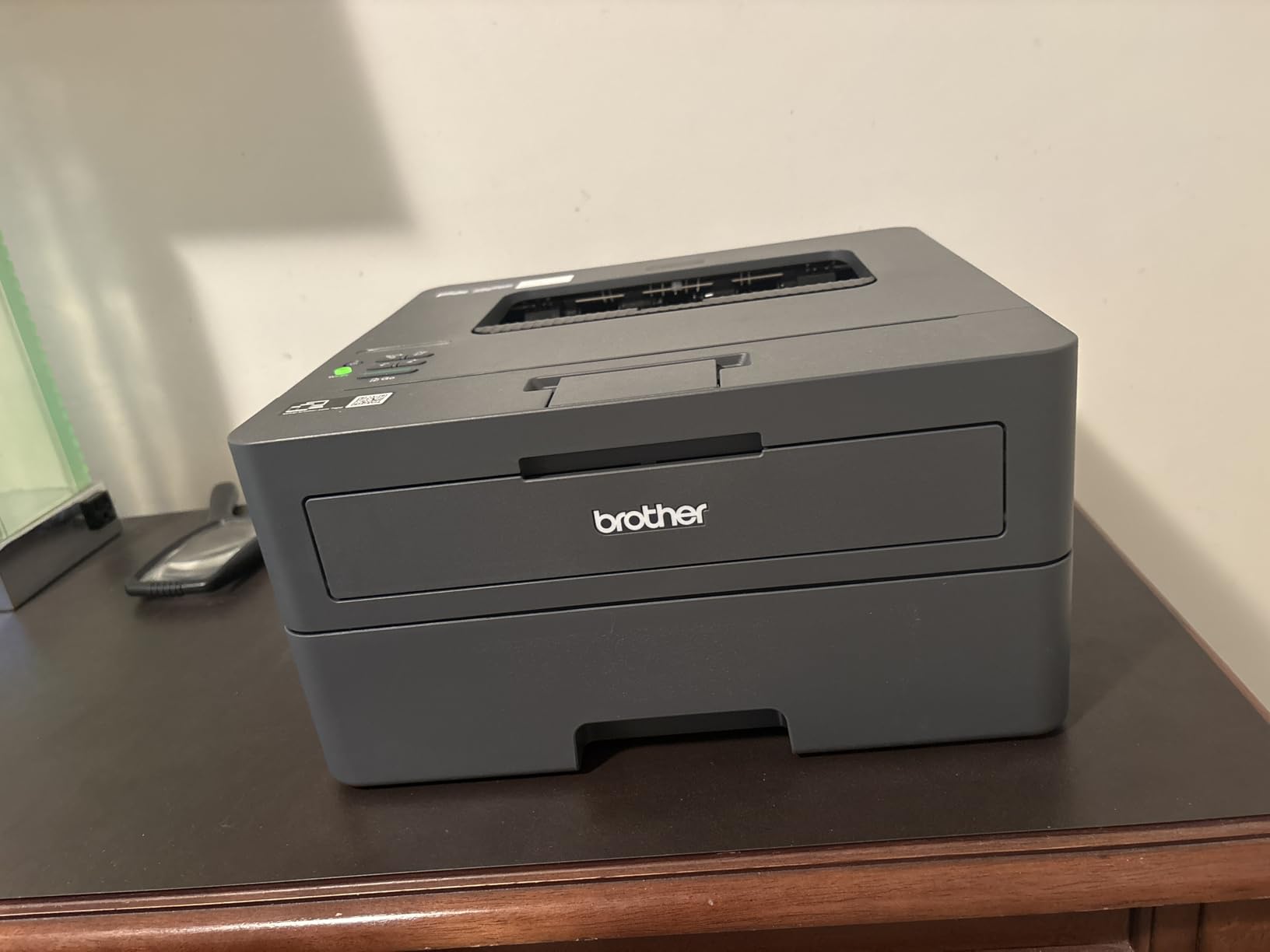
4. Brother HL-L2405W – Best Compact Laser Printer
Brother HL-L2405W Wireless Compact Monochrome Laser Printer with Mobile Printing, Black & White Output | Includes Refresh Subscription Trial(1), Works with Alexa
Monochrome Laser
30 ppm
250-sheet Tray
Manual Duplex
Dual-Band Wi-Fi
15.1 lbs
Pros
- Compact design saves space
- Fast 30 ppm printing
- Sharp print quality
- Easy setup for most users
- Quiet operation
Cons
- No auto duplex printing
- Wi-Fi setup issues with mesh networks
- Deep sleep mode causes connection drops
The Brother HL-L2405W is a print-only monochrome laser printer that prioritizes speed and simplicity. I found it to be one of the easiest printers to fit on a small desk at just 14.2 inches deep and 7.2 inches tall. It connects to Chromebooks via dual-band Wi-Fi or USB, and the setup process took me about 10 minutes from unboxing to first print.
At 30 pages per minute, it handles documents quickly. Text output is sharp at 1200 x 1200 dpi, making it great for professional-looking reports and letters. The 250-sheet paper tray is generous for a compact printer and means fewer trips to reload paper. It also runs quietly compared to some other laser printers I have tested.
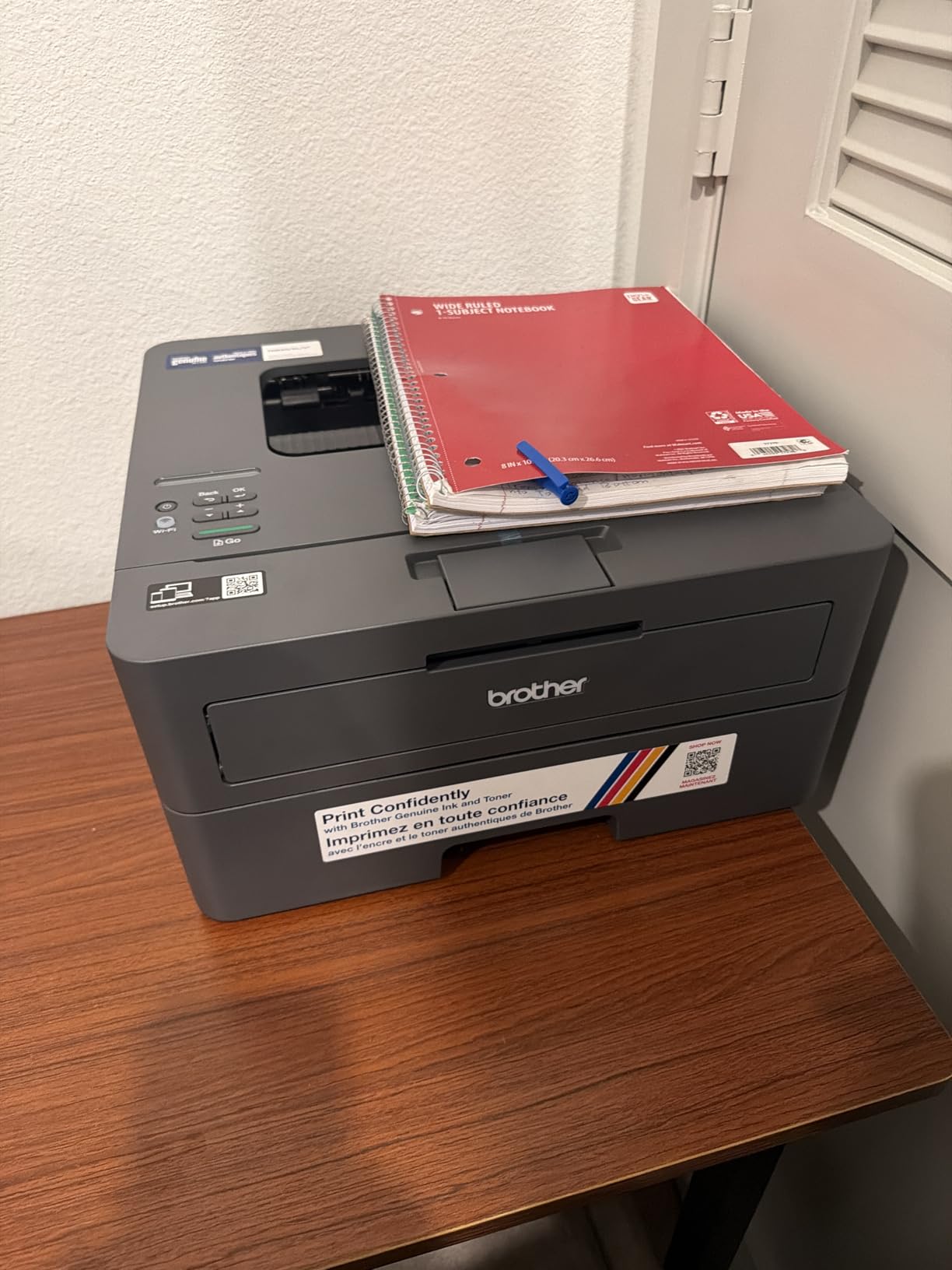
The main downside for Chromebook users is the deep sleep mode. After a period of inactivity, the printer goes into a deep sleep state that can cause your Chromebook to lose the connection. You may need to wake the printer manually before it shows up in your Chromebook printer settings again. Some users on Reddit report this happens frequently with EERO mesh Wi-Fi systems.
There is also no automatic duplex printing. You can print double-sided, but you have to flip the paper manually. And unlike some of the other Brother models on this list, this is a print-only device with no scanning or copying capability.
Wi-Fi Setup Tips for Chromebooks
If the WPS button setup does not work with your router, try connecting via USB first and then switching to Wi-Fi through the Brother Mobile Connect app. This workaround has helped many Chromebook users avoid setup frustration. Keeping the printer on a static IP address on your network can also prevent the deep sleep disconnection issue.
Print-Only Simplicity
If you do not need scanning or copying, this print-only model saves you money and desk space. It does one thing very well: printing black-and-white documents fast. For Chromebook users who just need reliable text printing for school or work, this is a solid, no-frills choice.
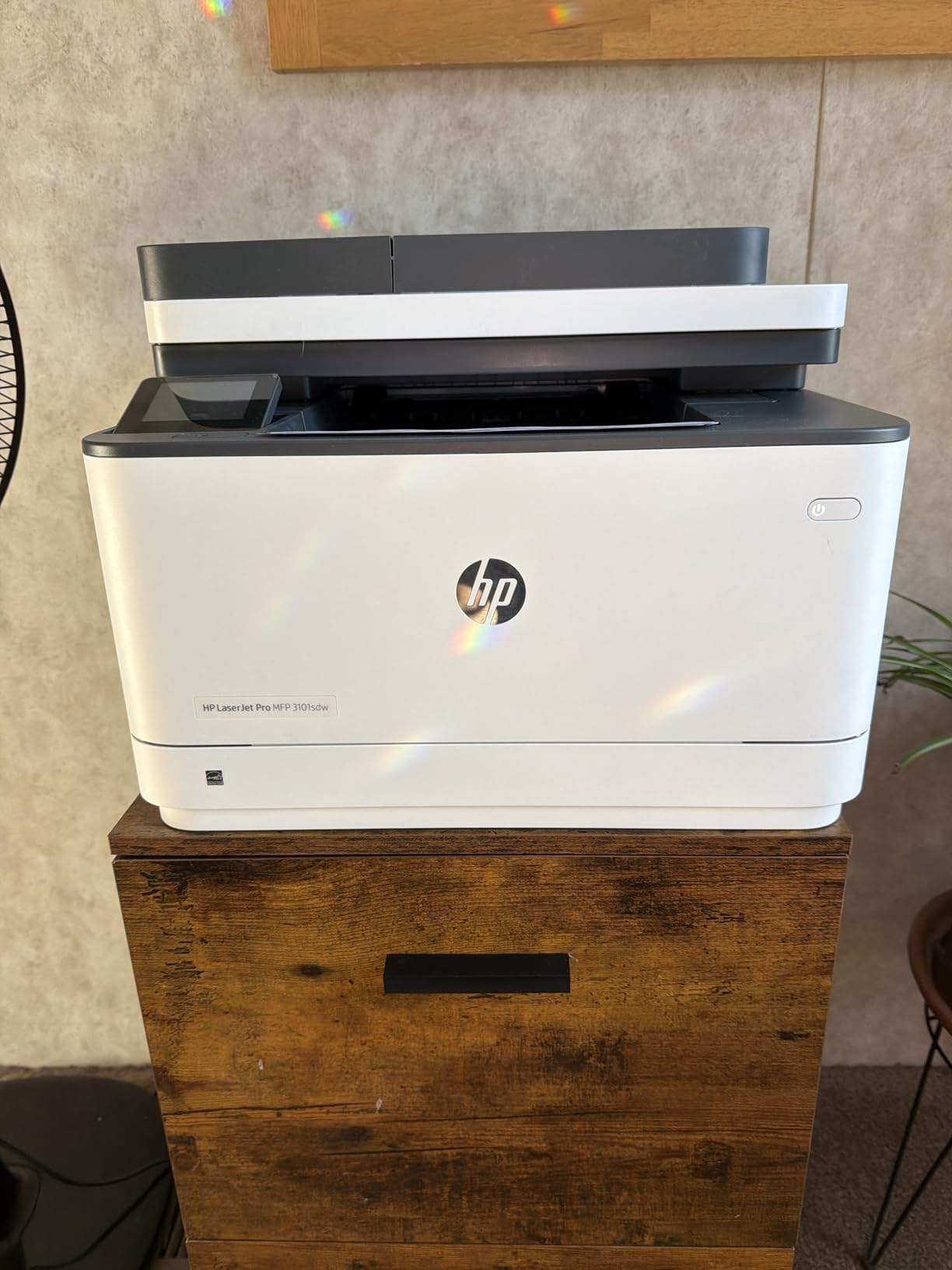
5. HP LaserJet Pro MFP 3101sdw – Best for Small Teams
HP LaserJet Pro MFP 3101sdw Wireless Black and White All-in-One Laser Printer, Office Printer, Duplex, Best-for-Small Teams (9D2X4F)
Monochrome Laser
40 ppm
250-sheet Tray
50-sheet ADF
Auto Duplex
Ethernet
Pros
- Very fast 40 ppm printing
- Dependable Wi-Fi with auto healing
- Apple AirPrint and Mopria support
- Excellent print quality
- Low noise operation
Cons
- Monochrome only
- HP toner DRM restrictions
- Higher price point
- Heavier than inkjets
The HP LaserJet Pro MFP 3101sdw is the fastest printer on this list, and it is built for small teams that need reliable, high-volume printing from their Chromebooks. At up to 40 pages per minute, it handles large print jobs without making you wait. The auto-healing Wi-Fi feature means the printer automatically reconnects if your network hiccups, which is a real benefit for Chromebook users who have experienced connection drops.
HP has made this printer especially easy to use with Chromebooks. It supports Apple AirPrint and Mopria natively, so your Chromebook detects it automatically on the network. The 250-sheet input tray and 50-sheet auto document feeder handle multi-page scanning and copying without issue. I tested the ADF with a 30-page stack and it fed smoothly every time.
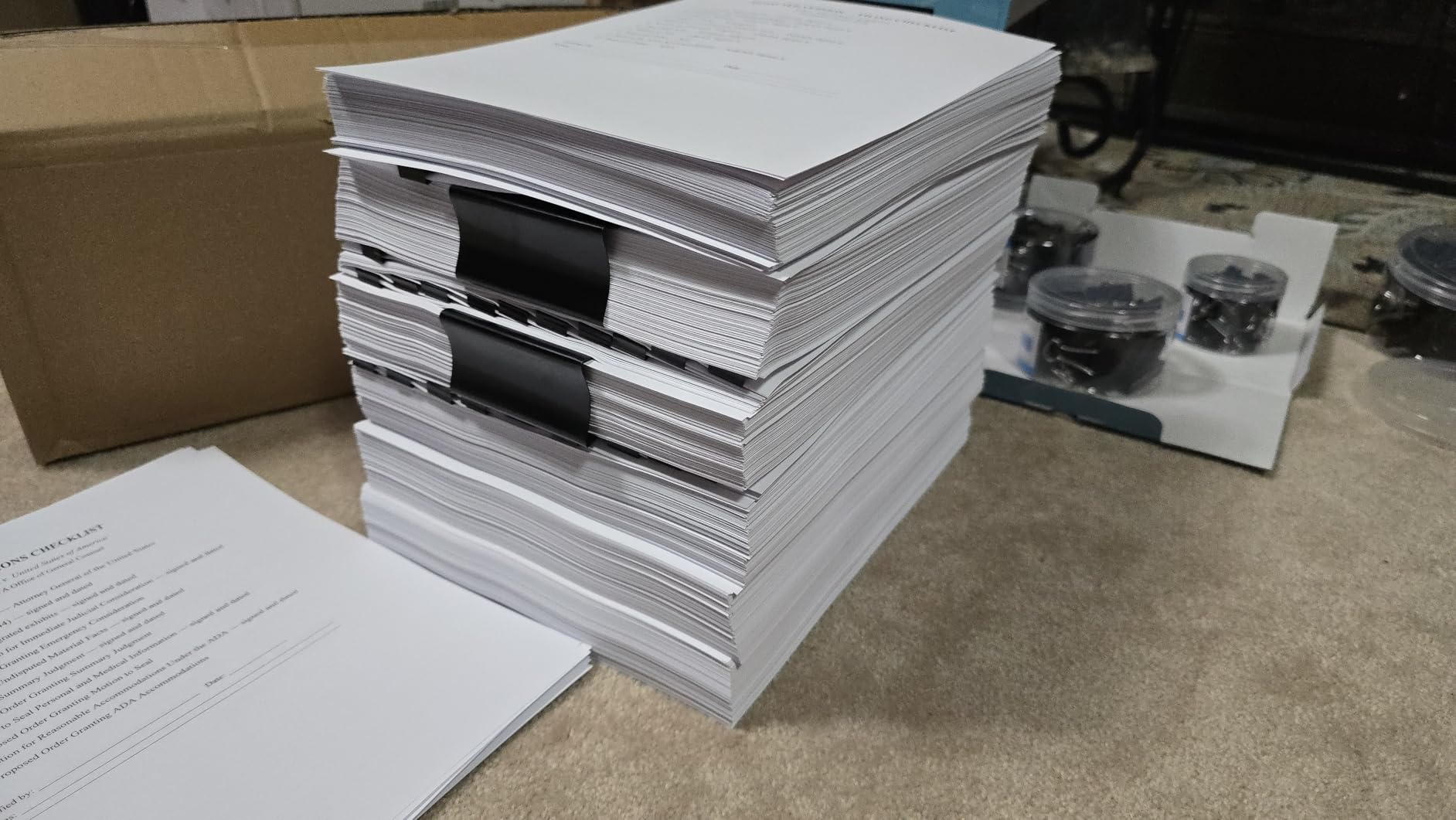
Print quality is excellent. Text comes out razor-sharp, and even small fonts at 8-point size look clean and professional. The auto-duplex printing works reliably for two-sided documents. Toner cartridges last a long time for moderate users, making the cost per page very competitive for a laser printer.
The main concern is HP’s toner DRM restrictions. The printer only works with HP-branded toner cartridges that have an authentic chip. Third-party toner cartridges will not work unless you find workarounds, which HP actively blocks through firmware updates. This limits your options for saving money on replacement toner.
Small Team Workflow
This printer handles multiple users well. The Ethernet port and dual-band Wi-Fi support stable connections for several people printing simultaneously. The HP Smart app lets team members check printer status, scan documents, and manage print jobs from their Chromebooks without being physically near the printer.
Toner Cost Considerations
While the upfront cost is higher, the toner efficiency makes this economical over time for teams printing 100+ pages per week. Factor in the genuine HP toner requirement when budgeting, as third-party alternatives are not an option. The auto-healing Wi-Fi alone saves IT headaches in a shared office environment.
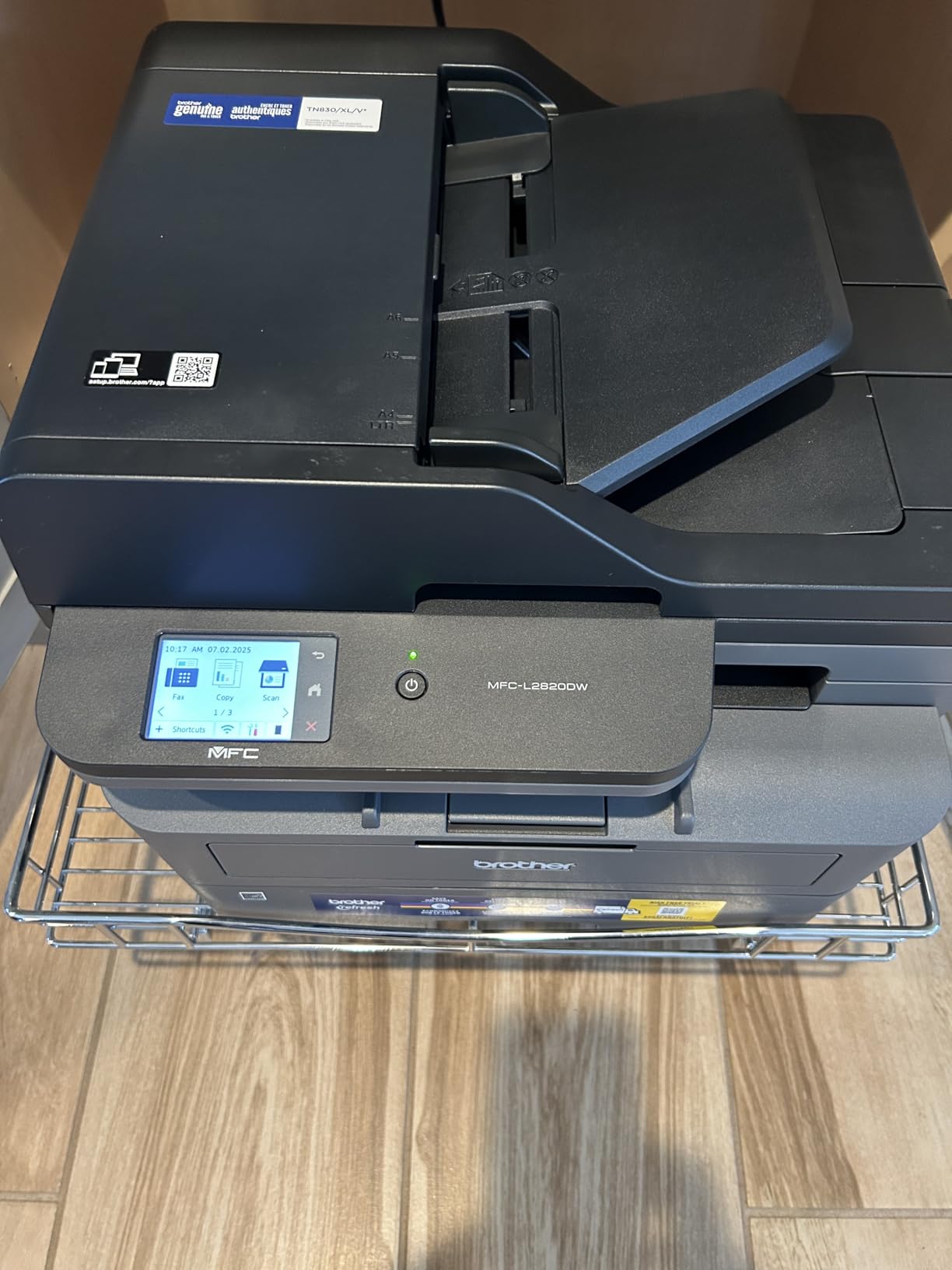
6. Brother MFC-L2820DW – Best All-in-One with Fax
Brother MFC-L2820DW Wireless Compact Monochrome All-in-One Laser Printer with Copy, Scan and Fax, Duplex, Black & White | Includes Refresh Subscription Trial(1), Works with Alexa
Monochrome Laser
34 ppm
Auto Duplex
Fax/Scan/Copy
2.7-inch Touchscreen
50-sheet ADF
Pros
- Full all-in-one with fax
- 2.7-inch touchscreen
- Cloud app integration
- Auto duplex and ADF
- Multiple connectivity options
Cons
- Wi-Fi setup can be confusing
- Wireless recovery issues reported
- Toner yield less than advertised
- Loud alert sounds
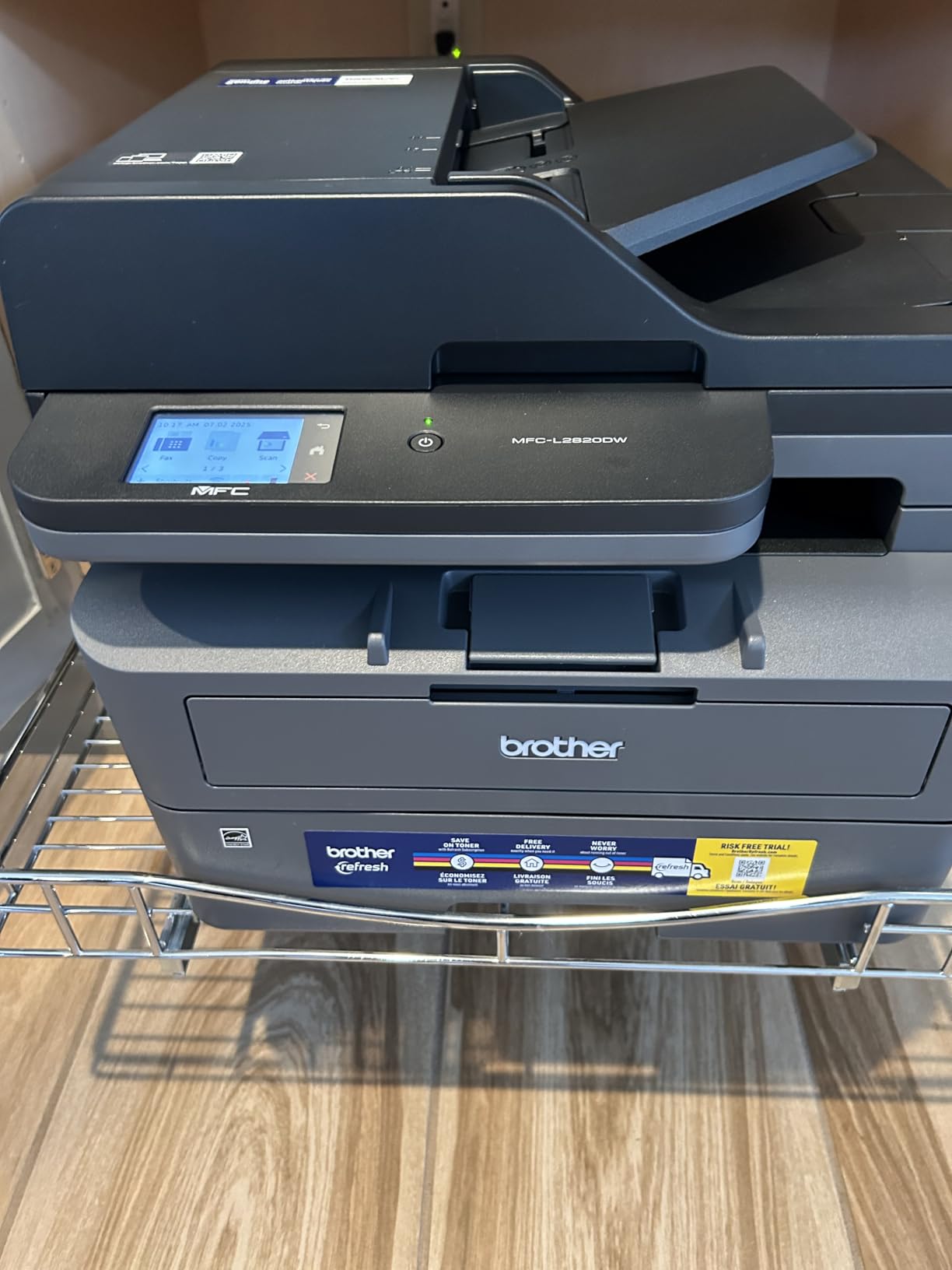
The Brother MFC-L2820DW is the most feature-rich printer on this list. It prints, copies, scans, and faxes in one compact unit. The 2.7-inch color touchscreen makes navigation easy, and the cloud app integration lets you scan directly to Google Drive, Dropbox, and other cloud services from your Chromebook.
At 34 pages per minute, it keeps up with busy home offices and small teams. The automatic duplex printing, 50-page auto document feeder, and 250-sheet paper tray handle multi-page documents efficiently. I especially like the touchscreen interface, which is much easier to use than the button-based controls on some other Brother models.
The Chromebook connection experience is similar to other Brother printers. Dual-band Wi-Fi, Ethernet, and USB are all available. The Brother Mobile Connect app provides remote printing and scanning from your Chromebook. I did notice that the initial Wi-Fi setup required more steps than the DCP-L2640DW, partly because the touchscreen menus have more options to navigate.
The fax functionality sets this apart from most printers on this list. If your home office or small business still needs fax capability, this is one of the few Chromebook-compatible printers that includes it. The fax setup requires a phone line connection, which is a separate consideration from your internet connection.
Cloud Integration Features
The cloud app integration is a standout feature for Chromebook users. Since Chromebooks are designed around cloud computing, having a printer that scans directly to Google Drive or Dropbox fits naturally into the workflow. You can set up one-touch scan shortcuts on the touchscreen for frequently used cloud destinations.
Setup Challenges to Know About
The setup instructions are sparse, and the default settings can be confusing. I recommend downloading the full setup guide from Brother’s website instead of relying on the quick start guide in the box. The wireless connection recovery feature does not always work after a power outage, so you may need to reconnect manually in some cases.
7. Canon PIXMA TS6520 – Best for Home Photo Printing
Canon PIXMA TS6520 Wireless Color Inkjet Printer, Duplex Printing, Copier/Scanner, 1.42″ OLED Display, Compact, White
Color Inkjet
14 ppm B&W
Auto Duplex
1.42-inch OLED
Flatbed Scanner
15.4 lbs
Pros
- Excellent photo and document print quality
- OLED display is easy to read
- Compact stylish design
- Automatic duplex printing
- Wireless Direct Mode
Cons
- Not ideal for high-volume use
- Ink costs add up
- No USB cable included
- Slower than laser printers
The Canon PIXMA TS6520 stands out for its print quality, especially for photos and color documents. The 2-cartridge hybrid ink system produces vibrant, accurate colors that look great on both plain paper and photo paper. If you want to print family photos, school projects with graphics, or color presentations from your Chromebook, this is the inkjet to consider.
The 1.42-inch OLED display is a nice upgrade over basic indicator lights. It shows ink levels, connection status, and settings clearly. The printer also supports Wireless Direct Mode, which lets you connect your Chromebook directly to the printer without going through a router. This came in handy when I wanted to print from a room far from my Wi-Fi router.
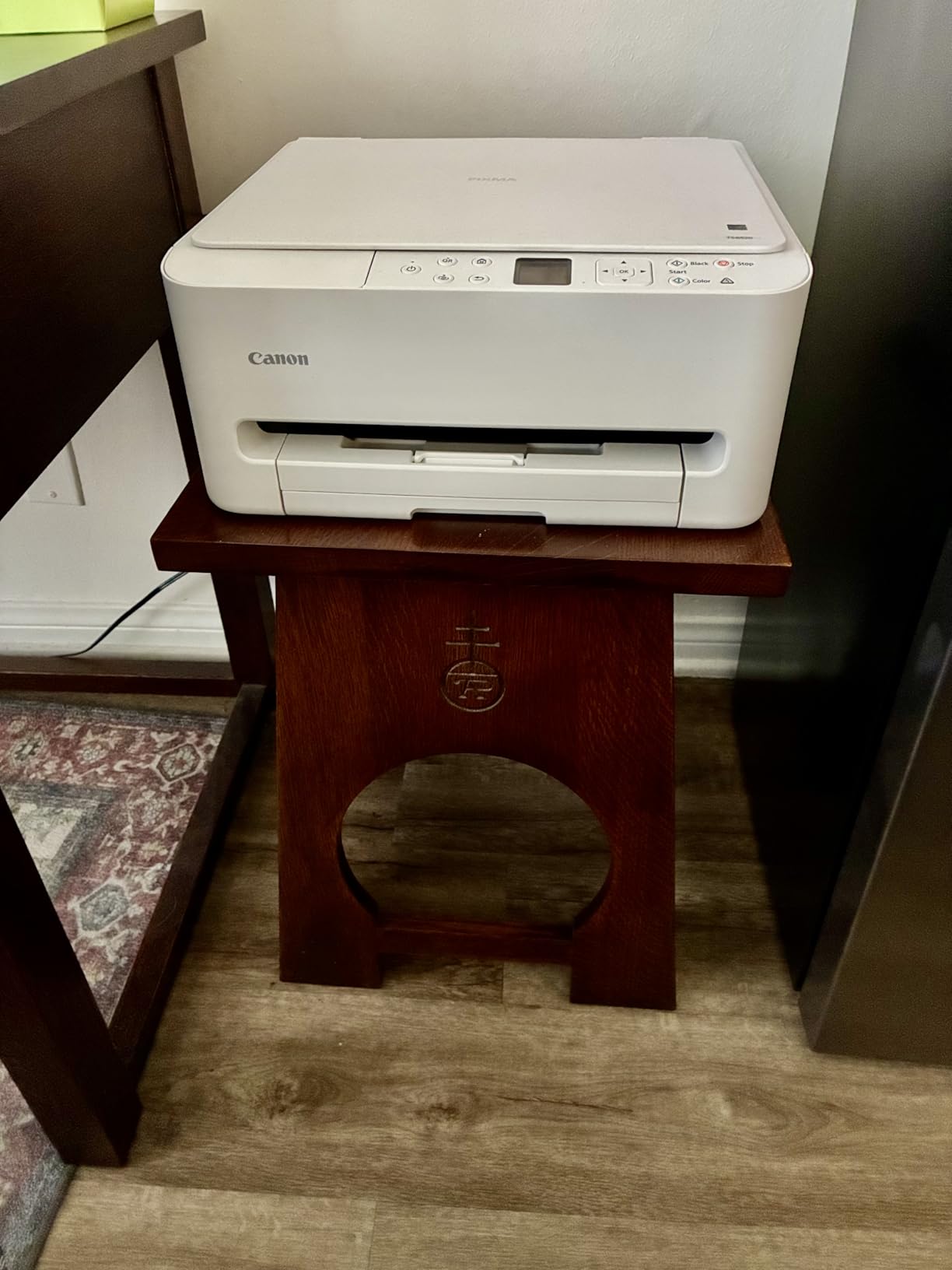
Setup with a Chromebook is straightforward through the Canon PRINT app. The dual-band Wi-Fi (2.4GHz and 5GHz) provides a stable connection, and the printer supports borderless printing up to 8.5 by 11 inches for full-bleed photos. The flatbed scanner handles document scanning and photo digitization with good color accuracy.
The main limitation is ongoing ink cost. The PG-295 and CL-286 cartridges are not large, and if you print photos regularly, you will go through them fairly quickly. There is also no USB cable included in the box, so you need to supply your own if you want a wired connection to your Chromebook.
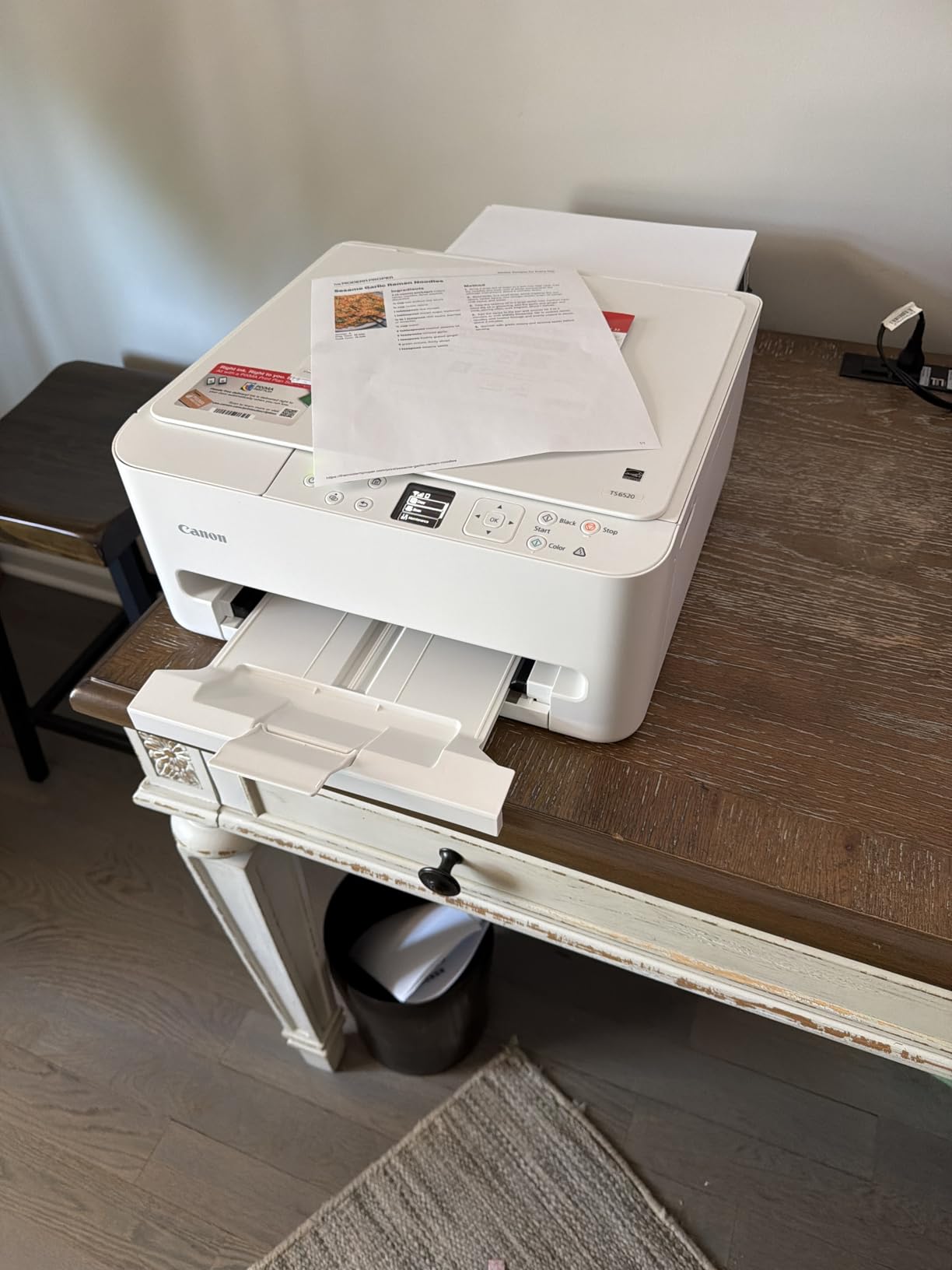
Photo Printing Quality
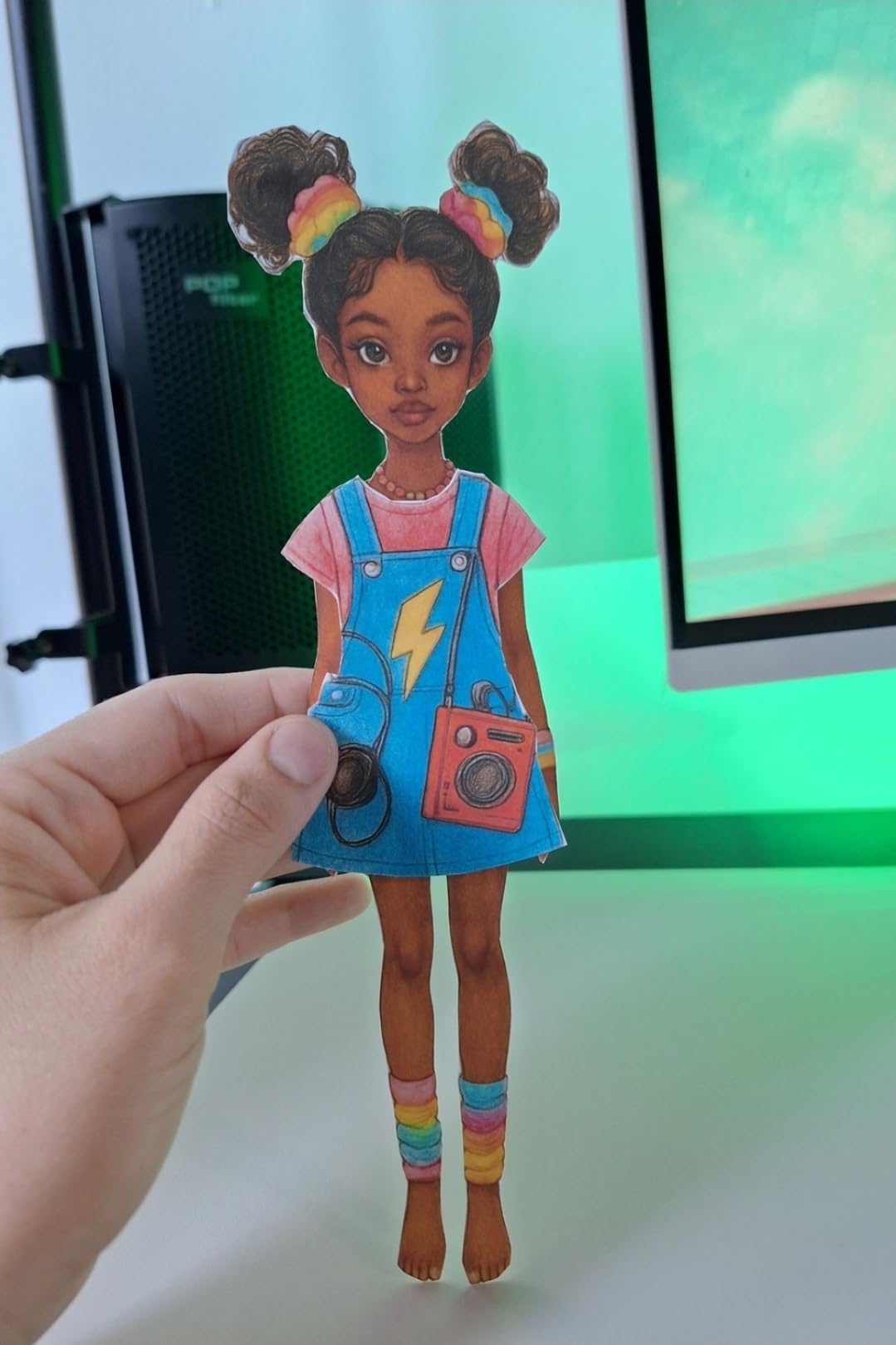
For photo printing, this is the best inkjet on this list. Colors are rich and skin tones look natural. On Canon glossy photo paper, the output rivals what you would get from a dedicated photo printer. Borderless 4×6 photos print in about 45 seconds, which is reasonable for a home printer. The maximum print resolution of 1200 x 1200 dpi keeps fine details sharp.
Ink Management Tips
To keep ink costs manageable, use draft mode for everyday documents and reserve high-quality mode for photos and important prints. You can also sign up for Canon’s ink subscription service, which automatically ships cartridges when your ink runs low. Just be aware that printing lots of full-page color photos will consume ink quickly regardless of the settings you use.
8. HP Smart Tank 5000 – Best Cartridge-Free Home Printer
HP Smart Tank 5000 Wireless All-in-One Ink Tank Printer, Scanner, Copier with 2 Years of Ink Included, Best-for-Home, Cartridge-Free, Refillable and AI-Enabled. (5D1B6A)
Ink Tank System
10 ppm B&W
2 Years Ink Included
Print/Scan/Copy
Wireless
14.15 lbs
Pros
- Up to 2 years of ink in box
- Very low operating costs
- Good text and color quality
- Mess-free refill system
- AI-enabled print optimization
Cons
- Slower print speeds
- Loud operation
- No auto duplex
- Wi-Fi connection issues reported
The HP Smart Tank 5000 is HP’s answer to the Canon MegaTank. It uses the same refillable ink tank concept, shipping with enough ink for up to 6,000 pages. The mess-free refill system is genuinely easy to use, with bottles that only fit into the correct tank, preventing cross-filling mistakes. HP also includes an AI feature that optimizes web page and email printing for cleaner output.
I connected this printer to my Chromebook over Wi-Fi using the HP Smart app. The setup was simple enough, though I did notice the app requires installation on each device you want to print from. Once set up, print quality for text is sharp and color output is vibrant. The flatbed scanner handles basic document scanning needs adequately.
The included ink supply is the big selling point. HP estimates up to two years of printing before you need to buy refill bottles, based on average home use. When you do need to refill, the bottles are affordable compared to cartridge replacements. Over two years of ownership, the total cost of this printer plus ink refills is significantly lower than a comparable cartridge-based inkjet.
However, this printer has some notable weaknesses. The print speed is slow at 10 pages per minute for black-and-white and 5 pages per minute for color. It is also one of the louder printers on this list during operation. There is no automatic duplex printing, and some users report Wi-Fi connectivity drops that require reconnection. The 100-sheet paper capacity is also on the small side.

HP Smart App for Chromebook
The HP Smart app is your main interface for printing from a Chromebook. It handles setup, printing, scanning, and ink level monitoring. The app works well once configured, but you do need to install it on every Chromebook or device you want to print from. Some users report that the app can be slow to detect the printer after the printer wakes from sleep mode.
Comparing to Canon MegaTank
Both the HP Smart Tank 5000 and Canon MegaTank G3270 offer similar ink tank economics. The Canon has a slightly higher page yield per ink set and a larger paper size range. The HP offers the AI print optimization feature and arguably an easier refill mechanism. For Chromebook users, both connect reliably, but the Canon has a slight edge in user reviews for wireless stability.
9. Brother Work Smart 1360 – Best Color Inkjet All-in-One
Brother Work Smart 1360 Wireless Color Inkjet All-in-One Print, Scan, Copy
Color Inkjet
16 ppm B&W
Auto Duplex
20-sheet ADF
1.8-inch Color Display
Cloud Apps
Pros
- Affordable color printing
- Automatic duplex
- Cloud app integration
- Compact design
- 1.8-inch color display
Cons
- Slow high-resolution printing
- Only 2.4 GHz Wi-Fi
- Setup can be time-consuming
- Paper trays feel flimsy
The Brother Work Smart 1360 (MFC-J1360DW) is a color inkjet all-in-one that covers print, scan, and copy functions at a reasonable price. It offers automatic duplex printing and a 20-sheet auto document feeder, which are uncommon features at this price point. The 1.8-inch color display makes menu navigation straightforward.
Setting this up with my Chromebook was a mixed experience. The printer only supports 2.4 GHz Wi-Fi, not the faster 5 GHz band. If your router uses a combined 2.4/5 GHz network, you may need to temporarily separate the bands during setup. Once connected, the Brother Mobile Connect app provides reliable printing and scanning from your Chromebook.
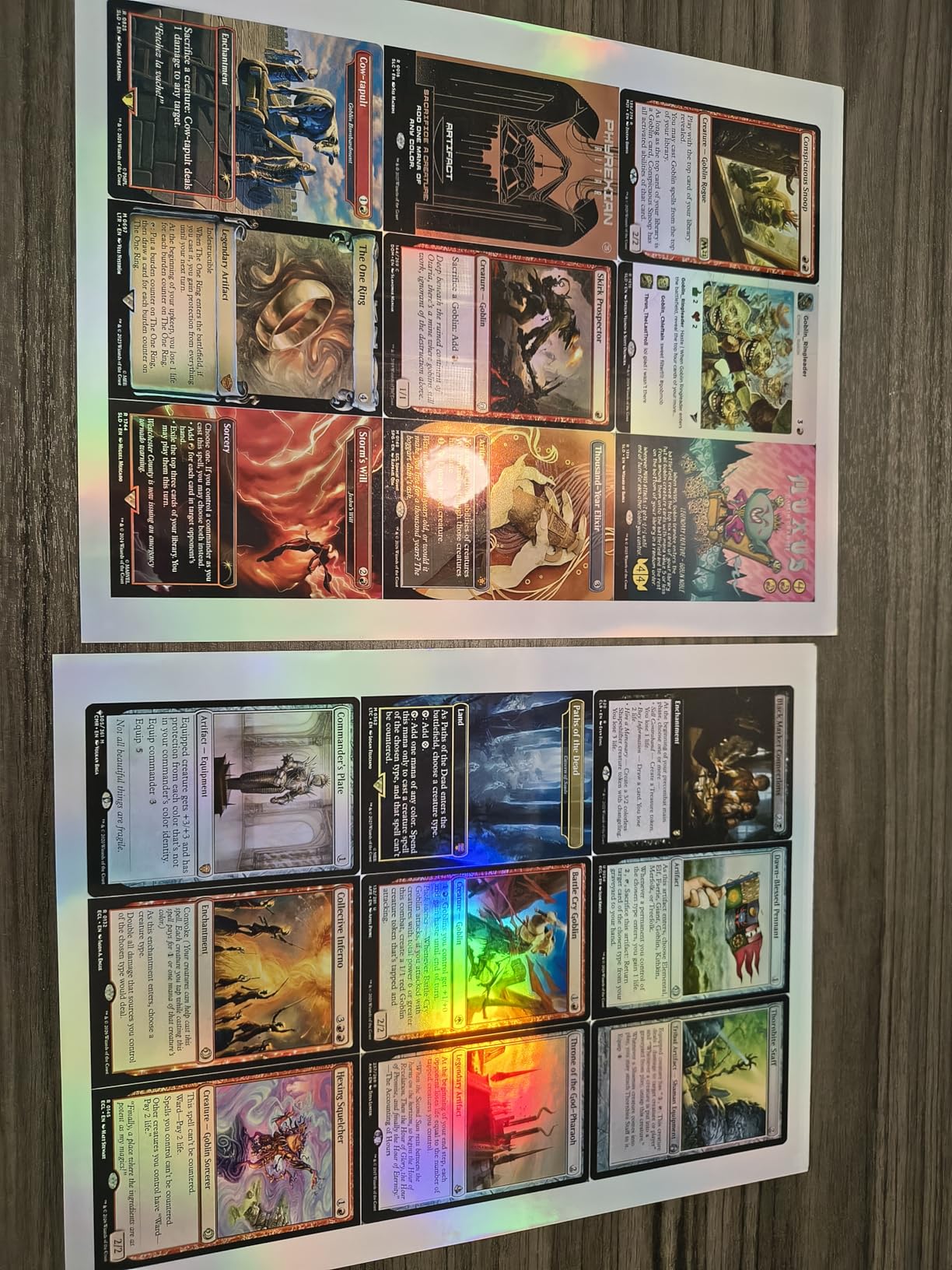
Print quality for documents is good. Black text is clean, and color graphics look acceptable for everyday use. The printer supports borderless printing and has cloud app integration for scanning directly to Google Drive and other services. At 16 pages per minute for black-and-white, it is faster than the ink tank printers on this list but slower than the laser options.
The biggest complaint from users is the setup experience. It can take 30 minutes or more from unboxing to first print, and the instructions are not always clear. High-resolution printing is notably slow, so use normal or draft mode for everyday documents. The paper trays also feel somewhat flimsy, which is a common trade-off in this price range.
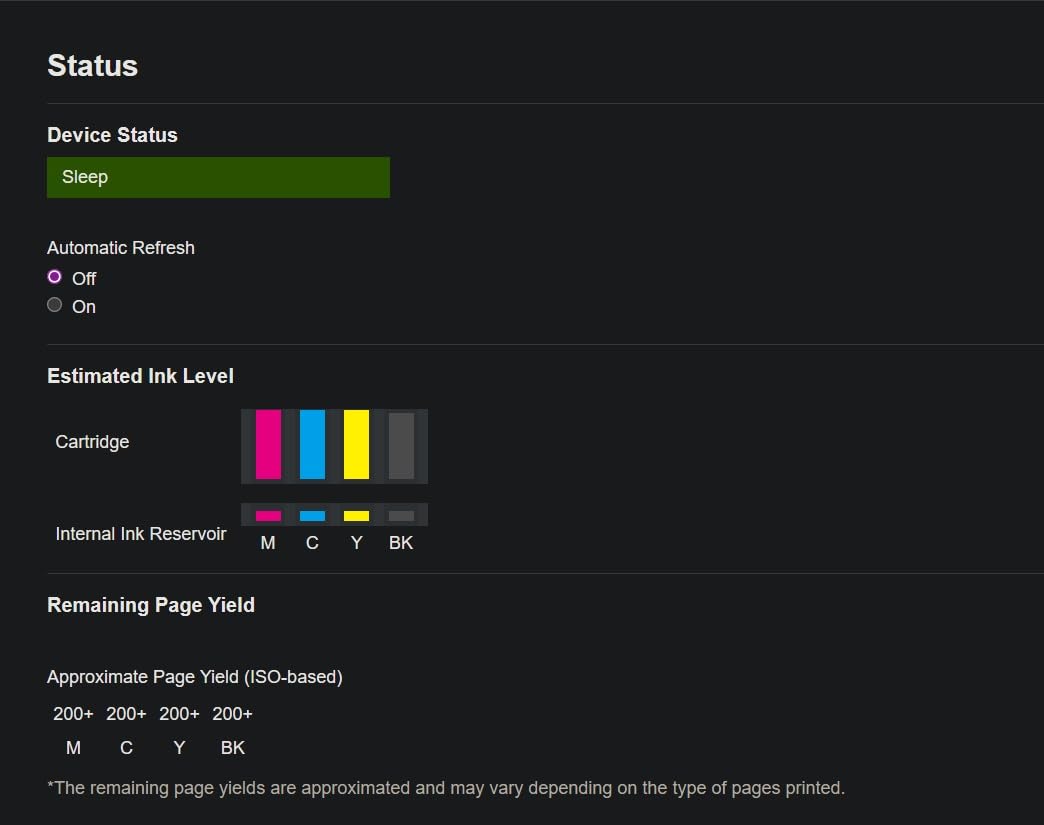
Cloud Scanning from Chromebook
The cloud app integration is a strong feature for Chromebook users. You can scan documents directly to Google Drive, Dropbox, OneDrive, and other cloud services without saving to a local drive first. This fits naturally with the Chromebook workflow, where most of your files live in the cloud anyway. The 20-sheet ADF handles multi-page scan jobs conveniently.
2.4 GHz Wi-Fi Limitation
The single-band 2.4 GHz Wi-Fi is a real limitation. While 2.4 GHz has better range than 5 GHz, it is also more congested in apartment buildings and dense neighborhoods. If you experience slow print job transmission, try moving the printer closer to your router. There is also a USB connection option if wireless proves unreliable in your environment.
10. Canon PIXMA TR160 – Best Portable Printer
Canon PIXMA TR160 Color Wireless Portable Printer
Portable Inkjet
9 ppm B&W
4.5 lbs
50-sheet Tray
Wireless Direct
USB-C
Pros
- Ultra-portable at 4.5 pounds
- Wireless Direct Mode for router-free printing
- Good photo quality with 5-color ink system
- Borderless and square printing
- Optional battery for true mobility
Cons
- No duplex printing
- No scan or copy functions
- Small ink cartridges expensive per page
- Battery sold separately
The Canon PIXMA TR160 is the only portable printer on this list, and it fills a specific niche for Chromebook users who need printing on the go. At 4.5 pounds, it fits in a backpack or laptop bag alongside your Chromebook. The Wireless Direct Mode lets you connect your Chromebook directly to the printer without needing a Wi-Fi router, which is perfect for hotel rooms, coffee shops, or client sites.
Despite its small size, the 5-color hybrid ink system produces impressive photo quality. I printed several 4×6 photos during testing, and the color accuracy was genuinely good. The printer also supports square format printing, which is a fun feature for social media prints or creative projects. The 50-sheet paper tray is adequate for portable use.
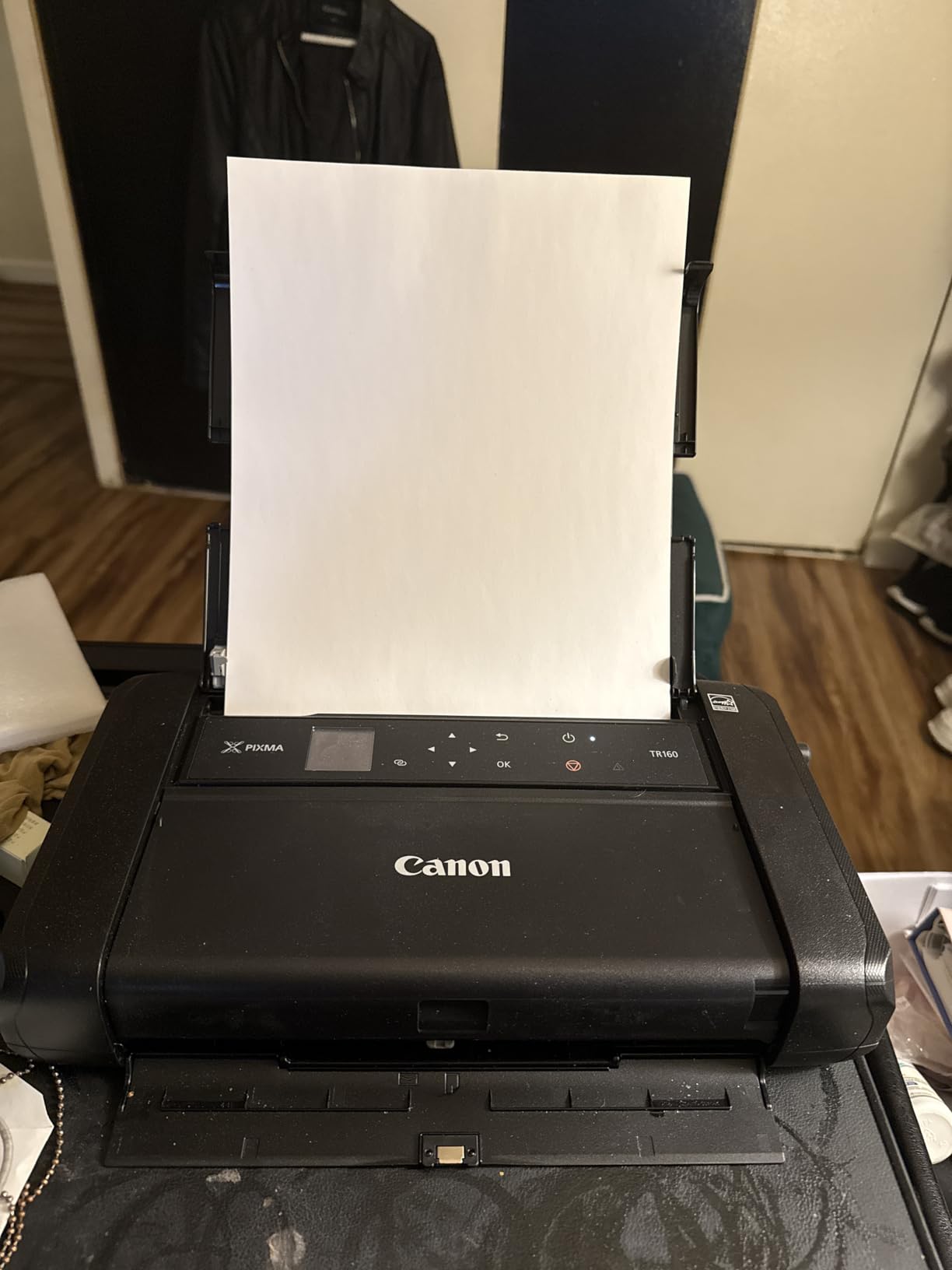
The USB-C connectivity is a modern touch that matches newer Chromebook ports. You can connect directly with a USB-C cable if wireless is not available. The optional battery pack (sold separately) enables true mobile printing without being tethered to a power outlet. Canon claims the battery is good for about 200 prints per charge.
The trade-offs are significant though. There is no duplex printing, no scanning, and no copying. The small ink cartridges run out quickly and are expensive on a per-page basis compared to any other printer on this list. Print speeds are also the slowest here at 9 pages per minute for black-and-white. This is a specialized tool, not an everyday workhorse.
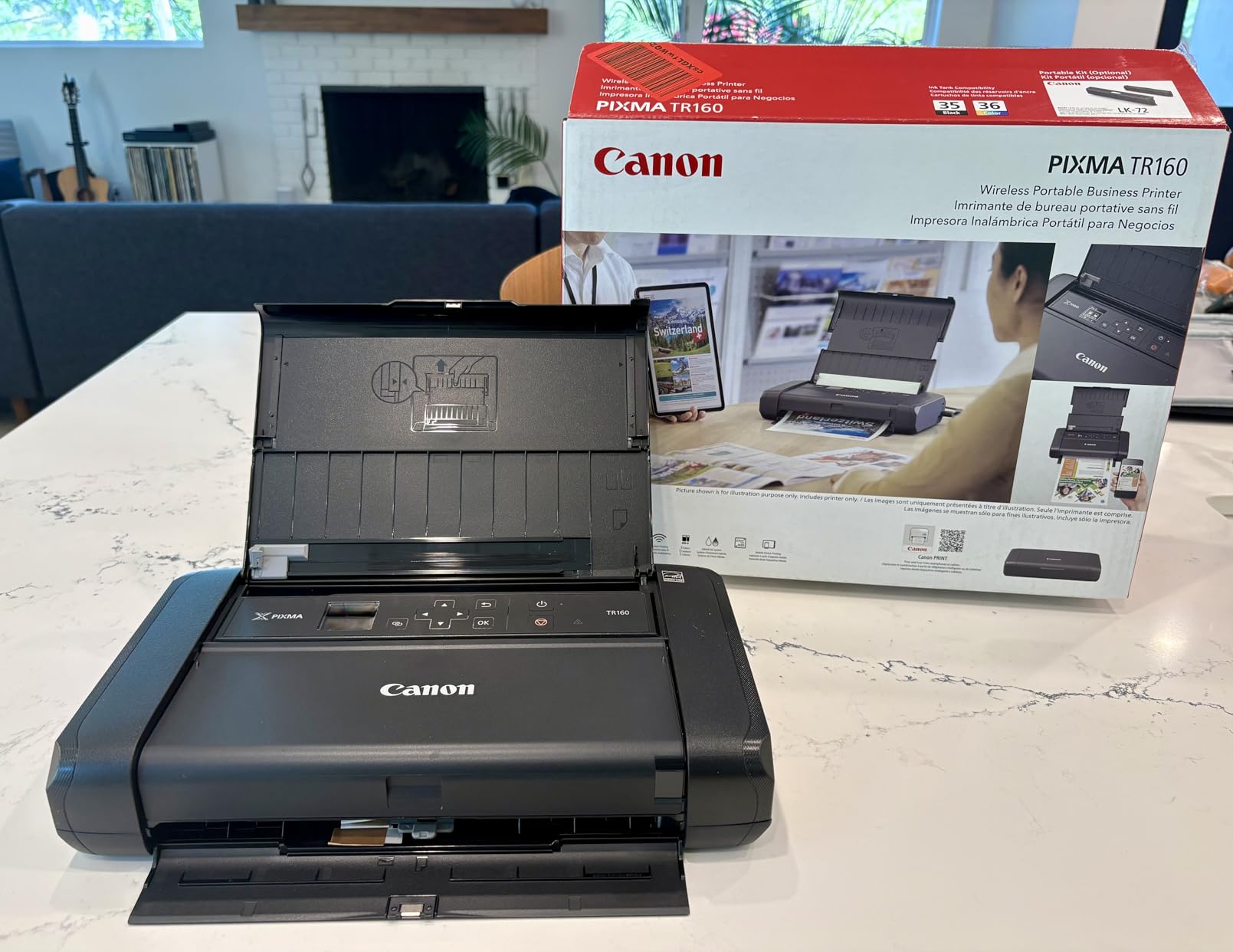
Travel and Field Work Use Cases
This printer shines for real estate agents printing contracts on site, sales professionals needing proposals at client meetings, and students working in libraries or common areas. The Wireless Direct Mode means you can print from your Chromebook anywhere without hunting for a Wi-Fi network. Just turn on the printer, connect your Chromebook to its direct network, and print.
Battery and Power Options
Without the optional battery, you need a power outlet to use the printer. The battery adds to the total cost but enables true portability. You can also charge the battery via USB-C from a portable power bank, which is convenient for extended use away from outlets. Plan your battery purchase based on how often you actually need to print away from power.
How to Choose the Best Printers for Chromebook in 2026?
Chromebook Printer Compatibility: What You Need to Know
Chrome OS uses a driverless printing system, which means most modern printers work without installing drivers. The key is looking for printers that support the “Works With Chromebook” standard or use standard network printing protocols like IPP (Internet Printing Protocol). Printers with this certification have been tested by Google to work seamlessly with Chrome OS.
You do not absolutely need a certified printer. Many non-certified printers work fine through standard Wi-Fi or USB connections. However, certified printers guarantee a hassle-free setup experience and continued compatibility through Chrome OS updates. Based on forum discussions, Brother and Canon printers tend to have the best track record with Chromebooks.
Wi-Fi vs USB: Which Connection Is Better for Chromebook?
Wi-Fi printing is the most convenient option for most Chromebook users. Your printer connects to your home network, and your Chromebook detects it automatically. You can print from anywhere in the house without a physical connection. The downside is that Wi-Fi connections can occasionally drop, especially after Chrome OS updates or when the printer goes into sleep mode.
USB printing is more reliable but less convenient. You need a physical cable connection between your Chromebook and the printer. This works well as a backup when Wi-Fi is not cooperating. Most printers on this list support both connection types. If you have an older printer that your Chromebook will not find on Wi-Fi, try a USB cable first.
Laser vs Inkjet: Which Printer Type Is Right for You?
Laser printers are faster, have lower cost per page, and do not suffer from ink drying out. They are ideal for users who primarily print black-and-white text documents. The Brother laser printers on this list consistently get positive feedback from Chromebook users for reliability and print quality. The trade-off is higher upfront cost and no color printing on most models.
Inkjet printers are better for color printing, photos, and lower upfront cost. Ink tank models like the Canon MegaTank and HP Smart Tank solve the high ink cost problem that traditional inkjets have. If you print photos or color documents regularly, an inkjet is the right choice. Just keep in mind that inkjets need regular use to prevent the printhead from clogging.
Running Costs: The Hidden Factor Most People Ignore
The purchase price is only part of the total cost of owning a printer. Ink or toner costs over two to three years can easily exceed the printer’s purchase price. Ink tank printers like the Canon MegaTank G3270 and HP Smart Tank 5000 have the lowest running costs, at roughly one cent per page for black-and-white. Traditional inkjet cartridges cost five to ten times more per page.
Laser printers fall somewhere in between. Toner cartridges cost more upfront but print many more pages per cartridge. The Brother DCP-L2640DW, for example, has a cost per page of about two to three cents with the high-yield TN830XL toner. For anyone printing more than 100 pages per month, running costs should be a major factor in your decision.
FAQ
Can I use a printer with a Chromebook?
Yes, most modern printers work with Chromebooks. Chrome OS supports driverless printing, which means compatible printers on your Wi-Fi network or connected via USB are detected automatically without installing drivers. Look for printers with the Works With Chromebook certification for guaranteed compatibility, though many non-certified printers also work fine.
Which printer is most compatible with Chromebooks?
Brother printers consistently receive the most positive feedback from Chromebook users for reliable connectivity and easy setup. The Brother DCP-L2640DW is our top pick because of its stable dual-band Wi-Fi connection, fast printing, and strong Chrome OS compatibility. Canon PIXMA and MegaTank models also work well with Chromebooks.
Why won’t my Chromebook recognize my printer?
Common reasons include the printer being in deep sleep mode, the printer and Chromebook being on different Wi-Fi networks, or the printer not supporting driverless printing. Try these steps: make sure both devices are on the same network, wake the printer from sleep, restart your Chromebook, or try connecting via USB cable instead of Wi-Fi.
Are Chromebooks compatible with all printers?
No, not all printers are compatible with Chromebooks. Chromebooks work best with printers that support driverless printing, Wi-Fi connectivity, or USB connections. Very old printers that require dedicated Windows or Mac drivers may not work. The Works With Chromebook certification program lists printers that have been verified to work with Chrome OS.
Do Canon printers work with Chromebooks?
Yes, most modern Canon printers work with Chromebooks. Canon PIXMA, MegaTank, and imageCLASS models support wireless printing through Chrome OS. The Canon PRINT app is available for Chromebook setup, and many Canon printers also support Apple AirPrint and Mopria, which work natively with Chrome OS for easy driverless printing.
Final Thoughts
Finding the best printers for Chromebook does not have to be complicated. The Brother DCP-L2640DW is our top overall pick for its fast, reliable monochrome laser printing and strong Chrome OS compatibility. For the best long-term value, the Canon MegaTank G3270 saves you hundreds on ink costs over its lifetime. And if you just need an affordable color printer that works, the Canon PIXMA TS4320 gets the job done without breaking the bank.
The key takeaway is that most modern Wi-Fi printers work fine with Chromebooks. Focus on finding a printer that matches your printing volume, color needs, and budget. The running costs matter more than the purchase price over the long haul, so consider ink tank or laser options if you print regularly.
If you are interested in other types of printing technology, check out our guide to the best 3D printers tested and compared for creative projects and prototyping needs.
Leave a Reply