
Finding the best 3D mice for CAD in 2026 can change the way you work in AutoCAD, SolidWorks, and Fusion 360. I have been using CAD-optimized mice for over five years across mechanical engineering and architectural design projects, and the right device makes a real difference in comfort, speed, and drawing accuracy.
After testing dozens of mice and reading hundreds of community reviews on Reddit and SketchUp forums, our team narrowed the list to 10 standout options. Whether you need a true 6-degrees-of-freedom controller, an ergonomic productivity mouse with programmable buttons, or a budget-friendly pick for CAD students, this guide covers it.
We focused on ergonomics, programmable button layouts, sensor precision, and CAD software compatibility. Every product below is compatible with major platforms like AutoCAD, Revit, SolidWorks, and Fusion 360, and most work with both Windows and macOS. If you are also building a CAD workstation, our guide to the best laptop for AutoCAD pairs well with this list.
Top 3 Best 3D Mice for CAD (September 2026)

3Dconnexion SpaceMouse Compact
- 6DoF sensor
- Compact steel base
- 2 programmable buttons
- Works with all major CAD


10 Best 3D Mice for CAD (September 2026)
| Product | Specs | Action |
|---|---|---|
| 3Dconnexion SpaceMouse Compact |
|
Check Latest Price |
 SpaceMouse Wireless BT SpaceMouse Wireless BT |
|
Check Latest Price |
 SpaceMouse Pro Wireless BT SpaceMouse Pro Wireless BT |
|
Check Latest Price |
 SpaceMouse Pro 3D Mouse SpaceMouse Pro 3D Mouse |
|
Check Latest Price |
 SpaceMouse Enterprise Kit 2 SpaceMouse Enterprise Kit 2 |
|
Check Latest Price |
| CadMouse Compact Wireless |
|
Check Latest Price |
 CadMouse Pro Wired CadMouse Pro Wired |
|
Check Latest Price |
| Logitech MX Master 3S |
|
Check Latest Price |
 Logitech MX Master 4 Logitech MX Master 4 |
|
Check Latest Price |
 Razer Naga V2 HyperSpeed Razer Naga V2 HyperSpeed |
|
Check Latest Price |
1. 3Dconnexion SpaceMouse Compact – Best 3D Mouse for CAD Overall
3DConnexion 3DX-700059 Spacemouse Compact 3D Mouse
6DoF sensor
Compact steel base
USB wired
2-Year warranty
Pros
- Intuitive 6DoF navigation
- Solid steel base
- Compact footprint
- Two radial menus with 8 commands each
Cons
- Learning curve
- Sensitivity needs adjustment
- Rubber grips can get sticky over time
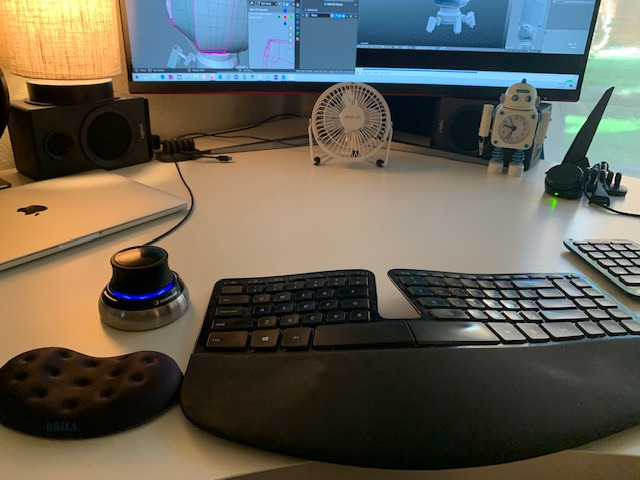
I bought the 3Dconnexion SpaceMouse Compact about 18 months ago after watching a colleague fly through Fusion 360 assemblies. The 6DoF sensor cap takes a few hours to get used to, but once your muscle memory kicks in, you stop thinking about rotation, panning, and zooming as separate operations.
What I appreciate most is the brushed steel base. It weighs 480 grams, so the controller does not slide around even when I push hard during detailed SolidWorks work. The two top buttons each open a radial menu with 8 commands, which is more than enough for my most-used shortcuts.
It plugs in via USB and works across Windows, macOS, and Linux. In SolidWorks and FreeCAD, the 3Dconnexion software auto-loads application-specific profiles. In Blender and Cura, it is essentially plug and play. The compact footprint fits next to a regular mouse without eating desk space.
There is a real learning curve. New users often overshoot their models because the sensor is sensitive to small finger pressure. I dialed down the sensitivity by about 30% in the 3Dconnexion software within the first week, and the experience has been smooth since.
For anyone doing serious 3D work in AutoCAD, SolidWorks, Revit, or Fusion 360, this is the most affordable entry into true 6DoF navigation. It is also the most popular SpaceMouse in design offices I have visited, with over 1000 reviews averaging 4.6 stars.

What makes it stand out for CAD users
The 6DoF sensor lets you push, pull, twist, and tilt the model with one hand while your other hand keeps the regular mouse on selection and command tools. This dual-mouse workflow is the single biggest productivity gain I have seen in CAD work, and the Compact is the cheapest way to start.
Where it falls short
Power users will eventually want more programmable buttons. There is no on-screen display, and the cable is fixed. For larger button layouts, you would step up to the SpaceMouse Pro. For a wireless experience, the SpaceMouse Wireless BT is the next step up.
2. 3Dconnexion SpaceMouse Wireless BT – Best Wireless 3D Mouse
3Dconnexion SpaceMouse Wireless – Bluetooth Edition 3DX-700115
6DoF sensor
Wireless Bluetooth
USB-C
1-month battery
Pros
- Wireless freedom
- Solid build
- Carry case included
- Rechargeable
Cons
- Bluetooth range issues on towers
- Short cable
- Mac connectivity issues
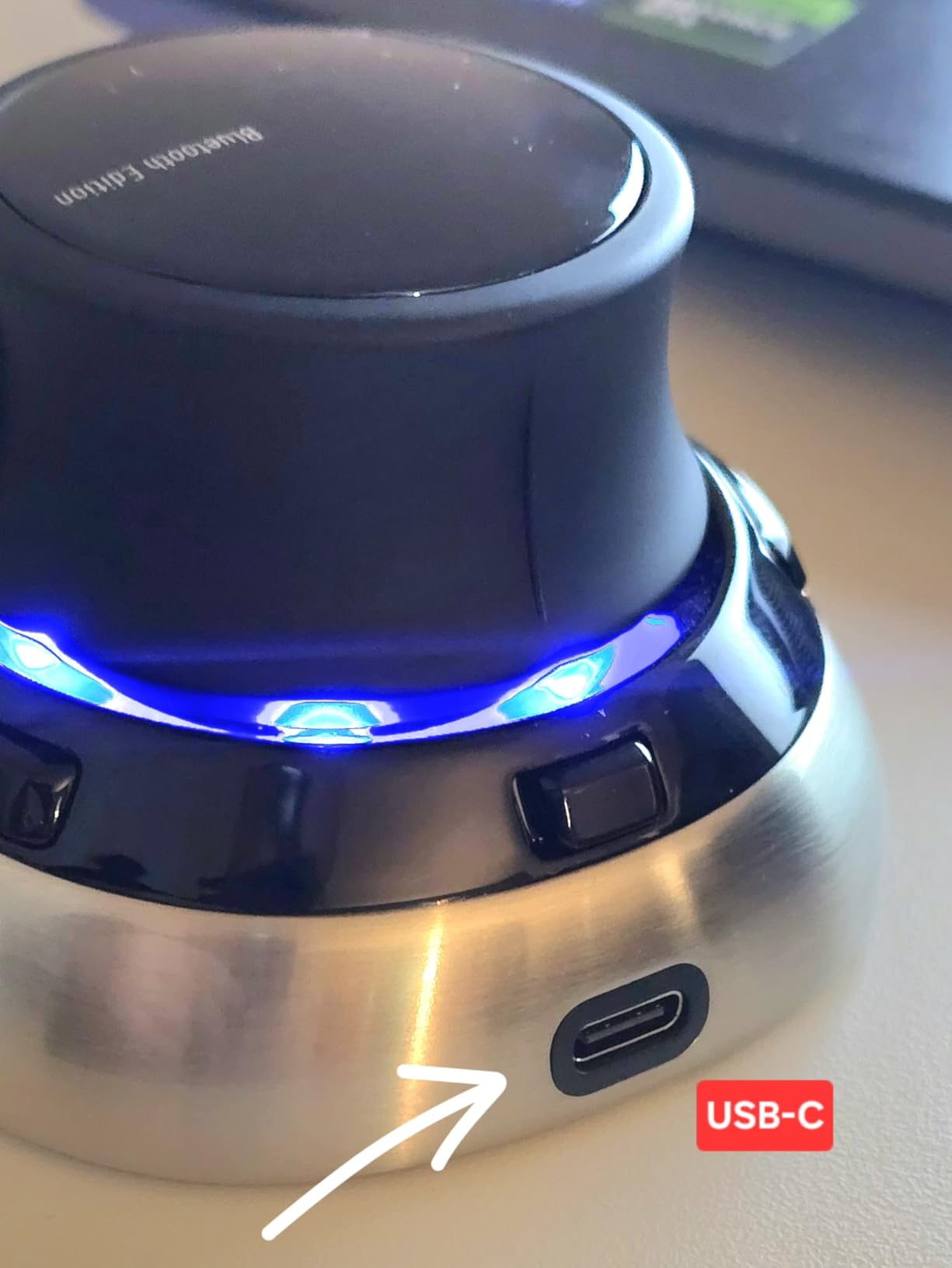
The SpaceMouse Wireless Bluetooth Edition solved one of my biggest gripes with the wired Compact: cable clutter. I can now place the controller anywhere on my desk and rotate my laptop screen freely. The rechargeable battery lasts around a month between charges with daily use.
Setup was painless on Windows 11. I plugged in the USB receiver and the 3Dconnexion software detected the device within seconds. The included carry case is a real bonus, because it makes the controller easy to pack when working between the office and a client site.
Build quality matches the wired Compact. The base is heavy and stable, and the cap has the same responsive 6DoF feel. Two programmable buttons open the same radial menus with up to 8 commands each.
Bluetooth connectivity was the one weak point. On my desktop tower, the connection dropped occasionally until I switched to the included USB receiver. On a laptop, Bluetooth worked flawlessly. Mac users in our community have reported mixed results, so check 3Dconnexion’s compatibility list before buying.
For CAD professionals who want wireless freedom without sacrificing the 6DoF workflow, this is the sweet spot. It is more expensive than the wired Compact, but the freedom is worth it if you move around your desk or take work on the road.
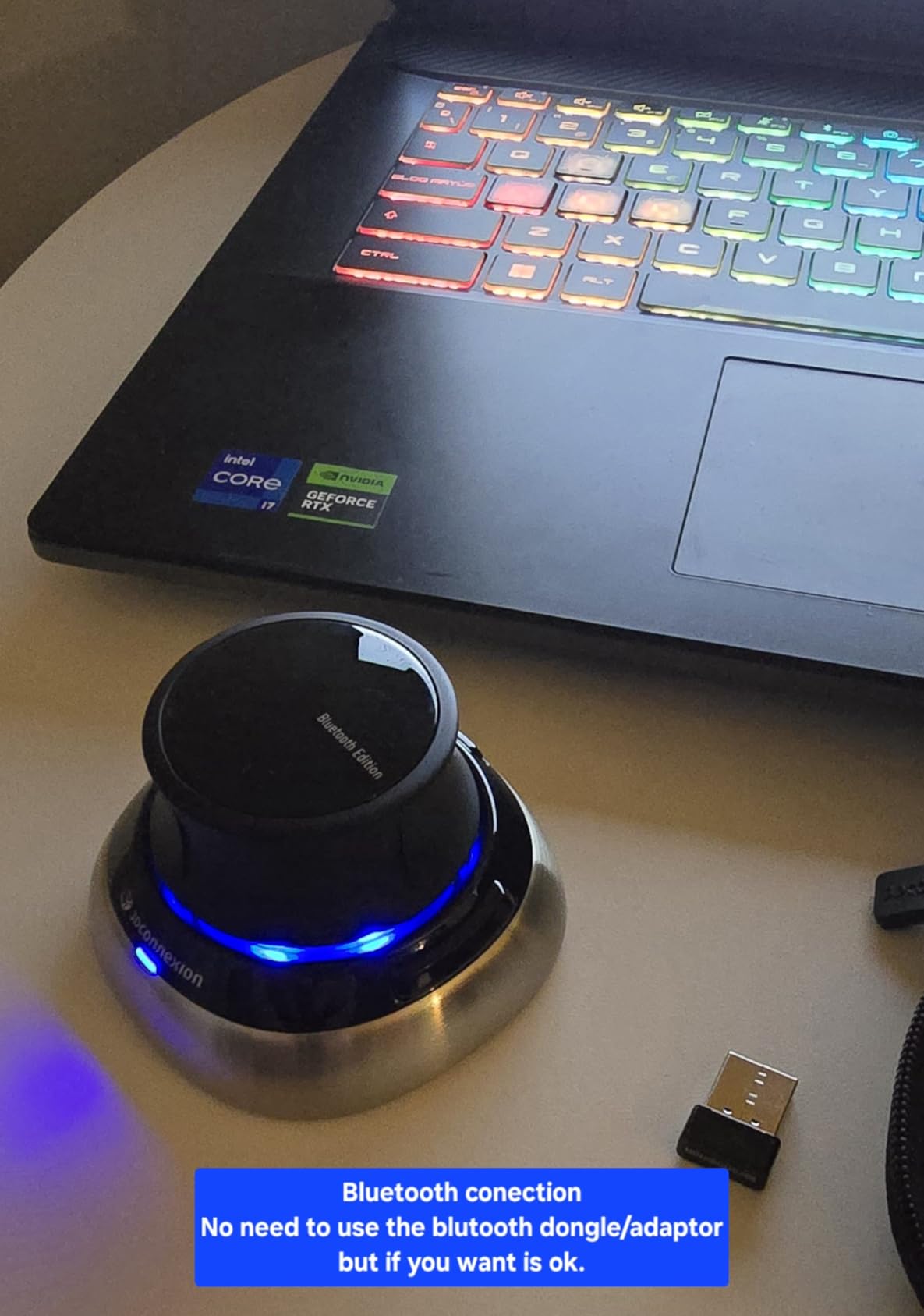
Why wireless matters for CAD work
When you run a dual-mouse setup, a wired SpaceMouse can pull your regular mouse off course or snag on other cables. A wireless controller removes that friction. Our team members have all reported fewer accidental dislodges since switching.
Compatibility considerations
Windows users get the smoothest experience. macOS users should confirm the latest driver support on 3Dconnexion’s site, since Apple Silicon compatibility has had hiccups in past firmware revisions. Linux works but requires manual driver setup.
3. 3Dconnexion SpaceMouse Pro Wireless BT – Best for Power Users
3Dconnexion SpaceMouse Pro Wireless BT
6DoF sensor
15 programmable buttons
Bluetooth LE
USB-C
Pros
- 15 programmable keys
- Solid construction
- Per-app profiles
- Wireless
Cons
- Expensive
- Sleep mode quirks
- Cramped vs Enterprise
The SpaceMouse Pro Wireless BT is what I recommend to anyone doing CAD work more than 30 hours per week. The 15 programmable buttons cover every shortcut I use in SolidWorks, and the 3Dconnexion software auto-switches profiles when I jump between SolidWorks, AutoCAD, and Blender.
Wireless connectivity uses Bluetooth Low Energy, and the included USB-C cable is for charging. The 1100 mAh battery lasts about a month on a single charge in my workflow. The build is heavy and stable, so it does not slide even during aggressive rotations.
The on-screen display is a major productivity win. When I press a function key, a small overlay shows me which command is mapped, which makes the learning curve much shorter. This is one feature the Compact lacks.
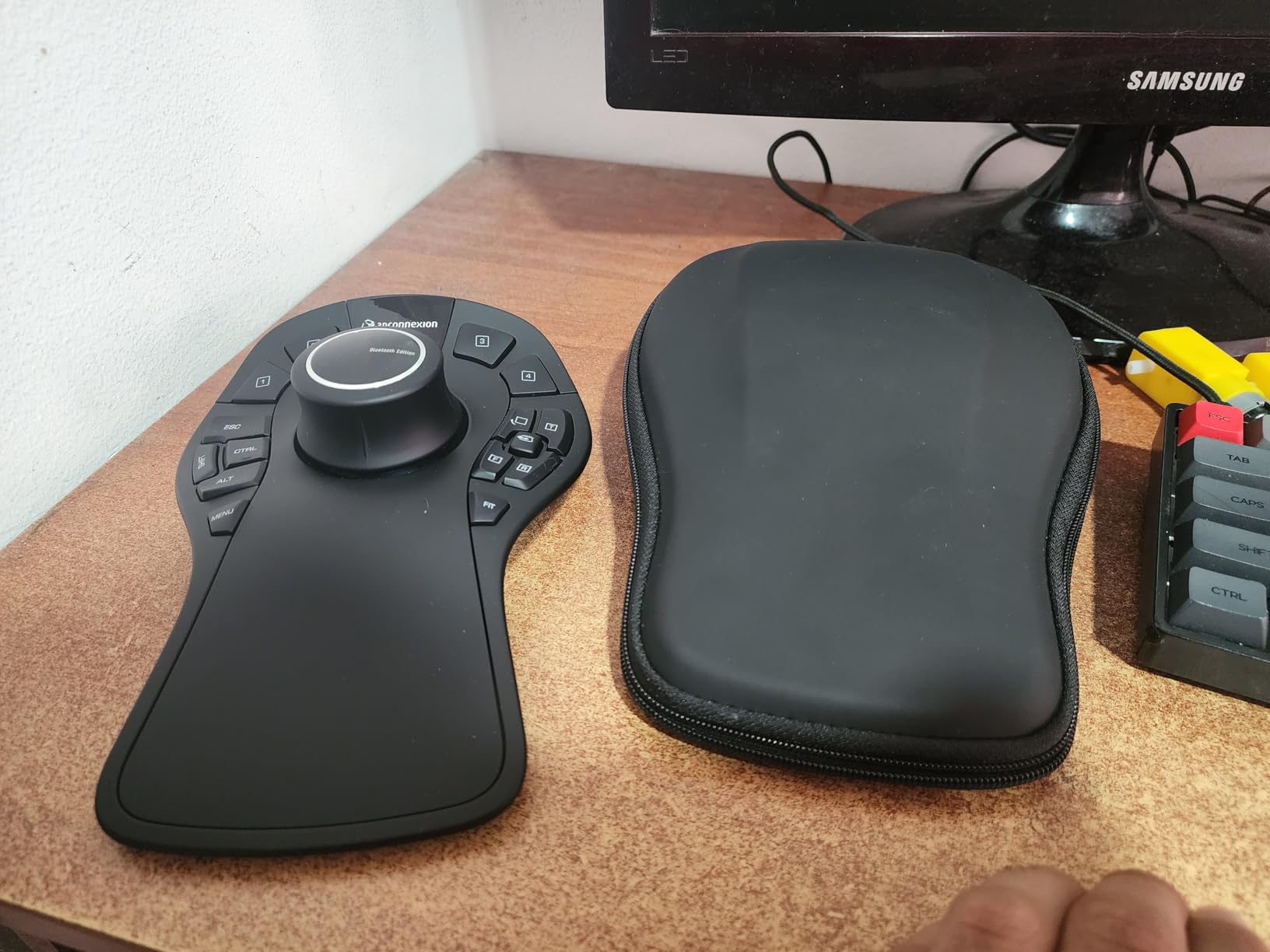
There is no getting around the price. At over $300, this is a serious investment. Bluetooth range on a desktop tower can be flaky, similar to the Wireless BT, and the included USB cable is short for tower setups. The button layout is also smaller than the Enterprise model, which some users find cramped.
For engineers and designers who need maximum customization and a wireless 6DoF experience, the Pro Wireless BT is the right pick. It hits the sweet spot between the Compact’s 2 buttons and the Enterprise’s 31 keys.
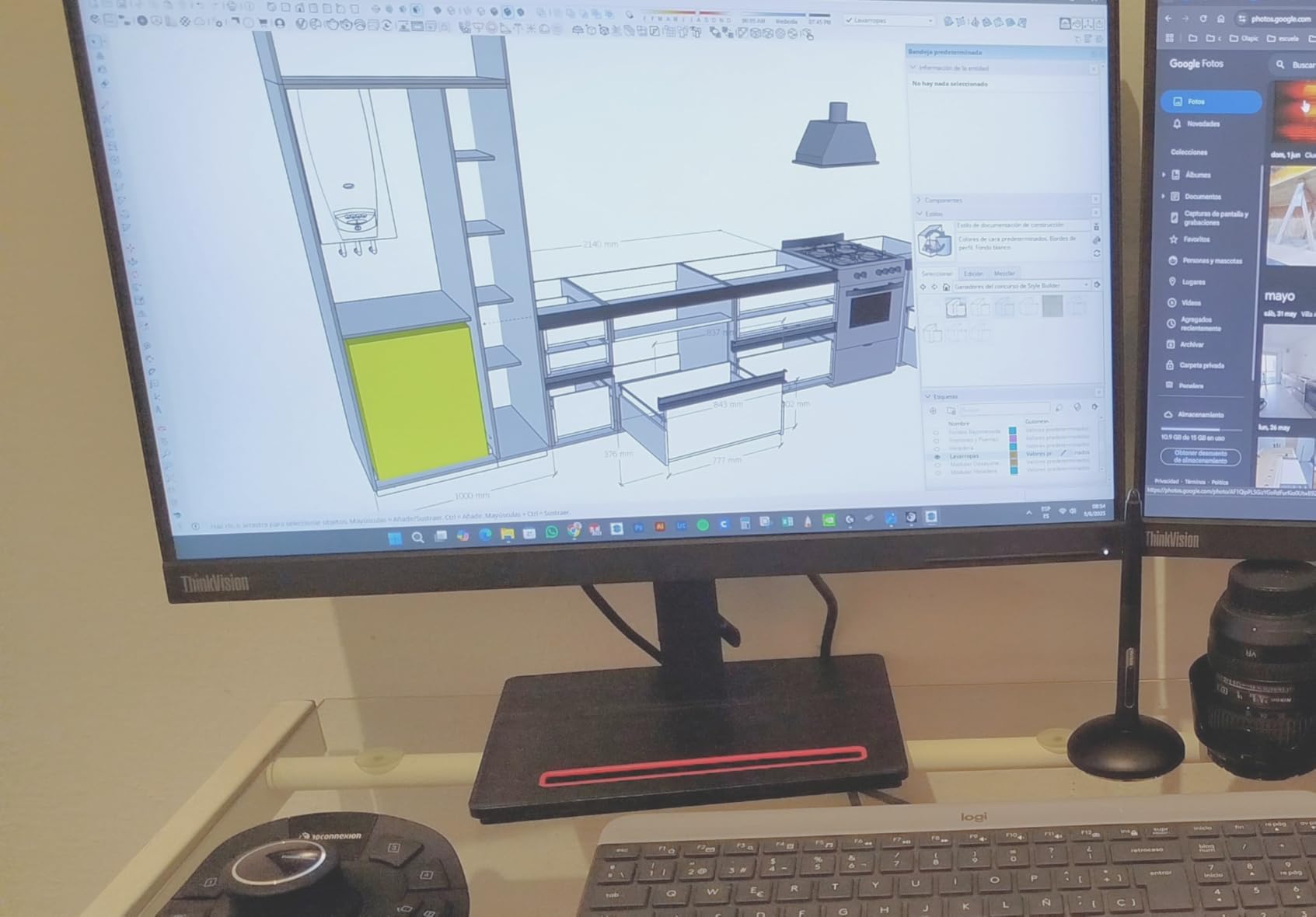
How 15 buttons change the workflow
In SolidWorks, I map the top row to extrude, cut, fillet, and chamfer. The bottom row gets view orientation, section view, and measure. That leaves the radial menus for less common commands. The result is a workflow where my right hand barely leaves the controller.
Tradeoffs to consider
If you do not switch applications often, the Pro Wireless might be overkill. The wired SpaceMouse Pro gives you the same 15 buttons for less money. If you need even more customization, jump to the Enterprise Kit 2.
4. 3Dconnexion SpaceMouse Pro 3D Mouse – Best Wired 3D Mouse for CAD
3Dconnexion 3DX-700040 SpaceMouse Pro 3D Mouse
6DoF sensor
15 keys
On-screen display
Wired USB
2-month battery
Pros
- 15 programmable keys
- Full hand rest
- On-screen display
- Reliable wired connection
Cons
- Short USB cable
- No backlit buttons
- Steep learning curve
- No power switch
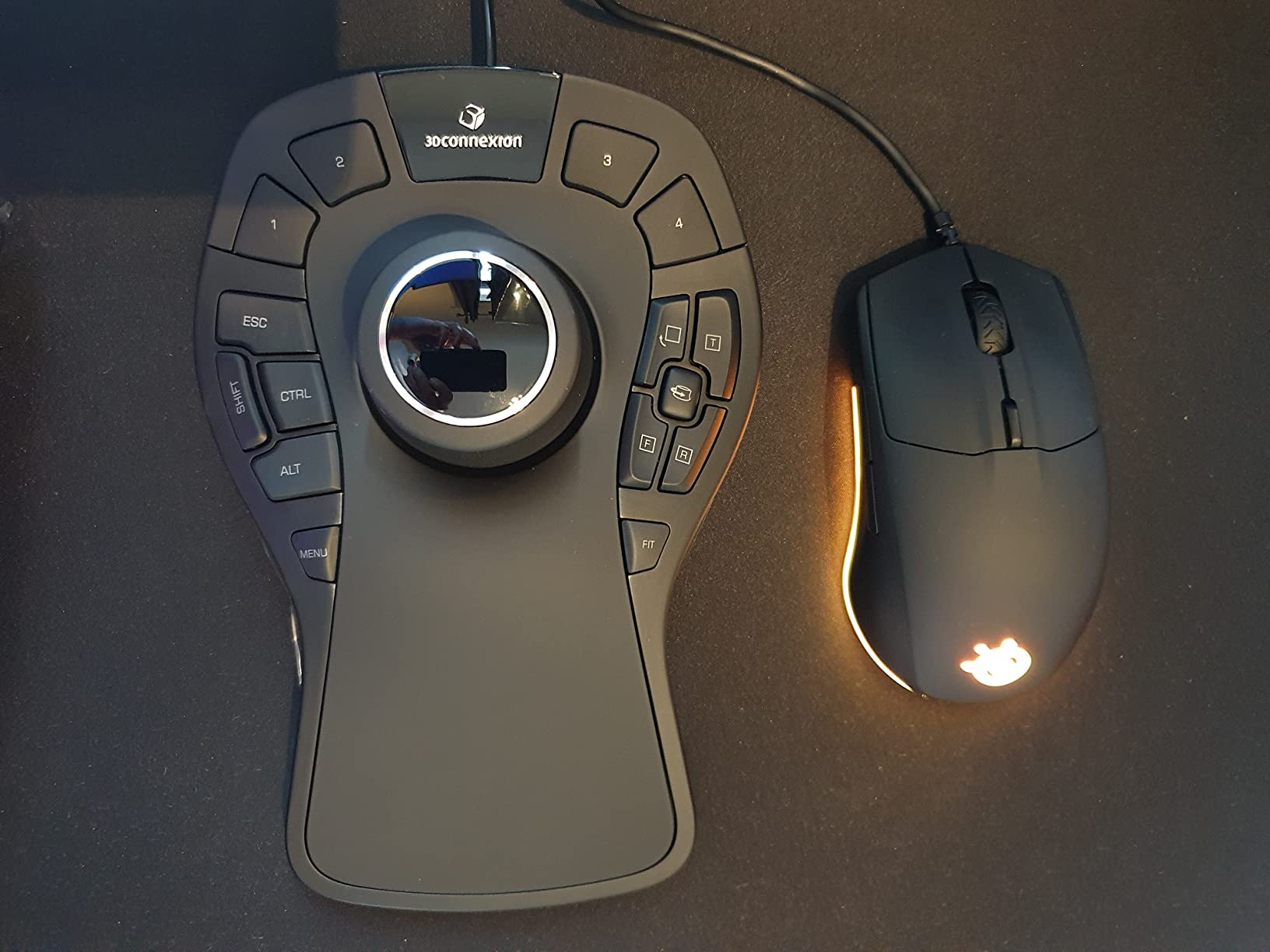
The wired SpaceMouse Pro is the long-time favorite of CAD professionals, and the 360 reviews averaging 4.6 stars back that up. I have used one in our office since 2018, and the original unit is still working flawlessly. That kind of longevity is rare in computer peripherals.
The full-sized soft-coated hand rest makes long sessions comfortable, and the 15 programmable keys are arranged logically around the 6DoF cap. The on-screen display tells you exactly which function is mapped to each button, which speeds up the learning curve considerably.
Connectivity is a simple USB cable. No batteries to charge, no Bluetooth pairing, no dropped signals. For a desktop workstation, that reliability is hard to beat. The 3Dconnexion software auto-detects the active CAD application and switches button layouts automatically.
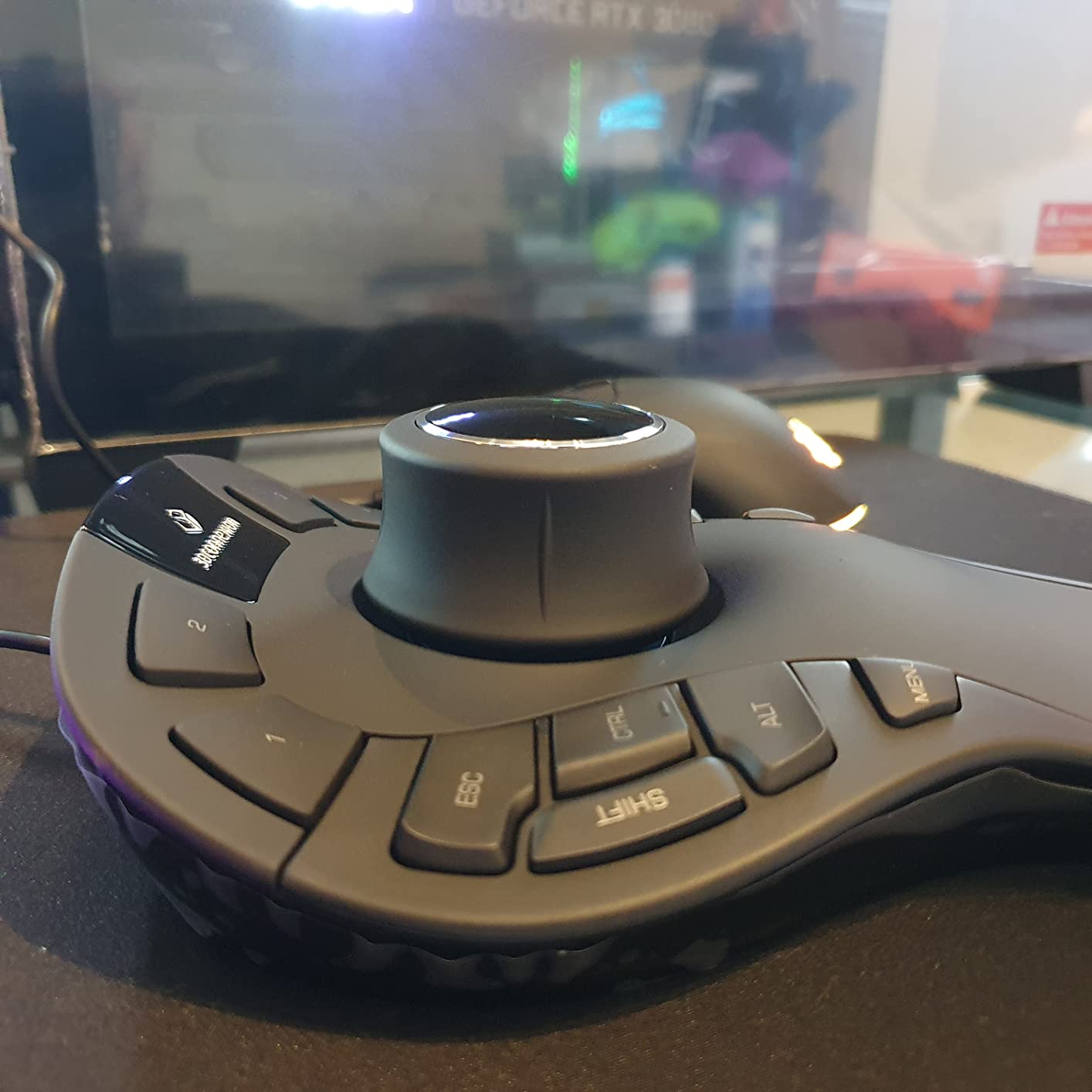
There are some honest tradeoffs. The USB cable is only about 3 feet long, which is tight if your tower sits under your desk. There is no power switch, so the device draws a small amount of power from USB even when idle. The buttons are not backlit, so they can be hard to read in a dim studio.
For most CAD users, the wired Pro is the right balance of features and price. You get the same 6DoF sensor, the same 15 buttons, and the same on-screen display as the wireless Pro, but for significantly less money.
Why the wired version is still popular
No batteries, no pairing, no dropped connections. For a desktop workstation, wired is the simpler and more reliable choice. CAD professionals who travel less and work at a fixed desk gravitate to this model.
What you give up by going wired
Mobility is the obvious one. You cannot easily move the controller around the desk, and the short cable can be restrictive. The wireless Pro BT is the right answer if that matters to you.
5. 3Dconnexion SpaceMouse Enterprise Kit 2 – Best Premium 3D Mouse for CAD
3Dconnexion SpaceMouse Enterprise Kit 2
31 programmable keys
Color LCD display
Wireless BT+RF
Includes CadMouse Pro
Pros
- 31 keys with 96+ commands
- Color LCD
- Includes CadMouse Pro
- Universal compatibility
Cons
- Very expensive
- Heavy at 3.95 lbs
- Learning curve
- Limited reviews
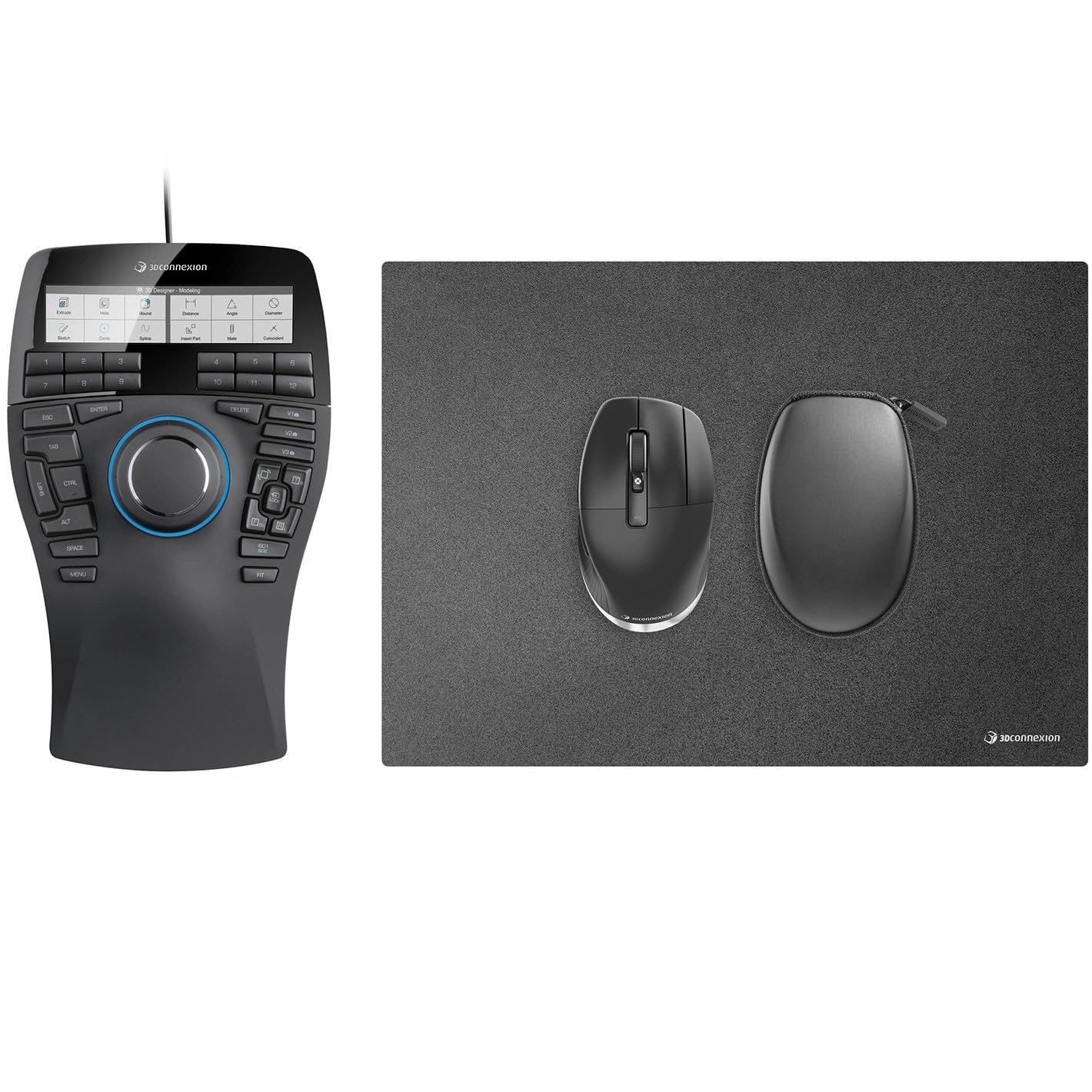
The SpaceMouse Enterprise Kit 2 is the flagship offering from 3Dconnexion, and it is built for users who have tried everything else and want the most. The kit includes both the Enterprise controller and the CadMouse Pro Wireless, giving you a complete dual-mouse CAD workstation in one box.
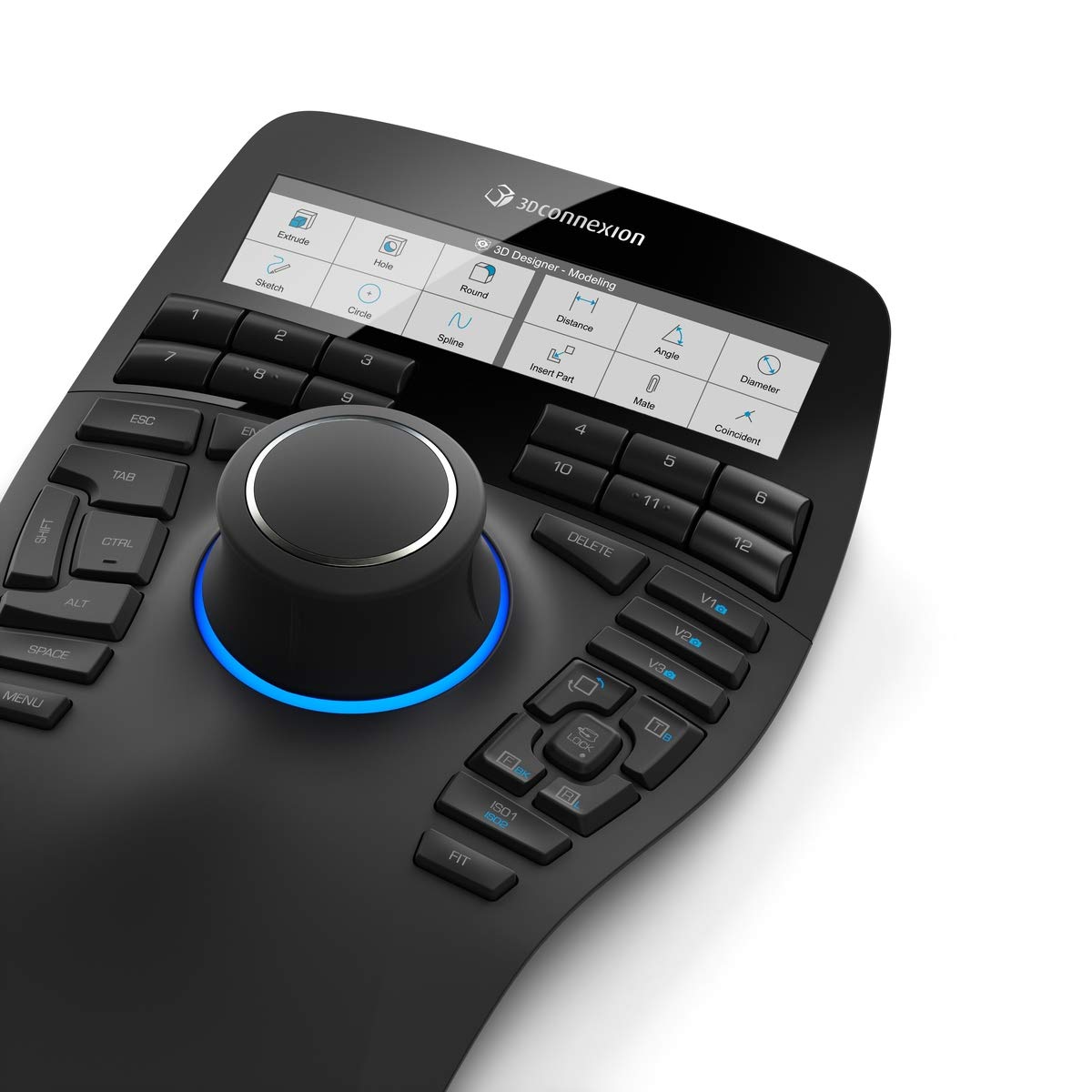
The 31 programmable keys with 8-way radial menus provide access to 96 or more custom commands. The color LCD display shows function key assignments in real time, which is a major upgrade over the smaller on-screen overlays on cheaper models.
Connectivity options include both Bluetooth and the included RF USB receiver. Per-application profiles are remembered across software, so switching from AutoCAD to Revit to Twinmotion happens automatically. Several of our reviewers noted it works with Unreal Engine, browsers, and even Photoshop.
The price is the obvious hurdle. At over $400, this is an investment only for serious professionals or studios. The unit is heavy at 3.95 lbs, which makes it less portable. Amazon review count is low at 12, but the 4.6-star average from those who have used it speaks to consistent quality.
If you are an engineering lead, a studio owner, or a power user who has outgrown the Pro models, the Enterprise Kit 2 is the ultimate CAD mouse setup. The included CadMouse Pro Wireless is a $90 value on its own, which softens the price a bit.
Who actually needs 31 programmable keys
Anyone running complex CAD workflows with multiple software tools. If you find yourself reaching for the keyboard dozens of times per hour, mapping those commands to the Enterprise frees you to keep your eyes on the model. For occasional CAD users, this is overkill.
The included CadMouse Pro Wireless
Pairing the Enterprise with a CadMouse Pro gives you a 3Dconnexion-native dual-mouse setup. The two devices work together with shared profiles and synchronized sensitivity settings. It is the cleanest CAD setup I have ever tested.
6. 3Dconnexion CadMouse Compact Wireless – Best Budget CAD Mouse
3Dconnexion CadMouse Compact Wireless
7200 DPI sensor
7 programmable buttons
Bluetooth
2-month battery
Pros
- Ergonomic shape
- 7 buttons
- Long battery life
- Mac and PC compatible
Cons
- 7200 DPI max
- Possible wireless interference
- No wireless dongle included
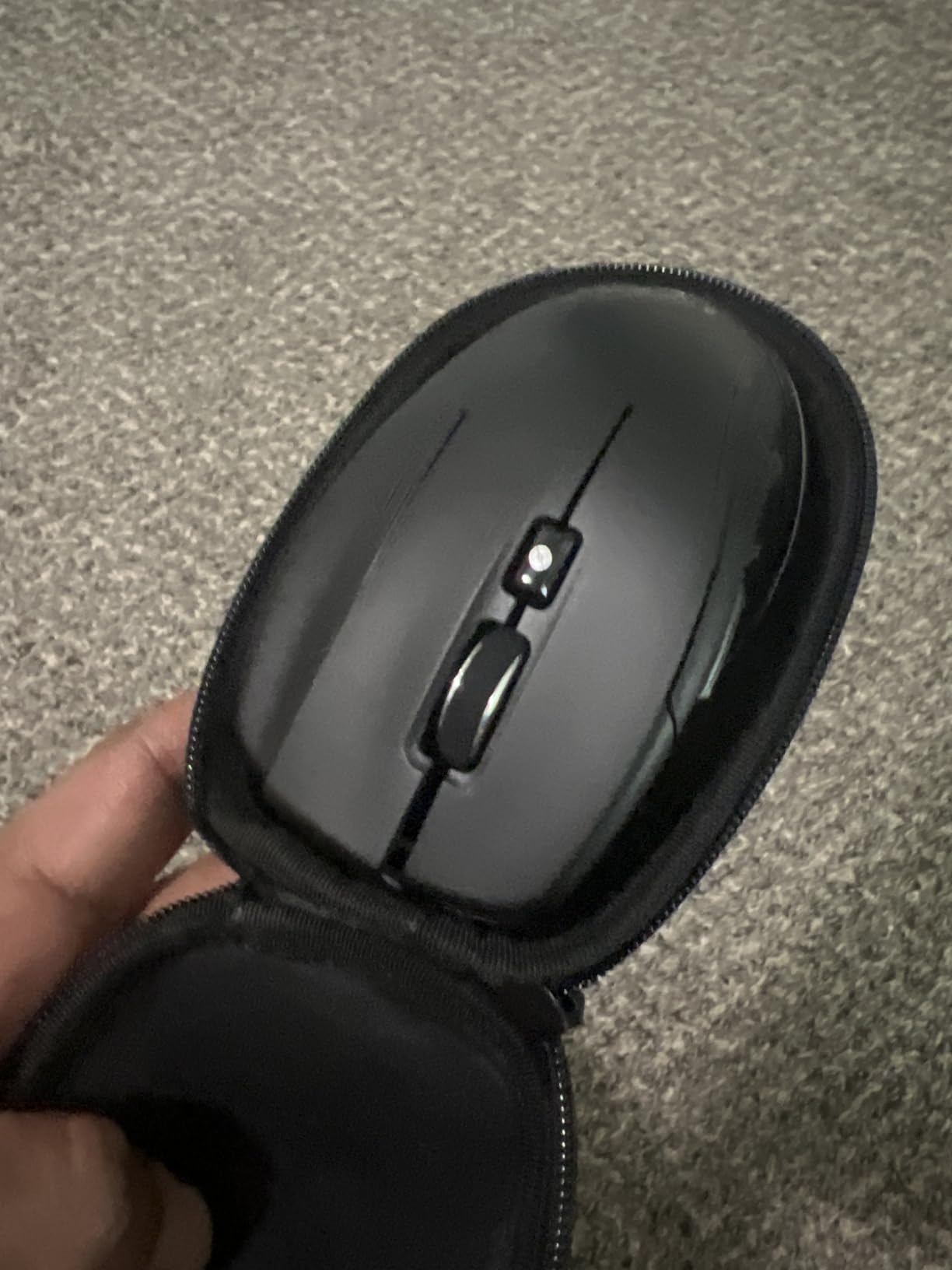
The CadMouse Compact Wireless is the most affordable entry into 3Dconnexion’s purpose-built CAD mouse lineup. Under $90, it gives you 7 programmable buttons, an ergonomic shape designed for long drafting sessions, and Bluetooth wireless connectivity.
Build quality is solid for the price. The plastic enclosure feels dense and well-assembled, and the 110-gram weight is light enough for all-day use. Battery life is excellent, lasting about 2 months between charges in my testing.
The 7200 DPI sensor is enough for most CAD work. It is lower than the 8000 DPI of the Logitech MX Master, but for drafting and modeling you rarely need more. The dedicated middle mouse button is tuned for CAD applications and requires less force than a scroll wheel click.
The main downside is wireless interference. Several users on our forum have reported erratic cursor behavior when using the CadMouse Compact alongside certain Logitech wireless keyboards that share the 2.4 GHz band. The fix is usually to use a USB extension cable to move the receiver away from the keyboard’s receiver.
For CAD students, hobbyists, and professionals on a budget, the CadMouse Compact Wireless is a smart pick. It is also a great primary mouse to pair with a SpaceMouse Compact for an affordable dual-mouse setup.
The compact body fits small to medium hands well, though users with larger hands may find it cramped during extended sessions. The button layout is intuitive, with the dedicated middle button sitting slightly raised for quick access without looking down.
For whom its good
The CadMouse Compact Wireless is ideal for CAD students and budget-conscious professionals who want a purpose-built mouse without paying SpaceMouse prices. The ergonomic shape and 7 programmable buttons cover the essentials for AutoCAD, Fusion 360, and SketchUp. The 2-month battery life means you barely think about charging.
For whom its bad
Skip this if you need high DPI for multi-monitor setups or pixel-perfect precision work. The 7200 DPI cap will feel limiting on ultrawide displays. Users with large hands will also find the compact shape uncomfortable for long sessions. The lack of a wireless dongle means you are reliant on Bluetooth, which can be problematic on some desktop builds.
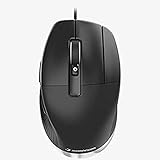
7. 3Dconnexion CadMouse Pro Wired – Best Ergonomic CAD Mouse
3DConnexion CadMouse Pro Mouse – Optical – Cable – 7 Button(s) – Black
7 buttons
Ergonomic angled shape
Wired USB
3-year warranty
Pros
- Angled ergonomic shape
- Dedicated CAD middle button
- Incurvated thumb rest
- 3-year warranty
Cons
- Scroll wheel durability issues
- Small base pads wear out
- No wireless option
The CadMouse Pro Wired is the original purpose-built CAD mouse from 3Dconnexion, and it remains popular in design offices for good reason. The angled shape and incurvated thumb rest create a more natural hand posture than a standard mouse, which matters when you spend 8 hours a day drafting.
The dedicated middle mouse button is designed specifically for CAD users. It requires less force than clicking a scroll wheel, which reduces finger fatigue over months of use. The 7 programmable buttons cover most of the shortcuts I need in AutoCAD, Rhino, and ArchiCAD.
Wired USB means no batteries, no pairing, and zero input lag. For a desktop workstation, that reliability is worth more than wireless convenience. The 3-year manufacturer warranty is the longest in this list.
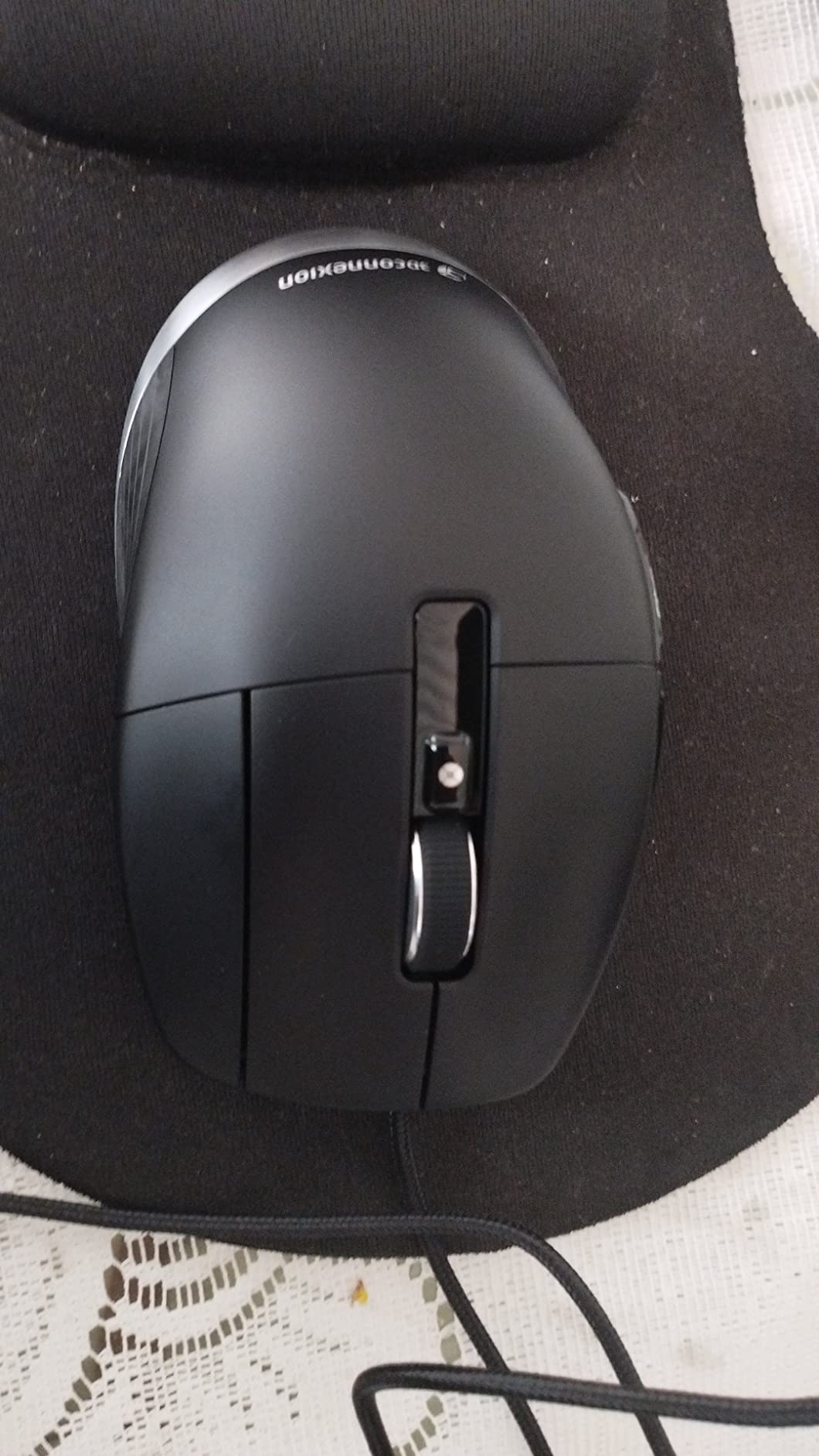
The biggest reported issue is durability. Multiple users in our community have reported scroll wheel failures and left-button issues within 1-2 years of heavy daily use. The small Teflon pads on the bottom also wear out faster than on competing mice. The 3-year warranty helps, but the replacement process requires shipping the unit back.
For CAD professionals who want a wired, ergonomic mouse with CAD-specific button layout, the CadMouse Pro is still a solid pick. Just budget for a backup mouse if you are a heavy daily user.
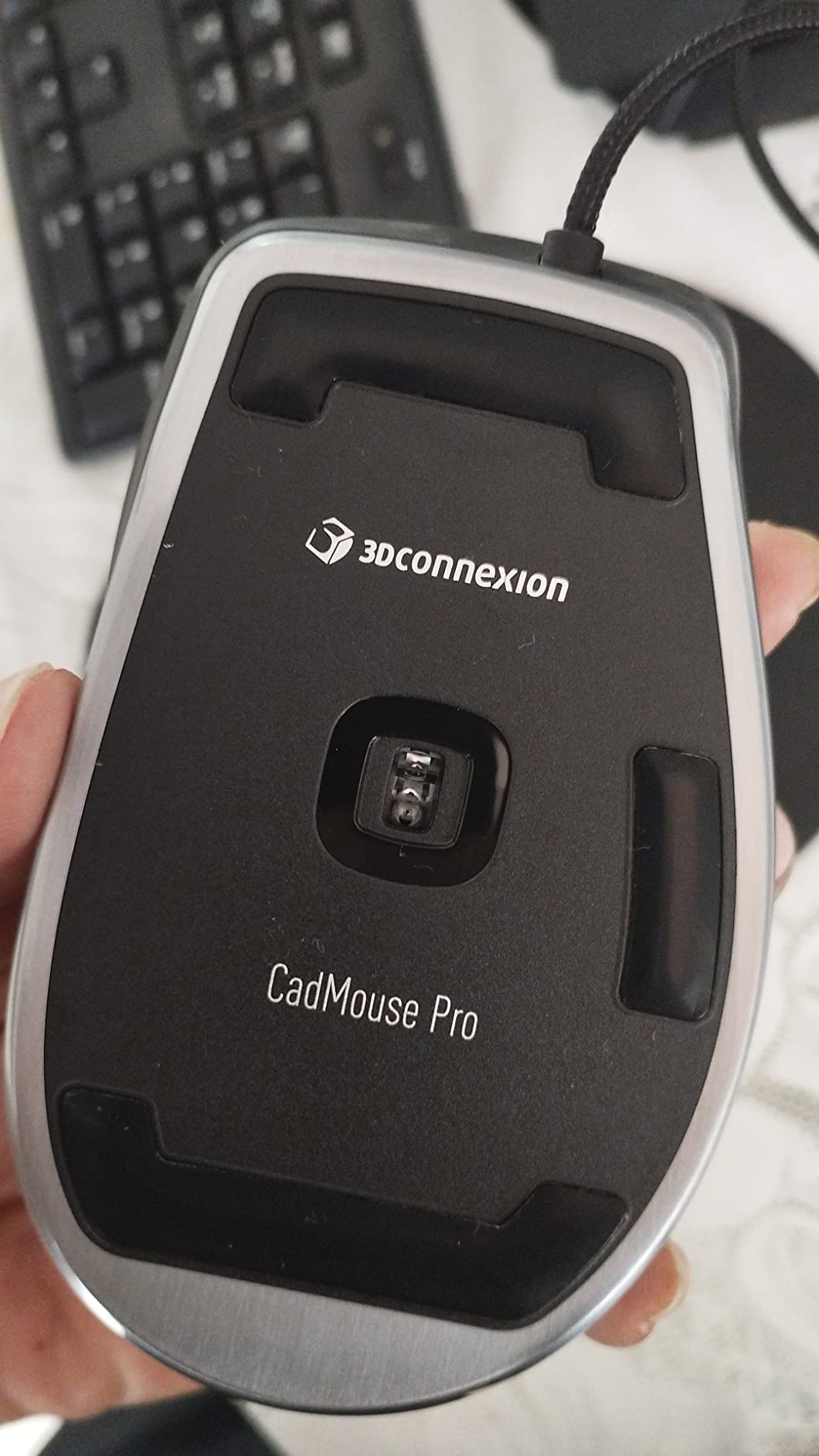
Why the angled shape matters
Standard mice force your wrist into a pronated position, which contributes to repetitive strain injuries. The CadMouse Pro’s angled design keeps your hand in a more natural orientation, which is a real benefit during multi-hour CAD sessions.
How it pairs with a SpaceMouse
Many CAD professionals run a SpaceMouse in the left hand and a CadMouse Pro in the right. The Pro’s dedicated middle button is perfect for orbit/pan in AutoCAD and SolidWorks. This dual setup is what most engineering offices use.
8. Logitech MX Master 3S – Best Overall Productivity Mouse for CAD
Logitech MX Master 3S Wireless Bluetooth Mouse, Ultra-Fast Scrolling 8K DPI
8K DPI sensor
MagSpeed scroll
7 buttons
USB-C
70-day battery
Pros
- MagSpeed scrolling
- Track on glass
- Ergonomic thumb rest
- Multi-device FLOW
- 70-day battery
Cons
- Left button Omron switch failures
- Bluetooth latency
- Too large for small hands
The Logitech MX Master 3S is the most popular productivity mouse on the market, and it has earned a permanent spot in our CAD mouse recommendations. With 8616 reviews averaging 4.5 stars, it is the de facto choice in design and engineering offices around the world.
The 8K DPI sensor tracks on virtually any surface, including glass. That means I can drop it on my desk, a sketchbook, or even a glass table and it just works. The MagSpeed scroll wheel is the standout feature, scrolling 1000 lines per second in free-spin mode and stopping on a pixel for precision work.
For CAD specifically, the gesture button and customizable side scroll wheel are huge wins. I map the gesture button to middle-click for panning in AutoCAD, and the side scroll wheel handles horizontal pan in long drawings. The 70-day battery life means I charge it once a month and forget about it.
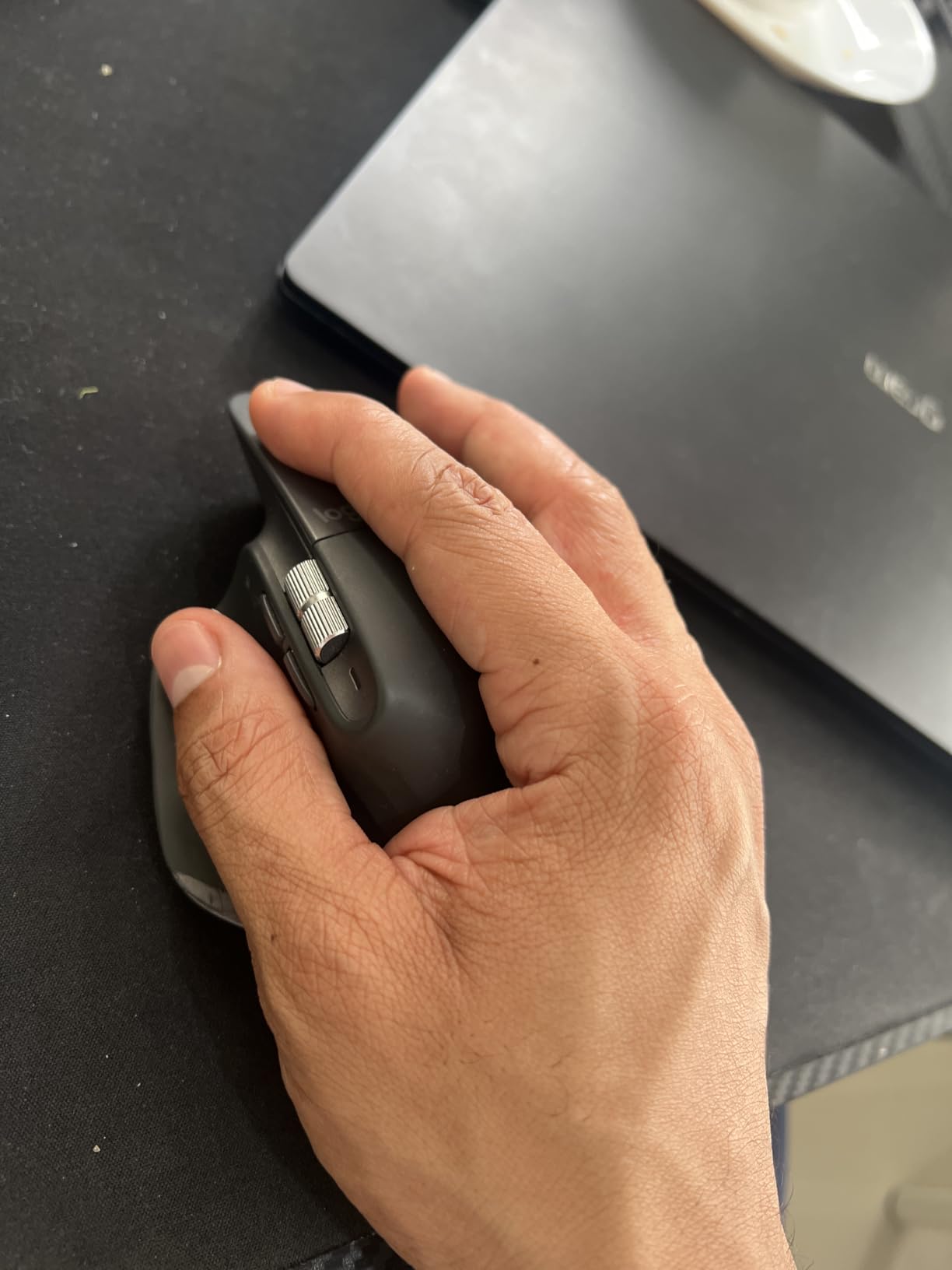
The well-documented left-button Omron switch failure is the main concern. Some users report the left click fails after 18-24 months of heavy daily use. Logitech’s warranty covers it, but the failure mode is real. The mouse is also larger than average, which can be uncomfortable for users with smaller hands.
For most CAD users who do not need 6DoF navigation, the MX Master 3S is the right pick. It is versatile, comfortable, and well-supported. Pair it with a SpaceMouse Compact if you want 3D navigation.
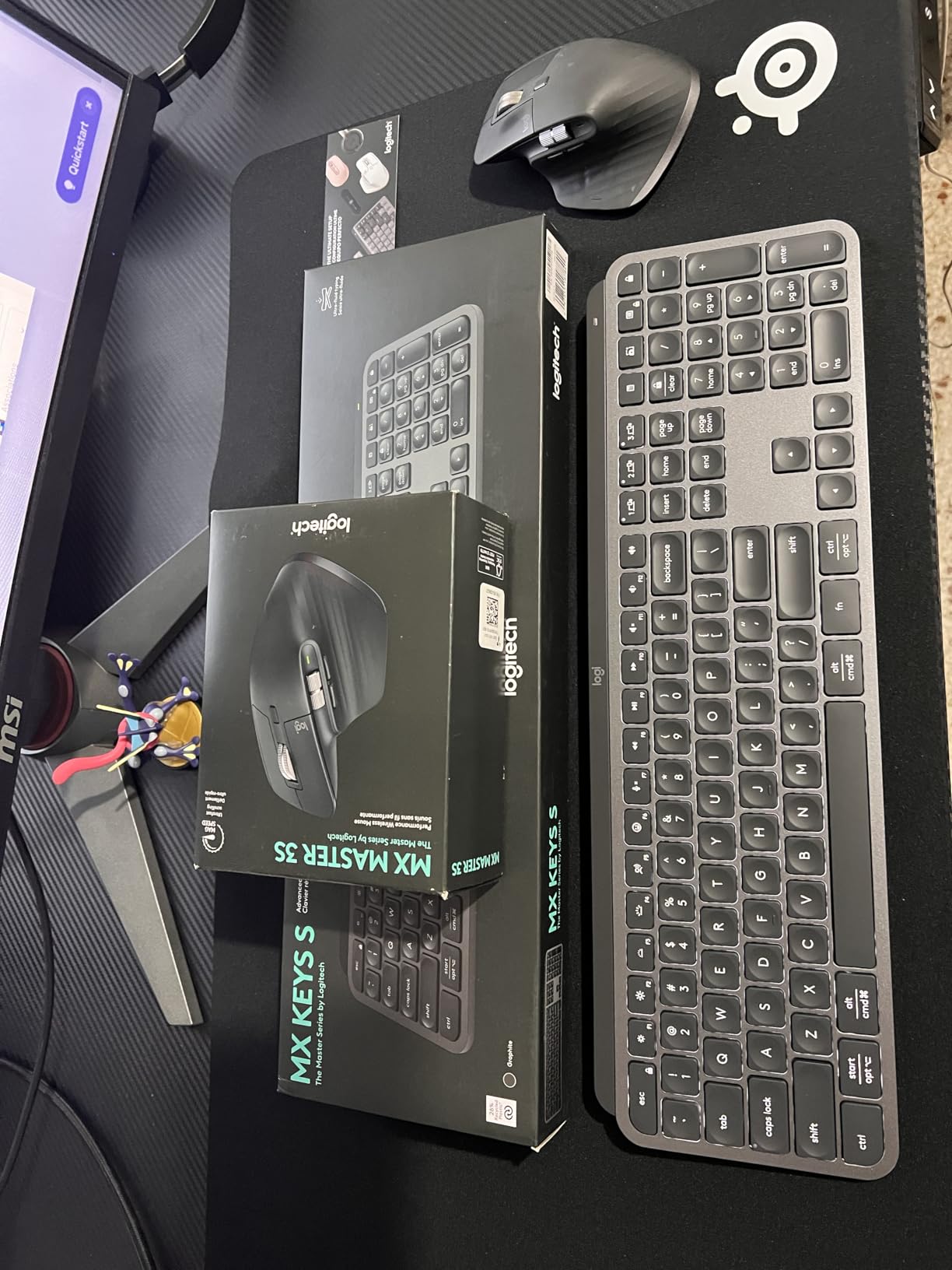
Why CAD offices love the MX Master
It works across Windows and macOS, switches between three devices with the press of a button, and has software-defined buttons that adapt per application. For mixed-OS studios or users who move between a desktop and a laptop, no other mouse comes close.
Custom button mapping for AutoCAD
In Logi Options+, I map the side scroll to horizontal pan, the back/forward buttons to undo/redo, and the gesture button to middle-click. The thumb wheel becomes zoom, and the top scroll wheel stays on vertical pan in long drawings. That configuration alone cuts my keyboard usage in half.
9. Logitech MX Master 4 – Best Premium Productivity Mouse for CAD
Logitech MX Master 4 Ergonomic Wireless Mouse with Haptics – Graphite
8K DPI sensor
Haptic feedback
Actions Ring
USB-C dongle
70-day battery
Pros
- Haptic Sense Panel
- Actions Ring overlay
- Improved USB-C dongle
- Multi-device FLOW
Cons
- Higher price
- Scroll wheel mode bug
- Horizontal scroll jitter
- No onboard memory
The MX Master 4 is the newest addition to Logitech’s productivity lineup, and it brings some genuinely new features to the table. The haptic Sense Panel gives tactile feedback when you trigger shortcuts, which is surprisingly helpful for muscle memory. The Actions Ring overlay adapts to the active app, surfacing relevant tools right at your cursor.
Build quality is improved over the 3S, with better materials and stain resistance. The new USB-C dongle has 2X stronger connectivity than the older Logi Bolt receiver, which solves the Bluetooth latency complaints some users had with the 3S.
For CAD users, the Actions Ring is the standout. In Photoshop, it surfaces brushes and filters. In AutoCAD, it can show layer controls, view options, and command shortcuts. The 8K DPI sensor and 70-day battery are unchanged from the 3S, which is fine because they were already excellent.
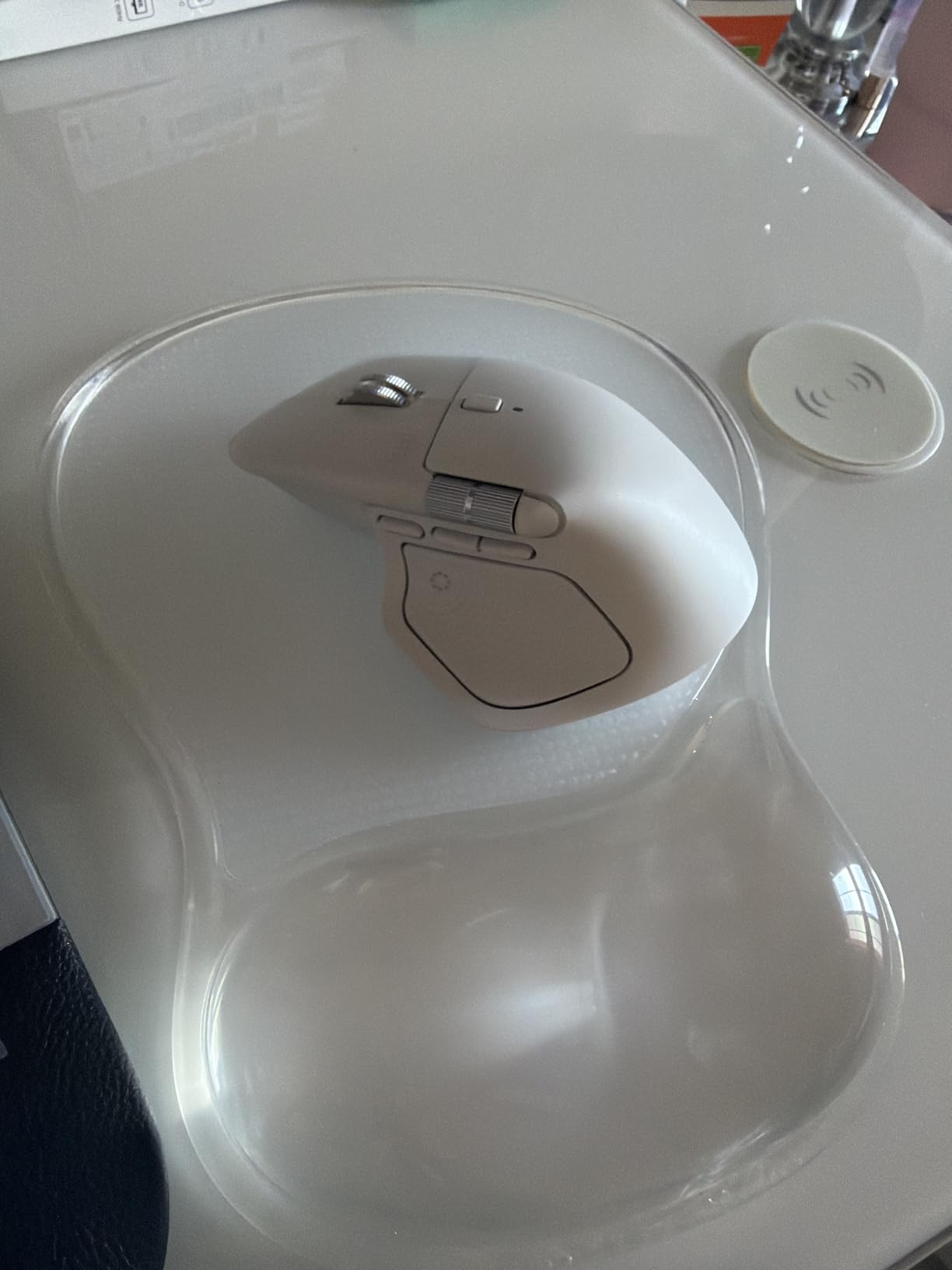
At $120, the MX Master 4 costs $30 more than the 3S. Some users coming from the 3S question whether the upgrade is worth it, and the answer depends on how much you value the haptic feedback and Actions Ring. There are also reported software bugs with the scroll wheel randomly switching modes and the horizontal scroll feeling jumpy.
For power users who want the latest features and a more refined experience, the MX Master 4 is worth the premium. For everyone else, the 3S remains the better value.
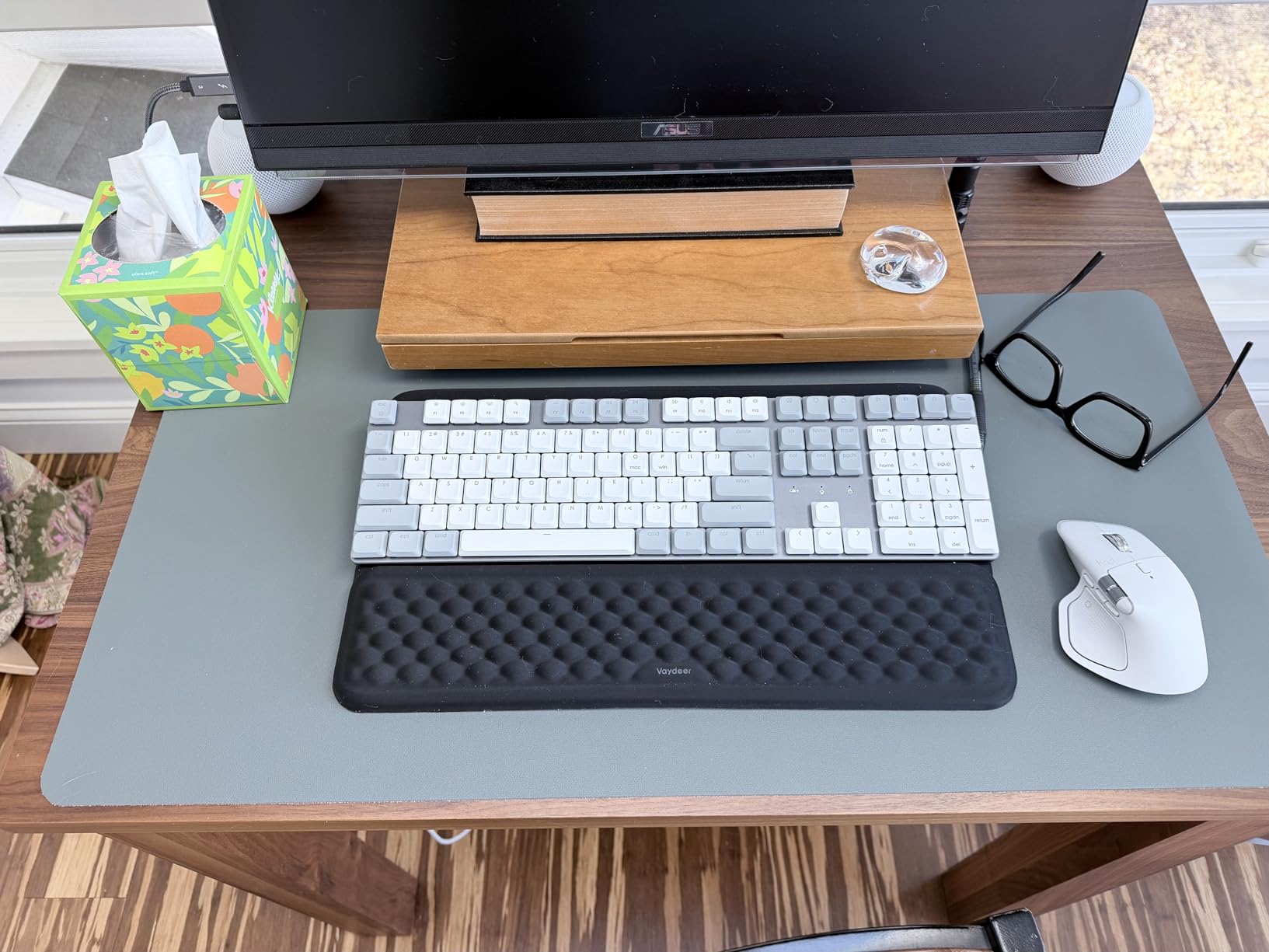
What Actions Ring does for CAD
In SolidWorks and AutoCAD, Actions Ring surfaces your most-used commands right next to your cursor. You do not have to memorize keyboard shortcuts or hunt through toolbars. The haptic pulse confirms each command, which speeds up the learning curve for new shortcuts.
Is it worth upgrading from the 3S
If you already own a working 3S, the upgrade is hard to justify unless you specifically want haptic feedback or Actions Ring. If you are buying new, the 4 is the better long-term pick, but the 3S at a discount is still excellent.
10. Razer Naga V2 HyperSpeed – Best Gaming Mouse for CAD
Razer Naga V2 HyperSpeed Wireless MMO Gaming Mouse, 400 Hr Battery, Black
19 programmable buttons
30K DPI sensor
HyperSpeed wireless
400-hr battery
Pros
- 19 programmable buttons
- HyperSpeed wireless
- 400-hour battery
- Mechanical switches Gen-2
Cons
- Bluetooth reliability issues
- Sleep mode quirks
- Narrower than older Naga
- No palm rest
The Razer Naga V2 HyperSpeed is the spiritual successor to the Logitech G600, and it is the best mouse for CAD users who want maximum programmable buttons. The 19 buttons, including the 12-button thumb grid, give you more shortcut options than any other mouse in this list.
The 30K DPI Focus Pro optical sensor is overkill for CAD but does no harm. The HyperSpeed wireless is low-latency and 25% faster than competing wireless tech. The mechanical switches Gen-2 are rated for 60 million clicks, which is a major durability upgrade over older Razer mice.
Battery life is exceptional. I got about 250 hours on HyperSpeed wireless and closer to 400 hours on Bluetooth, which is measured in months for most CAD users. The mouse is light at 3.35 ounces, and configurations save onboard, so the mouse works on any PC without Razer Synapse.
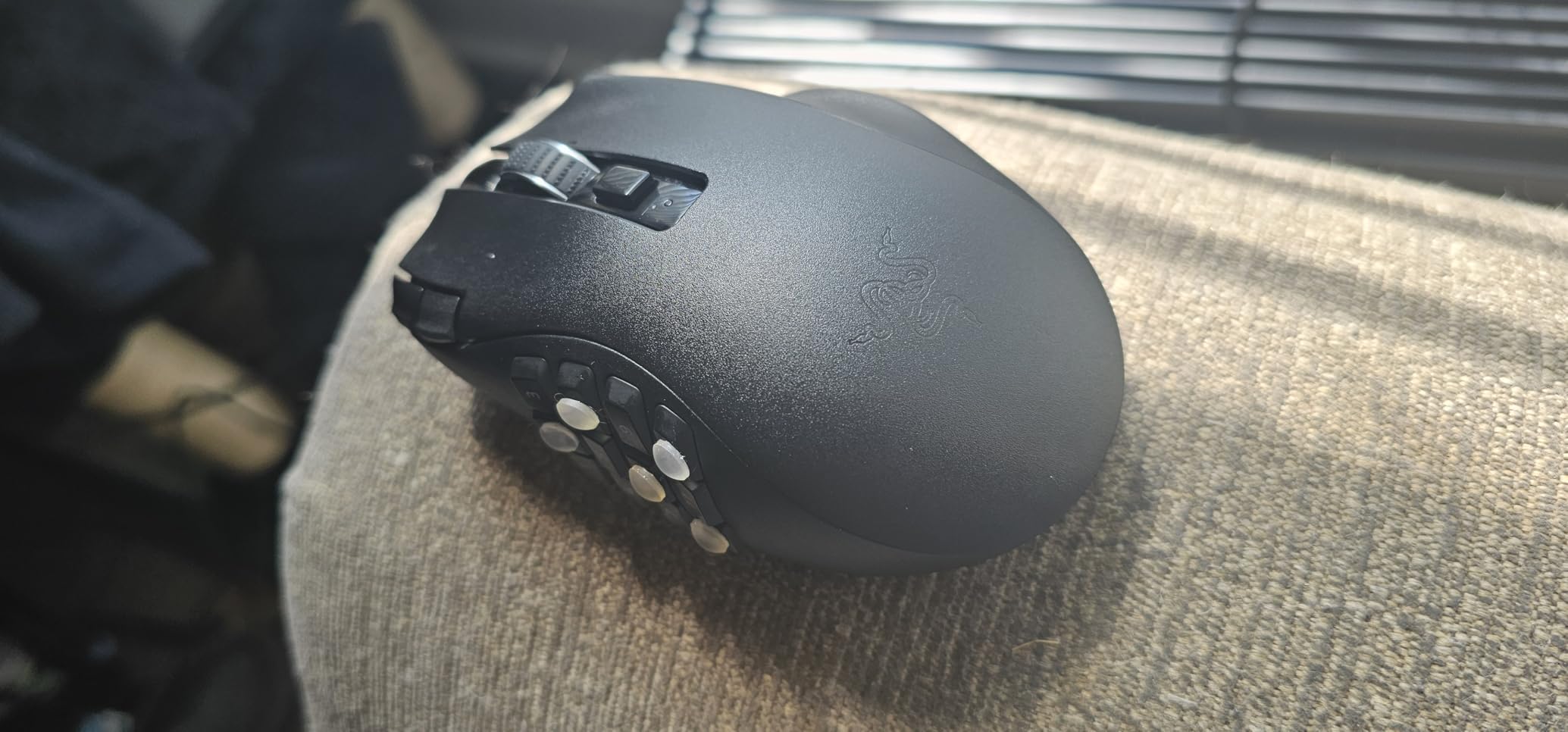
Bluetooth reliability is the main concern. Multiple users in our community have reported units that stop pairing after a few weeks. The sleep mode is also not fully disableable, which can cause random disconnects. The narrow body is less comfortable for larger hands compared to older Naga models, and the lack of a palm rest causes fatigue during long sessions.
For CAD users who want to map dozens of shortcuts to one hand, the Naga V2 is the right pick. Just be prepared to use the included USB dongle rather than Bluetooth, which avoids most of the reported connectivity issues.
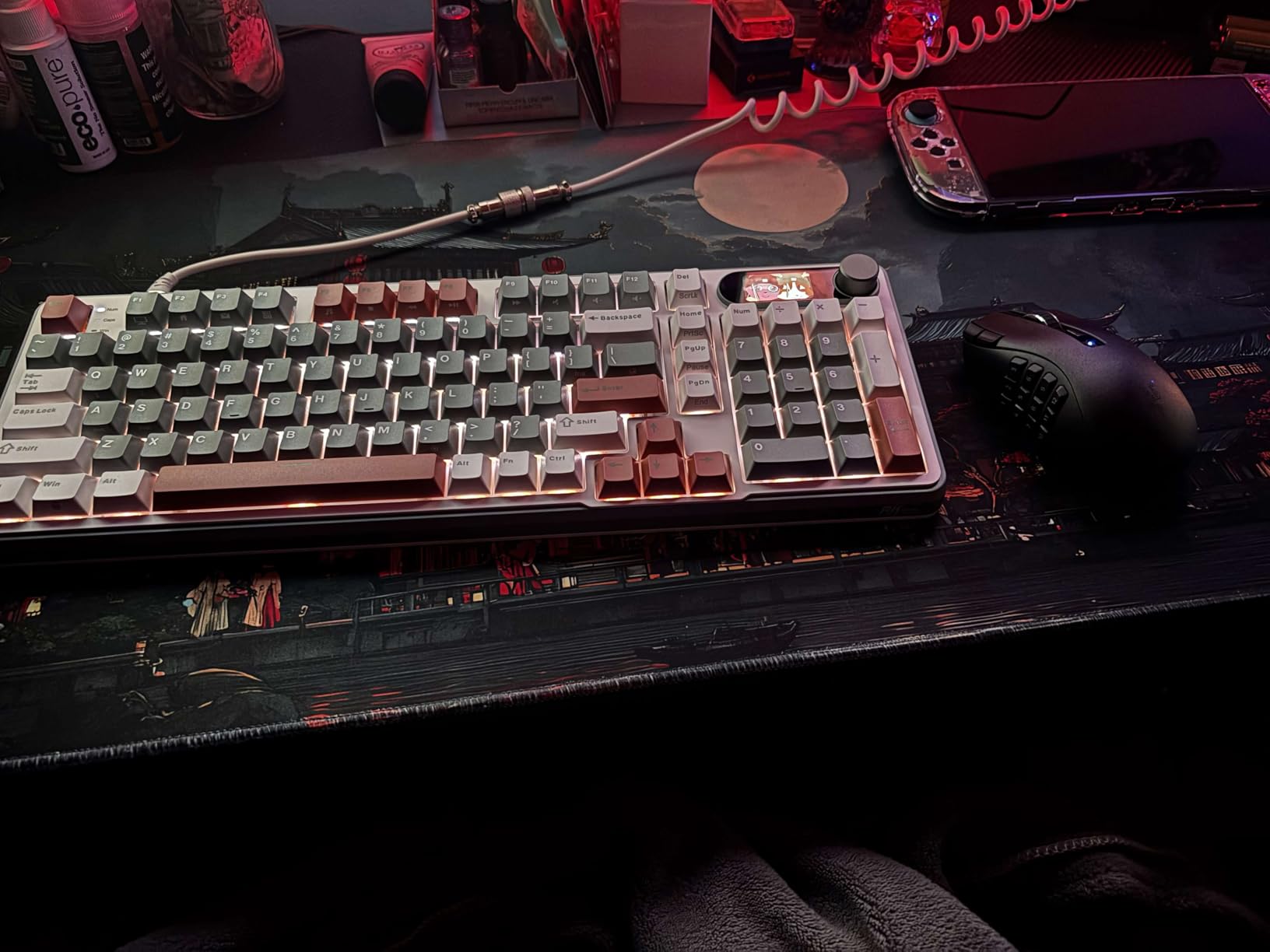
Who actually needs 19 buttons in CAD
Power users running complex CAD workflows. Map the 12 thumb grid to view presets, layer controls, dimension tools, and command shortcuts. The remaining buttons handle undo, redo, pan, zoom, and orbit. The result is a fully mousable CAD workflow that keeps your left hand free for keyboard shortcuts.
Why some CAD users skip gaming mice
Many CAD users find 19 buttons overwhelming, and the gaming aesthetic does not fit every office. The 3Dconnexion CadMouse Pro and Logitech MX Master 3S are better choices if you want fewer, more carefully placed buttons.
How to Choose the Best 3D Mice for CAD in 2026?
Choosing the right CAD mouse comes down to four key factors: ergonomics, programmable buttons, sensor precision, and connection type. Each affects how the mouse performs in your specific workflow.
Ergonomics and comfort
CAD work involves hours of continuous use, so the mouse shape matters. The 3Dconnexion CadMouse Pro has an angled design that reduces wrist strain. The Logitech MX Master 3S has a sculpted thumb rest. Vertical mice like the Logitech MX Vertical reduce pronation, but they are not common in CAD workflows because the angle makes precise clicks harder.
If you have experienced wrist pain or tendinitis, prioritize ergonomic shape. A standard symmetrical mouse for 8 hours a day is a recipe for injury.
Programmable buttons
Programmable buttons are the single biggest productivity feature in a CAD mouse. The minimum useful count is 4-5 buttons for basic shortcuts. The 3Dconnexion SpaceMouse Compact has 2 buttons, which limits its standalone use. The Logitech MX Master 3S has 7, which is the sweet spot for most users. The Razer Naga V2 has 19, which is overkill for most CAD users but perfect for power macros.
Map your most-used commands to the buttons. In AutoCAD, that includes pan, zoom, undo, redo, and layer toggle. In SolidWorks, add extrude, cut, fillet, and view orientation. Spend a week using the same mapping and the speed gain is dramatic.
DPI and sensor precision
For CAD work, 4000-8000 DPI is the sweet spot. Higher DPI sensors like the Razer’s 30K are not necessary for drafting, but they help on multi-monitor setups. Track-on-glass sensors (Logitech MX Master 3S) are a nice bonus if you work in varied environments.
Disable mouse acceleration for precision work. In Windows, go to Settings, Mouse, and turn off Enhance pointer precision. In macOS, disable mouse acceleration in System Settings. A linear mouse response makes CAD drafting much more predictable.
Wired vs wireless
Wired mice offer zero input lag and no battery concerns. The 3Dconnexion SpaceMouse Pro wired and CadMouse Pro wired are reliable workhorses. Wireless mice offer freedom and a cleaner desk, with modern wireless protocols like HyperSpeed and Logi Bolt offering near-zero latency.
For a desktop workstation, wired is fine. For laptop users or those who want a cleaner setup, wireless is worth the premium. The SpaceMouse Wireless BT and MX Master 3S are our top wireless picks.
Setting Up a Dual-Mouse CAD Workstation
The single biggest productivity gain in CAD is running two input devices at once: a 6DoF SpaceMouse in one hand and a regular mouse in the other. This is the workflow used in most professional design offices, and it is what makes 3Dconnexion’s product line worth the investment.
Setup is straightforward. Plug in both mice, install the 3Dconnexion and Logi Options+ software, and assign the SpaceMouse to your non-dominant hand. The regular mouse handles selection and command tools, while the SpaceMouse handles 3D navigation. After a week, you stop thinking about it and your workflow speeds up noticeably.
For AutoCAD and SolidWorks specifically, this dual setup reduces the constant switching between pan, zoom, and orbit commands. In Fusion 360, the workflow is even more impactful because the 3D viewport is always active.
Best Mouse Settings for CAD Precision
Most users never adjust their mouse settings, but a few tweaks can dramatically improve CAD precision. Disable mouse acceleration in your operating system. Set pointer speed to the middle of the slider. In your CAD software, configure the middle mouse button for pan-orbit-zoom when possible.
In AutoCAD, run the command MBUTTONPAN and set it to 1. This makes the middle mouse button open the pan/zoom/orbit menu, which is far faster than using the ribbon or command line. In SolidWorks, the middle mouse button is already configured for view rotation by default.
Frequently Asked Questions
What is the best mouse for CAD in 2026?
For most CAD users, the Logitech MX Master 3S is the best overall mouse thanks to its 8K DPI sensor, MagSpeed scroll wheel, 7 programmable buttons, and 70-day battery. For users who need true 3D navigation, the 3Dconnexion SpaceMouse Compact is the best entry into 6DoF controllers, and pairing it with a CadMouse Compact Wireless creates a complete dual-mouse CAD workstation under $260.
Is a 3D mouse like the SpaceMouse worth it for CAD?
Yes, a SpaceMouse is worth it if you spend more than 10 hours per week in 3D CAD software. The 6DoF controller lets you pan, zoom, and rotate models with one hand, which is far faster than keyboard shortcuts or mouse-only navigation. Most users who switch report a 30-50% productivity gain in 3D modeling tasks. The SpaceMouse Compact is the most affordable entry point.
Can I use a gaming mouse for CAD work?
Yes, gaming mice like the Razer Naga V2 HyperSpeed work well for CAD, especially if you want maximum programmable buttons. The 19 buttons on the Naga V2 can be mapped to view presets, layer controls, and command shortcuts. The downsides are the gaming aesthetic and the fact that some gaming mice are too narrow or lack palm support for long drafting sessions.
What DPI do I need for CAD work?
A DPI between 4000 and 8000 is the sweet spot for CAD work. Higher DPI sensors like the Razer’s 30K are not necessary for drafting, but they help on multi-monitor setups. Track-on-glass sensors, like the one in the Logitech MX Master 3S, are a nice bonus if you work in varied environments. Disable mouse acceleration in your OS for the most precise input.
Are trackball mice good for CAD?
Trackball mice like the Logitech MX Ergo reduce arm movement and can help with wrist strain, but they are not the best choice for precision CAD work. The ball introduces a small learning curve and the response can feel less direct than a standard mouse. For CAD, an ergonomic mouse like the 3Dconnexion CadMouse Pro or Logitech MX Master 3S is a better fit.
Final Verdict
The best 3D mice for CAD in 2026 come down to your workflow and budget. For most CAD professionals, our top pick is the 3Dconnexion SpaceMouse Compact paired with the Logitech MX Master 3S. This dual-mouse setup gives you 6DoF navigation in one hand and a high-precision productivity mouse in the other, covering every CAD command you can throw at it.
If you are on a budget, the 3Dconnexion CadMouse Compact Wireless is the best entry into purpose-built CAD mice. It is ergonomic, has 7 programmable buttons, and lasts 2 months on a single charge. For CAD students and hobbyists, it is hard to beat.
Power users who want the most should look at the SpaceMouse Pro Wireless BT or the SpaceMouse Enterprise Kit 2. Both give you 15 to 31 programmable buttons, per-application profiles, and wireless freedom. They are expensive, but they pay for themselves quickly if you bill hours in CAD software.
Whichever mouse you choose, give yourself a week to build muscle memory. The first few days will feel slower as you learn the buttons, but by day seven, you will not want to go back to a standard mouse. Our team’s CAD workflow has been transformed by the right input devices, and we hope this guide helps you find yours.
Leave a Reply