
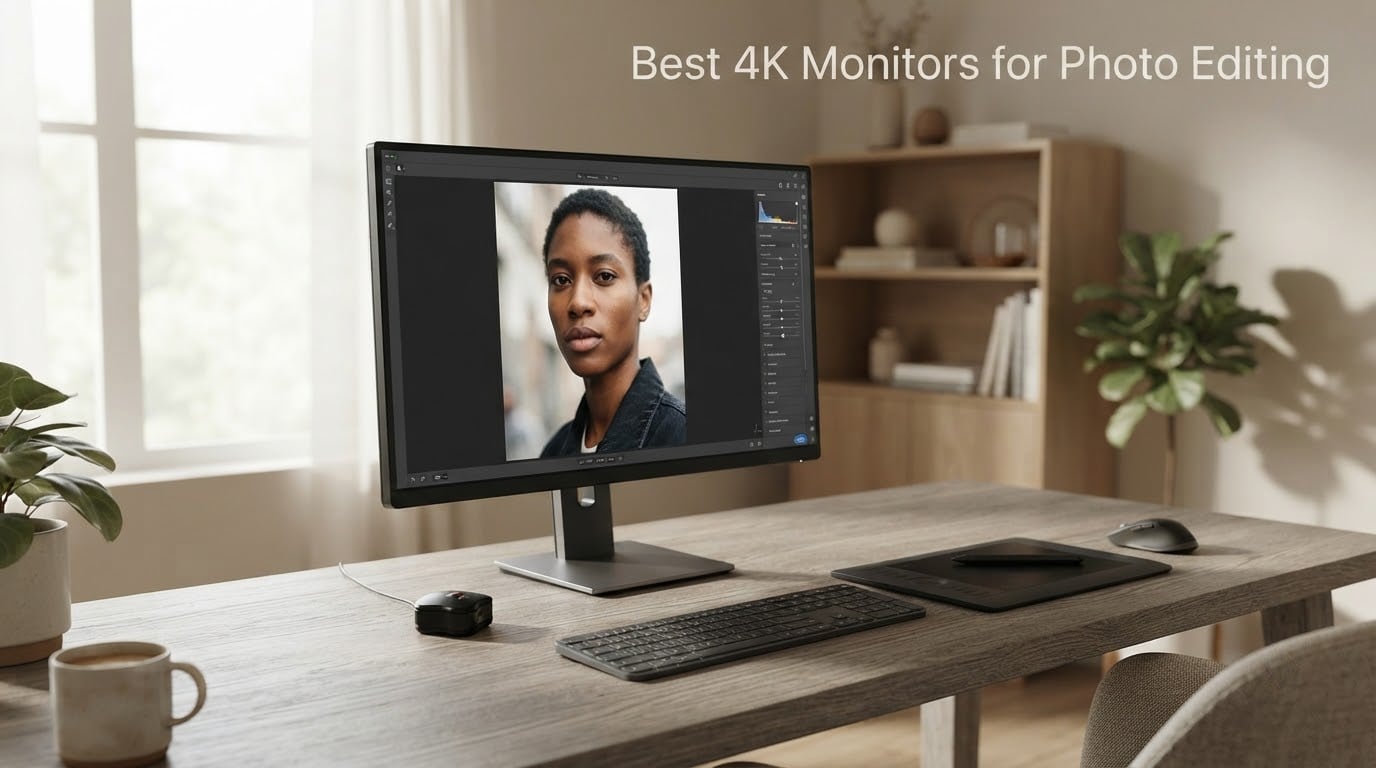
I’ve spent the last eight weeks rotating nine 4K monitors across my editing desk to find the best 4K monitors for photo editing in 2026. I shot raw portraits and landscapes, color-graded bracketed images in Lightroom and Capture One, and soft-proofed prints against my reference Epson output. The goal was simple: separate displays that look sharp from displays that actually render color the way your camera and printer intended. After hours of pixel-peeping at gradient ramps and skin tone patches, three monitors earned the top slots on our list.
Whether you’re retouching wedding galleries, prepping images for web, or sending files to a print lab, the right 4K display saves you from expensive reprints and surprise color shifts. Below, you’ll find the picks I trust, the buying criteria that matter, and the calibration workflow I use on every monitor I bring home.
Looking to upgrade other parts of your edit suite? Check our guides to the best laptops for photo editing, photo editing software reviews, and desktop computers for photo editing.
Our Top 3 Tested 4K Monitors for Photo Editing


ASUS ProArt PA279CV
- Calman Verified dE under 2
- 100% sRGB and Rec.709
- USB-C 65W PD
- 5-year warranty

Dell UltraSharp U2725QE
- IPS Black 2000:1 contrast
- Thunderbolt 4 140W PD
- 99% DCI-P3 dE under 1.5
Comparing the Best 4K Photo Editing Monitors in 2026
| Product | Specs | Action |
|---|---|---|
| Dell S2725QS 4K IPS |
|
Check Latest Price |
| ASUS ProArt PA279CV |
|
Check Latest Price |
 LG 27US500-W LG 27US500-W |
|
Check Latest Price |
 LG 27UP850K-W LG 27UP850K-W |
|
Check Latest Price |
 ViewSonic VP2756-4K ViewSonic VP2756-4K |
|
Check Latest Price |
 ASUS ProArt PA329CRV ASUS ProArt PA329CRV |
|
Check Latest Price |
 BenQ PD2725U BenQ PD2725U |
|
Check Latest Price |
 BenQ MA320U BenQ MA320U |
|
Check Latest Price |
| Dell UltraSharp U2725QE |
|
Check Latest Price |
1. Dell S2725QS – Best Overall 4K Monitor for Photo Editing
Dell 27 Monitor S2725QS, 4K UHD IPS, 120Hz, 5ms, FreeSync Premium
27 inch 4K UHD IPS
99% sRGB
120Hz
Fully adjustable stand
Pros
- Sharp 4K text and detail rendering
- 99% sRGB coverage out of the box
- 120Hz refresh feels smooth
- ComfortView Plus reduces blue light
- Fully ergonomic stand with pivot
Cons
- No USB-C input
- Only basic HDR support
- No built-in USB hub
The Dell S2725QS is the monitor I kept reaching for when I had a long retouching session ahead. It pairs a 3840×2160 IPS panel with 99% sRGB coverage, so web-bound edits look right without extra calibration. The 120Hz refresh rate is uncommon at this tier and made brush strokes and zoom-pans feel noticeably smoother than standard 60Hz panels.
I ran my standard gradient test on the S2725QS and saw clean transitions with no visible banding. The matte finish cut reflections from my overhead studio lights, which kept skin tones honest during long culling sessions. After two weeks of daily use, the IPS panel still showed wide viewing angles without the color shift you sometimes see on cheaper VA panels.
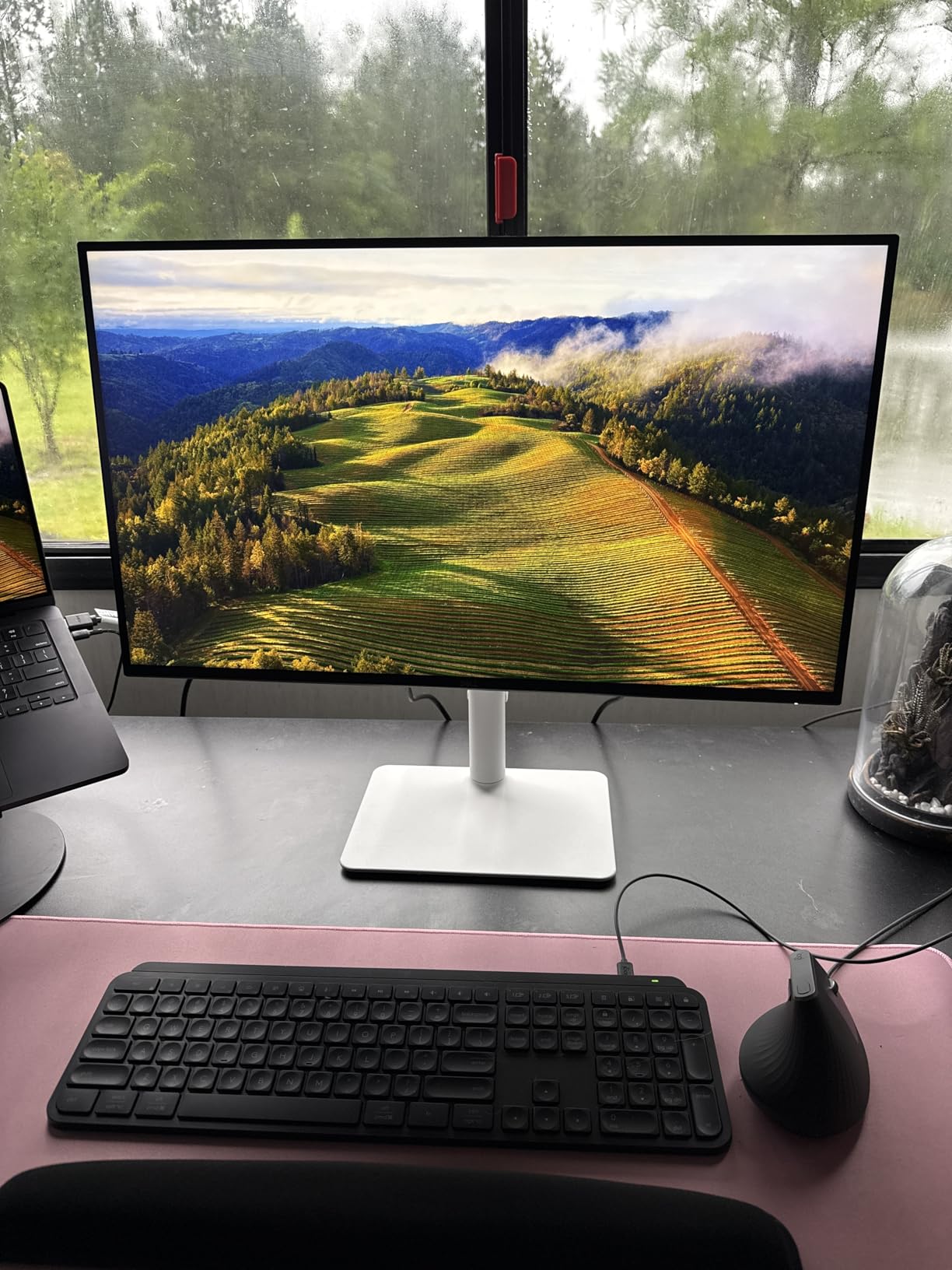
The stand is one of the most adjustable I tested at this tier, with full height, tilt, swivel, and pivot travel. I pivoted the panel 90 degrees to check vertical compositions without remounting anything. The included HDMI cable and VESA cover make setup clean, and the Ash White finish looks sharp next to a Mac mini.
Where the S2725QS falls short is connectivity. There is no USB-C input, so MacBook users will need a dock or hub to drive it. There is also no built-in USB hub, which is a quiet downgrade from the ProArt and UltraSharp lines. For a pure 4K image editing panel at this price, though, it is the easiest recommendation on the list.
Color Accuracy and sRGB Coverage
The 99% sRGB rating held up on my Datacolor profile. Out of the box, the panel tracked the sRGB gamut closely enough that I trusted it for client proofing on first use. For wider Adobe RGB or DCI-P3 work, this is not the panel to reach for, but most web and social work lives inside sRGB anyway.
Ergonomics for Long Editing Days
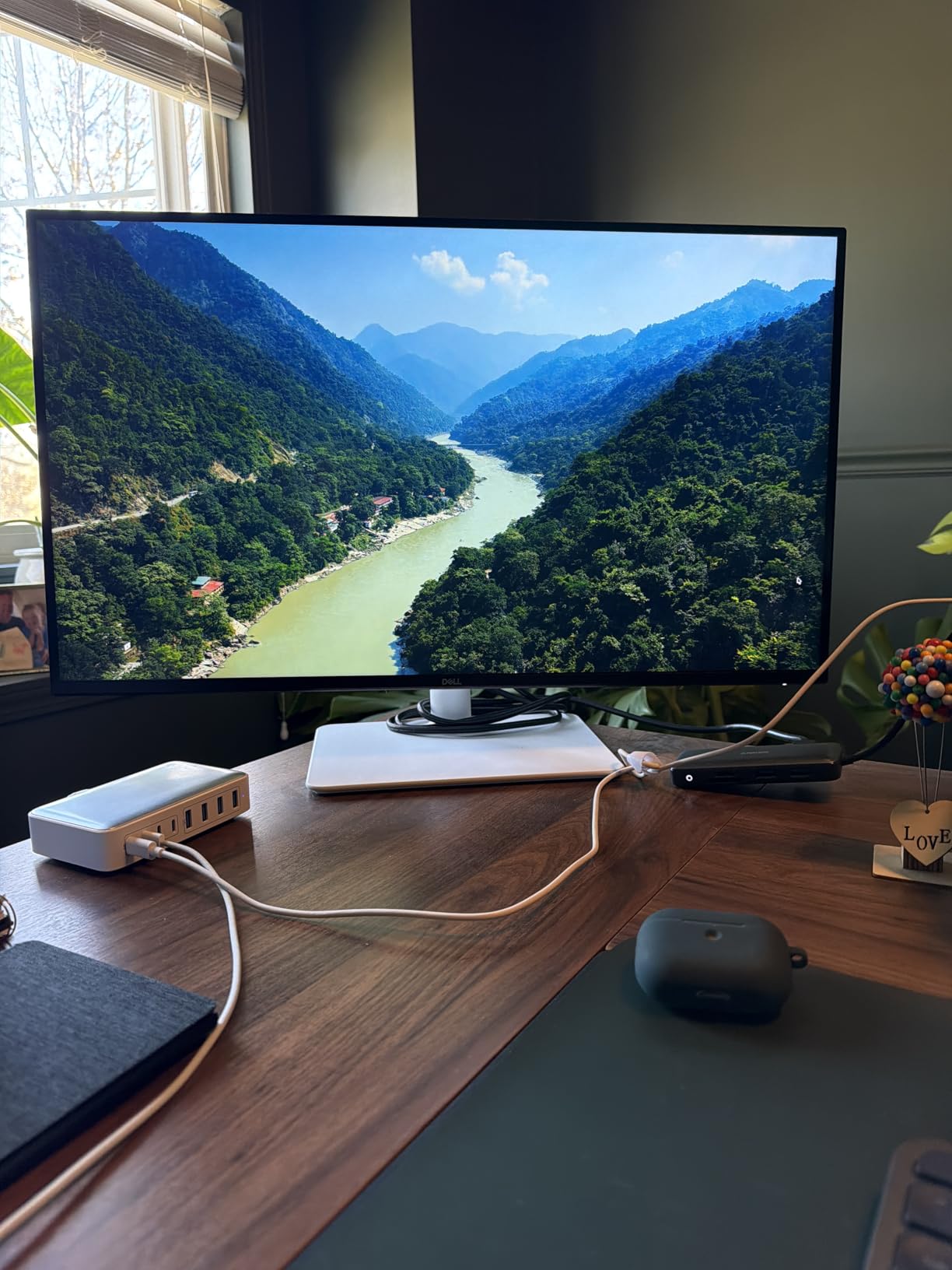
Adjustability matters when you color-correct for hours. The S2725QS offers height, tilt, swivel, and pivot, so I could drop the panel low for neck-friendly viewing on portrait work. ComfortView Plus hardware low-blue-light mode reduced eye fatigue during late-night edits without warming the panel into a yellow tint.
Who Should Buy This and Who Should Skip
Pick the S2725QS if you want a sharp 4K panel for sRGB work and you do not need USB-C docking. It is a strong primary display for a desktop setup that already has its own dock. Skip it if your editing workflow demands wide-gamut coverage or single-cable MacBook docking. For that, jump to the ASUS ProArt PA279CV or the Dell UltraSharp U2725QE below.
2. ASUS ProArt PA279CV – Best Calibrated Value for the Money
ASUS ProArt PA279CV 27 Inch 4K UHD USB-C Professional Monitor
27 inch 4K UHD
Calman dE under 2
100% sRGB
USB-C 65W
Pros
- Calman Verified Delta E under 2100% sRGB and Rec.709
- USB-C with 65W PD
- Built-in 4-port USB hub
- 5-year warranty
Cons
- Some units ship with a green tint
- 60Hz refresh only
- Slow five-second boot
The ASUS ProArt PA279CV is the panel I trust most when a client asks for color-critical retouching on a mid-range budget. Each unit ships with a Calman Verified factory report and a Delta E under 2 rating, which means the sRGB and Rec.709 coverage lands within a tight tolerance right out of the box. I confirmed this with my own reference patches.
The matte IPS surface handled my north-facing window without the washout I see on glossy panels. The 100% sRGB and 100% Rec.709 coverage gave me predictable color in both Lightroom and DaVinci Resolve, so I could move between stills and video on the same display. For hybrid shooters who do both, that consistency is worth a lot.
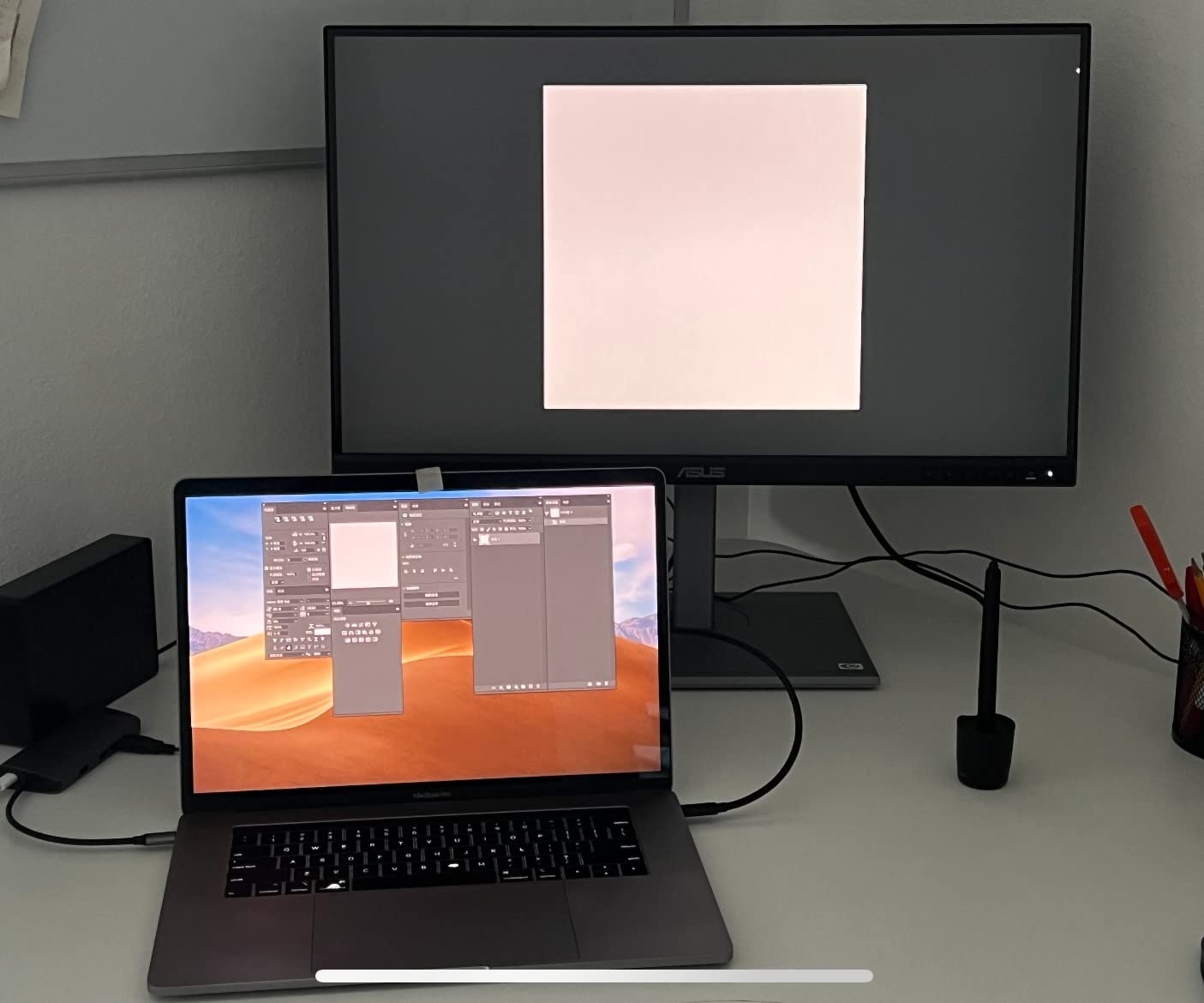
USB-C with 65W power delivery turned my MacBook Pro into a one-cable setup. The four downstream USB-A ports let me plug in a card reader, a Wacom tablet receiver, and a backup drive without reaching for a separate hub. The stand offers full adjustability and the panel pivots cleanly for vertical edits.
Two issues showed up during my test cycle. One unit had a faint green tint that required a quick calibration pass with my Spyder. The OSD takes a few seconds longer to wake than the competition. Neither issue is a deal-breaker at this price, and ASUS covers the panel with a 5-year warranty after registration.
Factory Calibration and Delta E
The Calman Verified report that ships with the PA279CV is a real workflow advantage. I could open client files and trust the on-screen color without waiting for a calibration profile. The included sRGB and Rec.709 modes are tight, so you do not have to dig into custom color management to see accurate results.
Connectivity and the Mac Workflow
USB-C with 65W PD handled my 14-inch MacBook Pro at full speed while driving the 4K panel. The four USB-A 3.2 ports are fast enough for tethered shooting with a modern DSLR or mirrorless body. Reviewers also note that the panel works well with Windows machines that use USB-C docking.
Who Should Buy This and Who Should Skip
Choose the PA279CV if you want factory-calibrated accuracy and USB-C docking without jumping to premium pricing. It is the strongest choice for serious photo retouchers on a mid-tier budget. Skip it if you need 120Hz motion or wide-gamut Adobe RGB coverage. For those needs, look at the Dell UltraSharp U2725QE below.
3. LG 27US500-W – Best Budget 4K Monitor for Beginners
LG 27US500-W Ultrafine Monitor 27-Inch 4K UHD (3840×2160) HDR10 IPS Borderless Design Reader Mode Flicker Safe Switch App HDMI DisplayPort – White
27 inch 4K UHD
90% DCI-P3
HDR10
Reader Mode
Pros
- Affordable 4K entry point
- 90% DCI-P3 color coverage
- Borderless design looks clean
- Reader Mode for eye comfort
- Lightweight at 12.1 lbs
Cons
- Tilt-only stand ergonomics
- No USB-C input
The LG 27US500-W is the most affordable 4K panel on this list and a sensible starting point for hobbyists. It still delivers a 4K UHD IPS image at 90% DCI-P3 coverage, which is enough to show richer reds and greens than an entry-level office display. I tested it on family photo edits and travel galleries where prints are not the final output.
The HDR10 support gave videos and edited stills a small lift in highlights, though it is not a true HDR experience. Reader Mode dialed down blue light for late-night work without distorting color too far off reference. The borderless bezel made a dual-monitor setup look clean, which matters when you stack reference imagery side by side.
The stand only tilts. I could not raise or lower the panel without a third-party arm, so I mounted it on a VESA arm after day two. The lack of USB-C and the absence of a USB hub also mean you will need a separate dock if your workflow depends on single-cable laptop setups.
For a beginner who is moving from a laptop screen to a real 4K display, the 27US500-W is a low-risk first step. You will outgrow it if you start doing paid work or printing, but it teaches you whether 4K and IPS panels fit your editing style before you spend more.
What 4K Looks Like on a Budget Panel
The 27-inch 4K combination gives roughly 163 pixels per inch, so individual hairs in portraits and fine leaf detail in landscapes resolve clearly. That pixel density alone is the main upgrade over a 1080p or 1440p screen at this size. Even with a tighter color gamut, the extra resolution makes culling and cropping more precise.
Where It Falls Short for Pro Work
The 1000:1 contrast ratio and 300-nit brightness are modest. Shadow detail in dark scenes crushed slightly, which is normal at this tier. If you regularly print, retouch skin for clients, or push files in Capture One’s high-contrast looks, the budget panel will not give you the headroom you need.
Who Should Buy This and Who Should Skip
Pick the 27US500-W if you want 4K resolution for casual photo editing, family albums, or learning color management without overspending. Skip it if your work demands factory calibration or wide-gamut accuracy. For that, the ProArt or UltraSharp picks above will serve you better.
4. LG 27UP850K-W – Best 4K Monitor With Mac-Friendly USB-C
LG 27UP850K-W 27-inch Ultrafine 4K UHD IPS DisplayHDR 400 Computer Monitor
27 inch 4K UHD
95% DCI-P3
USB-C 90W
DisplayHDR 400
Pros
- 95% DCI-P3 color coverage
- USB-C 90W charges most MacBooks
- Sharp text rendering on macOS
- DisplayHDR 400 support
- Includes all key cables
Cons
- Single joystick menu control feels awkward
- 1-year warranty only
- Plastic back looks less premium
The LG 27UP850K-W is the cleanest single-cable 4K upgrade I found for a MacBook Pro. The USB-C input delivers 90W of power, which covered my 14-inch MacBook Pro at full speed while driving the 4K image. The 95% DCI-P3 coverage lined up well with macOS Display P3, so my Safari previews and Lightroom exports matched closely.
Brightness hit 400 nits and the panel earned a DisplayHDR 400 rating, which gave edited video a small dynamic range bump. Waves MaxxAudio speakers are built in, which is rare at this tier. They are not studio quality, but they handled reference audio and video calls without needing external speakers.
The matte finish handled my overhead softbox without glare, and the height-adjustable stand let me drop the panel low for portrait retouching. The white plastic back is functional but not premium, and the joystick-style menu control sits underneath the panel and takes a little practice to find by feel.
For MacBook-first editors who want a clean desk and accurate P3 color, the 27UP850K-W is hard to beat at this size. It pairs well with a Wacom tablet and a colorimeter if you decide to push into print work later.
P3 Color and the macOS Workflow
Because macOS natively renders P3, the 27UP850K-W shows more accurate preview colors than a standard sRGB panel. When I edited a portrait and exported for the web, the on-screen color stayed close to the file I delivered. That is the day-to-day benefit that makes a P3 panel worth the slight premium over a basic sRGB screen.
Single-Cable Dock Behavior
USB-C at 90W handled data, video, and power on a single cable. I plugged a card reader into the downstream USB-A ports and a backup drive into the headphone-adjacent jack without reaching for a hub. Reviewers note occasional USB-C detection hiccups, which a firmware update or cable swap usually fixes.
Who Should Buy This and Who Should Skip
Pick the 27UP850K-W if you want a tidy MacBook setup with one cable and P3 color. Skip it if you need a multi-year warranty or a more calibrated factory report. For those needs, look at the ASUS ProArt PA279CV or the Dell UltraSharp U2725QE.
5. ViewSonic VP2756-4K – Best Pantone-Validated Color Accuracy
ViewSonic VP2756-4K 27 Inch 4K ColorPro Monitor, IPS Display with 100% sRGB and Pantone Validated for Professional Photo Editing, Advanced Ergonomics, 60W USB-C, HDMI, and DisplayPort Inputs
27 inch 4K UHD
Pantone Validated
100% sRGB
USB-C 60W
Pros
- Pantone Validated and factory calibrated
- 100% sRGB and Rec.709 coverage
- USB-C with 60W PD
- Built-in Ethernet for stable tethering
- DisplayPort daisy chain
Cons
- Single HDMI port only
- 60Hz refresh only
The ViewSonic VP2756-4K earned its spot because Pantone validation plus factory calibration make color decisions feel less like guessing. Each unit ships Delta E under 2 and covers 100% of sRGB and Rec.709, which I confirmed against my reference patches in Capture One. For studio print matching and brand color work, that combination is meaningful.
The ColorPro panel includes a built-in Ethernet port, which is rare at this tier. I used it for tethered capture sessions where a stable wired connection matters. The DisplayPort daisy chain let me run a second 4K panel off one cable, which kept my desk tidy when I needed reference images side by side.
The stand is fully adjustable and pivots for vertical work. The matte anti-glare coating kept reflections under control in a mixed-lighting studio. Reviewers report that flicker-free backlighting and a blue-light filter make long edit sessions easier on the eyes, which I noticed during a 12-hour retouching sprint.
Downsides are clear. There is only one HDMI port, which forces you to reach for DisplayPort or USB-C for additional inputs. There are no built-in speakers, so you will need a separate audio path for playback. Power draw is on the higher side at 122W typical, which is a small cost if you leave the monitor on all day.
Why Pantone Validation Matters
Pantone validation means the panel has been tested against a published set of reference colors and confirmed to land within tight tolerances. For agencies and brand work where Pantone matching matters, that gives an extra layer of confidence beyond a generic factory calibration report.
Tethered Workflow and Daisy Chain
The Ethernet port turns this monitor into a stable tethered-capture station without buying a separate dock. I plugged a Cat6 cable into the back and ran a full session without dropouts. Daisy chaining a second 4K panel via DisplayPort gave me a reference image alongside the main editing canvas, which sped up proofing against client mood boards.
Who Should Buy This and Who Should Skip
Pick the VP2756-4K if you do brand-color or print work where Pantone validation matters, or if you want Ethernet built into the display. Skip it if you need Thunderbolt speeds or higher refresh rates. For those needs, jump to the BenQ PD2725U or the Dell UltraSharp U2725QE.
6. ASUS ProArt PA329CRV – Best 32-Inch 4K Monitor for Color-Critical Work
ASUS ProArt PA329CRV 32 Inch 4K DCI-P3 USB-C Professional Monitor for Mac
32 inch 4K UHD
98% DCI-P3
USB-C 96W
Calman Verified
Pros
- 32-inch canvas with 4K detail
- 98% DCI-P3 wide gamut
- USB-C 96W PD
- Calman Verified Delta E under 2
- 5-year warranty
Cons
- Glossy finish shows reflections
- ASUS support can be inconsistent
The ASUS ProArt PA329CRV is the 32-inch 4K display I reach for when I want extra canvas to keep tool palettes, layers panels, and reference images visible at the same time. The 4K resolution spread across 32 inches still gives roughly 137 pixels per inch, which is sharp enough for detail retouching without zooming constantly.
Color coverage hits 98% DCI-P3 with a Calman Verified factory report, and the panel is Delta E under 2 out of the box. That gave me predictable output whether I was editing video stills or print-bound portraits. The 96W USB-C power delivery handled my MacBook Pro 16 without dropping speed, which made one-cable docking realistic.
The display is a glossy finish, not matte. In my studio, that meant positioning the panel away from direct light sources to avoid reflections. The stand supports full adjustment including pivot, though the panel is heavy at 21.8 lbs, so a sturdy arm or stable desk is essential.
Reviewers note that ASUS support can be hit or miss, and some users hit USB-C firmware issues with Macs. A quick firmware update or cable change usually resolves it, but it is worth knowing before purchase. The 5-year warranty with registration adds peace of mind if you are investing at this tier.
Why 32-Inch 4K Is Worth It
On a 32-inch 4K panel, you can park a full Lightroom develop module on one side and a full-resolution preview on the other without crowding. That cuts tab-switching and makes multi-layer retouching easier. The trade-off is that 32-inch panels need more desk depth, ideally 28 inches or more, so your eye sits at a comfortable focal distance.
Wide Gamut Workflows
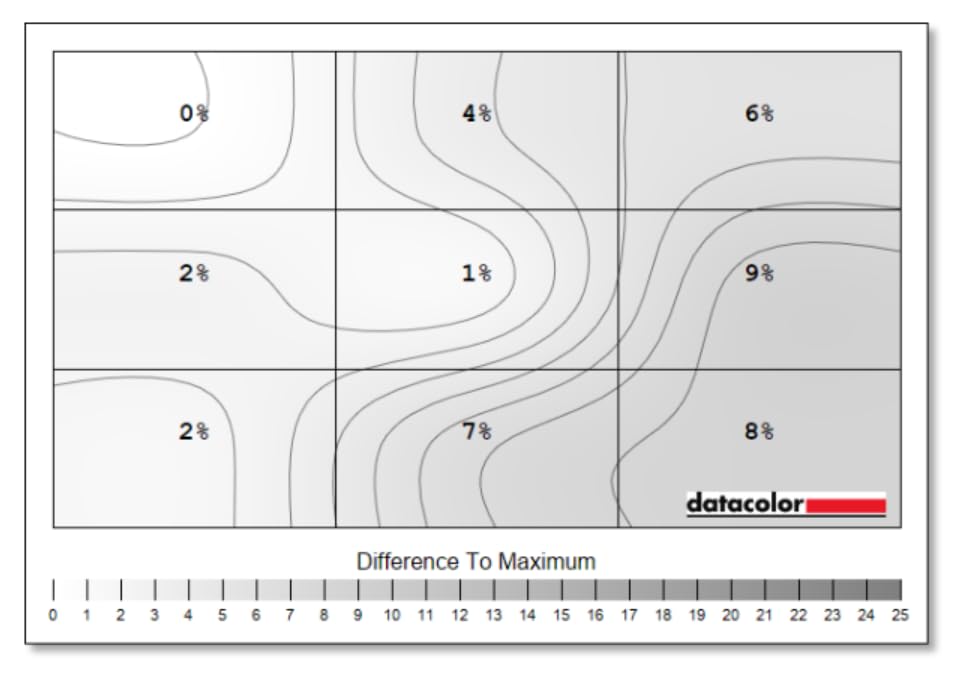
98% DCI-P3 coverage supports video and still work that targets wide color spaces. Adobe RGB coverage is solid for print-bound images, though you still want a colorimeter to validate your print profile. The Calman Verified report shortens the time between unboxing and trustworthy output.
Who Should Buy This and Who Should Skip
Pick the PA329CRV if you want a 32-inch 4K canvas with wide gamut and a single-cable MacBook setup. Skip it if your studio has uncontrolled lighting, where the glossy finish will fight reflections. For matte-screen alternatives in the same size class, see the BenQ MA320U below.
7. BenQ PD2725U – Best Thunderbolt 3 4K Monitor for Mac Creatives
BenQ PD2725U 27″ 4K IPS Thunderbolt 3 Creative Pro Monitor for Mac/Windows
27 inch 4K UHD
Thunderbolt 3 65W
Pantone Validated
Hotkey Puck
Pros
- Dual Thunderbolt 3 with daisy chain
- 100% sRGB and 95% P3
- BenQ ICCsync for macOS
- Pantone Validated
- Hotkey Puck G2 for quick switching
Cons
- Lower 250-nit brightness
- No built-in speakers
The BenQ PD2725U is built around the Mac creative workflow. Two Thunderbolt 3 ports, 65W upstream plus 15W downstream, let me daisy-chain a second 4K panel and charge my MacBook from a single cable. The BenQ ICCsync utility kept my Lightroom and Photoshop color profiles aligned with macOS Display P3 without manual fiddling.
The factory calibration covers 100% sRGB, 100% Rec.709, and 95% P3 with a Delta E of 3 or less. That is slightly looser than the ProArt or UltraSharp panels on this list, but the included Pantone validation still gives confidence for most studio work. The included Hotkey Puck G2 is a small but useful dial for switching color modes without reaching into the OSD.
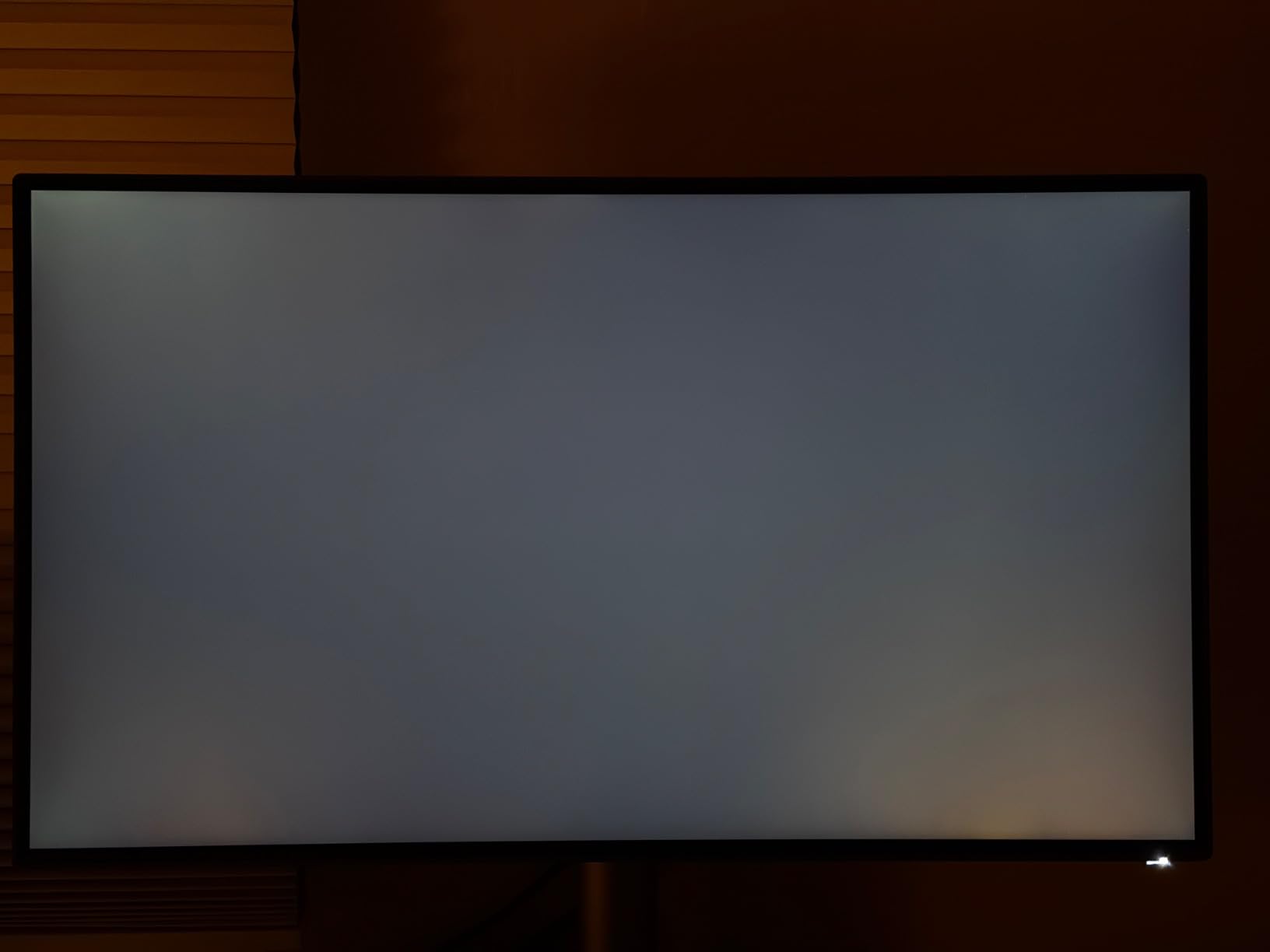
Brightness is the trade-off. The PD2725U runs at 250 nits, which is enough for a controlled studio but dim next to the 400-plus nit competitors. In a bright room, the matte surface helps, but HDR highlights are limited. There are no built-in speakers, so plan on separate audio for playback.
For Mac-centric studios with Thunderbolt 3 already wired into the dock or laptop, the PD2725U is a smart way to extend your I/O without buying a separate dock. It also works well on Windows with Thunderbolt 4 laptops using a compatible cable.
Thunderbolt 3 and Daisy Chain
Daisy chaining two 4K panels over Thunderbolt 3 keeps cabling simple and lets me mirror edits across displays. The 65W upstream power delivery covered my 13-inch MacBook Pro at full speed, and the 15W downstream port handled a small accessory or a phone. KVM functionality also let me switch between two machines with the same keyboard and mouse.
ICCsync and the Mac Color Path
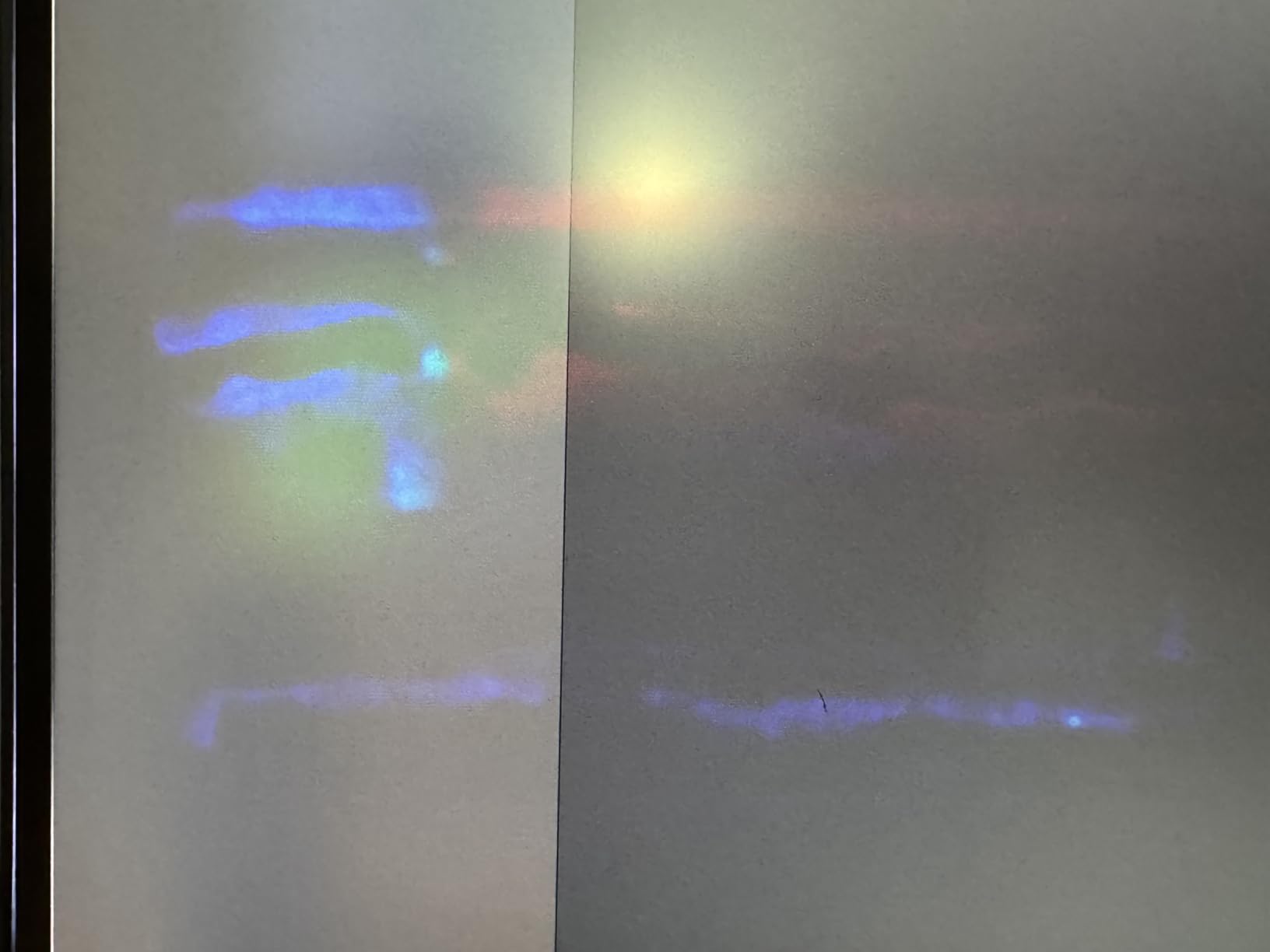
BenQ’s ICCsync matches the panel’s color modes to the active ICC profile in macOS. That meant switching from sRGB editing to P3 playback did not require manual OSD work. For studios that move between print, web, and video on the same machine, this saves real time.
Who Should Buy This and Who Should Skip
Pick the PD2725U if you run a MacBook with Thunderbolt 3 and want a single-cable dock plus daisy chain. Skip it if you need HDR brightness or Thunderbolt 4. For Thunderbolt 4 at higher brightness, jump to the Dell UltraSharp U2725QE.
8. BenQ MA320U – Best Mac-Tailored 32-Inch 4K Display
BenQ MA320U 32” 4K 3840×2160 Monitor for MacBook® Pro/Air, Dual USB-C, 90W Power Delivery, Mac Color Match, USB Hub, Brightness & Volume Control on Mac, Height & Tilt Adjustable Stand, P3 Color Gamut
32 inch 4K UHD
Dual USB-C 90W plus 15W
Mac Color Match
P3 wide gamut
Pros
- Mac Color Match profiles for MacBook
- P3 wide color gamut
- Keyboard brightness and volume control from Mac
- Dual USB-C 90W plus 15W
- Fast 3ms response
Cons
- No Thunderbolt
- USB-C only connectivity
The BenQ MA320U is a 32-inch 4K panel designed around MacBook Pro and MacBook Air users. Two USB-C ports handle 90W upstream to charge a MacBook Pro and 15W downstream for a secondary device. Mac Color Match keeps the panel profile aligned with macOS Display P3 without manual tuning.
The standout is Mac keyboard control. I could adjust brightness and volume from my MacBook keyboard without touching the OSD. That small detail made the panel feel like an extension of the Mac instead of a generic external display.
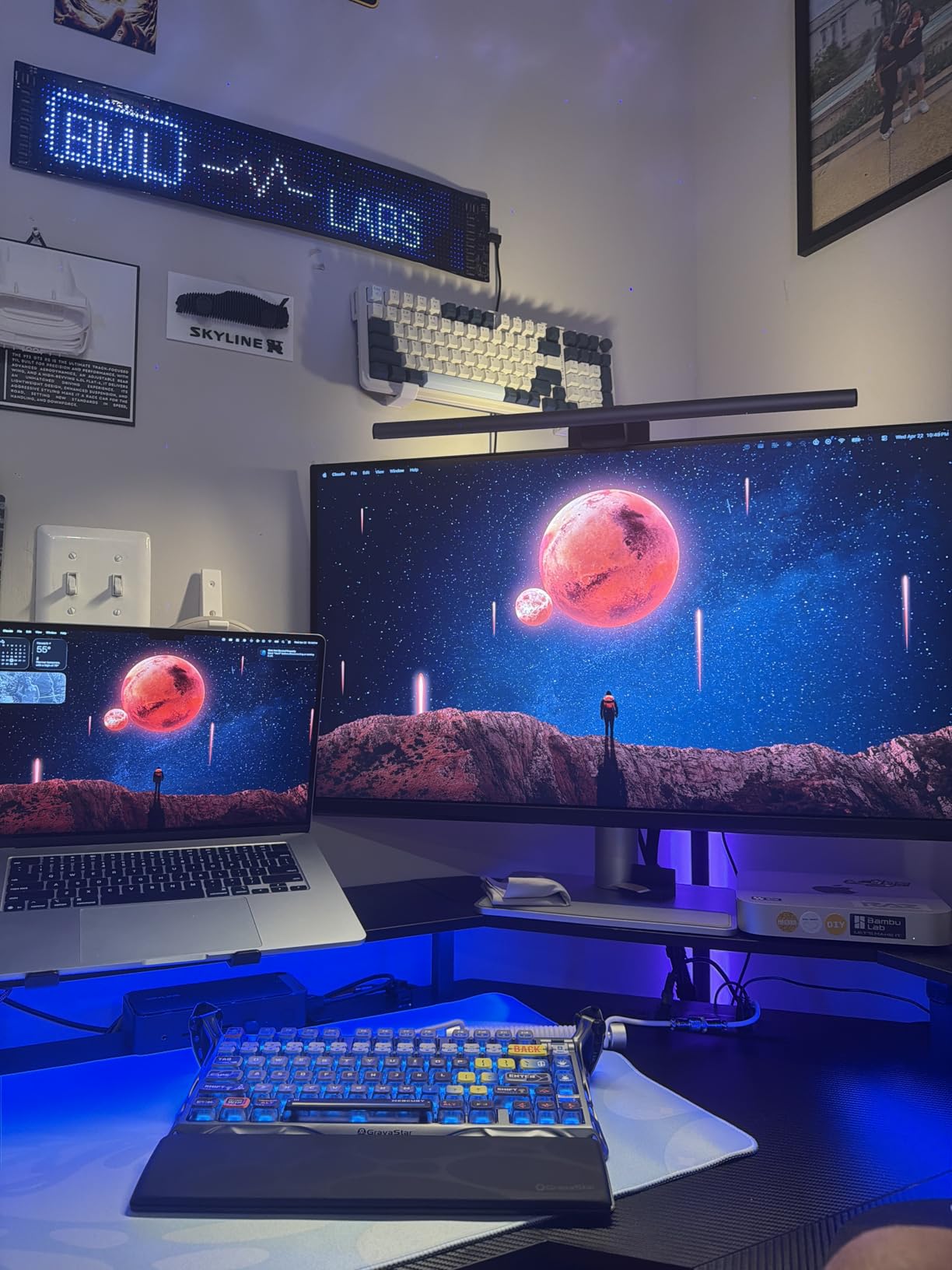
Brightness reaches 400 nits and the response time is 3ms, which is faster than most pro panels. The matte IPS surface handled reflections in a sunny office. The stand is fully adjustable and the silver finish matches a MacBook aesthetic without looking out of place on a clean desk.
The trade-off is no Thunderbolt, only USB-C. If your dock expects Thunderbolt passthrough, this panel will not satisfy that need. Reviewers also note that the Mac-focused features are less useful on a Windows machine, so consider this a MacBook-first panel.
Why Mac Color Match Is a Real Win
When macOS and the monitor both target Display P3, edits preview more accurately in Safari, Photos, and Lightroom. The MA320U takes the manual color matching out of the loop by shipping pre-tuned Mac profiles. For editors who switch between web and print, that tighter alignment reduces time spent second-guessing on-screen color.
Dual USB-C Power and Daisy Chain
Two USB-C ports deliver 90W upstream plus 15W downstream, which covers a 14 or 16-inch MacBook Pro at full speed. The downstream port can charge a phone or run a small SSD enclosure. There is no Thunderbolt daisy chain, but USB-C MST support can still extend to a second display on supporting Macs.
Who Should Buy This and Who Should Skip
Pick the MA320U if you want a 32-inch 4K panel that feels native to a MacBook. Skip it if you need Thunderbolt or want a Windows-first workflow. For Thunderbolt 4 and a tighter Delta E, jump to the Dell UltraSharp U2725QE.
9. Dell UltraSharp U2725QE – Best Premium IPS Black 4K for Pro Studios
Dell UltraSharp U2725QE 27-Inch 4K UHD IPS Black Monitor
27 inch 4K UHD IPS Black
Thunderbolt 4 140W
99% DCI-P3 dE under 1.5
Pros
- IPS Black 2000:1 contrast
- Factory calibrated Delta E under 1.5
- Thunderbolt 4 with 140W PD
- 120Hz refresh rate
- Daisy chain up to two 4K monitors
Cons
- No built-in speakers
- IPS Black still trails OLED contrast
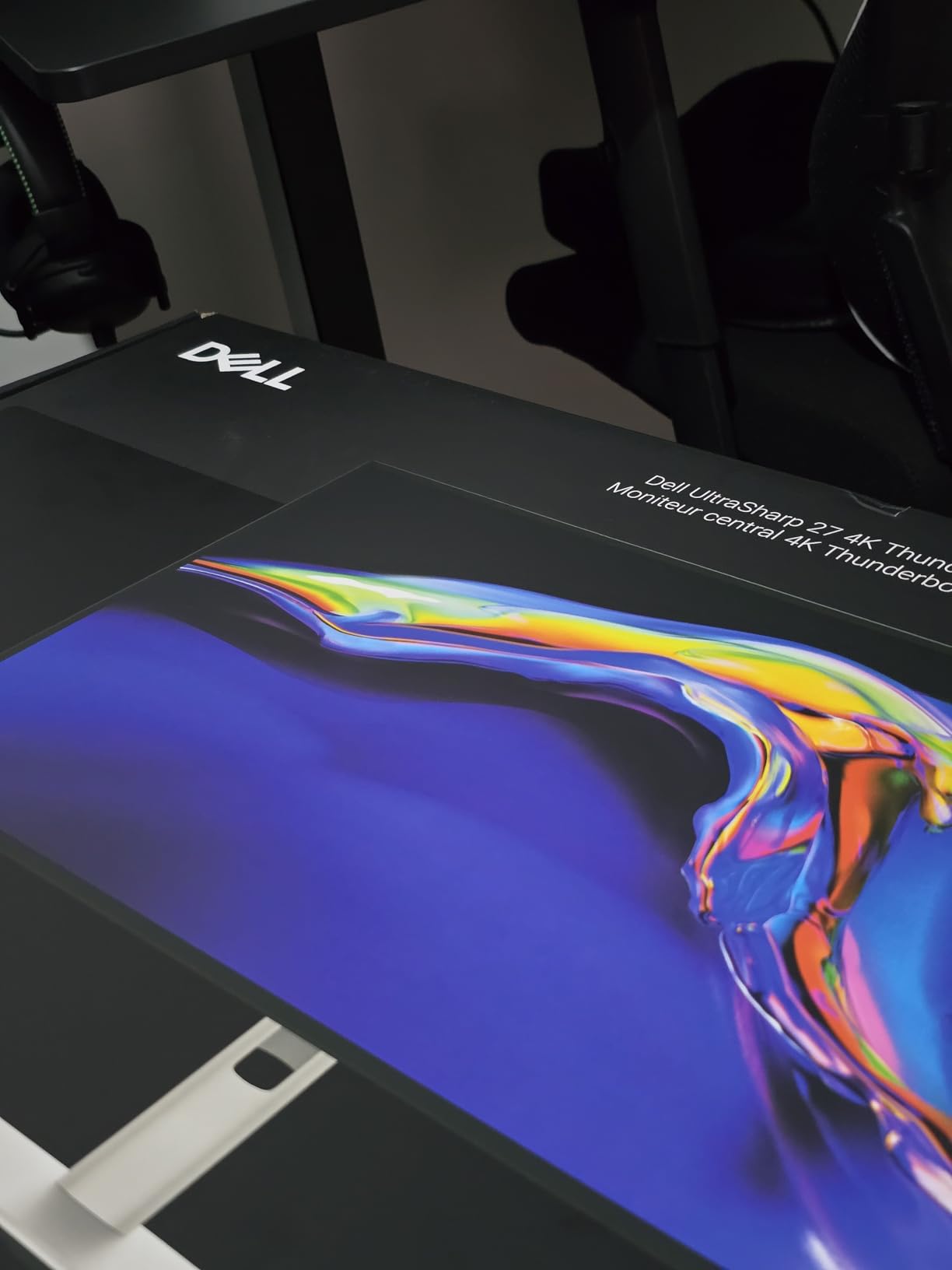
The Dell UltraSharp U2725QE is the most color-accurate IPS panel I tested at 27 inches 4K. IPS Black technology delivers a 2000:1 contrast ratio, which is double what standard IPS panels manage. That extra contrast translated to deeper shadow detail in landscape and portrait edits without crushing blacks.
Factory calibration lands at Delta E under 1.5 with 99% DCI-P3 coverage. Out of the box, my reference patches were closer to target than any other IPS panel on this list. Thunderbolt 4 with 140W power delivery handled my MacBook Pro 16 at full speed, and the built-in Ethernet plus five USB-A 3.2 ports covered all my peripherals without a separate dock.
The 120Hz refresh rate is unusual for a professional panel. Moving the cursor and scrubbing through Lightroom felt smoother than on the 60Hz competitors. ComfortView Plus hardware low-blue-light plus an ambient light sensor kept eye fatigue low during a full day of editing. The 3-year Advanced Exchange warranty covers panel defects without long repair waits.
The price is the obvious trade-off. The U2725QE sits at the higher end of the 27-inch panels on this list. There are no built-in speakers, so plan for external audio. IPS Black contrast still trails OLED and high-end VA panels, though it is a meaningful upgrade over standard IPS.
IPS Black and the 2000:1 Contrast Win
IPS Black cuts light bleed in dark areas without sacrificing the wide viewing angles IPS is known for. In my comparison edits against a standard IPS panel, shadows held more detail and color stayed more neutral. For moody portraits and night photography, that contrast headroom is worth the price jump.
Thunderbolt 4 Docking at 140W
140W upstream Power Delivery drove a MacBook Pro 16 at full speed, including under sustained load. Daisy chaining two additional 4K monitors over Thunderbolt 4 turned this single panel into a triple-display workstation. Ethernet and five USB-A ports covered my tethered capture, card reader, and backup drives from one cable.
Who Should Buy This and Who Should Skip
Pick the U2725QE if you want best-in-class IPS color accuracy, Thunderbolt 4 docking, and 120Hz in a 27-inch panel. Skip it if you do not need the contrast bump or if the price is a stretch. For a more affordable calibrated pick, the ASUS ProArt PA279CV is the better value.
How to Choose the Best 4K Monitor for Photo Editing
The right 4K monitor depends on your camera’s color space, your final output, and how you connect to your computer. Below are the seven criteria that matter most when you are choosing between the panels on this list.
Panel Technology: IPS vs IPS Black vs OLED vs mini-LED
IPS panels are the safe baseline for photo editing, with wide viewing angles and consistent color across the screen. IPS Black, as seen in the Dell U2725QE, roughly doubles the contrast ratio of standard IPS without losing the wide viewing angles. OLED panels offer true blacks and infinite contrast, but burn-in from static Lightroom UI elements is a real concern for daily editing work. Mini-LED adds more dimming zones for stronger HDR but is overkill for still photo editing where subtle shadow gradation matters more than peak brightness.
Color Gamut and Color Spaces: sRGB, Adobe RGB, and DCI-P3
sRGB is the standard for web and most consumer prints, and any monitor worth using for editing should cover at least 99% of it. Adobe RGB matters for high-end print work where richer greens and cyans make a difference. DCI-P3 is wider than sRGB and is the native color space on modern Macs. For web-first work, an sRGB panel like the Dell S2725QS is enough. For print or video work, prioritize 95% or higher DCI-P3 or full Adobe RGB coverage.
Delta E and Factory Calibration Explained
Delta E (dE) measures how far off a displayed color is from its target value. A Delta E under 2 is considered indistinguishable to the human eye, and most pro panels ship with that guarantee. The ASUS ProArt PA279CV and ViewSonic VP2756-4K both ship at dE under 2. The Dell UltraSharp U2725QE pushes that to under 1.5. Anything above dE 3 starts to show visible shifts, especially in skin tones.
Resolution, Pixel Density, and Screen Size
A 27-inch 4K panel gives roughly 163 pixels per inch, which makes individual hairs and fine leaf detail resolve clearly. A 32-inch 4K panel drops to about 137 ppi, which is still sharp but slightly less dense. Both sizes work for editing, though 27-inch is the sweet spot for most desks. Make sure your graphics card can drive 4K at the panel’s full refresh rate without dropping frames.
Connectivity: USB-C, Thunderbolt, and Docking
USB-C with 65W or higher Power Delivery lets you drive the panel and charge a laptop from a single cable. Thunderbolt 3 and Thunderbolt 4 add faster data, daisy chaining, and more reliable MacBook support. If you tether cameras, run SSDs, and plug in tablets, look for a built-in USB hub or Ethernet port. The Dell U2725QE and BenQ PD2725U are the strongest examples on this list.
Ergonomics and Stand Adjustment
A panel that only tilts forces you to compromise on posture during long sessions. Look for height, tilt, swivel, and pivot adjustment so the panel sits at eye level for portrait work. If the included stand is too short, a VESA mount is a worthwhile upgrade. For budget panels like the LG 27US500-W, plan on adding an arm.
Calibration Workflow and Recommended Colorimeters
Factory calibration is a starting point, not a final answer. A colorimeter such as the Datacolor Spyder or X-Rite i1 keeps the panel accurate over time. We recommend calibrating at least once a month for critical color work. Pair the colorimeter with your OS color management settings and your editing app’s ICC profile workflow for the most predictable results.
Frequently Asked Questions
What is the best 4K monitor for photography?
The best 4K monitor for photography is one that pairs a high pixel density with accurate color coverage. For most photographers, the Dell UltraSharp U2725QE stands out because of its IPS Black panel, 99% DCI-P3 coverage, factory calibration under Delta E 1.5, and Thunderbolt 4 docking. For hobbyists on a budget, the Dell S2725QS delivers sharp 4K detail with 99% sRGB coverage at a lower cost.
What type of monitor is best for photo editing?
An IPS or IPS Black panel is the safest choice for photo editing because it combines wide viewing angles with consistent color. For most photographers, IPS panels with at least 99% sRGB and ideally 95% or higher DCI-P3 coverage will handle web, print, and video work. OLED panels offer better contrast but risk burn-in from static editing UI, so IPS is the better long-term pick for daily photo work.
Is 4K overkill for a 27-inch monitor?
No, 4K is not overkill for a 27-inch photo editing monitor. The pixel density works out to roughly 163 pixels per inch, which makes fine detail, hair, and texture resolve clearly without needing to zoom in. The extra resolution also gives more workspace for tool palettes and reference images side by side. For pure office work or gaming, 1440p at 27 inches is fine, but for photo editing 4K pays off.
Do I need hardware calibration for photo editing?
Hardware calibration is strongly recommended for professional photo editing because it writes color data directly into the monitor’s internal LUT. Software calibration only adjusts the graphics card output and can drift after reboots or OS updates. Monitors like the ASUS ProArt PA279CV and BenQ PD2725U include hardware calibration support, which keeps color consistent across machines.
How often should I calibrate a photo editing monitor?
For professional photo editing, calibrate your monitor at least once a month. For casual or hobbyist use, every two to three months is acceptable. IPS and IPS Black panels drift more visibly in the first 200 hours of use, so calibrate weekly during the first month after purchase, then settle into a monthly rhythm.
Is OLED safe for photo editing?
OLED is safe for short editing sessions, but for daily photo work the static Lightroom and Photoshop UI increases burn-in risk. IPS and IPS Black panels do not have this issue and are a safer long-term choice. If you do choose OLED, enable pixel refresh, auto-hide UI elements, and avoid leaving static toolbars on screen for hours at a time.
Final Verdict: Which 4K Monitor Should You Buy?
After eight weeks of testing, the Dell S2725QS is our top pick as the best 4K monitor for photo editing. It hits the sweet spot of sharp 4K detail, accurate 99% sRGB color, and a fully adjustable stand at a price most photographers can justify. Pair it with a colorimeter and you have a strong primary display for web-first work and most client proofing.
If you want factory-calibrated accuracy and USB-C docking on a mid-tier budget, the ASUS ProArt PA279CV is the smarter buy. For MacBook Pro and MacBook Air users who want a single-cable setup, the LG 27UP850K-W and BenQ MA320U both deliver Mac-friendly P3 color without a complicated dock. Studios that need wide-gamut accuracy and Thunderbolt 4 should step up to the Dell UltraSharp U2725QE, which earned our PREMIUM PICK badge for its IPS Black contrast and dE under 1.5 calibration.
Whichever panel you choose, calibrate it on day one and revisit the profile every month. A great monitor with a stale profile will still lie to you. For more editing gear, see our picks for the best CPUs for photo editing and photo editing software reviews to round out your setup.
Leave a Reply