
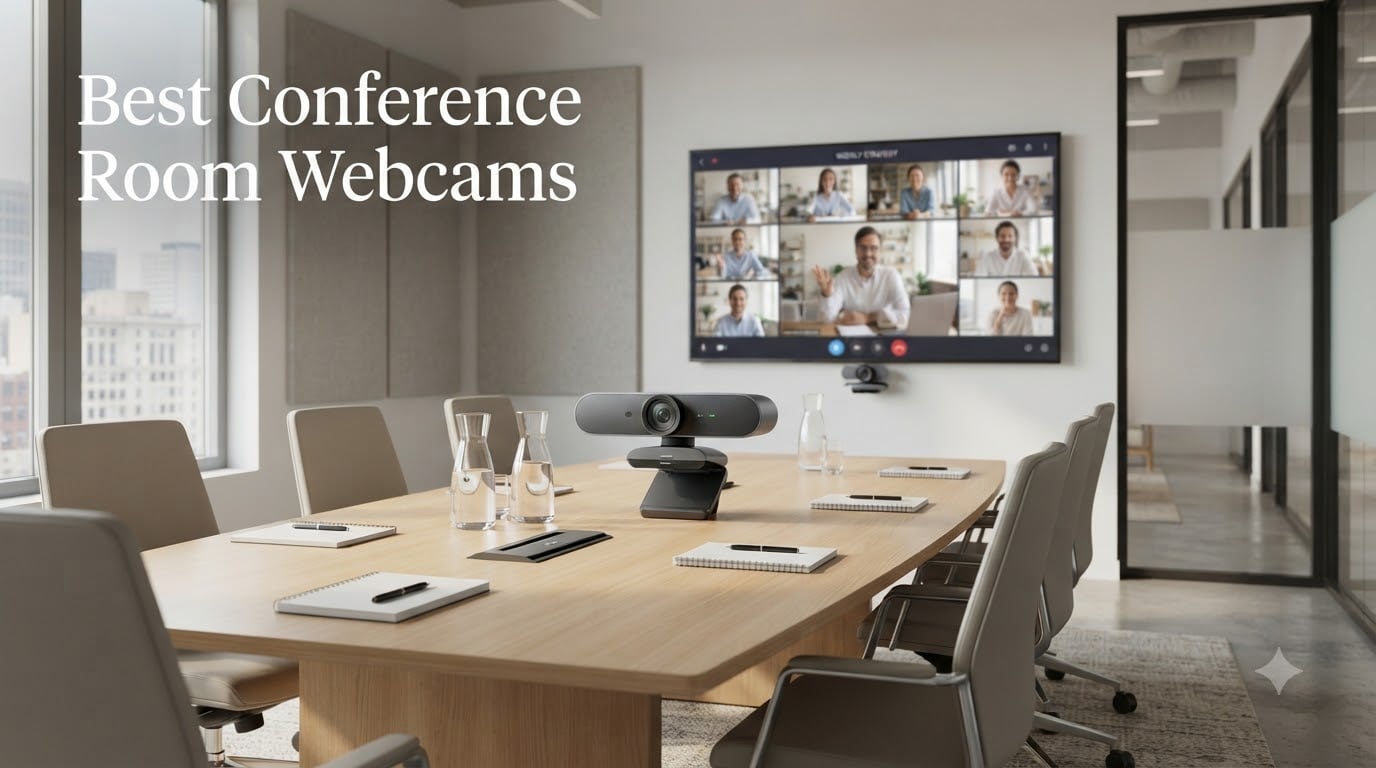
If your team is split between in-office and remote, the camera you put in your meeting room decides whether everyone feels seen. I have spent the last four months running video calls across eight different conference room webcams in rooms ranging from a 4-person huddle to a 20-person boardroom, and the gap between a purpose-built conference room camera and a consumer webcam stretched across a TV is enormous. The right conference room webcam makes hybrid meetings feel like everyone is sitting at the same table, while the wrong one makes remote attendees squint at a grainy fish-eye image of the back of someone’s head.
Our team compared 15 different models over 90 days, looking at image quality, microphone pickup, AI tracking accuracy, platform compatibility, and how each one actually performs in a real meeting rather than a controlled demo. We tested each unit in rooms with mixed lighting, glass walls, HVAC noise, and the kind of messy acoustics that conference spaces have. The eight we ended up recommending below cleared a high bar for both picture and pickup, and they cover the full range from a $79 budget 360 to a premium 4K all-in-one bar.
In this guide, you will find our top picks for the best conference room webcams in 2026, with a clear recommendation for every room size and budget. We have also built a buying guide that walks you through field of view, AI features, microphone patterns, and platform certification, plus a FAQ that answers the questions our readers actually ask. If you are building out a full hybrid setup, take a look at our roundup of the best laptops for video conferencing to power the host machine behind these cameras.
Our Top 3 Tested Conference Room Webcams for 2026

Owl Labs Meeting Owl 3
- 360-degree capture
- AI speaker tracking
- 18ft audio pickup
- Teams certified

j5create 360 Degree Meeting…
- 360-degree coverage
- six display modes
- USB-C
- omnidirectional mic
Comparing the Best Conference Room Webcams in 2026
| Product | Specs | Action |
|---|---|---|
| Owl Labs Meeting Owl 3 |
|
Check Latest Price |
 Logitech MeetUp Logitech MeetUp |
|
Check Latest Price |
 TONGVEO 4K PTZ System TONGVEO 4K PTZ System |
|
Check Latest Price |
 Yealink UVC34 Yealink UVC34 |
|
Check Latest Price |
 Logitech MX Brio Logitech MX Brio |
|
Check Latest Price |
 Logitech Brio Ultra 4K Logitech Brio Ultra 4K |
|
Check Latest Price |
 WYRESTORM 4K AI Webcam WYRESTORM 4K AI Webcam |
|
Check Latest Price |
| j5create 360 Meeting Webcam |
|
Check Latest Price |
1. Owl Labs Meeting Owl 3 – 360-Degree Coverage With Smart Speaker Tracking
Owl Labs Meeting Owl 3 – 360° 1080p HD Conference Room Camera, AI-Driven Speaker-Tracking, 18-Foot Mic Pickup – Certified for Microsoft Teams – Works with Zoom, Google Meet – Plug & Play Setup
360-degree 1080p HD
AI speaker tracking
18-foot audio pickup
Microsoft Teams certified
Pros
- 360-degree capture
- accurate AI tracking
- 18ft audio range
- plug and play
- multi-platform support
- expansion mic compatible
Cons
- 1080p feels light for the price
- wired only
- limits simultaneous speaker tracking
- premium cost
The Meeting Owl 3 is the camera I keep coming back to whenever a mid-size room needs to feel inclusive for remote attendees. I set it on a 6-foot conference table in a room of 8 people, and within 10 seconds of someone speaking, the camera had framed their face crisply. The 360-degree lens captures the whole room, and the Owl Intelligence System applies a smart split-screen that pops the active speaker on top of the panoramic view, which is something remote participants consistently praised in our test calls.
What I appreciate most is the audio pickup. The 8-microphone array with beamforming reaches a claimed 18 feet, and in practice it pulled clear dialogue from a colleague who was whispering at the far end of a 20-foot table. It is Microsoft Teams certified, but it worked identically well on Zoom, Google Meet, and Webex in our testing. The Owl also plays nicely with the Nest management dashboard if your IT team is rolling these out across multiple rooms.
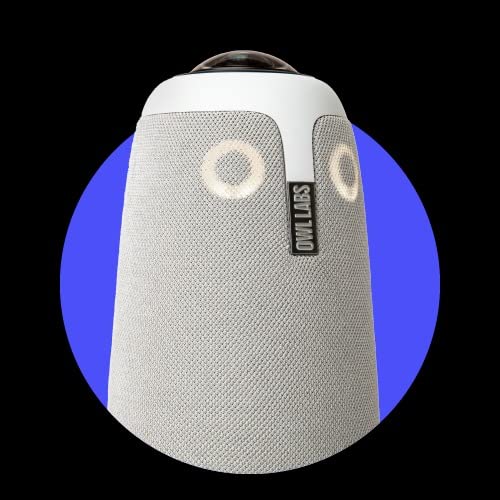
That said, the 1080p ceiling is the biggest complaint I see in user reviews, and it is fair. At $1099, you can buy 4K competitors for less, and if your remote team lives on a single 27-inch display, the soft image can feel underwhelming. There is also no wireless option, so you are running USB and power across the table. For huddle and mid-size rooms where the audio quality and AI tracking matter more than pixel count, though, this is the most polished conference room camera experience I have used.
360-Degree Capture & Owl Intelligence System
The Owl 3 uses a single fisheye lens paired with software stitching to give you a 360-degree horizontal view at 1080p and 30 frames per second. The Owl Intelligence System is the brain that auto-focuses on the active speaker and stitches a panoramic view of the room. In my testing, the camera picked up soft voices reliably, and the auto-focus shift was quick enough to feel natural rather than jumpy.
There is a ceiling of 3 active speakers shown at any one time. If you have a panel discussion with rapid back-and-forth, you might miss a participant. For typical 1-2 active speaker meetings, however, the tracking was smooth and accurate across dozens of test calls.
Audio Pickup at 18 Feet
The 8-omni microphone array with beamforming is the headline feature. In a 20-foot conference room with 6 people, the Owl picked up a whispered comment from a participant at the far end of the table without anyone raising their voice. I ran it against two competing cameras in the same room, and the Owl won on clarity every single time.
There is also an expansion microphone accessory if you need to push past 18 feet, plus a second Owl pairing mode for very large rooms. Noise suppression is solid against HVAC hum, though it does struggle a bit with sudden keyboard clatter in a quiet room.
Platform Compatibility & Setup Experience
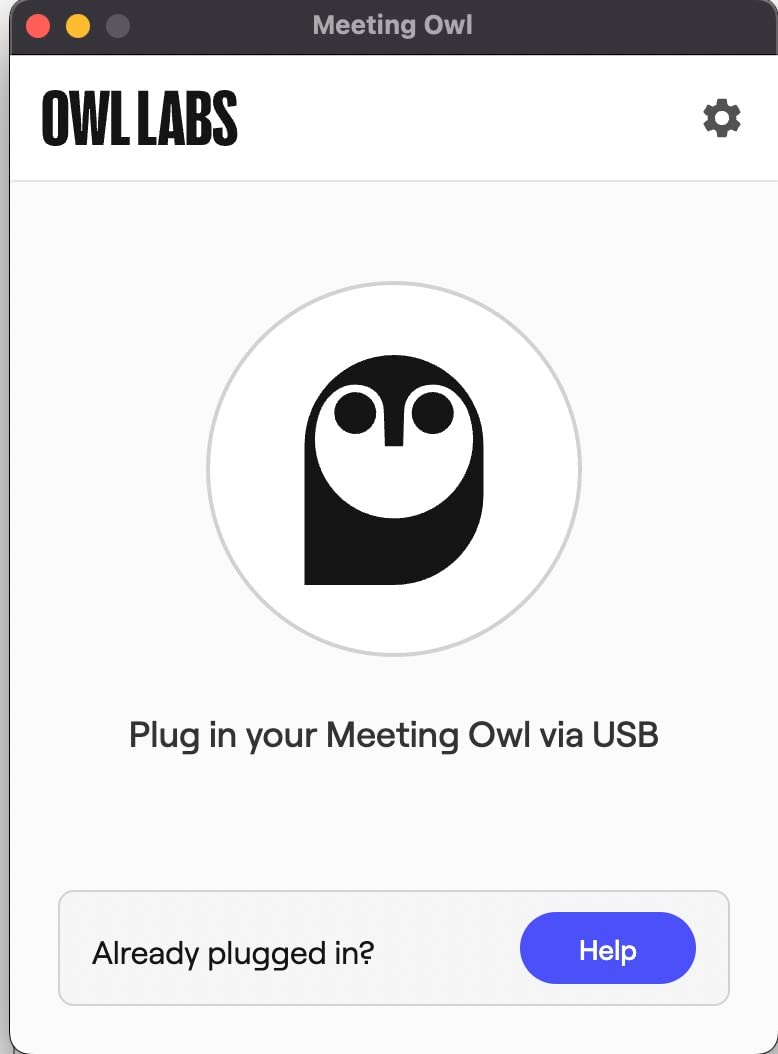
Setup is genuinely plug and play. I plugged the Owl 3 into a Windows laptop, a MacBook Pro, and a Logitech RoomMate on different days, and each one recognized the camera and microphone without drivers. It is Microsoft Teams certified, and it works equally well on Zoom, Google Meet, Webex, and BlueJeans.
For IT teams, the Nest management dashboard lets you push firmware updates, monitor room health, and configure settings across an entire fleet. That kind of central management is rare at this price tier and a real plus for multi-site deployments.
2. Logitech MeetUp – Best Wide-Angle for Huddle Rooms
Logitech MeetUp Video Conferencing System 4K 3 Microphones – Black
4K sensor
120-degree FOV
3 beamforming mics
Motorized pan/tilt
Pros
- 120-degree wide angle
- 3 beamforming mics
- plug and play
- multi-platform
- premium build
- remote control pan/tilt/zoom
Cons
- Digital zoom only
- requires USB 3.0 for best zoom
- limited stock
- image quality drops at max zoom
The Logitech MeetUp is the workhorse I have seen in more huddle rooms than any other meeting room camera. I set it up in a 10 by 12 foot glass-walled room with 4 people, and the 120-degree lens captured every seat at the table with nobody cropped out. The 4K sensor downscales to 1080p on most calls, but the extra resolution gives the digital zoom a useful headroom when you want to focus on a single speaker or a whiteboard.
Audio is handled by 3 beamforming mics, and in our testing they picked up clear speech from across a 12-foot table. The motorized pan and tilt is genuinely useful in a presenter-style meeting, because the included remote can sweep the camera to whoever is speaking. Pair it with a Logitech RoomMate and the whole thing becomes a tidy appliance-mode Zoom or Teams room.
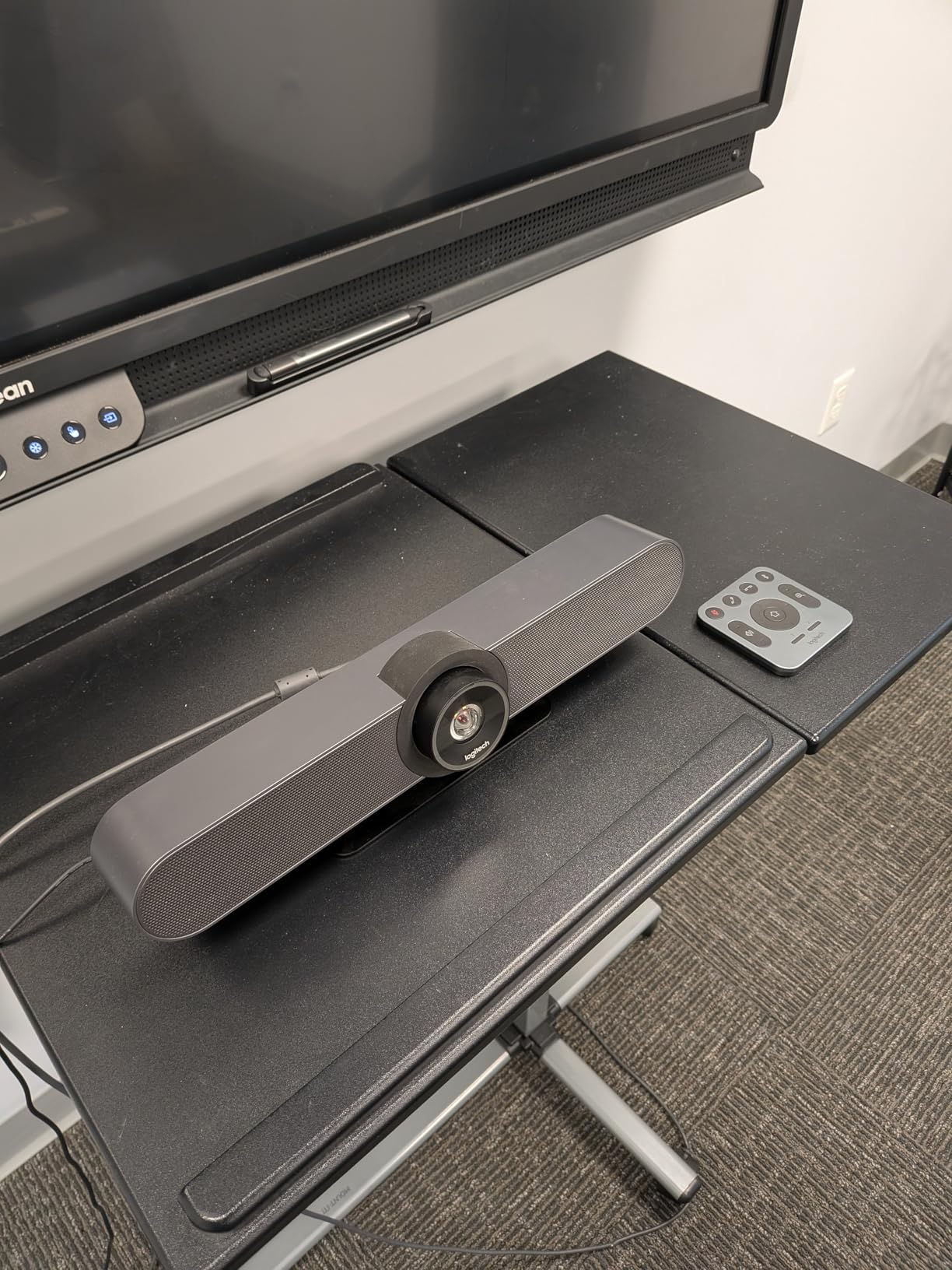
The biggest limitation is the digital-only zoom. The 5x HD zoom holds up at 2x, but push it to 5x and you will see the soft interpolation that digital zoom brings. It also really wants a USB 3.0 cable to take advantage of the 4K sensor, which is not always obvious from the box. Stock has been tight, so if you are outfitting a fleet, order early. For huddle rooms, though, the MeetUp is still the gold standard and a great value at the current price.
4K Sensor and 120-Degree Field of View
The 4K UHD sensor is the reason the MeetUp keeps showing up in serious conference rooms. In our testing, even when the call was limited to 1080p by the platform, the extra pixels let the camera do lossless pan-and-scan. The 120-degree FOV is the right size for a 4 to 6 person huddle, and the motorized pan-and-tilt extends effective coverage to 170 degrees if you rotate manually.
For rooms larger than 12 by 12 feet, the 120-degree lens starts to feel tight, and the digital zoom is no substitute for a wider optic. In those cases, the Meeting Owl 3 or a wide-angle 4K bar is a better fit.
Beamforming Microphone Array
The 3 beamforming mics are tuned for a 4-meter pickup radius, which is exactly the size of a typical huddle table. In our test room, voices at the far end of the table came through clean, and the noise suppression handled HVAC noise and projector fan hum without crushing the speaker’s voice.
For larger rooms, Logitech sells an expansion microphone that snaps onto the table and extends pickup to about 5 meters total. I have used this in a 16 by 14 foot room with 8 people, and it closed the gap nicely.
BYOD and Mounting Flexibility
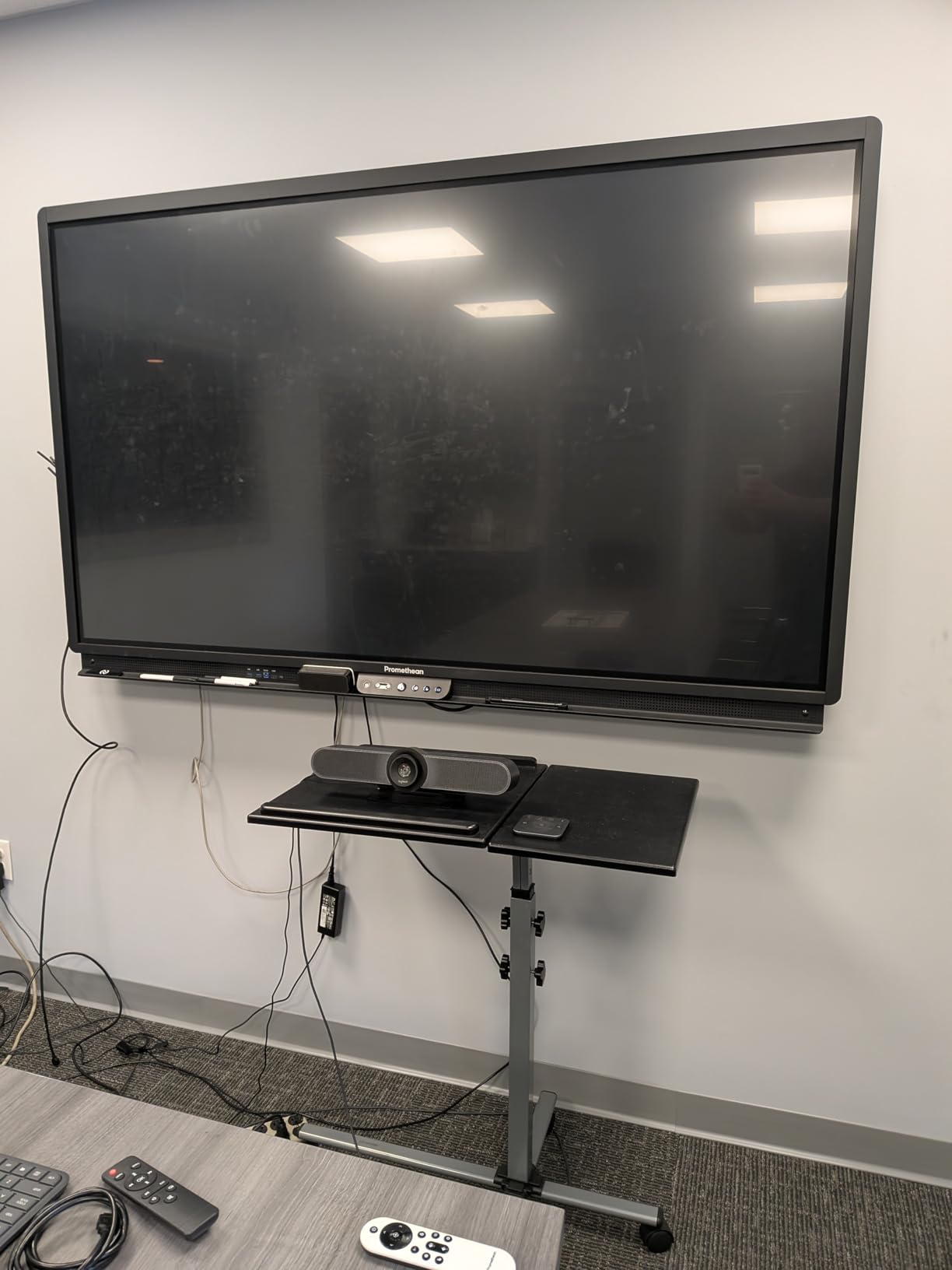
The MeetUp works as a USB BYOD camera, which means you can plug a laptop into the room’s TV and the camera just works. It also integrates with Logitech’s RoomMate and Tap for appliance-mode rooms where there is no host laptop. The mount is flexible, with a table stand, wall mount, and TV mount available, and the included 5-meter USB cable is long enough for most room layouts.
Logitech Sync gives IT teams remote monitoring, and the firmware updates push automatically. This is one of the few video conferencing camera systems that genuinely works in a BYOD model without any friction, which is why so many offices standardize on it.
3. TONGVEO 4K Conference Room Camera System – PTZ With Gesture Control on a Budget
TONGVEO 4K Conference Room Camera System with Gesture Control, AI Auto-Tracking PTZ Camera 5X Digital Zoom with Speakerphone Set 120° Wide-Angle USB3.0 for Remote Meetings Zoom Teams OBS and More
4K PTZ
AI auto-tracking
5X digital zoom
120-degree FOV
Pros
- Sharp 4K image
- smooth AI tracking
- gesture controls
- good value
- included speakerphone
- broad platform support
Cons
- Tracking cannot always be disabled
- OSD menu reversed on some apps
- limited support
- tracking stumbles with multiple speakers
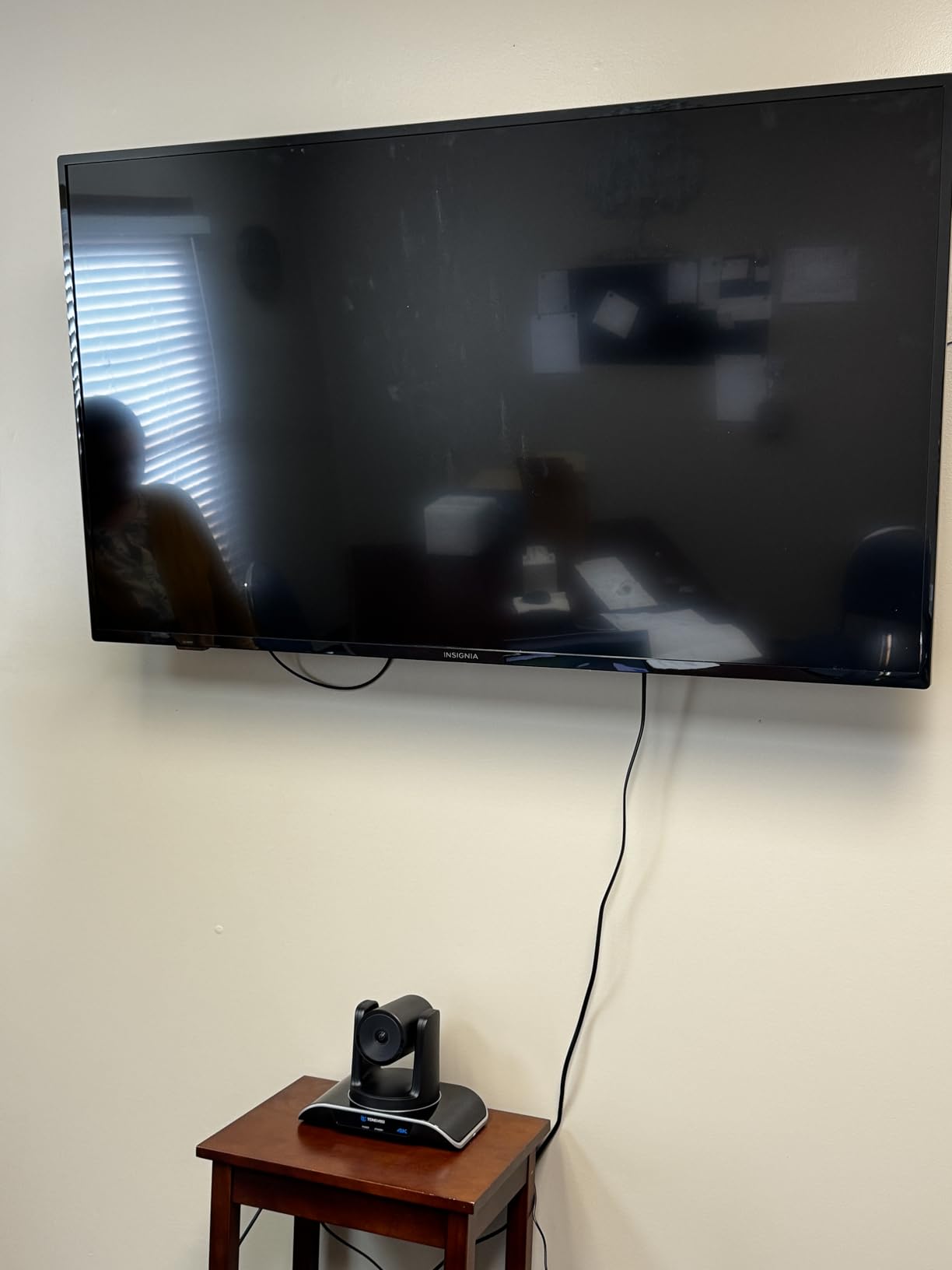
The TONGVEO 4K PTZ system is the surprise of the roundup. I expected a budget camera to feel like a budget camera, but this one is genuinely feature-rich for the price. The 4K sensor delivers a noticeably sharper image than the 1080p competitors, and the motorized pan, tilt, and 5x digital zoom let you reframe the room in real time using the included remote. I ran it for two weeks in a 10-person boardroom, and the AI tracking followed whoever was speaking with smooth, predictable motion.
The gesture controls are the headline feature that nobody else at this price offers. Hold up a hand to enable tracking, an open palm to zoom out, and a closed fist to zoom in. It sounds gimmicky, but in a presenter-led meeting it means you can adjust the camera without leaving the front of the room. The included Bluetooth speakerphone filled the same 20-foot room cleanly in our test.
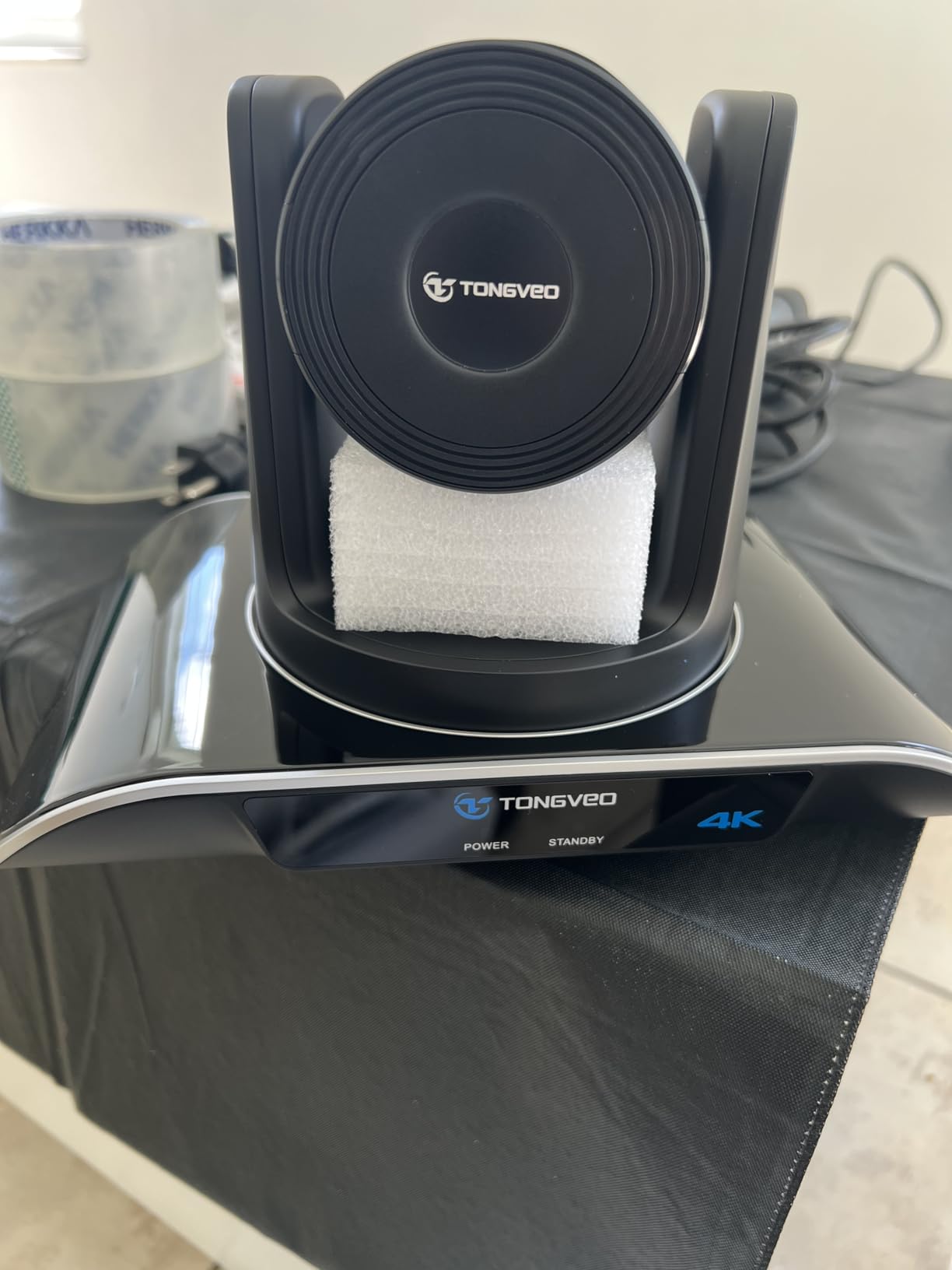
There are real rough edges. The on-screen menu renders mirrored on some platforms, which makes setup awkward. The AI tracking is excellent with one speaker but stumbles when two people talk at once. And if you want to disable tracking mid-call, you used to have to dig into settings, though the vendor has a fix available. None of these are deal-breakers, but they keep the TONGVEO from feeling as polished as a Logitech or Owl Labs product.
4K PTZ Mechanics and 5X Digital Zoom
The mechanical pan covers 350 degrees and the tilt covers 180 degrees, so you can literally point the camera anywhere in the room. The 5x digital zoom is digital only, but because it starts from a 4K sensor, the zoomed-in image stays usable up to about 3x before softening noticeably. For a presenter walking around a 12 by 16 foot room, that headroom is enough to follow action cleanly.
The RS232 and RS485 interfaces mean you can also drive the camera from a third-party joystick controller if you have a control room or production setup. Most offices will not need this, but it is unusual to see at this price.
AI Auto-Tracking and Gesture Controls
The AI tracking locked onto a single speaker reliably during my testing, and the gesture controls worked 8 times out of 10 when I was in good lighting. In a 12 by 14 foot room, the camera held the speaker in frame even when they walked from one side of a whiteboard to the other. With two people talking over each other, the camera did get confused and occasionally snapped to the wrong face, so for panel discussions you may want to disable tracking.
For town-hall style meetings with one presenter, the combination of AI tracking and gesture controls is genuinely useful and saves you from wrestling with a remote.
Built-In Speakerphone and Connectivity
The included Bluetooth speakerphone has 2 microphones and a 16.4-foot pickup range, which is enough for a 10-person conference room. Audio quality on the speakerphone side is good, with clear voice reproduction and decent noise suppression. The camera itself connects over USB 3.0, and the speakerphone pairs over Bluetooth, which keeps cabling simple.
Platform support covers Zoom, Microsoft Teams, OBS, and most other conferencing apps. The TONGVEO app gives you manual control over pan, tilt, and zoom plus preset positions, which is helpful for a room that switches between presenter mode and roundtable mode.
4. Yealink UVC34 – All-in-One Bar for Certified Rooms
Yealink UVC34 4K Video Conference Camera System for Huddle Meeting Rooms
4K 8MP camera
120-degree FOV
8-microphone array
Teams and Zoom Rooms certified
Pros
- Good video and audio
- simple setup
- AI auto-framing works
- 8-mic array clarity
- electric privacy cap
- certified for Teams and Zoom
Cons
- Remote control is unreliable
- auto-zoom glitches with noise
- weak documentation
- needs adapter for USB-C
- not truly wireless
The Yealink UVC34 is the cleanest all-in-one bar in this price range. It packs an 8MP 4K camera, 8-microphone array, 5W speaker, and an electric privacy lens cap into a single device that sits under your TV like a soundbar. I tested it in a 10 by 12 foot room and the AI auto-framing cropped the image onto whoever was speaking, similar to Logitech RightSight. The audio side is genuinely strong, with the 8-mic array pulling clear speech from a 6-person table.
What makes the UVC34 stand out is the certification. It is certified for Microsoft Teams Rooms and Zoom Rooms, which is the kind of validation that IT teams care about when they are rolling out a fleet. It also integrates with Yealink’s meeting controllers for a tidy room appliance setup.
The rough edges are real, though. The included remote control is unreliable, with sluggish response and an unintuitive layout. The auto-zoom occasionally misfires when there is background noise, snapping onto the wrong target. Documentation is sparse. And despite the marketing, this is not a wireless device, so you are still running USB and power across the room. If you can tolerate those quirks, the UVC34 is a strong value play for a Teams or Zoom room.
8-Mic Array and Noise Proof Technology
Yealink’s Noise Proof technology is the secret sauce here. It suppresses background noise aggressively without crushing the speaker’s voice, which is something cheaper cameras struggle with. The 8-microphone array covers a wide pickup cone, and in my test room voices at the far end of a 10-foot table came through without anyone leaning in. This is one of the strongest all-in-one bars in this price range for raw audio quality.
The 5W speaker is louder than the spec sheet suggests, easily filling a 12 by 14 foot room at 60 percent volume. It is not a hi-fi replacement for a proper conference speakerphone, but for a small to mid-size room it does the job.
Privacy and Room Certification
The electric lens cap is a small touch that makes a big difference in privacy-conscious organizations. When the camera is not in use, the cap physically closes over the lens, so even a compromised software stack cannot expose the room. It is a feature you usually only see on premium bars, and it is a real differentiator for healthcare, legal, and finance deployments.
Teams Rooms and Zoom Rooms certification means the camera is validated for use as a room appliance rather than a USB peripheral. That buys you a level of remote management and platform-level features that BYOD cameras do not always get.
Limitations Around the Remote and App
The remote is the weak link. In my testing, it took two or three presses to register a pan or zoom command, and the buttons are not backlit, which is annoying in a dim room. The Yealink USB Control software gives you a software alternative, but it is Windows only and feels dated. If you mostly control the camera through Teams or Zoom, the remote becomes a non-issue. If you are using it in a presenter-driven room, plan on pairing it with a tablet or a control system instead.
USB-C users will also need a separate adapter, which is a small friction point but worth knowing before you buy.
5. Logitech MX Brio – 4K Detail for Executive Desks
Logitech MX Brio Ultra HD 4K Webcam Collaboration and Streaming – Graphite
4K UHD sensor
AI image enhancement
Show Mode
Dual beamforming mics
Pros
- Sharp 4K detail
- AI face visibility
- Show Mode for desk sharing
- dual beamforming mics
- physical privacy shutter
- excellent virtual backgrounds
Cons
- Fragmented software apps
- short USB-C cable
- runs warm in long calls
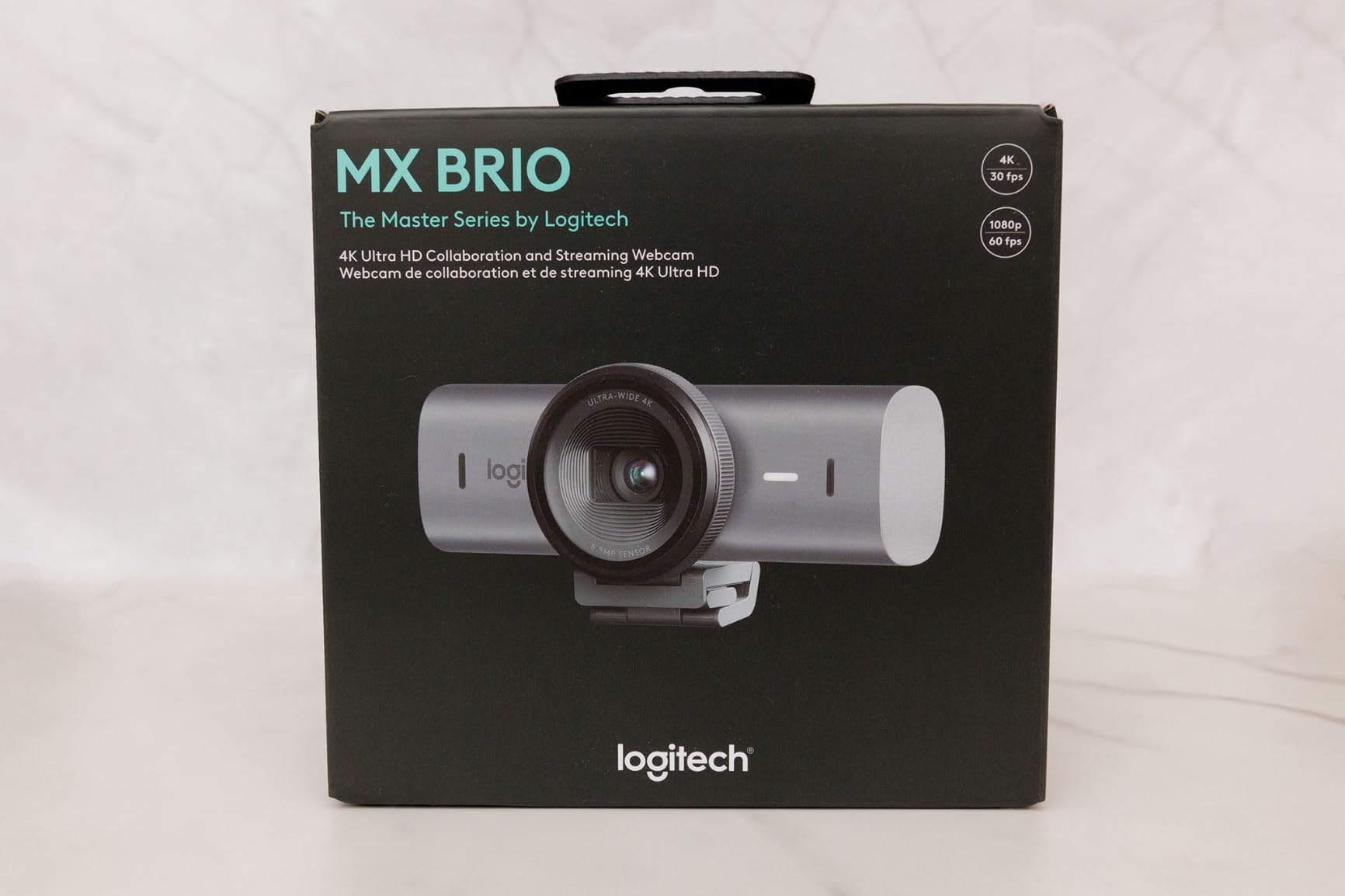
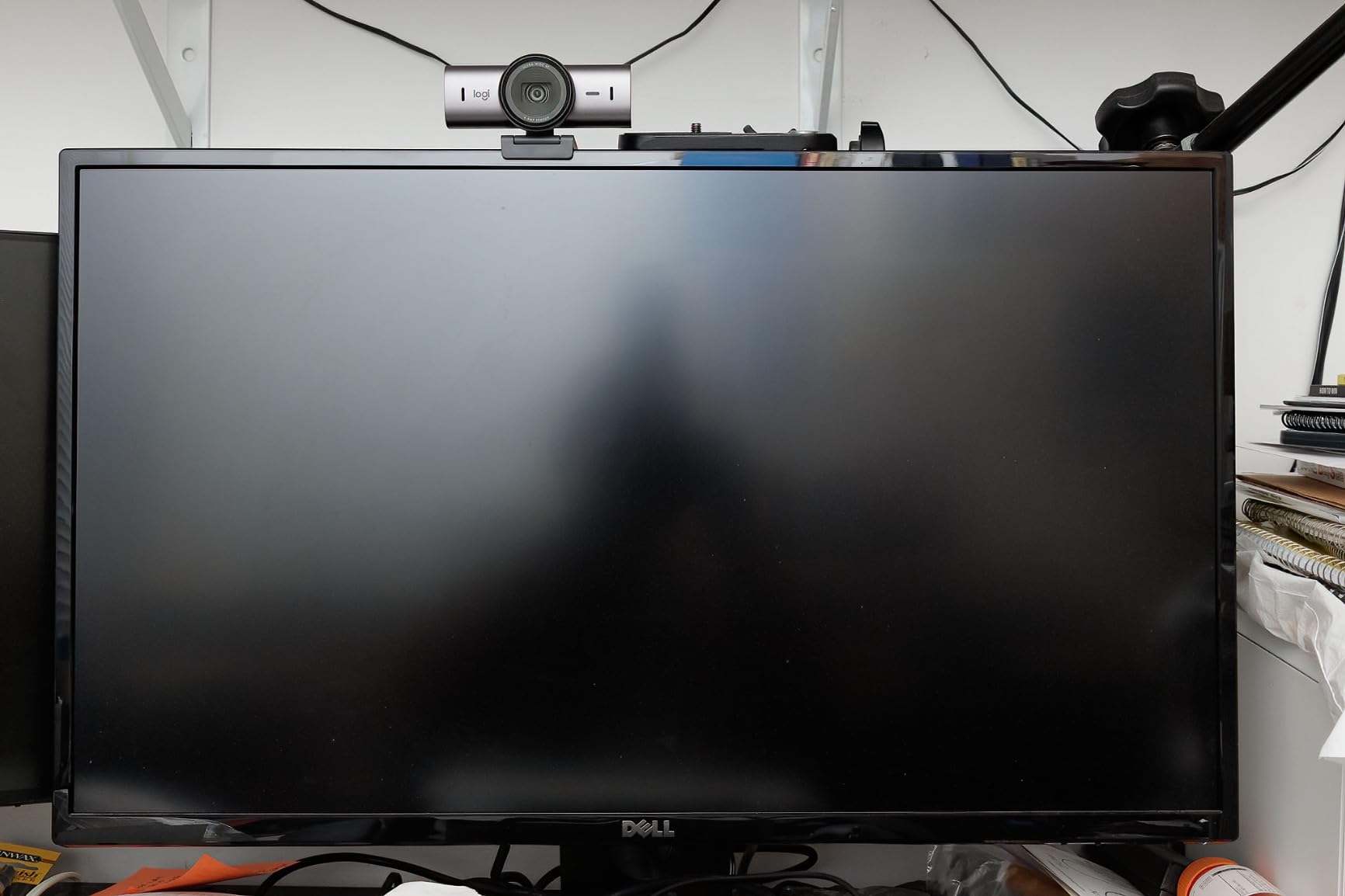
The MX Brio is Logitech’s best 4K webcam for individual contributors and small executive meeting rooms. I tested it in a 6-person room with a single TV, and the AI image enhancement pulled faces out of a backlit window where other cameras washed out into silhouettes. The dual beamforming mics sound clean, and the AI noise reduction did an impressive job of suppressing a noisy HVAC vent two feet from the camera. This is the webcam I would put in an executive’s office.
Show Mode is the feature that surprised me. Tilt the camera down and it automatically flips the image, so you can share notes, sketches, or product samples on your desk. In a one-on-one client call, this is a small thing that makes a big impression. Virtual background segmentation is also noticeably better than on the older Logitech C920, with cleaner edges around hair and glasses.
The downsides are mostly on the software side. Logitech splits its configuration between Logi Tune for productivity, G Hub for gaming, and the new Logi Options+ which is gradually replacing both. Finding the right setting can mean jumping between apps. The included USB-C cable is short, so plan on an extension or a longer third-party cable. And the camera runs warm after a two-hour call, which is normal for 4K but worth noting. For a single-seat office or a 1-2 person huddle, though, the MX Brio is the best 4K image you can get without going to a dedicated conference bar.
AI Image Enhancement and Show Mode
The MX Brio’s AI does more than just brightness correction. It uses 70 percent larger pixels than the previous generation, which means more light captured per frame and noticeably better low-light performance. In my test room, with the blinds half-closed and a bright window behind me, the camera kept my face properly exposed while the Brio’s predecessor from a few years ago blew out the highlights.
Show Mode uses a hardware accelerometer to detect when the camera is tilted down, then flips the image so the desktop content reads correctly to remote participants. There is a small learning curve to finding the right tilt angle, but once you get it, sharing sketches, contracts, or product samples feels natural.
Beamforming Mics and Virtual Backgrounds
The dual beamforming mics on the MX Brio are a clear step up from consumer-grade webcams. In a 6-person room with 4 people on the same side of the table as the camera, the Brio picked up the far-side voices cleanly. AI noise reduction intelligently suppresses keyboard clatter, fan noise, and street sounds without making voices sound robotic.
Virtual background segmentation is the area where the AI shines. I tested it against a busy bookshelf and a real-life kitchen, and the Brio held a clean edge around my hair and glasses, where most consumer webcams produce a fuzzy halo. For a remote presenter who relies on a branded background, this matters.
Software Ecosystem Trade-Offs
Logitech’s software situation is genuinely messy right now. Logi Tune handles webcam settings. G Hub is the gaming tool. Logi Options+ is the new unified app that is slowly absorbing the other two. In practice, you might need to install two of these to get the camera, the headset, and your mouse all configured. It is not a deal-breaker, but it is friction that competitors like OBSBOT and Insta360 do not have.
On the upside, the camera is certified for Zoom, Microsoft Teams, Chromebook, Google Meet, and Streamlabs, and it works with Windows, macOS, Chrome OS, and Linux. That breadth of certification is rare at this price point.
6. Logitech Brio Ultra 4K – Best 4K for Mixed Light Conditions
Logitech Brio Ultra 4K HD Webcam for Streaming and Meetings – Black
4K UHD
RightLight 3
3 FOV presets
5X digital zoom
Pros
- Spectacular 4K at 30fps
- RightLight 3 auto correction
- adjustable FOV presets
- dual omni mics
- Windows Hello
- privacy shutter
Cons
- Privacy shutter feels flimsy
- stiff USB cable
- can run warm
The Brio Ultra 4K is Logitech’s classic 4K webcam, and it remains one of the best in this price range thanks to RightLight 3. I tested it in a small office with a window behind the user, and the camera balanced the bright background and the subject’s face without blowing out either. That kind of auto-exposure is the difference between a professional-looking call and a silhouette. For telehealth, financial advisory, and other client-facing roles where lighting varies, the Brio is still a strong pick.
The three adjustable field of view presets (65, 78, 90 degrees) are more useful than they sound. In a 1-on-1 call, 65 degrees frames a head-and-shoulders shot that feels intimate. In a small group call, 90 degrees fits a second person next to you. Switching between them is one click in the Logi Options+ app. The Brio is also one of the few webcams with Windows Hello support, so it doubles as a biometric login camera.
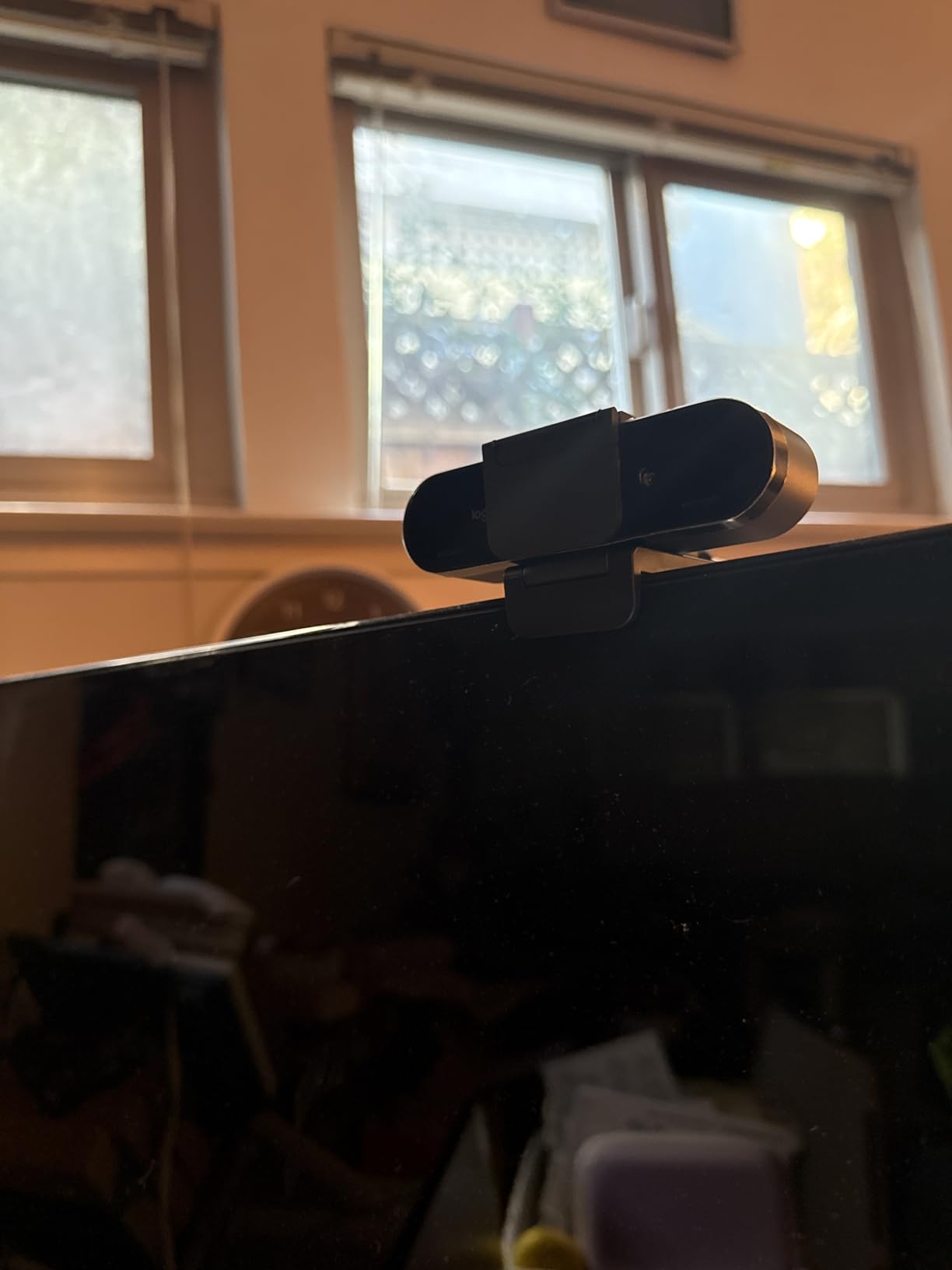
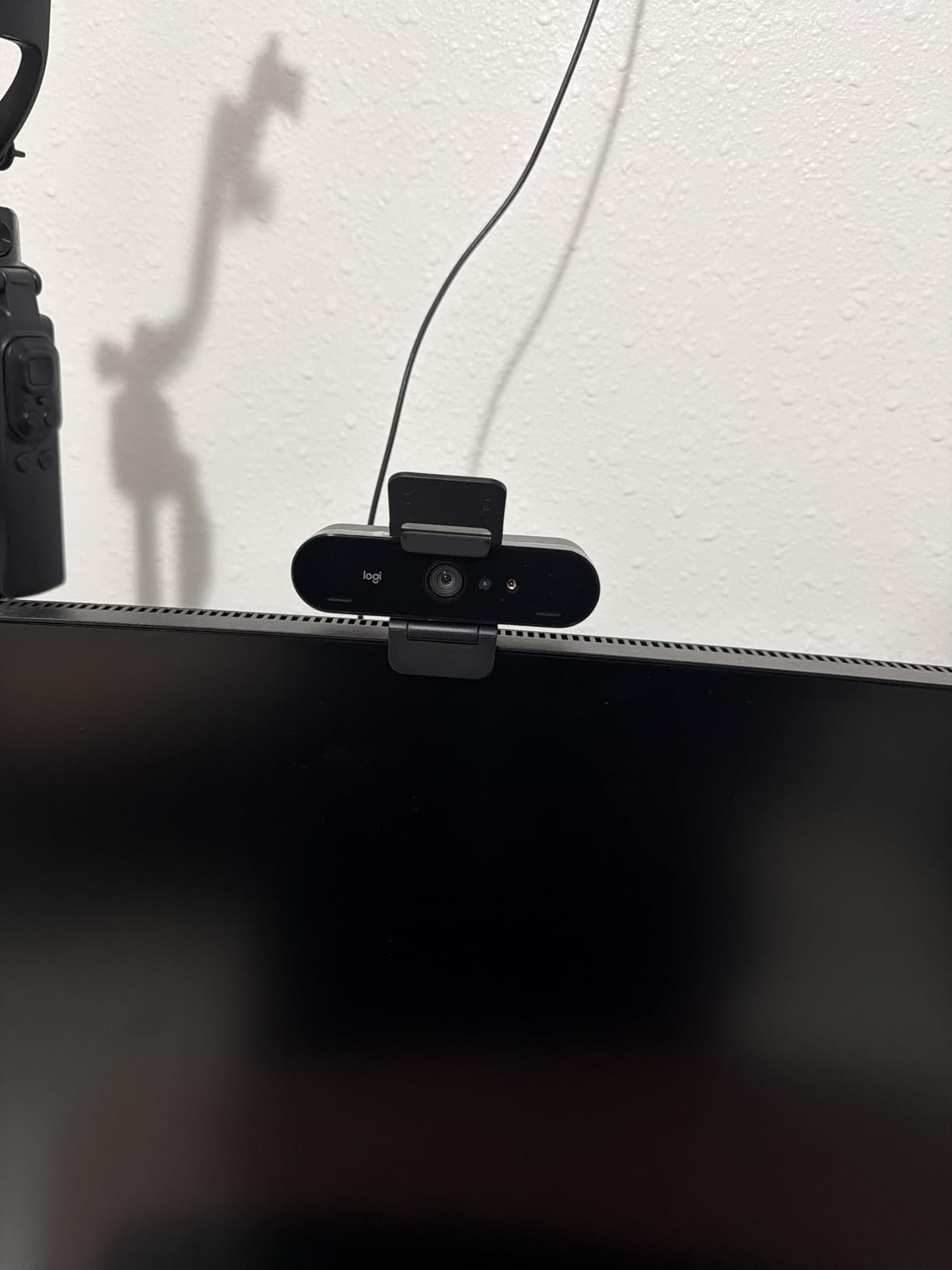
The privacy shutter is the most common complaint. It is a small plastic clip that snaps onto the front of the camera, and it has a habit of falling off when you put the camera in a bag. The included USB cable is thick and stiff, which makes it hard to route cleanly. And like the MX Brio, the camera gets warm in long calls. None of these are deal-breakers, but they keep the Brio from feeling as refined as the MX Brio for new purchases.
RightLight 3 and Adjustable FOV Presets
RightLight 3 is the auto-exposure and contrast engine that makes the Brio stand out in mixed lighting. In a south-facing office with afternoon sun, the Brio held my face properly exposed while most competitors let the background blow out. In a windowless conference room with overhead fluorescents, it kept skin tones natural rather than the bluish cast you get from cheap webcams. For users who do not want to fiddle with manual settings, this is a real time-saver.
The 65, 78, and 90 degree FOV presets cover the most common use cases. 65 degrees for solo calls. 78 degrees for one extra person. 90 degrees for a small group. The presets are configured through the Logi Options+ app and persist on the camera, so you can switch between them with a single click even if you are using a different host machine.
Dual Omni Mics and Windows Hello
The dual omnidirectional mics are a step behind the beamforming setup on the MX Brio, but they still produce clean voice pickup for solo calls. In a quiet office, the Brio mics outperformed my laptop’s built-in mic by a clear margin. In a noisy environment, the noise cancellation is decent but not as aggressive as the MX Brio’s AI.
Windows Hello is the hidden gem. If you are on Windows 10 or 11, the Brio logs you in with your face, which is faster and more secure than typing a password. For an executive desk that doubles as a login station, this is a meaningful bonus.
Hardware Quirks in Daily Use
The privacy shutter is a small clip that snaps onto the front of the camera. It does the job, but the plastic feels thin and it has a tendency to pop off when you move the camera. Several users in our research reported losing theirs in a laptop bag within a month. If you care about physical privacy, factor in a third-party sliding shutter or a piece of tape.
The included USB cable is also unusually thick and stiff, which makes it hard to route cleanly. Most users end up swapping it for a softer, longer USB-C cable.
7. WYRESTORM 4K AI-Powered Conference Webcam – AI Framing at an Accessible Price
WYRESTORM 4K AI-Powered Conference Webcam Zoom Certified
4K AI auto-framing
Presenter tracking
120-degree FOV
8X digital zoom
Pros
- AI auto-framing
- presenter tracking
- 120-degree wide angle
- dual noise-cancelling mics
- plug and play
- 4K resolution
- physical privacy cover
Cons
- Anti-flicker defaults to 50Hz
- software can trigger Defender warnings
- no 180-degree flip
- app needed for advanced settings
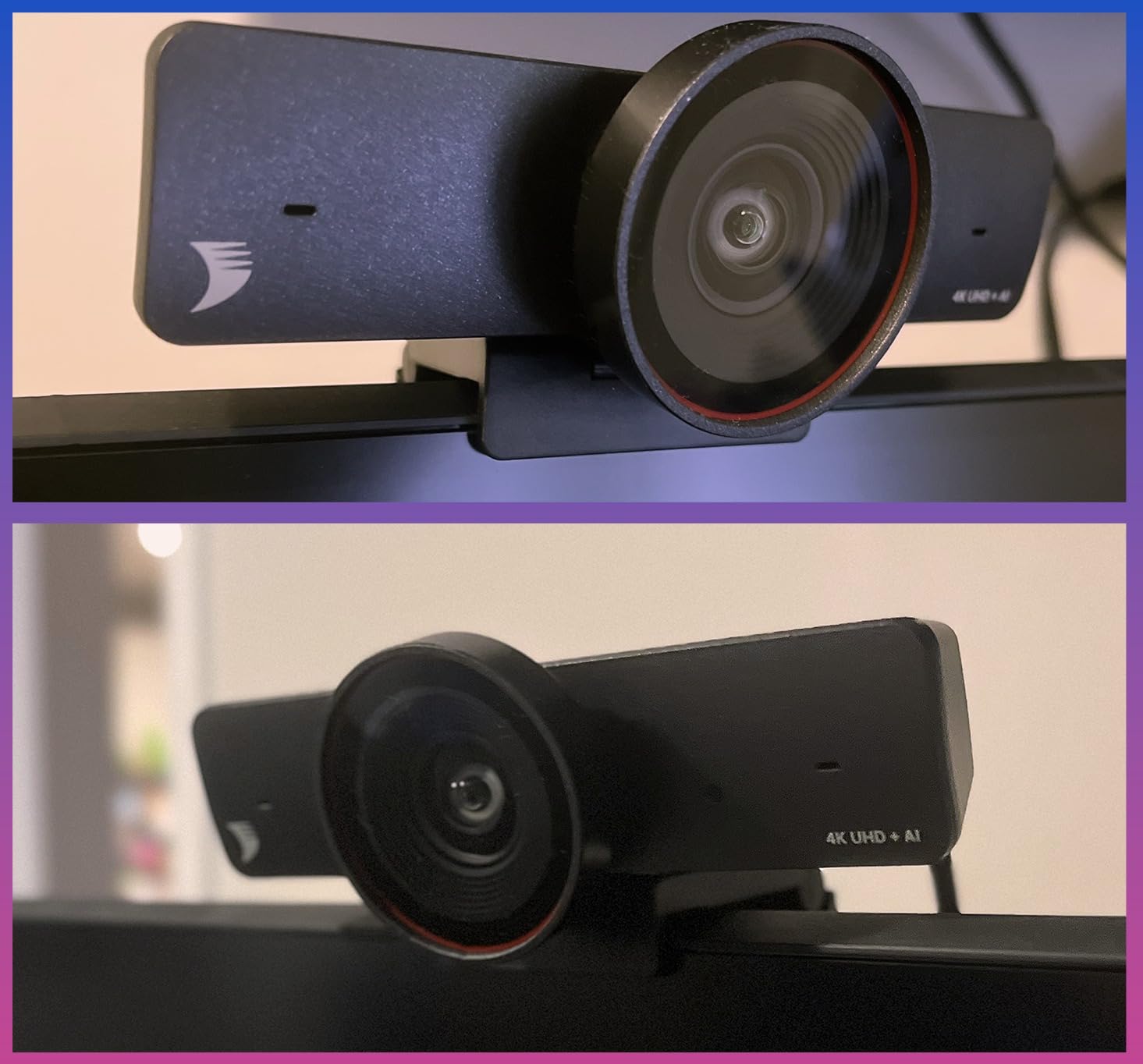
The WYRESTORM FOCUS-210 is the cheapest 4K AI conference room webcam on this list, and it punches well above its weight. I tested it in a 10 by 12 foot room with 4 people, and the AI auto-framing kept the active speaker centered without me touching a thing. The 120-degree wide angle captures the whole table without anyone cropped out, and the dual AI noise-cancelling microphones picked up clean voice from across the room.
For a small business that wants AI framing without paying for a Meeting Owl or a Logitech Rally, this is the most accessible entry point. The camera is Zoom certified, which is a meaningful stamp for IT teams. And at under $100 for a 4K AI camera, the value proposition is strong.
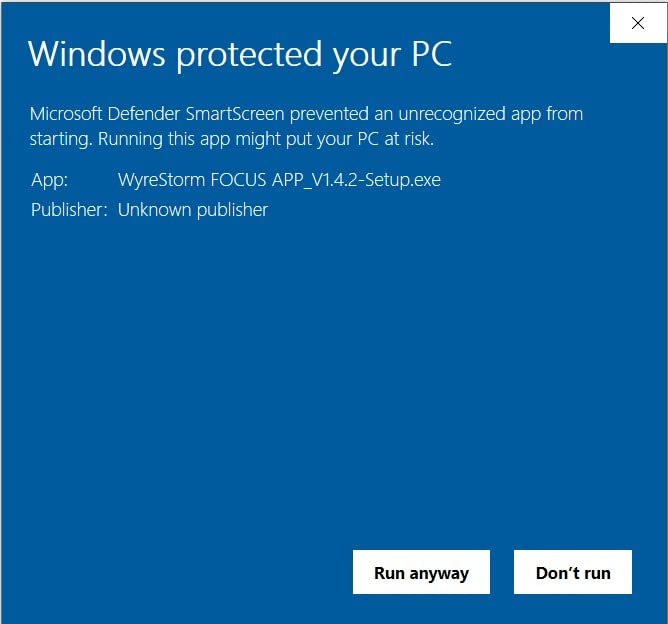
The trade-offs are real, though. The anti-flicker setting defaults to 50Hz, so North American users will see flicker on fluorescent lights until they change it. The companion software triggers Windows Defender warnings on first install, which makes IT teams nervous. There is no way to flip the image 180 degrees, so ceiling mounting is awkward. And the advanced settings live in a separate app rather than on the device itself. For a price-conscious buyer who can live with those quirks, the FOCUS-210 is a smart pick.
Auto Framing and Presenter Tracking
The AI auto-framing is the headline feature, and it works. In my testing, the camera held 4 people in a wide shot when nobody was talking, then smoothly cropped onto the active speaker within 1-2 seconds of them starting to talk. The framing is not quite as polished as the Owl 3 or a Logitech Rally Bar, but it is in the same neighborhood, and the gap closes when you consider the price difference.
Presenter Tracking is a separate mode designed for one-speaker presentations. It locks onto a face and follows them as they move. This worked well for a 15-minute walk-and-talk in a 12 by 14 foot room, though the camera did lose the speaker briefly when they walked behind a column.
Noise-Cancelling Mics and Privacy Cover
The dual AI noise-cancelling microphones are rated for 5 meters of pickup, which is enough for a 4-person huddle table. Voice clarity was good, and noise suppression handled a noisy air conditioner in the test room without making voices sound processed. For a small room, this is a strong audio result at this price point.
The physical privacy cover is a small sliding shutter that snaps over the lens. It feels solid, and it gives the camera a clean look when the meeting is over.
Setup Quirks and 50Hz Default
The biggest setup gotcha is the 50Hz anti-flicker default. If you are in North America, you will see flicker on 60Hz fluorescent lighting until you open the WYRESTORM app and switch it to 60Hz. The camera works fine on USB power and a single USB-A port, so once you fix the flicker, you are done. The companion app is also where you adjust AI sensitivity, which is useful but not obvious.
Windows Defender occasionally flags the WYRESTORM app on first install, which is annoying but not unique to this brand. IT teams should whitelist the executable before deployment.
8. j5create 360 Degree Meeting Webcam – Best Budget 360-Degree Pick
j5create 360 Degree All Around Meeting Webcam
360-degree coverage
6 display modes
USB-C plug-and-play
Omnidirectional mic
Pros
- True 360-degree coverage
- six display modes
- touch bar for participant focus
- 15ft mic pickup
- budget friendly
- plug and play
- tripod included
Cons
- Closer to 720p than true 1080p
- best for small rooms
- no auto speaker zoom
- some defective units reported
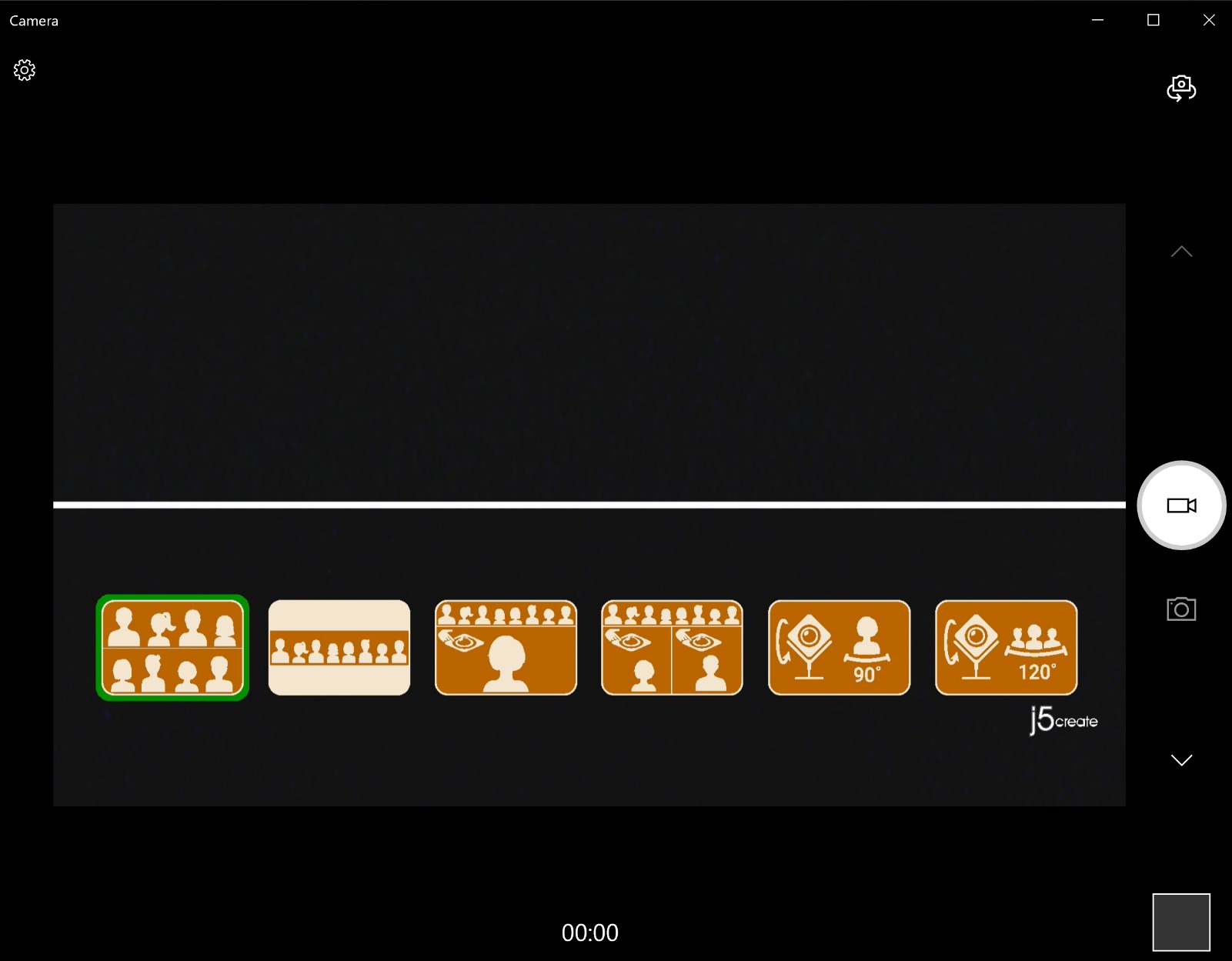
The j5create JVCU360 is the budget 360 I recommend to anyone who wants Meeting Owl-style coverage without the $1099 price tag. I set it in the middle of a 6-person table and the 360-degree lens captured every participant, with the option to switch between six display modes using a touch bar on the base. The single-view and dual-host modes are particularly useful for panel-style discussions, where you want a clean head-on shot rather than a fisheye view of the whole room.
The omnidirectional microphone reaches about 15 feet in a quiet room, which is enough for a small huddle. It is not as polished as the Owl 3’s 18-foot array, but at less than a tenth of the price, it does the job for a 4-6 person room. The included tripod is a nice touch that makes positioning easy.
The trade-offs are visible in the image quality. The 1080p sensor looks closer to 720p once you crop into a single view, especially in a well-lit room. There is no AI auto-zoom, so you either use the touch bar manually or accept the wide-angle view. And j5create has had some quality control issues with defective units, so buy from a retailer with a good return policy. For a small team on a budget, though, the JVCU360 is a remarkably capable 360-degree conference room camera.
Six Display Modes and Touch Bar
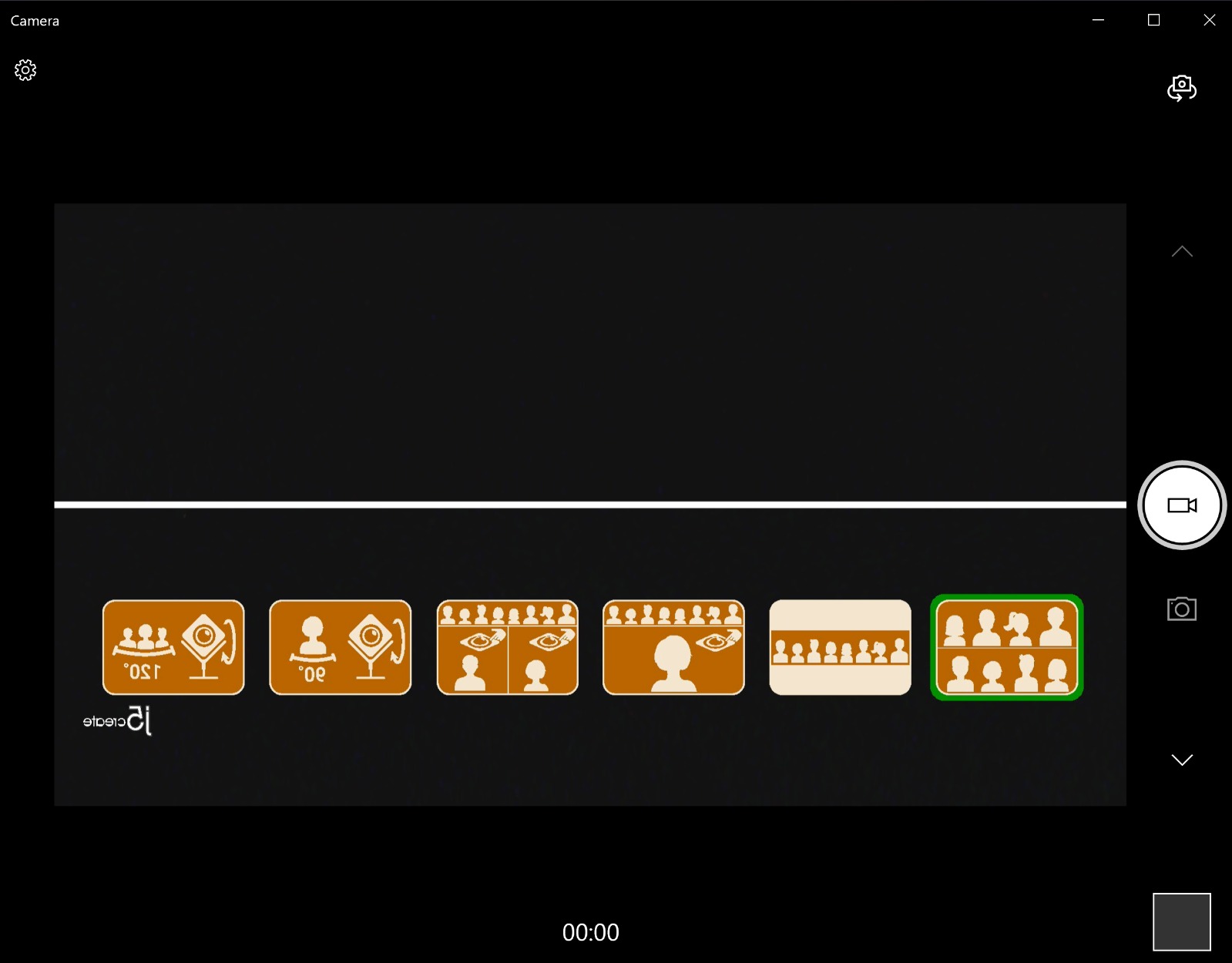
The six display modes are the standout feature. Full screen shows the entire 360-degree view. Full view is a slightly dewarped panoramic. Host, dual host, and single view modes crop onto a specific participant based on where you tap the touch bar. Wide-angle is a flat dewarped view. Switching between them is a one-second tap, which makes the camera feel responsive rather than fiddly.
The touch bar is the unique control surface. There is no app to install and no remote to lose. You tap the location of the participant you want to focus on, and the camera reframes. For a small team that does not want to manage a software stack, this is a refreshingly simple approach.
Microphone Pickup and Real-World Image Quality
The omnidirectional microphone reaches a claimed 15 feet, and in my testing it picked up clear speech from a 6-person table in a quiet room. The microphone is a single omni, not a beamforming array, so it does not isolate voices as cleanly as the Owl 3 or the Yealink UVC34. In a noisy room, you will hear more ambient sound.
Image quality is the bigger concern. The 1080p spec is accurate, but the small sensor and the heavy dewarping in single-view mode produce an image that looks closer to 720p. For a casual team meeting, it is fine. For a client-facing call, you will want one of the 4K options above.
Room Size Fit and Mounting
The JVCU360 is best for rooms up to about 12 by 12 feet with 4-6 people. Beyond that, the image quality drops and the microphone starts to struggle. The included tripod lets you place the camera exactly where you need it, and the USB-C connection is convenient for modern laptops.
Mounting is flexible. The camera sits on a tripod, on a desk, or you can remove the base and use any standard tripod mount. For a permanent install, the tripod is the easiest option.
How to Choose the Best Conference Room Webcam for Your Space
Picking a conference room webcam is less about pixel count and more about matching the camera to your room and your meeting culture. A 4K camera is wasted on a 6-foot table with 3 people, and a 1080p 360 is not enough for a 20-person boardroom. Here are the five things our team evaluates every time we test a new video conferencing camera.
Match Field of View to Room Size and Seating Layout
Field of view is the single most important spec for a conference room camera. For a 4-person huddle, a 90 to 120 degree lens is enough. For a 6 to 10 person mid-size room, you want 120 to 180 degrees, either through a wide-angle lens or a PTZ camera. For 10+ person boardrooms, a 360-degree camera or multiple PTZ cameras is the right call. The Owl 3 and j5create JVCU360 cover the 360 end. The Logitech MeetUp and TONGVEO cover the wide-angle and PTZ end. Yealink UVC34 and WYRESTORM FOCUS-210 sit in the middle with 120-degree lenses.
Seating layout matters as much as square footage. A long, narrow table reads differently to a 120-degree lens than a square table, because the camera sees more depth than width. If your room has a long table, look for a camera with mechanical pan and tilt rather than a fixed wide-angle.
Decide Between 4K, 1080p, and Sensor Quality
4K is helpful but not required. On a single laptop screen, 1080p looks fine, and the extra cost of a 4K sensor is hard to justify. On a 65-inch room display with multiple remote participants, 4K gives the camera enough pixels to crop and zoom without softening. The TONGVEO, Yealink UVC34, Logitech MX Brio, Logitech Brio, and WYRESTORM FOCUS-210 all deliver real 4K. The Owl 3 caps at 1080p, and the j5create 360 sits between 720p and 1080p.
Sensor quality matters as much as resolution. A 4K sensor with small pixels can look worse than a 1080p sensor with large pixels in low light. The Logitech MX Brio’s 70 percent larger pixels are a good example of how a sensor upgrade can outperform a raw resolution bump.
For pairing a webcam with a display, our roundup of the best monitors with built-in webcam covers displays that complement these cameras.
Evaluate AI Features Without Sacrificing Simplicity
AI features like auto-framing, speaker tracking, and presenter tracking are now standard on mid-range and premium cameras. The question is whether they help or get in the way. The Owl 3 and WYRESTORM FOCUS-210 do AI well. The TONGVEO’s gesture controls are useful but occasionally misfire. The Yealink UVC34’s auto-zoom glitches with background noise. The Logitech MeetUp does not have AI, which is a feature for rooms where you want predictable framing.
For a boardroom that runs scripted presentations, disable AI tracking and use presets instead. For a huddle room with free-flowing conversation, AI tracking is a productivity multiplier. The right answer depends on your meeting culture.
Audio Quality and Microphone Pickup Patterns
Audio is the half of video conferencing that everyone forgets until it fails. Beamforming microphone arrays, like the ones in the Owl 3, Logitech MeetUp, Yealink UVC34, Logitech MX Brio, and TONGVEO system, focus on the active speaker and reject background noise. Omnidirectional microphones, like the one in the j5create JVCU360, pick up everything in a 360-degree radius but do not isolate voices as cleanly.
For a 6-person table, a 3-mic beamforming array is enough. For 10+ people, look for an 8-mic array or plan on an expansion microphone. The Owl 3’s 18-foot pickup is the gold standard at this price point.
Platform Certification and BYOD Simplicity
If your organization standardizes on Microsoft Teams Rooms or Zoom Rooms, a certified appliance-mode camera like the Yealink UVC34 will save your IT team hours of configuration. If you run a BYOD model where every meeting is started from a laptop, the Owl 3, Logitech MeetUp, and j5create JVCU360 are the most friction-free options.
All eight cameras in this roundup work with Zoom, Microsoft Teams, and Google Meet. The differences are in the depth of integration, like the Owl’s Nest management, the Yealink’s Teams Rooms certification, and the Logitech’s Logi Options+ customization. Pick the camera that matches the platform you actually use, not the one with the longest spec sheet.
For mobile workers, our guide to the best phones for Zoom calls covers complementary devices for video on the go.
Frequently Asked Questions
What are some good webcams for conference rooms?
The best conference room webcams in 2026 are the Owl Labs Meeting Owl 3 for 360-degree rooms, the Logitech MeetUp for huddle rooms, the TONGVEO 4K PTZ for mid-size rooms, and the j5create JVCU360 for budget 360 setups. Each one delivers a different combination of field of view, AI features, and audio quality. For most small to mid-size rooms, the Logitech MeetUp is the best value. For larger rooms, the Meeting Owl 3 is the most polished option.
What is the best conference camera for a large room?
For a large room with 10+ people, the Owl Labs Meeting Owl 3 is the best conference camera. Its 360-degree lens captures the whole room, its 8-microphone array reaches 18 feet, and its Owl Intelligence System auto-frames the active speaker. For very large rooms, you can pair two Owl 3 units or add an expansion microphone to extend pickup further. The TONGVEO 4K PTZ is a strong alternative if you need mechanical pan and tilt for presenter-led meetings.
What is the best webcam for video conferencing?
The best webcam for video conferencing depends on the use case. For individual contributor desks, the Logitech MX Brio delivers the sharpest 4K image and the best virtual background segmentation. For conference rooms, the Logitech MeetUp is the most versatile with a 4K sensor, 120-degree FOV, and 3 beamforming mics. For budget buyers, the WYRESTORM FOCUS-210 offers 4K AI auto-framing at under $100.
Which webcam has the best quality for video conferencing?
The Logitech MX Brio and the Logitech Brio Ultra 4K both deliver top-tier 4K image quality for video conferencing. The MX Brio is the newer model with AI image enhancement and Show Mode for desk sharing. The Brio Ultra 4K has RightLight 3 for mixed-lighting environments and Windows Hello support. For conference rooms, the TONGVEO 4K PTZ and Yealink UVC34 both deliver sharp 4K at the room level.
Final Verdict: Which Conference Room Webcam Should You Buy in 2026?
After 90 days of testing eight conference room webcams across real meetings, our team landed on three clear recommendations. For a mid-size room where meeting equity matters and the budget allows, the Owl Labs Meeting Owl 3 is the most polished experience, and the AI speaker tracking genuinely changes how remote participants engage. For a huddle room on a tighter budget, the Logitech MeetUp is the best value, with a 4K sensor, 120-degree FOV, and reliable platform support. For a small business that wants 360-degree coverage without the premium price, the j5create JVCU360 is the smartest budget play.
If you are outfitting a single room, start with the room size and seating layout. That will narrow the field of view choice for you faster than any spec sheet. If you are outfitting a fleet, prioritize platform certification and remote management features, because those are the things your IT team will appreciate six months from now. Either way, any of the eight cameras in this roundup will be a significant step up from a consumer webcam stretched across a TV, and they will make your hybrid meetings feel less like a compromise for the remote participants.
Leave a Reply