
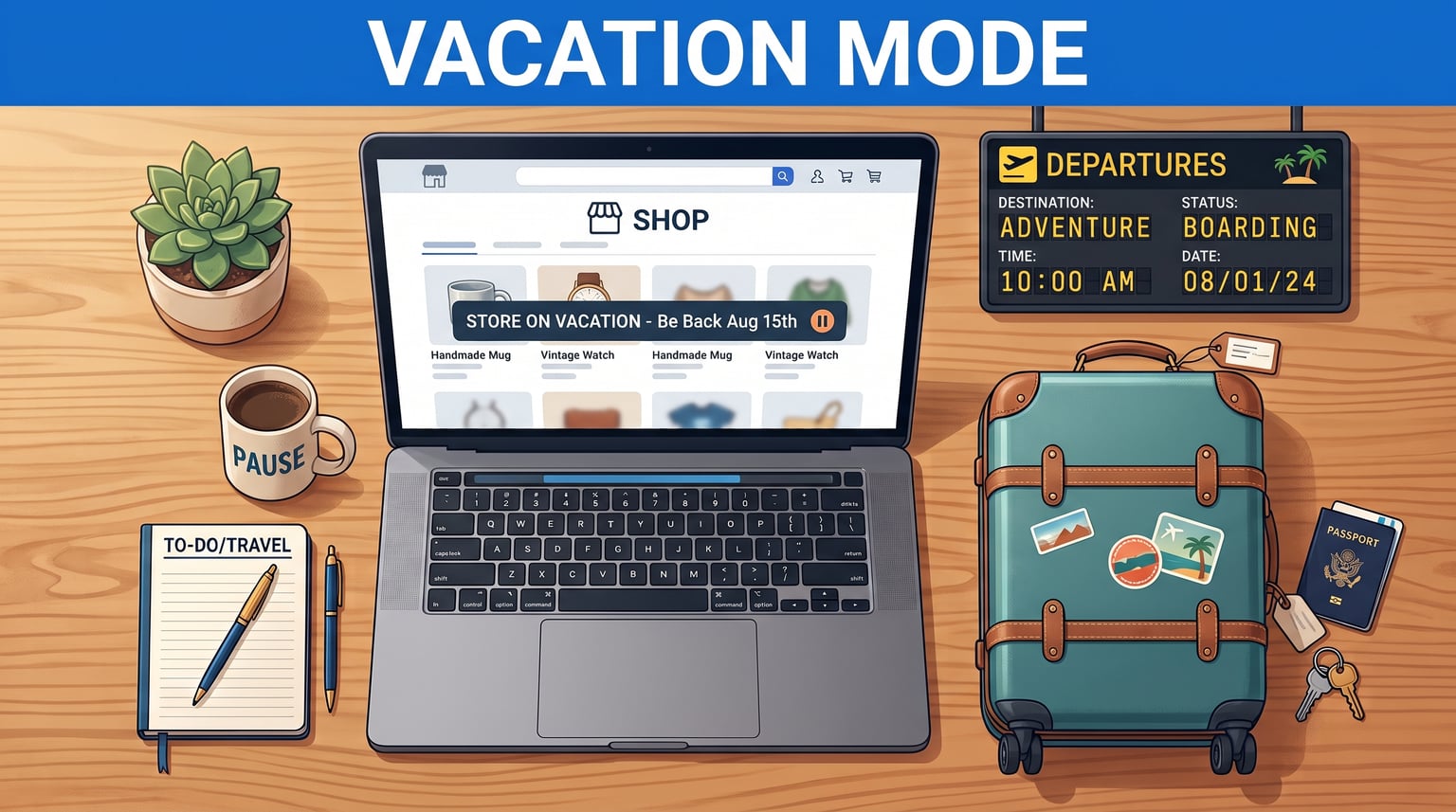
eBay Vacation Mode — officially called eBay Time Away — lets sellers pause or adjust their listings when life pulls them away from the keyboard. Whether it is a family holiday, a medical leave, or just a mental health break, this feature gives you control over how your storefront appears to buyers during your absence. You can choose to pause all sales entirely or keep listings visible with an adjusted shipping notice. The right choice depends on your business priorities and how long you plan to be away.
Setting up Time Away is straightforward, but the details matter. Different modes carry different day limits, fees still apply, and auction listings behave differently than fixed-price items. Below is a complete guide covering how to activate Time Away on desktop and mobile, the exact rules each mode imposes, and answers to the most common questions sellers ask.
This article walks you through everything you need to know about eBay Time Away in 2026, including step-by-step setup instructions, a side-by-side comparison of the two available modes, and tips for protecting your seller performance metrics while you are offline.
Table of Contents
- What Is eBay Vacation Mode (Time Away)?
- How to Set Up eBay Time Away
- Pause Sales vs Allow Sales – Which Mode Is Right for You?
- Managing Your Listings During Time Away
- Important Rules and Limitations
- Maximizing Your eBay Sales While Away
- Troubleshooting Common Issues
- FAQs
- Conclusion
What Is eBay Vacation Mode (Time Away)?
eBay’s Time Away feature is a built-in seller tool that lets you temporarily modify how your listings appear to shoppers. Launched in September 2020 as a replacement for the older Vacation Settings, Time Away gives eBay sellers a structured way to step away without leaving buyers confused. When activated, the feature communicates your absence through listing visibility changes and optional auto-replies to buyer messages.
The feature addresses a real problem: an unanswered buyer question or an undelivered item can damage your seller rating quickly. Time Away prevents that by notifying shoppers of adjusted timelines or hiding your listings from search results altogether, depending on the mode you select.
This tool applies to all seller account types on eBay, from casual individual sellers to established business accounts with thousands of listings. There is no fee to activate it, though your regular eBay selling fees continue to apply while the feature is active.
What Is the eBay Time Away Feature?
At its core, Time Away is eBay’s answer to the out-of-office concept for marketplace sellers. It functions similarly to an email auto-responder but with added control over listing visibility. You set a start date and an end date, choose a mode, and eBay handles the rest. Buyers who message you during that window receive an automated reply explaining that you are temporarily unavailable and providing an expected response time.
Two distinct modes give you flexibility. The Pause item sales mode hides fixed-price listings from search and category browsing for up to 30 days. The Allow item sales mode keeps listings visible but adds a notice about delayed shipping, and it runs for a maximum of 15 days. You select the mode that aligns with how long you plan to be away and whether you want to keep sales flowing.
One critical detail to keep in mind: auction listings remain active regardless of which mode you choose. If you have an auction running when Time Away starts, it continues through its scheduled end. Buyers can still bid, and if you win, the sale stands. This is an important safeguard that prevents you from accidentally canceling competitive listings while you are on break.
How to Set Up eBay Time Away
The setup process is nearly identical whether you are on a desktop browser or the eBay mobile app. Below are the exact steps for each platform. Make sure you set up Time Away at least 24 hours before your planned departure, because listings can take one to two hours to hide or reappear after you toggle the setting.
Setting Up Time Away on Desktop
Log in to your eBay account and navigate to My eBay in the top menu. From there, click Account in the left sidebar, then look for Time Away. Click the Schedule time away button to open the configuration panel.
Select your start and end dates carefully. Time Away begins at 12:01 AM on the start date and ends at 11:59 PM on the end date. Next, choose between Pause item sales and Allow item sales. Each mode has its own maximum duration. After confirming your selection, click Confirm to activate the schedule. You will see a confirmation screen summarizing your settings before they go live.
If you need to cancel or shorten your Time Away before the end date, simply return to the same Time Away settings page and click Cancel time away. The change takes effect immediately, and your listings will reappear within the typical one-to-two-hour processing window.
Setting Up Time Away on the eBay Mobile App
The eBay mobile app supports Time Away setup as well. Tap the Menu icon (three horizontal lines) in the bottom navigation, then select Settings. Scroll down and choose Time Away. From this screen, tap Schedule time away and follow the same date and mode selection flow as the desktop version.
The mobile app is useful for last-minute adjustments. If your trip gets cut short, you can cancel Time Away directly from your phone without needing a computer. The confirmation and listing reappearance timeline remain the same as the desktop version.
Pause Sales vs Allow Sales – Which Mode Is Right for You?
Choosing between the two modes is one of the most important decisions you will make before going on vacation. Each mode suits a different scenario, and picking the wrong one can either leave you overwhelmed with orders you cannot fulfill or turn away buyers who might have purchased anyway.
Here is a clear breakdown of how each mode works and when to use it.
Pause Item Sales
Pause item sales is the stricter option. When this mode is active, your fixed-price listings are hidden from eBay search results and category pages. Shoppers cannot find or purchase your items during the scheduled window. This mode is ideal for extended absences where you genuinely cannot fulfill orders, pack items, or respond to messages.
The maximum duration for pause mode is 30 days. This makes it the better choice for longer trips or sabbaticals. Because listings disappear from search, you will not receive new orders during the pause period. However, as noted earlier, any auction listings already in progress continue unaffected.
Allow Item Sales
Allow item sales keeps your listings visible and purchaseable while you are away. eBay adds a shipping delay notice to your listings so buyers know to expect a longer delivery window. This mode is best for shorter absences where you can still process orders — perhaps with a delayed schedule — or when you have someone handling fulfillment remotely.
The maximum duration for allow mode is 15 days. If you need more time than that, you must either switch to pause mode or cancel Time Away and reschedule. Buyers can still purchase, message you, and leave feedback during this window, so staying reachable to some degree is important.
Pause vs Allow Sales Comparison
Use the comparison below to decide which mode fits your situation.
| Feature | Pause Item Sales | Allow Item Sales |
|---|---|---|
| Maximum duration | 30 days | 15 days |
| Listing visibility | Hidden from search | Visible with shipping delay notice |
| New orders during Time Away | Blocked | Allowed |
| Auction listings | Unaffected | Unaffected |
| Buyer messages | Auto-reply available | Auto-reply available |
| Best for | Extended absences, no fulfillment capability | Short breaks, delayed fulfillment possible |
Managing Your Listings During Time Away
Understanding how eBay handles your listings when Time Away is active helps you set buyer expectations and avoid surprises. Different listing types respond differently, and there is a processing delay to account for when your settings change.
How Auctions and Fixed-Price Listings Are Affected
Fixed-price listings are the ones directly controlled by your Time Away mode selection. In pause mode, they disappear from search results after a short processing period. In allow mode, they remain live with a shipping delay banner applied automatically by eBay. The delay notice appears on the item page and in search previews, so buyers see the adjustment before they commit to a purchase.
Auction listings — including those ending within your Time Away window — do not pause or hide. If you have a multi-day auction running when you activate Time Away, it continues normally. Bidders can place bids, and the item sells at the end of the auction as usual. This protects you from losing a competitive listing mid-auction, but it also means you need to ensure you or someone you trust can fulfill the order if the auction ends while you are away.
The 1-2 Hour Listing Delay
eBay does not hide or show listings the instant you toggle pause mode. There is a processing delay of approximately one to two hours before listings disappear from search results or reappear after you cancel Time Away. This is a server-side cache refresh, not a setting you can speed up.
Plan around this delay. If your Time Away is scheduled to end at 11:59 PM on a given date, your listings may not fully reappear until 1:00 or 2:00 AM the following morning. Similarly, if you cancel Time Away manually, give it up to two hours before your storefront returns to normal browsing visibility.
Important Rules and Limitations
Time Away is a helpful feature, but it comes with guardrails designed to protect buyer trust and marketplace integrity. Knowing these rules ahead of time prevents missteps that could affect your seller performance.
Day Limits for Each Mode
The two modes have hard maximum durations. Pause item sales lets you step away for up to 30 consecutive days. Allow item sales is capped at 15 consecutive days. You cannot combine modes to exceed these limits. If you need to be gone for 25 days, you could use pause mode for the full stretch, or split it into a 15-day allow period followed by a 10-day pause period.
These limits exist to prevent sellers from using Time Away as a permanent storefront shutdown tool. eBay expects active sellers to keep their accounts in regular operation for the majority of the calendar year.
Fees and Order Fulfillment
Activating Time Away does not freeze or reduce your eBay selling fees. Final value fees, insertion fees, and any other standard charges continue to apply based on your account type and listing activity. If you are in allow mode and a sale goes through, the associated fees are deducted as normal.
Additionally, you remain responsible for fulfilling any orders placed before your Time Away window began. Canceling or delaying a pre-existing order because you forgot to set up Time Away in time can result in a defect on your seller account. Plan your schedule activation at least a day before departure to avoid this.
Canceling or Editing Your Time Away
If your plans change and you need to return to selling before your scheduled end date, canceling Time Away is simple. Go to your Time Away settings and click Cancel time away. Confirm the action in the pop-up dialog, and the cancellation takes effect immediately.
Keep in mind the one-to-two-hour listing reappearance delay discussed earlier. Your fixed-price listings will gradually reappear in search results after cancellation. You can also edit your Time Away by canceling the existing session and scheduling a new one with updated dates or a different mode.
Maximizing Your eBay Sales While Away
Taking a break does not mean your eBay business has to stall completely. A few proactive steps before you leave can keep your momentum going and protect your seller metrics.
Pre-Schedule Your Listings
eBay lets you schedule individual listings to start at a future date and time, up to three weeks in advance. This is especially useful if you want fresh inventory to appear as soon as your Time Away ends. Prepare your listings as usual but select the Schedule start option in the selling details. Coordinate your schedule so new items go live right as your storefront reopens, giving buyers immediate options and maintaining your search ranking momentum.
Set Up an Out-of-Office Response
An automated buyer message response is separate from Time Away but works hand-in-hand with it. To set one up, log into eBay, hover over your name at the top left, and select Account Settings. Scroll down to Communications with buyers, then enable the automated response option under Manage Communications with Buyers.
Write a courteous message explaining your absence, the expected return date, and when they can expect a reply. This single step reduces buyer frustration, lowers the chance of negative feedback, and gives you breathing room to respond properly once you are back online.
Troubleshooting Common Issues
Even with careful planning, things can go wrong. Here are common issues sellers encounter with Time Away and how to resolve them.
Listings Are Still Visible After Activating Pause Mode
If your listings have not disappeared after two hours, try logging out of your eBay account and checking search results in an incognito browser window. eBay sometimes shows your own active listings to you even when they are hidden from public view. If they are still visible to others, contact eBay Seller Support to verify that your Time Away session was confirmed correctly.
I Need to Extend My Time Away Beyond the Maximum Days
Neither mode allows extensions beyond its day limit. If you need more time, cancel your current session and create a new one. Keep in mind that switching from allow mode to pause mode (or vice versa) may leave a small gap where your listings are fully active. Plan transitions carefully to avoid unexpected orders.
Buyer Messages Are Not Getting Auto-Replies
The out-of-office auto-reply is a separate setting from Time Away. Make sure both are enabled. Go to Account Settings and confirm that the automated response toggle is switched on under Communications with buyers. If you recently set it up, send yourself a test message to verify the response is firing correctly before you leave.
FAQs
How do I put my eBay account on vacation mode?
Go to My eBay u0026gt; Account u0026gt; Time Away, then click Schedule time away. Choose your dates and select either Pause item sales or Allow item sales mode. Click Confirm to activate it.
Does eBay vacation mode affect my seller rating?
Time Away does not directly hurt your seller rating if set up correctly. Your late shipment rate and order defect rate can still be impacted by orders you cannot fulfill. Set it up at least 24 hours before leaving to protect your metrics.
How long can eBay Time Away last?
Pause item sales mode lasts up to 30 days. Allow item sales mode lasts up to 15 days. You cannot exceed these limits in a single session.
Has eBay got a holiday mode?
Yes, eBay Time Away is the current name for what used to be called Vacation Settings. It functions as eBay holiday mode for sellers who need to suspend or modify selling during breaks.
Can you schedule eBay Time Away in advance?
Yes. You can schedule Time Away weeks ahead by setting a future start date in the Schedule time away panel. eBay recommends activating it at least one day before your absence begins.
Do eBay fees still apply during Time Away?
Yes. Your standard selling fees, including final value fees and insertion fees, continue to apply during Time Away. The feature itself is free to use, but active fees from existing listings or allow-mode sales are not waived.
Conclusion
eBay Time Away is one of the most practical tools available to sellers who need to step away from their storefront without losing ground. By understanding the exact rules — the 30-day pause limit, the 15-day allow-sales cap, the one-to-two-hour listing delay, and the fact that auction listings keep running — you can use this feature with confidence.
If you are planning a short trip and can still handle orders with a delayed shipping note, allow mode is the better fit. If you need a longer break with no new orders coming in, pause mode gives you up to 30 days of breathing room. Pair either choice with a pre-scheduled out-of-office auto-reply and some pre-scheduled listings, and your eBay business can ride out any absence smoothly.
Set up Time Away at least a day before you leave, confirm that your auto-replies are working, and double-check that any pre-existing orders are fulfilled or arranged. With those basics covered, you can enjoy your time off knowing your seller account is in good hands — even when you are not.
Leave a Reply