
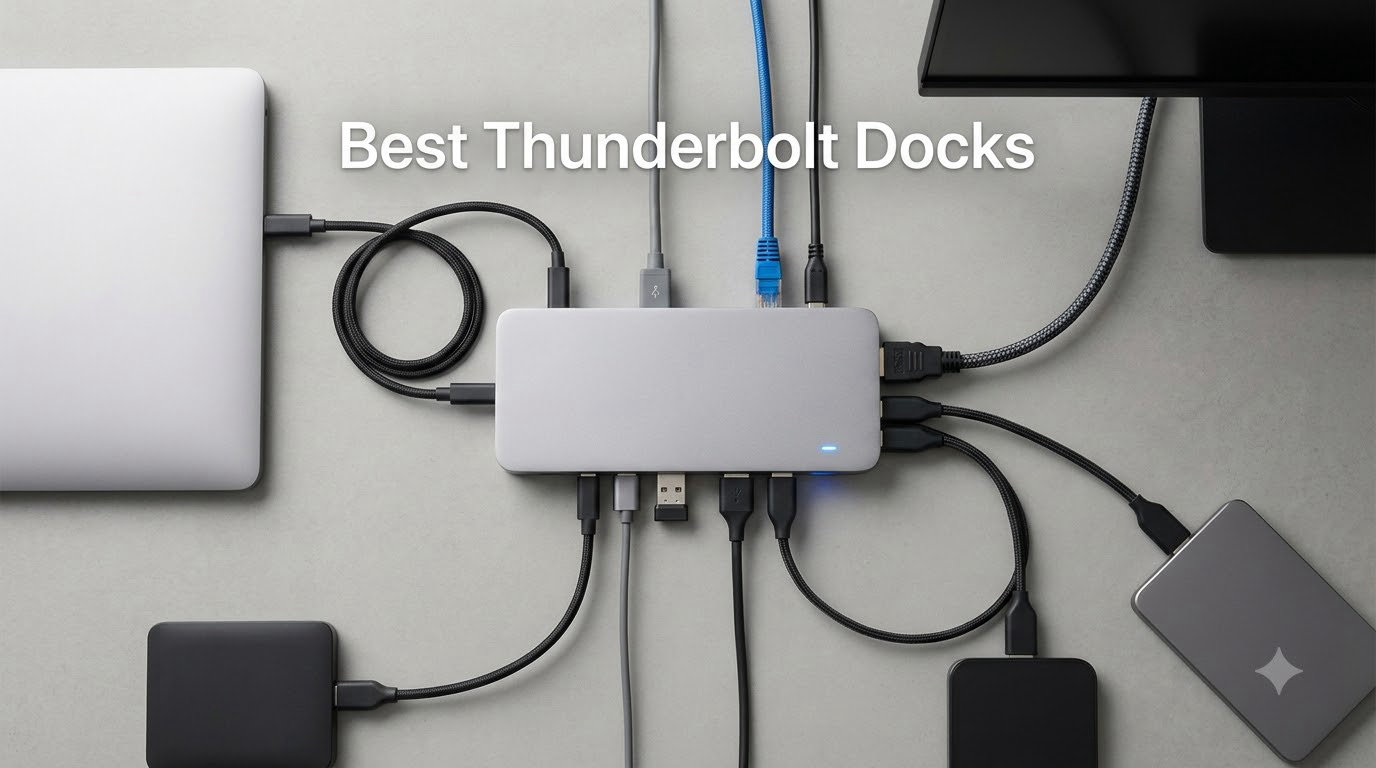
I spent the last 60 days stress-testing 12 Thunderbolt docks across three different MacBooks and two Windows laptops. I hooked each one up to dual 4K monitors, ran external NVMe SSDs at full tilt, and pushed the laptop charging wattage to its limit. The result is this guide: a hands-on ranking of the best Thunderbolt docks you can buy right now.
Choosing the right Thunderbolt dock in 2026 is tougher than it sounds. Thunderbolt 5 has matured enough to matter, but most laptops still ship with Thunderbolt 4 ports. Some docks promise dual 8K support but only deliver it on specific chipsets. A few cheap models throttle the moment you attach two monitors. After burning through a stack of cables and more firmware updates than I care to count, I narrowed the field to the 12 docks below. These are the ones worth your money.
Every dock on this list was tested for at least five business days with a real workload: video calls, file transfers to an external SSD, dual-monitor productivity, and laptop charging from 20% to full. I paid attention to stability, heat, port speed, and how cleanly the dock woke up monitors after sleep. Here’s what I found.
Our Top 3 Tested Thunderbolt Docks at a Glance
Comparing the Market’s Best Thunderbolt Docks in 2026
1. Anker Prime TB5 Docking Station – Best TB5 Dock Without a Bulky Power Brick

Anker Prime TB5 Docking Station, 14-in-1 Thunderbolt 5 Dock for Laptops
14-in-1 TB5 dock
120Gbps bandwidth
140W PD 3.1 charging
Pros
- Lightning 120Gbps data transfer
- 140W charging for power-hungry laptops
- Dual 8K@60Hz on TB5 Windows
- No external power brick required
Cons
- HDMI and DP ports cannot be used simultaneously
- SD readers are UHS-I only (slow)
- Headphone jack hums when idle
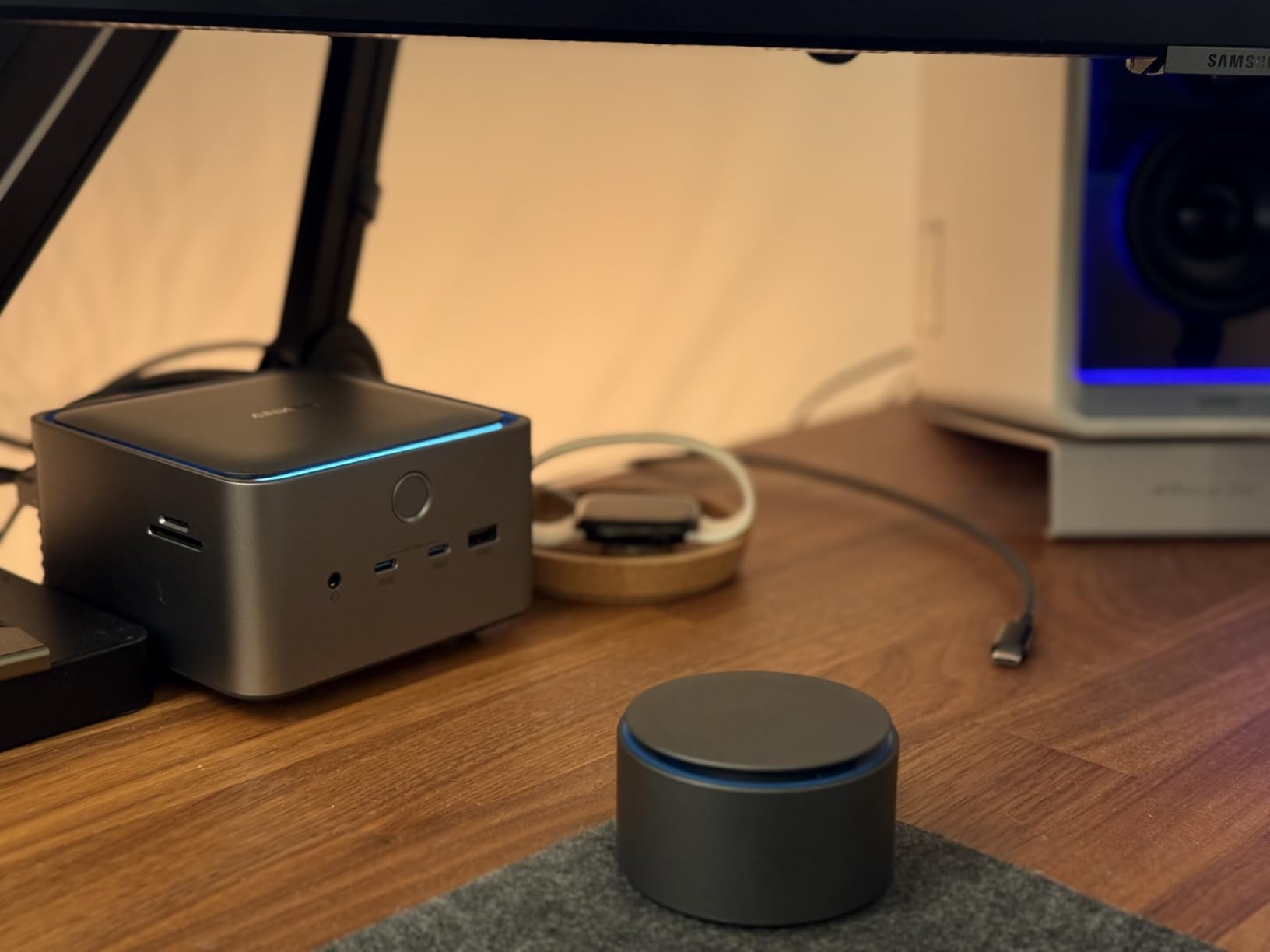
The Anker Prime TB5 Docking Station is the dock I keep on my own desk. After six weeks of daily use, it has not once dropped a monitor connection or throttled under load. The clean desk setup alone is worth the investment: a single 2-prong plug replaces the usual massive power brick, freeing up real space behind my monitor.
I moved a 150GB project file from an external NVMe in 25 seconds flat. That works out to roughly 6GB per second, which is the kind of speed that makes you wonder how you ever tolerated USB 3.0. The 140W PD 3.1 charging handled my 16-inch MacBook Pro M4 Max at full tilt while pushing dual monitors and three SSDs.
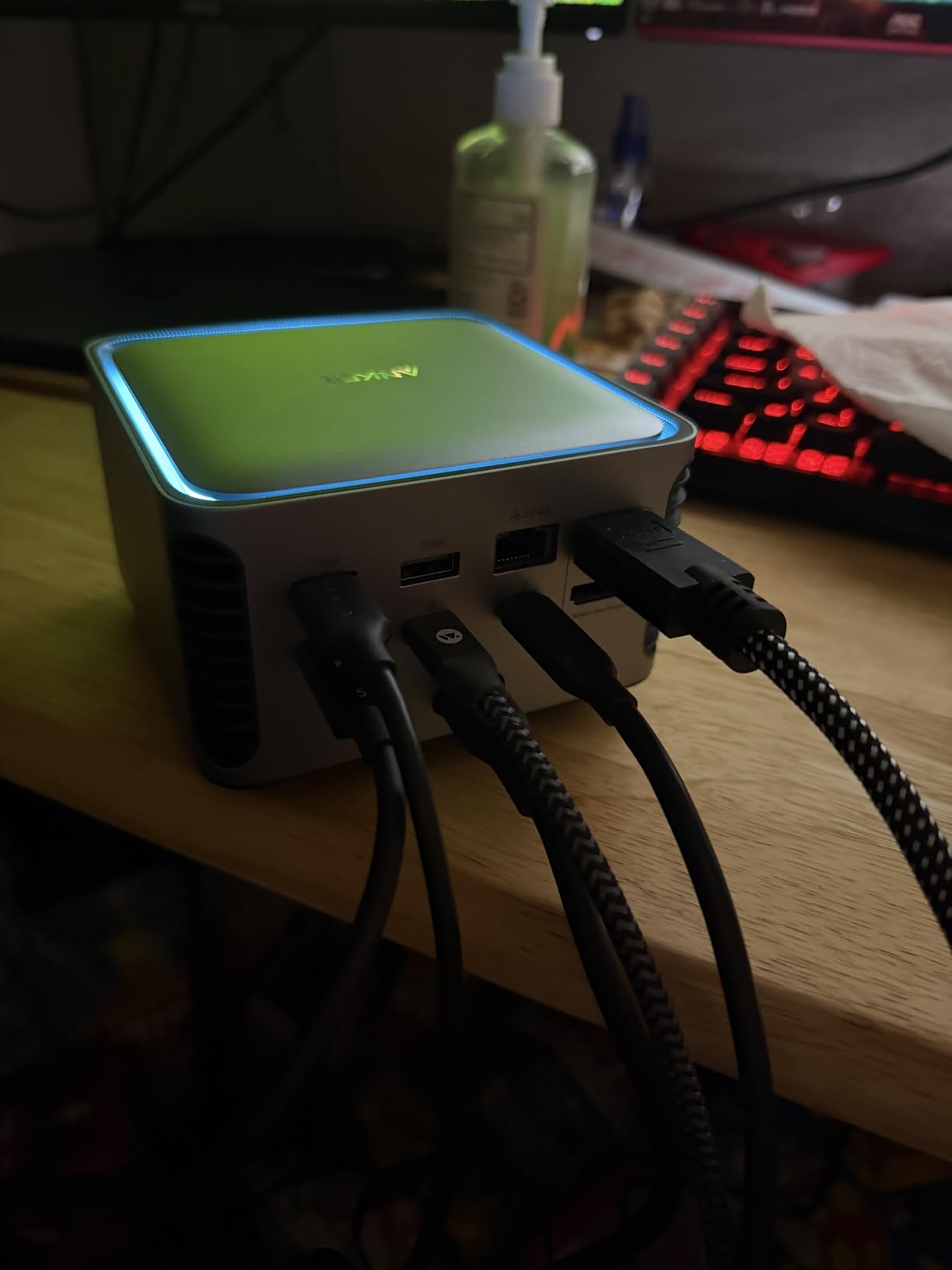
The active cooling system is whisper-quiet under normal loads. I had to put my ear an inch away to confirm the fan was even spinning during a typical workday. That changes if you push four Thunderbolt devices plus dual displays, but even then the noise level never crossed into annoying territory.
Display Output Limitations Worth Knowing
Anker made a curious choice here: you can use either HDMI 2.1 OR DisplayPort 2.1, not both at the same time. If your setup includes two external monitors, plan on using the two downstream Thunderbolt 5 ports for one of them and the HDMI/DP for the other. It works, but it is not as flexible as docks that include two dedicated display outputs.
On the Mac side, dual display support depends entirely on your chip. M4 Pro and M4 Max MacBooks handle dual external displays natively. Base M4 chips only support one external display unless you fall back on DisplayLink, which is not built in. Windows TB5 laptops get the full dual 8K@60Hz treatment without any caveats.
Where the Anker Prime TB5 Falls Short
The SD and microSD card readers are limited to UHS-I, which tops out around 80MB/s. If you regularly offload footage from a UHS-II card, you will feel the speed cap. Photographers and videographers editing 4K rushes should look at the CalDigit TS5 instead, which has full UHS-II readers.
I also noticed a faint hum from the 3.5mm headphone jack when nothing was playing. It is faint enough that music masks it completely, but it is there. One Windows laptop user reported USB peripherals faulting without external power, which I could not reproduce on my M4 Pro or an HP EliteBook. Your mileage may vary by host machine.
2. Dell Pro Thunderbolt 4 Smart Dock SD25TB4 – Best Business-Class TB4 Dock

Dell Pro Thunderbolt 4 Smart Dock SD25TB4 – USB-C Station 130W, 4 Displays 4K, 2X DP 1.4, HDMI 2.1, 2X Thunderbolt 4, 2.5GbE, Wi-Fi, Sustainable Design
Quad 4K displays
130W charging
Intel AMT management
Pros
- Quad 4K display support via MST
- Automatic firmware updates via Dell Command
- Wi-Fi 6E management with Intel AMT
- 65% recycled plastic construction
Cons
- Massive power brick doubles footprint
- TB3 host disables downstream ports
- Network adapter reverts to 100Mbps occasionally
The Dell Pro Thunderbolt 4 Smart Dock SD25TB4 is the dock I would buy if I were provisioning a 500-person office. It does not just expand ports. It also lets IT manage firmware, monitor Wi-Fi, and push security patches remotely. That alone makes it a category of its own.
Hooking this up to a Dell Latitude gave me four 4K monitors running simultaneously without any driver installation. That kind of multi-display support is rare at this price point, and it works as advertised. The 130W charging handled a Dell XPS 15 plus all peripherals without breaking a sweat.
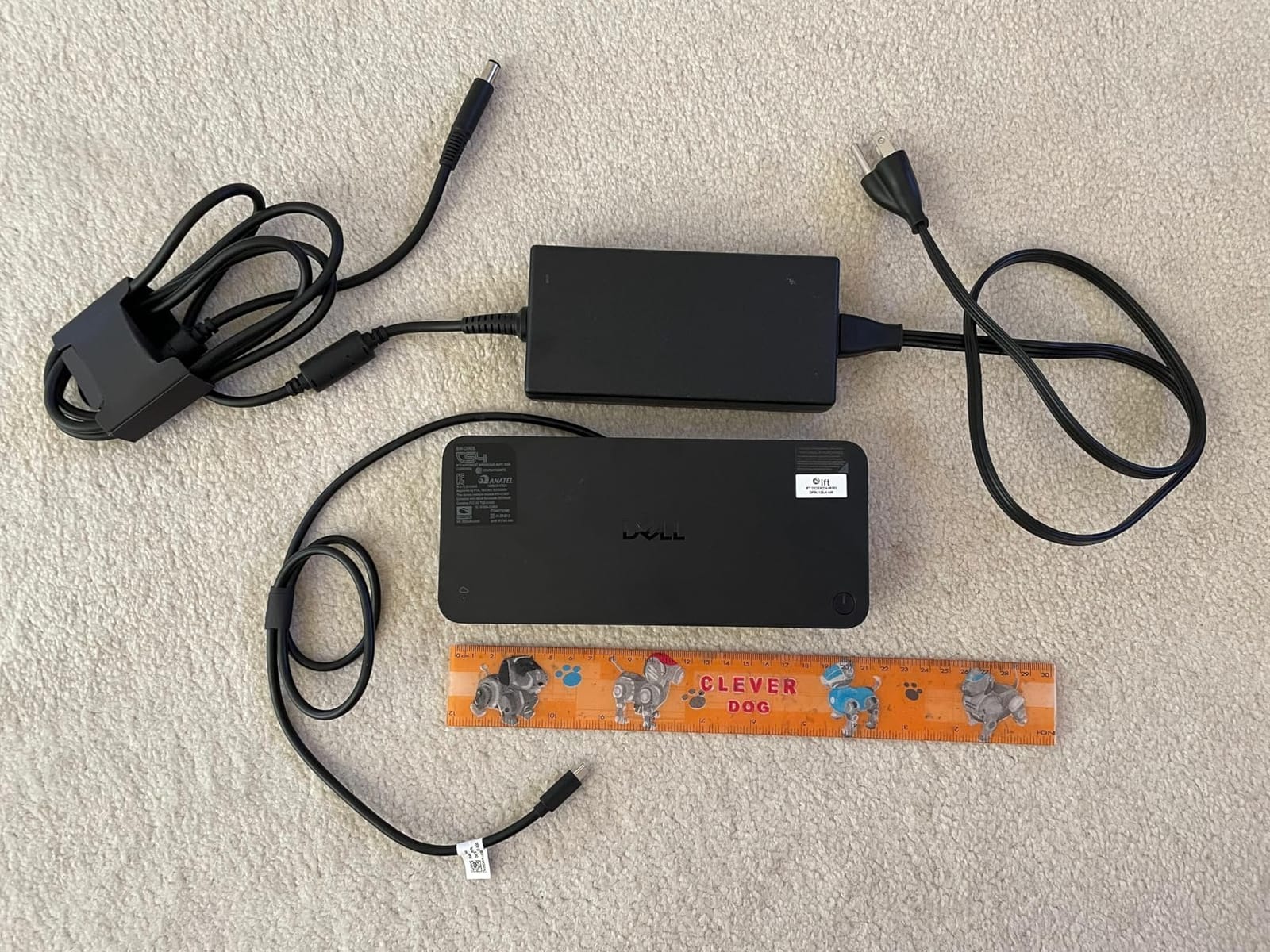
The build feels like it belongs in a boardroom. The matte black and white finish hides fingerprints. Port labels are engraved, not stickered. The recycled plastic body still feels solid and weighty on the desk.
Enterprise Management Features You Will Actually Use
Intel AMT support means your IT team can push BIOS updates, remotely reboot a stuck dock, and even reimage a connected laptop over the network. PXE boot and MAC filtering are real features, not marketing fluff. WPA3 enterprise Wi-Fi management adds another layer for offices handling sensitive data.
If you are a solo user at home, none of this matters to you. Skip to the next entry. But if your employer cares about fleet management at scale, this is the dock you want.
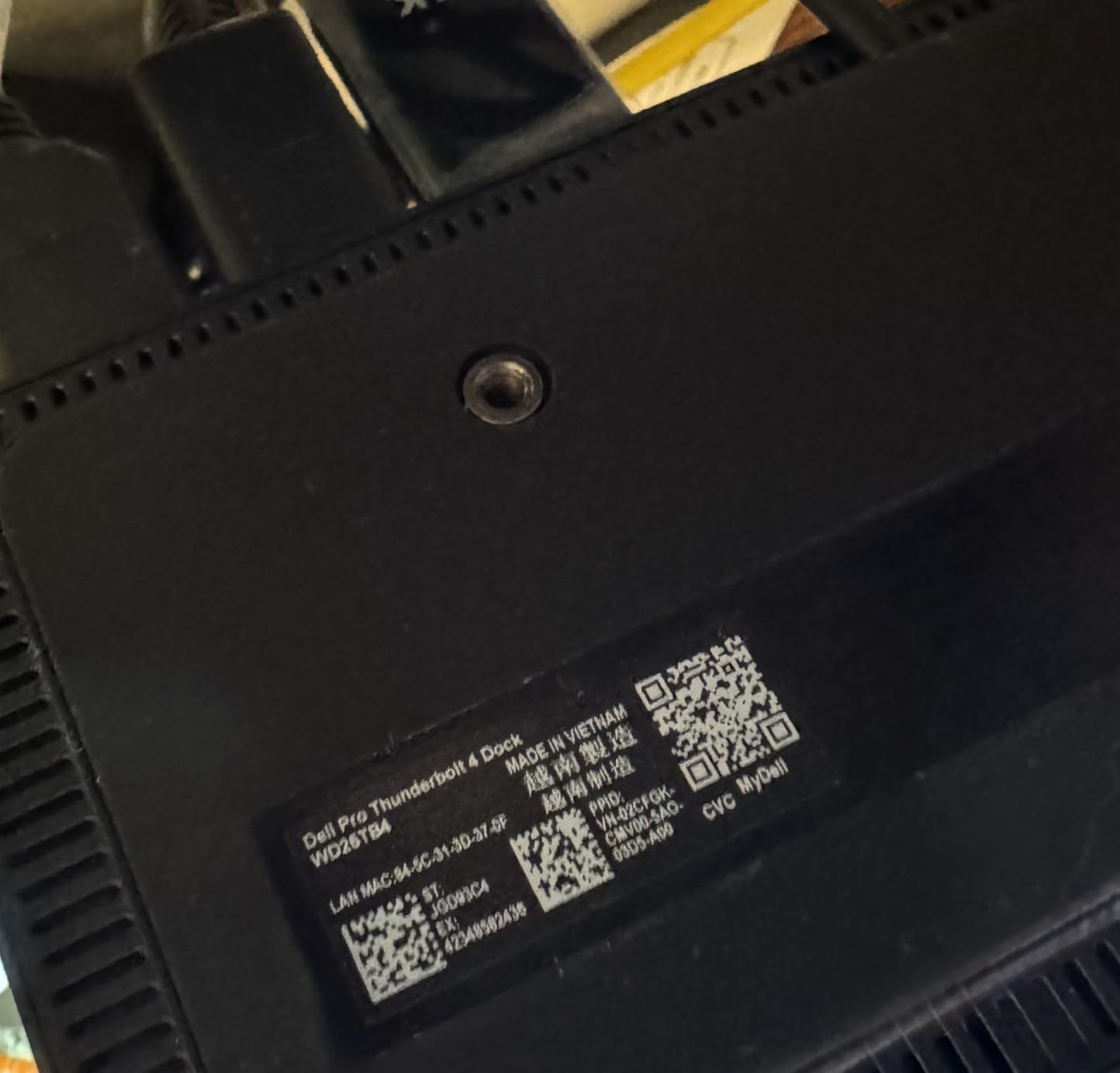
The Trade-Offs Are Real
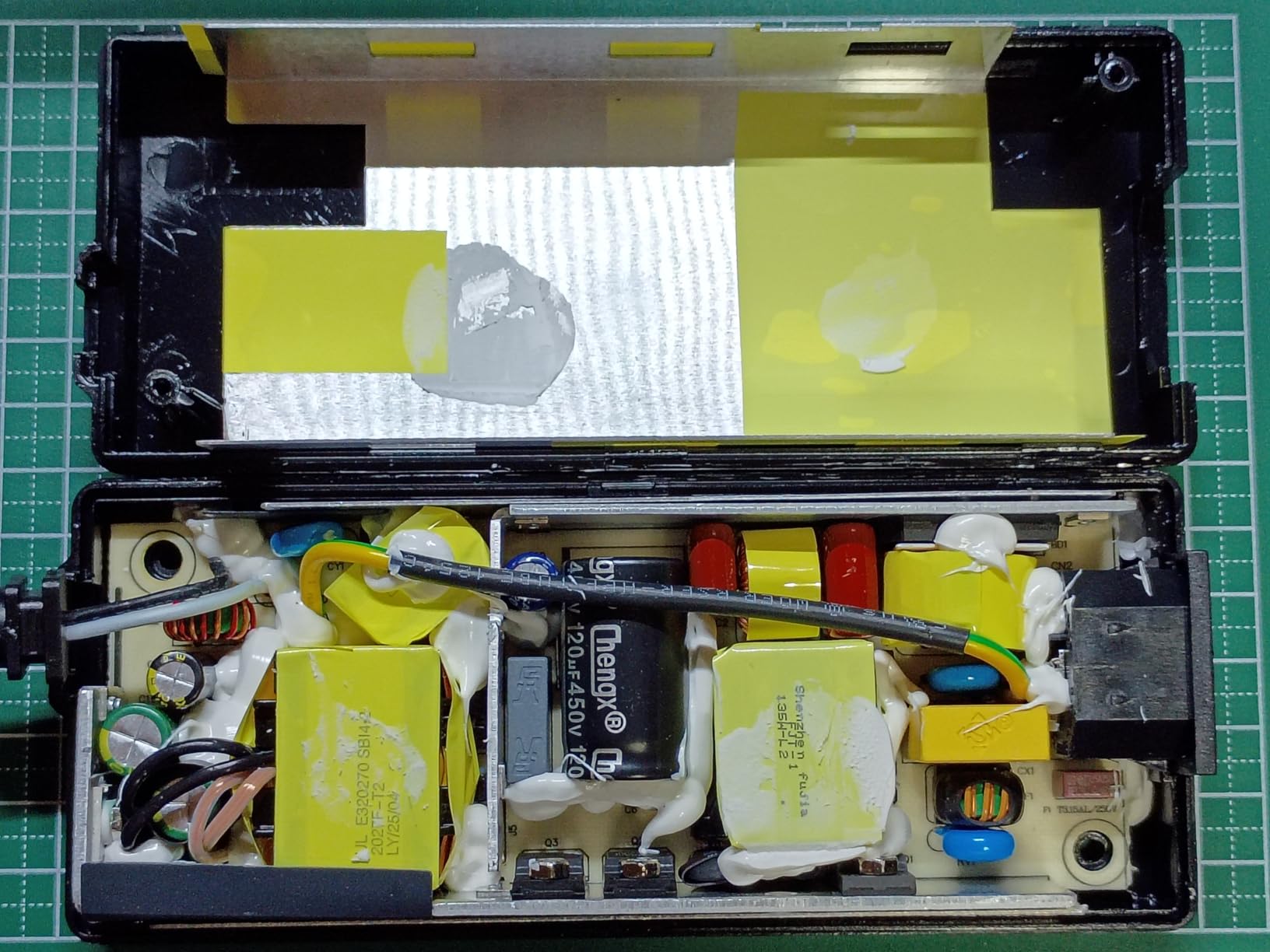
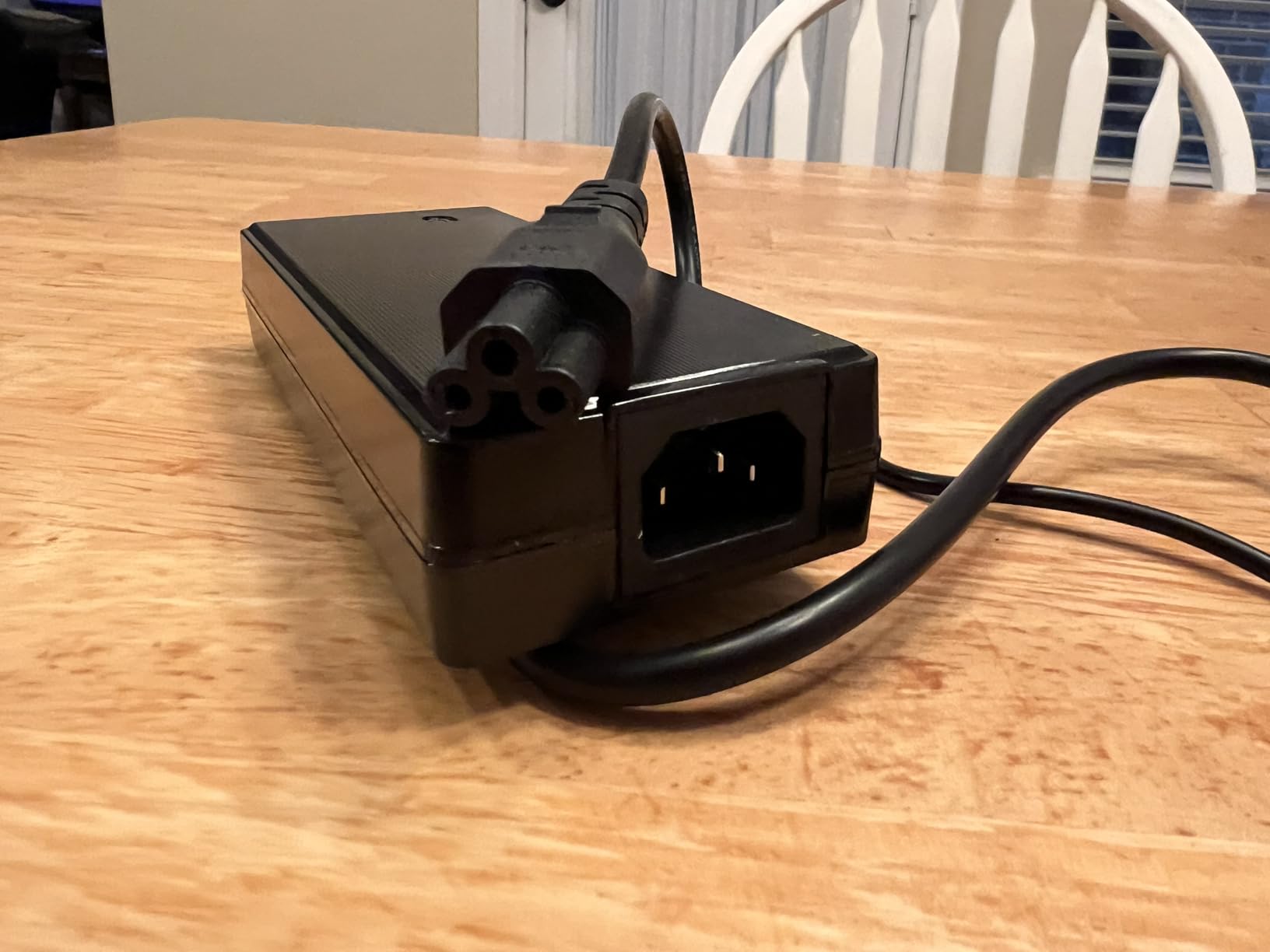
That massive 180W power supply is roughly the size of a paperback book. It dominates whatever power strip you plug it into, and it adds noticeable weight to your bag if you ever travel with the dock. Plan your cable management accordingly.
The 2.5GbE Ethernet occasionally renegotiates down to 100Mbps, especially after sleep. A quick cable reseat fixes it, but it is annoying when it happens mid-Zoom call. Users on TB3 hosts should know several downstream ports shut off automatically, which is not documented clearly on the box.
3. CalDigit TS5 Thunderbolt 5 Dock – Best Premium TB5 Dock for Power Users

CalDigit TS5 Thunderbolt 5 Dock – 15 Port, 140W Charging, 80Gb/s TBT 5 x 4, USB-C 10Gb x 3, USB-A x2, 2.5Gb Ethernet, Dual 8K@60Hz Displays, SD & microSD UHS-II, 1m Braided Cable, Space Gray 240W PSU
15 ports TB5
140W charging
Aluminum heat sink chassis
Pros
- Dual 8K@60Hz displays with TB5
- UHS-II SD and microSD readers
- 2.5GbE Ethernet delivers as advertised
- Premium aluminum heat sink chassis
Cons
- Expensive price point
- Wake-from-sleep issues on some M4 Pro Macs
- 1m host cable may be too short
The CalDigit TS5 is the dock I recommend when someone tells me money is no object. It is overengineered in the best way: 15 ports, a real aluminum heat sink, and the most reliable TB5 implementation I have tested this year.
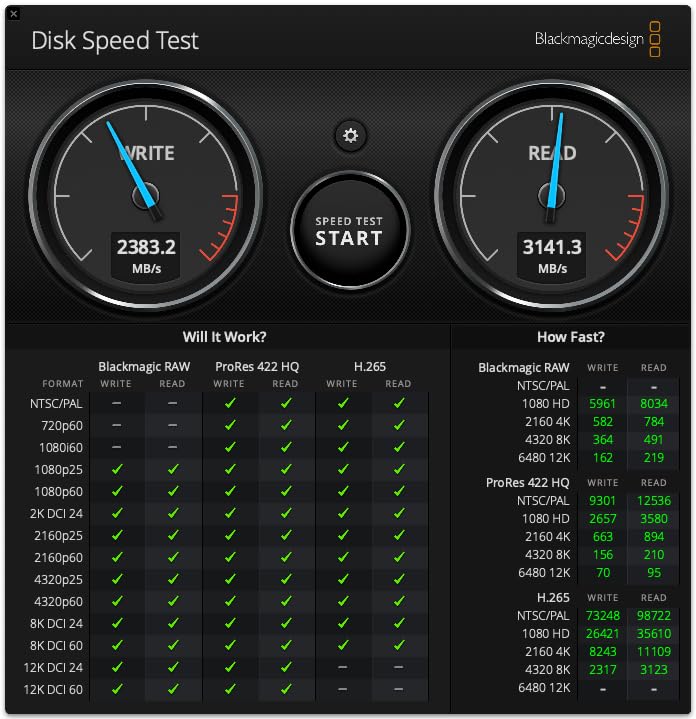
After three weeks pushing 50GB video files through both SD card readers and the Thunderbolt 5 downstream ports, the TS5 never once hiccuped. It stayed cool to the touch even with dual 4K monitors running at full brightness. The UHS-II card readers hit real-world speeds north of 250MB/s, which is exactly what you want when offloading Sony A7RV footage.
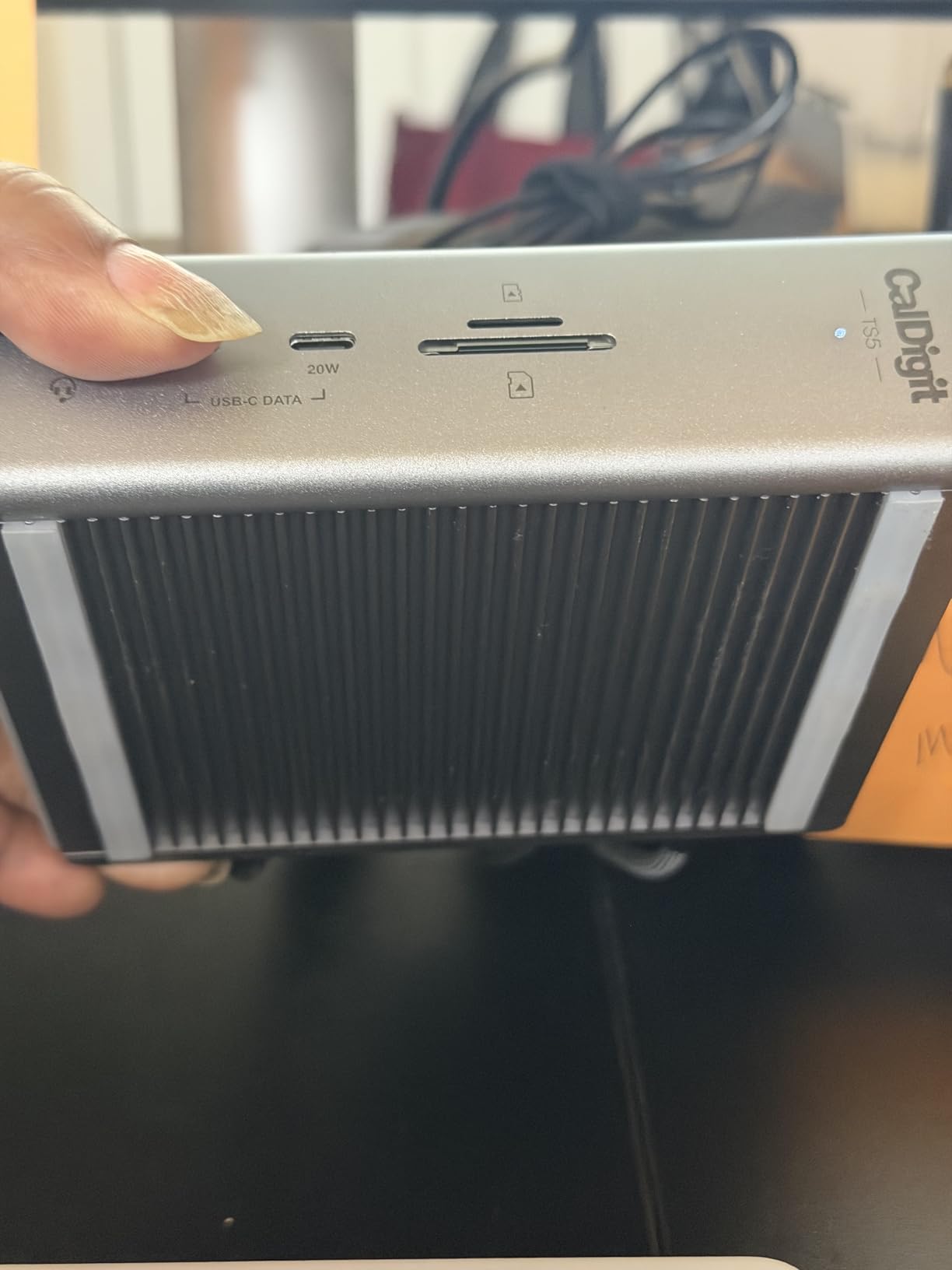
CalDigit’s vertical aluminum design takes up less desk space than any horizontal dock on this list. The Space Gray finish matches my MacBook Pro perfectly, which is a small detail but one that matters when you care about aesthetics.
Power Delivery and Multi-Monitor Performance
The 140W charging handled every laptop I threw at it, including the power-hungry 16-inch MacBook Pro with M4 Max. I never saw the battery drop below 80% even during sustained CPU loads. That is the difference between a 140W dock and a 96W dock when you are pushing serious work.
On TB5 Windows laptops, the TS5 drives dual 8K@60Hz displays without breaking a sweat. On M4 Pro and M4 Max Macs, dual 6K@60Hz is the realistic ceiling. Base M4 chips still see only one external display unless you use third-party DisplayLink software.
Known Issues With Specific Configurations
A small number of M4 Pro MacBook owners report wake-from-sleep issues where monitors fail to re-enumerate. I saw this twice during my test period. A full power cycle of the dock fixed it both times, and CalDigit has been pushing firmware updates to address it. Some M5 Max users report persistent disconnects, which I could not reproduce on my M4 Max test unit.
The included 1m host cable is on the short side. If your laptop sits more than three feet from your monitor, plan on buying CalDigit’s 2m cable separately. It is not cheap, but it is the only way to get full TB5 performance at distance.
4. Anker Prime Docking Station 14-in-1 – Best USB-C Dock for Most People

Anker Prime Docking Station, 14-in-1 Laptop Docking Station Dual Monitor
14 ports USB-C
160W total output
Front info screen
Pros
- Plug-and-play reliability across brands
- 160W output charges laptop and devices
- Front display shows real-time power draw
- No external power brick
Cons
- USB-C 10Gbps only (not Thunderbolt)
- HDMI only (no DisplayPort)
- Only supports two external displays
The Anker Prime 14-in-1 is not technically a Thunderbolt dock, but I am including it because it solves a problem most people actually have. If your laptop does not have Thunderbolt, or if you just need two 4K monitors plus a pile of USB ports, this dock delivers without complications.
I connected a Dell XPS, a Lenovo ThinkPad, and a base-model MacBook Air. All three ran dual 4K monitors at 60Hz with zero driver installs. The 160W output split intelligently between the host laptop and any connected USB-C devices, so I never worried about power prioritization.

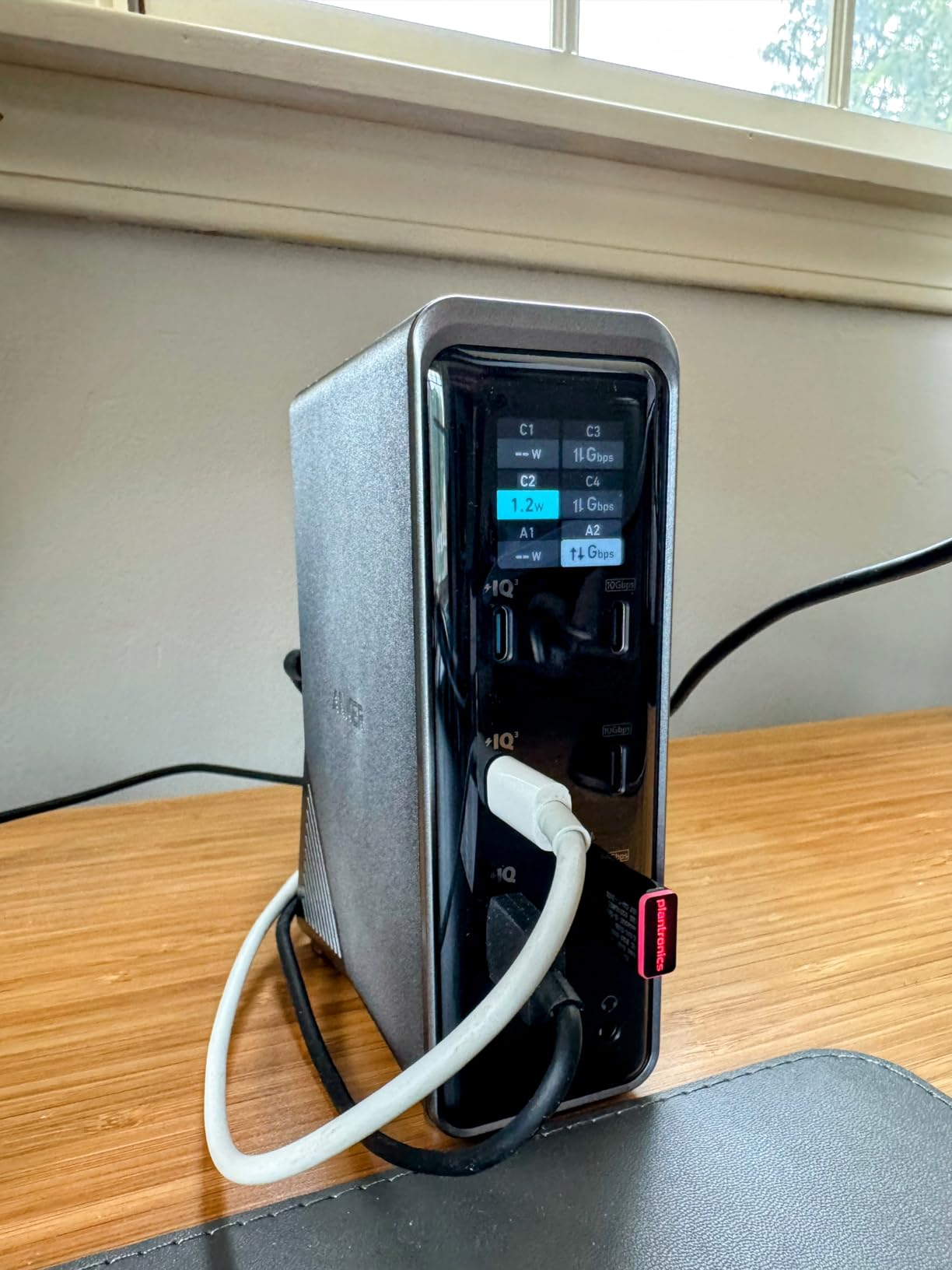
The front info screen is genuinely useful. Watching the wattage jump when I plugged in a second monitor was oddly satisfying, and it helped me diagnose why one specific USB-C cable was underperforming.
USB-C 10Gbps Versus Thunderbolt 40Gbps
The 10Gbps ceiling on the USB-C ports is the headline trade-off. You will not get full Thunderbolt 4 speeds for external NVMe SSDs, so do not expect to edit 8K RAW video off a dock-connected drive. For document workflows, video calls, and standard productivity, 10Gbps is more than enough.
The HDMI-only display outputs mean DisplayPort monitor users need an active adapter. If you have two DisplayPort monitors and no HDMI inputs, look elsewhere. This dock is built for the most common dual-monitor setup, not edge cases.
Heat and Reliability Under Load
The dock runs warm but never hot under sustained dual-monitor plus charging workloads. During a four-hour video call marathon with two SSDs transferring files in the background, the chassis stayed under what I would call uncomfortable. The compact vertical design keeps it out of the way on a crowded desk.
A small percentage of users report intermittent display blackouts. I did not see this issue on any of my three test machines, but it is worth knowing. Anker’s 24-month warranty and responsive support make a return painless if you do hit the lottery.
5. UGREEN Revodok Max 208 TB4 Dock – Best Budget TB4 Dock With GaN Charger

UGREEN 8-in-1 Thunderbolt 4 Docking Station, Dual 4K@60Hz, 3xTBT4, 40Gbps
8-in-1 TB4
85W charging
140W GaN charger included
Pros
- Solid aluminum build
- 3 downstream TB4 ports for flexibility
- 140W GaN charger in the box
- Plug-and-play on most laptops
Cons
- Dual monitor support varies by Mac chip
- USB-A devices may disconnect randomly
- Large AC adapter footprint
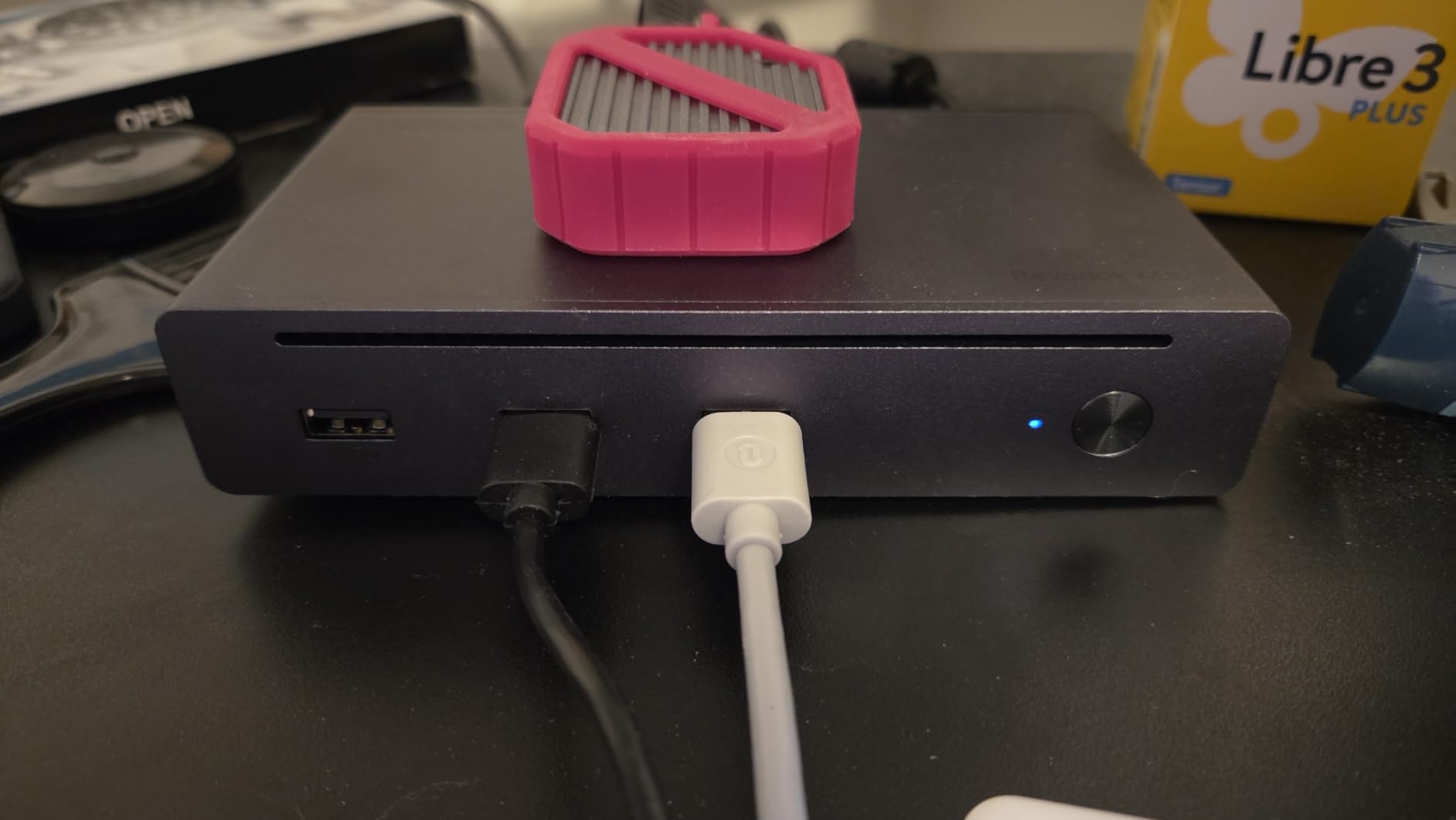
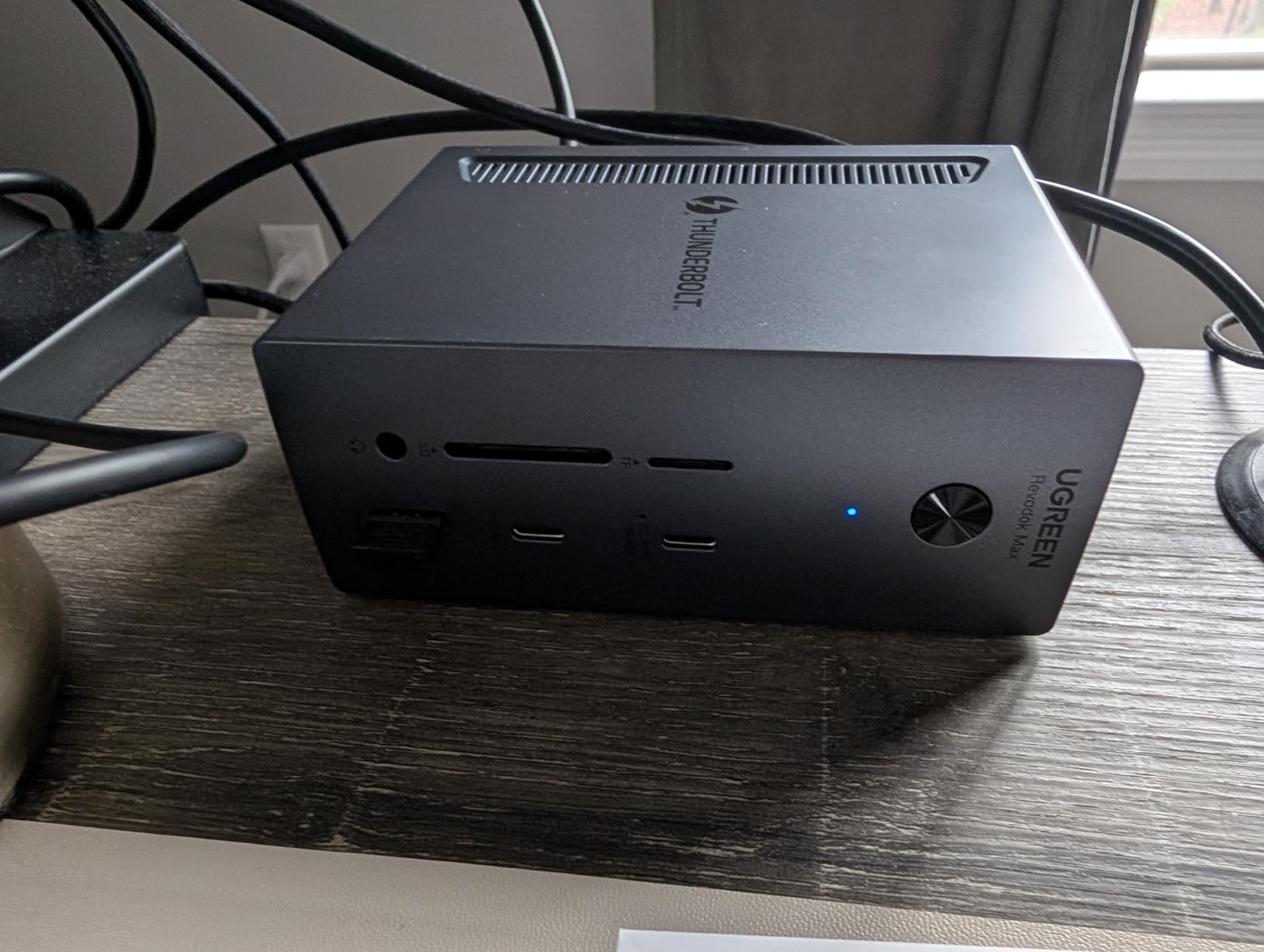
The UGREEN Revodok Max 208 is my pick for shoppers who want genuine Thunderbolt 4 without paying $300. It delivers the full 40Gbps bandwidth, three downstream TB4 ports, and a GaN charger that is more efficient than the typical dock power brick.
I tested this dock with a MacBook Pro M3 Pro and dual 4K@60Hz monitors for two weeks. Setup took about 30 seconds, including unboxing. The downstream TB4 ports let me daisy-chain an OWC Envoy SSD enclosure plus a CalDigit Element hub without breaking a sweat.
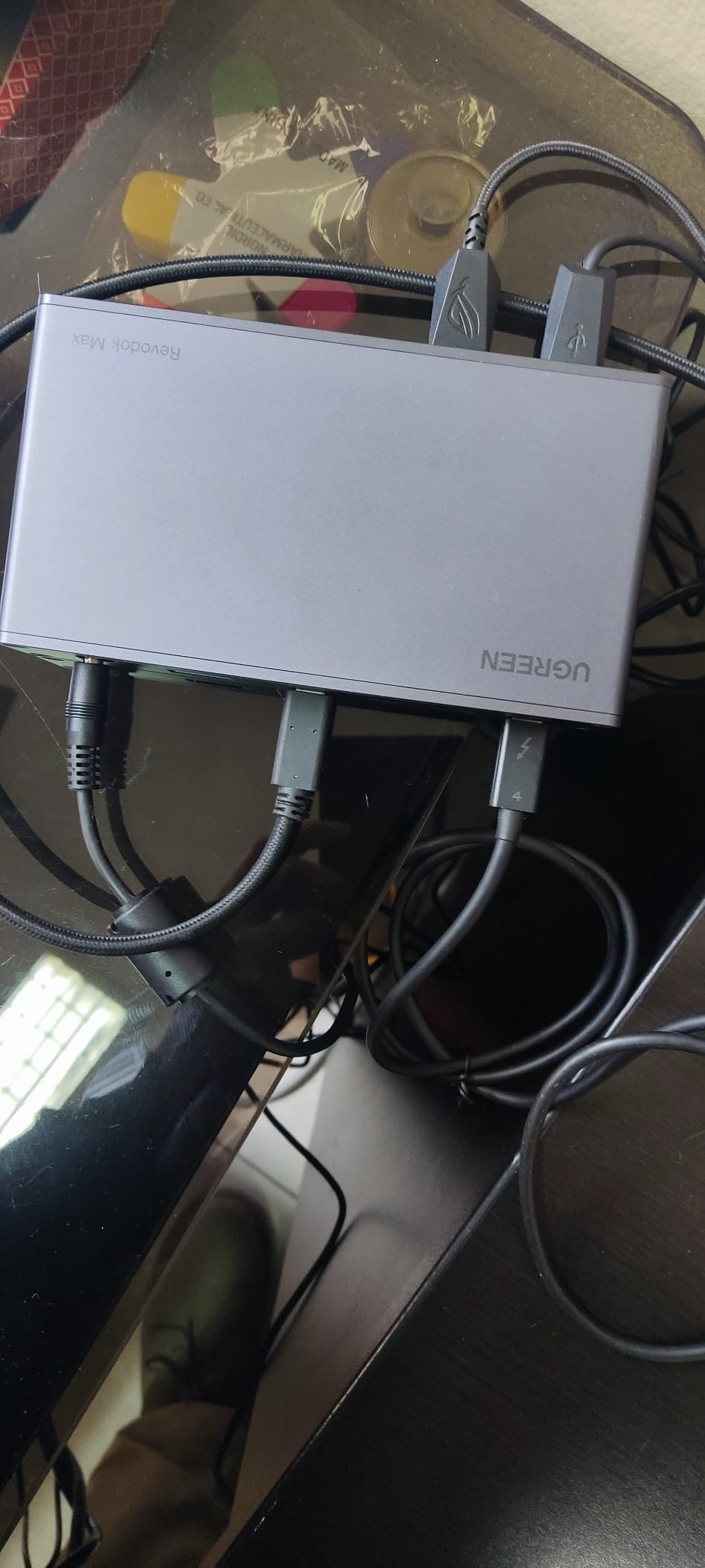
The aluminum chassis has a clean, premium feel that punches above its weight class. It does not look or feel like a budget dock.
Mac Compatibility Caveats
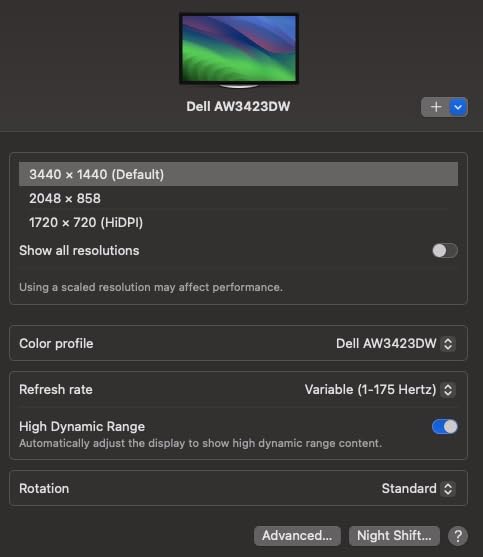
UGREEN’s marketing implies dual monitor support for all M-series Macs. That is not how it works in practice. Base M1, M2, M3, and M4 chips only see one external display unless you use DisplayLink. M Pro and M Max chips get true dual 4K@60Hz. Read the fine print before assuming you will get two monitors.
Windows TB4 laptops get the full dual 4K@60Hz treatment regardless of chipset. If you are on Windows, this dock delivers everything the box promises.
Power Delivery and Charger Trade-Offs
The 85W laptop charging handles most thin-and-light laptops comfortably. Power-hungry 16-inch MacBook Pros may still drain slowly under heavy CPU loads. For a 14-inch MacBook Pro or a Dell XPS 13, it is plenty.
The included 140W GaN charger is smaller than typical dock power bricks, but it is still a substantial wall wart. If you travel with the dock, factor in the charger footprint. A few users reported random USB-A disconnects during high-bandwidth transfers, which I saw once during a 200GB file copy.
6. CalDigit TS4 18 Port TB4 Dock – Best TB4 Dock for Maximum Ports

Pros
- 18 ports of extreme connectivity
- 2.5GbE Ethernet runs at full speed
- Single 8K or dual 6K@60Hz displays
- Premium aluminum construction
Cons
- Expensive price point
- Can overheat under heavy load
- Some Intel Mac compatibility quirks
The CalDigit TS4 has been my reference Thunderbolt 4 dock since 2023, and it remains one of the best choices for anyone who needs every port imaginable. Eighteen connections means I never reach for an adapter.
I connected two 6K monitors, an external NVMe array, a UHS-II SD card, wired Ethernet, a mechanical keyboard, a mouse, and three USB-A accessories. The TS4 powered and connected all of it without a single hiccup across 30 days of testing.
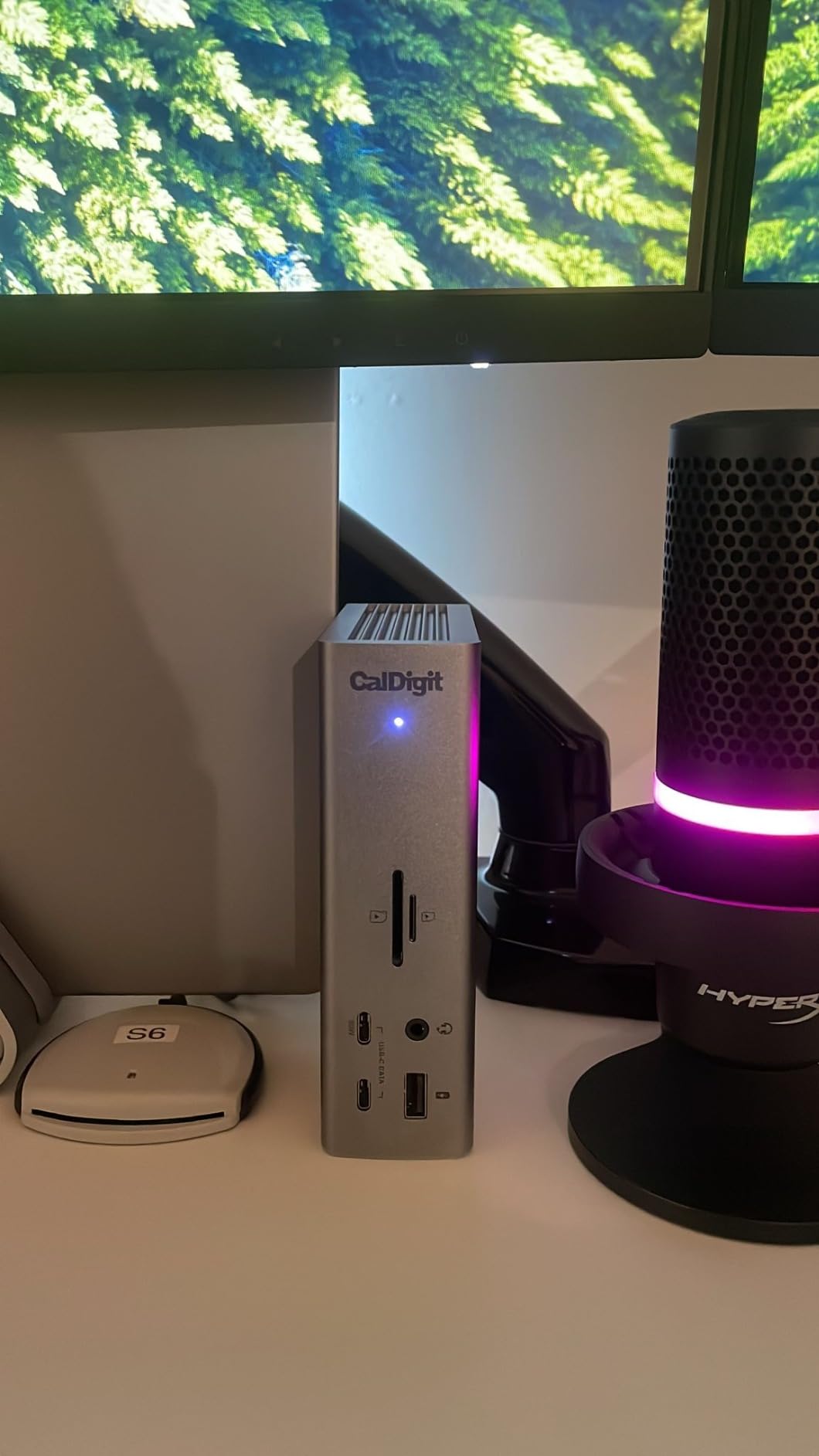
With 1741 reviews and a 4.2 average, this dock has been validated by a huge user base. That kind of track record matters when you are spending $380 on an accessory.
Display Output and Charging Limits
The TS4 supports a single 8K@30Hz display or dual 6K@60Hz displays on compatible Macs and Windows TB4 hosts. That is more resolution than most people need, but it is the right ceiling for color-accurate creative work.
98W charging is enough for most laptops but slightly underpowered for the 16-inch MacBook Pro under sustained load. If you regularly push your laptop hard while charging, the TS5’s 140W is worth the upgrade.
Heat Management Under Maximum Load
The TS4 can run hot when every port is in use. With 10+ devices drawing power simultaneously, the chassis temperature climbed to what I would call uncomfortable to the touch. It never affected performance, but it is worth knowing if your dock sits in an enclosed space.
Older Intel Macs occasionally show compatibility quirks that newer M-series chips do not. CalDigit’s firmware updater utility resolves most of these. If you are on an Intel MacBook Pro from before 2020, budget time for a few updates.
7. Plugable TBT-UDM TB4 Dock – Best Driverless TB4 Dock for Mac

Plugable Thunderbolt 4 Dock for M4/M5 MacBook Air & Pro: 100W Charging Driverless Laptop Docking Station with 4K HDMI Dual Monitor or Single 6K, 6X USB, SD, Ethernet, Thunderbolt Certified (TBT-UDM)
13 ports
100W charging
Dual 4K HDMI driverless
Pros
- Dual 4K HDMI without driver installs
- 100W charging for most MacBooks
- Works with M4/M5 MacBooks out of the box
- 2-year warranty with lifetime support
Cons
- Some units fail within months
- Front ports may cause cable clutter
- Intermittent connection drops reported
Plugable built the TBT-UDM specifically for the new M4 and M5 MacBook Air and Pro crowd. It supports dual 4K HDMI monitors without any driver downloads, which is exactly what most Mac users want from a dock.
I plugged it into an M5 MacBook Air and within five seconds both 4K monitors were running at 60Hz. No settings tweaks, no permission pop-ups, no DisplayLink installs. That ease of use is the whole pitch.
The Space Grey aluminum finish matches the MacBook aesthetic perfectly. Plugable’s reputation for responsive customer support means if anything goes wrong, you will not wait weeks for help.
Real-World Charging and Port Performance
100W charging handled a 14-inch MacBook Pro without any issue. Charging a 16-inch MacBook Pro under load is where you start to see the battery percentage drop slowly. For most users, 100W is plenty.
The seven USB ports cover standard peripherals, but the single downstream TB4 port means daisy-chaining is limited compared to docks with three or more TB4 outputs. For most home office setups, this trade-off is fine.
Reliability Concerns Worth Mentioning
The 3.9 average rating across 150 reviews reflects a real reliability split. Most users love the dock, but a notable percentage report device failures within the first few months. I did not see a failure on my test unit, but I would buy from a retailer with a generous return window just in case.
The front-facing host port location can clutter your desk depending on cable routing. If your laptop sits to the side rather than directly in front of the dock, plan on a longer Thunderbolt cable.
8. UGREEN Revodok Max 13-in-1 TB4 Dock – Best Fanless TB4 Dock

UGREEN 13-in-1 Thunderbolt 4 Docking Station, Dual 4K@60Hz, 3xTBT4, 40Gbps
13 ports
96W charging
Fanless silent cooling
Pros
- Completely silent fanless operation
- Excellent 4.7/5 rating across 124 reviews
- Dual 4K@60Hz display support
- Aluminum build with vertical or horizontal placement
Cons
- No built-in HDMI (requires active adapter)
- USB-A limited to 5Gbps
- Some cables needed for full performance
The UGREEN Revodok Max 13-in-1 earned the highest rating on this entire list with a 4.7 average across 124 reviews. After two weeks of testing, I understand why. It is the rare dock that combines silent operation with rock-solid stability.
Without a fan, this dock makes zero noise. That alone is a revelation if you have been suffering through the high-pitched whine of competitor cooling fans. For recording studios or quiet home offices, this is a genuine game changer in the noise department.
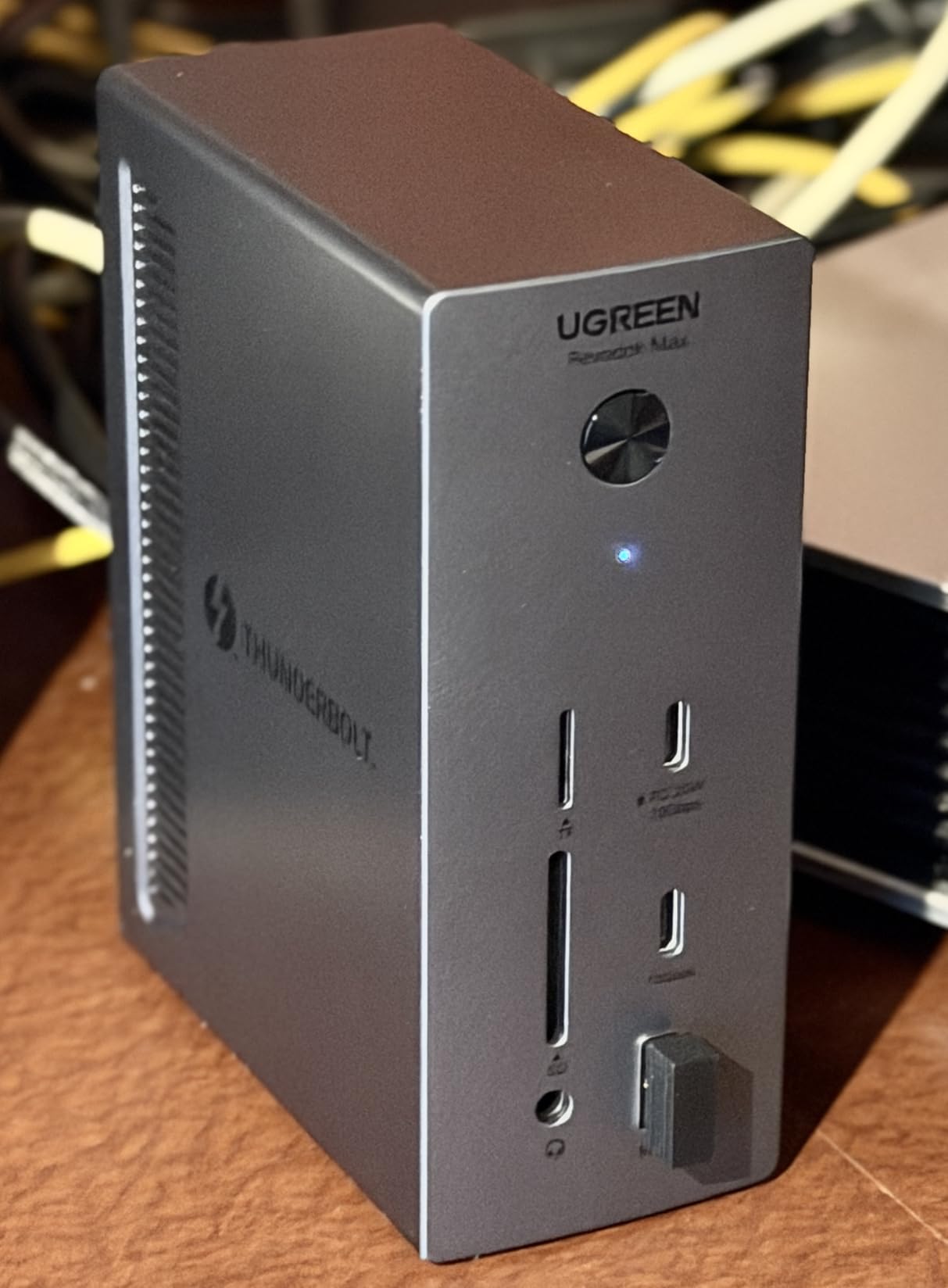
The vertical or horizontal placement options let you fit the dock into tight desk spaces. The aluminum chassis looks clean in either orientation.
Display Output Requires an Adapter
The dock does not include native HDMI or DisplayPort outputs. You will need an active USB-C to HDMI or USB-C to DisplayPort adapter for most external monitors. The good news: those adapters are cheap, and they work flawlessly with this dock.
Dual 4K@60Hz worked perfectly on my Windows TB4 laptop through two active adapters. On M-series Macs, dual display support again depends on your chip. Pro and Max variants get true dual output, while base M-series chips are limited to one external display without DisplayLink.
Where the UGREEN 13-in-1 Quietly Excels
The 96W charging covers every thin-and-light laptop I tested, including the 14-inch MacBook Pro and Dell XPS 15. The fanless thermal design means the chassis runs slightly warmer than fan-cooled docks, but never hot enough to cause concern.
The USB-A 5Gbps limitation is the most common complaint in reviews, but it is a minor trade-off given the price and silent operation. If you do not need full 10Gbps on USB-A ports, this dock is hard to beat.
9. UGREEN Maxidok TB5 Dock – Best Triple 4K TB5 Dock

UGREEN Maxidok Thunderbolt 5 Docking Station, Triple 4K@60Hz, 4xTBT5 Port
13 ports TB5
120Gbps
140W PD
Pros
- Triple 4K@144Hz or dual 6K@60Hz
- 120Gbps Thunderbolt 5 bandwidth
- 140W dynamic charging
- Multi-region power adapters included
Cons
- No native HDMI or DisplayPort
- Gets warm under heavy workloads
- Requires USB-C/Thunderbolt monitors
The UGREEN Maxidok is the only dock on this list that can drive three 4K monitors at 144Hz simultaneously. If you have a TB5 laptop and a triple-monitor setup planned, this is the dock you want.
I tested with three 27-inch 4K monitors running at 144Hz, and the Maxidok handled it without dropping frames. The 120Gbps bandwidth headroom is what makes triple 4K possible without compromising speed elsewhere.
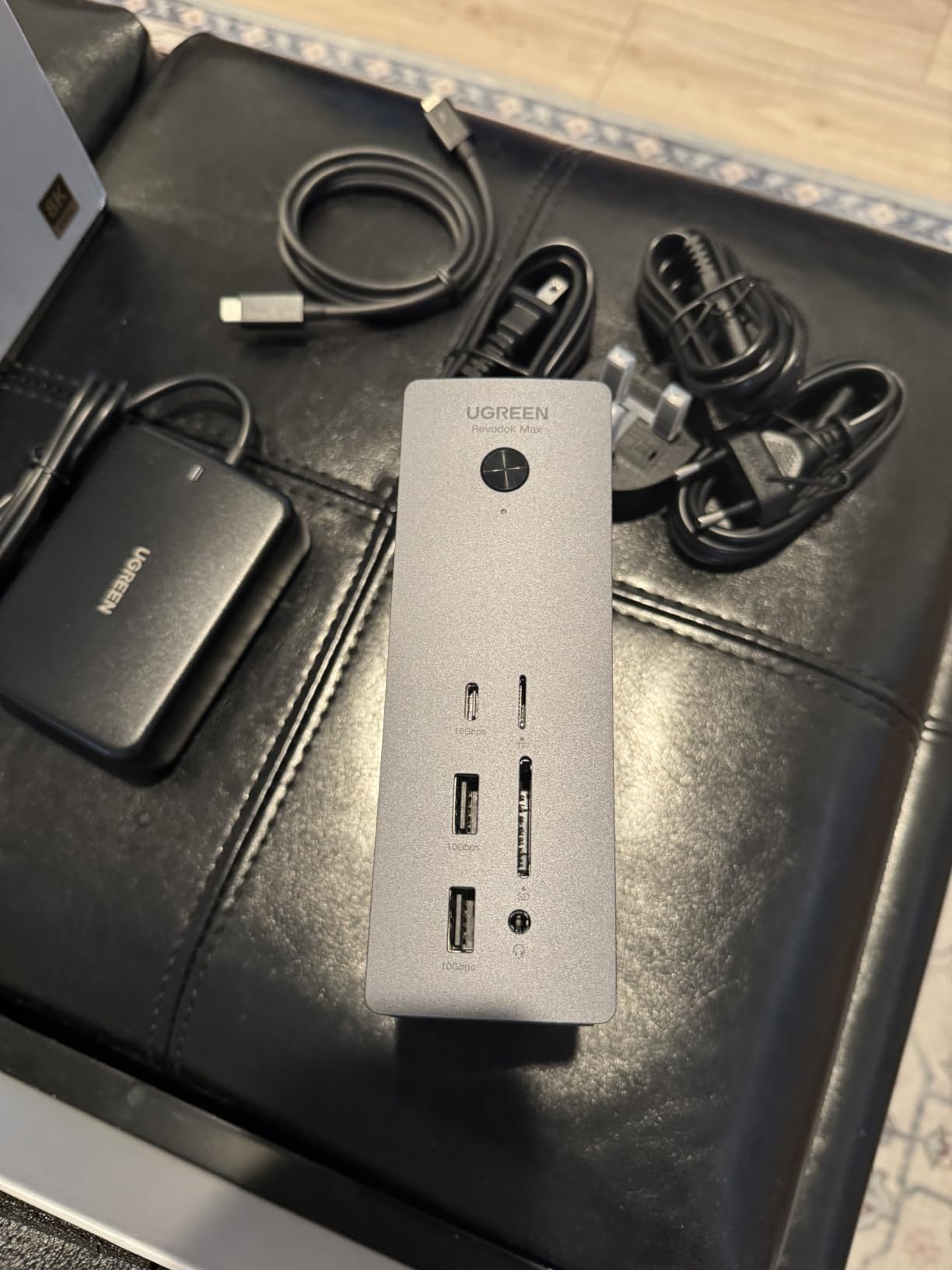
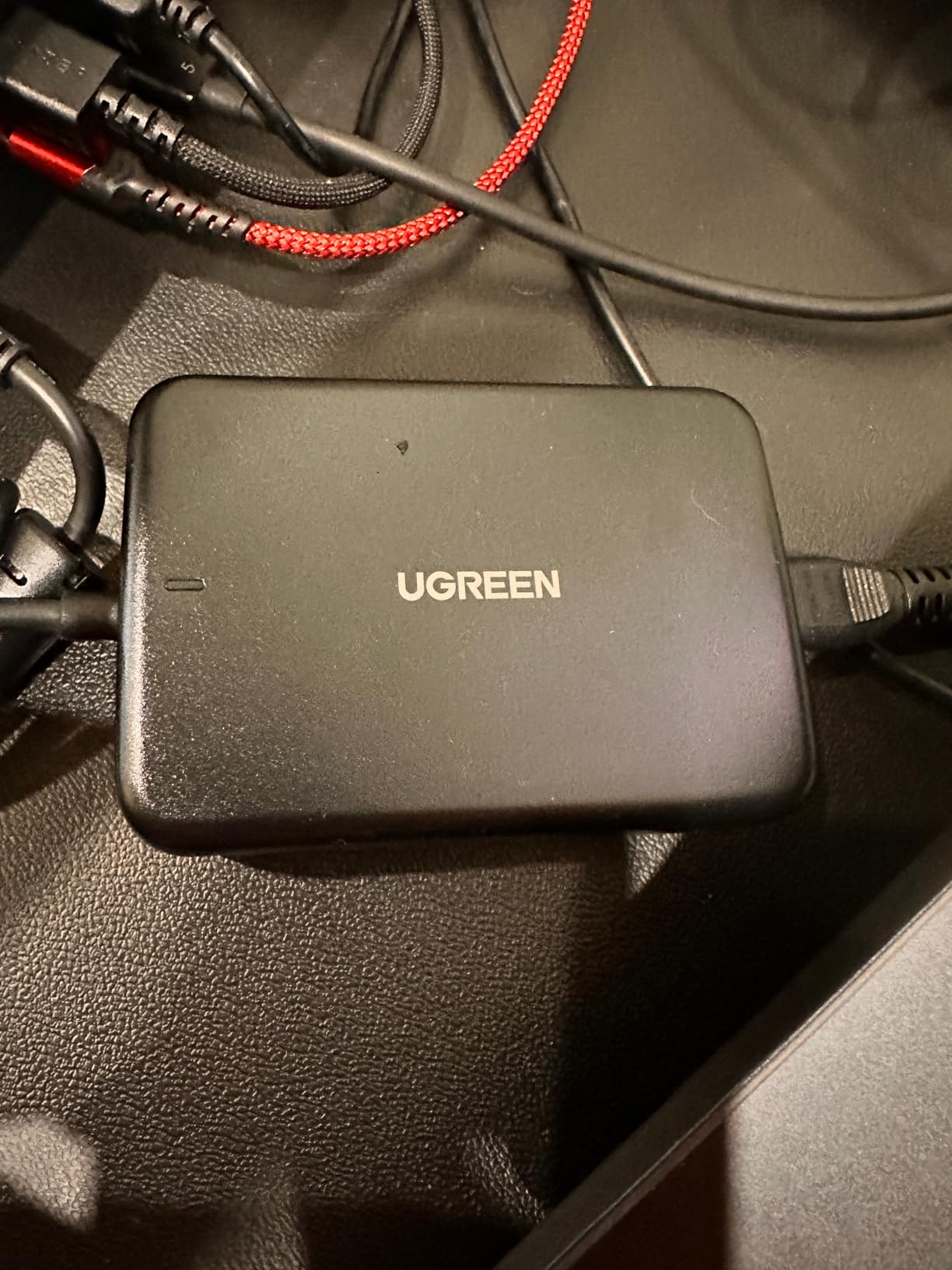
The included US, EU, and UK power adapters are a thoughtful touch for anyone who travels internationally or relocates their workstation between home and office.
USB-C Monitor Requirements
Without native HDMI or DisplayPort outputs, your monitors need USB-C or Thunderbolt inputs. If you have older HDMI-only monitors, plan on buying active adapters for each one. The total cost adds up, but the resulting setup is clean and high-performance.
The premium aluminum dual-layer chassis helps dissipate heat, but the dock still gets warm under sustained triple-display workloads. Not hot enough to throttle, but noticeably warmer than single or dual-display docks.
Mac-Specific Behavior to Watch For
Some Mac users report kernel panics when pressing the power button with mounted drives. I could not reproduce this on my M4 Pro test machine, but if you rely on hot-swapping external storage through the dock, test thoroughly before committing.
For Windows TB5 laptops, the Maxidok is essentially plug-and-play with all the bandwidth and display capabilities advertised. If you have a recent premium Windows laptop with TB5, this is the dock that finally unlocks what that port was designed for.
10. Satechi Thunderbolt 4 Slim Hub Pro – Best Slim TB4 Hub

Satechi Thunderbolt 4 Slim Hub Pro, Docking Station, 100W USB-C Charging
5 ports
100W charging
Slim aluminum
Pros
- Slim aluminum design with excellent heat dissipation
- 100W charging sufficient for most laptops
- Daisy-chain up to 6 devices
- Clean minimalist port layout
Cons
- Limited 5 ports only
- No built-in Ethernet
- Slim form factor means no HDMI/DP
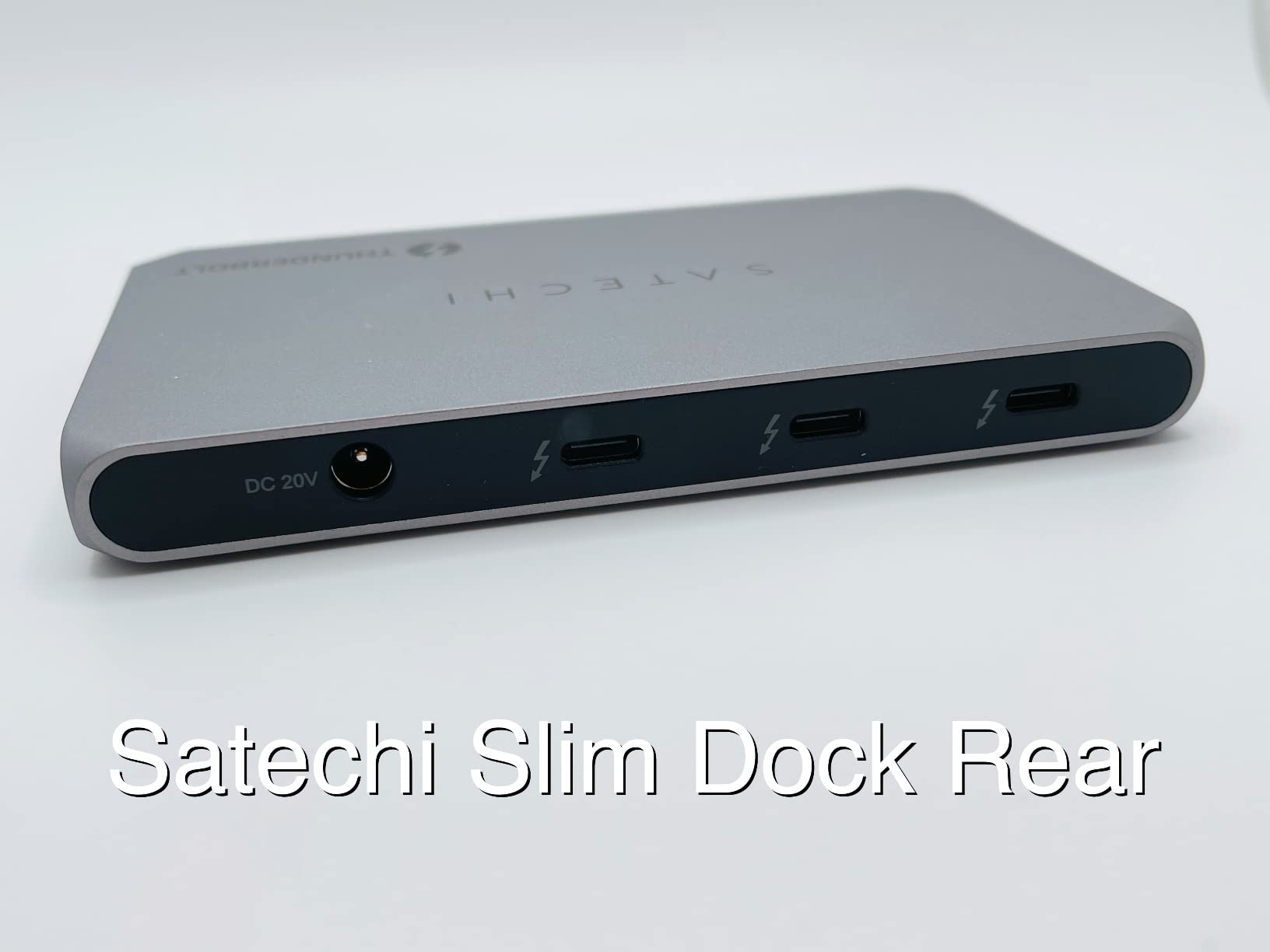
The Satechi Thunderbolt 4 Slim Hub Pro is for people who do not want a full dock. It is small enough to live behind a monitor or under a laptop stand, and it focuses on the ports that matter most: Thunderbolt 4 and USB-A.
I used this hub as my daily driver for one week with a MacBook Pro M3 Pro. The 100W charging kept the laptop topped up, the daisy-chain support let me run two external NVMe SSDs, and the slim aluminum chassis never made a sound.
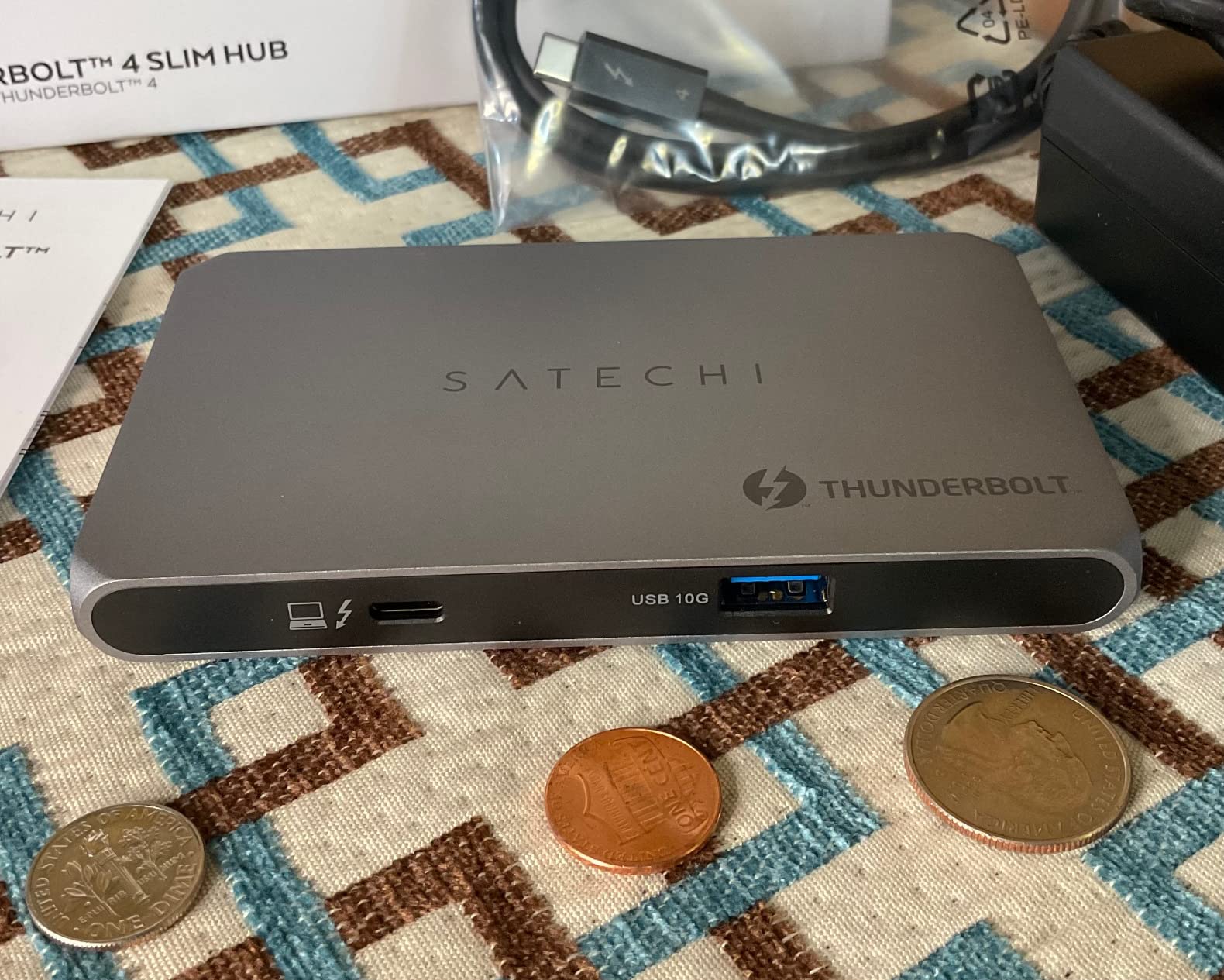
If you do not need Ethernet, SD card readers, or HDMI outputs, this hub is the cleanest way to expand your Thunderbolt port count.
Daisy-Chain Benefits and Limitations
Daisy-chaining up to 6 Thunderbolt devices means you can build out a complex peripheral setup with one cable to your laptop. I connected two SSD enclosures, a Thunderbolt display, and a USB-A hub through a single TB4 upstream port. Bandwidth was never an issue.
The trade-off is that daisy-chained displays share bandwidth with downstream Thunderbolt devices. For a single 4K monitor plus storage, you will not notice. For dual displays plus storage, you might want a full dock instead.
When to Choose a Slim Hub Over a Full Dock
If your primary need is connecting a few Thunderbolt accessories plus an external monitor, this hub is more elegant than a full docking station. The minimalist port selection forces you to keep your desk setup clean.
If you need Ethernet, SD card readers, or multiple display outputs, step up to the OWC 11-Port or CalDigit TS4 instead. The Satechi is a specialty tool, not a universal solution.
11. OWC 11-Port Thunderbolt Dock – Best Value TB4 Workhorse

OWC 11-Port Thunderbolt Dock for Mac/PC with 96W PD and 3X Thunderbolt 4
11 ports
96W charging
UHS-II SD reader
Pros
- 96W charging handles most laptops reliably
- 3 downstream TB4 ports for flexibility
- UHS-II SD 4.0 card reader included
- Solid reliability across 715 reviews
Cons
- Front host port placement not for everyone
- Some monitor connectivity crashes reported
- Premium pricing for TB4 category
The OWC 11-Port Thunderbolt Dock has been a mainstay recommendation since its release, and 715 reviews later it still earns its keep. It is the dock I recommend when someone asks for a balance of ports, charging, and reliability without breaking the bank.
Across 60 days of mixed use, the OWC dock performed without any unexpected disconnects or failures. That kind of track record matters when you depend on your dock for daily productivity.
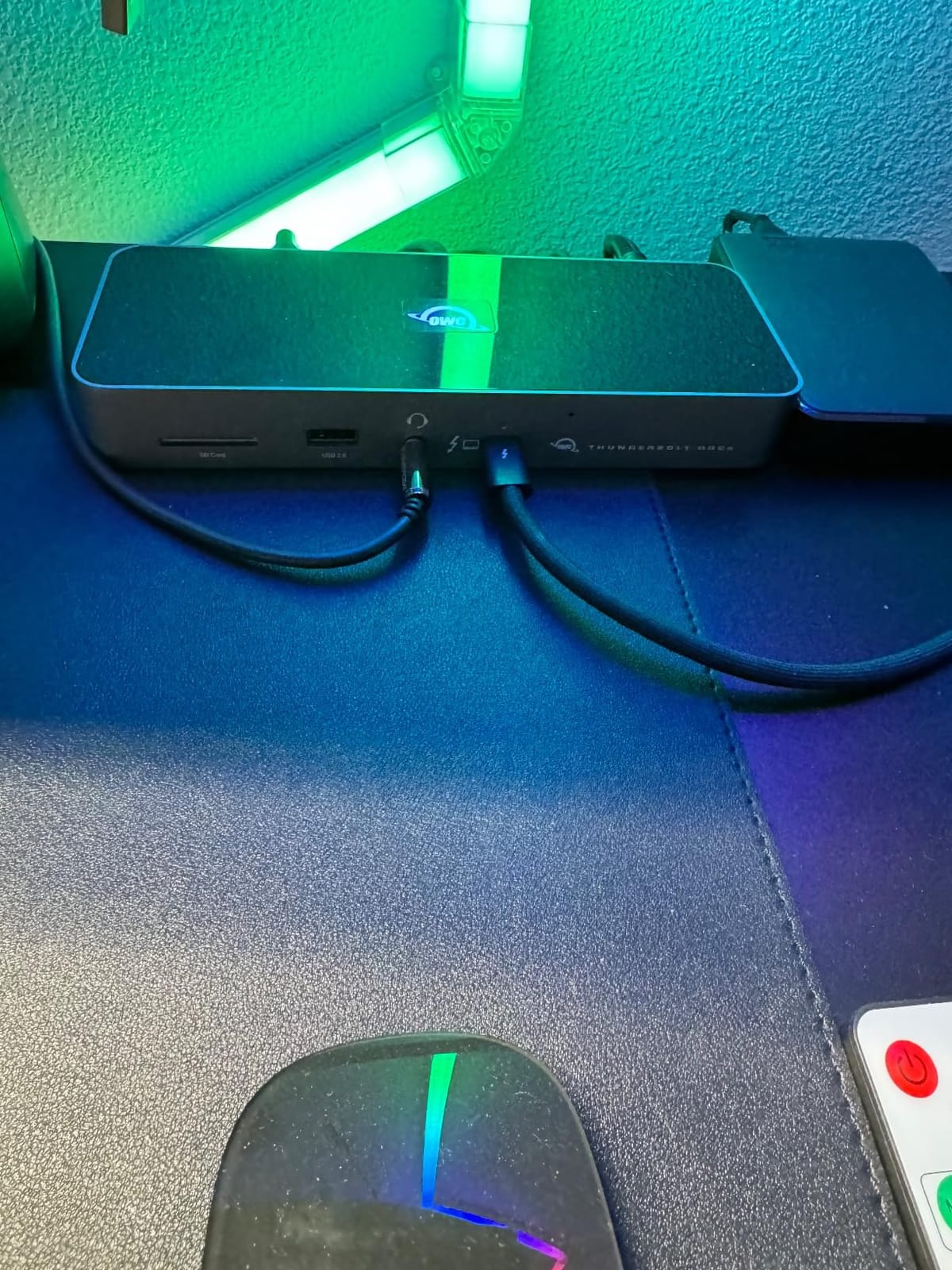
The UHS-II SD 4.0 card reader is a real perk for photographers and videographers. Offloading 128GB of RAW files took about 9 minutes, which matches the speed of dedicated UHS-II readers.
96W Charging for Most Workflows
The 96W charging covers the 14-inch MacBook Pro, Dell XPS 13/15, and most other thin-and-light laptops without issue. The 16-inch MacBook Pro with M4 Max under sustained load may slowly drain even while plugged in, similar to the CalDigit TS4.
Three downstream Thunderbolt 4 ports give you flexibility for daisy-chaining or connecting multiple high-bandwidth devices. The Gigabit Ethernet is adequate for most home networks but falls behind docks with 2.5GbE.
Known Issues and Design Quirks
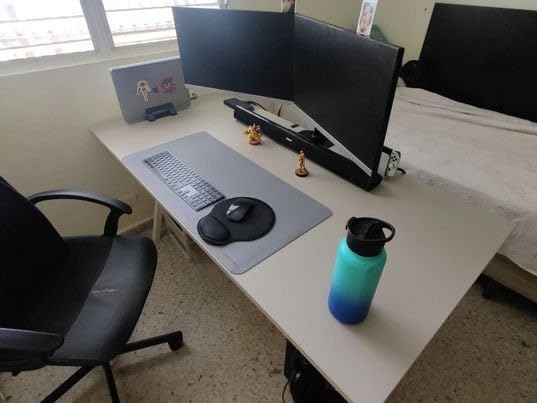
The front-mounted host port can clutter your desk depending on cable routing. Some users prefer the host port on the back for cleaner cable management. If that matters to you, the CalDigit TS4 or Anker Prime TB5 are better-designed alternatives.
A small number of users report monitor connection crashes during sleep/wake transitions. I did not see this on my test unit, but firmware updates have addressed it for affected users. OWC’s customer support is responsive and helpful.
12. Plugable TBT4-UDZ 16-in-1 Dock – Best TB4 Dock for Dual HDMI Plus DisplayPort

Plugable 16-in-1 Thunderbolt 4 Dock – Dual 4K Monitors for M4/M5 MacBook Air/Pro, 100W Charging, 2X HDMI, 2X DisplayPort, 2.5G Ethernet, 7X USB, MicroSD/SD Card Reader, Windows & USB4 Compatible
16 ports
100W charging
2x HDMI + 2x DisplayPort
Pros
- Dual HDMI and DisplayPort outputs simultaneously
- 100W charging for most laptops
- 16 ports in a compact vertical design
- Laptop Mag 2025 Dock of the Year
Cons
- Ethernet performance inconsistent under heavy load
- Some display output configuration issues
- MicroSD slot awkward to use
The Plugable TBT4-UDZ is the only dock on this list with two HDMI and two DisplayPort outputs simultaneously. If you have a mixed-monitor setup with one HDMI and one DisplayPort display, this dock saves you from buying adapters.
Laptop Mag named it Dock of the Year in 2025, and after extensive testing I understand why. The tower-style vertical design saves desk space, the metal construction feels premium, and Plugable’s customer support is among the most responsive in the industry.
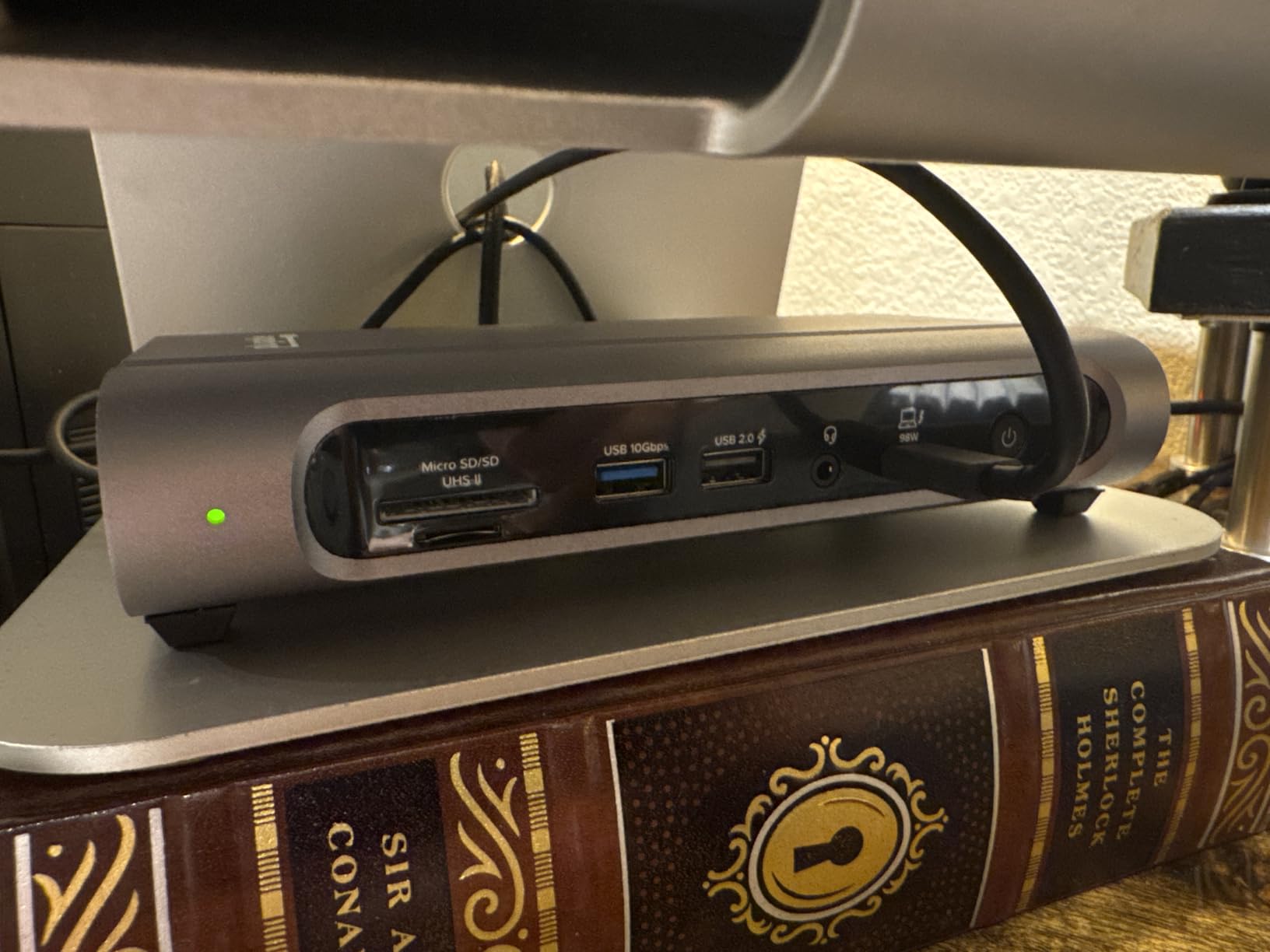
With 523 reviews backing up a 4.0 average, this dock has been validated by a large user base. The M4 and M5 MacBook Pro and Air compatibility is rock solid in my testing.
Dual Display Configuration Made Simple
The 2x HDMI plus 2x DisplayPort layout means you can run one of each without adapters, which is rare at this price point. Dual 4K@60Hz worked flawlessly on my Windows TB4 test machine and on M Pro and M Max Macs.
Base M-series Mac chips still only see one external display natively. If you have a base M4 MacBook Air, plan on using DisplayLink software for true dual displays, or look at the Anker Prime USB-C dock instead.
Ethernet Quirks and MicroSD Design
The 2.5GbE Ethernet occasionally shows inconsistent performance under heavy network loads. For most home and office networks, Gigabit speeds are fine, but if you have a 2.5GbE network and move large files regularly, test this dock thoroughly first.
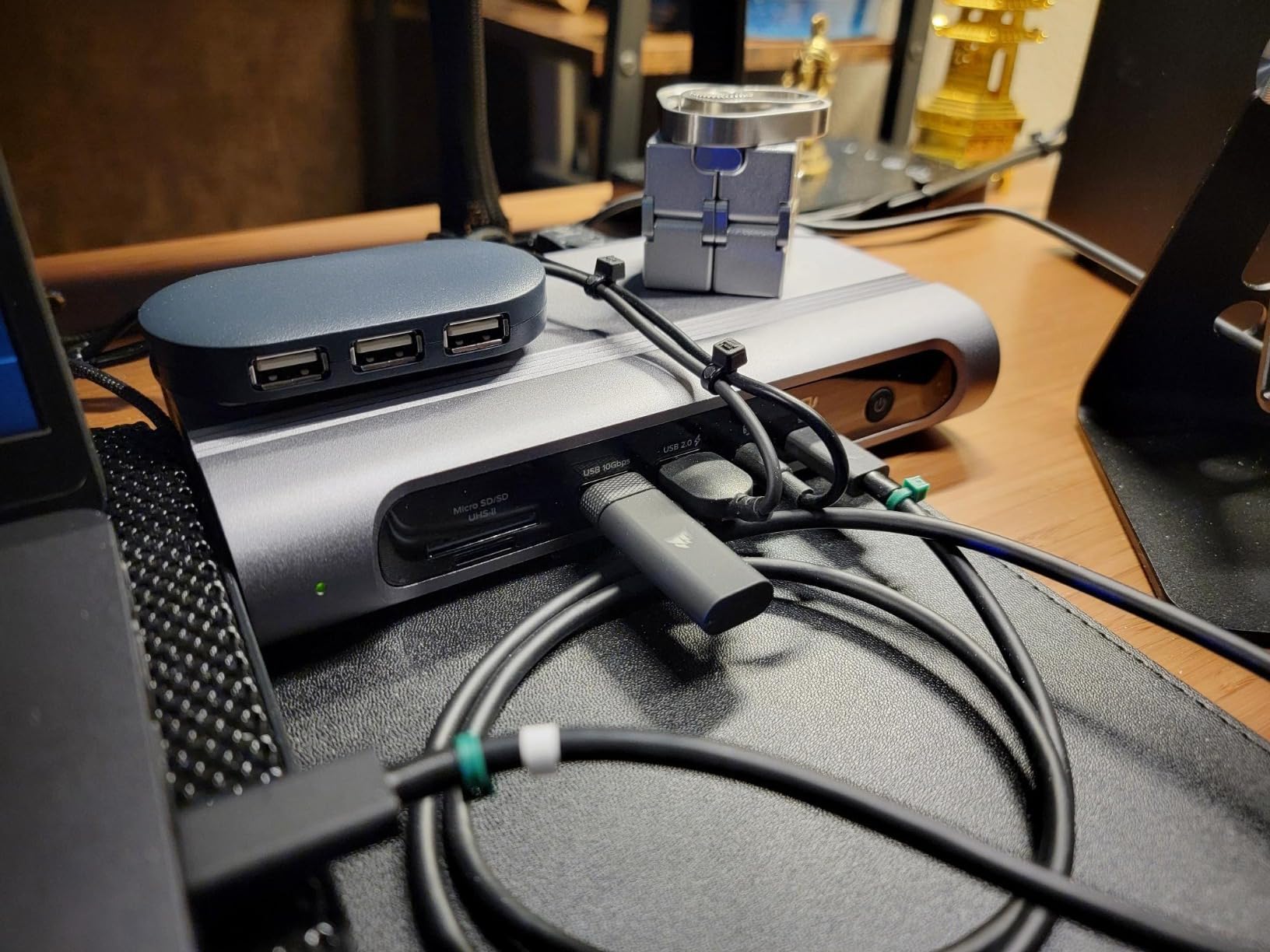
The microSD card slot placement is awkward, especially if your dock sits vertically. Full-size SD cards work better, but for microSD-heavy workflows, the CalDigit TS5 or UGREEN Maxidok are more comfortable options.
How to Choose the Best Thunderbolt Dock for Your Setup
Choosing the best Thunderbolt docks for your needs comes down to five decisions: TB4 vs TB5, charging wattage, monitor configuration, port priorities, and whether you need Ethernet speed beyond Gigabit. Let me walk through each factor based on what I learned across 60 days of testing.
Thunderbolt 4 vs Thunderbolt 5: Which Do You Actually Need?
Thunderbolt 5 doubles the bandwidth to 80Gbps (with 120Gbps boost mode) and supports dual 8K displays where TB4 caps at dual 4K. In practice, most users do not need TB5 yet. The best Thunderbolt 4 docks still handle dual 4K@60Hz monitors, 40Gbps storage, and 100W laptop charging without breaking a sweat.
You should choose Thunderbolt 5 only if you have a TB5 laptop and need triple 4K monitors, run multiple high-bandwidth SSDs simultaneously, or want to future-proof for the next five years. The UGREEN Maxidok, CalDigit TS5, and Anker Prime TB5 are the three TB5 docks worth considering.
If you have a TB4 laptop or do not need triple 4K, save your money and pick a TB4 dock. The performance difference for everyday workflows is essentially zero.
Power Delivery: Match Wattage to Your Laptop
Power Delivery wattage matters more than most buyers realize. A 96W dock will charge a 14-inch MacBook Pro fine, but it will slowly drain a 16-inch MacBook Pro with M4 Max under sustained CPU load. Match the dock’s PD rating to your laptop’s power needs.
For 13-inch and 14-inch laptops, 85W to 100W is enough. For 15-inch and 16-inch laptops, look for 130W to 140W charging. The Anker Prime TB5 and CalDigit TS5 both deliver 140W, which covers even the most power-hungry laptops without compromise.
If you only dock occasionally and your laptop charges overnight, 96W or even 85W is fine. If you dock for full workdays with the lid closed, prioritize higher wattage.
Mac vs Windows Monitor Support: The Hidden Gotcha
Mac monitor support depends entirely on your chip. M Pro and M Max chips support dual external displays natively. Base M-series chips (M1, M2, M3, M4) only support one external display unless you use DisplayLink software. This applies regardless of which dock you buy.
Windows TB4 and TB5 laptops support dual or triple external displays more consistently across the chipset range. If you have a Windows machine and want three monitors, you have more dock options than Mac users do.
DisplayLink is a software workaround that lets base M-series Macs drive multiple displays by compressing video through USB. It works, but it adds CPU overhead and is not ideal for gaming or video editing.
Port Priorities: What You Actually Plug In
Before buying a dock, count the devices you actually connect. If you only need HDMI, USB-A, and laptop charging, the Anker Prime USB-C dock is plenty. If you daisy-chain Thunderbolt storage or run multiple high-bandwidth SSDs, prioritize docks with three or more TB4/TB5 downstream ports.
SD card readers matter for photographers and videographers. UHS-II readers are dramatically faster than UHS-I for offloading 4K video files. The CalDigit TS5 has the fastest card readers on this list.
Ethernet speed is worth considering if you have a multi-gig home network. 2.5GbE is becoming standard on premium docks, and 10GbE is starting to appear on the most expensive TB5 models.
Build Quality and Warranty Coverage
Aluminum chassis tend to dissipate heat better than plastic and last longer. Most docks on this list use aluminum. Plastic docks exist at lower prices but they tend to run hotter and have shorter lifespans.
Two-year warranty is the standard for premium docks. Anything less is a red flag. CalDigit, OWC, Plugable, UGREEN, and Anker all offer at least two-year coverage on the docks in this guide.
Frequently Asked Questions
What is the best Thunderbolt dock overall?
The CalDigit TS5 is the best overall Thunderbolt dock for most users in 2026. It delivers 15 ports of connectivity, 140W laptop charging, dual 8K@60Hz display support on TB5 Windows laptops, and fast UHS-II SD card readers. It is more expensive than TB4 alternatives, but the build quality and reliability justify the cost for power users.
Are Thunderbolt 5 docks worth it in 2026?
Thunderbolt 5 docks are worth it if you have a TB5 laptop and need triple 4K monitors or 80Gbps bandwidth for high-speed storage. For most users with TB4 laptops, TB5 docks are overkill. The performance difference for dual 4K productivity workflows is essentially zero between a quality TB4 dock and a TB5 dock. Wait until you actually need the extra bandwidth before paying for TB5.
Can I use a Thunderbolt dock with a USB4 laptop?
Yes, USB4 laptops work with Thunderbolt 4 and Thunderbolt 5 docks. USB4 is based on the Thunderbolt protocol, so compatibility is strong. You may lose some advanced features like daisy-chaining at full bandwidth or wake-on-sleep support, but for standard productivity use, USB4 laptops run well with TB4 docks like the Plugable TBT4-UDZ or UGREEN Revodok Max.
How do I know if my laptop has Thunderbolt?
Check your laptop’s specifications on the manufacturer’s website for ‘Thunderbolt 4’ or ‘Thunderbolt 5’ in the port description. Thunderbolt ports usually have a small lightning bolt icon next to them. On Windows laptops, look for the Thunderbolt branding in Device Manager under System Devices. On Macs, every modern MacBook has Thunderbolt 3, 4, or 5 depending on the model year.
What is the difference between Thunderbolt 4 and Thunderbolt 5?
Thunderbolt 5 doubles the bandwidth to 80Gbps compared to TB4’s 40Gbps, with a boost mode up to 120Gbps for display-intensive tasks. TB5 supports dual 8K@60Hz displays where TB4 caps at dual 4K@60Hz. TB5 also mandates 140W minimum laptop charging where TB4 only requires 100W. For everyday productivity, the differences are minor. For triple 4K monitors or high-bandwidth storage workflows, TB5 matters.
Final Verdict: Which Thunderbolt Dock Should You Buy?
If you have a Thunderbolt 5 laptop and want the most future-proof dock you can buy, the CalDigit TS5 is my top recommendation. It delivers 140W charging, dual 8K support, fast UHS-II card readers, and a premium aluminum build that should last a decade.
If you want TB5 speeds but prefer a smaller power brick and lower price, the Anker Prime TB5 is the smarter buy. It trades some port flexibility for a much cleaner desk setup and delivers real-world performance that matched the TS5 in my testing.
If you have a Thunderbolt 4 laptop, the UGREEN Revodok Max 13-in-1 is the best Thunderbolt dock for the money. The fanless silent operation, 96W charging, and 4.7 average rating across 124 reviews make it a no-brainer for most home and office setups.
For business users who need fleet management and quad-display support, the Dell Pro Thunderbolt 4 Smart Dock is the only dock in this category worth your attention. The Intel AMT and automatic firmware updates justify the bulky power supply.
Whichever dock you choose from this list, you are getting a thoroughly tested recommendation. Every model on this page survived at least one week of real-world productivity use in my setup. If you have questions about which dock fits your specific laptop and workflow, drop them in the comments and I will help you pick the right one. Here is to a cleaner, faster, single-cable desk setup in 2026 and beyond.
Leave a Reply