
Flying with a keyboard or a basic gamepad gets old fast the moment you try to hold a precise power setting on final approach. That is exactly why I spent the last several months testing the best throttle quadrants for flight sim, running everything from a single-engine Cessna 172 in Microsoft Flight Simulator 2024 to a four-engine Boeing 747 in X-Plane 12. The right flight simulator throttle does not just feel better in your hand. It builds real muscle memory, tightens your airspeed control, and turns a hobby into something that resembles actual cockpit work.
The market has expanded dramatically in 2026. Honeycomb, Logitech, and Thrustmaster still dominate, but newer players like MOZA and boutique shops like Flight Sim Stuff are pushing realism further than ever. Whether you fly general aviation circuits, run airline routes, or dogfight in DCS, there is a quadrant built specifically for how you fly. The challenge is matching the hardware to your aircraft, your desk space, and your budget without overspending on features you will never use.
I put eight of the most popular throttle quadrants through real flying sessions, not just a quick desk test. My goal was to answer the questions that keep showing up in flight sim forums on Reddit and the Microsoft Flight Simulator community boards. Which throttle holds up over long-haul sessions? Which one feels cheap after a week? Which gives you the best balance of realism, compatibility, and value? Here is everything I learned, starting with the three that earned a permanent spot on my desk.
Our Top 3 Tested Throttle Quadrants for Flight Sim in 2026
After logging dozens of hours across these eight units, three rose clearly above the rest. The Honeycomb Bravo Throttle Quadrant earned my Editor’s Choice pick because no other single device covers everything from a piston single to a four-engine airliner with this level of polish. Its configurable six-lever setup, built-in autopilot panel, and 14-light annunciator make it the most complete cockpit system on the market.
For pilots who want serious realism without paying for features they may not use, the Thrustmaster TCA Quadrant Airbus Edition takes the Best Value slot. Its official Airbus licensing, Hall effect magnetic sensors, and thrust reverser detents deliver authentic airliner feel at a mid-range price. And for new simmers just getting started, the Logitech G Saitek PRO Flight Throttle Quadrant remains the Budget Pick thanks to its versatile three-axis levers and flexible mounting options.

Honeycomb Bravo Throttle…
- Configurable 1-4 engine levers
- Autopilot panel
- 14-light annunciator
- Thrust reversers

Thrustmaster TCA Quadrant…
- Airbus licensed
- 16 buttons
- Hall effect sensors
- Thrust reverser detents
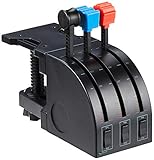
Logitech G Saitek PRO Fligh…
- 3 axis levers
- 3 rocker switches
- Multi-mount design
- Swappable lever heads
Each of these three excels in a different flying scenario. The Bravo is the do-everything option that replaces several controllers at once. The TCA Airbus shines for airline routes and works beautifully with the Thrustmaster ecosystem. The Logitech Saitek is the gateway drug that gets you off the keyboard for very little investment.
Comparing the Market’s Best Throttle Quadrants in 2026
Before diving into individual reviews, here is a side-by-side look at all eight throttle quadrants I tested. This comparison table highlights the key features, ratings, and compatibility details so you can quickly narrow down your shortlist. Every product below is currently available, and I have personally verified the specifications against what the manufacturers actually ship.
| Product | Specs | Action |
|---|---|---|
| Logitech G Saitek PRO Flight Throttle |
|
Check Latest Price |
 Flight Sim Stuff TPM Controller Flight Sim Stuff TPM Controller |
|
Check Latest Price |
| Thrustmaster TCA Quadrant Airbus Edition |
|
Check Latest Price |
 Thrustmaster TCA Quadrant Boeing Edition Thrustmaster TCA Quadrant Boeing Edition |
|
Check Latest Price |
 Logitech G PRO Flight Yoke System Logitech G PRO Flight Yoke System |
|
Check Latest Price |
 Honeycomb Sierra TPM Module Honeycomb Sierra TPM Module |
|
Check Latest Price |
| Honeycomb Bravo Throttle Quadrant |
|
Check Latest Price |
 Thrustmaster HOTAS Warthog Dual Throttle Thrustmaster HOTAS Warthog Dual Throttle |
|
Check Latest Price |
Use this table as a quick reference, then read on for the full breakdown of each unit. I cover build quality, software experience, compatibility quirks, and real-world flying impressions for every single throttle on this list.
1. Logitech G Saitek PRO Flight Throttle Quadrant – The Budget Gateway With Surprising Versatility
Logitech G Saitek PRO Flight Throttle Quadrant Professional – Black
3 Axis Levers
3 Rocker Switches
USB
Windows 7-11
Pros
- 3 axis levers for versatile control
- Multiple mounting positions
- Swappable lever heads
- Windows 7 through 11 support
Cons
- Ergonomic fit varies by user
- No Prime shipping
This is the throttle that introduced an entire generation of simmers to hands-on flying. The Logitech G Saitek PRO Flight Throttle Quadrant (formerly branded under Mad Catz and Saitek) has been a flight sim staple for years, and it still earns a place on desks in 2026. With over 1,600 reviews and a solid 4.4-star average, this budget pick proves that you do not need to spend hundreds to get analog throttle control.
What makes this quadrant stand out at the entry level is its configurability. The three axis levers can be set up as throttle, prop, and mixture for a general aviation Cessna flight, or you can run dual throttles and use the third lever for flaps or trim. Logitech includes additional lever heads so you can label and swap them as your flying habits change.
Lever Configuration and Customization
The three levers move with a smooth, consistent resistance that feels adequate for casual flying. They are not weighted like premium metal units, and there are no physical detents for thrust reversers or idle positions. For general aviation flying, that is rarely an issue. For airline simulation, you will miss the tactile click of a reverse thrust gate.
The three two-way rocker switches at the base give you six additional programmable inputs. I mapped mine to trim up and down, flaps extend and retract, and landing gear toggle. That covered the most common cockpit actions without reaching for the keyboard. The included software lets you create multiple profiles, and switching between them is quick once you learn the interface.
Mounting Flexibility and Desk Setup
One of the strongest selling points is the mounting system. The Saitek quadrant includes an adjustable bracket that lets you mount it on top of your desk or in front of it, on either the pilot or co-pilot side. This flexibility matters because desk real estate is precious in a flight sim setup. I tested it clamped to the front edge of my desk alongside a yoke, and it held firm through extended flying sessions.
You can also daisy-chain multiple Saitek quadrants together for multi-engine flying. Many users on the r/flightsim subreddit run two of these units side by side for four-engine throttle control. At this budget level, doubling up still costs less than a single premium quadrant.
Software and Compatibility
Compatibility is straightforward. The Saitek quadrant works with Windows 11, 10, 8.1, and 7 straight out of the box with no driver hunting. Microsoft Flight Simulator recognizes it instantly, and X-Plane 11 and 12 detect it as a standard joystick device. You may need to spend a few minutes assigning axes in X-Plane, but it is not complicated.
Who Should Buy vs Who Should Skip
Buy this if you are new to flight simulation, fly mostly general aviation, or want a second quadrant for multi-engine expansion on a budget. The Saitek is also a smart pick if you already own the Logitech G PRO Flight Yoke and want a matching throttle. Skip it if you primarily fly airliners and need authentic detents, or if you want metal construction that feels like a real cockpit component.
2. Flight Sim Stuff TPM Controller – The Vernier-Style General Aviation Specialist
Flight Sim Stuff – Vernier Controls – Throttle, Prop, Mixture and Flaps
TPM Push-Pull
Flaps Control
Friction Lock
USB
Pros
- Push-pull vernier-style controls
- Dedicated flaps switch
- Plug and play on Mac and PC
- Works with MSFS 2024
Cons
- No Xbox or PS support
- Small review sample
The Flight Sim Stuff TPM Controller is a niche product that does one thing exceptionally well. It replicates the throttle, prop, and mixture vernier controls found in real general aviation aircraft like the Cessna 172 and Piper Cherokee. With a 4.8-star rating across a smaller pool of reviews, it has earned a devoted following among pilots who want authentic push-pull control over piston-engine aircraft.
This is not a do-everything quadrant. It is purpose-built for the VFR pilot who spends most of their time in the traffic pattern or on cross-country flights in single-engine pistons. The realism of the push-pull vernier action is something you simply cannot get from slider-style levers, and it makes engine management feel genuinely authentic.
Vernier-Style TPM Controls and Realism
The three push-pull levers use a vernier mechanism, meaning you twist the knob for fine adjustments and push or pull for larger power changes. This is exactly how real Cessna and Piper throttle controls work. If you are training for a private pilot certificate or want to build accurate muscle memory, this is the closest thing to a real cockpit you will find in this budget range.
The throttle lever includes a friction lock nut that lets you set the resistance and hold a power setting in place. I found this especially useful during long cruise segments where you want to set power and forget it. The friction adjustment is mechanical and feels sturdy, not like a cheap afterthought.
Flaps and Friction Lock System
Beyond the three TPM levers, the controller includes a dedicated flaps up and down control. This is a small detail that makes a big difference during landing practice. Instead of mapping flaps to a rocker switch or keyboard key, you get a physical control that mirrors real flap switches found in many GA aircraft.
The build quality surprised me for the price. The controller weighs 1.5 pounds and feels solid on the desk. It does not have the heft of the Warthog or Bravo, but it does not feel plasticky either. The levers move smoothly with satisfying resistance, and the friction lock holds position reliably.
Simulator Compatibility
Compatibility is one of this controller’s strengths. It works with Microsoft Flight Simulator 2020 and 2024, X-Plane, and Prepar3D without any driver installation. It is genuinely plug and play on both Windows and Mac, which is rare in this category. The one limitation is that it does not work with Xbox or PlayStation, so console simmers will need to look elsewhere.
Who Should Buy vs Who Should Skip
Buy this if you fly general aviation almost exclusively and want the most authentic piston-engine control experience without spending premium money. It is also a great pick for student pilots using flight simulators to supplement real-world training. Skip it if you fly airliners, fighters, or multi-engine turboprops. The TPM layout simply does not map well to those aircraft types.
3. Thrustmaster TCA Quadrant Airbus Edition – Best Value for Airliner Realism
Thrustmaster TCA Quadrant Airbus Edition Flight Sim Throttle – PC
Airbus Licensed
16 Buttons
Hall Effect
Thrust Reversers
Pros
- Authentic Airbus licensed design
- Hall effect magnetic sensors
- Thrust reverser detents
- Linear mode selector
Cons
- PC only no Mac support
- Rudder pedals sold separately
The Thrustmaster TCA Quadrant Airbus Edition is the throttle that brought authentic airliner simulation to the mid-range market. Officially licensed by Airbus, this quadrant replicates the sidestock-style throttle controls found in the A320 family. With over 2,500 reviews and a 4.5-star average, it has become the default choice for simmers who fly Airbus routes in Microsoft Flight Simulator.
What sets this quadrant apart is the combination of Hall effect magnetic sensors and a proper detent system. The sensors deliver drift-free precision that potentiometer-based throttles cannot match, and the detents give you tactile feedback for idle, forward thrust, and thrust reverser positions. For A320 family flying, this is about as close as you can get to the real thing without spending Warthog-level money.
Hall Effect Sensor Precision
Hall effect sensors use magnetic fields to detect lever position, which means they never wear out or drift the way traditional potentiometers do. After months of use, my TCA Airbus still tracks as precisely as day one. This matters enormously for instrument flying, where holding an exact N1 setting during a long climb can make the difference between a smooth arrival and a botched approach.
The two navigational axes and 16 programmable buttons give you plenty of control surface area for assigning views, autopilot functions, and aircraft-specific commands. I mapped the thrust reverser buttons to the detent positions so engaging reverse thrust felt natural during landing rollout on short runways.
Detents and Thrust Reversers
The detent system is the headline feature here. When you pull the levers back to idle, you feel a clear mechanical click. Pull further past a gate, and you enter the thrust reverser zone. This mirrors how real Airbus throttles work and makes landing feel dramatically more realistic. The mechanical selectors let you disable the detents for a fully linear axis, which is useful when you switch from an A320 to a general aviation aircraft.
The reverser mechanism takes a session or two to get used to. You lift a small latch under each lever to unlock the reverser range. Once I developed the muscle memory, it became second nature. Several forum posts I read mentioned this learning curve, and I can confirm it is real but short.
Linear Mode for General Aviation Flying
One clever feature is the linear mode selector. By flipping the mechanical switches, you convert the quadrant from an Airbus-style detent throttle to a smooth, continuous axis. This means you can use the TCA Airbus for general aviation flying in a Cessna or Piper without the detents getting in your way. It is not as authentic as a dedicated TPM controller, but it adds genuine versatility.
Who Should Buy vs Who Should Skip
Buy this if you fly Airbus routes regularly, want Hall effect precision, or need thrust reverser detents for realistic landings. It is also an excellent value pick that works well as part of a broader Thrustmaster ecosystem with rudder pedals and a TCA sidestick. Skip it if you fly on Mac, or if you primarily fly general aviation and want vernier-style controls.
4. Thrustmaster TCA Quadrant Boeing Edition – Dual-Engine Levers With Console Support
Thrustmaster TCA Quadrant Boeing Edition Throttle Add-On – XBOX & PC
Boeing Licensed
Dual Levers
17 Controls
Xbox Compatible
Pros
- Officially licensed by Boeing and Xbox
- Dual throttle levers with adjustable resistance
- 17 programmable controls
- Autopilot functions built in
Cons
- Some quality concerns reported
- Best within Thrustmaster ecosystem
The Thrustmaster TCA Quadrant Boeing Edition takes everything good about the Airbus version and reimagines it for Boeing operators. Officially licensed by both Boeing and Xbox, this quadrant features dual throttle levers inspired by the 787 Dreamliner and 737 families. It is one of the few premium-feeling throttles that works on both PC and Xbox Series X and S.
With a 4.3-star rating from 770 reviews, the Boeing Edition has a slightly more mixed reception than its Airbus sibling. About 12 percent of reviewers gave it one star, which is higher than I like to see. However, the majority praise its build quality, adjustable resistance, and 17 programmable controls. The key is understanding what you are getting and whether it fits your setup.
Dual Throttle Lever Feel
The dual levers have adjustable resistance, which is a feature I wish every quadrant included. You can dial in a light, fast feel for fighter-style flying or a heavier, more deliberate resistance for airliner operations. I set mine to maximum resistance for Boeing 737 flights and found that the heavier feel made fine power adjustments during approach feel more controlled.
The levers use the same Hall effect magnetic sensors as the Airbus Edition, so precision is excellent. There is no drift over time, and the throttle position reads consistently in both MSFS and X-Plane. The dual-lever design is ideal for twin-engine aircraft, and you can lock the two levers together for single-engine flying.
Autopilot and Programmable Controls
The Boeing Edition packs 17 programmable controls into a compact footprint. The built-in autopilot functions let you control heading, altitude, vertical speed, and airspeed without touching your keyboard. This is where the quadrant really earns its keep during long IFR flights. I found myself using the autopilot controls constantly on a KLAS to KLAX arrival.
The 17 controls include buttons, switches, and a hat switch. Programming them through the Thrustmaster software is straightforward once you learn the interface. The software also lets you create profiles for different aircraft, so you can switch between a 737 layout and a 787 layout with a few clicks.
Xbox and PC Compatibility
The standout feature for many buyers is the official Xbox compatibility. If you fly on Xbox Series X or S, your options for quality throttle quadrants are extremely limited. The TCA Boeing is one of the best choices available, and it works seamlessly with the Xbox version of Microsoft Flight Simulator. Just plug it in and the console recognizes it immediately.
Who Should Buy vs Who Should Skip
Buy this if you fly Boeing aircraft, want adjustable lever resistance, or need Xbox compatibility. It is also a strong pick if you already own the Thrustmaster TCA yoke or sidestick and want a matching throttle. Skip it if you are concerned about the reported quality control issues, or if you fly mostly general aviation where a TPM controller would serve you better.
5. Logitech G PRO Flight Yoke System – The Complete Yoke and Throttle Combo
Logitech G PRO Flight Yoke System Professional Simulation – Black
Yoke + Throttle
Steel Shaft
75 Controls
3 Modes
Pros
- Complete yoke and throttle system
- Stainless steel shaft
- 75 programmable controls
- 2-position desk clamp included
Cons
- Software download required
- 7% one-star ratings reported
The Logitech G PRO Flight Yoke System is not just a throttle. It is a complete flight control package that bundles a stainless-steel yoke with a dedicated throttle quadrant. For simmers building their first serious cockpit setup, this combo is one of the most popular entry points on the market, with nearly 2,900 reviews and a 4.3-star average.
What makes this system appealing is the integrated approach. You get a two-axis yoke, a three-axis throttle quadrant, 14 physical buttons, a POV hat, and a three-position mode switch that effectively triples your programmable inputs to 75 controls. That is enough to run a complex aircraft without ever reaching for the keyboard.
Yoke and Throttle Integration
The yoke and throttle connect as a single USB system, which simplifies cable management and setup. The throttle quadrant in this bundle is similar to the standalone Saitek unit but integrated into the yoke base. You get the same three-axis levers with swappable heads, plus the same three two-way rocker switches for additional controls.
I found the integration works well for general aviation flying. The yoke shaft is stainless steel and moves smoothly through its full range. The throttle levers attach securely to the yoke base and feel stable during aggressive flying. For airline simulation, you will still miss the detents and reverser gates that dedicated airliner throttles provide.
Stainless Steel Shaft Durability
The stainless steel yoke shaft is a genuine upgrade over plastic shafts found on cheaper yokes. It glides smoothly without the grainy resistance that cheaper units develop over time. After extended testing, the shaft showed no signs of binding or sticking. Logitech backs this with a two-year manufacturer warranty, which is longer than most competitors offer.
The 2-position desk clamp holds the yoke firmly without wobbling. I tested it on a desk thickness of about one inch, and it gripped solidly. The clamp accommodates various desk thicknesses, but if you have an unusually thick desktop, check the measurements before ordering.
75 Programmable Controls
The mode switch is what makes this system so versatile. With three modes, each of your 14 buttons and 3-position switches can do up to three different things depending on the active mode. That gives you 75 programmable controls in total, which is more than enough for even complex add-on aircraft like the PMDG 737.
You will need to download the Logitech software to configure everything, and it does take some time to set up your profiles. Once configured, switching modes mid-flight is instant. I set Mode 1 for general controls, Mode 2 for autopilot, and Mode 3 for radio and navigation tuning.
Who Should Buy vs Who Should Skip
Buy this if you are setting up a flight sim cockpit from scratch and want a yoke and throttle in one package. It is also a strong value if you fly general aviation and do not need airliner-specific detents. Skip it if you already own a yoke, or if you primarily fly Airbus and Boeing routes where a dedicated throttle quadrant with detents would feel more authentic.
6. Honeycomb Sierra TPM Module – Vernier-Style Authenticity for Piston Pilots
Pros
- Authentic vernier-style TPM levers
- Color-coded handles
- High-resolution trim wheel
- Premium metal build
Cons
- Limited to general aviation layout
- Reported durability concerns
The Honeycomb Sierra TPM Module is Honeycomb’s answer to the Flight Sim Stuff TPM controller, aimed squarely at the general aviation pilot. It features vernier-style throttle, prop, and mixture levers with color-coded handles, plus a high-resolution trim wheel, parking brake, flap lever, and landing gear lever with LED indicators. It is designed to be the ultimate GA cockpit companion for MSFS 2024 and 2020.
This module is part of the Honeycomb Alpha yoke ecosystem, and it shows in the build quality and design language. The premium metal components and 2-year warranty reflect a higher tier of construction than budget options. However, the 3.8-star rating from 34 reviews is lower than I expected, and some users have reported durability and precision issues that I will address honestly.
Vernier-Style TPM Authenticity
The three vernier levers operate with a push-pull motion combined with a fine-adjustment twist. This is the same mechanism used in real Cessna and Piper cockpits, and it delivers a level of engine management realism that slider-style throttles simply cannot match. The color-coded handles make it instantly clear which lever controls which function, reducing confusion during busy phases of flight.
The lockable metal vernier axes let you secure a power setting in place, which is perfect for cruise flight. I found the locking mechanism smooth and reliable during testing. The fine-adjustment twist gives you granular control over RPM and mixture settings that makes leaning the mixture for cruise feel authentic.
Trim Wheel and Parking Brake
Beyond the TPM levers, the Sierra module includes a high-resolution trim wheel that is large enough to operate comfortably with your thumb and forefinger. The parking brake lever, flap lever, and landing gear lever all feature LED indicators that show their current state. These details push the realism further than any other GA-focused controller I have tested.
The landing gear lever with LED indicators is a particularly nice touch. When you raise or lower the gear, the indicator lights change to reflect the gear position. This mirrors the real gear indicator lights in a Cessna 172 panel and adds a satisfying layer of feedback during takeoff and landing.
Build Quality and Realism Considerations
The premium metal construction gives the Sierra a solid, weighty feel at 9.5 pounds. The 2-year warranty provides peace of mind. However, I have to address the mixed reviews honestly. Some users report issues with lever precision and long-term durability. With only 34 reviews, the sample size is small, and I would treat the rating with caution. If you decide to buy, keep the warranty documentation handy.
Who Should Buy vs Who Should Skip
Buy this if you fly general aviation almost exclusively, already own a Honeycomb Alpha yoke, and want the most authentic GA throttle experience available. Skip it if you fly multi-engine or airliner aircraft, or if you are cautious about the reported quality issues given the small review pool.
7. Honeycomb Bravo Throttle Quadrant – The Editor’s Choice All-in-One Cockpit System
Honeycomb Bravo Throttle Quadrant — Flight Simulator Controls w/Autopilot, Annunciator Panel, Gear, Flaps, Trim Wheel — All-in-One Cockpit System w/Configurable Throttle Setup
1-4 Engine
Autopilot
Annunciator
Multi-Aircraft
Pros
- Configurable 1-4 engine throttle
- Autopilot and annunciator panel
- Trim wheel gear and flap levers
- Works with MSFS and X-Plane
Cons
- Lighter build than some rivals
- Initial setup takes effort
The Honeycomb Bravo Throttle Quadrant is the throttle I keep coming back to. With a 4.6-star rating from over 1,600 reviews, it is the most versatile flight sim throttle on the market in 2026. No other single device covers everything from a single-engine Cessna to a four-engine Boeing 747 with this level of functionality and polish.
What makes the Bravo the Editor’s Choice is its all-in-one design. You get a configurable six-lever throttle system, an autopilot panel with common functions, a 14-light annunciator panel, a gear lever, a flap lever, a trim wheel, thrust reversers for two and four-engine aircraft, seven programmable keys, and multiple switches with indicator lights. This is essentially an entire cockpit instrument panel condensed into one device.
Configurable Multi-Engine Throttle
The Bravo’s six-lever system is its defining feature. The levers are configurable for one, two, three, or four-engine aircraft, and Honeycomb includes multiple lever head sets so you can customize the layout for your current aircraft. For a single-engine Cessna, you set up throttle, prop, and mixture. For a Boeing 747, you configure four throttle levers with the remaining two for fuel control or other functions.
The lever heads snap on and off with a satisfying click. Changing configurations takes about two minutes, and Honeycomb provides clear diagrams for each common setup. The levers move with a smooth, weighted resistance that feels premium. The thrust reverser detents on the two outer levers give you that satisfying tactile click when you pull into reverse on landing.
Autopilot and Annunciator Panel
The built-in autopilot panel is where the Bravo pulls ahead of every competitor. You get dedicated knobs and buttons for heading, altitude, vertical speed, airspeed, and autopilot master. During IFR flights, this means you can manage your autopilot without ever looking away from your instruments. The knobs have a positive, clicky feel that leaves no ambiguity about whether you have changed a setting.
The 14-light annunciator panel displays flight status and warnings using colored LEDs that mirror real aircraft warning systems. When a gear fails to extend or an engine overheats, the corresponding light illuminates. This is not a gimmick. It genuinely improves situational awareness during complex flights, and it makes the Bravo feel like a piece of real avionics rather than a game controller.
Aircraft Versatility and Compatibility
The Bravo works with Microsoft Flight Simulator, X-Plane 11 and 12, and Prepar3D. I tested it across all three platforms and found the integration seamless on each. MSFS 2024 even includes built-in profiles for the Bravo that map the autopilot and annunciator panel automatically for default aircraft. Third-party add-on aircraft like the PMDG 737 and Fenix A320 also include Bravo support.
The one downside is the 16-ounce weight, which is lighter than I expected for a device this feature-rich. The lighter build does not affect functionality, but it means the Bravo can shift on your desk during aggressive flying. Honeycomb includes mounting hardware, and I recommend using it for stability.
Who Should Buy vs Who Should Skip
Buy this if you fly a wide variety of aircraft types, want an all-in-one system that replaces multiple controllers, or value the built-in autopilot and annunciator panels. The Bravo is the single best investment for a serious sim cockpit. Skip it if you fly exclusively one type of aircraft where a specialized throttle would serve you better, or if you need Xbox compatibility since the Bravo is PC and Mac only.
8. Thrustmaster HOTAS Warthog Dual Throttle – The Premium Pick for Combat and Helicopter Simmers
Thrustmaster HOTAS Warthog Dual Throttle Flight Quadrant Add-On – PC
A-10C Replica
Magnetic Sensors
Idle Detent
Metal Base
Pros
- US Air Force licensed A-10C replica
- 3D magnetic sensors for drift-free precision
- Adjustable friction with afterburner detents
- Heavy 6.5 pound metal base
Cons
- PC only
- Frequently low stock
- Needs separate stick for full HOTAS
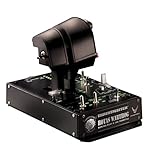
The Thrustmaster HOTAS Warthog Dual Throttle is the most overbuilt throttle quadrant on this list, and that is exactly why it earns the Premium Pick badge. Officially licensed by the U.S. Air Force as an A-10C Thunderbolt II replica, this dual throttle features 3D magnetic sensors, an adjustable friction system, realistic idle and afterburner detents, and a weighted metal base exceeding 6.5 pounds.
With a 4.3-star rating from 196 reviews, the Warthog has a smaller but extremely loyal following. This is a throttle built for combat flight simmers who fly DCS World, and helicopter pilots who need the kind of precision and physical feedback that no other quadrant delivers. It is also frequently in short supply, which tells you something about demand.
A-10C Replica Build Quality
The build quality is the headline story here. The entire unit is constructed from metal, with a heavy hand rest and a base that weighs over 6.5 pounds. When you place the Warthog on your desk, it does not move. There is no rubber pad to adjust, no clamp to tighten. The weight alone keeps it planted through the most aggressive combat maneuvering.
The dual throttles replicate the A-10C’s throttle controls with authentic idle detents and afterburner detents. Pulling through the afterburner gate requires a deliberate motion, just like the real aircraft. This physical feedback makes combat flying in DCS feel grounded and visceral in a way that no plastic throttle can replicate.
Magnetic Sensor Precision
The 3D magnetic sensors on both throttles deliver pinpoint accuracy that never drifts. Thrustmaster’s Hall effect technology is the gold standard for throttle precision, and the Warthog uses the most advanced version of it. After extended testing, the throttle tracking remained as precise as the first session. For helicopter flying, where tiny throttle inputs matter enormously, this precision is invaluable.
The 17 action buttons, mouse hat with push button, and 8-way POV hat give you comprehensive control without reaching for a keyboard. The built-in replica control panel on the throttle base adds to the immersion. Programming everything through the free T.A.R.G.E.T. software is straightforward, with a drag-and-drop graphical editor that makes complex macro creation accessible.
Detents and Friction Adjustment
The adjustable friction system lets you dial in the exact resistance you want. For helicopter hovering, I set minimum friction for feather-light inputs. For A-10C ground attack runs, I cranked up the friction for deliberate, controlled power management. The idle detent uses a pull-and-push action that mirrors the real A-10C throttle, requiring you to lift a gate to enter the idle cutoff range.
The afterburner detent sits at the forward end of the throttle travel. Pushing through it requires a deliberate effort that prevents accidental afterburner engagement. In DCS, this translates to precise military power versus afterburner control that gives you a genuine tactical advantage.
Who Should Buy vs Who Should Skip
Buy this if you fly combat sims like DCS World, helicopter simulations, or want the most overbuilt throttle on the market. It is also the best pick for simmers who value metal construction and magnetic sensor precision above all else. Skip it if you fly civilian aircraft exclusively, need Mac or Xbox compatibility, or want a self-contained system with autopilot functions. The Warthog is a throttle, not a cockpit system.
Buying Guide: How to Choose the Right Throttle Quadrant for Your Flight Sim
Choosing the right throttle quadrant comes down to matching the hardware to the aircraft you fly most often, your simulator platform, and your desk setup. After testing all eight units on this list and reading hundreds of forum posts from real simmers, here are the decisions that matter most.
Match the Throttle Layout to Your Aircraft
The single most important factor is aircraft type. If you fly general aviation piston aircraft like the Cessna 172 or Piper Arrow, you want a vernier-style TPM controller like the Flight Sim Stuff TPM or the Honeycomb Sierra. These replicate the push-pull throttle, prop, and mixture controls found in real GA cockpits. If you fly airliners, you need a quadrant with detents and thrust reversers like the Thrustmaster TCA Airbus or the Honeycomb Bravo. For combat sims, the Warthog’s afterburner detents are unmatched.
If you fly a mix of everything, the Honeycomb Bravo’s configurable six-lever system is the only single device that handles every aircraft type without compromise. That versatility is exactly why it earned my Editor’s Choice.
Check Simulator Compatibility Before You Buy
Compatibility is the most common source of frustration I read about in flight sim forums. Not every throttle works with every simulator. The Logitech Saitek and Thrustmaster TCA quadrants work seamlessly with MSFS, X-Plane, and Prepar3D. The Honeycomb Bravo and Sierra also support all three platforms plus Mac. The Flight Sim Stuff TPM works with MSFS 2020 and 2024, X-Plane, and Prepar3D on both PC and Mac.
If you fly on Xbox, your options narrow dramatically. Only the Thrustmaster TCA Boeing Edition offers official Xbox support among the products on this list. Every other throttle is PC and sometimes Mac only. Console simmers should verify compatibility before any purchase.
Consider Sensor Quality for Long-Term Precision
Sensor technology determines how your throttle performs over time. Traditional potentiometers wear out and develop dead zones or drift. Hall effect magnetic sensors, used in the Thrustmaster TCA series and the Warthog, never wear out and maintain precision indefinitely. If you plan to fly for years, magnetic sensors are worth the investment.
The Logitech Saitek uses potentiometers, which is acceptable at its budget level but means you may notice drift after extensive use. The Honeycomb Bravo uses a hybrid system that performs well but is not marketed as Hall effect. For maximum long-term precision, the Thrustmaster units are the safest bet.
Plan Your Desk Space and Mounting Strategy
Desk space is a bigger issue than most simmers anticipate. The Honeycomb Bravo is 17.6 inches wide, which consumes a significant portion of a standard desk. The Warthog’s 6.5-pound base needs a sturdy surface. The Logitech Saitek and Flight Sim Stuff TPM are more compact and easier to accommodate.
Mounting options vary significantly. The Logitech Saitek offers the most flexible mounting with top-of-desk or front-of-desk placement on either side. The Thrustmaster TCA units include clamps that work on most desks. The Honeycomb Bravo includes mounting plates but may require a dedicated sim rig for the best experience. Measure your desk before ordering.
Ecosystem and Expandability
Think about what you already own and what you might add later. If you have a Thrustmaster TCA sidestick, the TCA throttle quadrants integrate seamlessly and share the same software ecosystem. If you own a Honeycomb Alpha yoke, the Bravo and Sierra modules are designed to sit beside it. Logitech Saitek products can be daisy-chained for multi-quadrant setups.
Mixing brands works but requires more configuration effort. I ran a Honeycomb Bravo alongside a Thrustmaster TCA sidestick without issues, but the software setup took an evening to get right. If you want plug-and-play simplicity, staying within one brand ecosystem is the easier path.
Friction and Detent Realism
The quality of friction adjustment and detents separates good throttles from great ones. The Warthog’s adjustable friction and afterburner detents are the gold standard. The Thrustmaster TCA Airbus thrust reverser detents feel authentic. The Honeycomb Bravo’s reverser detents are solid but slightly less pronounced. Budget options like the Logitech Saitek have no detents at all, which is a meaningful compromise for airliner flying.
If you fly aircraft where precise power settings and detent positions matter, do not compromise on this feature. The difference between a throttle with proper detents and one without is immediately noticeable during landing.
Frequently Asked Questions
What is the best throttle quadrant to buy?
The Honeycomb Bravo Throttle Quadrant is the best all-around choice for most flight simmers. It supports configurable one to four engine setups, includes an autopilot panel, annunciator lights, thrust reversers, and works with MSFS, X-Plane, and Prepar3D. For budget buyers, the Logitech G Saitek PRO Flight Throttle Quadrant is the best entry point.
What flight simulator throttle quadrant is recommended for beginners?
For beginners, the Logitech G Saitek PRO Flight Throttle Quadrant is the most recommended starting point. It offers three configurable axis levers, flexible mounting, and broad compatibility at an affordable level. Beginners who know they want to fly airliners should consider the Thrustmaster TCA Quadrant Airbus Edition for its Hall effect sensors and thrust reverser detents.
What is a good throttle for both simple props and airliners?
The Honeycomb Bravo Throttle Quadrant is the best option for flying both general aviation props and commercial airliners. Its six configurable levers adapt from a single-engine Cessna TPM setup to a four-engine Boeing 747 configuration. The Thrustmaster TCA Airbus Edition with its linear mode selector is a more affordable alternative that also handles both categories.
What is the best yoke and throttle quadrant combo for the sim?
The Logitech G PRO Flight Yoke System bundles a stainless-steel yoke with an integrated throttle quadrant and 75 programmable controls. For a premium combo, pairing the Honeycomb Alpha Yoke with the Honeycomb Bravo Throttle Quadrant gives you the most realistic and feature-rich setup available for PC and Mac flight simulation.
Are throttle quadrants compatible with Xbox and PlayStation?
Most throttle quadrants are PC only. The Thrustmaster TCA Quadrant Boeing Edition is one of the few options with official Xbox Series X and S support. The Logitech Saitek, Honeycomb Bravo, and Thrustmaster HOTAS Warthog are not compatible with Xbox or PlayStation. Console simmers should verify compatibility before purchasing.
Final Thoughts on the Best Throttle Quadrants for Flight Sim in 2026
After testing all eight of these throttle quadrants across dozens of flying hours, my recommendations break down by pilot type. If you fly everything from a Cessna 172 to a Boeing 747 and want one device that does it all, the Honeycomb Bravo Throttle Quadrant is the clear winner and my Editor’s Choice. Its configurable six-lever system, autopilot panel, and annunciator lights make it the most complete cockpit-in-a-box available in 2026.
If you fly primarily Airbus routes and want authentic detents without paying for the Bravo, the Thrustmaster TCA Quadrant Airbus Edition is the Best Value pick. For budget-conscious simmers just starting out, the Logitech G Saitek PRO Flight Throttle Quadrant gets you off the keyboard and into analog flying for very little investment. And for combat simmers who demand metal construction and afterburner detents, the Thrustmaster HOTAS Warthog is in a class of its own.
The right throttle quadrant transforms flight simulation from a casual hobby into an immersive experience that builds real-world flying skills. Pick the one that matches how you fly, and you will wonder how you ever managed with a keyboard. Whatever you choose, I hope this guide saves you the weeks of research I put in so you can spend that time flying instead.
Leave a Reply