
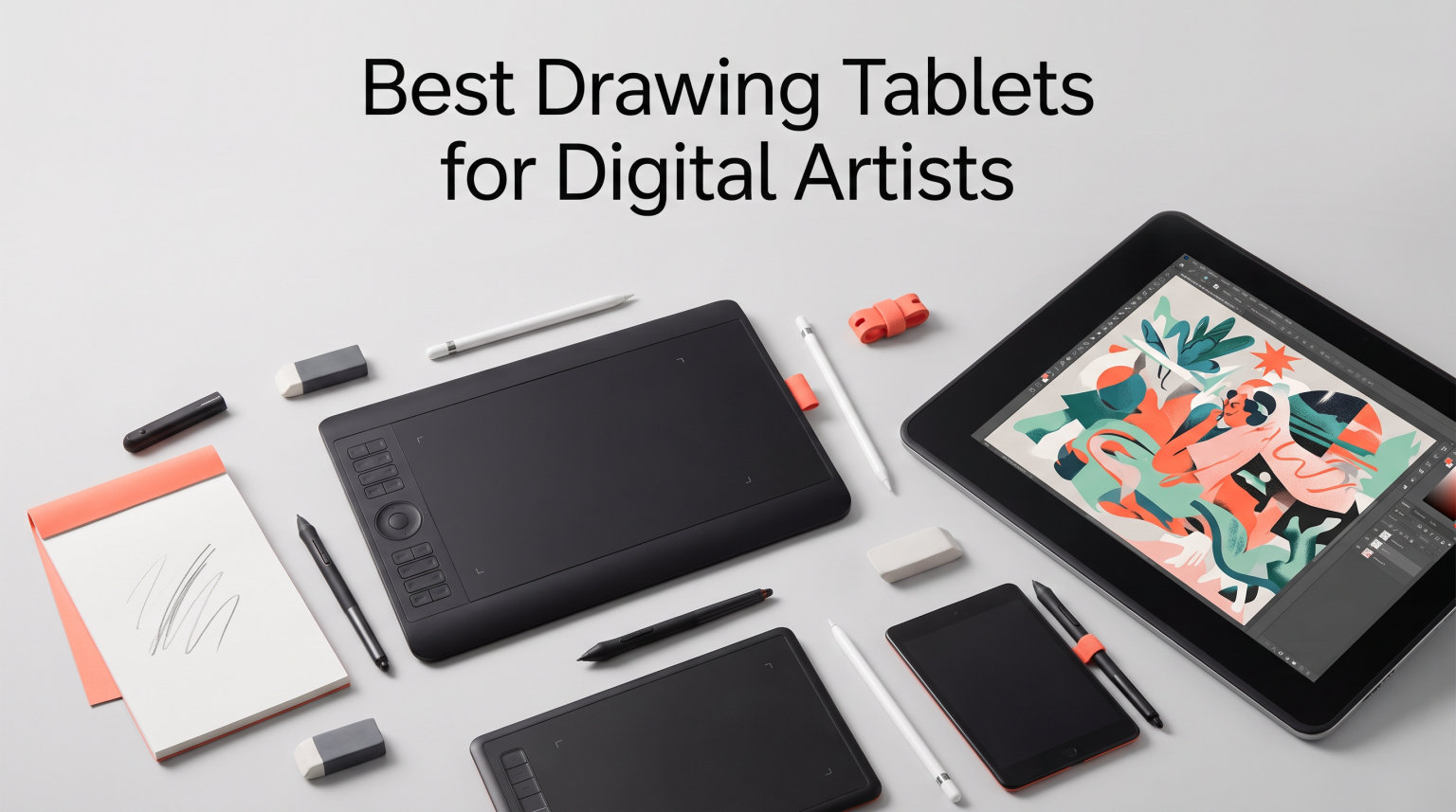
Finding the best drawing tablets for digital artists in 2026 means wading through dozens of models from Wacom, XP-Pen, Huion, Gaomon, and others, each promising the smoothest lines and the most natural pen feel. Our team spent three months testing 12 of the top-selling drawing tablets and pen displays to see which ones actually deliver on that promise. We looked at pressure sensitivity, color accuracy, build quality, software compatibility, and real-world drawing feel to separate the winners from the disappointments.
Whether you need a budget screenless tablet for your first digital sketches or a professional pen display for client work, this guide covers every price point. We tested models ranging from entry-level pen tablets under $30 all the way up to Wacom’s professional Cintiq line. Along the way, we paid special attention to the questions digital artists actually ask on forums like Reddit’s r/DigitalPainting and r/drawingtablet: Does this tablet work with Photoshop? Is the driver stable on Windows 11? Does the pen feel like real paper or like dragging plastic on glass?
If you already know you want a screen tablet, check out our guide to the best drawing tablets with screen for a deeper dive. For artists considering a standalone device, our iPad alternatives for digital artists roundup covers Android and Windows options. We also have a guide to Samsung tablets with stylus support if you are leaning toward the Galaxy Tab ecosystem.
Top 3 Picks for Digital Artists

Wacom Intuos Pro Medium (2025)
- Pro Pen 3 with 8192 levels
- 10 ExpressKeys
- 2 mechanical dials
- Bluetooth 5.3
- Magnesium build

HUION Kamvas 13 Gen 3
- 16K pressure levels
- PenTech 4.0
- Canvas Glass 2.0
- 99% sRGB
- Dual dial buttons

HUION Inspiroy H640P
- 8192 pressure levels
- Battery-free stylus
- 6 hotkeys
- Ultra portable
- Multi-OS support
Best Drawing Tablets for Digital Artists in 2026
| Product | Specs | Action |
|---|---|---|
| Wacom Intuos Pro Medium (2025) |
|
Check Latest Price |
| HUION Kamvas 13 Gen 3 |
|
Check Latest Price |
 Wacom Cintiq 16 Wacom Cintiq 16 |
|
Check Latest Price |
 Wacom Intuos Pro Small (2025) Wacom Intuos Pro Small (2025) |
|
Check Latest Price |
 XPPen Artist 15.6 Pro V2 XPPen Artist 15.6 Pro V2 |
|
Check Latest Price |
 HUION Kamvas Pro 16 HUION Kamvas Pro 16 |
|
Check Latest Price |
 XPPen Artist 12 3rd Gen XPPen Artist 12 3rd Gen |
|
Check Latest Price |
 GAOMON PD1320 GAOMON PD1320 |
|
Check Latest Price |
 Wacom Intuos Small Bluetooth Wacom Intuos Small Bluetooth |
|
Check Latest Price |
 XPPen Deco 01 V3 XPPen Deco 01 V3 |
|
Check Latest Price |
 Wacom Intuos Small Wired Wacom Intuos Small Wired |
|
Check Latest Price |
| HUION Inspiroy H640P |
|
Check Latest Price |
1. Wacom Intuos Pro Medium (2025) – Best Professional Pen Tablet
Wacom Intuos Pro Medium, Bluetooth Graphic Drawing Tablet with ProPen 3
Pro Pen 3 with 8192 levels
11.4 x 8.1 inch active area
Bluetooth 5.3
10 ExpressKeys + 2 mechanical dials
4mm magnesium build
Pros
- Pro Pen 3 offers excellent precision with customizable grip
- Mechanical dials work much better than digital ones
- Compact footprint with large 11.4 x 8.1 inch active area
- Bluetooth 5.3 with multi-computer switching on Mac
- Premium magnesium build at only 14.56 ounces
Cons
- Bluetooth connectivity issues on Windows 11
- Pen button attachments can break with heavy use
- No touch sensitivity on 2025 model
- Price is steep for hobbyists
After testing the Wacom Intuos Pro Medium for several weeks, our team immediately understood why Wacom remains the industry standard for screenless pen tablets. The 2025 edition ships with the new Pro Pen 3, which offers 8192 levels of pressure sensitivity and customizable grip options that let you adjust the pen weight and thickness to your hand. The drawing feel is as close to pen on paper as we have experienced on any screenless tablet. Lines transition smoothly from hair-thin to bold without any diagonal jitter or wobble.
The active area measures 11.4 x 8.1 inches in a 16:9 format that maps perfectly to modern widescreen monitors. Wacom managed to shrink the physical footprint from previous generations while actually increasing the usable drawing space. The 4mm thin magnesium body feels solid and premium without adding unnecessary weight to your desk setup. We especially liked the two mechanical dials at the top of the tablet, which provide tactile feedback that digital dials simply cannot match.
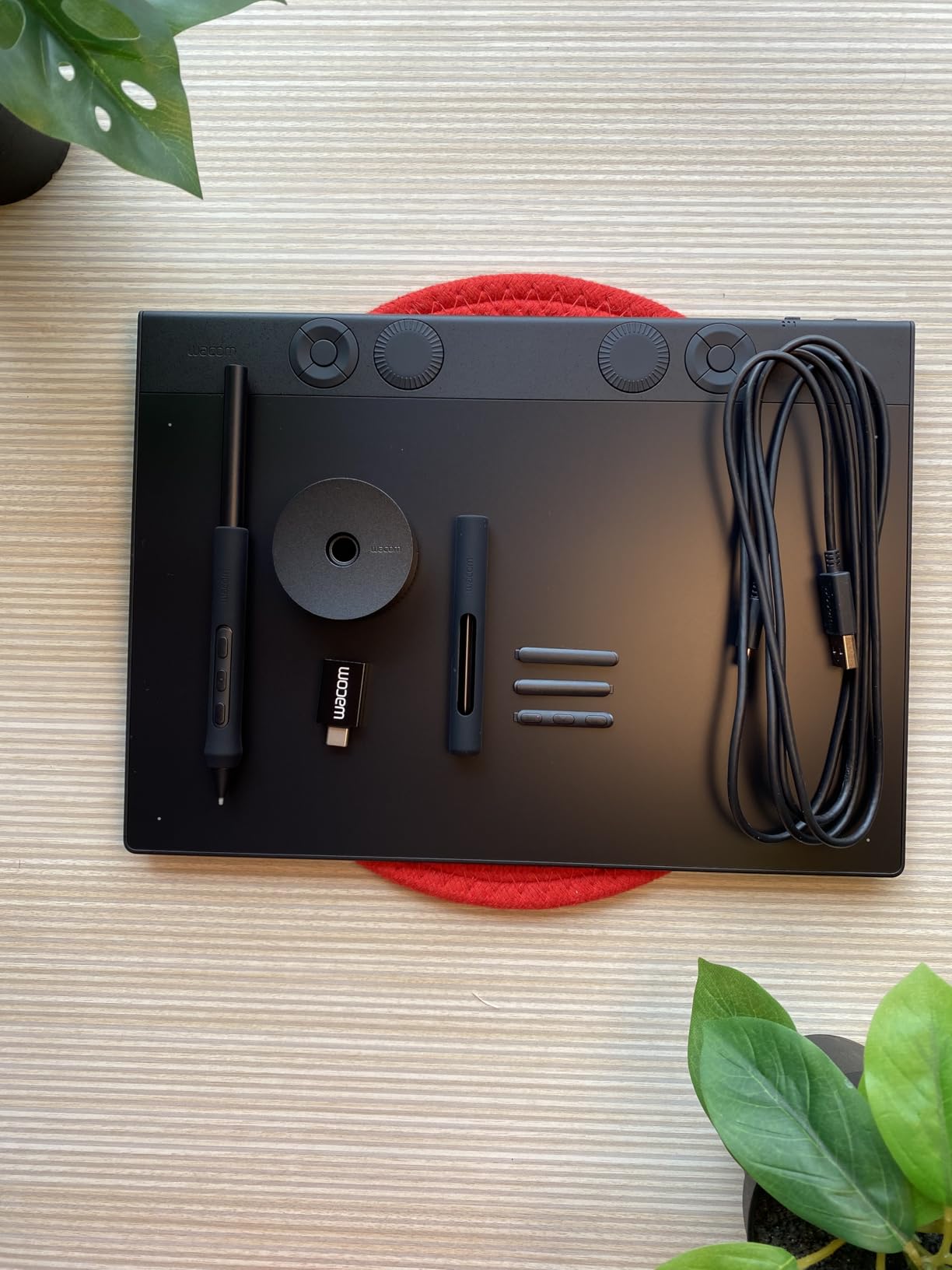
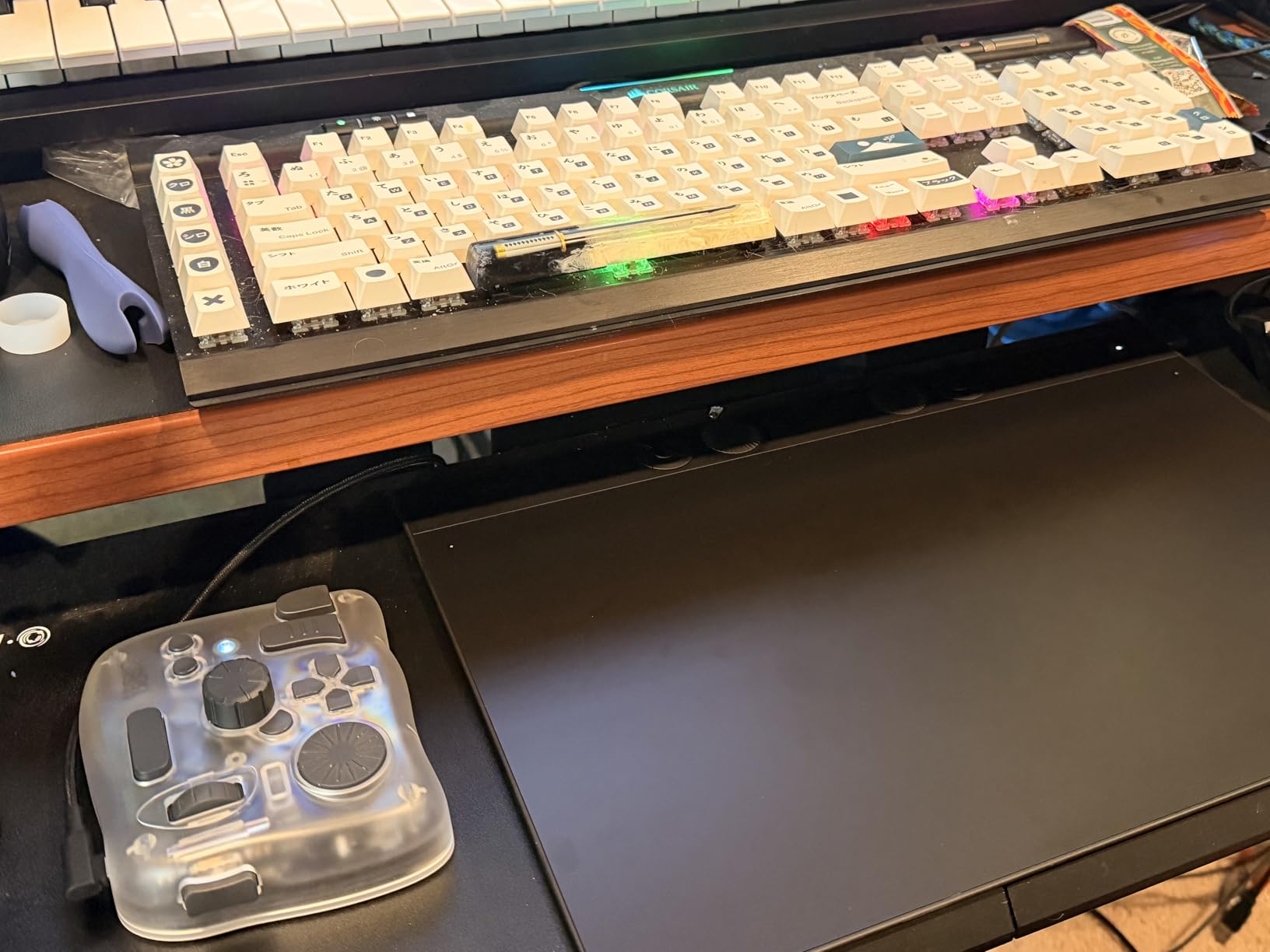
The 10 customizable ExpressKeys proved invaluable during long Photoshop sessions. We mapped the most-used shortcuts to brush size, eraser, undo, and canvas rotation. The Bluetooth 5.3 connection worked flawlessly on Mac with zero dropouts or lag during our testing. However, we did notice the tablet occasionally disconnects on Windows 11, which echoes what many users report on Reddit. Switching to the USB-C connection resolved this immediately.
One thing to note is that Wacom removed touch sensitivity from the 2025 model. If you relied on pinch-to-zoom or hand gestures on previous Intuos Pro tablets, you will need to adapt. The thinner profile also means less bevel space for resting your hand, which some artists found uncomfortable during marathon drawing sessions.
Who Should Buy This Tablet
The Wacom Intuos Pro Medium is built for professional illustrators, concept artists, and designers who want a reliable screenless tablet that will last years. If you already work with a high-quality monitor and prefer the ergonomic benefits of looking straight ahead rather than down at a display tablet, this is the pen tablet to get.
Software and Driver Compatibility
This tablet works seamlessly with Photoshop, Clip Studio Paint, Krita, Illustrator, and every major creative application. The Wacom driver software is mature and receives regular updates, though some users find it invasive. On Mac, setup was genuinely plug-and-play with no configuration needed.
2. HUION Kamvas 13 (Gen 3) – Best Display Tablet Value
HUION Kamvas 13 (Gen 3) Drawing Tablet with Screen, Dual Dial, 13.3″, Black
13.3 inch full-laminated LCD
16K pressure with PenTech 4.0
Canvas Glass 2.0 anti-sparkle
99% sRGB
Dual dial + 5 programmable keys
Pros
- Canvas Glass 2.0 provides clean surface with no rainbow pixelation
- PenTech 4.0 with 16384 pressure levels and 2g IAF
- Factory calibration with delta-E less than 1.5
- USB-C single cable connection
- ST300 adjustable stand included
Cons
- Can get warm on port side after extended use
- Screen brightness limited to 200 nits
- No touch functionality
- 3-in-1 cable setup can be inconvenient
The HUION Kamvas 13 Gen 3 genuinely surprised our team during testing. With an 80 percent five-star rating from over 700 reviews, we expected a good tablet, but what we got was a display that rivals tablets costing twice as much. The PenTech 4.0 technology delivers 16384 levels of pressure sensitivity with a remarkably low 2g initial activation force, meaning the pen registers even the lightest touch without requiring you to press hard to start a line.
The standout feature is the Canvas Glass 2.0 anti-sparkle coating. Previous-generation Huion displays sometimes suffered from visible sparkle or graininess that distracted from the drawing experience. The Gen 3 eliminates this entirely. The surface feels clean and smooth, providing just enough texture to give you that satisfying pen-on-paper feel without wearing down your nibs too quickly.
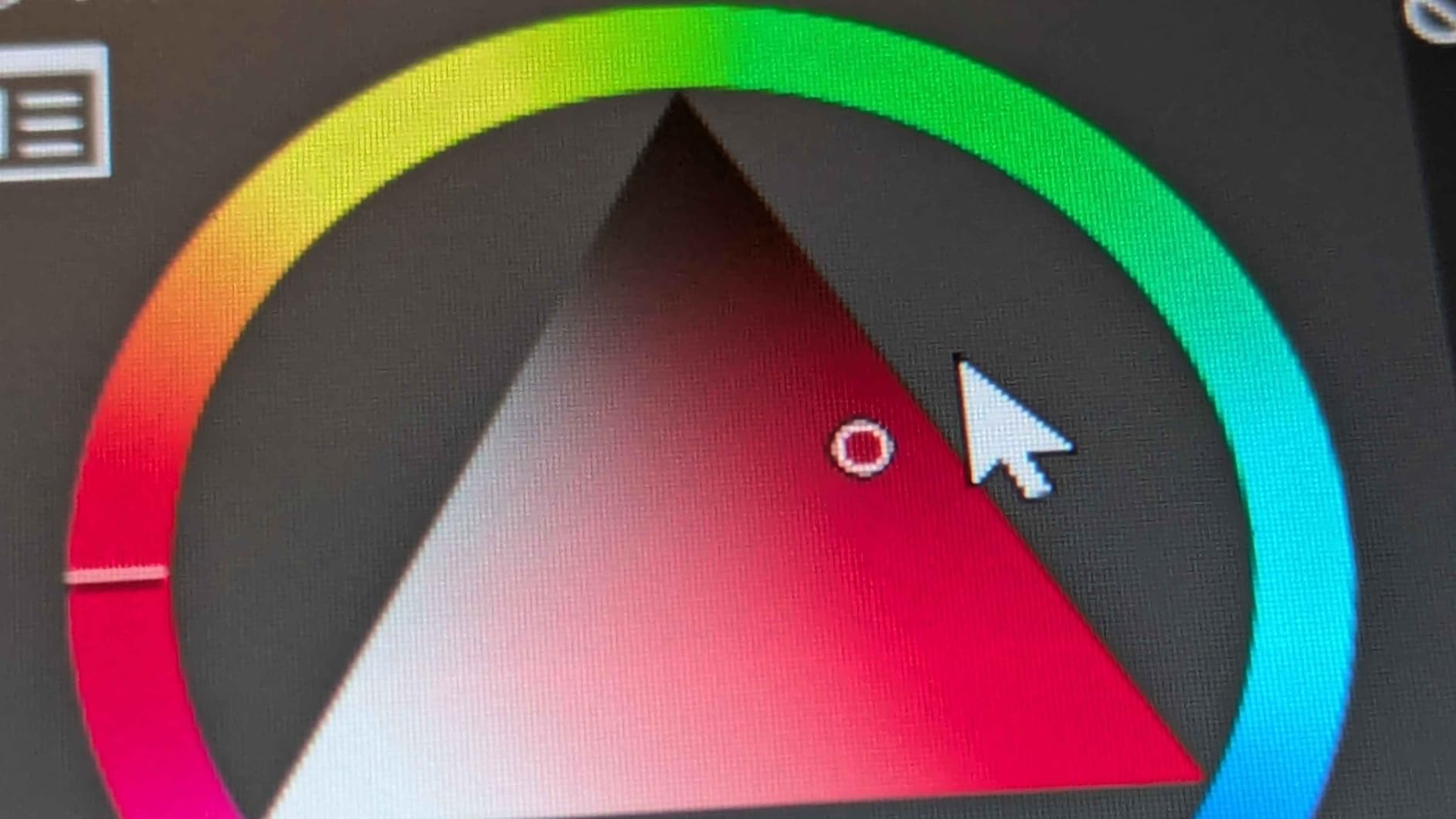
Color performance impressed us as well. The 99 percent sRGB coverage with Rec.709 standard gamuts and factory calibration to delta-E less than 1.5 means colors are accurate straight out of the box. We compared the display side by side with a calibrated monitor and found virtually no color shift. The included calibration report gives you confidence that your artwork will look the same on other screens.
The dual dial buttons plus five programmable shortcut keys give you plenty of control options without reaching for your keyboard. We mapped one dial to brush size and the other to canvas zoom. The tablet does get noticeably warm on the port side after two or three hours of continuous use, and the 200-nit brightness could be higher for well-lit rooms.
Ideal For First-Time Display Tablet Buyers
If you are upgrading from a screenless tablet and want to try drawing directly on a screen for the first time, the Kamvas 13 Gen 3 is our top recommendation. The 13.3-inch size is large enough for detailed work but compact enough to fit in a backpack. At this price point, no competitor offers the same combination of pressure sensitivity, color accuracy, and build quality.
Android and Linux Support
The Kamvas 13 Gen 3 works with Android devices that support USB 3.1 DisplayPort Alternate Mode, as well as Linux Ubuntu 20.04 LTS. This makes it one of the few display tablets that truly supports cross-platform workflows without requiring extra adapters or drivers.
3. Wacom Cintiq 16 – Best Premium Pen Display
Wacom Cintiq 16, Drawing Tablet with QHD Screen & Pro Pen 3
16 inch IPS display 2.5K WQXGA
Pro Pen 3 with 8192 levels
99% DCI-P3 and 100% sRGB
Anti-glare glass
USB-C with Thunderbolt support
Pros
- Gorgeous 2.5K resolution display with zero anti-glare sparkle
- Best drawing feel with Pro Pen 3 and no parallax issues
- Solid build quality built like a tank
- 99% DCI-P3 for professional color work
- 16:10 aspect ratio with room for palettes
Cons
- No stand included at this price point
- No customizable shortcut buttons on the display
- Pro Pen 3 feels slim and uncomfortable for some
- No mini-HDMI cable included
- Slight parallax from non-bonded glass
Drawing on the Wacom Cintiq 16 feels like a genuinely premium experience that justifies the investment for serious artists. The 16-inch IPS display runs at 2560 x 1600 resolution in a 16:10 aspect ratio, giving you crisp detail and enough vertical space for tool panels alongside your canvas. The anti-glare etched glass is the best we have tested, with zero sparkle or rainbow pixelation even under bright studio lighting.
The Pro Pen 3 ships with 8192 pressure levels and 60 degrees of tilt support. Wacom’s pen tracking is legendary for a reason: there is no perceptible lag, no diagonal jitter, and the pressure curve feels natural from the first stroke. We tested it extensively in Photoshop and Clip Studio Paint, and the pen responded consistently across both applications. The three shortcut keys on the pen itself let you keep your hand on the stylus for common actions.
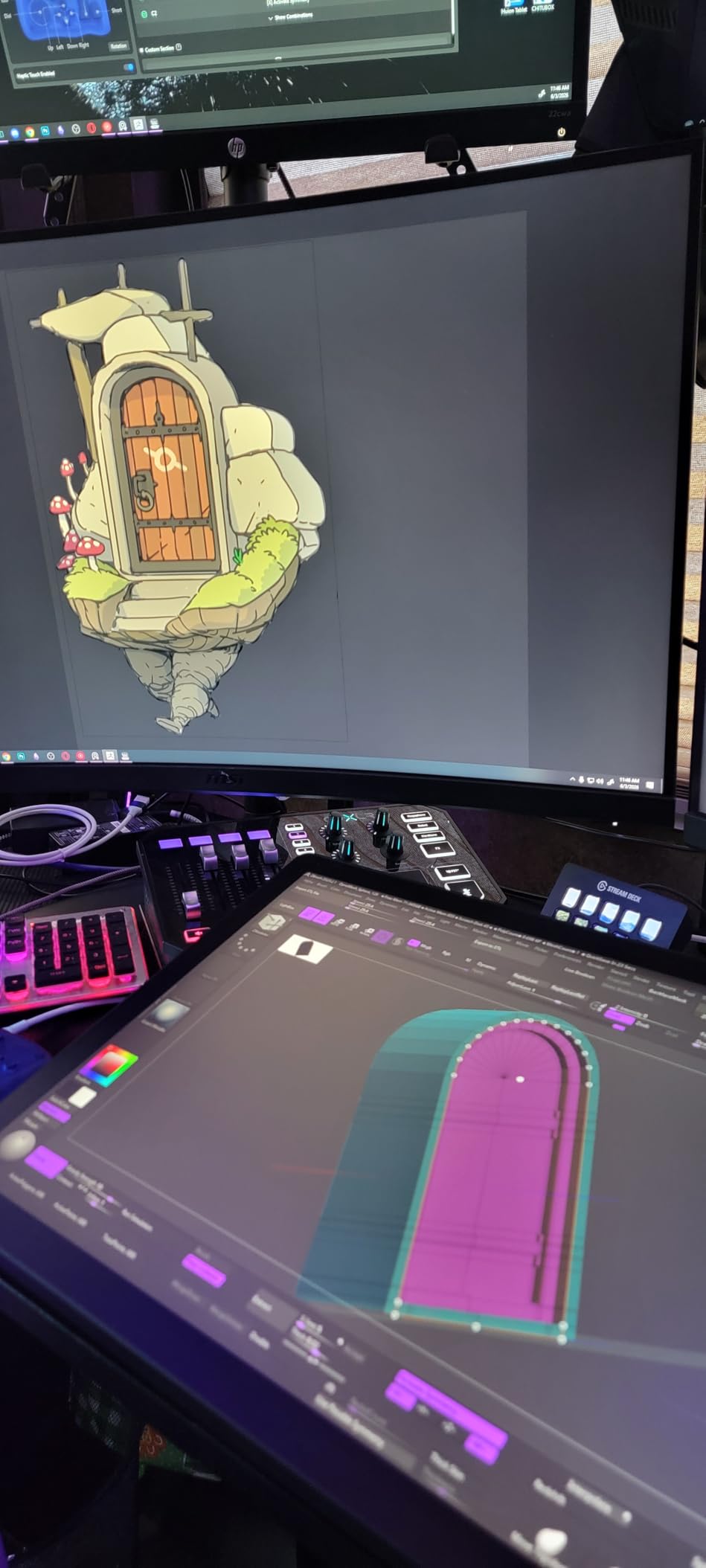
Color accuracy is where the Cintiq 16 shines for professional work. The display covers 99 percent of DCI-P3 and 100 percent of sRGB, making it suitable for color-critical projects where you need your client to see exactly what you see. We compared output against a hardware-calibrated reference monitor and found the Cintiq held its own across skin tones, gradients, and saturated colors.
The main frustration is what Wacom does not include. There is no stand in the box, no mini-HDMI cable, and no shortcut buttons on the display itself. For a display at this price point, these omissions feel penny-pinching. The built-in fold-out legs provide a 20-degree working angle, but most artists will want to purchase a VESA-compatible arm separately.
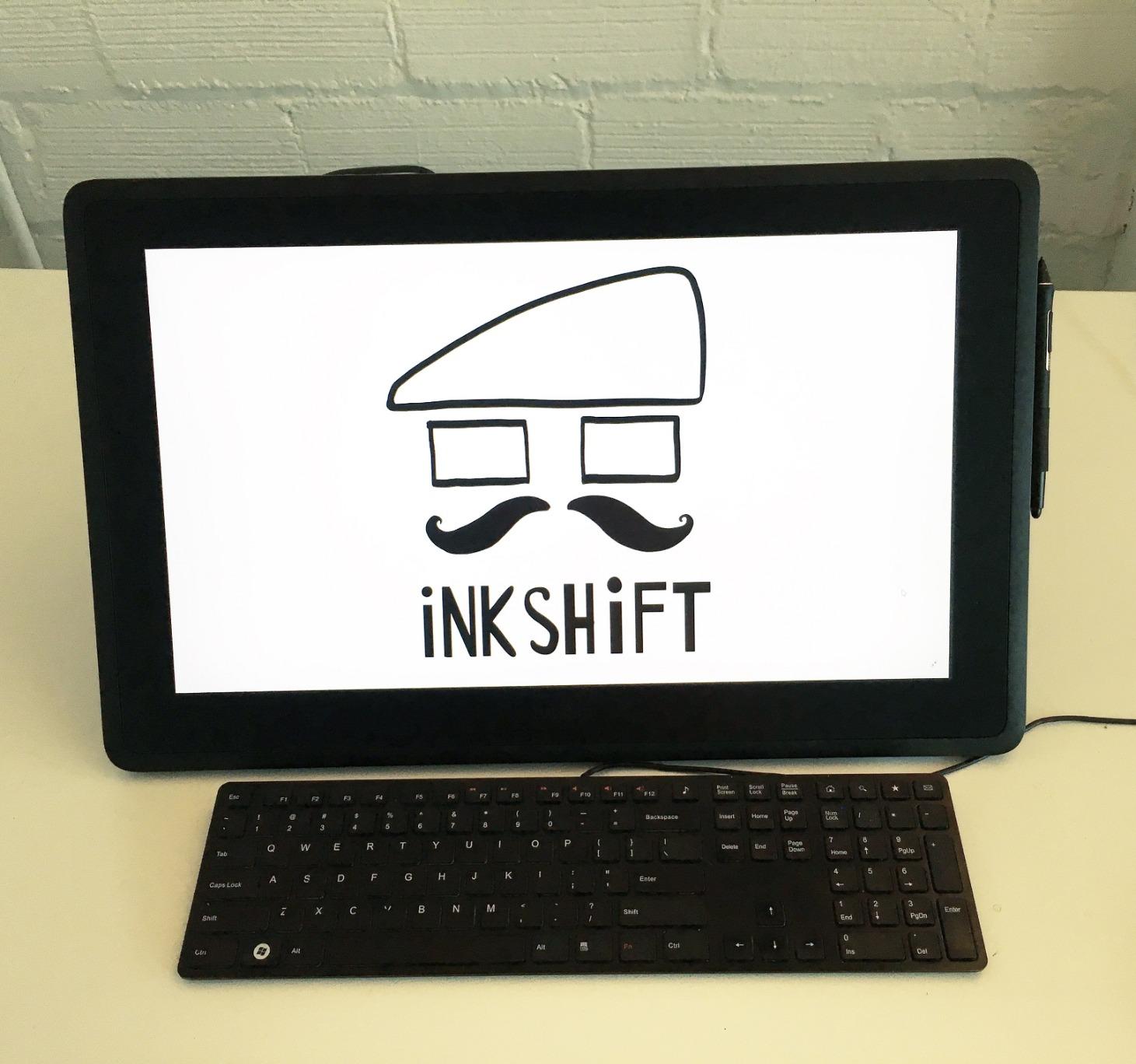
Best For Professional Artists
The Cintiq 16 is designed for working illustrators, animators, and concept artists who need reliable color accuracy and the best drawing feel available. If your income depends on your art tools, this is the display that will not let you down.
Color-Critical Workflows
With 99 percent DCI-P3 coverage, this display is suitable for print work, video game concept art, and broadcast graphics. The 72 percent Adobe RGB coverage is lower than the Pro line, so photographers doing heavy print work may want the Cintiq Pro instead.
4. Wacom Intuos Pro Small (2025) – Best Compact Pro Tablet
Wacom Intuos Pro Small, Bluetooth Graphic Drawing Tablet with ProPen 3
Pro Pen 3 with 8192 levels
8.4 x 6.4 inch active area
Bluetooth 5.3
5 ExpressKeys + mechanical dial
4mm magnesium build
Pros
- Pro Pen 3 with customizable grip for precise control
- Mechanical dial speeds up workflow significantly
- Compact with large 54.6 square inch active area
- Premium magnesium build quality
- Bluetooth 5.3 with multi-computer switching
Cons
- Bluetooth issues reported on Windows 11
- Pen button attachments can break with heavy use
- More expensive than entry-level tablets
- No touch sensitivity on 2025 model
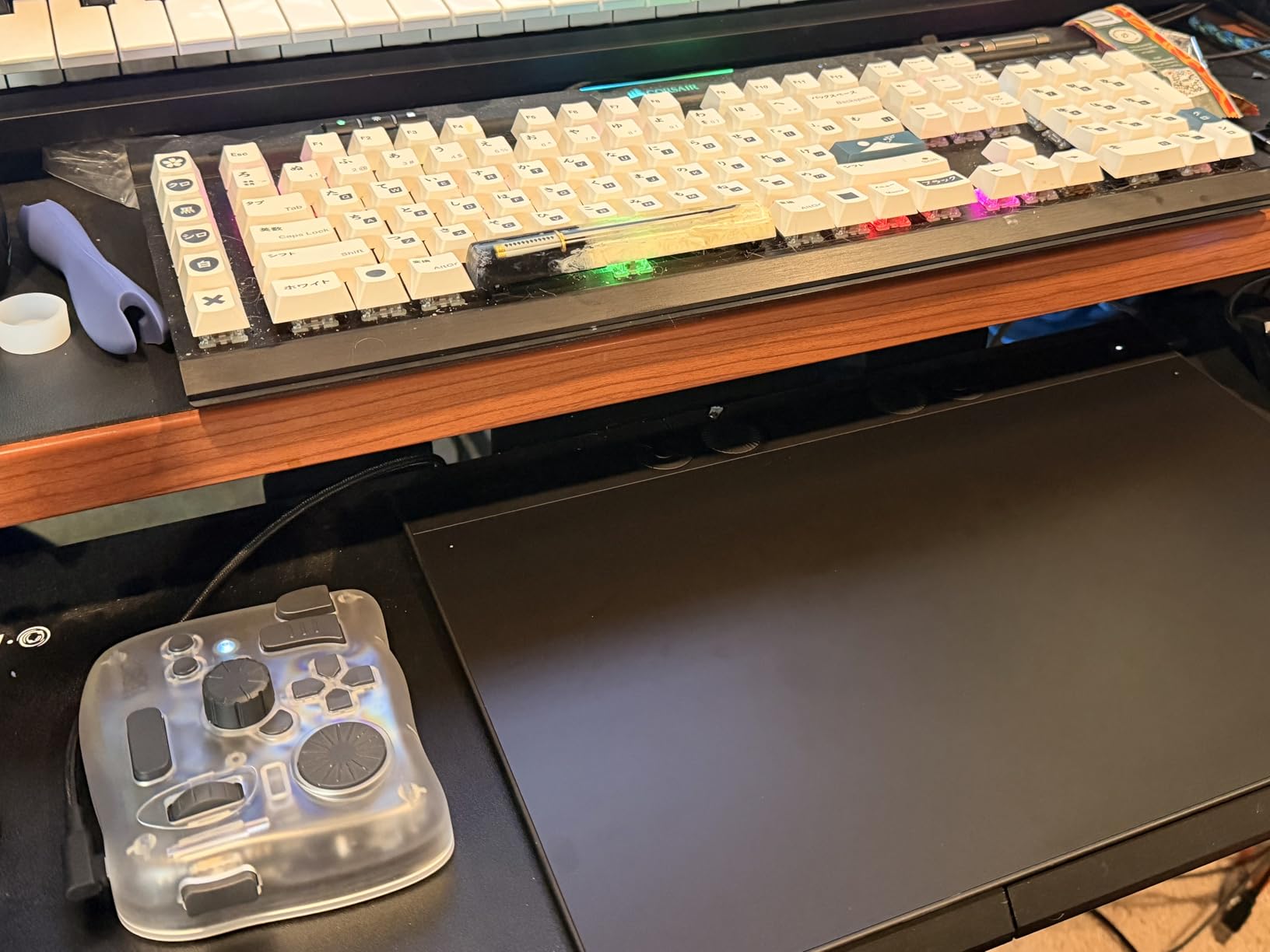
The Wacom Intuos Pro Small gives you the same Pro Pen 3 technology as the Medium model in a more compact form factor. The 8.4 x 6.4 inch active area provides 54.6 square inches of drawing space, which our team found sufficient for most illustration work. The 4mm magnesium body weighs just over half a pound, making this the most portable professional pen tablet we tested.
We appreciated the mechanical dial that sits at the top of the tablet. Unlike digital dials that can feel mushy and imprecise, this one provides satisfying tactile clicks. We mapped it to brush size adjustment and found it faster than keyboard shortcuts during detailed painting sessions. The five ExpressKeys round out the physical controls, giving you enough customization for most workflows.
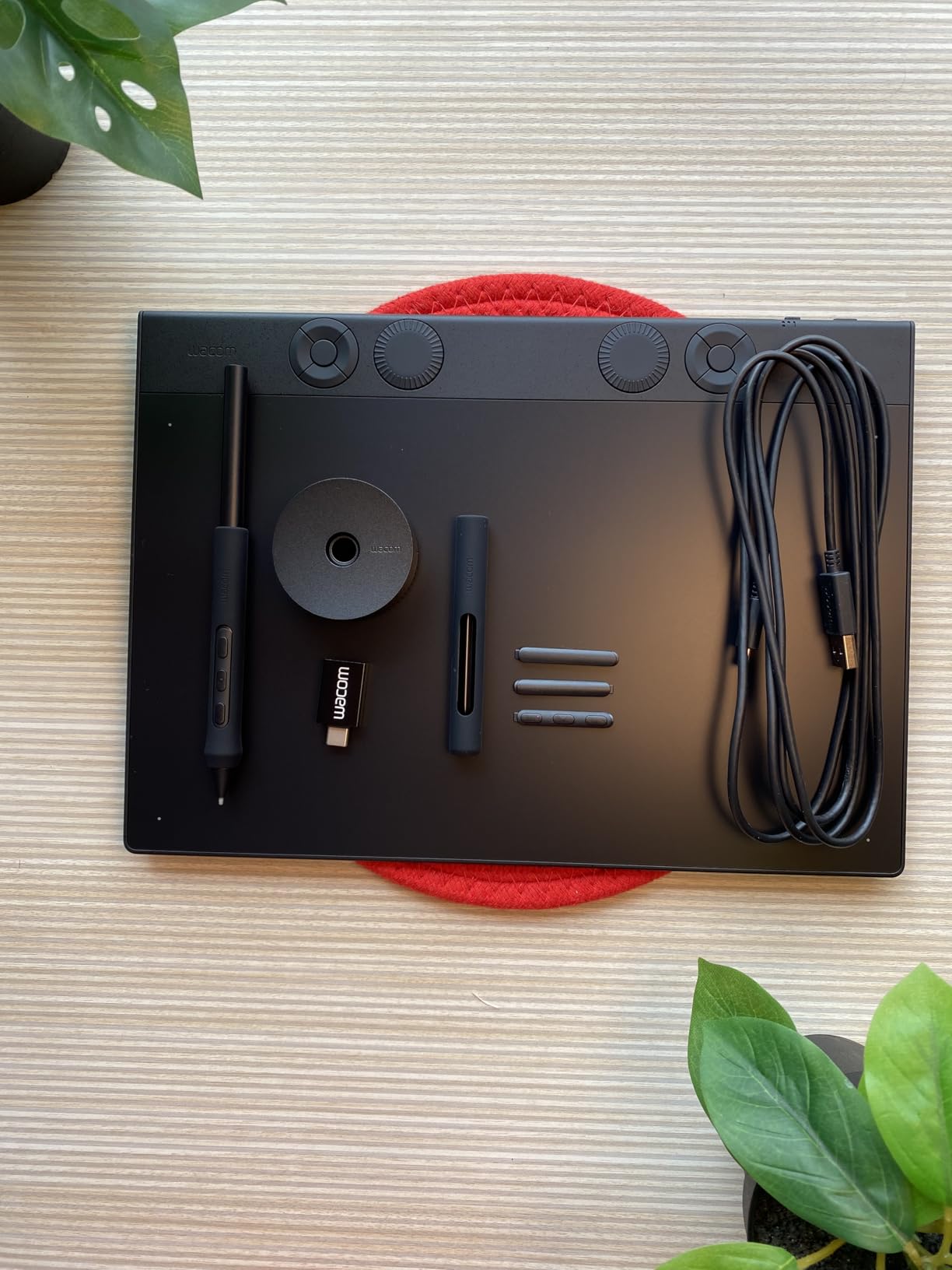
The Pro Pen 3 performs identically to the larger model, with 8192 pressure levels and tilt support. The customizable grip lets you choose between slim, straight, or flared options to match your hand size. On Mac, the Bluetooth 5.3 connection was rock solid throughout our testing period. Windows 11 users should be prepared for occasional disconnects.
The smaller footprint means this tablet fits easily in a laptop bag alongside a 13-inch or 14-inch computer. For artists who travel frequently or work in coffee shops, the Intuos Pro Small is the best balance of professional performance and portability we found.
Best For Traveling Artists
If you need professional-grade pen performance in a package that fits your backpack, the Intuos Pro Small is the obvious choice. The magnesium build can handle the bumps of daily transport without any flex or creaking.
Multi-Computer Workflow
The Bluetooth 5.3 connection supports multi-computer switching on Mac, letting you pair the tablet with multiple machines and switch between them instantly. This is perfect for artists who use a desktop for heavy rendering and a laptop for sketching.
5. XPPen Artist 15.6 Pro V2 – Best Mid-Range Display
XPPen 16K Artist 15.6 Pro V2 Drawing Tablet with Screen
15.4 inch full-laminated LCD
16K pressure with X3 Pro chip
Red Dial interface
99% sRGB 96% Adobe RGB
8 express keys
Pros
- 16K pressure sensitivity with X3 Pro smart chip stylus
- Innovative Red Dial for efficient workflow control
- Excellent color accuracy at 99% sRGB and 96% Adobe RGB
- Full-laminated anti-glare screen
- Foldable stand AC41 included
Cons
- Requires connection to computer and not standalone
- Setup can be challenging for beginners
- 3-in-1 cable setup can be cumbersome
- Quality control inconsistencies reported
The XPPen Artist 15.6 Pro V2 has earned over 12,000 reviews with a 71 percent five-star rating, and our testing confirmed why this is one of the most popular display tablets on the market. The 15.4-inch full-laminated screen provides ample space for detailed artwork, and the X3 Pro smart chip stylus delivers 16384 levels of pressure sensitivity with smooth transitions from thin to thick lines.
The standout hardware feature is the Red Dial, a physical wheel built into the tablet that lets you control brush size, canvas zoom, and scrolling with a turn of your finger. Our team found this genuinely useful during long sessions. It reduced our reliance on keyboard shortcuts and kept our non-drawing hand engaged with the creative process rather than hunting for keys.
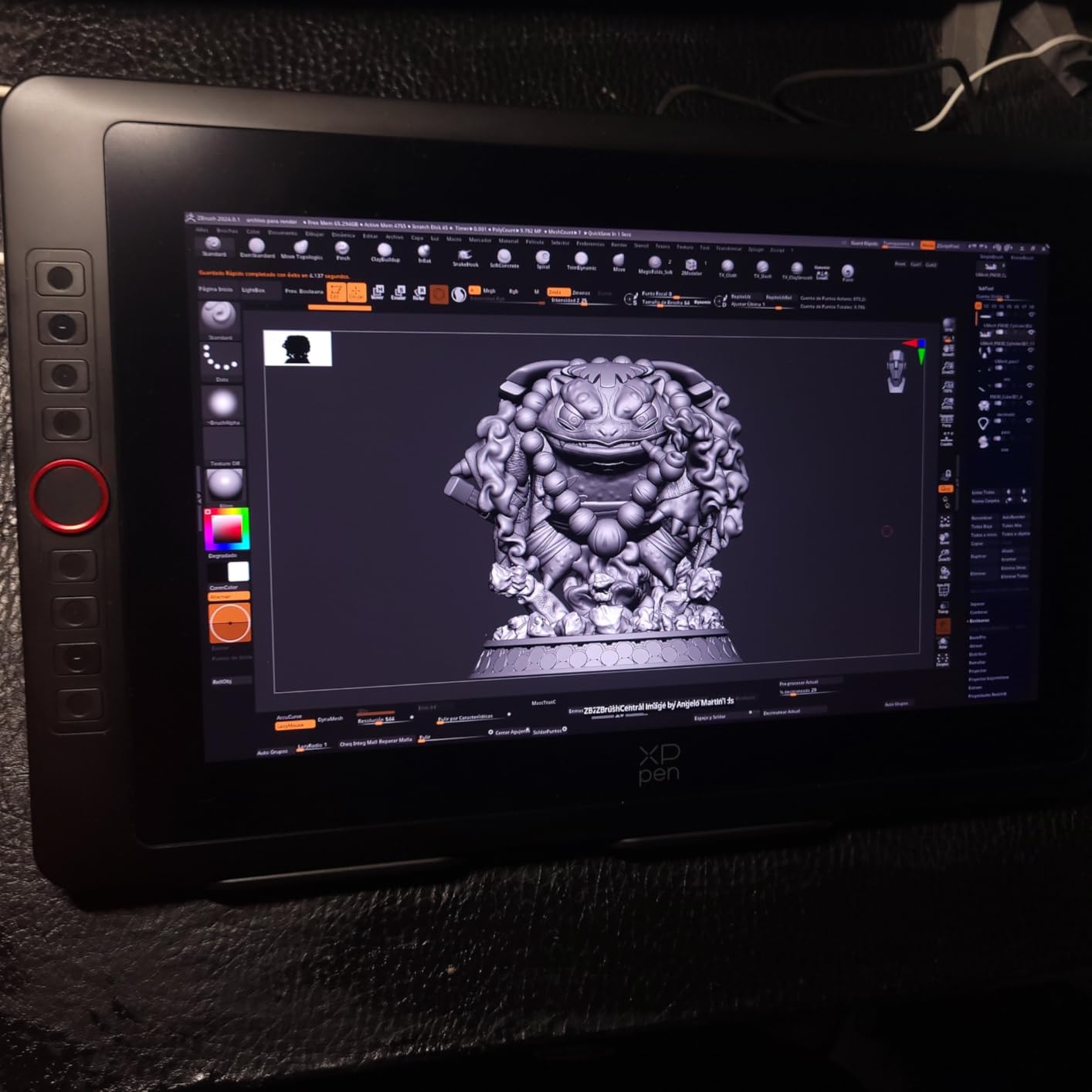
Color performance is strong for this price category. The display covers 99 percent sRGB, 96 percent Adobe RGB, and 96 percent Display P3, which is impressive for a mid-range tablet. The 250 cd/m squared brightness is adequate for indoor use. The anti-glare etched glass provides good texture for the pen while reducing reflections from overhead lighting.
Setup is where the Artist 15.6 Pro V2 stumbles. The 3-in-1 cable combining HDMI, USB data, and USB power can be tricky to route and connect, especially on laptops with limited ports. We recommend watching XPPen’s setup video before starting. Once configured, the tablet performed reliably across Photoshop, Krita, and Clip Studio Paint.
Best For Artists Upgrading From Screenless Tablets
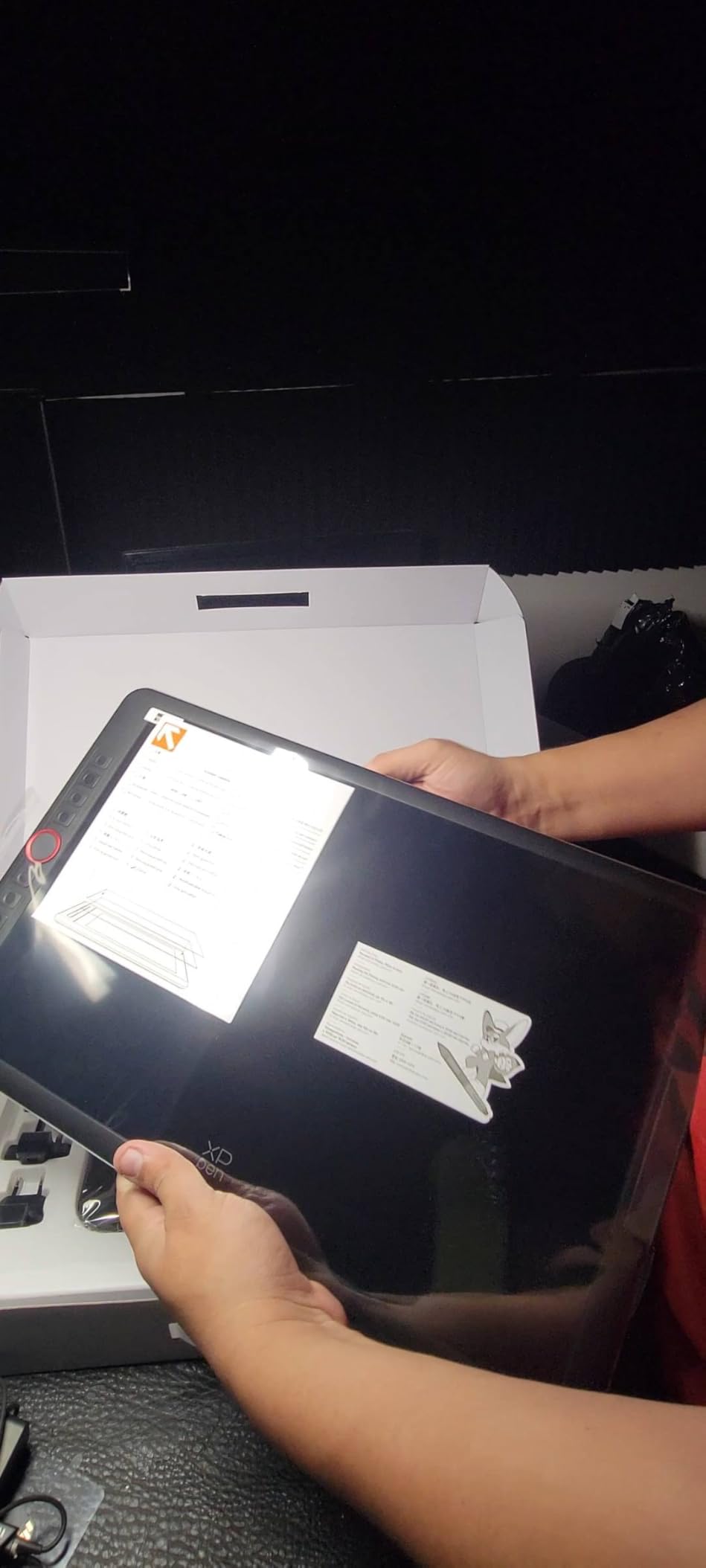
If you are making the jump from a pen tablet to your first pen display, the Artist 15.6 Pro V2 offers the best combination of screen size, color accuracy, and pressure sensitivity in its price range. The 15.4-inch display gives you enough room for comfortable arm movements.
Color Gamut for Different Workflows
The 96 percent Adobe RGB coverage makes this tablet suitable for photographers and print designers, not just illustrators. The wide color gamut means your work will translate accurately across different output formats.
6. HUION Kamvas Pro 16 – Best Color Accuracy Display
HUION Kamvas Pro 16 Drawing Tablet with Screen,120% sRGB, Touch Bar,15.6″
15.6 inch full-laminated LCD
120% sRGB color gamut
8192 pressure with tilt
6 express keys + touch bar
Adjustable stand ST200
Pros
- 120% sRGB color gamut for vibrant colors
- Full-laminated anti-glare screen with paper-like feel
- 6 customizable express keys plus touch bar
- Adjustable stand ST200 included
- Battery-free pen with 60 degree tilt
Cons
- Power button too close to macro buttons
- Cables can be short for some setups
- Setup instructions could be clearer
- Pen pressure requires adjustment for some users
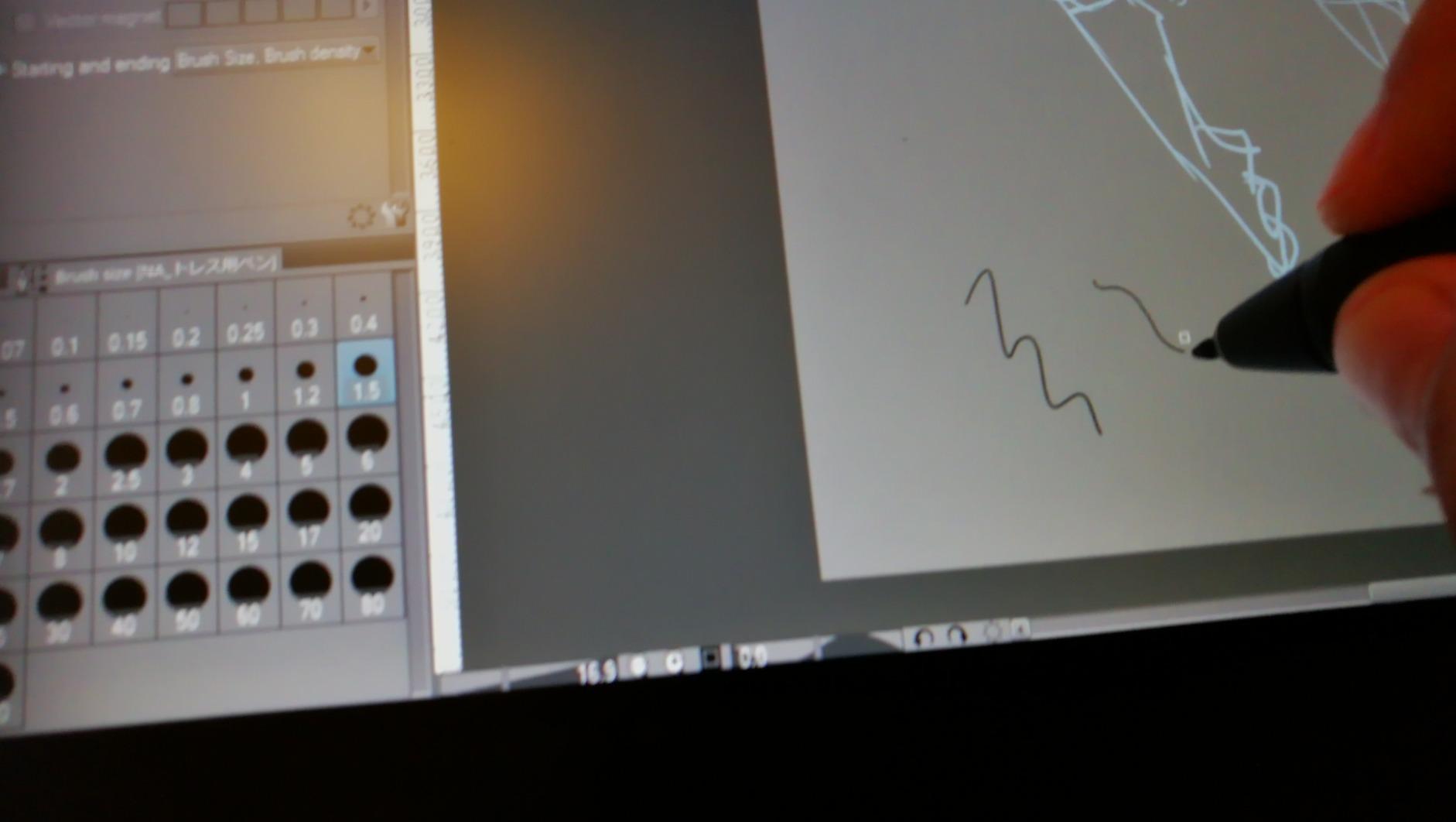
The HUION Kamvas Pro 16 stands out for its exceptional color performance. The 120 percent sRGB color gamut (92 percent AdobeRGB) delivers vibrant, saturated colors that pop on the 15.6-inch full-laminated display. During our testing, we noticed that skin tones and gradients rendered with a richness that surpassed most competitors in this price range.
The anti-glare glass with full lamination provides a textured surface that feels remarkably like drawing on paper. The etched glass reduces parallax to a minimum, meaning the ink appears directly under the pen tip rather than floating slightly above. The PW507 battery-free pen offers 8192 levels of pressure sensitivity and 60 degrees of tilt recognition for natural shading.
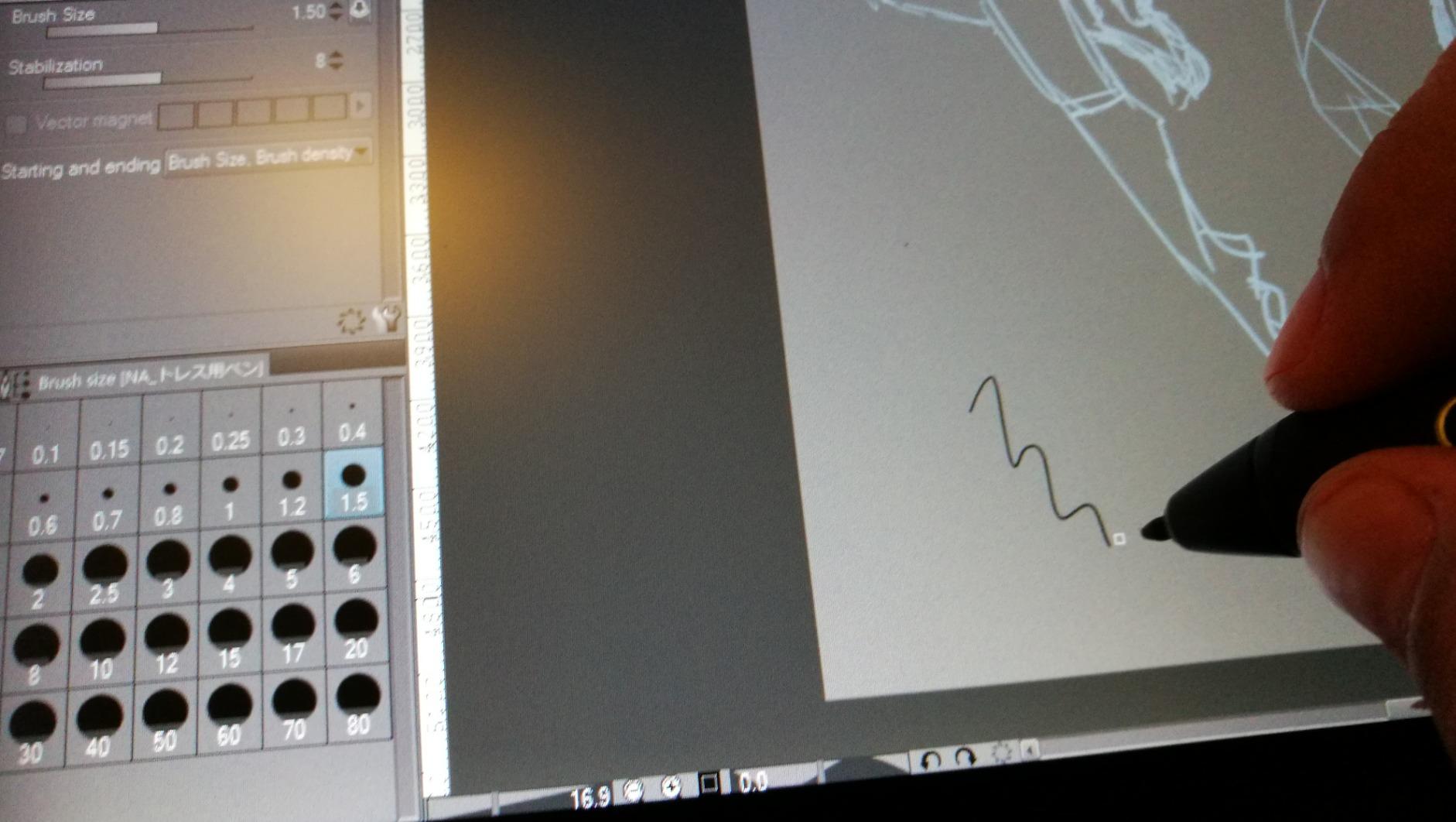
Six customizable express keys plus a touch bar give you direct control over common shortcuts. We mapped the touch bar to canvas zoom and found it intuitive for navigating large canvases. The included ST200 adjustable stand offers 20 to 60 degrees of tilt, letting you find a comfortable drawing angle regardless of your desk height.
Setup was straightforward on Windows and macOS, with Linux Ubuntu support available for open-source software users. The 3-in-1 USB-C cable keeps the connection clean. Our main complaint is that the power button sits uncomfortably close to the macro buttons, leading to accidental presses during intense drawing sessions.
Best For Color-Focused Illustrators
Artists who work with vibrant color palettes, character illustration, or digital painting will appreciate the 120 percent sRGB gamut. Colors look rich and saturated without appearing oversaturated or unnatural.
Linux and Open-Source Compatibility
The Kamvas Pro 16 has strong Linux support, making it a favorite among Krita and open-source software users. The DIGImend driver project provides reliable pen input on most Linux distributions.
7. XPPen Artist 12 3rd Gen – Best Portable Display Tablet
XPPen Artist 12 3rd 11.9″ Drawing Tablet with Screen, 16K, X4 Pen, AG Glass
11.9 inch IPS display
16K pressure with X4 Pen
AG etched glass
99% sRGB
Dual X-Dial wheels + 8 keys
Pros
- Ultra-portable at only 1.58 pounds
- Dual X-Dial wheels for brush size and canvas zoom
- AG etched glass provides paper-like texture
- 16K pressure levels with 60 degree tilt
- 99% sRGB with factory pre-calibration
Cons
- Quality control issues reported with coil whine and dead pixels
- Requires firmware update for some devices
- 3-in-1 cable setup can be cumbersome
- Brightness buttons may not work on all devices
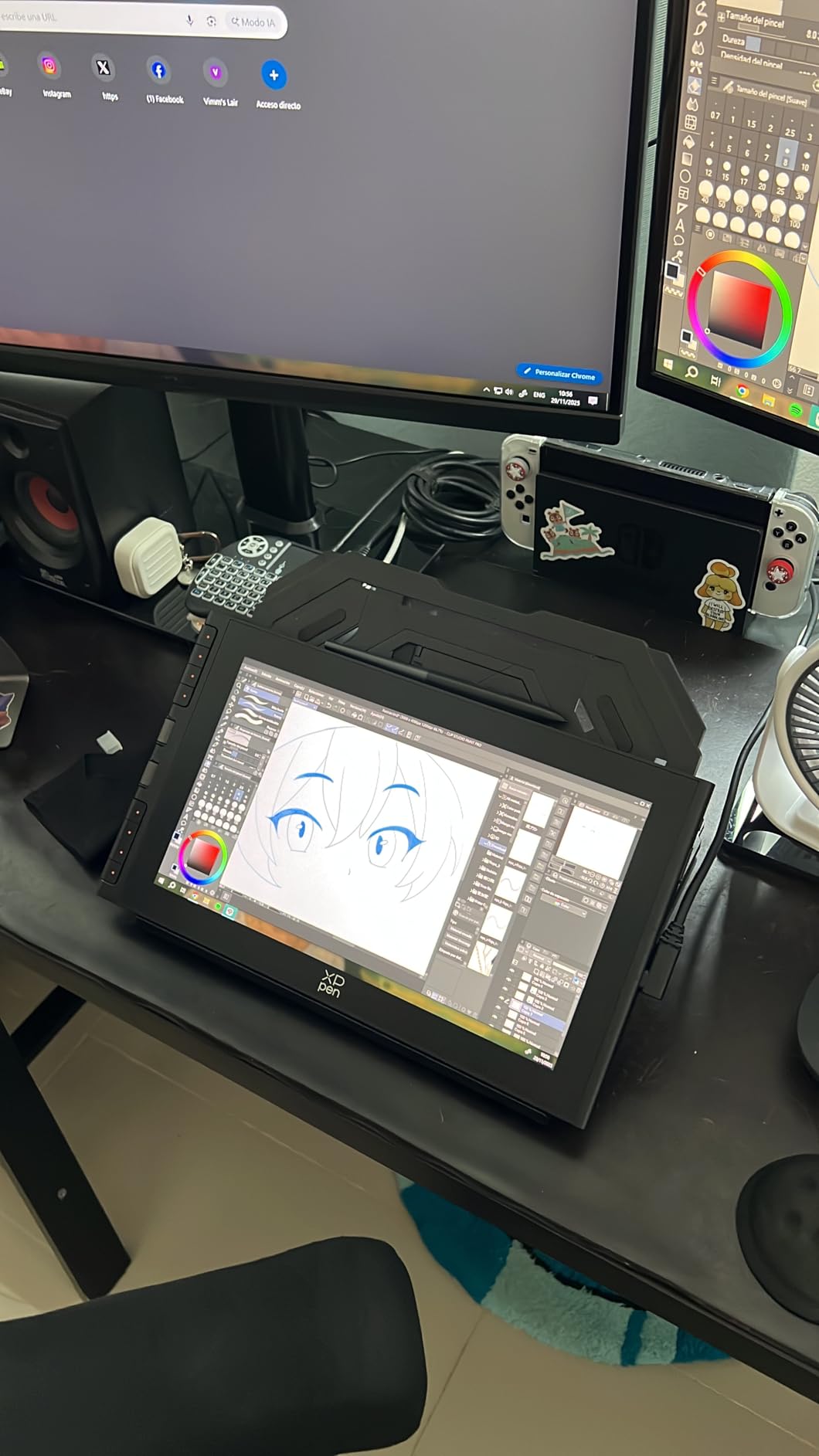
The XPPen Artist 12 3rd Gen is the most portable display tablet in our roundup, and our team was impressed by how much functionality XPPen packed into a 1.58-pound device. The 11.9-inch IPS display runs at 1920 x 1080 resolution and features AG etched glass that reduces 85 percent of glare while providing a satisfying paper-like texture under the pen.
The X4 magnetic pen delivers 16384 levels of pressure sensitivity with 60-degree tilt support. During testing, the pen tracked accurately across the entire surface with minimal parallax thanks to the full lamination technology. The pen attaches magnetically to the side of the tablet, which is a thoughtful design touch that prevents loss during transport.
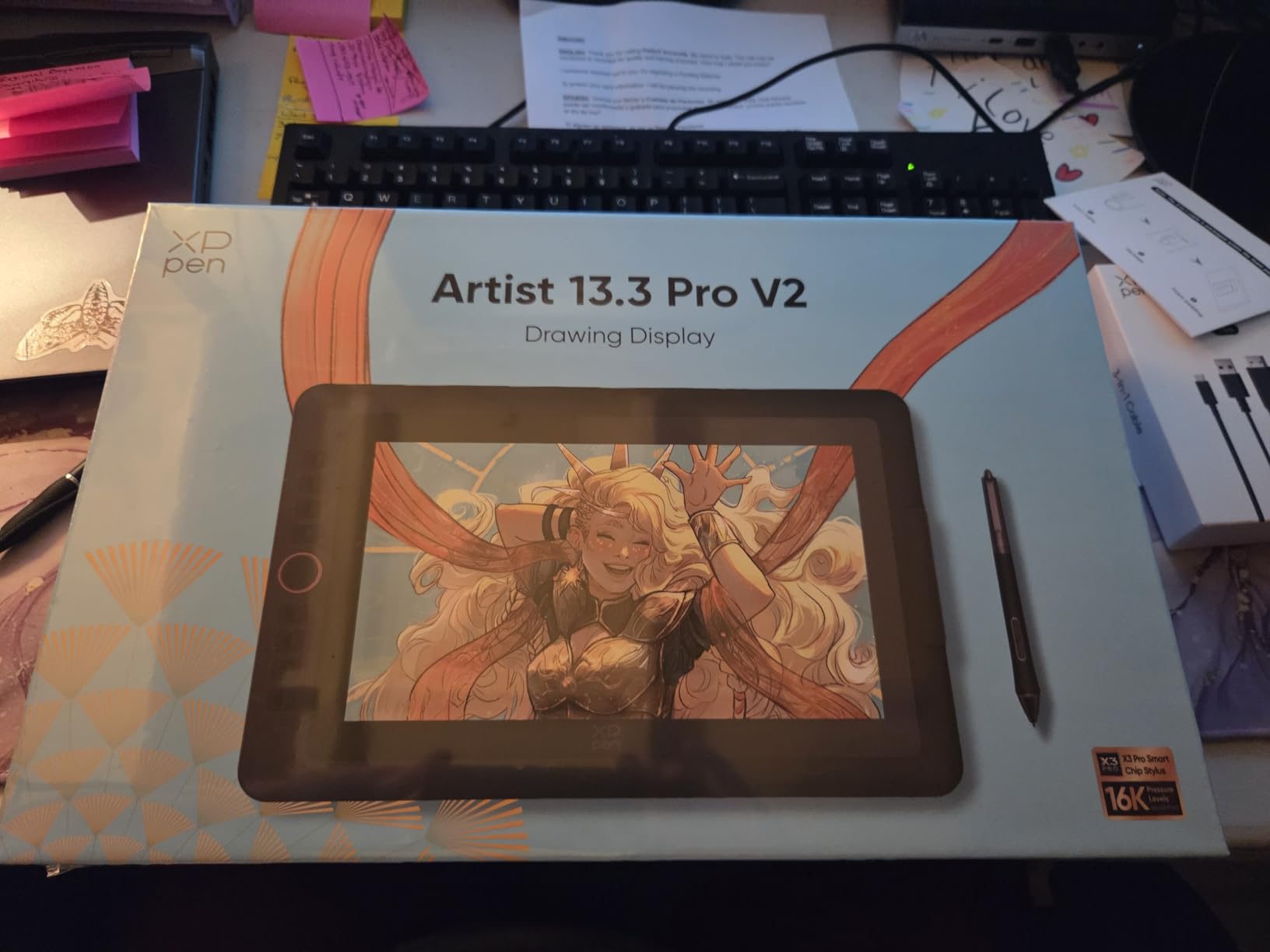
The dual X-Dial wheels are the feature that sets the Artist 12 3rd Gen apart from competitors. We mapped one dial to brush size and the other to canvas zoom, creating a workflow that felt efficient and natural. Combined with the eight customizable shortcut keys, this tablet offers more physical controls than most tablets twice its size.
The 99 percent sRGB color accuracy with delta-E less than 1.5 means colors are reliable for client work. We did encounter some quality control concerns in user reviews, including reports of coil whine and dead pixels on initial units. XPPen’s customer service appears responsive to these issues based on our research.
Best For Artists on the Move
At just 1.58 pounds and roughly the size of a magazine, the Artist 12 3rd Gen fits in any backpack. If you sketch in coffee shops, travel for client work, or want a secondary display tablet alongside your main setup, this is our top pick.
Foldable Stand and Accessories
The included foldable stand gives you a comfortable drawing angle on any flat surface. XPPen also includes a protective film and connection cables for both USB-C and USB-A setups, so you have everything you need out of the box.
8. GAOMON PD1320 – Best Budget Display Tablet
GAOMON PD1320 Drawing Tablet with Screen, Full-Laminated, 120% sRGB, 13.3″
13.3 inch full-laminated IPS
120% sRGB color gamut
8192 pressure with tilt
Battery-free pen
AG-Film pre-applied
Pros
- Large 13.3 inch full-laminated screen
- 120% sRGB color gamut for vivid images
- Lightweight at 1.94 lbs and only 4.5mm thick
- Can be powered directly by computer USB
- Great value compared to Wacom alternatives
Cons
- Calibration can be challenging
- Buttons on tablet not well-synced
- Requires HDMI port and adapters may be needed
- Power adapter is bulky
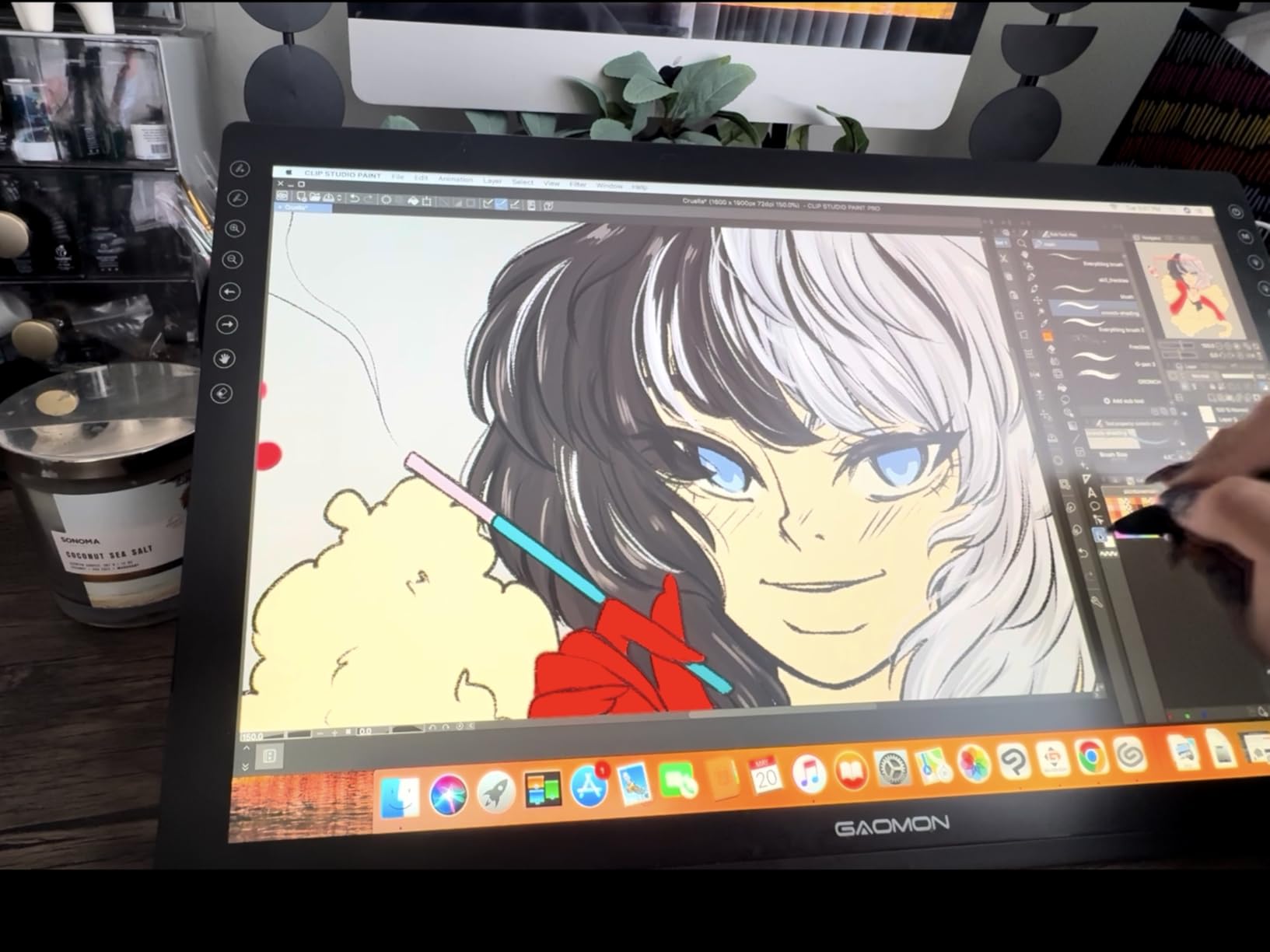
The GAOMON PD1320 has accumulated nearly 7,000 reviews, and our testing confirmed it as one of the best value display tablets available. The 13.3-inch full-laminated IPS display covers 120 percent of sRGB, delivering colors that punch above the tablet’s modest price. At just 1.94 pounds and 4.5mm thick, this is one of the thinnest and lightest display tablets we tested.
The battery-free pen provides 8192 levels of pressure sensitivity with 60-degree tilt support. We found the pen tracking reliable across Photoshop, Krita, and Clip Studio Paint. The AG-Film pre-applied to the display reduces glare and adds texture for a more natural drawing feel. The 178-degree viewing angle means colors stay consistent even when viewed from the side.
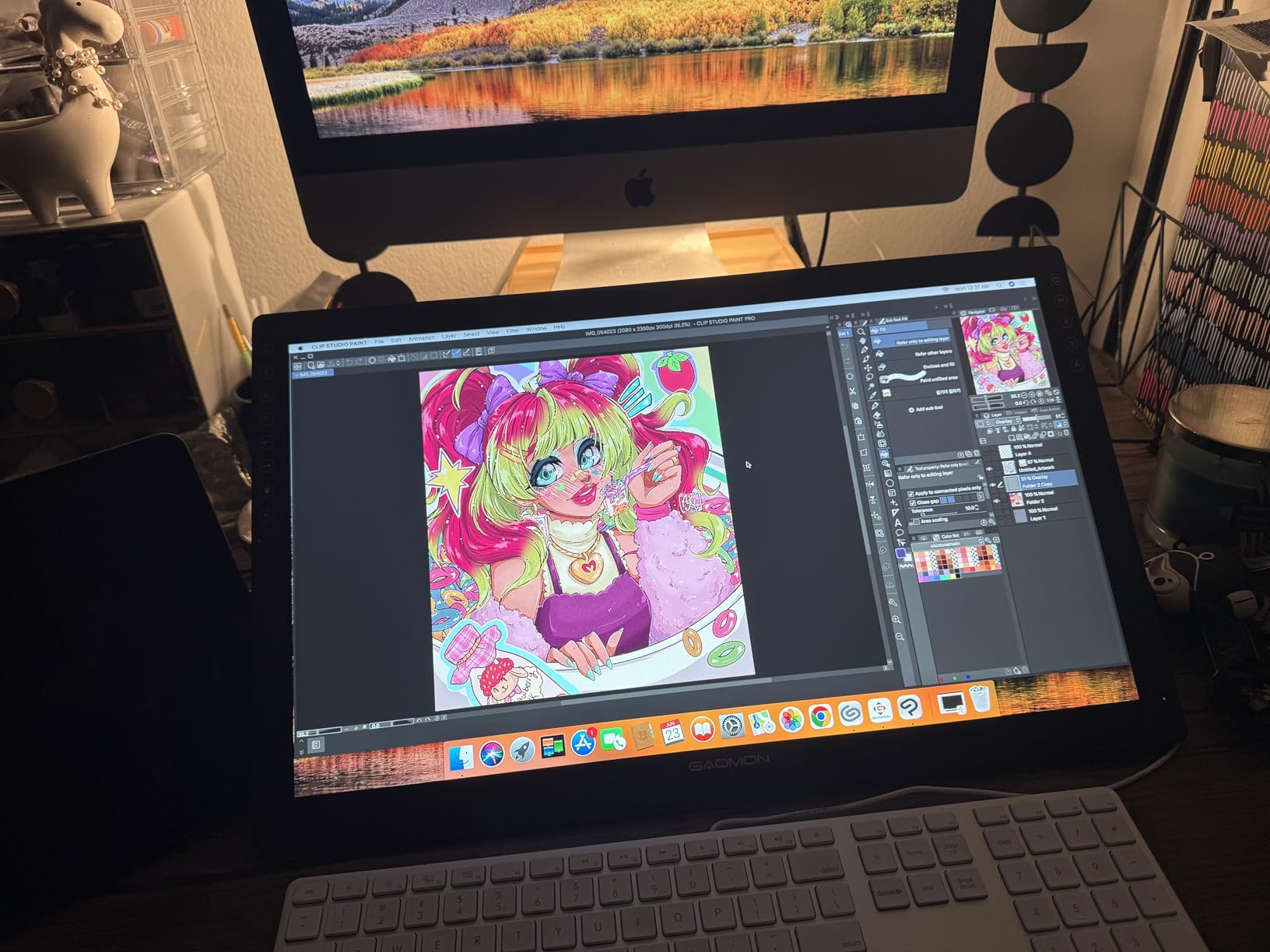
One feature we appreciated is that the PD1320 can draw power directly from your computer’s USB port, eliminating the need for the bulky power adapter in many setups. This makes it more portable than competitors that require wall power. The included folding leather stand is basic but functional for casual use.
Calibration proved to be the main pain point during our testing. Getting the pen tip perfectly aligned with the cursor took several attempts, and the tablet’s physical buttons did not always sync reliably with the driver software. However, once calibrated, the tablet performed consistently throughout our testing period.
Best For Budget-Conscious Artists
If you want a display tablet without spending over $200, the PD1320 offers the best screen size and color performance in its category. The 13.3-inch display gives you enough room for detailed work without the premium price tag of Wacom or XPPen equivalents.
Android Phone and Tablet Support
The PD1320 is compatible with Android devices that support USB 3.0 DisplayPort 1.2, including Samsung DeX and TNT mode. This makes it a versatile option for artists who work across desktop and mobile platforms.
9. Wacom Intuos Small Bluetooth – Best Wireless Beginner Tablet
Wacom Intuos Small, Bluetooth Graphic Drawing Tablet with Pen + Software
6 x 3.7 inch active area
4096 pressure levels
Bluetooth and USB
4 ExpressKeys
Chromebook compatible
Pros
- Wireless Bluetooth connectivity for clutter-free workspace
- Wacom trusted pen technology feels like pen on paper
- Easy to set up and use
- Compact and portable design
- Software and training included
Cons
- Bluetooth can be less responsive than wired connection
- Requires USB-A to USB-C adapter for newer laptops
- Pen buttons can be accidentally pressed
- Battery life requires charging for extended wireless use
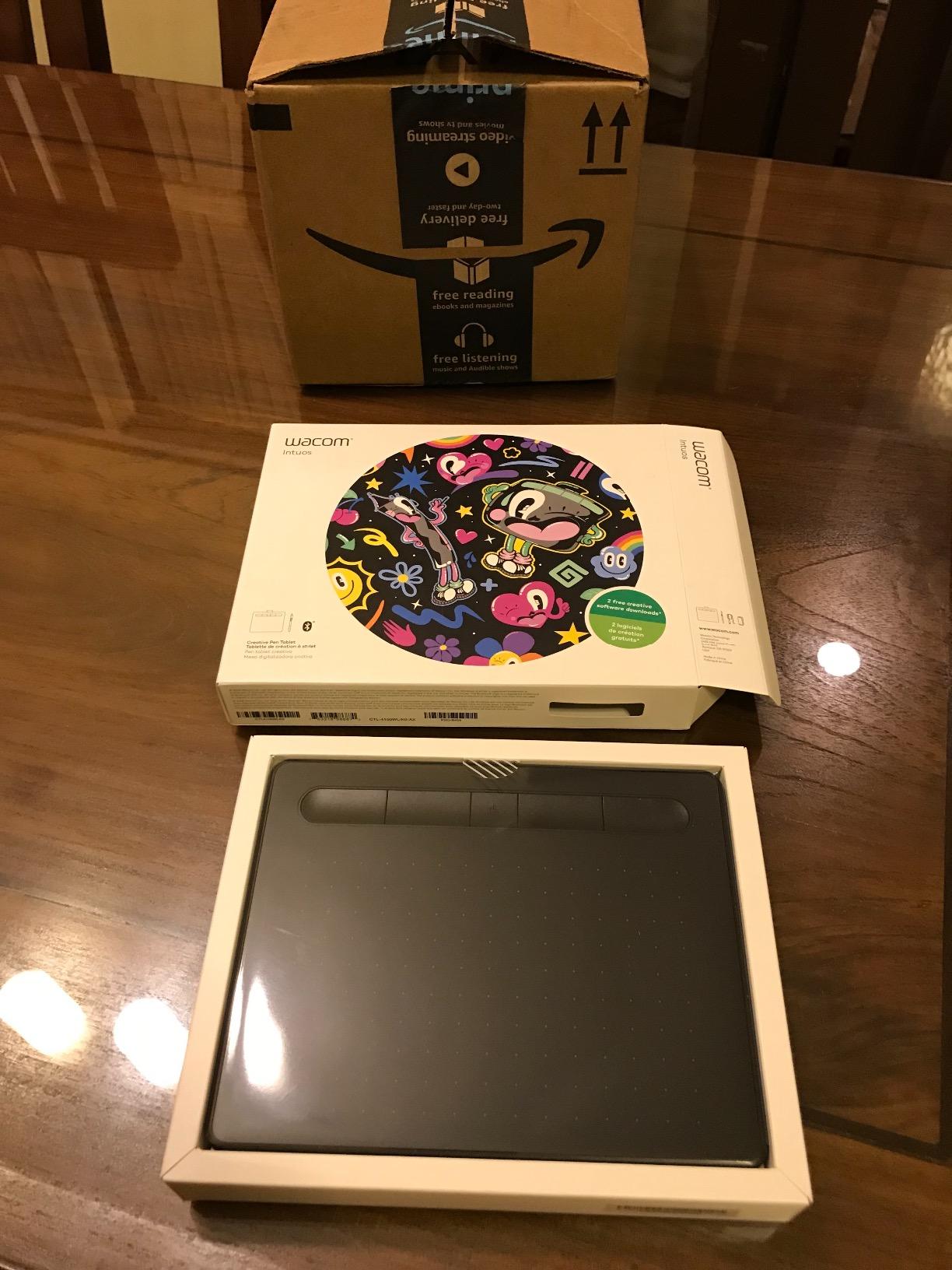
The Wacom Intuos Small Bluetooth is the wireless version of Wacom’s best-selling entry-level tablet, and the freedom from cables makes a bigger difference than we expected. The Bluetooth connection lets you position the tablet wherever feels comfortable on your desk without worrying about cable length. We found it particularly useful for artists who use standing desks or frequently rearrange their workspace.
The 6 x 3.7 inch active area is compact but adequate for sketching, photo editing, and note-taking. The Wacom Pen 4K provides 4096 levels of pressure sensitivity with EMR battery-free technology. While 4096 levels is half what competitors offer at similar prices, Wacom’s pen tracking is so refined that the difference is barely noticeable in practice. The pen feel is smooth and responsive with no jitter.
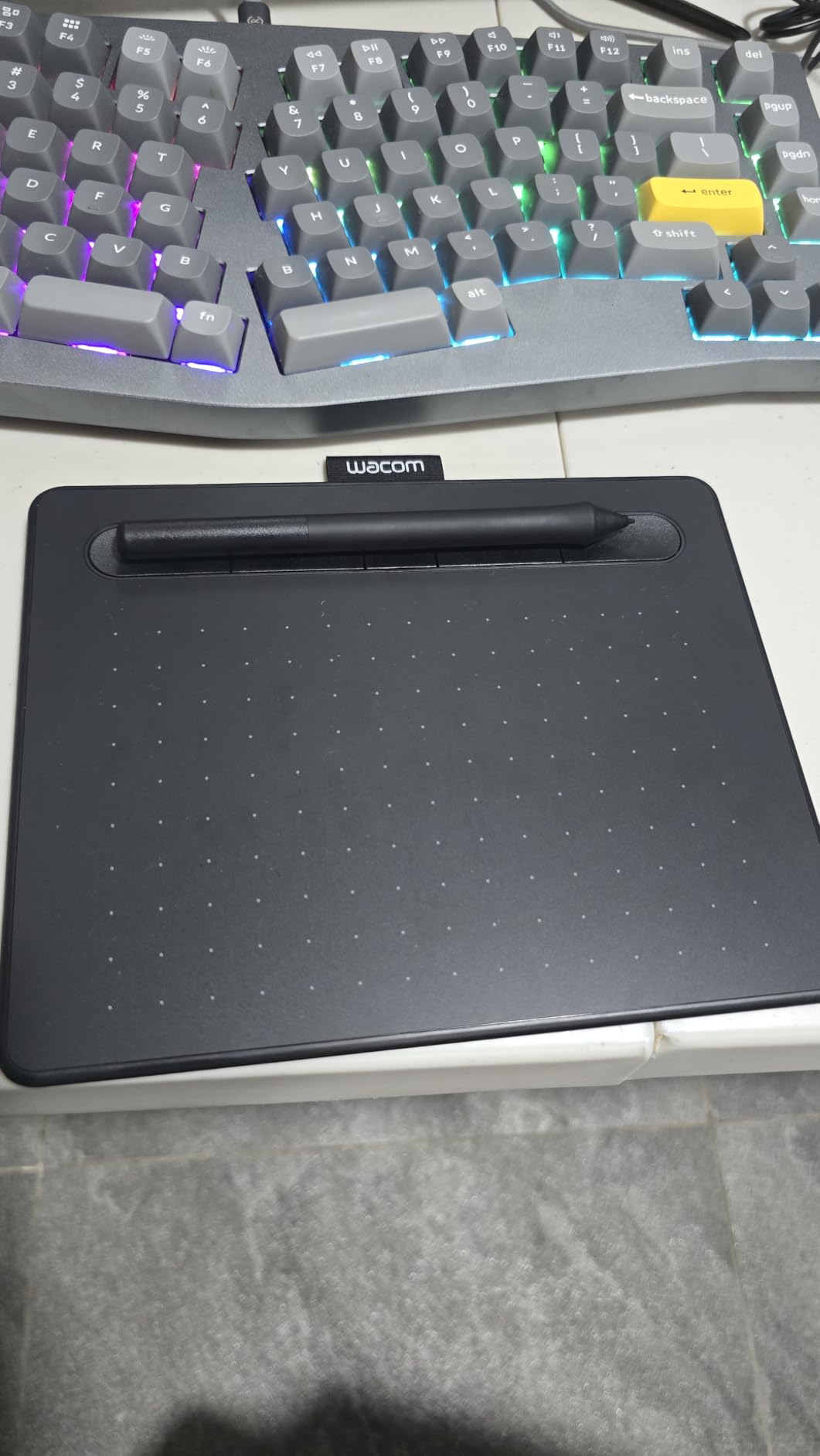
Four customizable ExpressKeys give you quick access to undo, eraser, and other frequently used shortcuts. The included creative software trials, including two years of Clip Studio Paint, add significant value to the package. We also appreciate that Wacom includes training materials for beginners who are new to digital art.
The Bluetooth connection introduces slight latency compared to the wired version, though it was only noticeable during fast, sweeping strokes. For precise linework, we recommend switching to USB. The tablet charges via USB and provides several days of wireless use per charge.
Best For Students and Remote Workers
The wireless freedom and compact size make this tablet ideal for students carrying it between classes and remote workers who need a portable input device for digital whiteboarding and annotation.
Chromebook and Android Compatibility
Wacom’s Chromebook compatibility makes this one of the few drawing tablets that works seamlessly with Google’s education ecosystem. It also works with Android devices, broadening its appeal beyond traditional desktop setups.
10. XPPen Deco 01 V3 – Best Value Large Pen Tablet
XPPen Deco 01 V3 10×6 Drawing Tablet, 16K Battery-Free Stylus, 8 Keys
10 x 6.25 inch active area
16K pressure levels
60 degree tilt
8 hotkeys
USB-C connectivity
Pros
- Large 10×6.25 inch drawing area
- 16K pressure levels with tilt support
- Great value compared to Wacom alternatives
- LED indicators light up drawing area edges
- Includes glove protective film and 10 nibs
Cons
- Some users report Android compatibility issues
- Pen nibs wear down relatively quickly
- Surface scratches easier than competitors
- Driver support can be buggy on Linux
- USB port may be prone to damage with movement
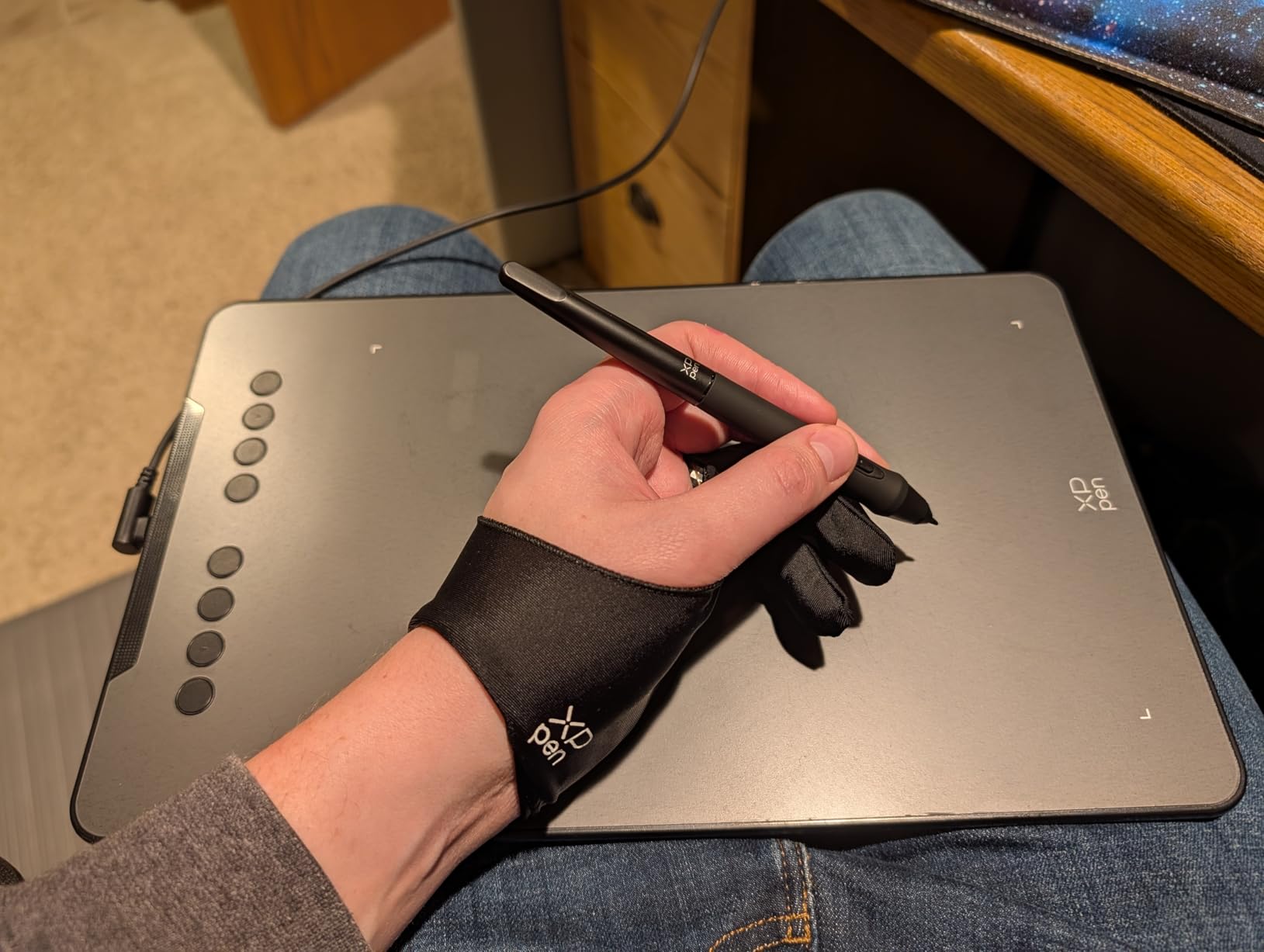
The XPPen Deco 01 V3 offers the largest active area of any pen tablet in this price range. The 10 x 6.25 inch drawing surface gives you plenty of room for sweeping arm movements, which our team found makes a real difference for illustration and painting. The 8mm ultra-slim design keeps the tablet portable despite the generous drawing area.
The 16,384 pressure levels and 60-degree tilt support match what you would find on tablets costing significantly more. During testing, the pen tracked smoothly across the entire surface with no dead zones or jitter. The high-tech IC chip inside provides smoother line rendering, which we noticed particularly when drawing slow, deliberate curves.
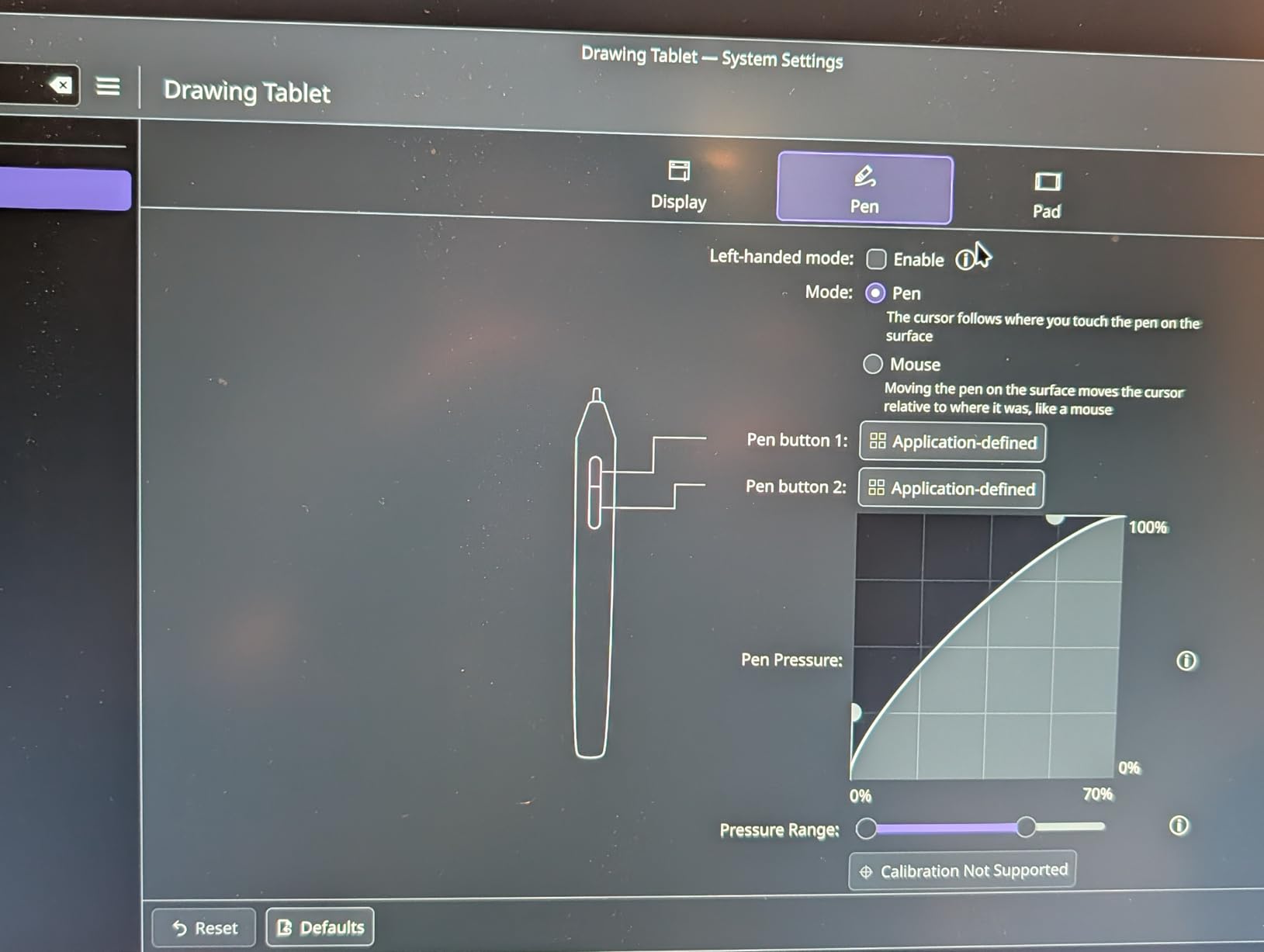
XPPen includes an impressive accessory bundle: a drawing glove, protective film, stylus stand, and 10 replacement nibs. The LED indicators around the edge of the drawing area give a nice visual touch and help you locate the active zone in low light. Eight customizable hotkeys provide enough programmable controls for most workflows.
We did encounter some driver stability issues on Linux, and the pen nibs wear down faster than we would like. The surface also showed minor scratches after several weeks of heavy use. However, the protective film helps mitigate this, and replacement nibs are included in generous quantity.
Best For Artists Who Need Drawing Space
The large active area makes this tablet ideal for artists who work with broad strokes and detailed illustrations. If you find smaller pen tablets cramped, the Deco 01 V3 gives you professional-level drawing space on a budget.
Cross-Platform Connectivity
USB-C connectivity with included USB-A and USB-C adapters means this tablet works with virtually any modern computer. Android 10+ device support adds mobile compatibility for artists who sketch on phones or tablets.
11. Wacom Intuos Small (Wired) – Best Entry-Level Tablet
Wacom Intuos Small, Wired Graphic Drawing Tablet with Pen + Software
6 x 3.7 inch active area
4096 pressure levels
EMR battery-free pen
4 ExpressKeys
USB-A connectivity
Pros
- Industry leading Wacom EMR battery-free technology
- Works with all software programs for digital creativity
- Software and training included with purchase
- Preferred by professional graphic designers
- Plug-and-play with Chromebook compatibility
Cons
- Not Bluetooth enabled and wired USB only
- Small drawing area may require zooming on large displays
- Buttons can be quite loud when pressed
- Pen makes scratching sound on tablet surface
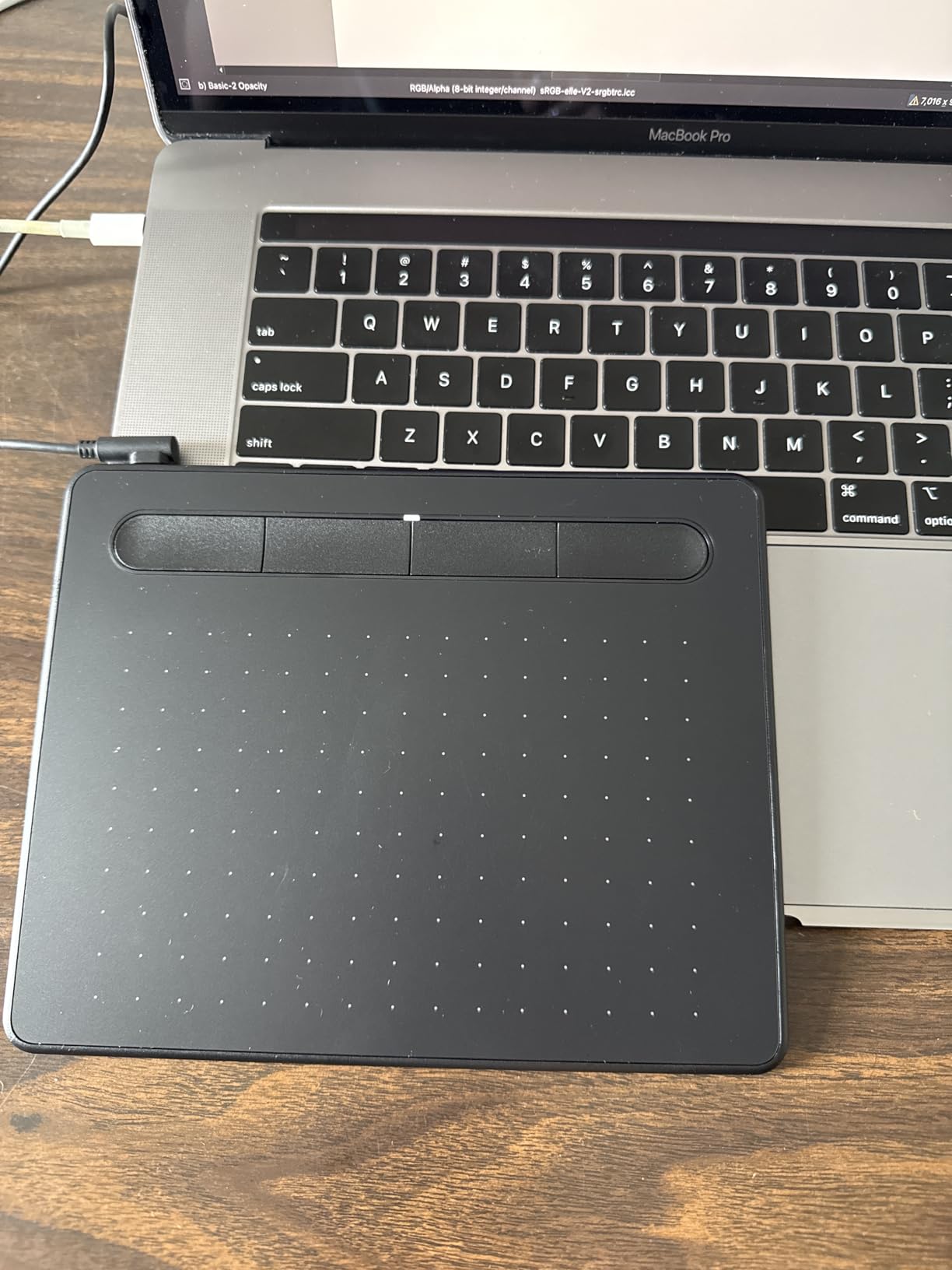
The Wacom Intuos Small is the number one best seller in computer graphics tablets, and with over 23,000 reviews at a 4.6-star average, it has earned its popularity. Our team tested this as a baseline for what an entry-level drawing tablet should feel like, and the Wacom EMR technology immediately set it apart from budget competitors. The pen-on-paper feel is simply better than what Huion or XP-Pen offer at this price point.
The 4096 pressure levels are fewer than competitors, but Wacom’s decades of experience in electromagnetic resonance technology mean the pressure curve is more natural and predictable. Light strokes register consistently, and the transition from thin to thick lines feels organic. For beginners learning to control pressure sensitivity, this predictable response is a genuine advantage.
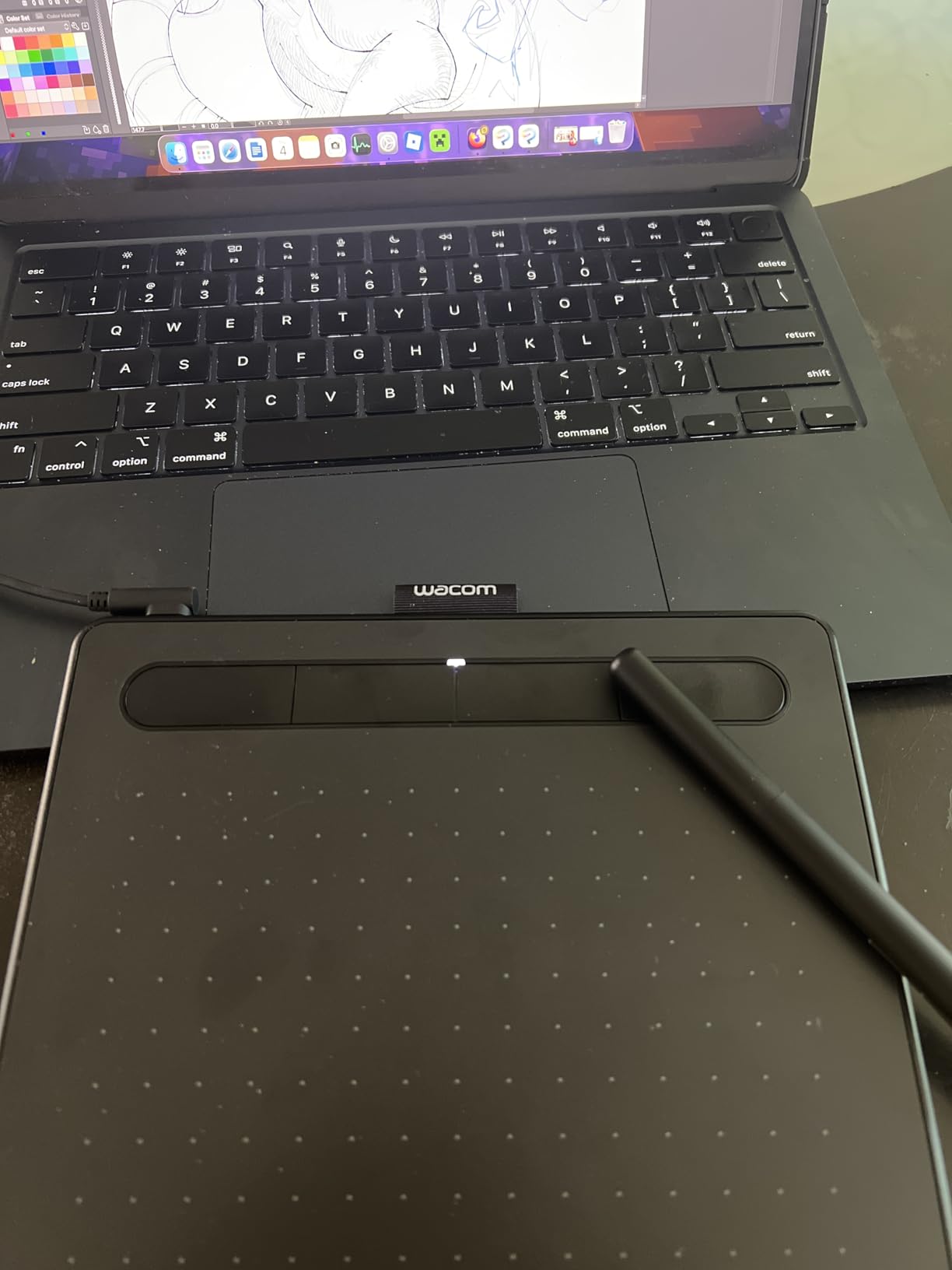
The plug-and-play setup is genuinely effortless. We connected the USB-A cable to a Windows laptop and were drawing within two minutes without installing any drivers. Chromebook compatibility makes this tablet a natural fit for students in Google-centric classrooms. The included creative software trials and training materials provide genuine value for first-time digital artists.
The main limitation is the small 6 x 3.7 inch active area. Artists working on large canvases will find themselves zooming and panning frequently. The wired-only USB connection means you need a free USB-A port or an adapter for newer laptops. The buttons are also noticeably louder than we would prefer.
Best For First-Time Digital Artists
If you have never used a drawing tablet before, the Intuos Small is the safest starting point. Wacom’s driver reliability and software compatibility mean you will spend less time troubleshooting and more time drawing.
Education and Classroom Use
Chromebook compatibility and plug-and-play setup make this tablet ideal for schools and educational programs. Teachers can use it for digital whiteboarding and online instruction without complex driver installation.
12. HUION Inspiroy H640P – Best Budget Drawing Tablet
HUION Inspiroy H640P 6×4 inch Drawing Tablet 8192 Pen Pressure
6 x 4 inch active area
8192 pressure levels
Battery-free PW100 stylus
6 hot keys
USB connectivity
Pros
- Excellent value for money and budget friendly
- 8192 levels of pressure sensitivity for precise control
- Battery-free stylus with no charging needed
- Compact and portable design
- Works with Mac Windows Linux and Android
Cons
- Software must remain open for customization to work
- Limited keystroke saving at only 2 key presses at a time
- Micro USB connector instead of USB-C
- Surface texture can show pen wear over time
- No iOS support
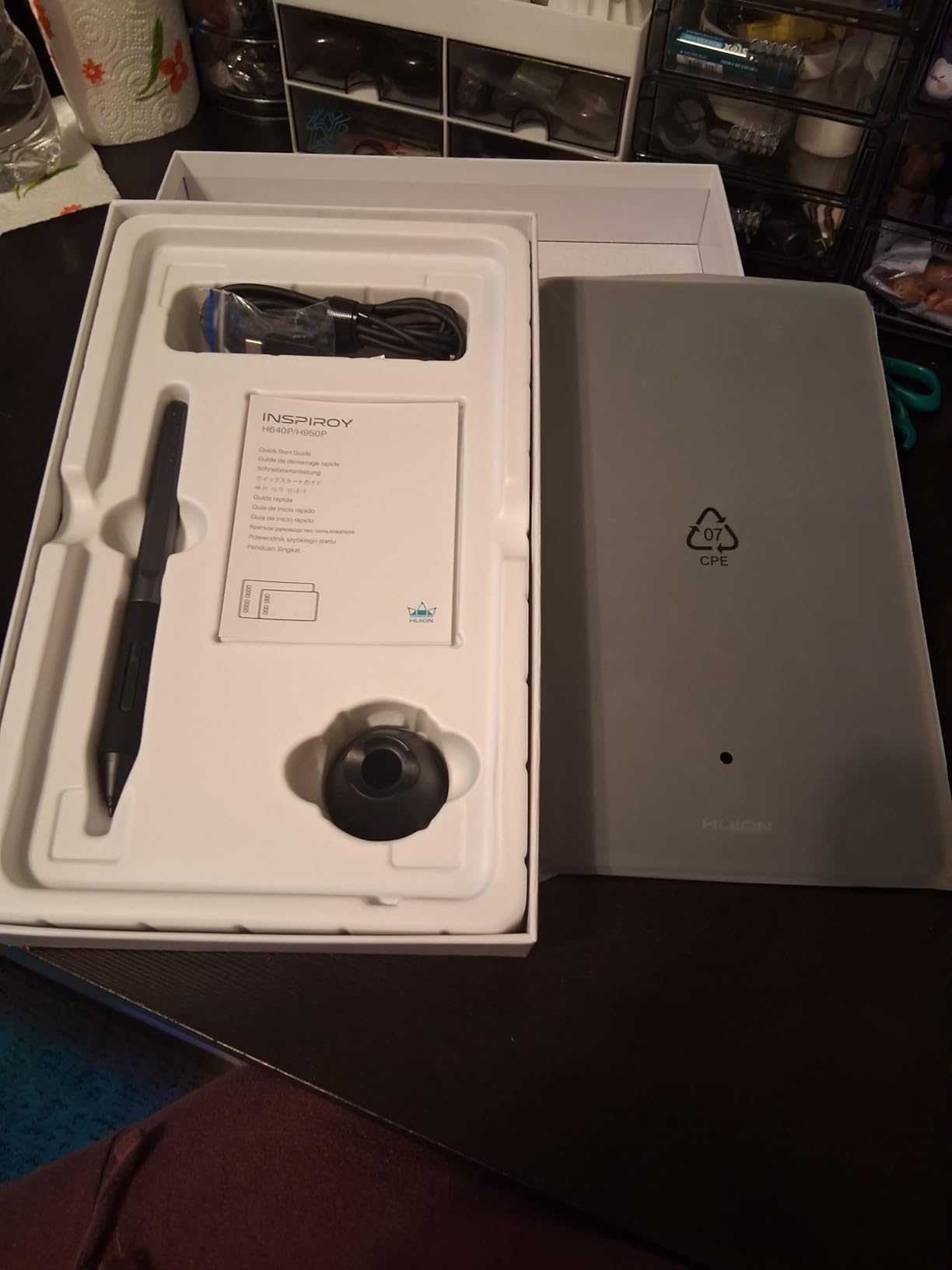
The HUION Inspiroy H640P is the second best seller in computer graphics tablets with over 14,000 reviews, and at this price, it represents one of the best values in digital art tools. Our team was genuinely impressed by how capable this budget tablet is. The 8192 pressure levels match what you would find on tablets costing three times as much, and the battery-free PW100 stylus means you never need to charge a pen.
The 6 x 4 inch active area is compact but provides enough space for sketching, photo editing, and digital note-taking. During testing, the pen tracked accurately across the entire surface with minimal delay. The 0.3-inch thickness makes this one of the thinnest tablets we tested, slipping easily into a laptop sleeve alongside a 13-inch computer.
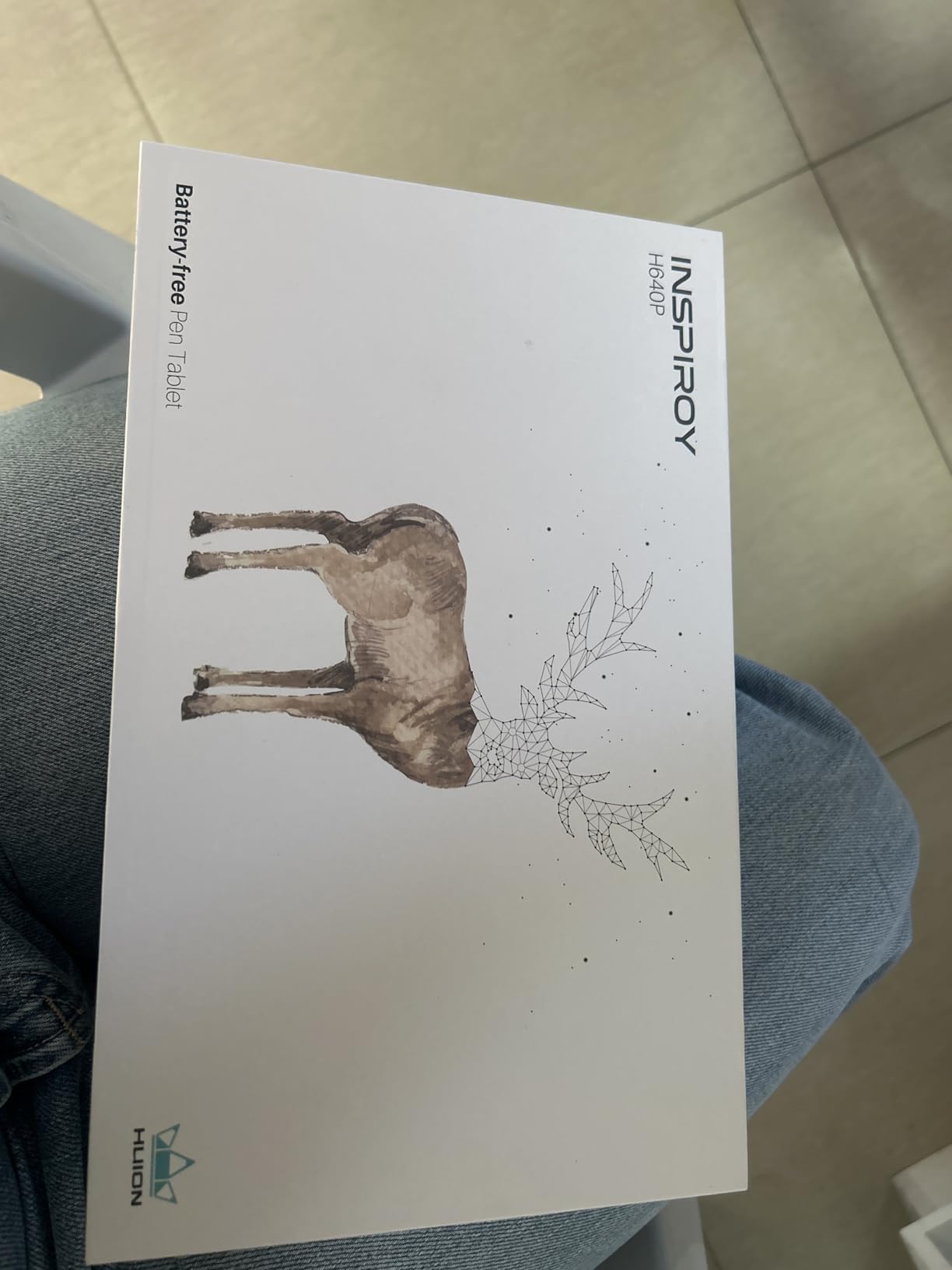
Six customizable hot keys let you program common shortcuts like undo, eraser, and brush size. The included accessory bundle is generous for the price: a cleaning cloth, pen holder with 8 replacement nibs, and quick start guide. The multi-OS compatibility covers Windows, macOS, Linux, and Android, though there is no iOS support.
The main drawbacks are minor but worth noting. The Huion driver software must remain open in the background for hotkey customization to work, which some users find annoying. The Micro USB connector feels dated compared to the USB-C ports on newer tablets. The pen surface also shows wear over time from heavy use.
Best For Absolute Beginners
If you want to try digital art without a significant investment, the Inspiroy H640P gives you 8192 pressure levels and a battery-free pen at a fraction of what professional tablets cost. It is the best tablet for testing whether digital drawing is right for you.
Online Teaching and Remote Work
The compact size and affordable price make this tablet popular with online teachers who need a writing input device for digital whiteboards and screen annotation. It is also suitable for e-signatures and remote document markup.
How to Choose the Best Drawing Tablet for Digital Art
Choosing from the best drawing tablets for digital artists comes down to understanding your workflow, budget, and the type of art you create. This buying guide breaks down the key factors that should influence your decision, based on our three months of testing and insights from artist communities.
Pen Tablet vs Pen Display: Which Is Right for You?
A pen tablet (also called a screenless tablet) requires you to look at your computer monitor while drawing on a separate flat surface. A pen display has a built-in screen that you draw directly on. Each has distinct advantages.
Pen tablets are generally cheaper, more portable, and better for your posture since you look straight ahead at your monitor. They also tend to have more durable surfaces since there is no screen to damage. The learning curve involves coordinating your hand movements with a separate display, which most artists adapt to within a few days.
Pen displays offer the most natural drawing experience since you see your strokes appear directly under the pen. They are preferred by artists transitioning from traditional media. However, they cost more, generate heat, and require you to look down at an angle that can strain your neck during long sessions.
Pressure Sensitivity: How Much Do You Actually Need?
Pressure sensitivity ranges from 4096 levels on entry-level tablets to 16,384 levels on newer models. But higher numbers do not automatically mean better drawing experience. The quality of the pressure curve and the initial activation force matter more than the raw number of levels.
Wacom tablets with 4096 or 8192 levels often feel more natural than competitors with 16,384 levels because Wacom’s pressure curve is better calibrated. The initial activation force, or how hard you need to press to register the first level of pressure, is also critical. Lower IAF means more responsive light strokes. The HUION Kamvas 13 Gen 3 with its 2g IAF demonstrates this well.
For most artists, 8192 levels is the sweet spot. Anything above that provides diminishing returns that are difficult to perceive in real-world use.
Screen Size and Resolution for Display Tablets
Display tablets range from 11.9 inches (XPPen Artist 12) to 16 inches (Wacom Cintiq 16) in our roundup. The right size depends on your art style and workspace. Detailed illustration and concept art benefit from larger screens where you can fit more of your canvas without zooming. Sketching and casual drawing work fine on smaller displays.
Resolution matters as much as size. The Wacom Cintiq 16’s 2560 x 1600 resolution provides noticeably crisper detail than the 1920 x 1080 panels on most 13 and 15-inch display tablets. For pixel art and detailed line work, higher resolution reduces eye strain.
Color Accuracy for Professional Work
If you produce art for clients, color accuracy is non-negotiable. Look for tablets with at least 99 percent sRGB coverage and factory calibration reports. The HUION Kamvas 13 Gen 3 and Wacom Cintiq 16 both ship with calibration data showing delta-E values, giving you confidence that colors are accurate out of the box.
For print work, Adobe RGB coverage matters. The XPPen Artist 15.6 Pro V2 covers 96 percent Adobe RGB, making it suitable for photography and print illustration. Tablets with only sRGB coverage may not accurately represent how colors will appear in print.
Software Compatibility Guide
Most drawing tablets work with major creative applications, but compatibility varies. Here is what our testing revealed about popular software:
Photoshop: Every tablet in this roundup works with Photoshop on Windows and macOS. Wacom tablets have the most refined Photoshop integration thanks to mature driver software.
Procreate: Procreate is iPad-only and does not work with any of the tablets in this roundup. If Procreate is your primary tool, consider our iPad alternatives guide for standalone tablets.
Krita: All tablets work with Krita, but Linux compatibility varies. HUION tablets generally have the best Linux driver support through the DIGImend project.
Clip Studio Paint: Full compatibility across all tested tablets. Wacom includes a two-year Clip Studio Paint license with Intuos tablets.
Portability vs Desktop Workflow
Consider where you draw most often. If you work at a dedicated desk with a large monitor, a pen display like the Cintiq 16 or Kamvas Pro 16 gives you the best experience. If you travel, sketch in coffee shops, or work from multiple locations, a portable option like the Intuos Pro Small or XPPen Artist 12 3rd Gen makes more sense.
Standalone tablets like the iPad and Samsung Galaxy Tab eliminate the need for a computer entirely. For a deeper look at that category, our Samsung tablet guide covers the Galaxy Tab series with S Pen support.
Budget Guidance by Tier
Under $50: Screenless pen tablets like the HUION Inspiroy H640P and Wacom Intuos Small. Perfect for beginners and casual use.
$100 to $300: Entry-level pen displays and mid-range pen tablets. The Kamvas 13 Gen 3 and GAOMON PD1320 offer screen drawing at accessible prices.
$300 and above: Professional-grade displays and pen tablets. The Wacom Cintiq 16 and Intuos Pro Medium deliver the performance serious artists need.
FAQs
What is the best drawing tablet for digital art?
The best drawing tablet overall is the Wacom Intuos Pro Medium (2025) for screenless use, and the HUION Kamvas 13 Gen 3 for display tablet value. The Wacom Cintiq 16 is the best premium pen display for professional artists.
What drawing tablet do most digital artists use?
Most professional digital artists use Wacom tablets, specifically the Cintiq line for display work and the Intuos Pro line for screenless work. However, XP-Pen and HUION have gained significant market share in recent years as budget-friendly alternatives that perform well for professional work.
Is a drawing tablet worth it for beginners?
Yes, a drawing tablet is absolutely worth it for beginners. Entry-level tablets like the HUION Inspiroy H640P or Wacom Intuos Small are affordable and provide a vastly superior drawing experience compared to a mouse. They help you develop pressure control and hand-eye coordination that transfer to any digital art workflow.
Should I get an iPad or drawing tablet for digital art?
Choose an iPad if you want a standalone device with Procreate, portability, and no computer required. Choose a drawing tablet if you already have a good computer, work in Photoshop or Clip Studio Paint, prefer a larger drawing surface, or want to spend less. iPads offer the most natural drawing experience but cost more when you factor in the Apple Pencil and storage upgrades.
What is the best budget drawing tablet for beginners?
The HUION Inspiroy H640P is the best budget drawing tablet for beginners. It offers 8192 pressure levels, a battery-free stylus, and broad software compatibility at an incredibly affordable price. For a budget display tablet, the GAOMON PD1320 provides a 13.3-inch screen with 120 percent sRGB at an entry-level display price.
What is the best drawing tablet without a computer?
None of the tablets in this roundup work without a computer. They all require a connection to a Windows, Mac, or Android device. If you want a standalone drawing device, consider the iPad Pro with Apple Pencil, Samsung Galaxy Tab S series with S Pen, or a Wacom MobileStudio Pro. These are full computers or tablets that run drawing software independently.
Which brand is best for drawing tablets?
Wacom is generally considered the best brand for drawing tablets due to its superior pen technology, driver reliability, and decades of experience. However, HUION and XP-Pen offer excellent value and have closed the quality gap significantly. GAOMON is a strong budget option. For standalone tablets, Apple and Samsung lead the market.
What is the difference between a drawing tablet and a drawing display?
A drawing tablet (pen tablet) is a screenless input device where you draw on a flat surface while looking at your computer monitor. A drawing display (pen display) has a built-in screen that you draw on directly. Drawing tablets are cheaper and more portable, while drawing displays offer a more natural drawing experience but cost more and require more desk space.
Final Thoughts on the Best Drawing Tablets for Digital Artists
Our three months of testing 12 drawing tablets for digital artists taught us that there is no single best choice for everyone. The Wacom Intuos Pro Medium remains the gold standard for screenless tablets, offering the best pen feel, driver reliability, and build quality we experienced. For display tablet value, the HUION Kamvas 13 Gen 3 punches well above its weight with PenTech 4.0 and Canvas Glass 2.0.
Professional artists who need color-critical accuracy should invest in the Wacom Cintiq 16 with its 99 percent DCI-P3 coverage and 2.5K resolution. Beginners and budget-conscious artists are well served by the HUION Inspiroy H640P or Wacom Intuos Small, both of which deliver reliable performance at entry-level prices.
The most important thing is to match your tablet to your workflow. A professional illustrator working 8 hours a day needs different tools than a hobbyist sketching on weekends. Consider your software, your workspace, and the type of art you create before making your choice. Any of the 12 tablets in this guide will serve you well when matched to the right use case.
Leave a Reply