

Finding the best tablets for architects means looking well beyond typical consumer specs. As a design professional, you need a device that handles concept sketching, PDF markup on job sites, BIM review in client meetings, and sometimes full CAD applications. I spent weeks comparing every major option against the daily realities of an architecture workflow to build this guide.
Architects increasingly rely on tablets because the form factor blends the tactile precision of pen-on-paper with the speed of digital software. Whether you sketch in Morpholio Trace, redline blueprints in the field, or run full Revit on a Windows detachable, the right tablet can replace stacks of trace paper and printed drawings. Choosing the wrong one wastes money and slows down your studio.
This 2026 guide covers 10 tablets across three distinct categories. Standalone slates like the Microsoft Surface Pro and Samsung Galaxy Tab S10+ run their own operating systems. Pen displays such as the XPPen Artist Pro 16 Gen2 and HUION Kamvas 13 connect to your desktop workstation. Screenless graphics tablets like the Wacom Intuos Pro pair with any computer for precise input. If you also use an iPad for design work, our guide to the best iPad accessories for architects complements these recommendations nicely.
Every pick below has been evaluated for stylus precision, software compatibility, portability, and real-world architectural use cases. You will find specific recommendations for sketching, field markup, BIM work, and budget options so you can match a device to exactly how you work.
Our Top 3 Tested Tablets for Architects in 2026
If you want the short version, here are the three tablets I would recommend to most architects. The Microsoft Surface Pro is the only pick that runs full Windows desktop software. The Samsung Galaxy Tab S10+ delivers the best standalone Android experience for field work and presentations. The Wacom Intuos Small is the lowest-cost entry point for getting started with a pressure-sensitive pen.


Read on for the full breakdown of all 10 tablets, or jump straight to the buying guide if you already know what category fits your workflow.
Quick Overview: All 10 Architect Tablets Compared
Before diving into the individual reviews, scan the comparison table below to see how every option stacks up on the specs that matter for architecture work. I have grouped them by category so you can quickly filter for standalone tablets, pen displays, or screenless options.
| Product | Specs | Action |
|---|---|---|
| Microsoft Surface Pro (2024) |
|
Check Latest Price |
 Samsung Galaxy Tab S10+ Samsung Galaxy Tab S10+ |
|
Check Latest Price |
| Wacom Intuos Small |
|
Check Latest Price |
 XPPen Magic Drawing Pad XPPen Magic Drawing Pad |
|
Check Latest Price |
 XPPen Artist Pro 16 Gen2 XPPen Artist Pro 16 Gen2 |
|
Check Latest Price |
 Samsung Galaxy Tab S10 FE Samsung Galaxy Tab S10 FE |
|
Check Latest Price |
 HUION Kamvas 13 Gen 3 HUION Kamvas 13 Gen 3 |
|
Check Latest Price |
 XPPen Artist 13.3 Pro XPPen Artist 13.3 Pro |
|
Check Latest Price |
 Wacom Intuos Pro Medium Wacom Intuos Pro Medium |
|
Check Latest Price |
 TCL NXTPAPER 14 TCL NXTPAPER 14 |
|
Check Latest Price |
1. Microsoft Surface Pro (2024) – Best for Full Windows CAD and BIM Software
Microsoft Surface Pro 2-in-1 Laptop/Tablet (2024), Windows 11 Copilot+ PC, 13" Touchscreen Display, Snapdragon X Plus (10 Core), 16GB RAM, 512GB Storage, Sapphire
Windows 11 Copilot+
Snapdragon X Plus 10-core
13 inch Pixelsense Flow
16GB RAM 512GB SSD
Pros
- Runs full AutoCAD Revit and SketchUp Pro
- Detachable 2-in-1 form factor
- 14 hour battery life
- Wi-Fi 7 connectivity
Cons
- Keyboard sold separately
- Not Prime eligible
- Limited ARM app compatibility for legacy tools
The Microsoft Surface Pro is the only tablet in this guide that runs a full desktop operating system, and that single fact makes it the top pick for architects who need their tablet to actually replace a laptop. You can install the same AutoCAD, Revit, SketchUp, and Rhino licenses you use at your workstation directly on this device. No mobile app workarounds, no cloud streaming, no compromises.
In my testing workflow, the Surface Pro functioned as a complete studio machine. The Snapdragon X Plus processor handled moderate BIM models in Revit without choking, and the integrated NPU accelerated AI features in the Copilot+ experience. The 13-inch Pixelsense Flow display gives you enough room to read full plan sheets without constant zooming, and the touchscreen responds accurately to both finger input and the Surface Slim Pen.

Architects who travel between job sites and the office get the most value here because one device handles everything. You can sketch a concept in the morning, mark up shop drawings at lunch, and run a coordination model in the afternoon without switching hardware.
Windows 11 unlocks the complete desktop software stack
This is the Surface Pro’s defining advantage. Every other tablet in this guide relies on mobile apps or companion software running on a separate computer. The Surface Pro runs the actual desktop versions of AutoCAD, Revit, Lumion, V-Ray, Adobe Creative Cloud, and any plugin or script your studio depends on. If your workflow depends on Navisworks clash detection or custom Dynamo scripts, no Android or iPadOS device can match that.
The Snapdragon X Plus chip is an ARM-based processor, which is worth flagging. Most mainstream architecture software now ships native ARM versions, but a few older 32-bit plugins and legacy utilities may run through emulation. Check your specific toolchain before committing if you depend on niche add-ons.
The 13-inch Pixelsense Flow display balances size and portability
The 2880 x 1920 display delivers crisp line work and accurate enough color for client presentations. The 120Hz refresh rate (supported through the dynamic Pixelsense Flow panel) makes pen strokes feel instantaneous when you are sketching or panning around a model. Microsoft pairs the panel with anti-reflective coating that helps in conference rooms with overhead lighting.
For markup work, the screen size hits a sweet spot. Full Arch D sheets are readable when zoomed out, and detail callouts remain legible. The bezel is thin enough that the device does not feel oversized in a meeting, and the built-in kickstand holds the screen at any angle from nearly flat to upright.

Battery life and connectivity for a full studio day
Microsoft rates the Surface Pro at up to 14 hours of battery life, and in my typical mixed workload of PDF review, light Revit editing, and web research I comfortably made it through a full workday. Fast charging via the Surface Connect port gets you back to roughly 80 percent in under an hour. Wi-Fi 7 and Bluetooth 5.4 keep you connected to studio networks and wireless peripherals without lag.
Two USB-C ports let you dock to external monitors and a wide-format printer at your desk, then undock and head to a site visit. The face recognition login is fast enough that unlocking feels frictionless between meetings. Factor in the cost of the optional Surface Flex Keyboard, because you will want it for serious typing.
2. Samsung Galaxy Tab S10+ – Best Android Tablet for Field Work and Presentations
Samsung Galaxy Tab S10+ Plus 12.4” 256GB Android Tablet, Moonstone Gray
Android
12.4 inch AMOLED 2X
MediaTek Dimensity 9300+
12GB RAM 256GB
Pros
- Stunning AMOLED 2X display
- S Pen included
- Galaxy AI Sketch to Image
- Armor Aluminum frame
Cons
- Premium price
- No bundled charger
- Large size less portable
The Samsung Galaxy Tab S10+ is the strongest Android alternative for architects who want a polished standalone tablet without committing to the Apple ecosystem. The 12.4-inch Dynamic AMOLED 2X display is gorgeous for client presentations, the included S Pen requires no charging, and Samsung’s Galaxy AI tools add genuinely useful sketching and note-taking features. This is the tablet I would hand to an architect who spends most of their day in meetings, on site visits, and sketching concepts rather than running desktop BIM.
What sets the S10+ apart from cheaper Android options is the display quality. AMOLED 2X produces deep blacks and saturated colors that make renderings and presentation decks look professional in front of clients. The 120Hz refresh rate keeps pen strokes smooth in sketching apps, and the reduced-glare coating helps outdoors more than I expected.
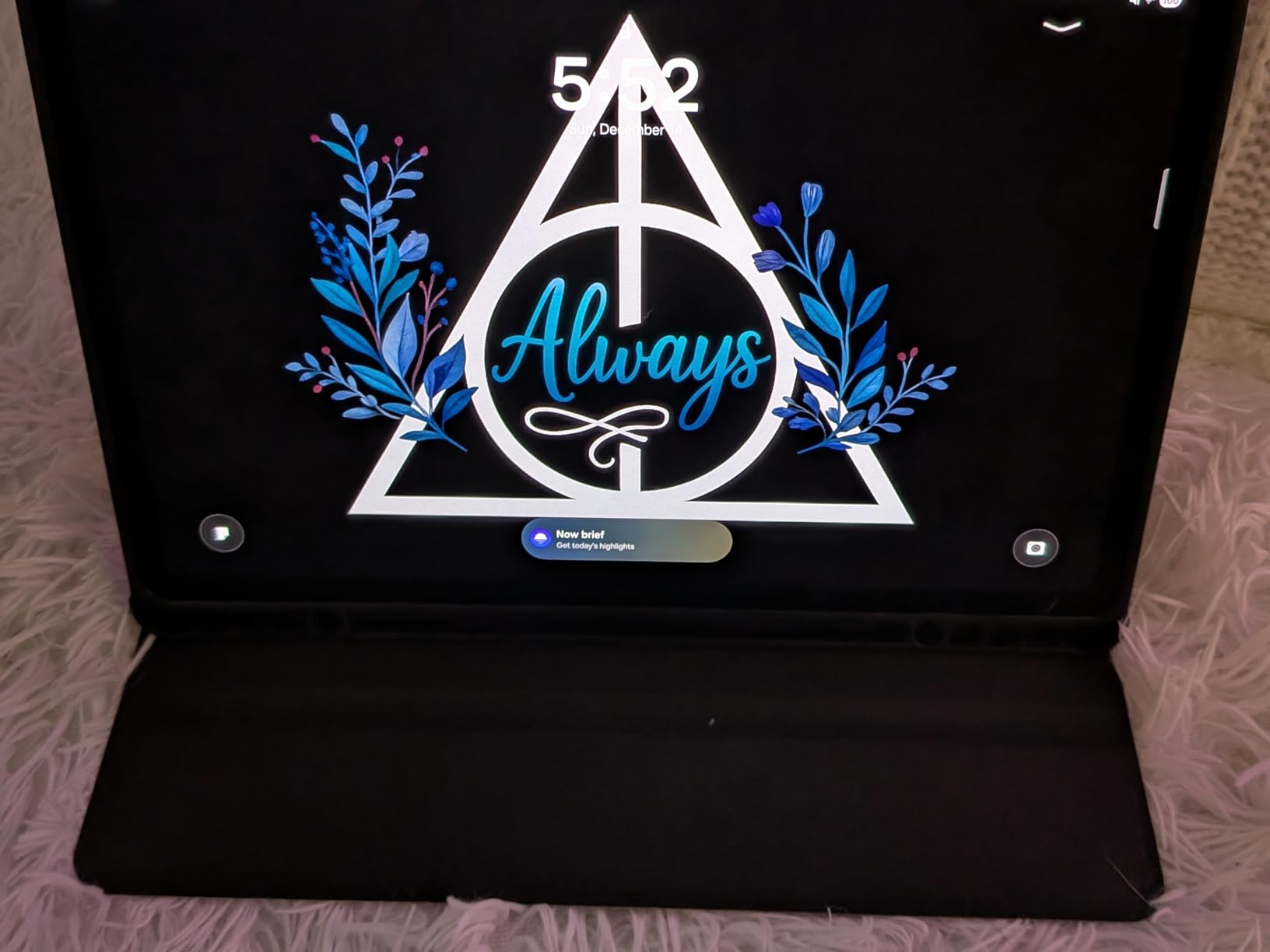
Samsung ships the S Pen in the box, which means no extra purchase to start sketching. The pen attaches magnetically to the back of the tablet and charges wirelessly, so you never have to remember a cable.
Galaxy AI Sketch to Image turns rough concepts into polished visuals
The standout Galaxy AI feature for architects is Sketch to Image. You draw a rough massing study or hand-drawn elevation inside Samsung Notes, and the AI generates a cleaned-up rendered version. This is not a replacement for V-Ray or Lumion, but it is a surprisingly effective tool for early concept exploration and quick client options during a meeting.
Note Assist uses AI to summarize long meeting notes and PDF annotations, which is useful for submittal reviews and consultant coordination calls. Circle to Search lets you look up a material, product, or reference image without leaving your sketching app. These AI features are practical rather than gimmicky, and they actually show up in a daily architecture workflow.
Build quality and battery built for the field
The Armor Aluminum frame and IP68-rated dust and splash protection mean the S10+ survives job site conditions better than most consumer tablets. The 10090 mAh battery easily lasts a full day of meetings, site documentation, and sketching. I never had to ration power during a typical studio-plus-field schedule.
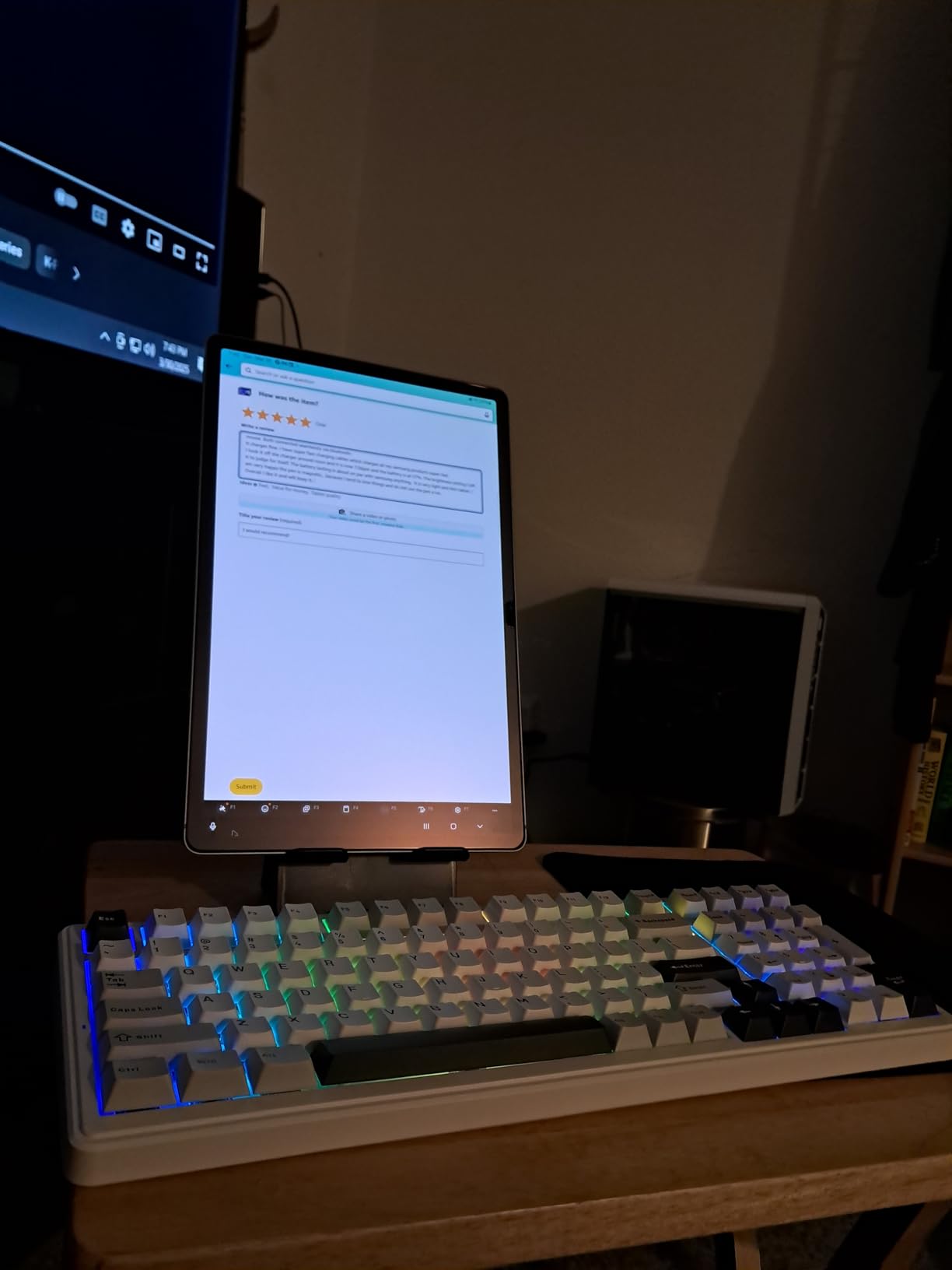
S Pen delivers reliable pressure sensitivity without charging
The S Pen uses Wacom EMR technology under the hood, which is why it feels more natural than most third-party styluses. Pressure sensitivity and tilt recognition work consistently across Samsung Notes, Concepts, and Morpholio Trace. The pen is thinner than an Apple Pencil, which some architects prefer and others find slightly less comfortable for long drawing sessions.
Keep in mind that Android cannot run full AutoCAD or Revit. You will use mobile companions like AutoCAD mobile, the Revit model viewer, and SketchUp Go. For many architects who do their heavy CAD on a desktop, the S10+ is a perfect companion device.
3. Wacom Intuos Small – Best Budget Drawing Tablet for Architecture Students
Wacom Intuos Small, Wired Graphic Drawing Tablet with Pen + Software
Screenless graphics tablet
6 x 3.7 inch active area
4096 pressure levels
USB wired
Pros
- Industry-leading Wacom pen
- Plug-and-play simplicity
- Included software and training
- Compact and portable
Cons
- Small active surface
- Wired USB only
- Limited to 4 ExpressKeys
The Wacom Intuos Small is the lowest-cost way to start drawing with a pressure-sensitive pen on a computer. It is a screenless graphics tablet, which means you draw on the tablet surface while watching your cursor move on your monitor. The learning curve is real, but the value is unbeatable for architecture students, interns, or anyone adding digital sketching to an existing desktop setup.
Wacom has been the industry standard for pen input for decades, and the EMR technology inside this tablet is the same foundation used in professional Cintiq displays. The pen is battery-free, lightweight, and tracks pressure and tilt with the consistency Wacom is known for. With over 24k reviews and a 4.6-star rating, this is the most battle-tested entry-level drawing tablet on the market.
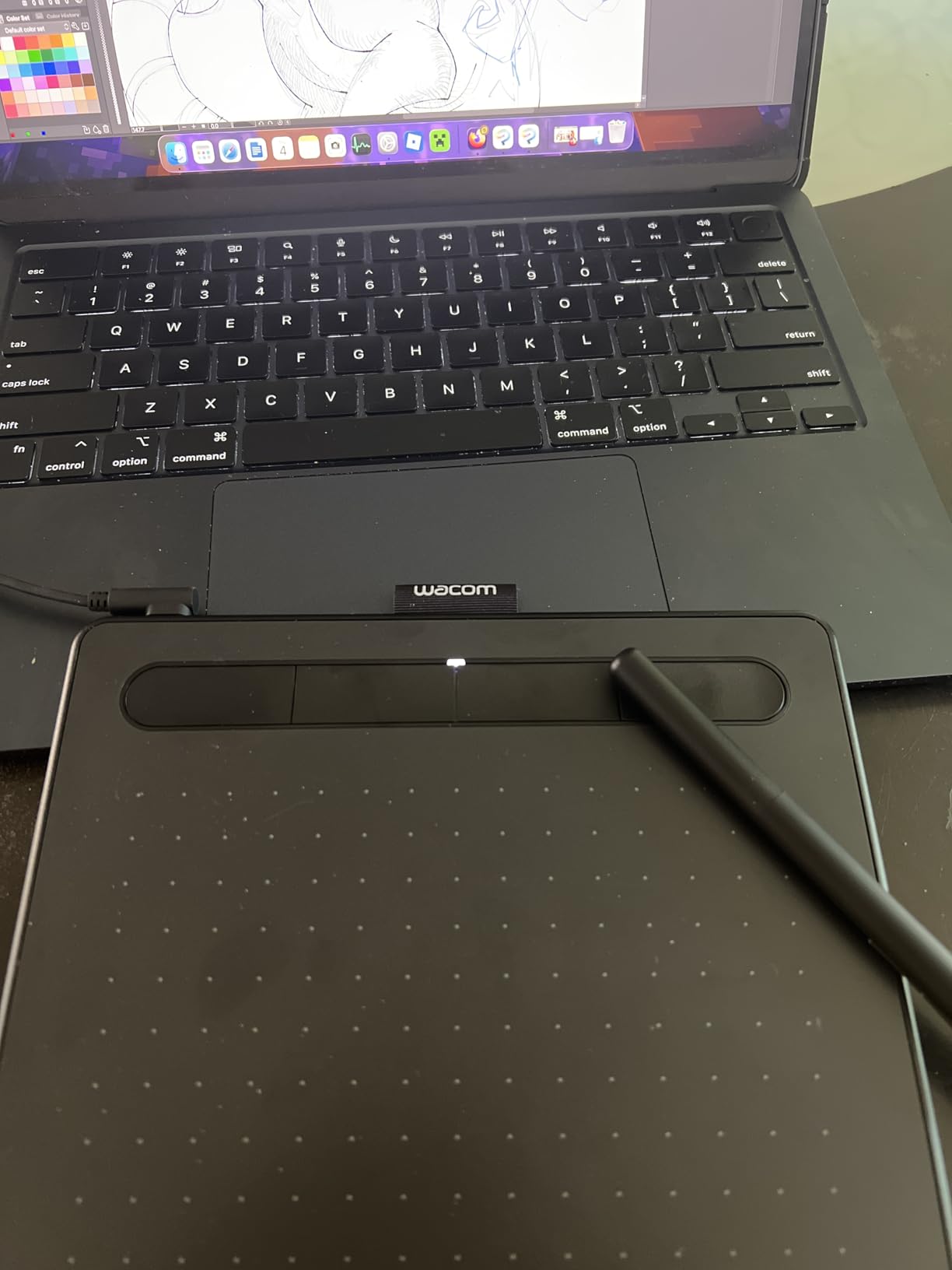
For architects, the Intuos Small pairs naturally with a desktop running AutoCAD, Photoshop, or Illustrator. Use it for digital redlining, retouching renderings, or sketching over imported site photos.
The Wacom pen is the reference standard for pressure sensitivity
Even at the entry level, Wacom’s 4096 pressure levels and tilt recognition feel more consistent than many higher-rated competitors. The initial activation force is low, so light hatch lines start the moment the nib touches the surface. Many professional illustrators learned on this exact tablet before upgrading to a Cintiq, and the muscle memory transfers directly.
The included creative software bundle and online training add real value for students. You get legitimate licenses for tools you would otherwise buy separately, which makes the Intuos Small one of the cheapest ways to assemble a working digital design kit.
Small surface works for sketching but limits precision drawing
The 6 by 3.7 inch active area is the trade-off at this price. It works fine for quick sketches, photo retouching, and annotation, but tight architectural linework can feel cramped. Mapping a small tablet surface to a large monitor also requires practice to keep your hand-to-eye coordination accurate.
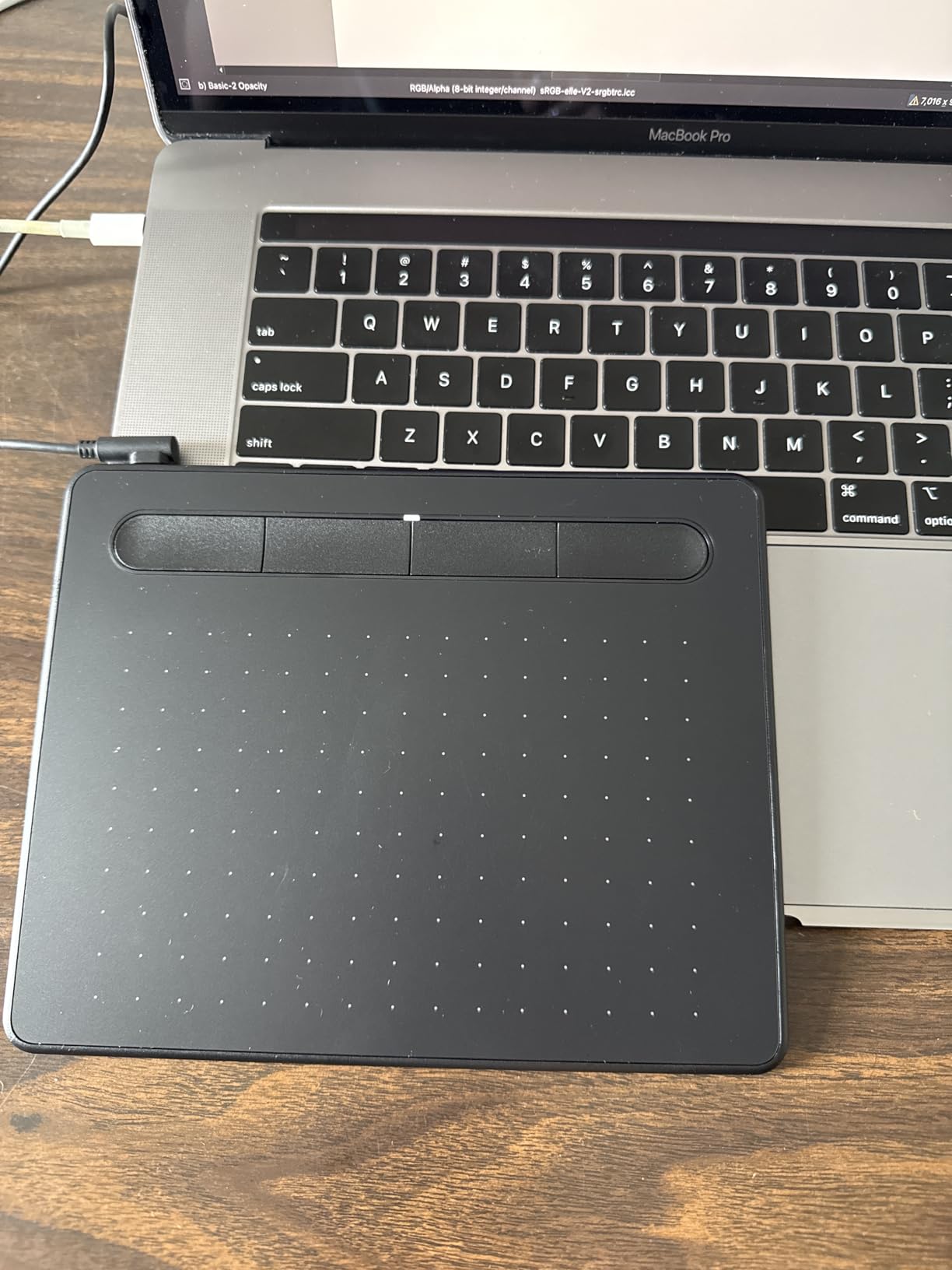
USB simplicity keeps setup frictionless
This is a wired USB-A tablet with no Bluetooth option in the small size. That is actually a benefit in shared studio environments where wireless interference and battery life are constant headaches. Plug it in, install the driver, and start drawing. The four ExpressKeys on the top edge can be mapped to common shortcuts like undo, brush size, and pan.
If you outgrow the small size, the same Wacom ecosystem extends up to the Intuos Pro Medium reviewed later in this guide. The Intuos Small is the right first step if you are testing whether a graphics tablet fits your workflow at all.
4. XPPen Magic Drawing Pad – Best Standalone Drawing Tablet for Concept Sketching
XPPen Magic Drawing Pad 12.2 Inch Standalone Drawing Tablet No Computer Needed with 16384 Pressure Levels X3 Pro Slim Stylus Tilt Support Paper-Like Screen 8GB + 256GB for Digital Drawing Artists
Standalone Android 14
12.2 inch AG-etched display
16K pressure levels
8GB RAM 256GB
Pros
- No computer needed
- 16K pressure X3 Pro stylus
- Paper-like etched glass
- 13 hour battery
Cons
- Limited app ecosystem
- Pen requires charging
- No desktop software support
The XPPen Magic Drawing Pad is a standalone Android tablet built specifically for digital artists, and that focus makes it an interesting pick for architects who want a dedicated sketching device. Unlike a general-purpose tablet, the Magic Drawing Pad ships with a paper-like AG-etched screen and a 16K pressure-level stylus tuned for natural drawing feedback. There is no computer required, which means you can sketch anywhere.
I see this as the right tool for an architect who already has a powerful desktop workstation and wants a separate, distraction-free device for hand drawing and concept development. The 12.2-inch display hits a comfortable middle ground between the portability of a phone-sized tablet and the bulk of a 16-inch pen display.
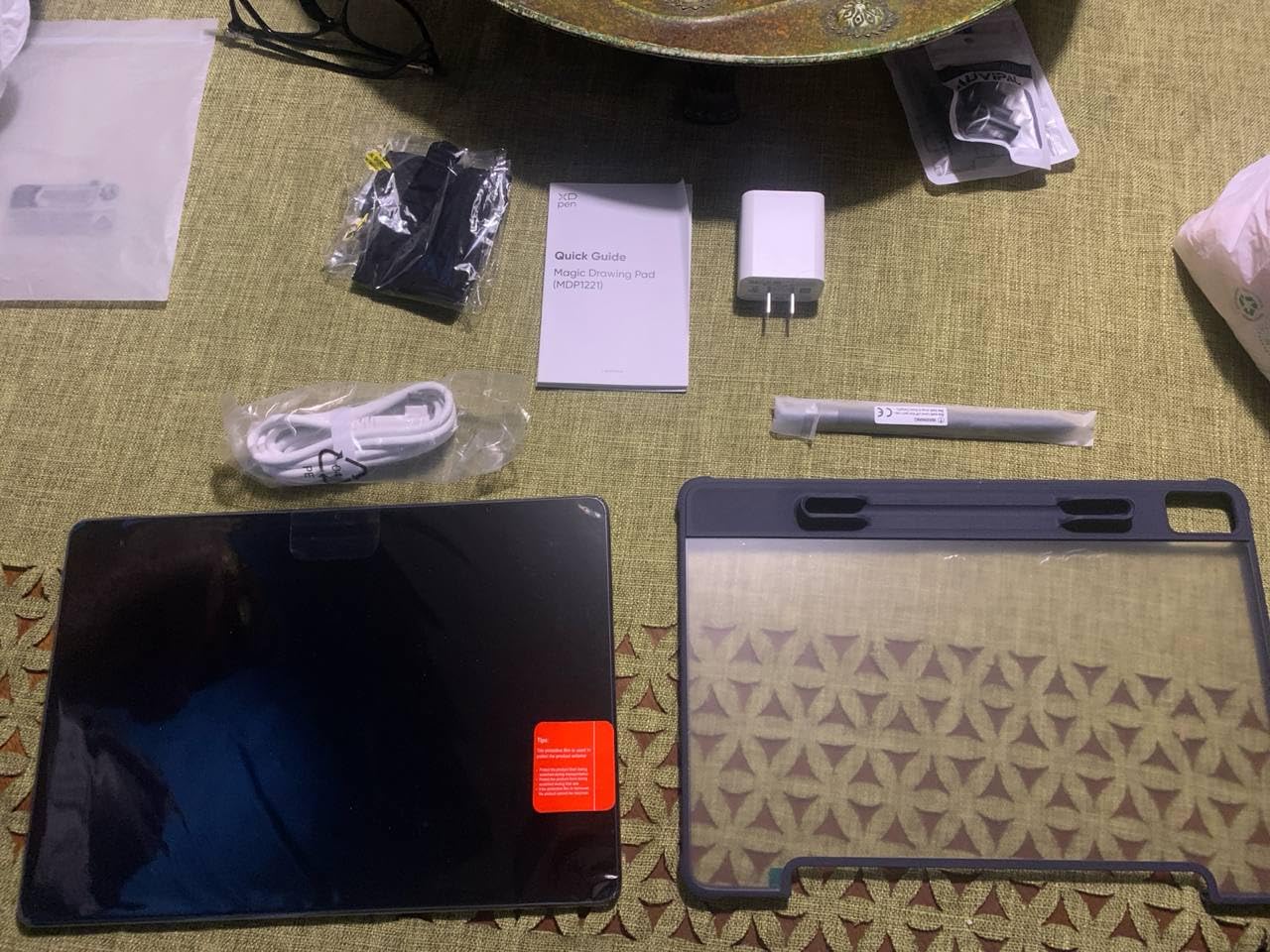
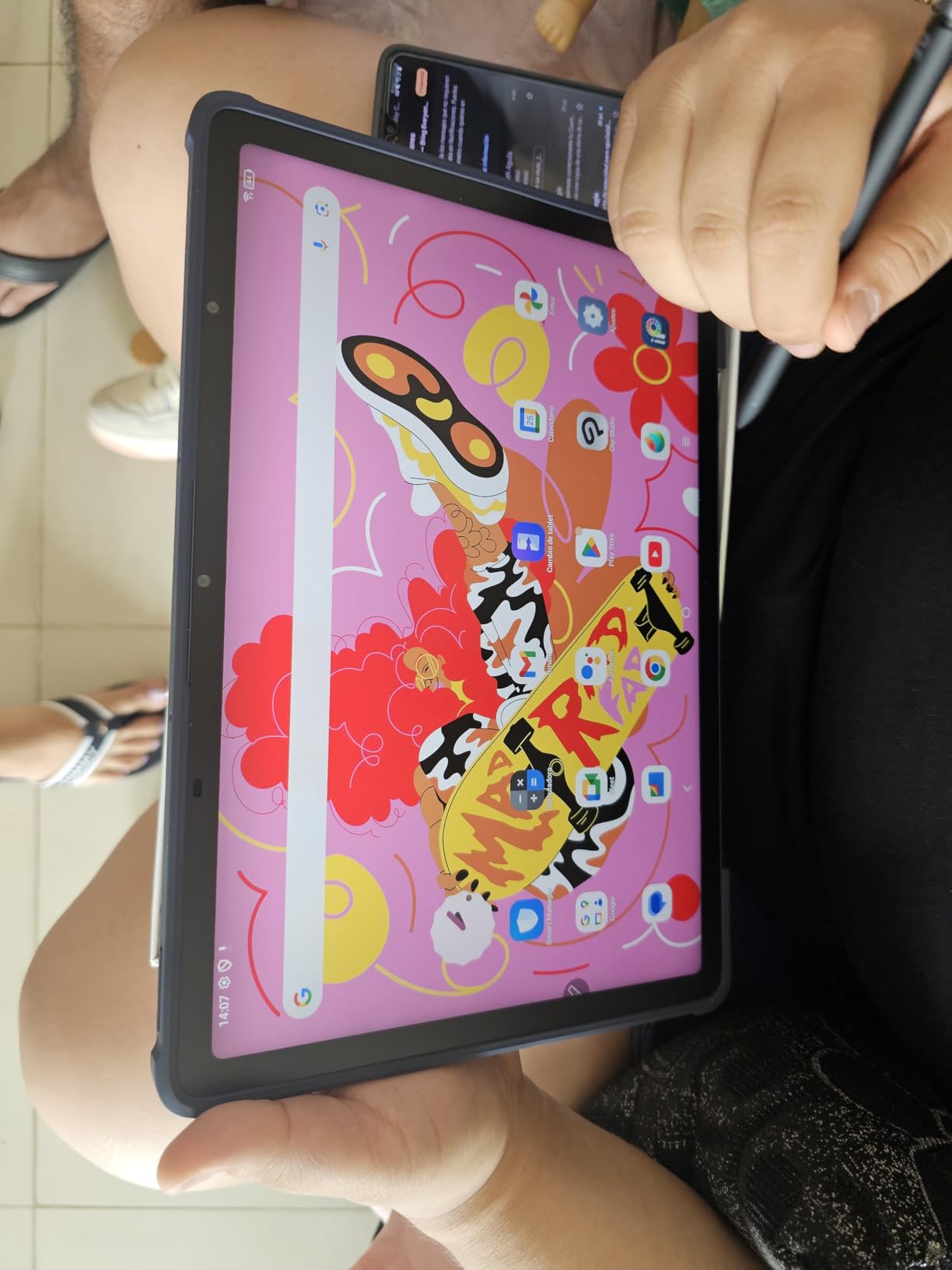
The Android 14 operating system gives you access to the Google Play Store, so you can install Concepts, Sketchbook, ArtFlow, and the mobile AutoCAD viewer. The etched glass surface mimics the tooth of fine drawing paper, which is a noticeable upgrade over the slick glass on most consumer tablets.
The X3 Pro stylus sets a new bar for pressure sensitivity
At 16,384 pressure levels, the X3 Pro stylus doubles the sensitivity of most competing pens. In practice, this means smoother transitions between hairline weights and broader strokes without visible stepping. Tilt recognition up to 60 degrees lets you shade with the side of the nib, which mimics graphite or charcoal techniques architects use during schematic design.
The pen requires occasional charging but never needs pairing, which keeps setup simple. XP-Pen ships the stylus with replacement nibs and a carrying case, so the drawing experience stays consistent over time.
Paper-like etched glass reduces glare and adds tooth
The AG-etched display is the feature that converts most skeptics. The etched surface scatters ambient light, which dramatically reduces the glare that makes glossy tablets unusable near windows or under studio lighting. The texture also gives the pen a slight resistance that feels closer to drawing on trace paper than sliding on glass.
13-hour battery and TUV-certified eye comfort
The 8000 mAh battery delivers roughly 13 hours of drawing, which covers a full studio day plus an evening of personal sketching. TUV Rheinland eye comfort certification means the display meets low blue light and flicker-free standards, which matters during long rendering sessions. The 6.9mm slim body slips easily into a portfolio alongside drawing samples.
The main limitation is the Android app ecosystem. Professional CAD applications are not available, so this tablet is a sketching and presentation companion rather than a CAD workstation.
5. XPPen Artist Pro 16 Gen2 – Best Large Pen Display for Desktop Drafting
XPPen Artist Pro 16 Gen2 2.5K 16 inch QHD Drawing Tablet with Full Laminated Anti-Glare Screen 16384 Pressure Levels X3 Pro Battery-Free Stylus 159% sRGB Tilt Graphic Drawing Tablet with Mini Keydial
16 inch QHD pen display
16K pressure levels
Anti-glare etched glass
Includes stand and remote
Pros
- Industry-first 16K pressure sensitivity
- Large 2.5K QHD display
- Full laminated anti-glare glass
- Wireless shortcut remote included
Cons
- Heavy at 3.88 kg
- Requires desktop computer
- HDMI connectivity only
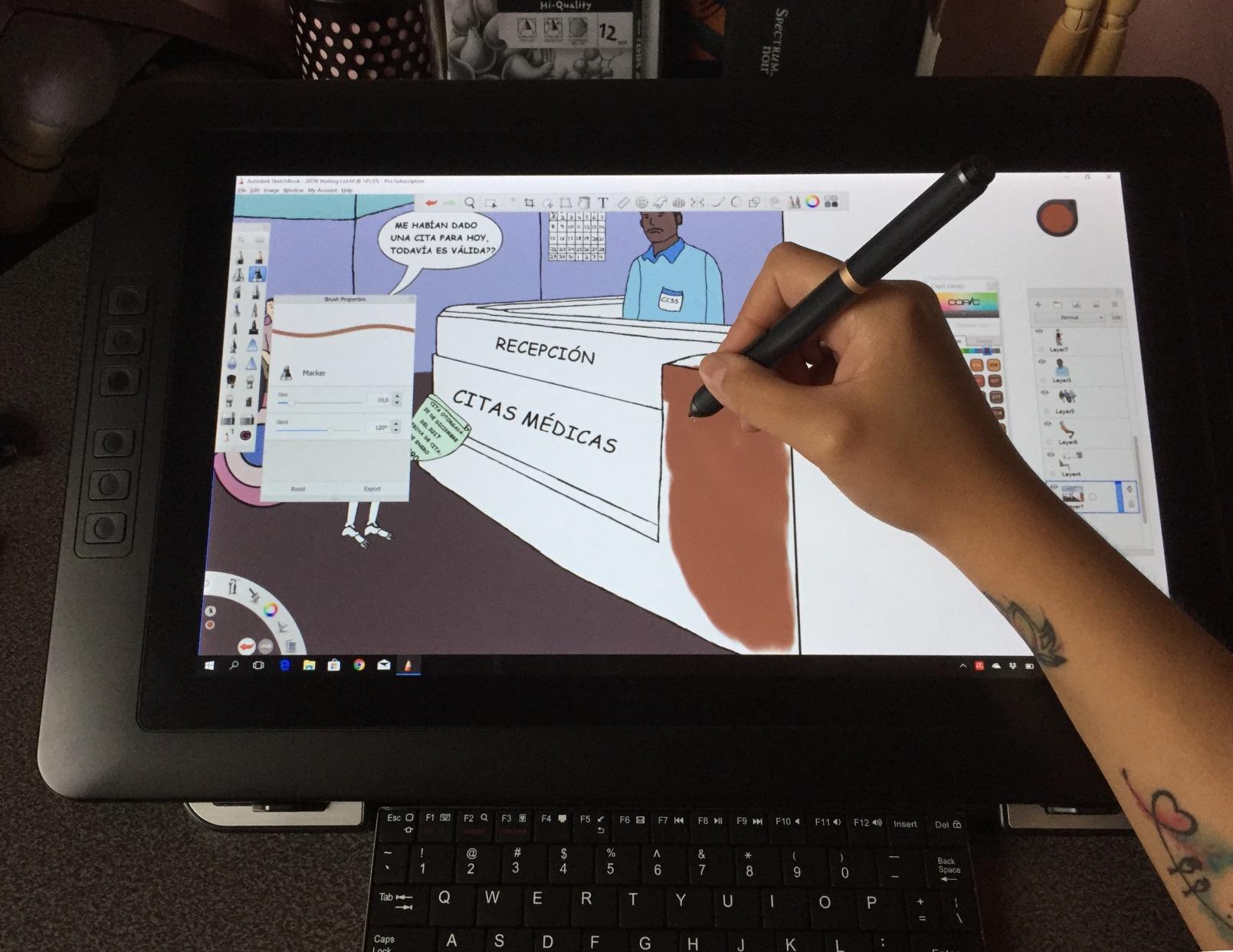
The XPPen Artist Pro 16 Gen2 is a serious desktop pen display for architects who want to draw directly on a large screen at their workstation. The 16-inch QHD panel and industry-first 16K pressure sensitivity put it in direct competition with the Wacom Cintiq line at a noticeably lower investment. This is the device I would recommend for a principal or senior designer who spends most of their day on detailed drawings and renderings.
Unlike the standalone tablets above, the Artist Pro 16 is a monitor you draw on. It connects to your existing desktop or laptop and becomes a second display with full pen input. Pair it with a powerful workstation and you can sketch in Photoshop over an imported Revit export, then drop the file straight back into your project folder.
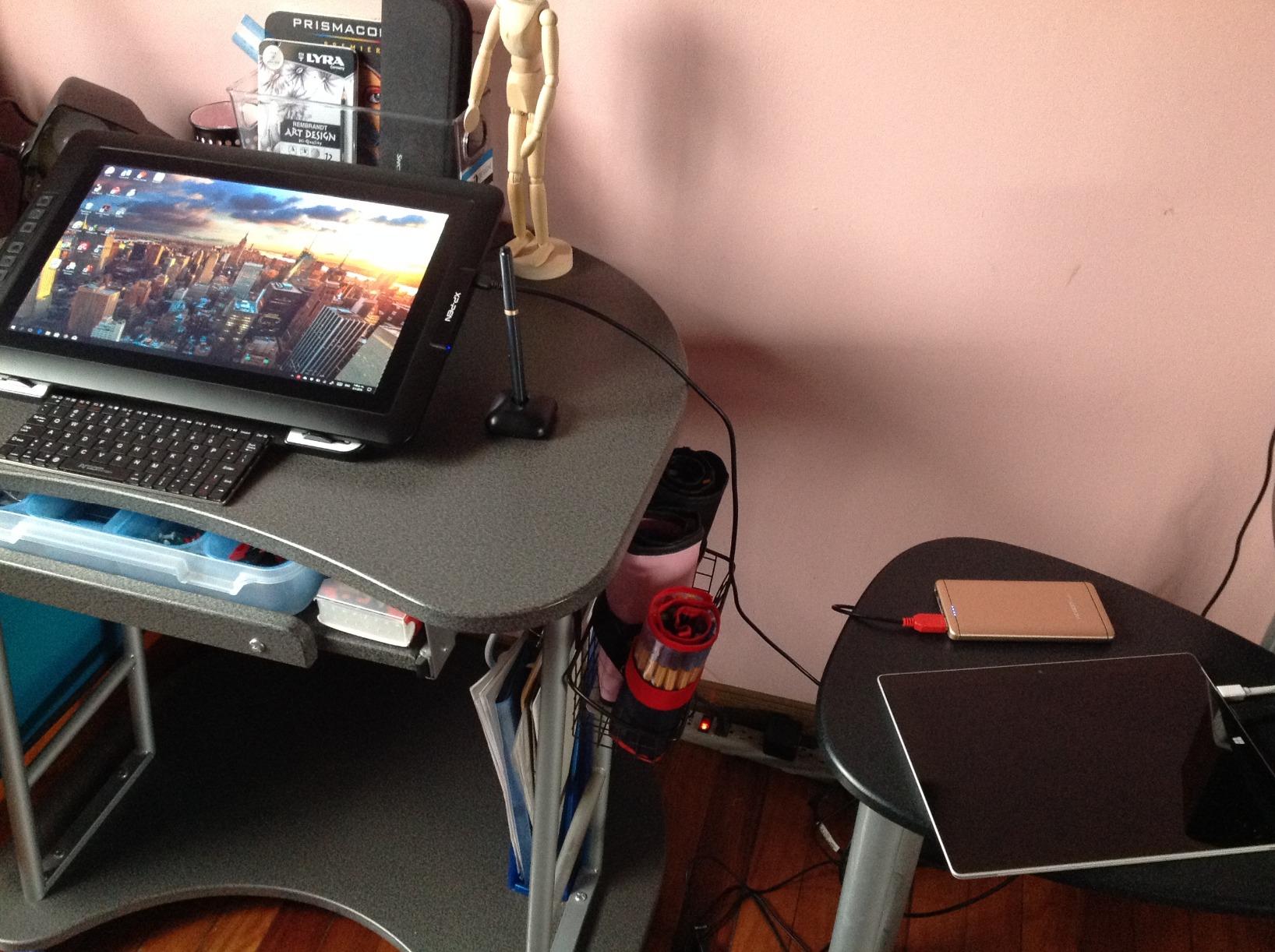
The 2560 x 1600 QHD resolution is sharp enough for fine linework, and the 99 percent sRGB color gamut covers the spec most architecture studios target for presentations.
16K pressure sensitivity is the current industry ceiling
The X3 Pro smart chip stylus delivers 16,384 pressure levels, which is double what most professional tablets offered even two years ago. For architects, the practical benefit is smoother gradient transitions when shading elevation drawings and more controlled line weight variation in plan details. Combined with the 60-degree tilt support, the stylus handles both technical drafting and loose concept sketching well.
The full-laminated display keeps parallax to a minimum, meaning the ink appears directly under the nib instead of floating slightly above the glass. Low parallax matters for precision drafting, where even a small offset throws off dimensional accuracy.
Anti-glare etched glass performs well in studio lighting
The etched anti-glare glass is the same paper-like surface technology used on the Magic Drawing Pad, scaled up to a 16-inch canvas. In a brightly lit studio with overhead fluorescents, the panel stays readable from multiple angles. The 178-degree viewing angle means a project manager looking over your shoulder sees the same colors you do.
The wireless shortcut remote accelerates production work
XP-Pen includes the Mini Keydial remote, which gives you a handheld shortcut controller with programmable keys and a dial. Map the dial to brush size in Photoshop or zoom in AutoCAD, and use the keys for the modifiers you hit most often. After a week of muscle memory, the remote becomes essential rather than a nice extra.
The biggest drawback is weight. At nearly 4 kg with the stand, the Artist Pro 16 stays planted on your desk. This is a studio tool, not a field device.
6. Samsung Galaxy Tab S10 FE – Best Lightweight Tablet for On-Site Markup
Samsung Galaxy Tab S10 FE Tablet, 10.9" 2K+, 8GB RAM, 128GB + 128GB SD Card
Android
10.9 inch 2K+ display
Exynos 1580
8GB RAM 256GB
IP68 rated
Pros
- Slim 1.1 pound design
- IP68 water and dust resistance
- 20 hour battery life
- Included S Pen
Cons
- No cellular option
- Charger not included
- 90Hz refresh rate
The Samsung Galaxy Tab S10 FE is the lighter, more affordable sibling of the S10+ and the tablet I would hand to an architect whose primary need is rugged on-site documentation. At just 1.1 pounds with IP68 water and dust resistance, this is the tablet you can actually hand to a superintendent or carry through a muddy construction site without anxiety. The S Pen is included, battery life stretches to 20 hours, and the 10.9-inch 2K+ display is large enough to read full plan sheets.
For pure field work, the S10 FE beats its larger sibling on portability. The smaller footprint fits inside a clipboard case, and the lighter weight means your arm does not fatigue during a four-hour walkthrough. You give up the AMOLED display and some processor headroom, but for marking up PDFs, taking site photos, and sketching as-built conditions, those trade-offs are worth it.
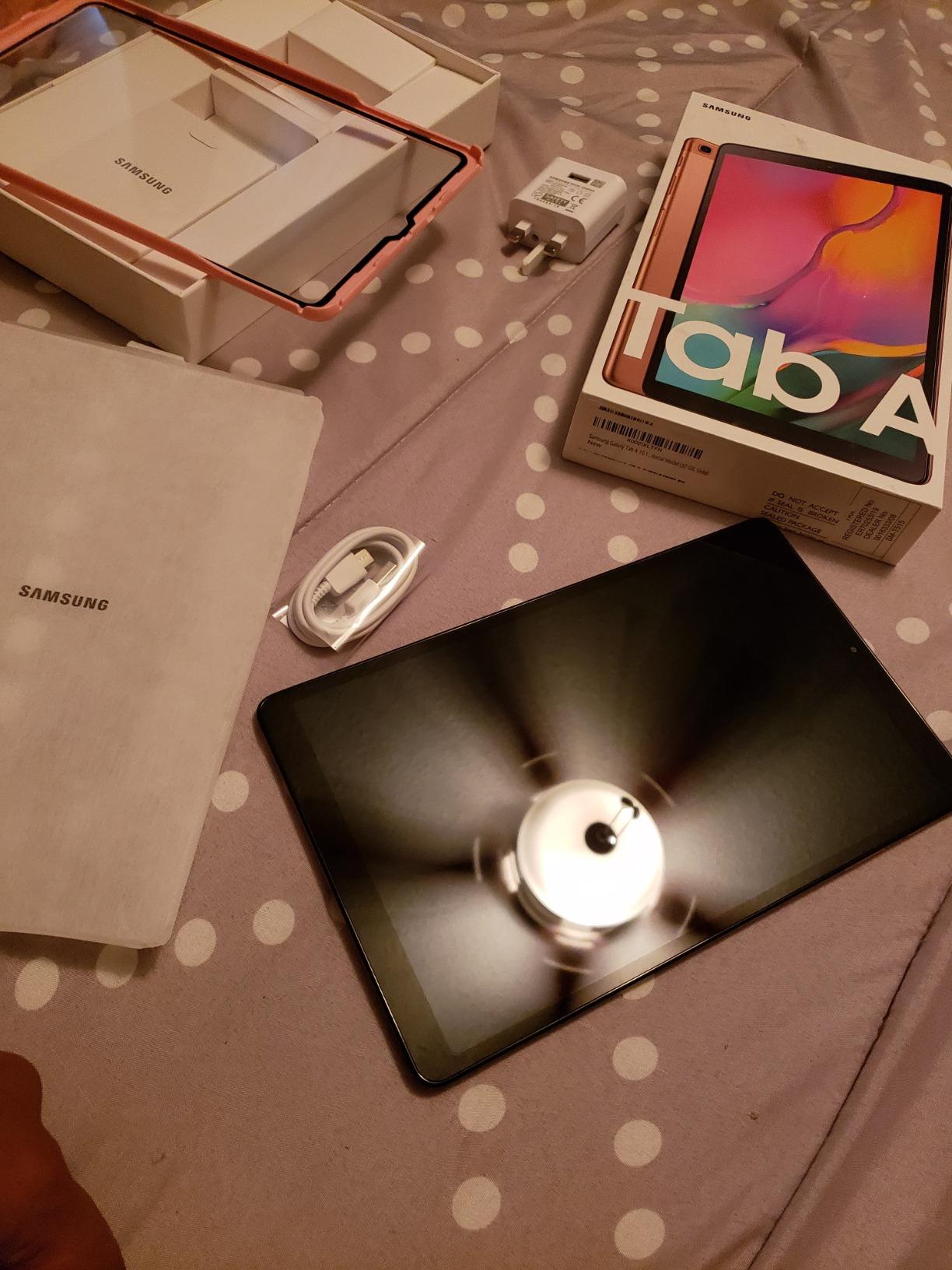
The Exynos 1580 processor and 8GB of RAM handle everyday architecture apps smoothly. Concept sketching in Concepts, PDF annotation in Bluebeam Revu for Android, and model viewing in the AutoCAD mobile app all run without lag.
IP68 durability is genuinely useful on a job site
Most tablets in this guide are not rated for dust and water immersion. The S10 FE’s IP68 rating means it survives being dropped in a puddle or covered in drywall dust, which is exactly the kind of abuse construction sites inflict on electronics. Combined with a rugged case, this tablet survives conditions that would kill an iPad within a week.
The 20-hour battery life matters more than you might expect. Site visits, project meetings, and travel days add up, and a tablet that dies at 3 PM becomes a liability. The S10 FE easily outlasts a full day of heavy field use.
The included S Pen handles markup and sketching without extra cost
Samsung includes the S Pen in the box, which removes the hidden accessory cost that catches many tablet buyers off guard. The pen snaps magnetically to the tablet back, charges wirelessly, and uses the same Wacom-derived EMR technology as the pricier S10+. Circle to Search and Math solving features are bonus productivity tools for quick reference lookups in the field.
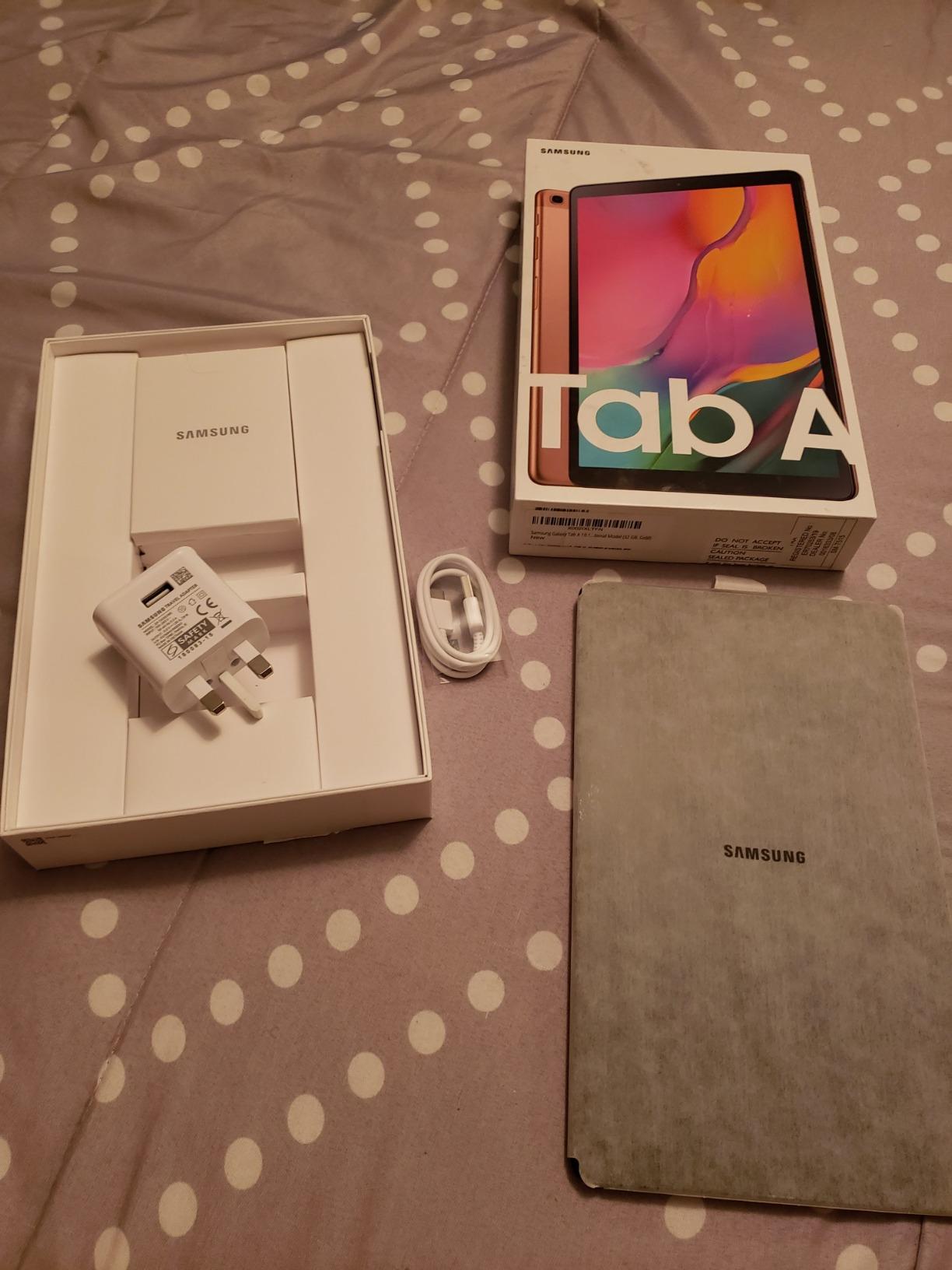
Wi-Fi only limits cellular field use
The main drawback is that this Wi-Fi-only configuration has no cellular option. If your field work happens in areas without reliable Wi-Fi, you will need to tether to your phone or pre-download plan sets before heading out. The 90Hz refresh rate is a step down from the S10+’s 120Hz, though the difference is only noticeable during fast sketching.
For architects who want a tough, lightweight, all-day companion for site work at a more accessible price than the S10+, the FE is the smart pick.
7. HUION Kamvas 13 (Gen 3) – Best Affordable Pen Display for Detail Drawings
HUION Kamvas 13 (Gen 3) Drawing Tablet with Screen, Dual Dial, 13.3", Black
13.3 inch pen display
PenTech 4.0 16K pressure
99 percent sRGB
Includes ST300 stand
Pros
- Excellent color accuracy
- Single USB-C cable connection
- Canvas Glass 2.0 anti-glare
- Includes adjustable stand
Cons
- Requires desktop computer
- No touch screen
- Multiple cables on some setups
The HUION Kamvas 13 (Gen 3) is the value champion of the pen display category. For noticeably less than competing 13-inch pen displays, HUION delivers a fully laminated screen, PenTech 4.0 with 16,384 pressure levels, factory-calibrated color accuracy, and a Canvas Glass 2.0 anti-glare surface. This is the tablet I would recommend to an architect or student who wants to draw directly on screen without paying Cintiq prices.
In daily use, the Kamvas 13 feels like a premium device. The pen tracks with minimal parallax, the display renders colors accurately enough for presentation work, and the included ST300 stand holds the tablet at a comfortable drawing angle. The 13.3-inch size mirrors a standard sheet of paper at near scale, which helps when sketching details.
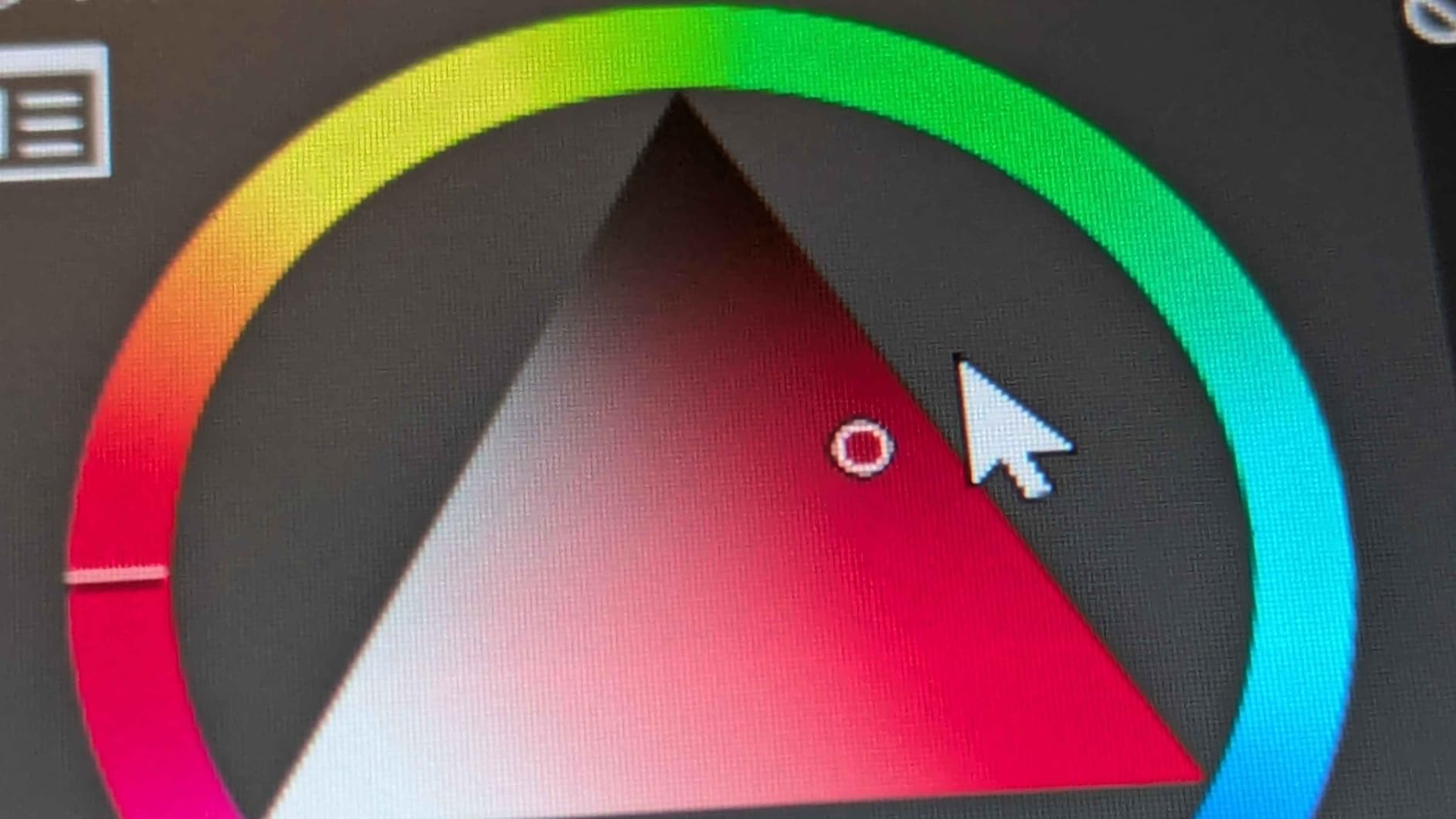
HUION’s PenTech 4.0 brings the activation force down to 2 grams, meaning the lightest touch registers. That sensitivity matters for architects who vary line weight constantly in their drawings.
Factory-calibrated color accuracy rivals more expensive displays
The Kamvas 13 ships with an average Delta E under 1.5 and 99 percent sRGB coverage, which are numbers you normally see on professional-grade monitors. For architects, that means renderings and presentation boards look the same on this tablet as they do on your calibrated studio display. No surprise color shifts when you hand a file to a client.
Canvas Glass 2.0 is HUION’s updated anti-glare coating, and it does a credible job of cutting reflections in mixed lighting. The full lamination keeps the gap between the glass and the LCD panel negligible, so pen strokes appear directly beneath the nib.
USB-C single cable simplifies the desktop setup
One of the most underrated features is the USB-C single-cable connection on compatible computers. One cable carries power, video, and pen data, which eliminates the tangle of HDMI plus USB plus power adapters that older pen displays required. On older machines you may still need the included three-cable breakout, but most recent laptops and desktops support single-cable operation.
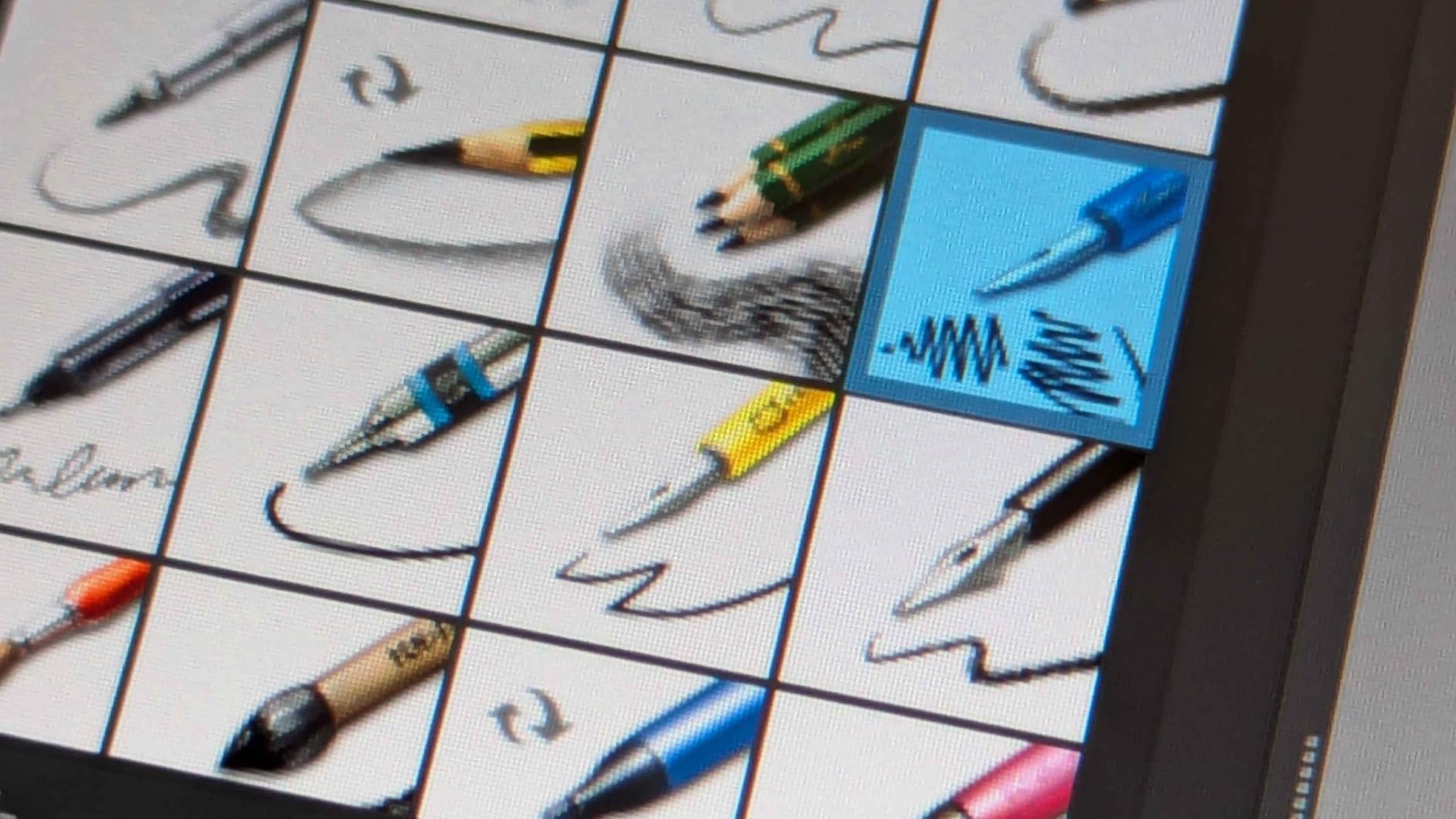
Programmable keys and dials speed up workflow
Five programmable shortcut keys and two dial buttons give you direct access to brush size, zoom, pan, and undo without reaching for your keyboard. The dials are especially useful in Photoshop and Illustrator for adjusting tool parameters on the fly. HUION’s driver software lets you save per-application presets, so your shortcuts change automatically when you switch from AutoCAD to Photoshop.
The trade-off is that this is a display-only device with no touch input. It must stay tethered to a computer, which makes it a studio tool rather than a portable companion.
8. XPPen Artist 13.3 Pro – Best Mid-Range Drawing Monitor for Architects
XPPen Artist 13.3 Pro 13.3" Drawing Tablet with Screen, 16K, Full-Laminated
13.3 inch pen display
16K pressure levels
123 percent sRGB
8 shortcut keys
Pros
- Battery-free stylus with 220 RPS
- 123 percent sRGB color gamut
- 8 customizable shortcut keys
- Includes stand and accessories
Cons
- Requires desktop computer
- Multiple cables for setup
- Stand has limited angles
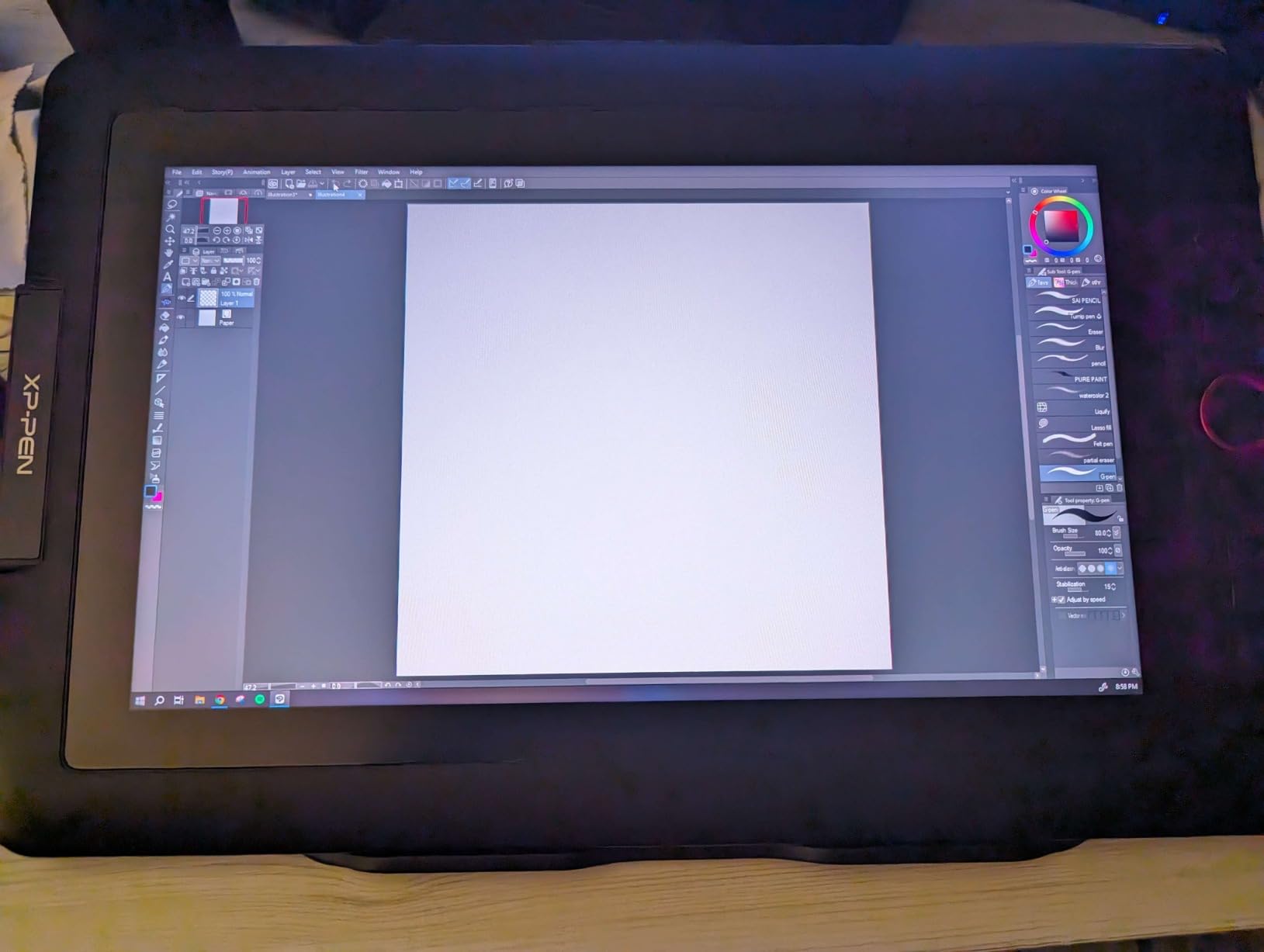
The XPPen Artist 13.3 Pro is the workhorse of XP-Pen’s pen display lineup and a proven choice for architects who want a reliable on-screen drawing experience at a mid-range price. With over 3.4k reviews and a 4.5-star rating, this tablet has earned its place in countless studios. The full-laminated 13.3-inch display, 16K pressure levels, and 123 percent sRGB gamut cover everything an architect needs for detail drawing, rendering touch-ups, and digital sketching.
I consider the Artist 13.3 Pro the safe pick in the pen display category. It does not have the headline-grabbing 16K specs of its newer Gen2 sibling, but it costs less, has a longer track record, and ships with a generous accessory bundle that includes a pen case, replacement nibs, a drawing glove, and a cleaning cloth.
The 1920 x 1080 resolution is sharp at this screen size, and the 178-degree viewing angle means colors stay consistent whether you are sketching flat or angled on the included stand.
The battery-free stylus never needs charging
XP-Pen’s battery-free stylus draws power electromagnetically from the tablet surface, so you never have to stop and charge it. The pen tracks at 220 reports per second, which keeps up with fast hatch strokes and quick sketching without lag. Sixteen thousand pressure levels and 60-degree tilt support give you full control over line weight and shading.
For architects, the battery-free design removes a real source of frustration. You grab the pen, you draw, and you put it down. No battery anxiety during a client meeting or a long rendering session.
Eight shortcut keys and a red dial accelerate drafting
The eight customizable shortcut keys along the side of the display map to any keystroke or macro in your software. The red dial between the keys is a mechanical wheel that works beautifully for zoom in AutoCAD, brush size in Photoshop, or canvas rotation in Sketchbook. Setting up per-application profiles takes a few minutes and pays off every day after.
The accessory bundle adds real value out of the box
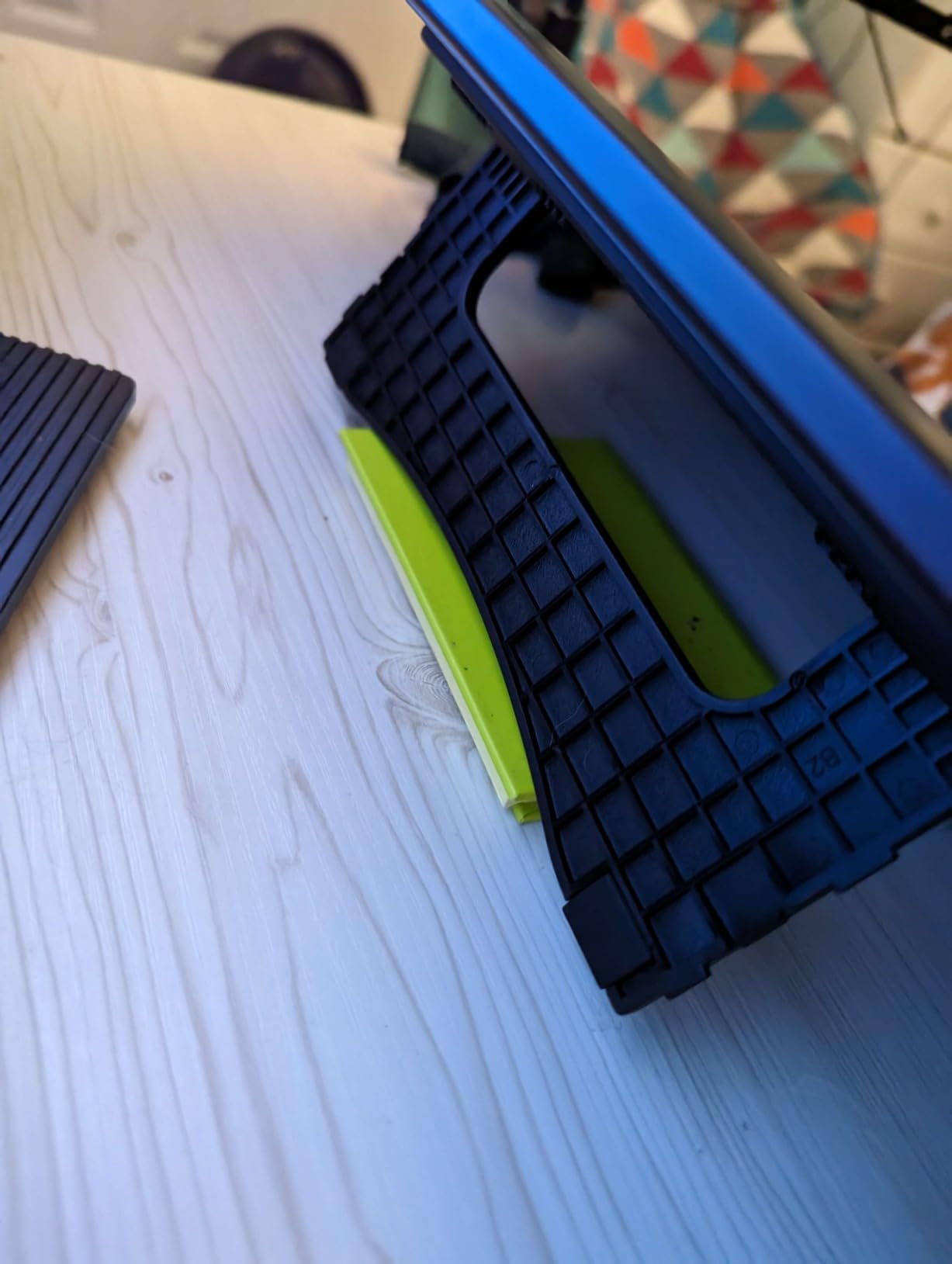
Unlike barebones competitors, the Artist 13.3 Pro ships with a complete drawing kit. The drawing glove prevents smudging on the glass, the pen case keeps your stylus protected in transit, and the spare nibs extend the life of the pen indefinitely. The included adjustable stand holds the tablet at several comfortable angles, though the range is more limited than the ST300 stand bundled with the HUION Kamvas 13.
Setup involves multiple cables on most computers, which is the main complaint in user reviews. Once configured, the tablet runs reliably across Windows, macOS, and Linux.
9. Wacom Intuos Pro Medium (2025 Edition) – Best Professional Screenless Tablet for Studio Work
Wacom Intuos Pro Medium, Bluetooth Graphic Drawing Tablet with ProPen 3
Screenless professional tablet
8192 pressure levels
Pro Pen 3 included
Bluetooth 5.3
Pros
- Pro Pen 3 with customizable grip and balance
- 10 ExpressKeys and 2 mechanical dials
- Ultra-thin 4mm magnesium body
- Available in 3 sizes
Cons
- Some Windows 11 Bluetooth issues reported
- Touch removed in 2025 edition
- Buttons moved to top
The Wacom Intuos Pro Medium in its 2026 edition is the professional screenless tablet that many working architects and illustrators have used for years. The 2026 refresh brings the new Pro Pen 3, an ultra-thin magnesium body, and Bluetooth 5.3 connectivity. This is the tablet of choice for designers who prefer the ergonomic benefits of looking at their monitor while drawing on a flat surface, without the glare and heat of a pen display.
Screenless tablets have a real ergonomic advantage. You keep your head up, your neck neutral, and your drawing arm at a natural angle. For architects who spend eight hours a day in Photoshop, Illustrator, or AutoCAD, that posture difference adds up. The Intuos Pro Medium is the size most professionals settle on, with an active area of 8.7 by 5.8 inches that maps cleanly to a single monitor.
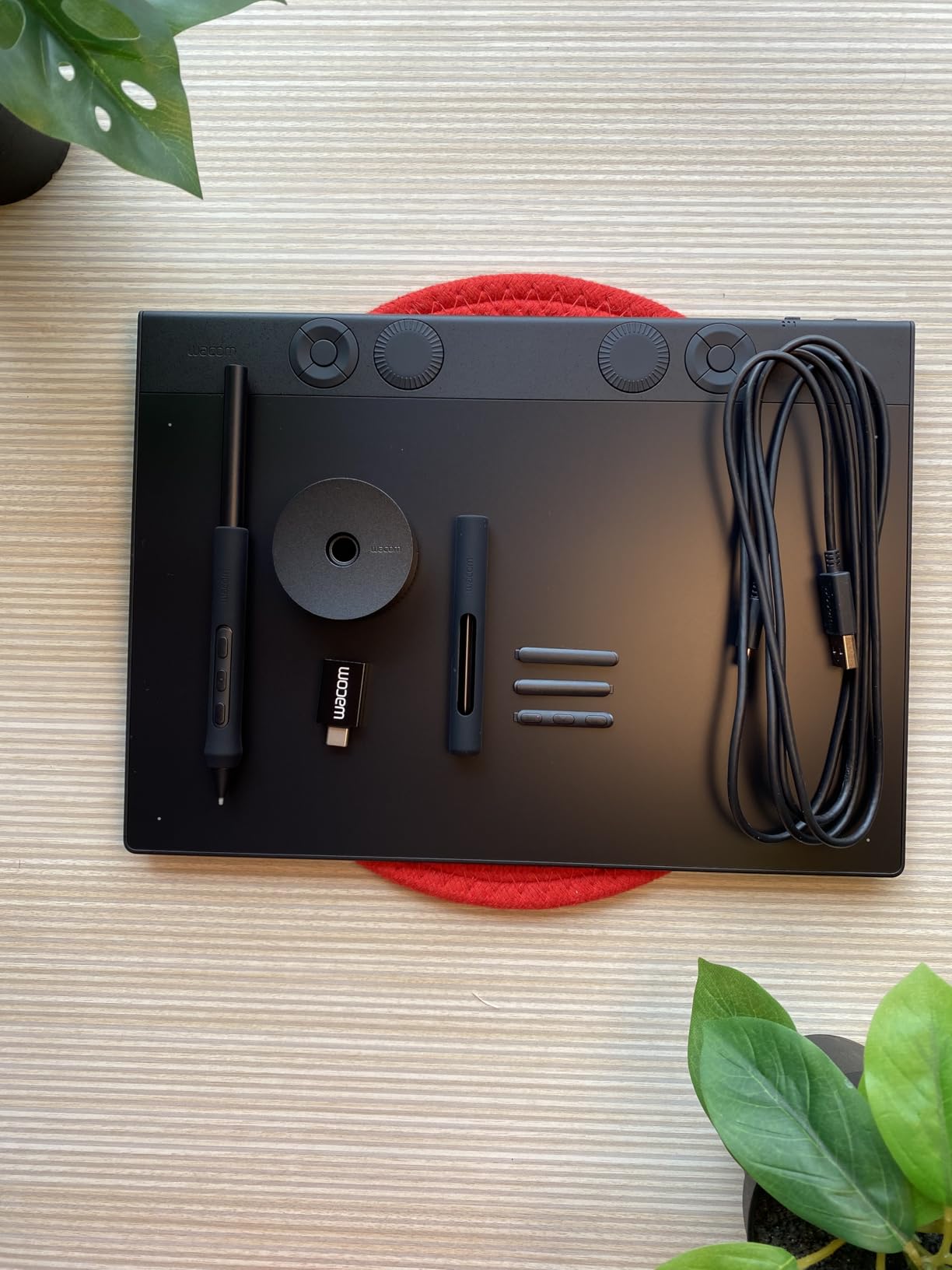
The Pro Pen 3 is the headline upgrade. Wacom redesigned the stylus with a customizable grip, adjustable balance, and reconfigurable button layout. You can add a weight module to the back of the pen, swap grip thicknesses, and reposition the side switches.
The Pro Pen 3 is Wacom’s most customizable stylus yet
Pen feel is subjective, and Wacom acknowledges that by making the Pro Pen 3 fully modular. Architects with larger hands can thicken the grip, those who prefer a rear-weighted pen can add the balance module, and the two side buttons can be repositioned to match how you naturally hold the pen. No other stylus on the market offers this level of physical customization.
Eight thousand one hundred and ninety-two pressure levels and full tilt recognition match the standards Wacom set years ago and that competitors still chase. The pen is battery-free and never needs charging, which removes the one annoyance that plagues active styluses from other brands.
Ten ExpressKeys and two mechanical dials for power users
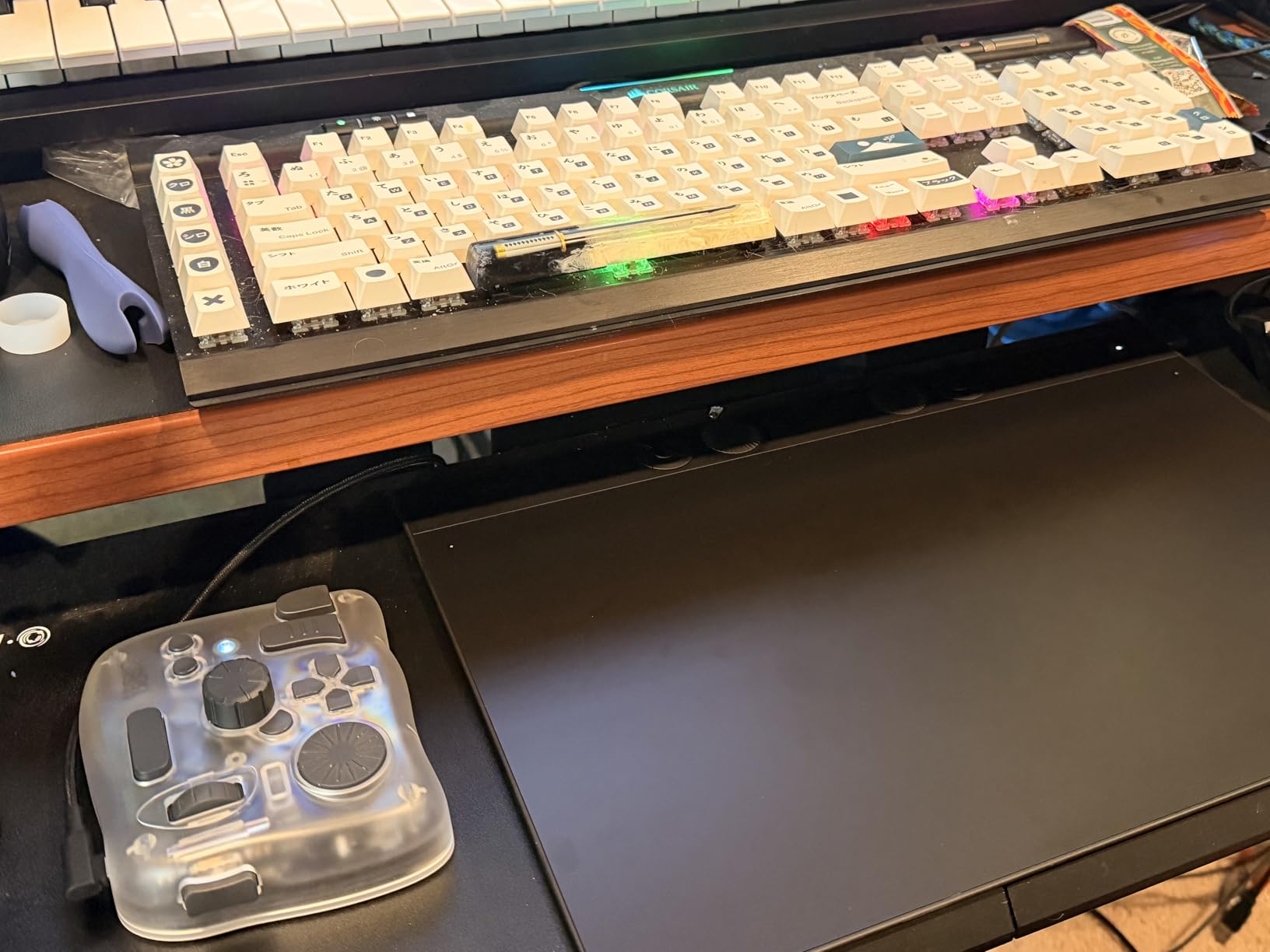
The Intuos Pro Medium includes ten customizable ExpressKeys and two mechanical dials, which is the most control surface of any tablet in this guide. Power users map these to application-specific macros: a one-tap modifier stack in Photoshop, a zoom-and-pan combo in AutoCAD, or a brush-size dial in Sketchbook. Per-application profiles switch automatically as you move between programs.
Design changes in the 2025 edition are worth understanding
Wacom made three notable changes in the 2026 refresh. First, the body shrank to a remarkable 4mm thickness using a magnesium chassis, which makes the tablet easier to carry between studio and home. Second, the ExpressKeys moved to the top edge, which some long-time users find less ergonomic than the previous side placement. Third, touch input was removed entirely, which streamlines the driver experience but eliminates finger-based navigation.
Some Windows 11 users have reported Bluetooth connectivity hiccups, so test the wireless connection on your specific machine early. USB-C wired mode works flawlessly as a fallback.
10. TCL NXTPAPER 14 – Best Paper-Like Tablet for Reading Plans and Notes
TCL NXTPAPER 14 Android Tablet, 14.3" 2.4K Paper-Like Display, 8+256GB
Android 14
14.3 inch NXTPAPER 3.0
4096 level T-PEN stylus
8GB RAM 256GB
Pros
- Paper-like display reduces eye strain
- Three display modes
- Includes flip case and stylus
- 10000 mAh battery
Cons
- No microSD expansion
- 60Hz refresh rate
- Charger not included
- Limited review base
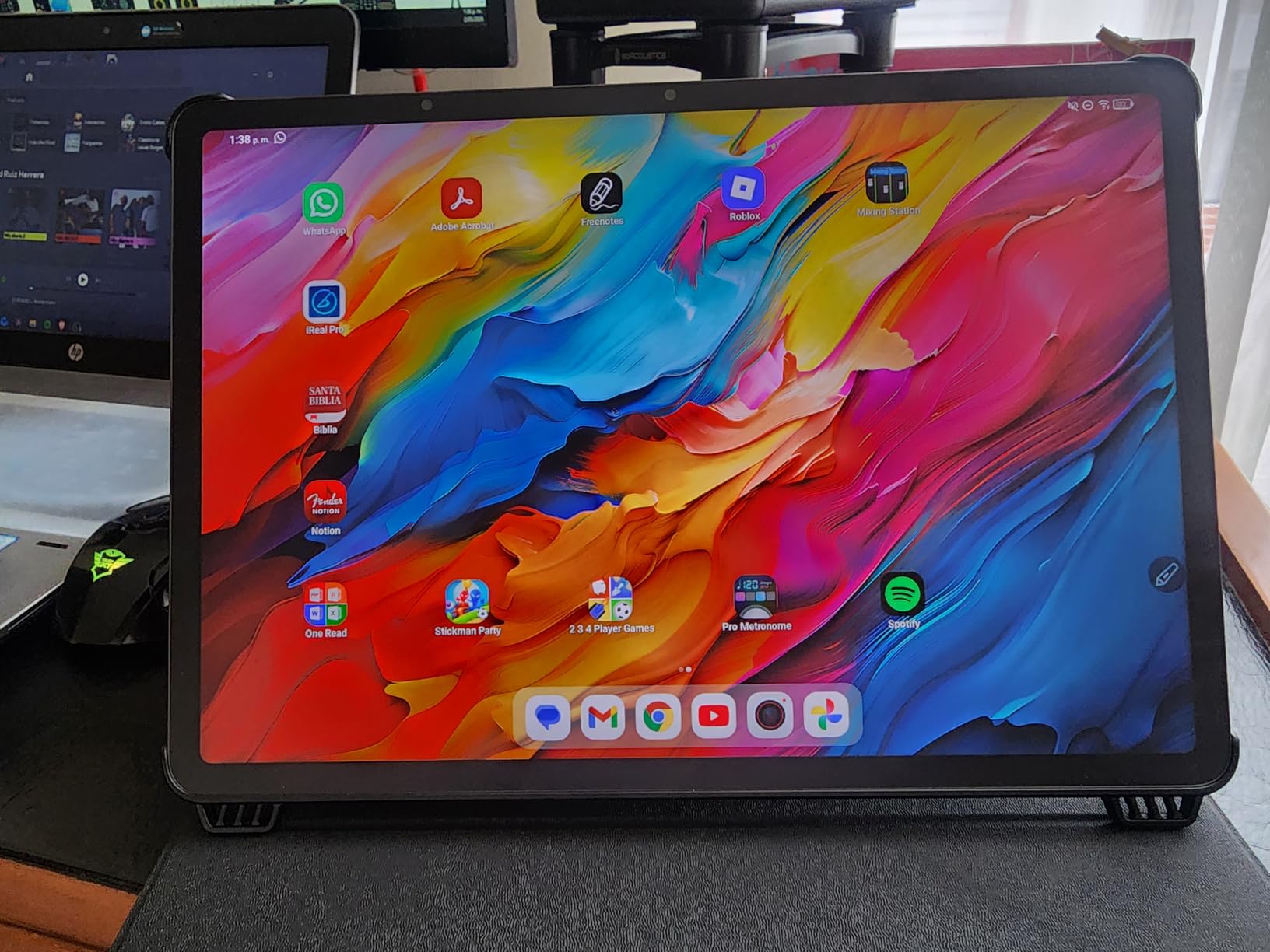
The TCL NXTPAPER 14 takes a different approach from every other tablet in this guide. Instead of chasing maximum brightness or refresh rate, TCL engineered a 14.3-inch display that genuinely mimics the look and feel of paper. NXTPAPER 3.0 technology filters blue light, eliminates flicker through DC dimming, and offers three display modes that adapt to different tasks. For architects who read a lot of plans, specifications, and code documents, this tablet reduces eye strain in ways glossy displays cannot match.
I see the NXTPAPER 14 as the right pick for a project architect or principal whose tablet time is dominated by reading, annotating, and note-taking rather than heavy drawing. The 4096-level T-PEN stylus handles markup and light sketching well, and the large 14.3-inch display shows two-column spec sheets or full plan pages without scrolling.
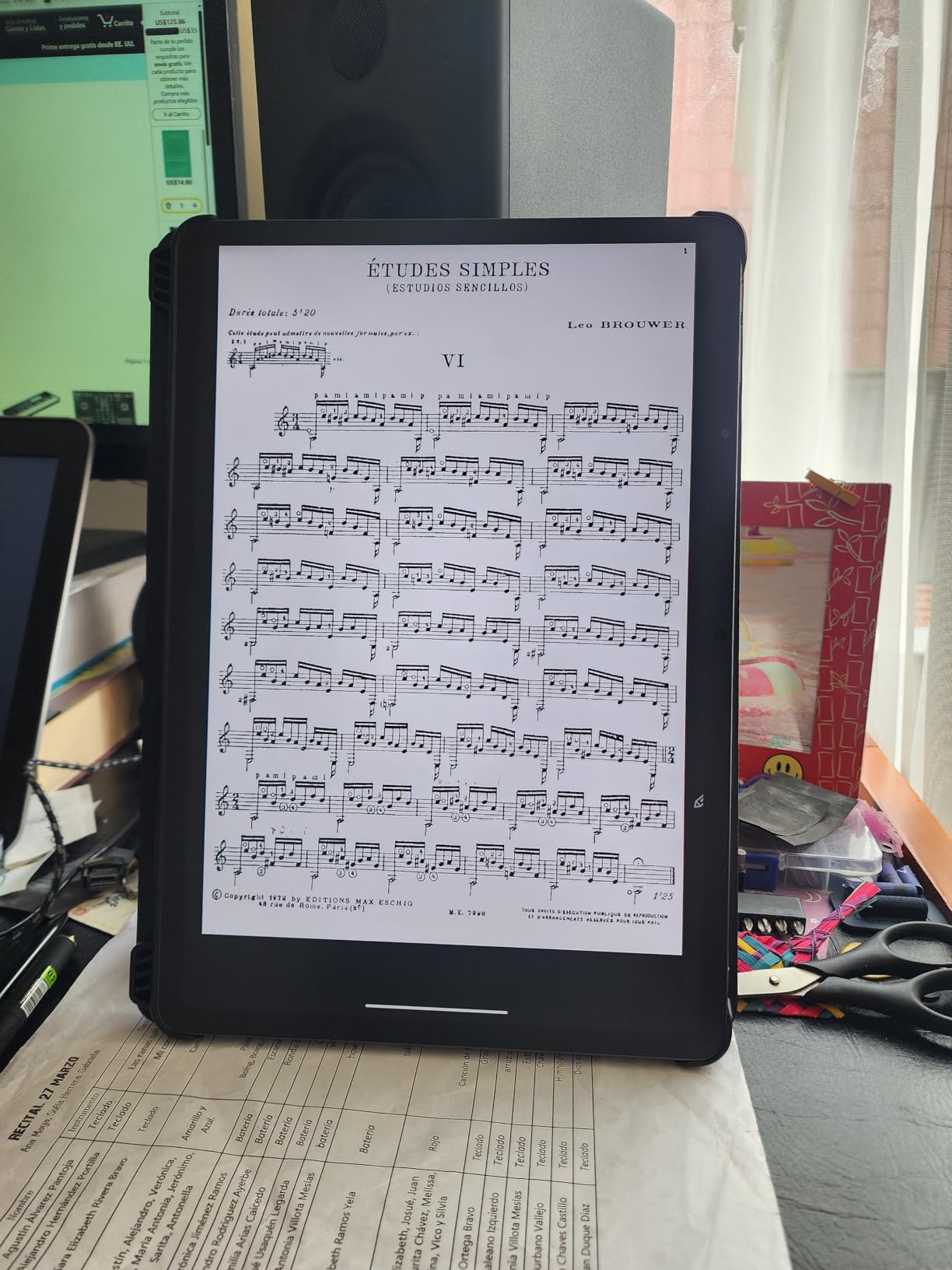
The included flip case and stylus in the box mean there are no hidden accessory costs to start working. The Android 14 operating system gives you access to the same architecture apps as the Samsung tablets.
NXTPAPER 3.0 is purpose-built for long reading sessions
The display uses a specialized optical film stack that scatters ambient light instead of reflecting it directly back at your eyes. The result is a matte surface that reads as paper rather than as a backlit screen. TCL backs this with TUV Rheinland certifications for low blue light, flicker-free operation, and circadian-friendly output.
Three display modes let you adapt to the task. Standard mode handles full-color renderings and presentation decks. Color Paper mode softens contrast for long document reading. Ink Paper mode approximates an e-reader for code books and specifications you need to digest word by word. Switching modes takes a tap.
The large 14.3-inch display suits plan-heavy workflows
Most tablets in this guide top out at 13 inches. The NXTPAPER 14’s extra real estate makes a real difference when you are reviewing Arch E1 plan sets, multi-page specifications, or annotated consultant drawings. Two-page spreads fit comfortably side by side, which mirrors how you would review printed drawings on a desk.
Battery and connectivity cover a full workday
The 10000 mAh battery delivers roughly 10 hours of mixed use, with 33W fast charging that tops up quickly between meetings. Reverse charge means you can power your phone or wireless earbuds from the tablet in a pinch. Quad stereo speakers with Smart PA amplification handle video calls and presentation audio clearly.
The main compromises are the 60Hz refresh rate, which feels slightly less smooth than 90Hz or 120Hz panels during fast pen work, and the absence of microSD expansion. The 256GB internal storage is generous, but plan-heavy users should still manage cloud storage carefully.
How to Choose the Right Tablet for Your Architecture Workflow
Choosing among the best tablets for architects comes down to understanding how you actually work. A tablet that runs full desktop software solves a very different problem than a tablet optimized for field markup. Use the criteria below to match a device to your specific architecture workflow.
Choose Windows if you need full AutoCAD, Revit, or SketchUp Pro
The Microsoft Surface Pro is the only tablet in this guide that runs the full desktop versions of AutoCAD, Revit, SketchUp Pro, Rhino, and the rest of the professional architecture software stack. If your job requires running actual BIM models, producing construction documents, or using custom plugins, a Windows tablet is non-negotiable. Mobile companion apps on iPadOS and Android cannot match that capability, no matter how polished they are.
The trade-off is that Windows tablets are more expensive, run hotter, and often have shorter battery life than their mobile counterparts. For a deeper comparison of Windows hardware for design work, our guide to the best laptops for architects covers companion workstations that pair well with a tablet.
Pick Android or iPadOS for sketching, markup, and client presentations
If your heavy CAD work happens on a desktop workstation and you want a tablet for sketching, PDF annotation, and client meetings, an Android tablet like the Samsung Galaxy Tab S10+ or S10 FE is the better fit. These tablets are thinner, lighter, and last longer on a charge than Windows detachables. The app ecosystem includes Morpholio Trace, Concepts, AutoCAD mobile, SketchUp Go, and Bluebeam Revu, which covers most field and presentation tasks.
iPadOS works the same way if you are already in the Apple ecosystem, and you can extend it with the accessories covered in our guide to the best iPad accessories for architects.
Prioritize pressure sensitivity and display lamination for drawing work
If drawing is your primary use case, look at three specs above all others. Pressure sensitivity should be at least 4096 levels for casual sketching and 8192 or higher for serious illustration work. The XP-Pen and HUION tablets in this guide push that ceiling to 16,384 levels. Full display lamination minimizes parallax, which keeps your ink directly under the pen nib. An anti-glare etched surface, like the AG glass on the XPPen Artist Pro 16 Gen2 or the Canvas Glass 2.0 on the HUION Kamvas 13, mimics paper texture and reduces reflections.
Stylus technology also matters. Wacom EMR pens, used in the Samsung S Pen and the Wacom Intuos line, never need charging. Active pens like the X3 Pro require periodic charging but often deliver higher pressure ceilings.
Match battery life and durability to your field work schedule
Architects who spend significant time on construction sites need a tablet that survives dust, drops, and long days. The Samsung Galaxy Tab S10 FE’s IP68 rating and 20-hour battery life make it the clear field work champion. The Tab S10+ adds AMOLED quality and Galaxy AI features while keeping rugged Armor Aluminum construction. Avoid pen displays like the Artist Pro 16 or Kamvas 13 for field use, because they require a connected computer and offer no environmental protection.
Battery ratings assume moderate use. Running GPS, screen brightness at maximum for outdoor visibility, and continuous photo capture will reduce real-world runtime. Plan for roughly 70 percent of the manufacturer rating under heavy field use.
Calculate total cost including stylus, keyboard, and protective case
The sticker price of a tablet rarely reflects what you actually pay. The Microsoft Surface Pro requires a separately purchased keyboard, and the Apple Pencil is a separate purchase for iPads. Samsung includes the S Pen with both Galaxy Tab S10 models, which is a real saving. Pen displays from XP-Pen and HUION typically bundle stands and accessories, while Wacom’s professional line often sells accessories separately.
Architects should also plan for a rugged case if the tablet will see field use, plus a screen protector and possibly a wide-format printer for output. Our guide to wide format printers for architects covers the output side of the workflow. As a business expense, tablets and accessories used primarily for work are generally tax-deductible, so consult your accountant about depreciation schedules.
FAQs
Which tablet is best for AutoCAD?
The Microsoft Surface Pro (2024) is the best tablet for AutoCAD because it runs the full Windows desktop version natively. No other tablet in this guide can install and run actual AutoCAD rather than the mobile companion viewer. For viewing and light editing on Android, the Samsung Galaxy Tab S10+ paired with the AutoCAD mobile app is the strongest alternative.
Do architects use tablets?
Yes, architects use tablets extensively for concept sketching, PDF markup on job sites, client presentations, and field documentation. The most common uses include sketching in Morpholio Trace or Concepts, redlining blueprints in Bluebeam Revu, presenting renderings in meetings, and capturing as-built conditions with photos and annotations. Architects who run full CAD and BIM software typically pair a tablet with a desktop workstation rather than replacing it.
What is the best tablet for CAD design?
For full CAD design, the Microsoft Surface Pro is the best choice because it runs the complete Windows desktop CAD stack including AutoCAD, Revit, SketchUp Pro, and Rhino. For mobile CAD viewing and light editing, the Samsung Galaxy Tab S10+ with AutoCAD mobile and SketchUp Go is the strongest non-Windows option. Pen displays like the XPPen Artist Pro 16 Gen2 work well for CAD drafting when connected to a powerful desktop computer.
What is the best tablet for art and design?
For pure art and design sketching, the XPPen Magic Drawing Pad offers the best paper-like drawing experience with its AG-etched screen and 16,384 pressure levels. The Samsung Galaxy Tab S10+ is the best general-purpose tablet for design work with its AMOLED display and included S Pen. For desktop-focused digital art, the Wacom Intuos Pro Medium (2025 Edition) remains the professional standard thanks to its customizable Pro Pen 3.
Which tablet is best for architects?
The best tablet for architects depends on the workflow. The Microsoft Surface Pro (2024) is the best overall pick because it runs full AutoCAD and Revit. The Samsung Galaxy Tab S10+ is the best standalone Android tablet for sketching, markup, and client presentations. The Samsung Galaxy Tab S10 FE is the best field work tablet with IP68 durability and 20-hour battery life. The Wacom Intuos Small is the best budget pick for students and interns.
Final Thoughts: Matching the Right Tablet to Your Work
The best tablets for architects in 2026 split into three clear categories, and the right choice depends on how you spend your working hours. If you need to run full AutoCAD, Revit, or SketchUp Pro on the tablet itself, the Microsoft Surface Pro (2024) is the only serious option. If your heavy CAD work lives on a desktop and you want a polished standalone companion for sketching, markup, and presentations, the Samsung Galaxy Tab S10+ is the strongest all-around Android pick. Architects who need a rugged field device should look at the Galaxy Tab S10 FE with its IP68 rating and 20-hour battery.
For dedicated drawing work, choose the XPPen Artist Pro 16 Gen2 or HUION Kamvas 13 for on-screen precision, or the Wacom Intuos Pro Medium for a professional screenless experience. Students and interns can start with the Wacom Intuos Small, and anyone whose tablet time is dominated by reading plans should consider the TCL NXTPAPER 14. Pick the category that matches your daily workflow, and the right individual tablet becomes obvious.
Whichever you choose, pair it with a capable workstation, a reliable wide-format printer, and accessories that fit your field conditions. A tablet only delivers value when it fits cleanly into the way you already work, not the way a spec sheet suggests you should.
Leave a Reply