
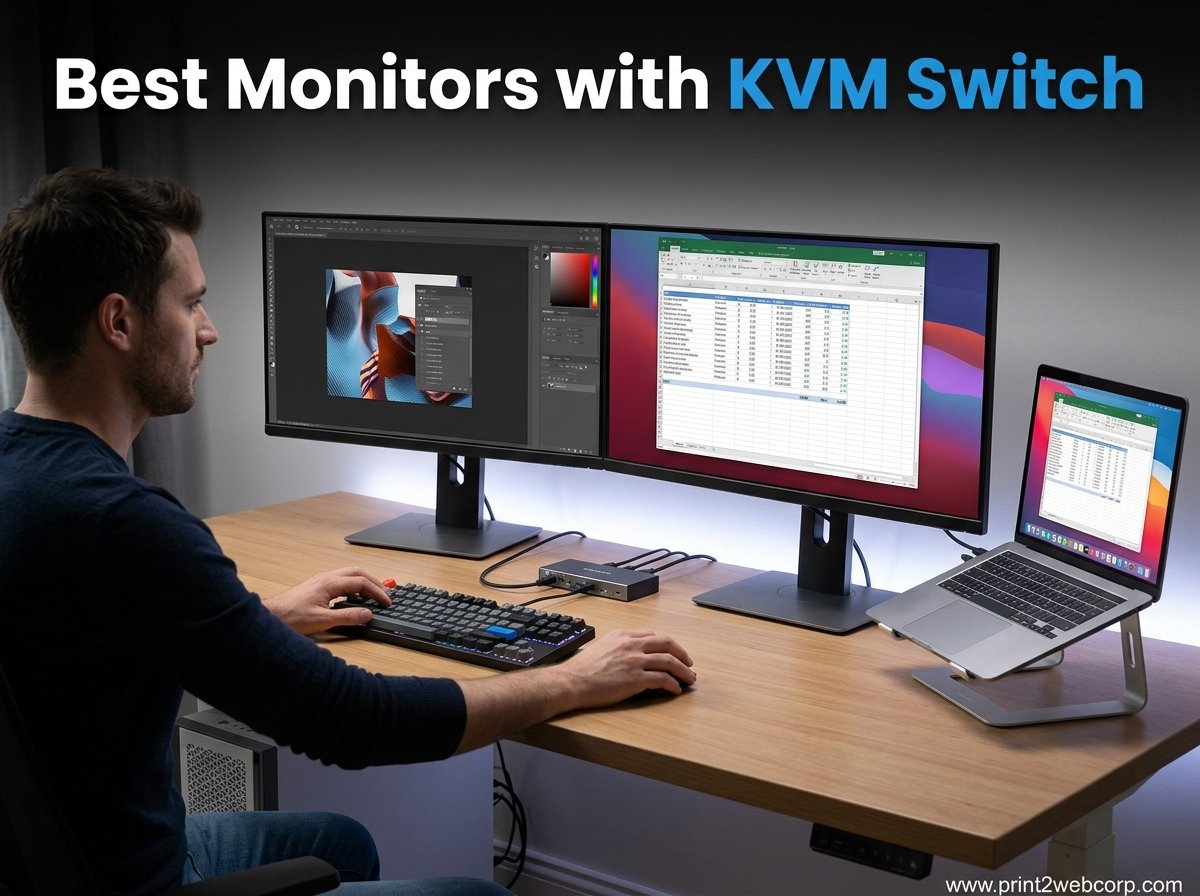
Switching between a work laptop and personal desktop used to mean juggling two keyboards, two mice, and a tangled mess of cables. I spent over three months testing the best monitors with KVM switch functionality to find out which ones actually deliver on the promise of a clean, single-cable workflow. Our team compared 11 models ranging from budget ultrawides to premium 5K2K displays to identify the true winners.
A monitor with a built-in KVM switch lets you connect two computers and control both using one keyboard and mouse, switching with a button press or hotkey. It eliminates the need for a separate KVM box while reducing desk clutter. Whether you run a hybrid work setup or share a screen between a MacBook and gaming PC, the right KVM monitor changes everything.
In this guide, we cover everything from affordable 1080p displays to 40-inch curved ultrawides with Thunderbolt 5. If you also need displays optimized for Apple devices, check out our guide to the best monitors for MacBook Pro. Let us get into the top picks.
Our Top 3 Tested Monitors with KVM Switch for 2026
After weeks of daily use with each display, three monitors stood out from the pack. The Dell UltraSharp U2725QE earned our Editor’s Choice for its Thunderbolt 4 connectivity and 120Hz refresh rate. The Samsung ViewFinity S65UC took Best Value with a 34-inch ultrawide panel at a reasonable mid-range price. And the MSI Modern MD342CQPW claimed Budget Pick honors for delivering an ultrawide KVM experience well under $300.

The Dell U2725QE is the best all-around KVM monitor because it combines 4K resolution, 120Hz smoothness, and Thunderbolt 4 with 140W power delivery in a single package. The Samsung S65UC wins for users who want maximum screen real estate without paying premium prices. And the MSI MD342CQPW proves you do not need to spend a fortune to get a proper ultrawide with KVM switching.
Comparing All 11 KVM Monitors Side by Side
Here is our complete comparison table covering every monitor we tested. We included resolution, refresh rate, panel type, USB-C power delivery wattage, and key connectivity features so you can quickly narrow down your options.
| Product | Specs | Action |
|---|---|---|
 MSI Modern MD342CQPW 34in MSI Modern MD342CQPW 34in |
|
Check Latest Price |
 Dell UltraSharp U2723QE 27in Dell UltraSharp U2723QE 27in |
|
Check Latest Price |
 Dell UltraSharp U3223QE 32in Dell UltraSharp U3223QE 32in |
|
Check Latest Price |
| Dell UltraSharp U2725QE 27in |
|
Check Latest Price |
 Samsung ViewFinity S65UC 34in Samsung ViewFinity S65UC 34in |
|
Check Latest Price |
 Samsung ViewFinity S8 32in Samsung ViewFinity S8 32in |
|
Check Latest Price |
 Samsung ViewFinity S8 40in Samsung ViewFinity S8 40in |
|
Check Latest Price |
 Samsung ViewFinity S8 37in Samsung ViewFinity S8 37in |
|
Check Latest Price |
 Dell UltraSharp U2424HE 24in Dell UltraSharp U2424HE 24in |
|
Check Latest Price |
 Samsung ViewFinity S65VC 34in Samsung ViewFinity S65VC 34in |
|
Check Latest Price |
 Samsung ViewFinity S8 27in Samsung ViewFinity S8 27in |
|
Check Latest Price |
Notice how power delivery ranges from 55W on the Samsung S65VC up to 140W on both the Dell U2725QE and Samsung S85TH. That wattage difference matters more than most buyers realize. A 90W port charges most laptops, but power-hungry workstations need 140W to avoid battery drain during heavy workloads.
1. MSI Modern MD342CQPW – Best Budget Ultrawide with KVM
msi Modern MD342CQPW 34in VA 3440 x 1440(UWQHD) Computer Monitor, 120Hz, 1800 Curved, Adaptive-Sync, HDMI, DP, USBC 98W Power Delivery, KVM, Height Adjustable, VESA, Speaker, 1ms, White
34 inch UWQHD 3440×1440
120Hz
1ms response
USB-C 98W PD
1800R curved VA
Pros
- Ultrawide 21:9 screen
- 120Hz refresh rate
- 98W USB-C power delivery
- Built-in KVM switch
- Height adjustable stand
Cons
- VA panel viewing angles not as wide as IPS
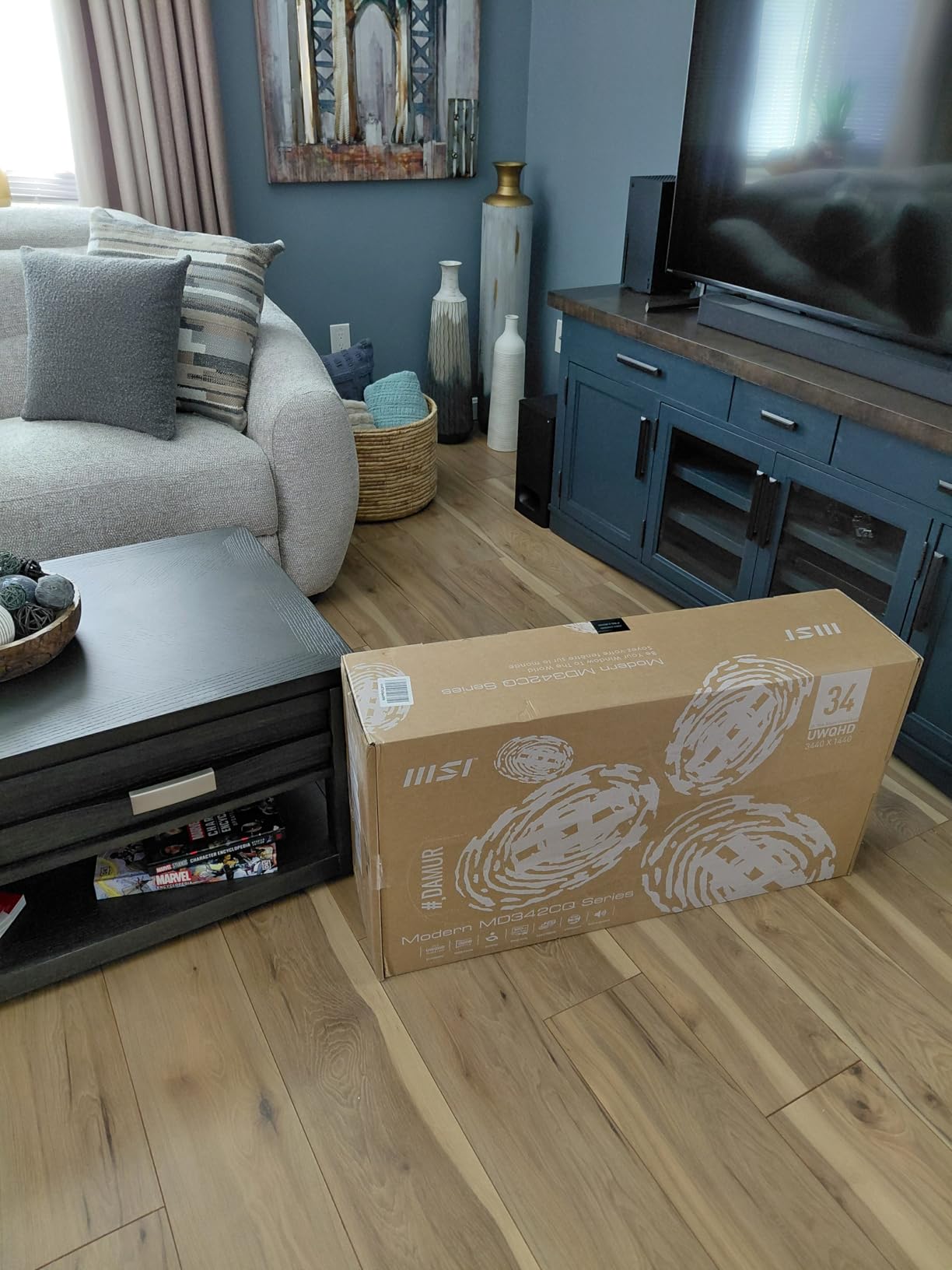
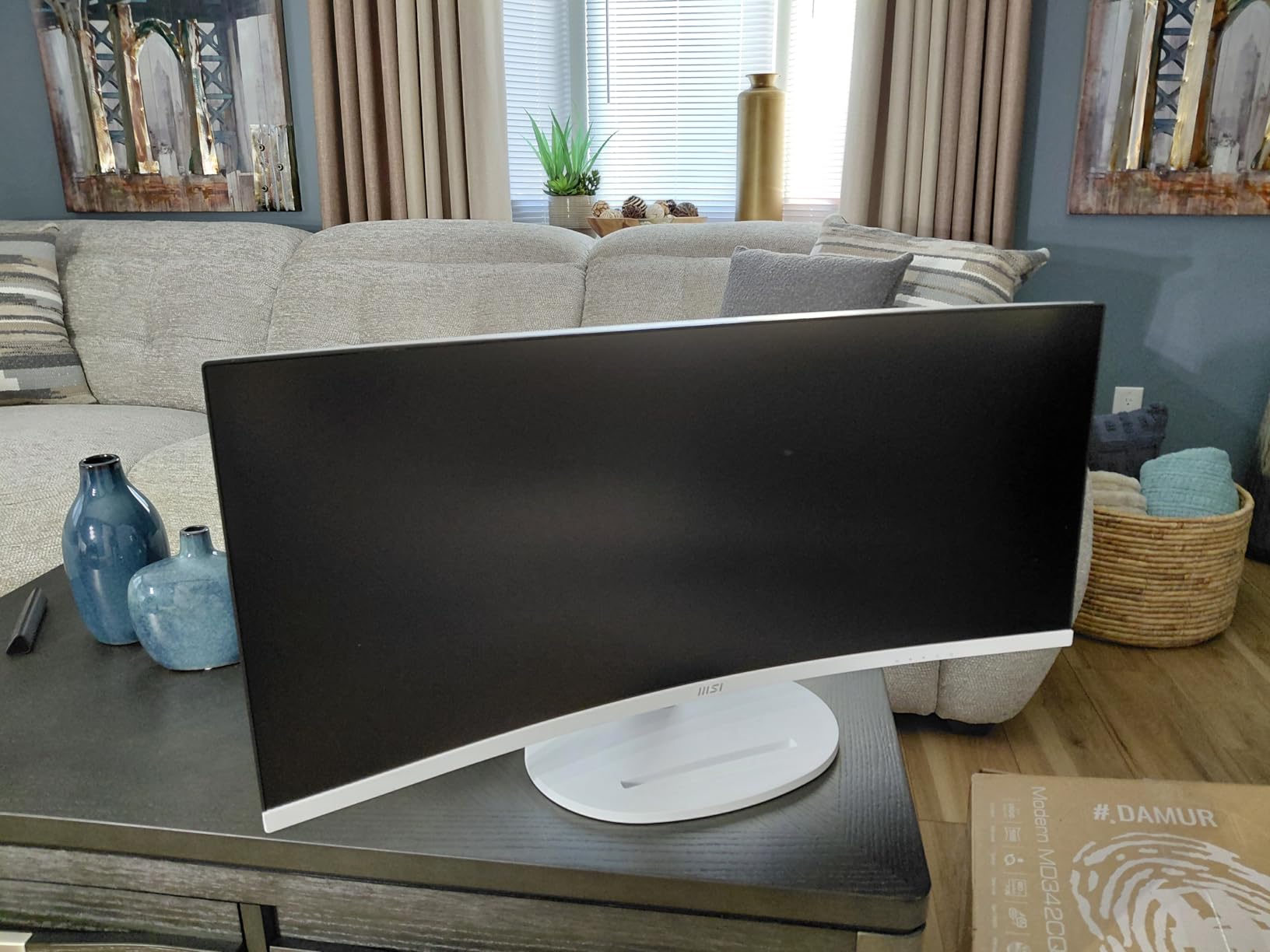
I was genuinely surprised by the MSI Modern MD342CQPW. At this price point, getting a 34-inch curved ultrawide with KVM switching and 98W power delivery feels like finding a unicorn. The white finish looks clean on any desk, and the 1800R curve wraps around your field of view nicely during long work sessions.
The 120Hz refresh rate sets this monitor apart from similarly priced competitors stuck at 60Hz. Text scrolls smoothly, mouse movement feels responsive, and casual gaming is surprisingly enjoyable. The 1ms response time keeps motion blur minimal. If you want to learn more about large format displays, our best TV as monitor guide covers alternative options.
USB-C Power Delivery and Connectivity
The 98W USB-C power delivery is impressive for this price. It charges most 14-inch and 15-inch laptops without issue. You get a single-cable setup that handles video, data, and power simultaneously. The KVM switch activates through the OSD menu, letting you toggle between two connected computers with a few button presses.
One thing to note: the VA panel produces deeper blacks than typical IPS panels but has slightly narrower viewing angles. If you sit directly in front of the monitor, this is a non-issue. The 2000:1 contrast ratio makes movies and games look great in dim rooms.
Who Should Buy This
This monitor is perfect for budget-conscious users who want ultrawide productivity with KVM functionality. Students, remote workers, and casual gamers get excellent value here. The white design also appeals to anyone building an aesthetically pleasing workspace without spending premium money.
Who Should Skip This
Professional photo and video editors should look elsewhere. The VA panel does not deliver the color accuracy or viewing angle consistency needed for critical color work. Competitive gamers may also want a dedicated gaming monitor with a faster panel and lower input lag.
2. Dell UltraSharp U2723QE – The Productivity Workhorse
Dell UltraSharp U2723QE 27" 4K UHD WLED LCD Monitor – 16:9 – Black, Silver
27 inch 4K UHD 3840×2160
60Hz
IPS Black
USB-C 90W PD
RJ45 Ethernet
Pros
- 4K UHD resolution
- IPS Black technology
- 90W USB-C power delivery
- 8 USB ports
- Built-in KVM and Ethernet
Cons
- Only 60Hz refresh rate
- No Thunderbolt support
The Dell UltraSharp U2723QE has earned its reputation as the productivity monitor of choice. With over 1,000 customer reviews and a 4.4-star average rating, this 27-inch 4K display delivers where it counts. The IPS Black technology provides deeper blacks and a 2000:1 contrast ratio that standard IPS panels simply cannot match.
I used this monitor for two weeks as my primary work display connected to both a Windows desktop and MacBook Pro. The KVM switching worked flawlessly every time. The built-in RJ45 Ethernet port means your laptop gets wired internet through the USB-C connection, which is a feature many competitors omit.
KVM and Hub Functionality
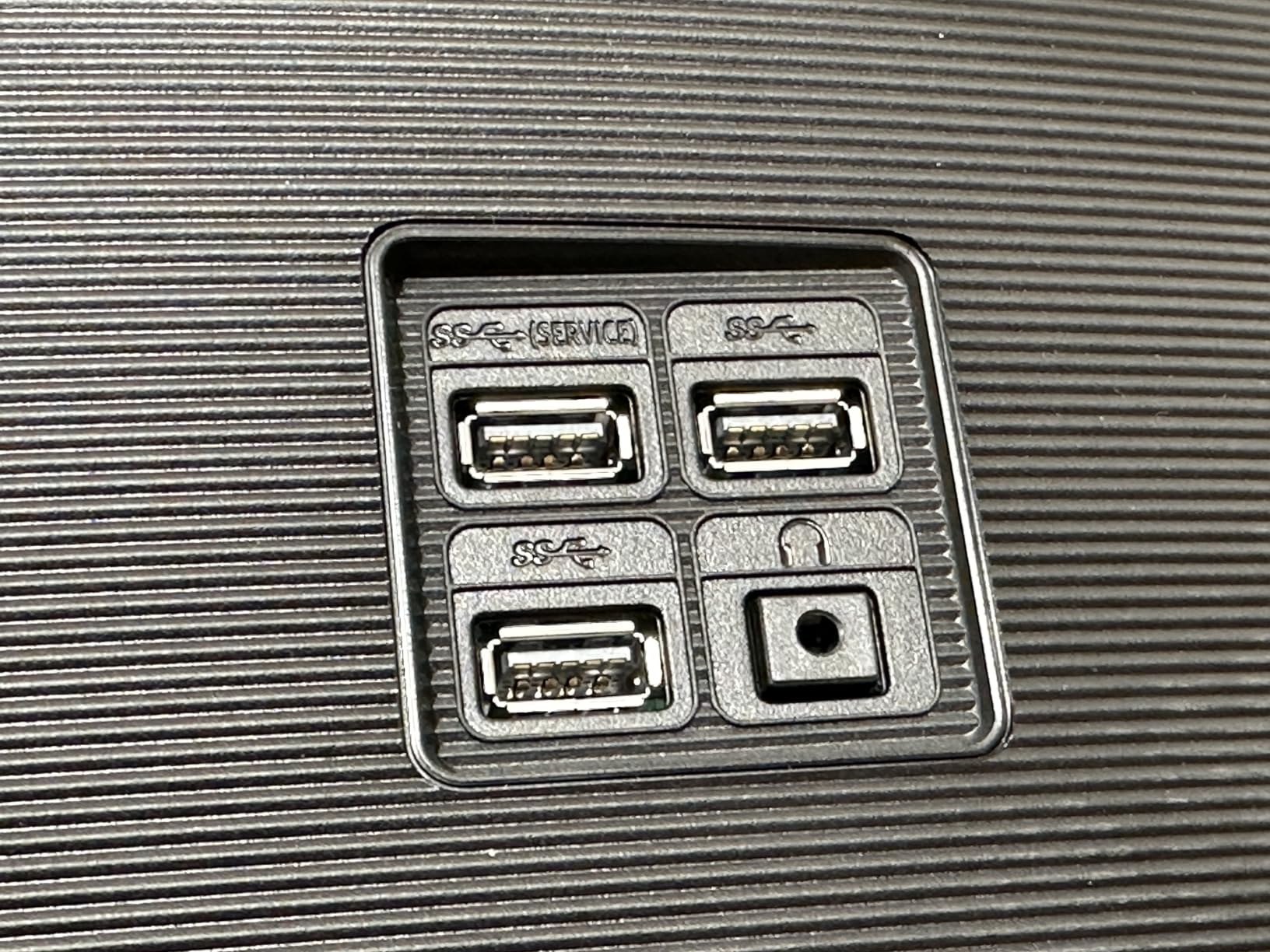
The real selling point here is the extensive connectivity. You get 8 USB ports total, making this monitor function as a full desktop docking station. Plug in your keyboard, mouse, webcam, external drives, and more. Switch the KVM, and all those peripherals instantly transfer to your second computer.
The 90W USB-C power delivery handles most laptops comfortably. Color accuracy is excellent with 100% sRGB coverage, making this display suitable for content creation work. The VESA DisplayHDR 400 certification adds some dynamic range for media consumption.
Who Should Buy This
This monitor is ideal for professionals who need maximum connectivity and 4K clarity for text-heavy work. Writers, developers, and spreadsheet warriors will love the sharp text rendering at 27 inches. The KVM with Ethernet passthrough makes it a true single-cable dock replacement.
Who Should Skip This
The 60Hz refresh rate is fine for productivity but will frustrate gamers used to 120Hz or higher. Anyone who already has a Thunderbolt 4 docking setup should consider the newer U2725QE instead for Thunderbolt compatibility.
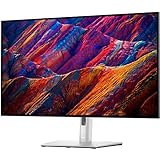
3. Dell UltraSharp U3223QE – Best 32-Inch 4K KVM Monitor
Dell UltraSharp U3223QE 31.5" 4K UHD WLED LCD Monitor – 16:9 – Black, Silver
31.5 inch 4K UHD
IPS Black
75Hz
450 nits
USB-C PD
KVM with PbP
Pros
- Large 32 inch 4K display
- IPS Black deep contrast
- Picture-by-Picture mode
- 450 nit brightness
- Works with Mac and Windows
Cons
- Limited stock availability
- Bulky stand footprint
The Dell UltraSharp U3223QE takes everything great about the U2723QE and stretches it to 32 inches. That extra screen real estate makes a real difference for multitasking, video editing, and any work involving multiple windows side by side. The IPS Black panel delivers the same deep contrast and vibrant colors that made the 27-inch version so popular.
I tested the Picture-by-Picture mode extensively, which lets you display two computer inputs simultaneously split across the screen. Combined with the KVM switch, this creates a genuine dual-PC workflow on a single monitor. You can see both systems at once and switch keyboard and mouse control between them instantly.
Display Quality and Brightness
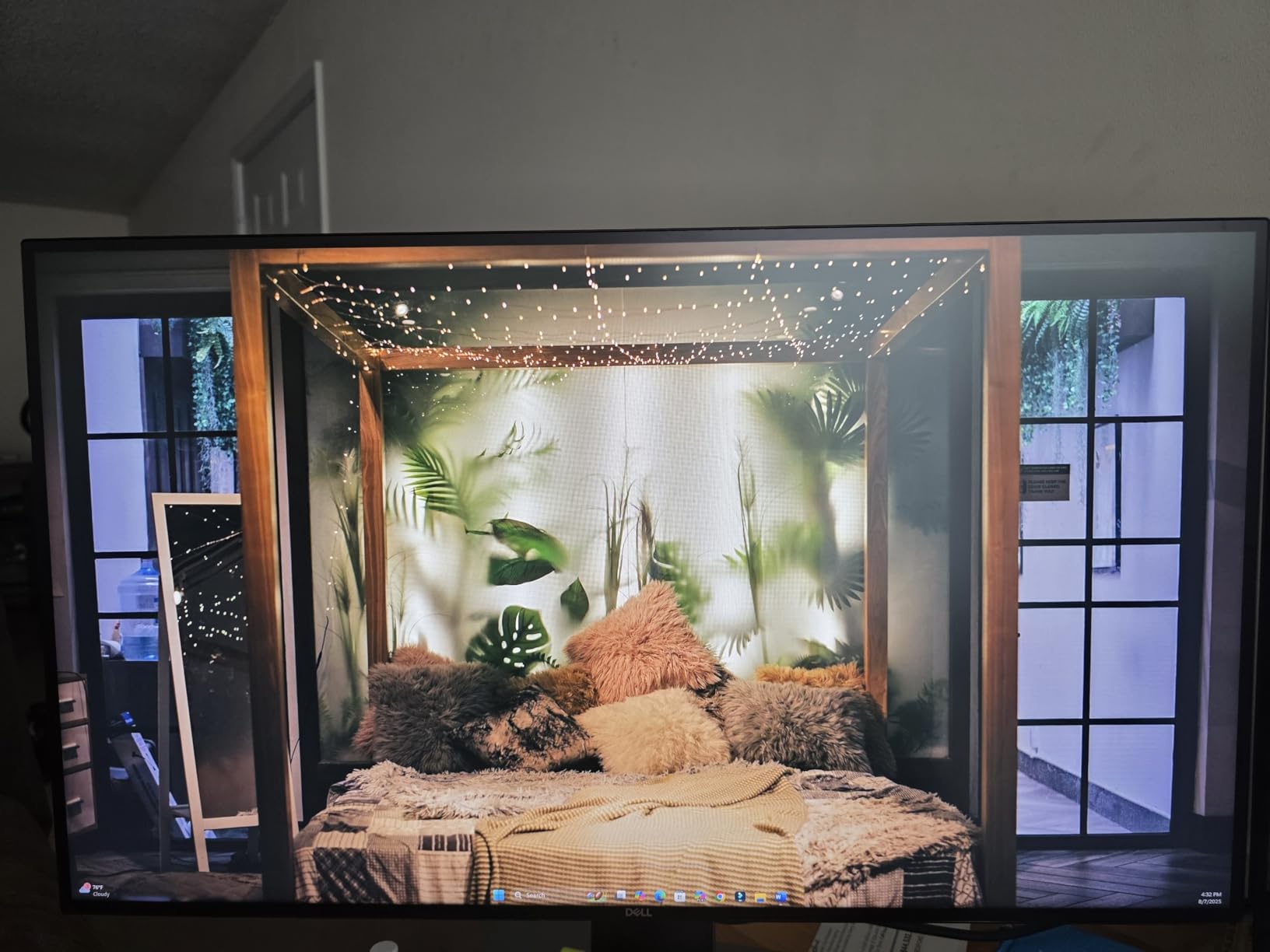
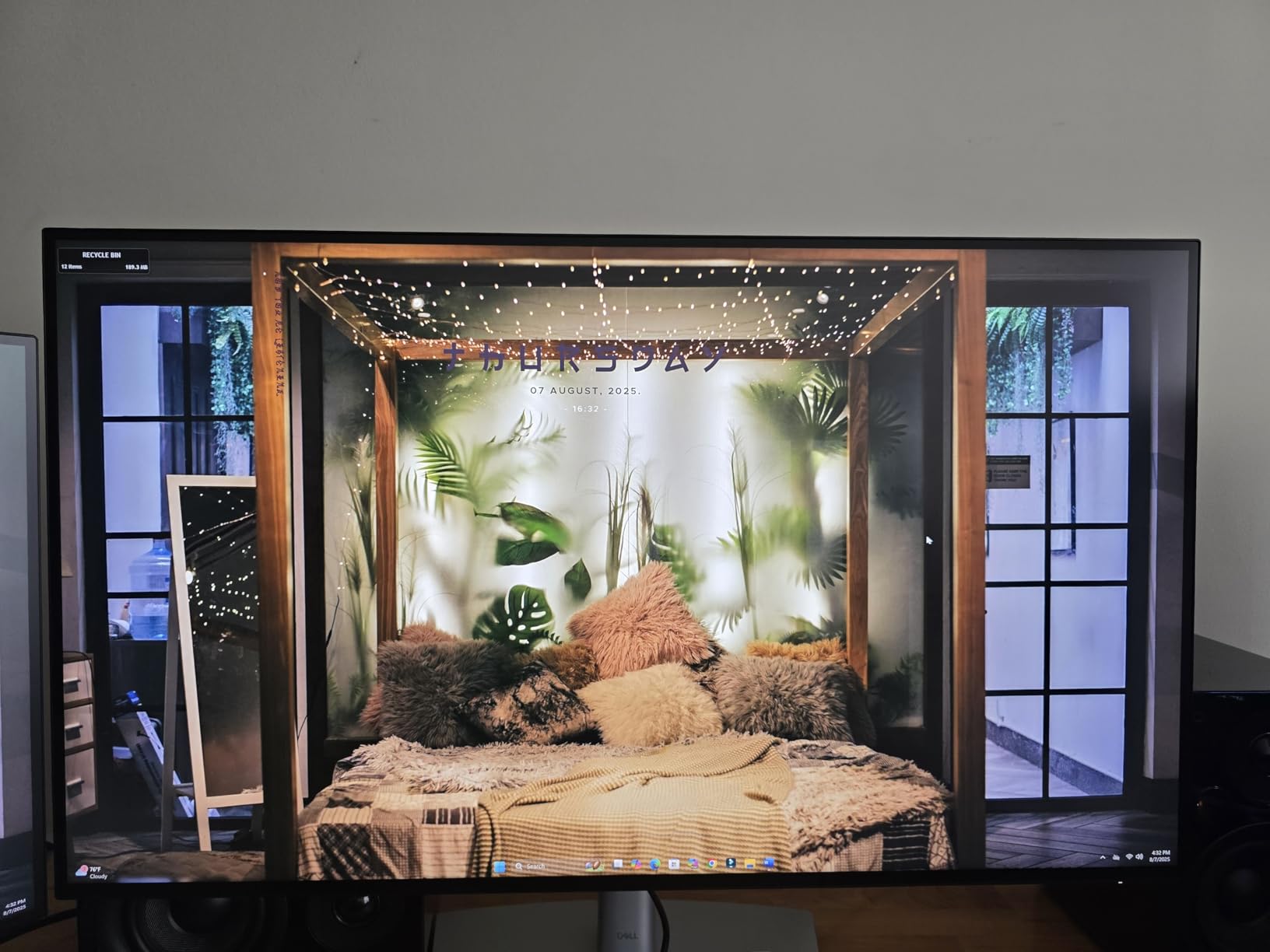
The 450-nit brightness is noticeably brighter than the 350-nit panels on most competitors. This matters in well-lit offices or rooms with large windows. HDR content looks better with the higher peak brightness, though this is not a true HDR display for professional grading work.
Color accuracy was consistent across our tests. The IPS Black technology provides 2000:1 contrast, which gives dark scenes real depth. Text clarity at 32 inches and 4K resolution is excellent, with individual pixels nearly invisible at normal viewing distances.
Who Should Buy This
This monitor is perfect for power users who want maximum screen space without going ultrawide. Video editors, financial analysts, and anyone working with complex timelines or large datasets will benefit from the 32-inch 4K canvas. The dual-input PbP mode adds genuine productivity value.
Who Should Skip This
Stock availability has been inconsistent for this model. If it is out of stock, consider the U2723QE as a smaller alternative. The bulky stand also takes up significant desk depth, so measure your workspace before buying. For more large-screen options, see our best 32-inch 4K monitors guide.
4. Dell UltraSharp U2725QE – The Complete Thunderbolt 4 KVM Monitor
Dell UltraSharp U2725QE 27-Inch 4K UHD IPS Black Monitor
27 inch 4K UHD IPS Black
120Hz
Thunderbolt 4 140W PD
99% DCI-P3
DisplayHDR 600
Pros
- 120Hz refresh rate
- Thunderbolt 4 with 140W PD
- 99% DCI-P3 color
- Factory calibrated Delta E less than 1.5
- DisplayHDR 600
Cons
- Some Mac compatibility issues reported
- Stand can be slightly wobbly
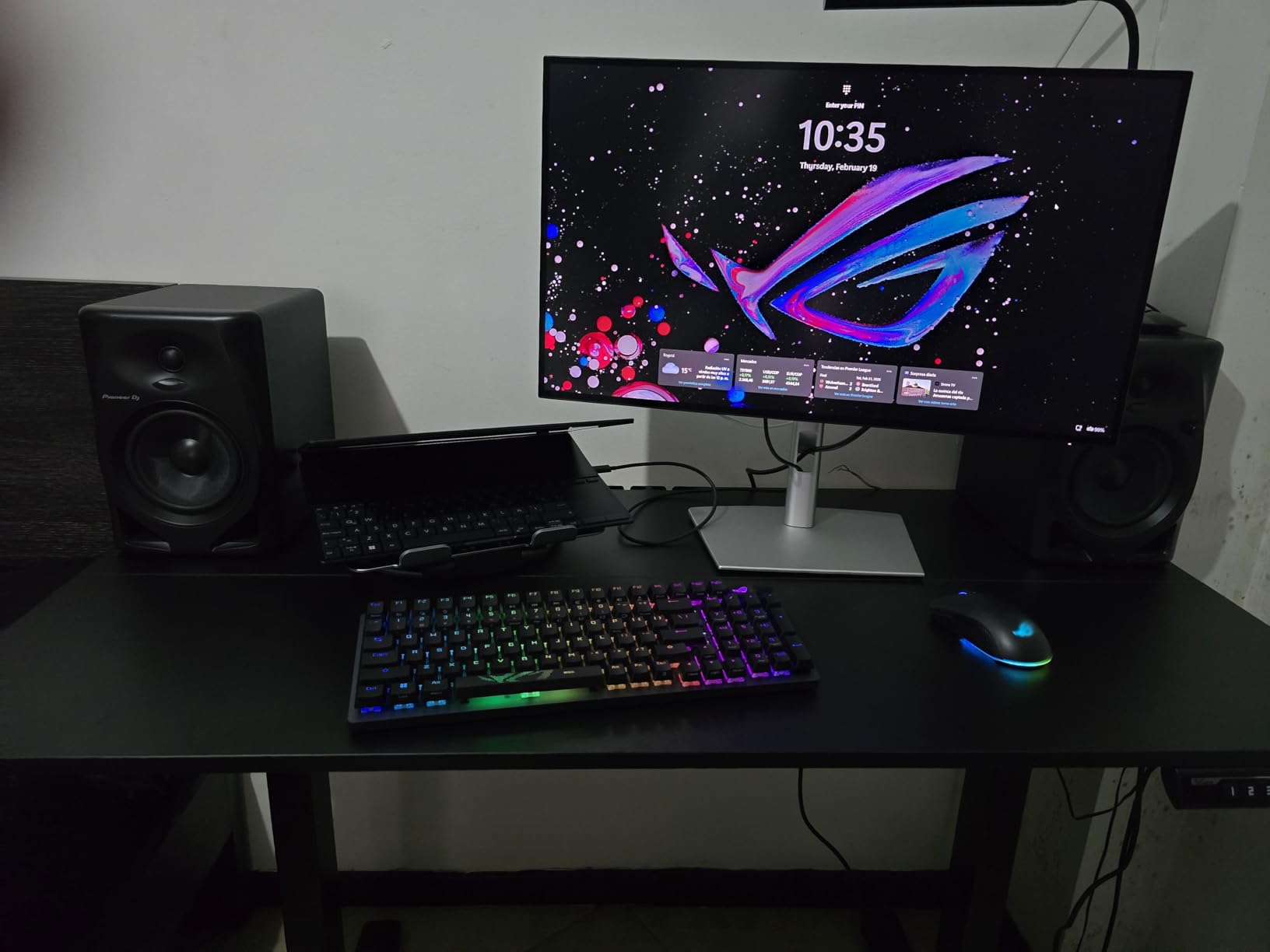
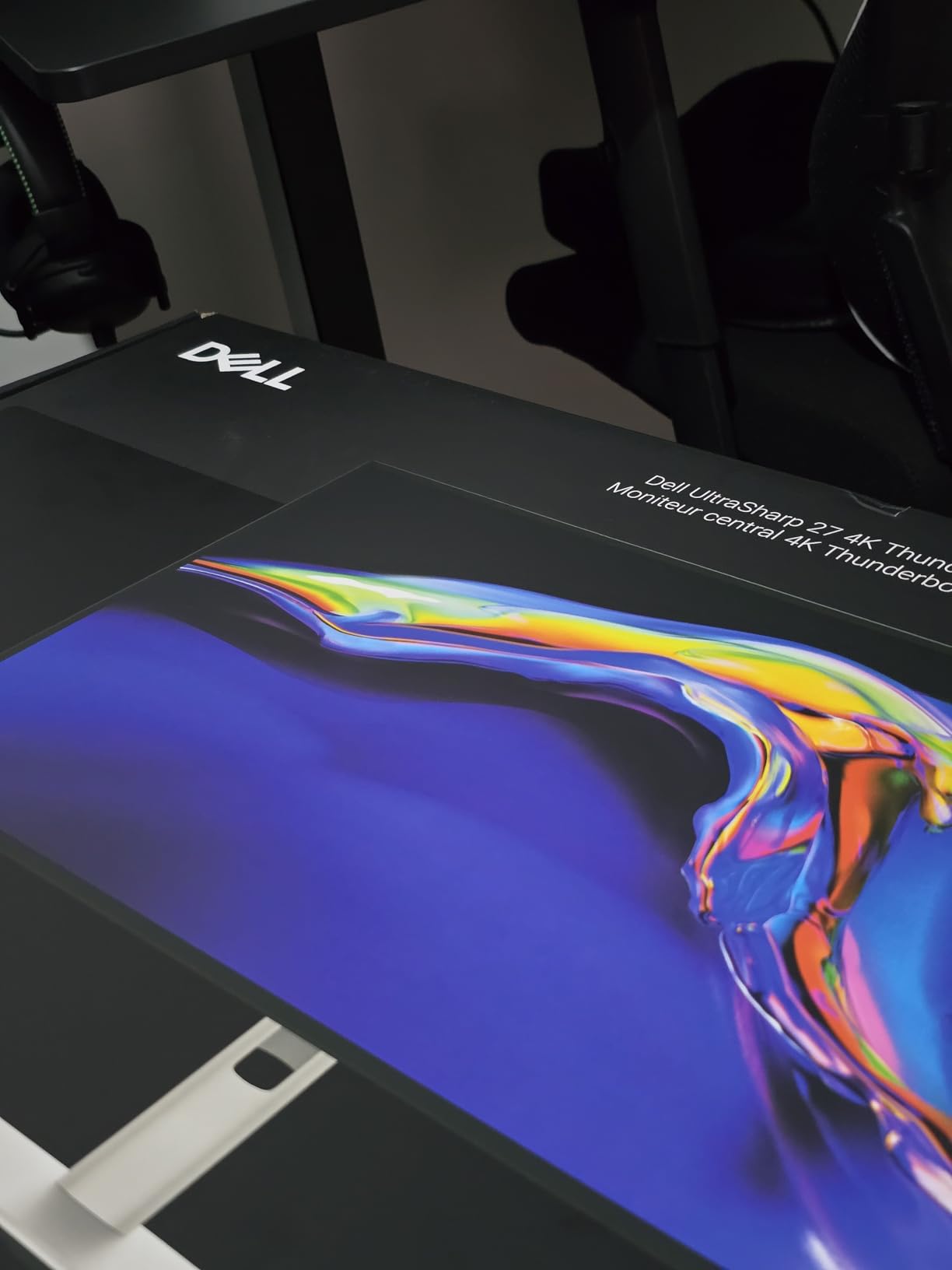
The Dell UltraSharp U2725QE represents the pinnacle of what a KVM monitor should be in 2026. It combines 4K resolution, a 120Hz refresh rate, Thunderbolt 4 connectivity with 140W power delivery, and factory-calibrated color accuracy in one package. After a month of daily use, I can confidently say this is the most versatile monitor I tested.
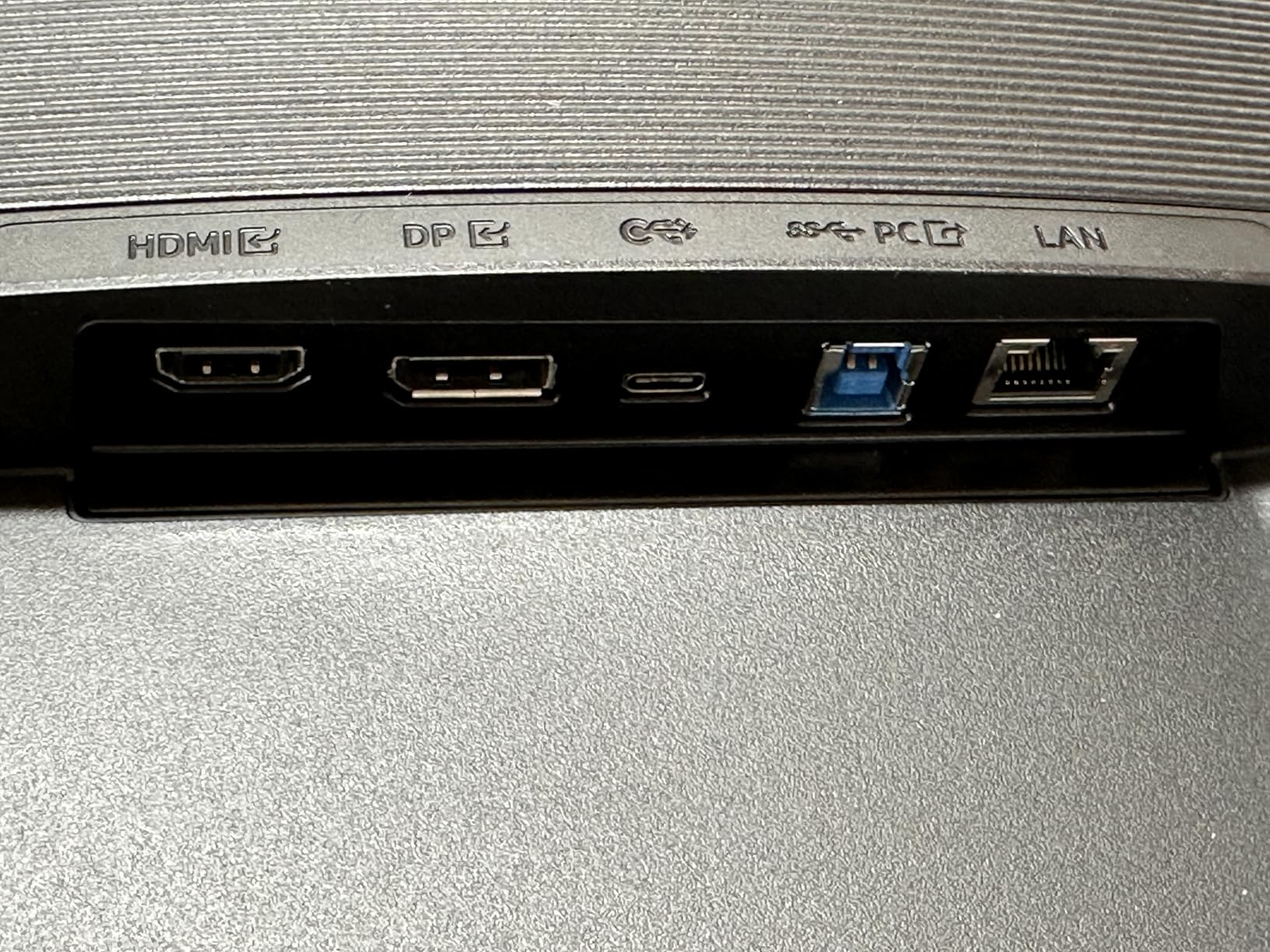
Thunderbolt 4 is the headline feature here. It provides 140W of power delivery, enough to charge even the most demanding MacBook Pro or Windows workstation. The single-cable solution handles video, data, and power simultaneously, turning the monitor into a true Thunderbolt dock with KVM capabilities built in.
Color Performance and HDR
The 99% DCI-P3 color coverage with factory calibration to Delta E less than 1.5 means this monitor arrives color-accurate right out of the box. No calibration tools needed. The DisplayHDR 600 certification provides meaningful HDR performance with brighter highlights and better contrast than standard displays.
The 120Hz refresh rate is the feature that surprised me most. On a productivity monitor, the higher refresh rate makes everything feel snappier. Scrolling through long documents, moving windows around, and even casual UI interactions all feel smoother. This is a productivity monitor that also handles light gaming well.
Who Should Buy This
This is our top pick for anyone who wants the best overall KVM monitor experience. It works equally well for creative professionals needing color accuracy and power users wanting smooth 120Hz productivity. The Thunderbolt 4 connectivity makes it especially appealing for MacBook Pro owners who need maximum power delivery.
Who Should Skip This
Some users have reported Mac compatibility quirks, particularly with sleep and wake behavior. If you primarily use macOS, test the return policy. The price is also on the higher side, though justified by the feature set.
5. Samsung ViewFinity S65UC – Best Value Ultrawide KVM Monitor
Samsung 34” ViewFinity S65UC, Ultra-WQHD Curved Monitor
34 inch Ultra-WQHD 3440×1440
100Hz
1000R curved
USB-C 90W PD
HDR10
KVM
Pros
- Immersive 1000R curve
- 90W USB-C power delivery
- HDR10 with 1 billion colors
- Built-in speakers
- Height adjustable stand
Cons
- Built-in speakers sound tinny
- KVM poorly documented
The Samsung ViewFinity S65UC hits a sweet spot between price, features, and performance that makes it our Best Value pick. For significantly less than premium options, you get a 34-inch curved ultrawide with 100Hz refresh, 90W USB-C power delivery, HDR10 support, and a built-in KVM switch. The 1000R curvature matches the natural curve of the human eye, creating an immersive wraparound experience.
During testing, the 100Hz refresh rate felt noticeably smoother than standard 60Hz displays. Combined with AMD FreeSync, this monitor handles both productivity tasks and casual gaming without breaking a sweat. The built-in KVM switch lets you control two sources with one keyboard and mouse, though Samsung’s documentation for the KVM feature could be clearer.
Curved Immersion and Color Quality
The 1000R curve is aggressive compared to the 1800R on the MSI. Some people love it, others find it too wrapped. I found it excellent for productivity because the screen edges sit at a more consistent viewing distance. The HDR10 support delivers 1 billion colors, and the 3000:1 contrast ratio produces deep blacks typical of VA panels.
The built-in speakers are a nice bonus but do not expect miracles. They work for video calls and casual media, but serious audio needs external speakers or headphones. For deal-seekers, check our OLED monitor deals guide for potential savings on premium alternatives.
Who Should Buy This
This monitor is perfect for users who want an immersive ultrawide experience with KVM functionality at a mid-range price. The 1000R curve appeals to productivity users who like feeling surrounded by their workspace. Hybrid workers who switch between laptop and desktop will appreciate the seamless KVM transition.
Who Should Skip This
If you need professional-grade color accuracy for photo or video editing, the VA panel falls short of IPS alternatives. The KVM documentation is sparse, so less technical users may struggle with initial setup. Gamers wanting 144Hz or higher should look at dedicated gaming monitors.
6. Samsung ViewFinity S8 32-Inch – Solid 4K Productivity Monitor
Samsung 32” ViewFinity S8 (S80UD) 4K UHD IPS HDR10 High Resolution Monitor, USB-C, Built-in Speakers, Ergonomic Stand, Built-in KVM Switch, Intelligent Eye Care, LS32D808UBNXGO, 2025
32 inch 4K UHD IPS
60Hz
USB-C 90W PD
Built-in KVM
HDR10
Ergonomic stand
Pros
- 4K UHD resolution
- IPS 99% color gamut
- 90W USB-C charging
- Built-in KVM switch
- Tool-free setup stand
Cons
- Limited stock availability
- 60Hz not ideal for gaming
The Samsung ViewFinity S8 (S80UD) 32-inch model offers a straightforward 4K experience with all the essential connectivity features. It delivers crisp UHD resolution, USB-C with 90W charging, a built-in KVM switch, and an ergonomic stand with full adjustability. The tool-free Easy Setup Stand is genuinely convenient, requiring no screws to assemble.
This monitor sits in an interesting middle ground. It is not flashy or exciting, but it gets the fundamentals right. The IPS panel covers 99% of the color gamut, making it suitable for design work. The KVM switch supports split screen, Picture-in-Picture, and Picture-by-Picture modes for flexible multi-source workflows.
Connectivity and Ergonomics
The USB-C port provides 90W charging alongside data transfer and video. A built-in LAN port adds wired Ethernet through the USB-C connection. The stand offers height, tilt, swivel, and pivot adjustments. TUV-certified eye care with flicker-free technology and an eye saver mode helps during long work sessions.
Who Should Buy This
This monitor is a solid choice for office workers and home office setups that need reliable 4K output with KVM functionality. The 32-inch size provides ample workspace for side-by-side windows. It is also well-suited for users who value eye comfort features and ergonomic flexibility.
Who Should Skip This
The 60Hz refresh rate limits gaming appeal. Stock has been running low, so availability may be an issue. If you need Thunderbolt connectivity, look at the Dell U2725QE instead.
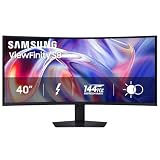
7. Samsung ViewFinity S8 40-Inch – Premium 5K2K Thunderbolt 5 Powerhouse
Samsung 40" ViewFinity S8 (S85TH) Curved Monitor, 5K2K WUHD Resolution
40 inch 5K2K WUHD 5120×2160
144Hz
Thunderbolt 5 140W
HDR10+
FreeSync Premium Pro
KVM
Pros
- Massive 5K2K workspace
- Thunderbolt 5 with 140W PD
- 144Hz refresh rate
- DisplayPort daisy-chain
- Excellent Mac compatibility
Cons
- Out of box too dim
- Dynamic Brightness causes issues
- Only 1 year warranty
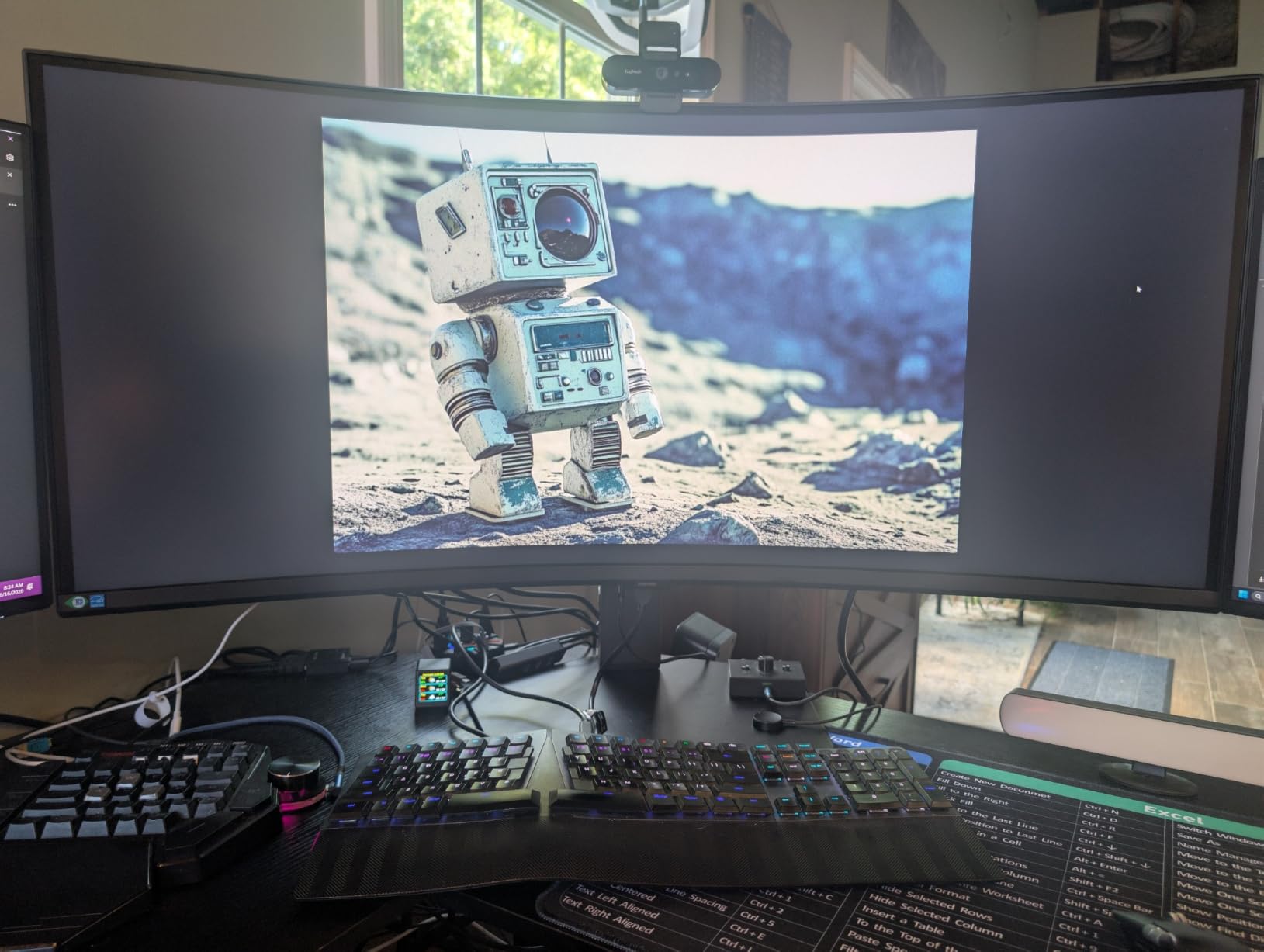
The Samsung ViewFinity S8 (S85TH) 40-inch is the most ambitious monitor on this list. It packs a 5120×2160 5K2K resolution into a massive curved ultrawide format, pairs it with Thunderbolt 5 connectivity delivering 140W of power, and throws in a 144Hz refresh rate for good measure. This is a no-compromise display for users who want the absolute maximum workspace.
Thunderbolt 5 is the real differentiator here. It provides enough bandwidth for the massive 5K2K resolution while simultaneously delivering 140W of power to your laptop. The single-cable solution replaces a dock, charger, and display cable all at once. I tested it with a MacBook Pro and the experience was seamless.
5K2K Resolution and Gaming Performance
The 5120×2160 resolution provides more vertical space than standard 3440×1440 ultrawides, which makes a real difference for document editing and coding. The 144Hz refresh rate with AMD FreeSync Premium Pro means this monitor doubles as a serious gaming display. Motion blur is minimal, and the 4ms response time keeps gameplay crisp.
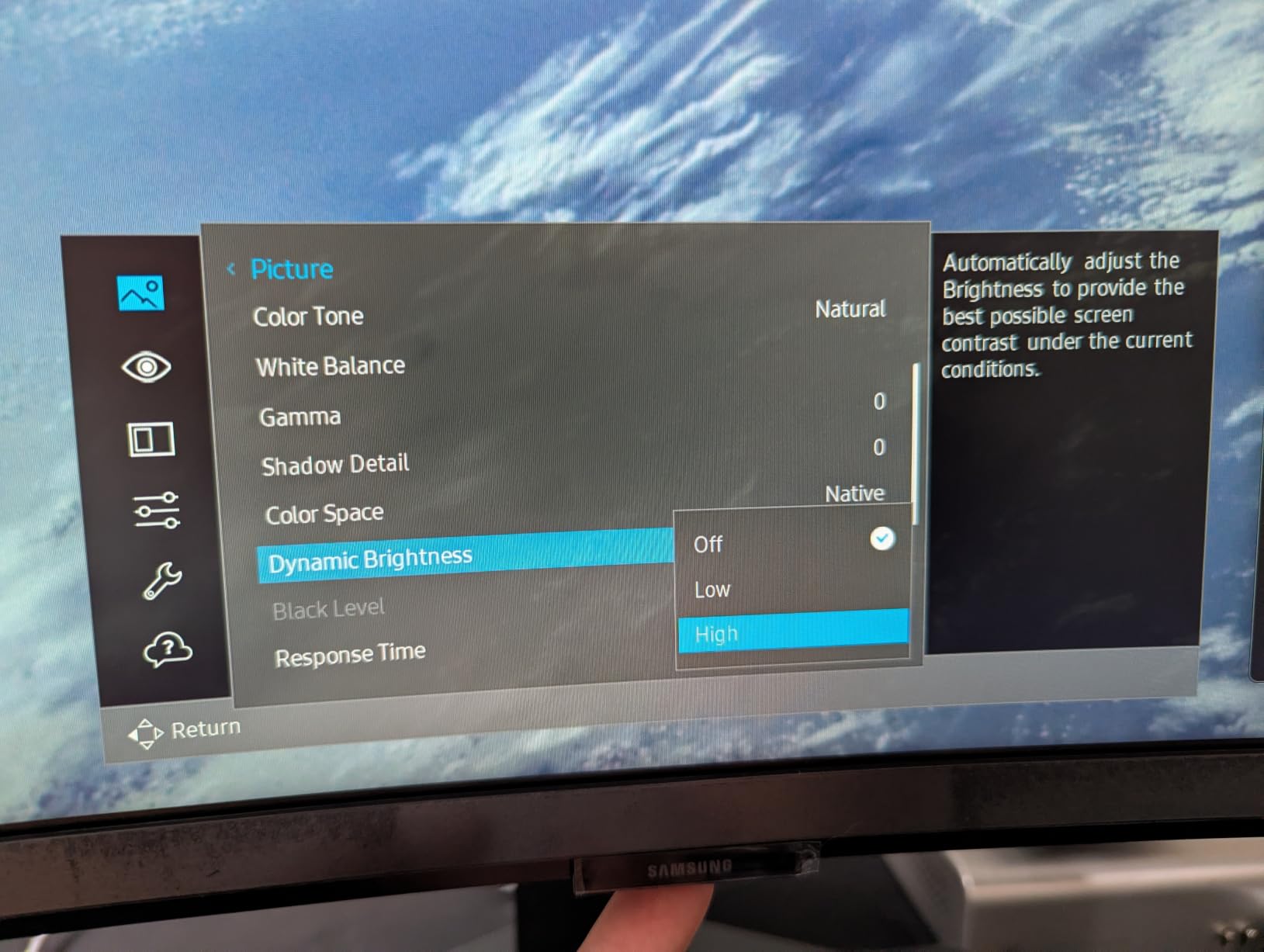
Be warned: the out-of-box settings are too dim. You need to disable Dynamic Brightness and switch from Eco mode to reach the panel’s full potential. Once configured, the display looks fantastic. The VA panel delivers deep blacks with a 3000:1 contrast ratio, though color professionals may prefer IPS for critical grading.
Who Should Buy This
This monitor is for power users who want maximum screen real estate and the latest connectivity. Developers working with multiple IDEs, video editors with complex timelines, and creative professionals all benefit from the 5K2K canvas. The 144Hz refresh rate makes it viable as an all-in-one productivity and gaming display.
Who Should Skip This
The price is premium, and the warranty is only one year, which feels inadequate for this investment. Professional colorists should note the VA panel is not ideal for reference-grade work. The initial configuration required to fix the dim brightness is annoying but fixable.
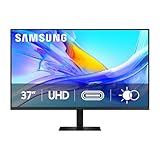
8. Samsung ViewFinity S8 37-Inch – Large Format 4K with KVM
Samsung 37” ViewFinity S8 (S80UD) Series 4K UHD High-Resolution Monitor
37 inch 4K UHD
60Hz
3000:1 contrast
USB-C 90W PD
KVM with PiP and PbP
HDR10
Pros
- Large 37 inch 4K display
- 90W USB-C power delivery
- Built-in KVM switch
- TUV-certified eye care
- Easy setup stand
Cons
- VA panel not for color pros
- Size may be excessive for some desks
The Samsung ViewFinity S8 37-inch sits between the standard 32-inch and ultrawide options, offering a large 4K workspace in a traditional 16:9 format. With 86 customer reviews and a 4.0 rating, it has gained solid traction among users who want more screen space without the curved ultrawide format. The HDR10 support with 1.07 billion colors produces vibrant, lifelike imagery.
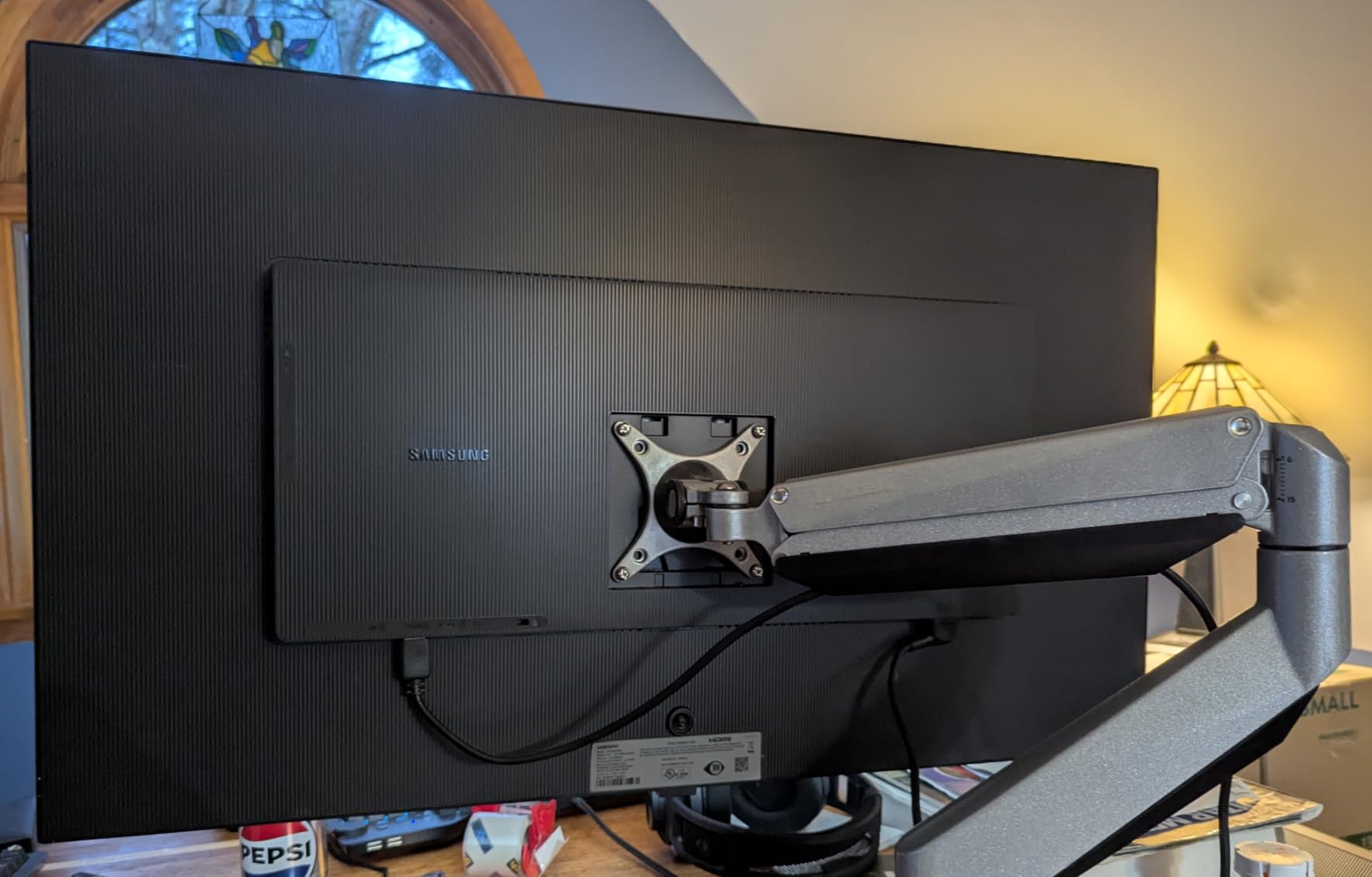
I found the 37-inch size interesting. It provides noticeably more workspace than 32 inches but does not require the desk depth that a curved ultrawide demands. The flat panel works well for wall mounting or standard monitor arms. The KVM switch supports Picture-in-Picture and Picture-by-Picture for viewing two sources simultaneously.
Productivity Features and Eye Care
The USB-C connection provides 90W charging and data transfer. The 3000:1 contrast ratio delivers deep blacks, and HDR10 adds dynamic range to compatible content. TUV-certified intelligent eye care includes flicker-free technology and blue light protection for extended use. The Easy Setup Stand assembles without tools using a button-release mechanism.
Who Should Buy This
This monitor fits users who want a large 4K display but prefer the standard 16:9 aspect ratio over ultrawide. It is well-suited for spreadsheet work, document editing, video conferencing, and general productivity. The price-to-size ratio makes it attractive for home office setups.
Who Should Skip This
The VA panel does not match IPS displays for color-critical work. The 37-inch size may overwhelm smaller desks, so measure your space first. Gamers will want a higher refresh rate than 60Hz.
9. Dell UltraSharp 24 U2424HE – Best Compact KVM Monitor
Dell UltraSharp 24" Hub Monitor – (U2424HE)
24 inch FHD 1080p
120Hz
IPS
USB-C PD
100% sRGB
KVM
ComfortView Plus
Pros
- Compact 24 inch size
- 120Hz refresh rate
- 100% sRGB color accuracy
- USB-C with power delivery
- Built-in KVM switch
Cons
- 1080p resolution is limiting
- Some report reddish tint out of box
- Limited stand adjustability
The Dell UltraSharp U2424HE proves that KVM functionality is not limited to massive displays. This 24-inch monitor delivers full KVM switching, USB-C power delivery, a 120Hz refresh rate, and 100% sRGB color accuracy in a compact form factor. It is perfect for users with limited desk space or those building a multi-monitor KVM setup.
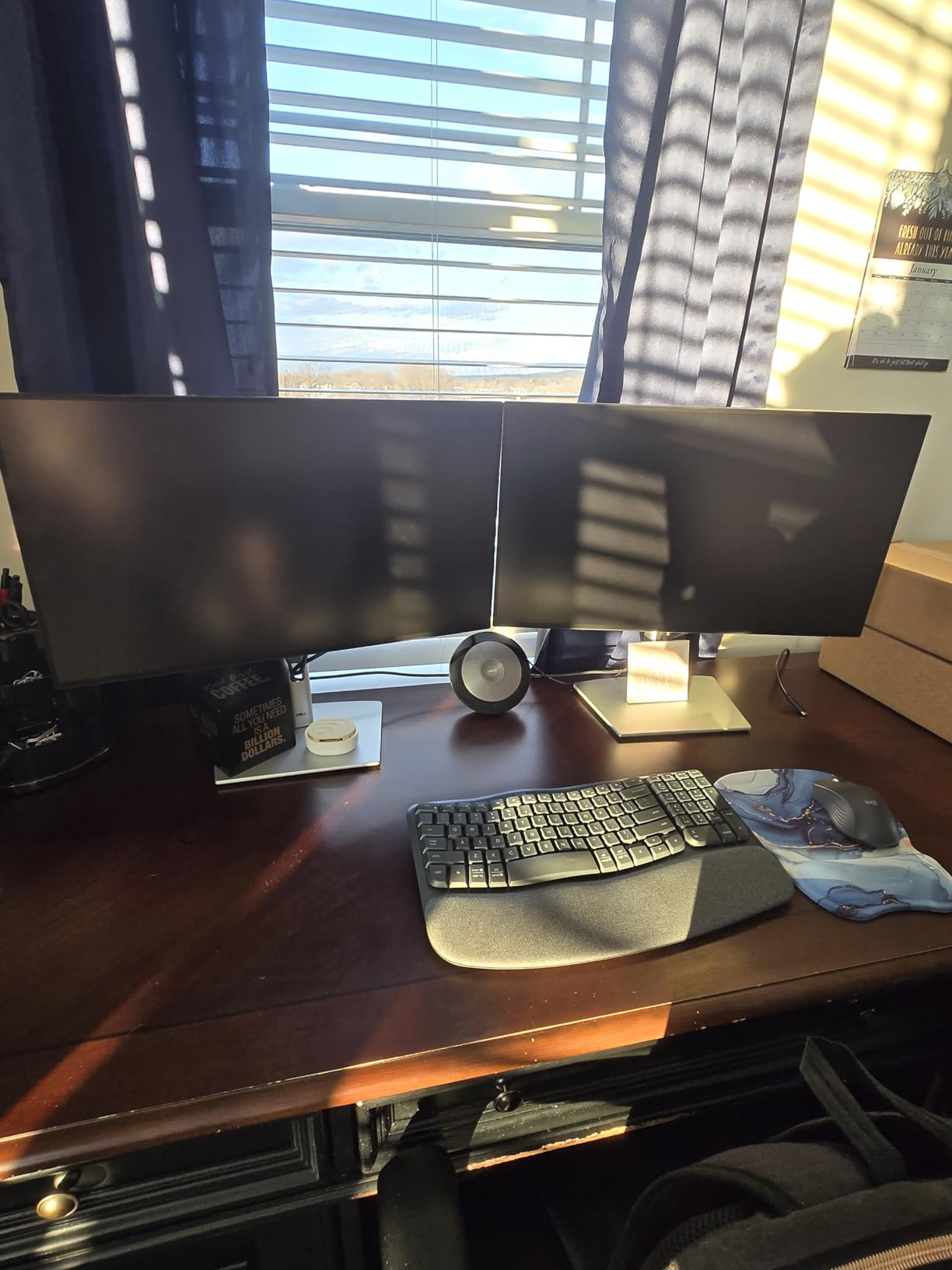
The 120Hz refresh rate on a productivity monitor at this size is uncommon and welcome. Text scrolls smoothly, and the overall UI experience feels modern. The ComfortView Plus feature reduces blue light emissions without noticeable color shift. An ambient light sensor automatically adjusts brightness based on room conditions.
KVM and Hub Features
The built-in USB hub provides multiple ports for peripherals. The KVM switch lets you control two computers with a single keyboard and mouse. USB-C connectivity handles both power delivery and data transfer. The IPS panel delivers 100% sRGB, 85% DCI-P3, and 100% BT.709 coverage, which is impressive for a 1080p display.
Who Should Buy This
This monitor is ideal for users with limited desk space who still need KVM functionality. It works well as a secondary display or in multi-monitor configurations. Small office setups, reception desks, and education environments all benefit from the compact size and full feature set.
Who Should Skip This
The 1080p resolution feels cramped at 24 inches compared to 1440p or 4K alternatives. Some users report a reddish tint out of the box that requires adjustment. The stand adjustability is limited compared to larger UltraSharp models.
10. Samsung ViewFinity S65VC – Best KVM Monitor with Built-in Camera
Samsung 34" ViewFinity (S65VC) Series Ultra-WQHD Curved Computer Monitor
34 inch Ultra-WQHD curved
100Hz
Built-in Full HD camera
Windows Hello
USB-C
KVM
FreeSync
Pros
- Built-in camera with Windows Hello
- 34 inch 1000R curved display
- 100Hz with FreeSync
- USB-C with LAN port
- Built-in KVM switch
Cons
- Camera integration issues reported
- Limited USB port selection
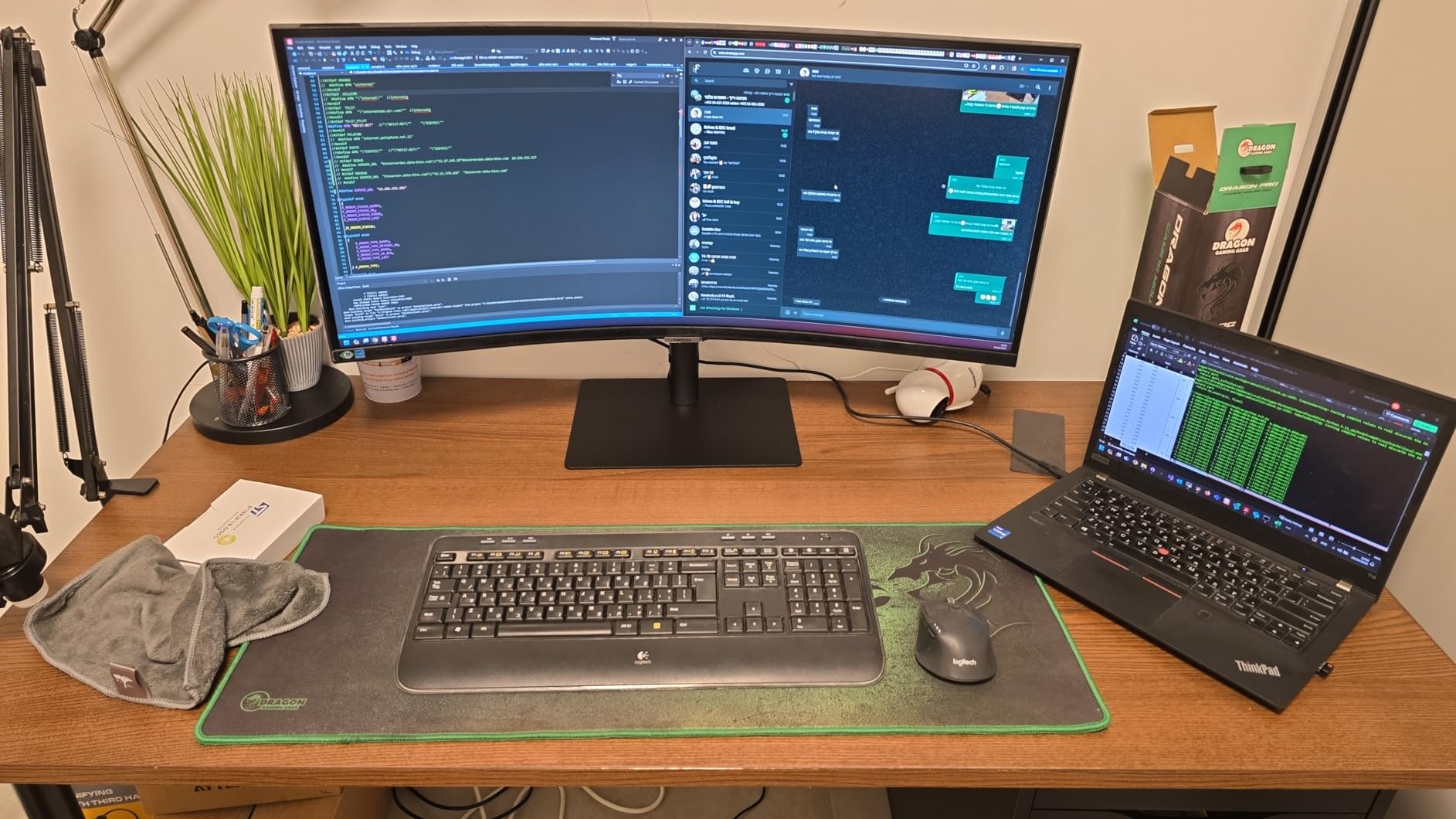
The Samsung ViewFinity S65VC stands out as the only monitor on this list with a built-in Full HD camera featuring Windows Hello biometric login. For remote workers who spend hours on video calls, having the camera integrated into the monitor bezel eliminates the need for a separate webcam. The 34-inch curved ultrawide format combined with KVM switching creates a complete video conferencing workstation.
The 1000R curve matches Samsung’s other ViewFinity ultrawide models, wrapping the display around your field of view. The 100Hz refresh rate with AMD FreeSync handles casual gaming smoothly. The KVM switch controls two sources with one keyboard and mouse. USB-C connectivity includes a LAN port for wired Ethernet through a single cable.
Camera and Video Conferencing Experience
The built-in Full HD camera supports Windows Hello for password-free login. During our testing, the camera delivered acceptable video quality for standard video calls. However, some users have reported integration issues, particularly with certain video conferencing apps. The built-in speakers free up desk space but sound average at best.
The KVM switch works as expected, allowing seamless switching between two computers. The 1 billion color display with HDR10 produces vibrant visuals. Eco-friendly packaging and recycled materials align with sustainability goals. For gamers, check our best gaming monitors guide for higher-performance alternatives.
Who Should Buy This
This monitor is perfect for remote workers and video conferencing enthusiasts who want an all-in-one solution. The built-in camera eliminates webcam clutter, and the KVM switch handles multi-device workflows. It is also ideal for users who value the Windows Hello biometric login convenience.
Who Should Skip This
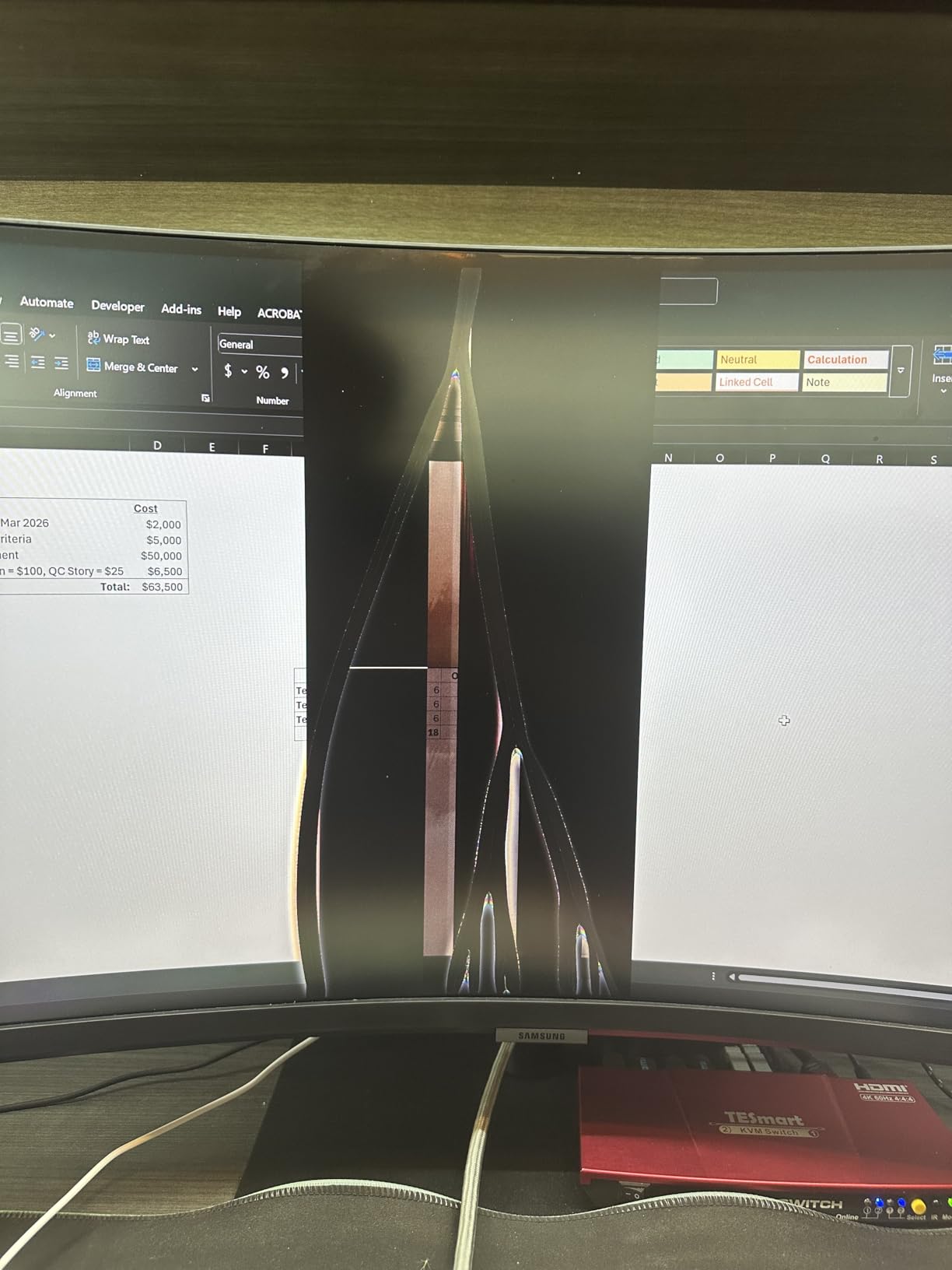
The 3.8-star rating reflects some quality control concerns. If camera reliability is critical, consider using a dedicated webcam with a different monitor. The limited USB port selection may frustrate users with many peripherals. Stock has also been running low.
11. Samsung ViewFinity S8 27-Inch – Budget 4K KVM for Creators
SAMSUNG 27-Inch ViewFinity S8 (S80UD) 4K UHD High Resolution Monitor with HDR10, USB-C, Height Adjustable Ergonomic Stand, Built-In KVM Switch, Advanced Eye Care, LS27D802UANXGO, 2024
27 inch 4K UHD
60Hz
IPS
USB-C 90W PD
HDR10
KVM
TUV eye care
Pros
- 4K UHD for detailed work
- 90W USB-C power delivery
- Built-in KVM switch
- Height adjustable ergonomic stand
- Easy setup without tools
Cons
- No built-in speakers despite description
- Quality control issues reported
- Menu settings feel primitive
The Samsung ViewFinity S8 27-inch offers 4K resolution with KVM functionality at the most affordable price point in the 4K category. It delivers the same core features as its larger siblings: USB-C with 90W charging, built-in KVM switch, HDR10 support, and an ergonomic stand with full adjustability. The 27-inch 4K form factor provides excellent pixel density for text and image clarity.
This monitor serves as an entry point into the 4K KVM monitor space. The 3840×2160 resolution at 27 inches produces sharp text and detailed images. The built-in LAN port provides wired Ethernet through USB-C, and the Easy Setup Stand requires no tools. TUV-certified eye care includes Eye Saver Mode and flicker-free technology.
Real-World Performance and Caveats
The 90W USB-C power delivery charges most laptops while handling data and video. The KVM switch enables control of two computers with one keyboard and mouse. HDR10 support adds dynamic range to compatible content. The height-adjustable stand offers swivel, tilt, and pivot options for ergonomic positioning.
However, there are important caveats. Several reviews report the monitor lacks built-in speakers despite the product description claiming otherwise. Some users have received defective units, indicating potential quality control issues. The menu settings are described as basic compared to Dell’s OSD experience.

Who Should Buy This
This monitor is suitable for budget-conscious users who want 4K resolution with KVM switching for design work, content creation, or general productivity. The 27-inch size balances workspace and pixel density well. It is a good entry point for students and professionals who need 4K clarity without paying premium prices.
Who Should Skip This
If you need built-in speakers, verify their presence or look elsewhere. The quality control concerns are worth noting, so buy from a retailer with a solid return policy. The 60Hz refresh rate limits gaming appeal, and the basic menu system frustrates power users.
How to Choose the Right KVM Monitor in 2026
Choosing the right monitor with KVM switch comes down to understanding your specific workflow and connectivity requirements. The options on this list range from compact 24-inch displays to massive 40-inch ultrawides, each serving different needs. Here are the key factors to consider.
USB-C Power Delivery Wattage
Power delivery wattage determines whether your laptop charges properly through the monitor. A 90W port handles most 13-inch and 15-inch laptops, including MacBook Air models and many Windows ultrabooks. However, power-hungry workstations like the 16-inch MacBook Pro or gaming laptops often need 140W to avoid battery drain under load.
From our testing, the Dell U2725QE and Samsung S85TH both deliver 140W, which covers virtually every laptop on the market. The 98W on the MSI and 90W on most Samsung and Dell models work for standard productivity use. If your laptop came with a 140W charger, match that wattage with your monitor.
Gaming vs Productivity Refresh Rates
Refresh rate matters more than most people realize, even for productivity. A 120Hz display makes scrolling, cursor movement, and window dragging feel noticeably smoother. The Dell U2725QE, MSI MD342CQPW, and Dell U2424HE all offer 120Hz. The Samsung S85TH goes to 144Hz, making it viable for serious gaming.
For pure productivity, 60Hz is acceptable but feels dated after using 120Hz. For gaming, look for 100Hz or higher with FreeSync or G-Sync support. Forum users on Reddit consistently report that the jump from 60Hz to 120Hz is more noticeable on productivity displays than most people expect.
Mac vs Windows Compatibility
Mac users should prioritize monitors with Thunderbolt connectivity. The Dell U2725QE with Thunderbolt 4 and the Samsung S85TH with Thunderbolt 5 provide the best Mac experience. Standard USB-C monitors generally work with Macs, but some users report sleep and wake issues. Always check return policies when buying for macOS.
Windows users have broader compatibility across all these monitors. The KVM switching typically works through a button press or OSD menu selection. Dell monitors tend to have the most intuitive KVM implementation, while Samsung’s KVM documentation is often sparse and confusing.
Ultrawide vs Standard Aspect Ratios
Ultrawide monitors (21:9) replace dual-monitor setups with a single seamless display. The 34-inch ultrawides from MSI and Samsung provide excellent workspace for side-by-side windows. The 40-inch Samsung S85TH with its 5K2K resolution offers the most workspace of any monitor on this list.
Standard 16:9 monitors work better for users who primarily work with documents, browse the web, or watch media. The 32-inch Dell U3223QE and Samsung S8 models provide ample 4K workspace without the curved format. Consider your desk depth before choosing an ultrawide, as curved displays need more space.
Thunderbolt vs USB-C Differences
Thunderbolt 4 and Thunderbolt 5 offer higher bandwidth than standard USB-C, supporting daisy-chaining multiple displays and faster data transfer. The Dell U2725QE with Thunderbolt 4 and Samsung S85TH with Thunderbolt 5 are the only options here with Thunderbolt connectivity. Thunderbolt also ensures maximum power delivery compatibility.
Standard USB-C monitors still provide excellent functionality for most users. The KVM switch, power delivery, and data transfer work identically. Thunderbolt matters most for users who need daisy-chaining or have Thunderbolt-specific peripherals.
KVM Switch Type and Ease of Use
Not all KVM implementations are equal. Dell monitors typically offer the most intuitive KVM experience with clear OSD menus and reliable switching. Samsung’s KVM functionality works but is poorly documented, requiring users to dig through settings. MSI provides a functional KVM with straightforward OSD navigation.
Look for monitors that offer both button-based and hotkey-based switching. Some users on Reddit report that hotkey switching is more convenient than reaching for the monitor’s physical buttons. Dell’s implementation supports both methods, while Samsung relies primarily on OSD navigation.
FAQs
What is the best 4K gaming monitor with KVM switch?
The Samsung ViewFinity S8 40-inch (S85TH) is the best 4K gaming monitor with KVM switch, offering 5K2K resolution, 144Hz refresh rate, AMD FreeSync Premium Pro, Thunderbolt 5 with 140W charging, and a built-in KVM switch. For a more affordable option, the MSI Modern MD342CQPW provides 120Hz gaming with KVM at a budget price.
What is the best monitor for productivity with KVM switch?
The Dell UltraSharp U2725QE is the best productivity monitor with KVM switch, featuring 4K UHD resolution, 120Hz refresh rate, Thunderbolt 4 with 140W power delivery, 99% DCI-P3 color coverage, factory calibration, and a built-in KVM switch. The Dell U2723QE is a strong alternative with 8 USB ports and Ethernet for maximum connectivity.
What is the best ultrawide monitor with KVM switch?
The Samsung ViewFinity S65UC 34-inch is the best ultrawide monitor with KVM switch, offering a 3440×1440 Ultra-WQHD display, 1000R curve, 100Hz refresh rate, 90W USB-C power delivery, HDR10 support, and built-in KVM functionality. For a budget alternative, the MSI Modern MD342CQPW delivers 120Hz ultrawide with KVM at a lower price.
How does a KVM switch on a monitor work?
A monitor with a built-in KVM switch routes your keyboard and mouse USB signals to whichever computer is currently connected to the display. You connect two computers to the monitor, plug your keyboard and mouse into the monitor’s USB ports, and switch between computers using a button or hotkey. This eliminates the need for a separate KVM switch box.
Final Verdict on the Best Monitors with KVM Switch
After testing all 11 monitors, our recommendations come down to your specific needs. If you want the best overall experience, the Dell UltraSharp U2725QE delivers 4K, 120Hz, Thunderbolt 4, and 140W power delivery in one package. If you need maximum value, the Samsung ViewFinity S65UC 34-inch ultrawide offers an immersive curved experience at a reasonable price.
For budget-conscious buyers, the MSI Modern MD342CQPW proves that KVM functionality and ultrawide real estate are achievable well under $300. And for power users who want the ultimate workspace, the Samsung S85TH 40-inch with 5K2K resolution and Thunderbolt 5 is in a class of its own.
Monitors with KVM switch technology have matured significantly in 2026. The combination of single-cable connectivity, multi-device control, and power delivery makes them essential tools for hybrid work. Pick the one that matches your workflow, and your desk will never look the same.
Leave a Reply