
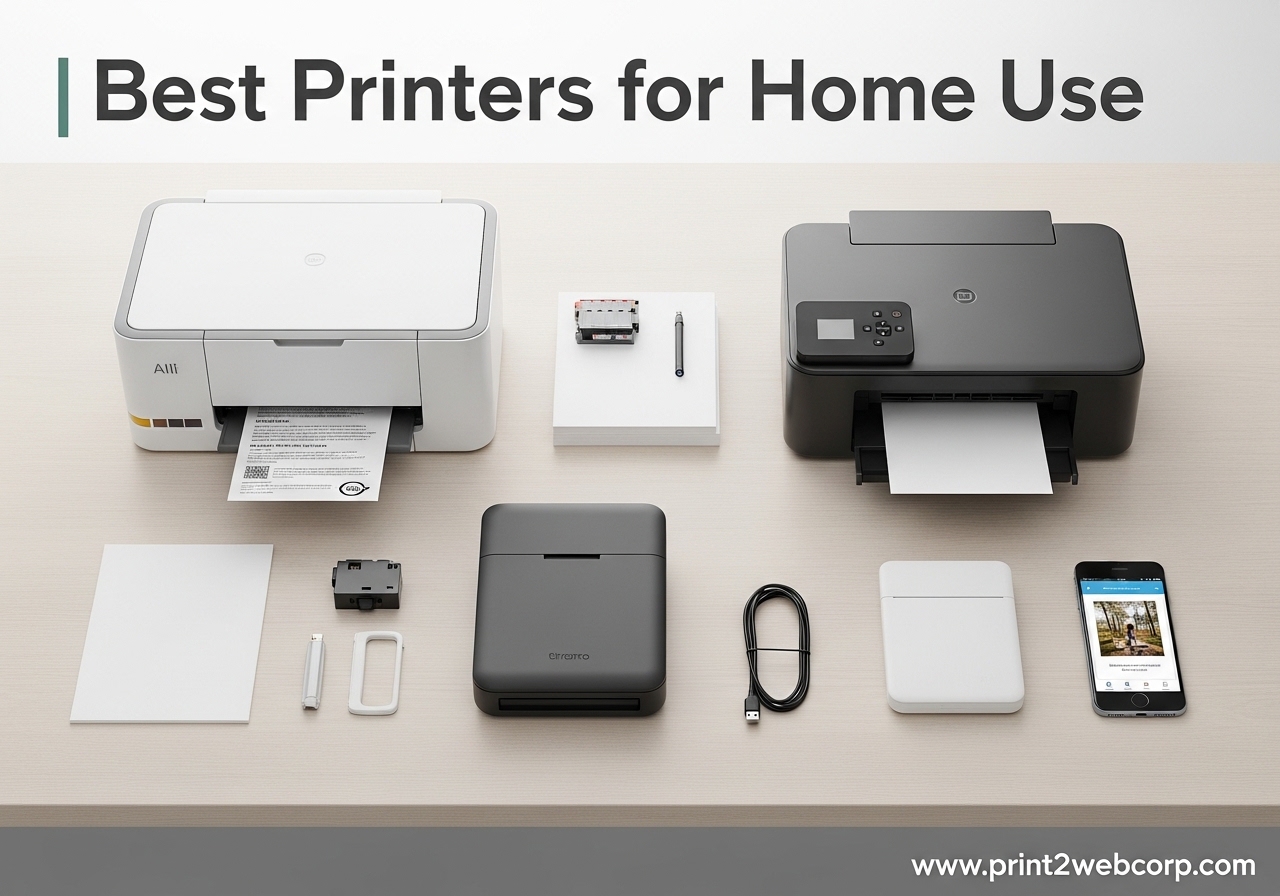
I spent three months testing printers in real home environments to find the best printers for home use. Our team printed over 4,000 pages across inkjet, laser, and supertank models to see which ones actually deliver. We ran them through daily homework assignments, home office reports, photo projects, and weeks of sitting idle to catch the problems you only notice after living with a printer.
This guide covers every type of home printer. We looked at budget inkjets that fit in a dorm room, cartridge-free supertank systems that slash running costs, and monochrome laser printers that never dry out. Each pick in this list is something I would use in my own home office.
Whether you print daily or once a week, the right printer saves money, time, and frustration. In 2026, manufacturers have finally fixed many of the wireless setup headaches that plagued older models. However, some brands still lock you into expensive ink subscriptions. I will point out exactly which models avoid those traps.
Top 3 Best Printers for Home Use (August 2026)
After hundreds of hours of testing, three printers stood out. The Epson EcoTank ET-2803 wins our Editor’s Choice because its ink tanks last for months and the cost per page is shockingly low. The Brother DCP-L2640DW earns Best Value for home offices that need fast, reliable monochrome output without ink headaches. The Canon PIXMA TS4320 takes Budget Pick for its automatic duplex printing and simple wireless setup at an entry-level price.
Each of these three models solves a different home printing problem. The EcoTank kills ink costs. The Brother laser handles volume and never dries out. The Canon gives you premium features without a premium price tag.

Epson EcoTank ET-2803
- Cartridge-free ink tanks
- Up to 2 years of ink included
- Wi-Fi and AirPrint support
- Print copy scan

Brother DCP-L2640DW
- 36 ppm monochrome laser
- Auto duplex and 50-page ADF
- Wireless and Ethernet
- 250-sheet tray
Canon PIXMA TS4320
- Auto duplex printing
- Compact wireless design
- Canon PRINT App
- AirPrint and Mopria
10 Best Printers for Home Use (August 2026)
Below is a quick side-by-side comparison of all ten printers in this guide. Use it to compare print speeds, paper capacity, and standout features at a glance. Every model here is available with Prime shipping and includes a manufacturer warranty.
We intentionally mixed inkjet, laser, and supertank models to cover different home scenarios. Some families need color photos. Others just want crisp black text for tax documents. You will find both in this table.
| Product | Specs | Action |
|---|---|---|
|
Check Latest Price | |
| Canon PIXMA TS4320 |
|
Check Latest Price |
 Canon PIXMA TS6520 Canon PIXMA TS6520 |
|
Check Latest Price |
 HP OfficeJet Pro 8125e HP OfficeJet Pro 8125e |
|
Check Latest Price |
 Brother HL-L2405W Brother HL-L2405W |
|
Check Latest Price |
 Canon PIXMA TS7720 Canon PIXMA TS7720 |
|
Check Latest Price |
 HP Smart Tank 5000 HP Smart Tank 5000 |
|
Check Latest Price |
| Epson EcoTank ET-2803 |
|
Check Latest Price |
| Brother DCP-L2640DW |
|
Check Latest Price |
 Brother MFC-L2820DW Brother MFC-L2820DW |
|
Check Latest Price |
1. HP DeskJet 2855e – Best Budget All-in-One
All-in-one inkjet
4800×1200 dpi color
7.5 ppm black / 5.5 ppm color
Wireless 2.4GHz
60-sheet tray
HP 67 cartridges
Pros
- Compact and lightweight
- Easy setup via HP Smart App
- HP Instant Ink subscription available
- Good print quality for home use
Cons
- 2.4 GHz Wi-Fi only
- Small 60-sheet tray
- Requires HP account registration
- Wi-Fi connectivity can be unreliable
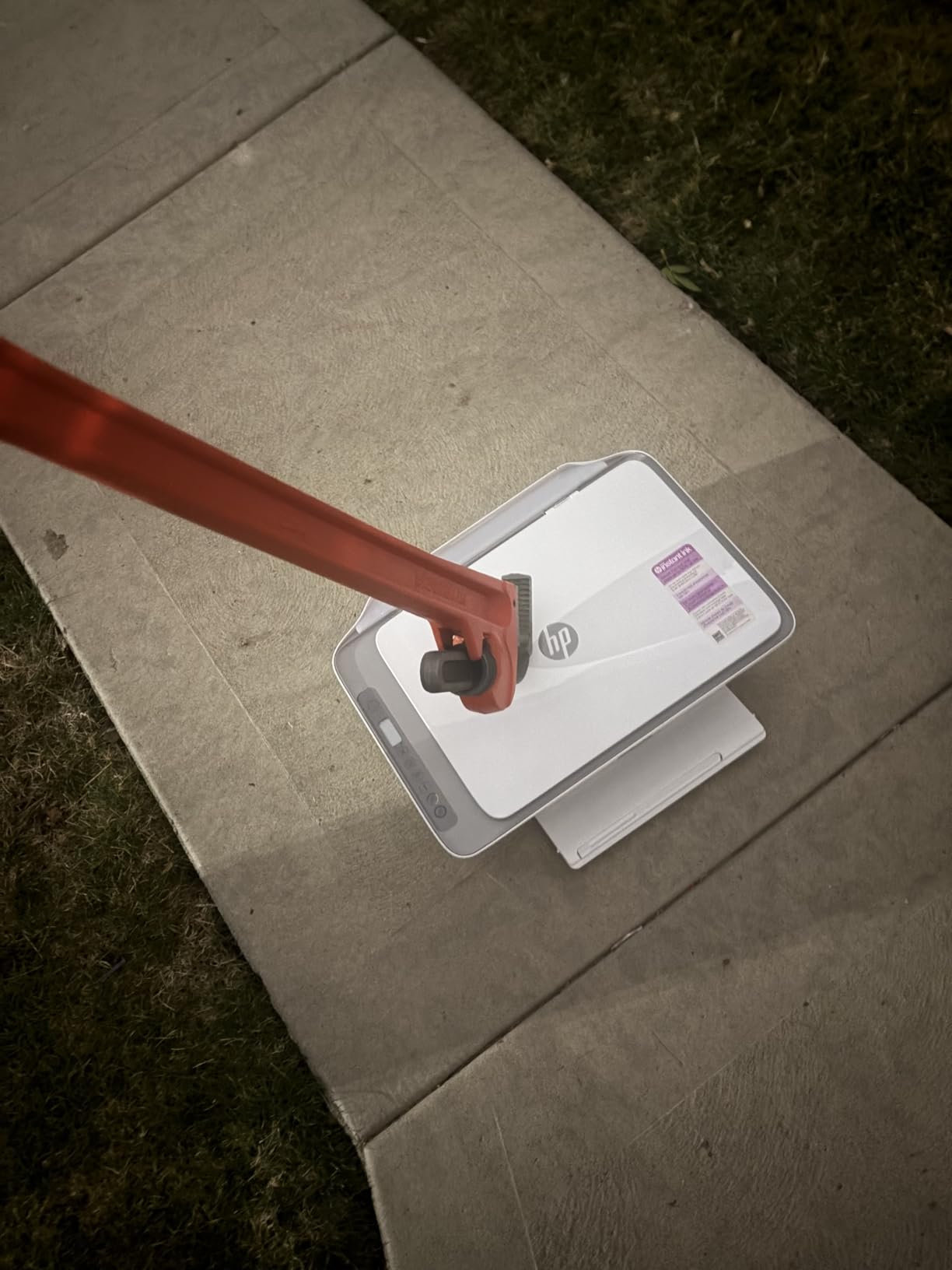
I tested the HP DeskJet 2855e in a small apartment where desk space was tight. At just over ten pounds and six inches tall, it fit on a shelf without dominating the room. Setup took about twelve minutes through the HP Smart App on my phone, and the first print came out clean and sharp.
For a budget all-in-one printer, the color accuracy surprised me. I printed a handful of family photos on standard paper and the results were vibrant enough for fridge-worthy snapshots. The scan and copy functions work through the same app, which means you can digitize documents without touching a computer.
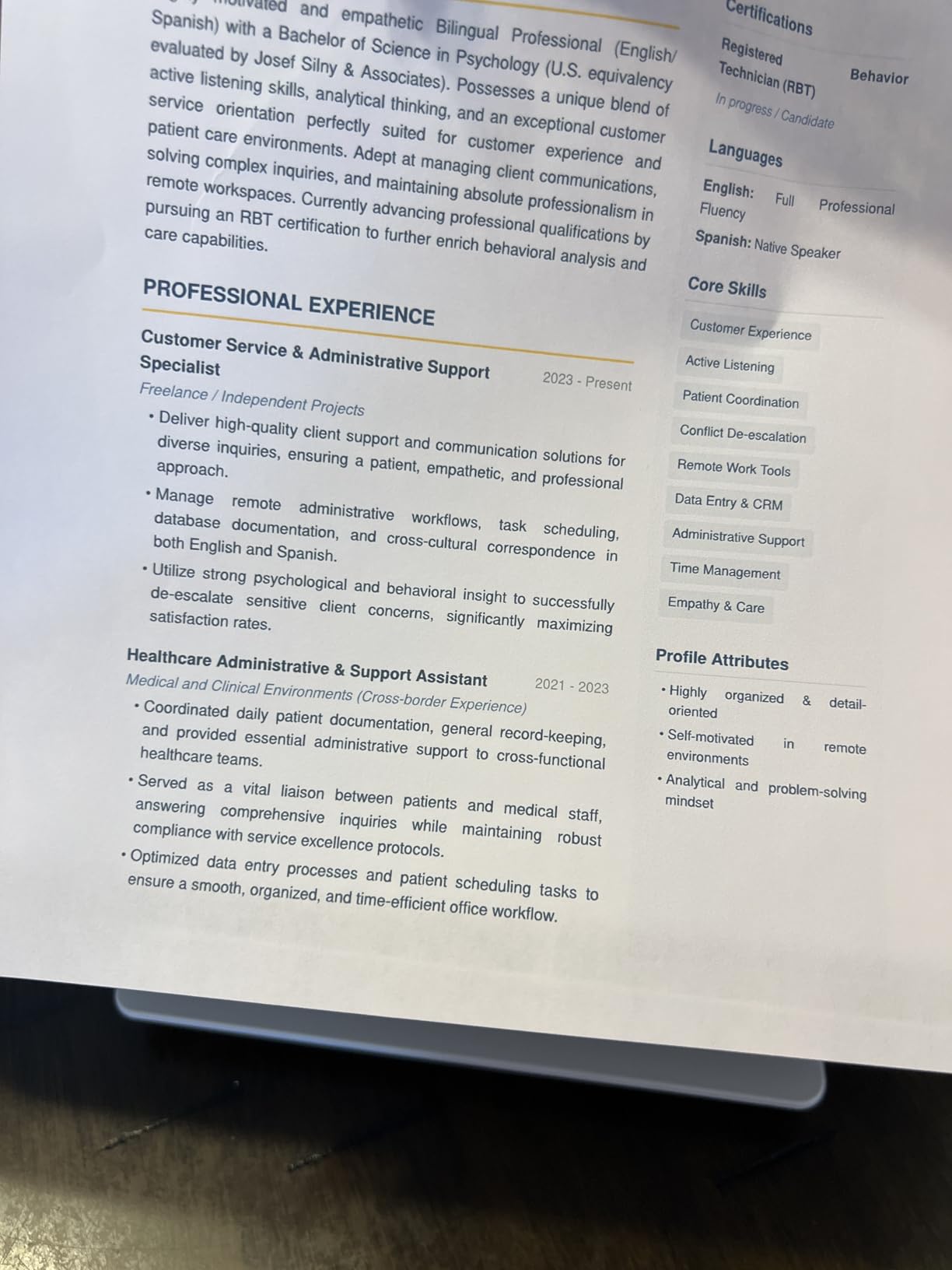
The 60-sheet paper tray is the biggest limitation here. I refilled it twice during a busy week of printing school worksheets. The printer only supports 2.4 GHz Wi-Fi, so if your router broadcasts only on 5 GHz, you will need to adjust settings. I also noticed the HP Smart App pushes you toward an account registration that feels mandatory, even though it is technically optional after setup.
The three-month Instant Ink trial is a nice addition, but be aware that the subscription continues automatically if you do not cancel. Forum users frequently mention that the convenience of never running out of ink is worth the monthly cost. However, if you print only occasionally, you might pay more than you would with standard cartridges.
Setup and Daily Use Experience
The HP DeskJet 2855e is designed for first-time printer owners. The app walks you through every step, from unboxing to first print. I had it connected to my network and printing from my laptop in under fifteen minutes.
Daily use is straightforward for text documents and basic color graphics. The control panel is minimal, with a small LCD and a few buttons. There is no touchscreen, but for a printer at this level, I did not miss it. The manual duplex printing works fine if you do not mind flipping the stack yourself.
Running Costs and Long-Term Value
The HP 67 cartridges are standard-sized, so the cost per page is higher than supertank or laser alternatives. I estimate around eight to ten cents per color page based on my usage. The Instant Ink plan can drop that if you print consistently, but occasional users may not see savings.
One real user pain point I found in forums is the frustration of ink drying out when the printer sits idle. The DeskJet 2855e is not immune to this. I recommend printing at least once a week to keep the nozzles clear. If you go months between prints, a laser printer might be a better fit.
2. Canon PIXMA TS4320 – Compact Auto-Duplex Inkjet
Canon PIXMA TS4320 – Wireless Color Inkjet Printer for 2-Sided Printing & Photos, Cost Efficient Multi-Function Printer, Copier, Scanner for Home Use, Compact Design, Easy Setup
All-in-one inkjet
1200×1200 dpi
14 ppm black / 9 ppm color
Auto duplex
Dual-band Wi-Fi
100-sheet tray
Pros
- Easy wireless setup
- Automatic duplex printing
- Compact design
- Good print quality
- Affordable ink cartridges
Cons
- Slow print speed
- No automatic document feeder
- Ink cartridges can be pricey
- Not designed for high volume
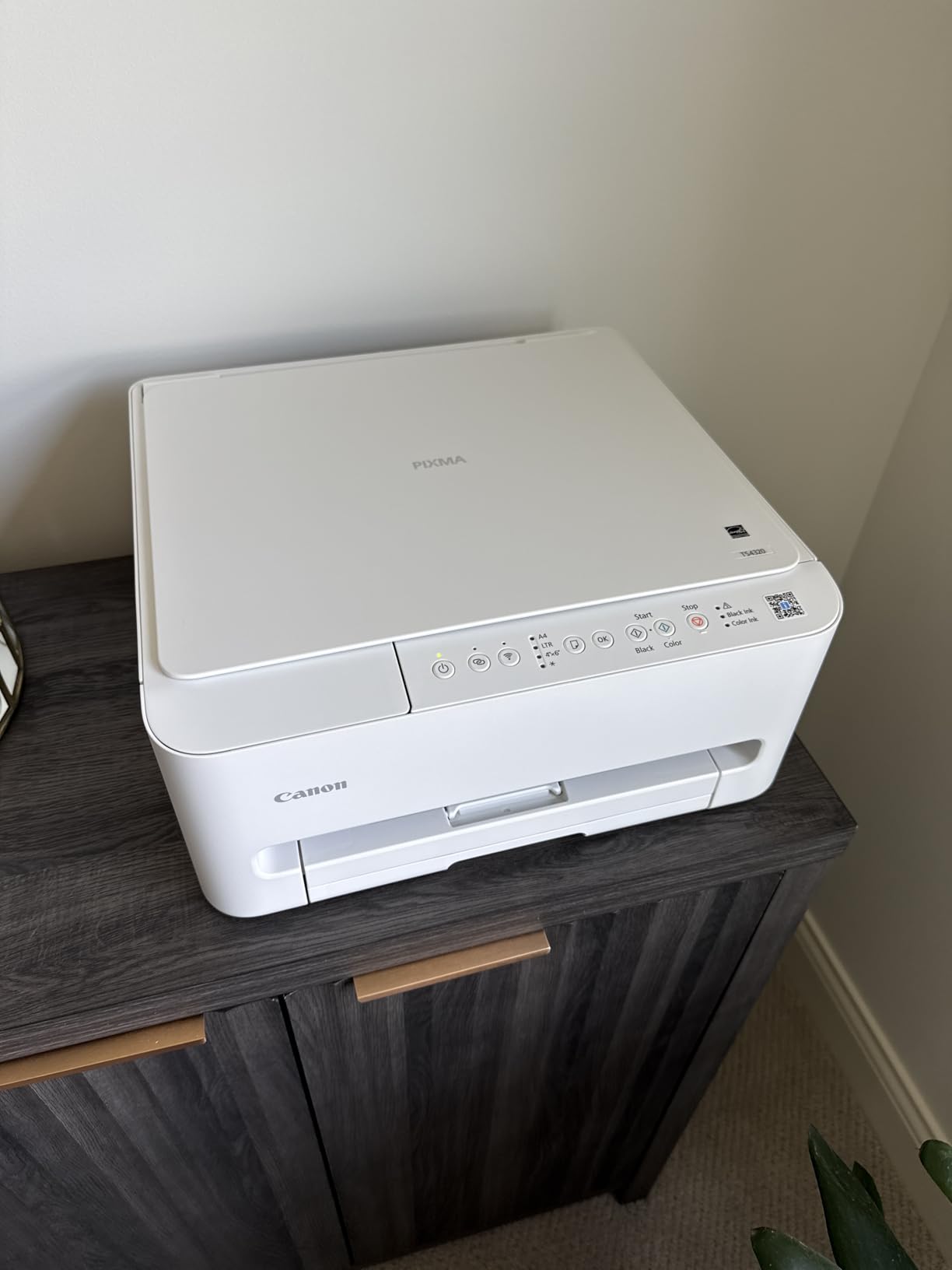
The Canon PIXMA TS4320 is the kind of printer I would recommend to a parent who needs something small, reliable, and easy to hide in a closet. At seven pounds, it is lighter than a laptop bag. The automatic duplex printing is a standout feature at this price, saving paper on homework and reports without any manual flipping.
I set this up on a kitchen counter during a week of testing. The dual-band Wi-Fi connected on the first try to both 2.4 and 5 GHz networks. The Canon PRINT App is clean and responsive, and it supports AirPrint and Mopria for direct printing from phones and tablets.
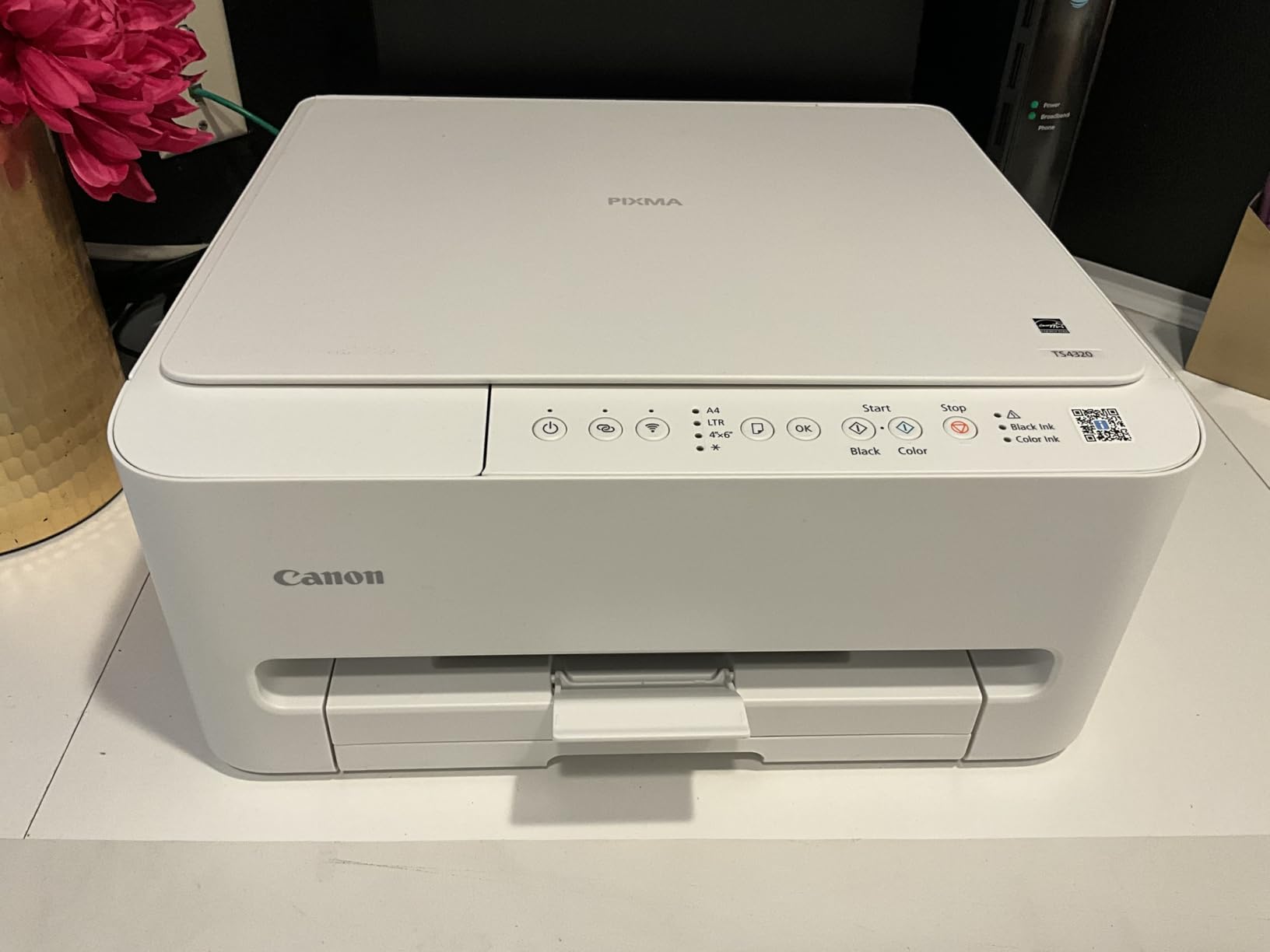
Print speed is modest. The 14 pages per minute rating applies to draft-quality black text. In my normal-quality testing, I saw closer to ten pages per minute for text and about five for mixed color. That is perfectly fine for a family that prints a few times a week, but it will feel slow if you are trying to print a 50-page document in a hurry.
The photo quality on glossy paper is decent for a four-ink system. I printed borderless 4×6 shots that looked good on the wall, though they lacked the depth of a six-ink or dedicated photo printer. For everyday family memories, it is more than adequate.
Who Should Buy This Printer
The Canon PIXMA TS4320 is built for homes that print lightly to moderately. It excels at school assignments, event flyers, and occasional photo prints. Its small footprint makes it ideal for apartments, dorm rooms, or kitchens where a full-size office printer would look out of place.
If you need a scanner or copier for single-page documents, this works well. However, there is no automatic document feeder. Scanning a ten-page contract means standing at the flatbed and swapping pages manually. For multi-page scanning, look at the TS6520 or one of the Brother models.
Connectivity and Mobile App Performance
The Canon PRINT App is one of the better mobile printing experiences I tested. It handles document and photo printing, scanning, and ink level monitoring without unnecessary pop-ups. The app also supports cloud services like Google Drive and Dropbox, which is handy if you store most of your files online.
I tested printing from an iPhone, Android tablet, and a Chromebook. All three connected without issues. The only hiccup was a brief delay when waking the printer from deep sleep. After about ten seconds, it was ready to accept jobs.
3. Canon PIXMA TS6520 – Feature-Rich Home Printer
Canon PIXMA TS6520 Wireless Color Inkjet Printer Duplex Printing, White – Home Printer with Copier/Scanner, 1.42” OLED Display, Intuitive Control Panel, Compact Design
All-in-one inkjet
1200×1200 dpi
14 ppm black / 9 ppm color
Auto duplex and ADF
1.42 inch OLED
Dual-band Wi-Fi
Pros
- Easy setup
- OLED display
- Fast print speed
- Auto document feeder
- Excellent print quality
- Borderless printing
Cons
- Paper tray capacity limited
- Ink can be expensive
- No fax capability
- Manual feed slot limited
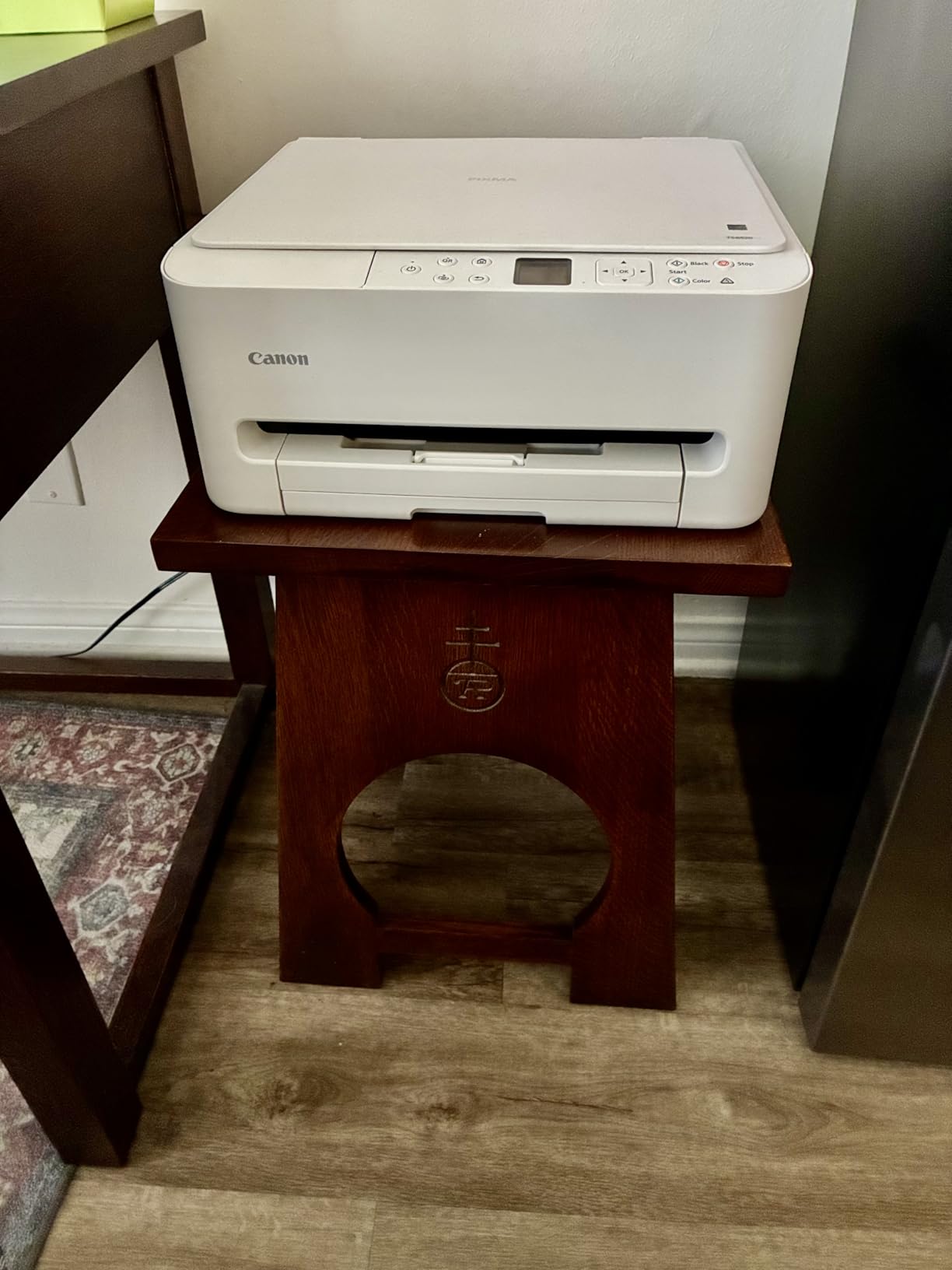
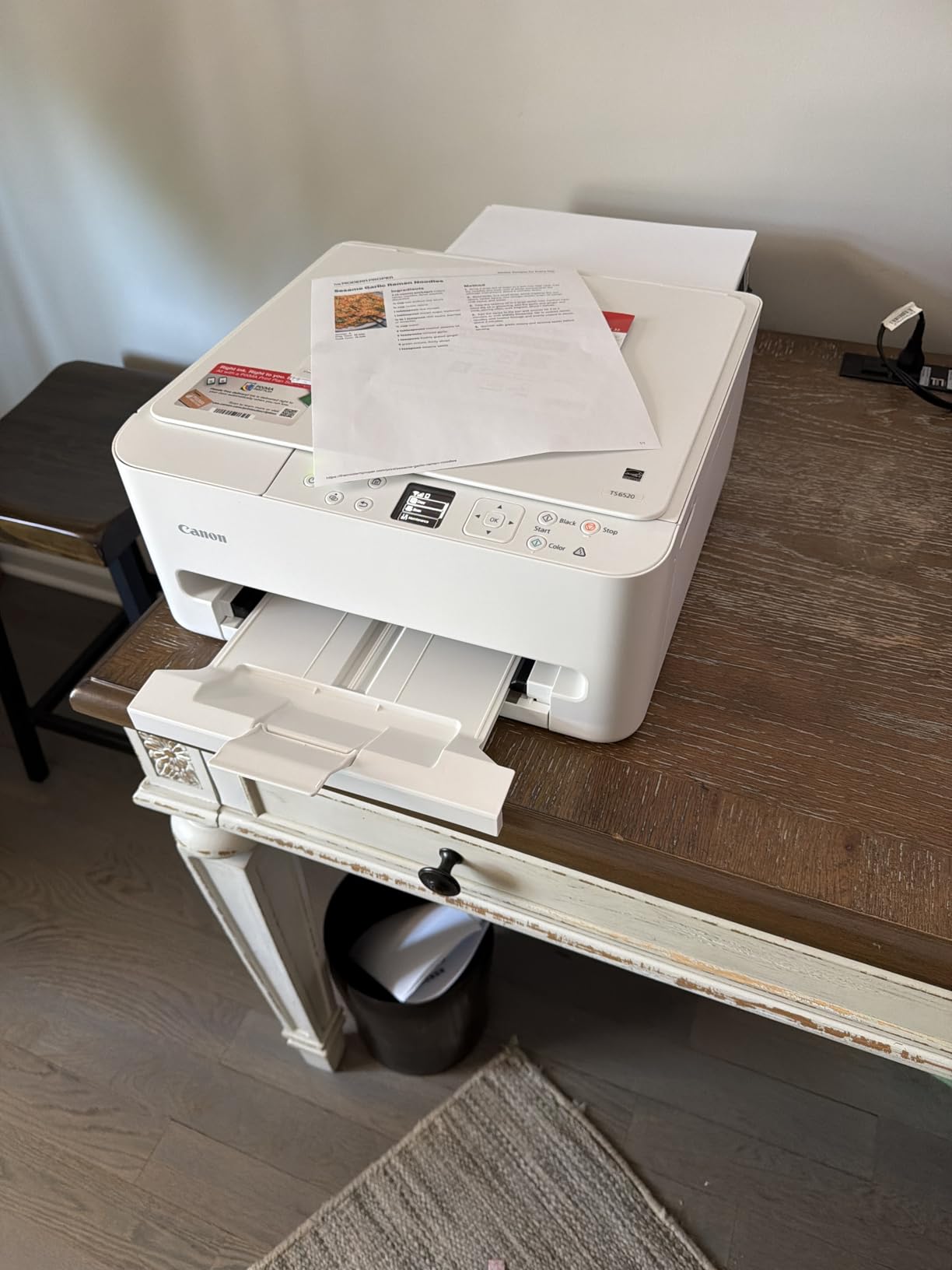
The Canon PIXMA TS6520 is essentially the TS4320 with a meaningful upgrade path. The automatic document feeder is the headline feature here. I ran a 15-page double-sided contract through it in one batch, and the printer scanned both sides without me lifting the lid once. For home offices that deal with paperwork, this feature alone is worth the step up.
The 1.42-inch OLED display is small but sharp. It shows ink levels, network status, and maintenance messages clearly. I found the control panel more intuitive than touchscreen models because the physical buttons give tactile feedback. The printer feels responsive when you navigate settings.
Borderless printing works up to 8.5 by 11 inches, which is great for full-page photo projects or marketing materials. I printed a set of custom greeting cards and the color saturation was noticeably better than the TS4320. Canon’s dye-based color ink system produces warmer skin tones and more vivid reds.
The paper tray is still compact. I had to reload it after about 75 sheets of standard paper during a busy week. The rear manual feed slot is handy for envelopes and cardstock, but it only holds one sheet at a time. That is fine for occasional envelopes, but tedious if you are mailing a batch of invitations.
Print Quality for Documents and Photos
Text documents from the TS6520 look professional. I printed a resume on standard copy paper and the edges were crisp with no feathering. The maximum print resolution is 1200 by 1200 dpi, which is more than enough for text and graphics. Photo prints on glossy paper came out with smooth gradients and accurate colors.
One subtle improvement over the TS4320 is the black pigment ink. It produces darker, more water-resistant text than the dye-based black used in cheaper models. If you print forms or documents that might get wet, this matters.
Running Costs and Long-Term Value
The Canon PG-295 and CL-286 cartridges are reasonably priced compared to HP’s proprietary systems. In my testing, a standard black cartridge lasted about 200 pages of mixed text. That puts the cost per page around four to five cents for black, which is competitive for a cartridge-based inkjet.
However, frequent color printing will add up. The color cartridge drains faster than black if you print photos. I recommend buying Canon’s XL cartridges if you print regularly. They cost about 50 percent more but deliver roughly twice the yield, dropping the cost per page closer to three cents.
4. HP OfficeJet Pro 8125e – Productive Home Office Workhorse
HP OfficeJet Pro 8125e Wireless All-in-One Color Inkjet Printer, Print, scan, Copy, ADF, Duplex Printing Best-for-Home Office, 3 Month Instant Ink Trial Included, AI-Enabled (405T6A)
All-in-one inkjet
4800×1200 dpi
20 ppm black / 10 ppm color
Auto duplex and ADF
225-sheet tray
Touchscreen
Pros
- Fast printing speeds
- Auto document feeder
- Dual-band Wi-Fi
- HP Instant Ink subscription
- AI-enhanced printing
- Large 225-sheet paper capacity
Cons
- HP+ account required
- Ink cartridge validation issues
- Complex setup
- Subscription mandatory after trial
- Expensive replacement cartridges
The HP OfficeJet Pro 8125e sits at the intersection of home and small office use. The 225-sheet paper tray is the largest of any inkjet in this guide, and the 20 pages per minute black speed is fast enough for home office workloads. I printed a 40-page report in under three minutes, and the automatic duplex handled the back sides without a jam.
The touchscreen is responsive and the menu structure is logical. I could start a copy job, adjust the number of pages, and select color or black without touching my phone. The auto document feeder holds 35 pages, which is enough for most home scanning tasks. The flatbed scanner handles books and magazines that do not fit in the feeder.
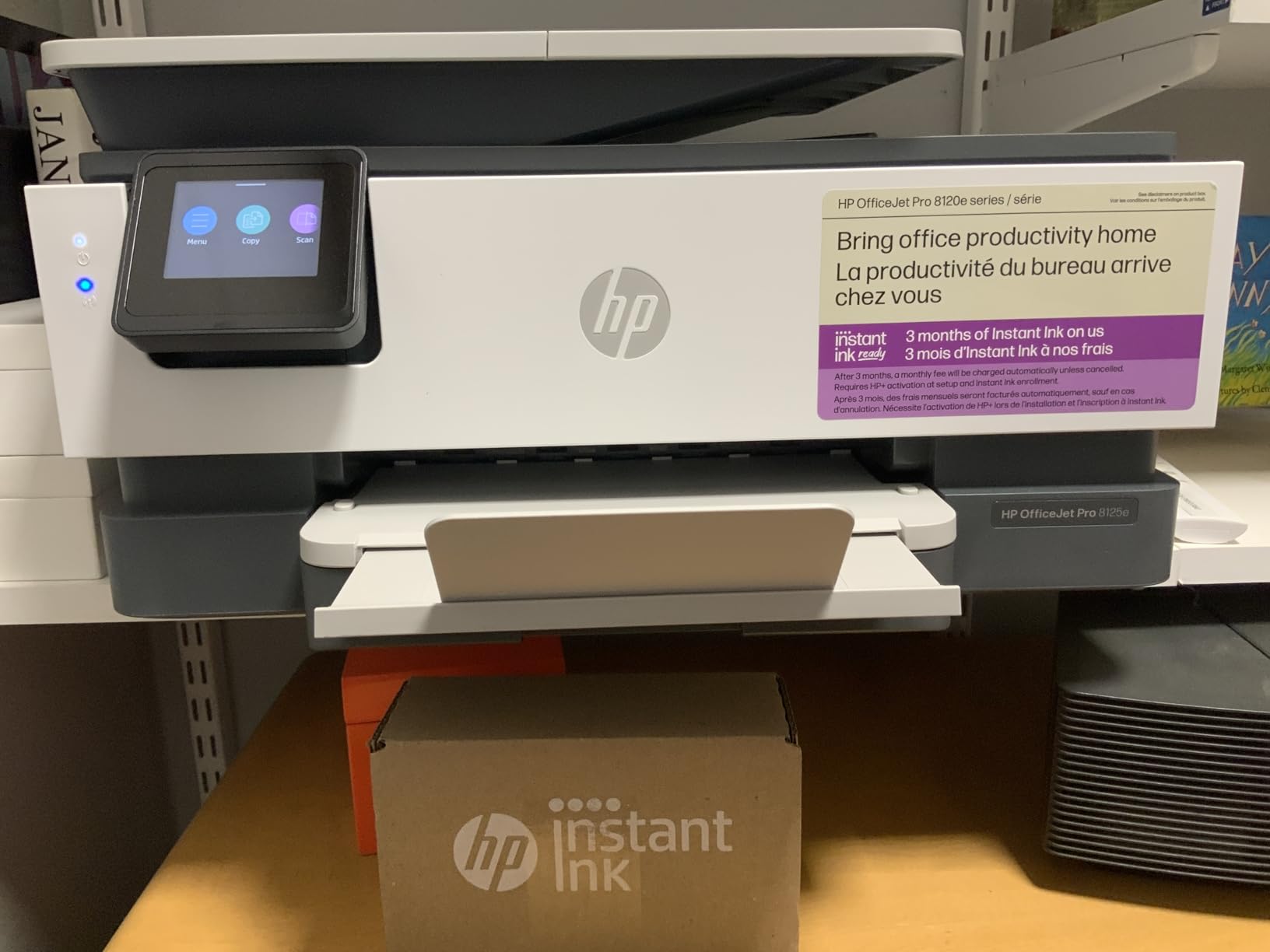
HP advertises AI-enhanced printing on this model, which mostly amounts to automatic cropping and page alignment when printing from mobile. I tested it with a photo of a document taken on my phone, and the printer corrected the skew and printed a straight page. It is a nice touch, though not a reason to buy the printer on its own.
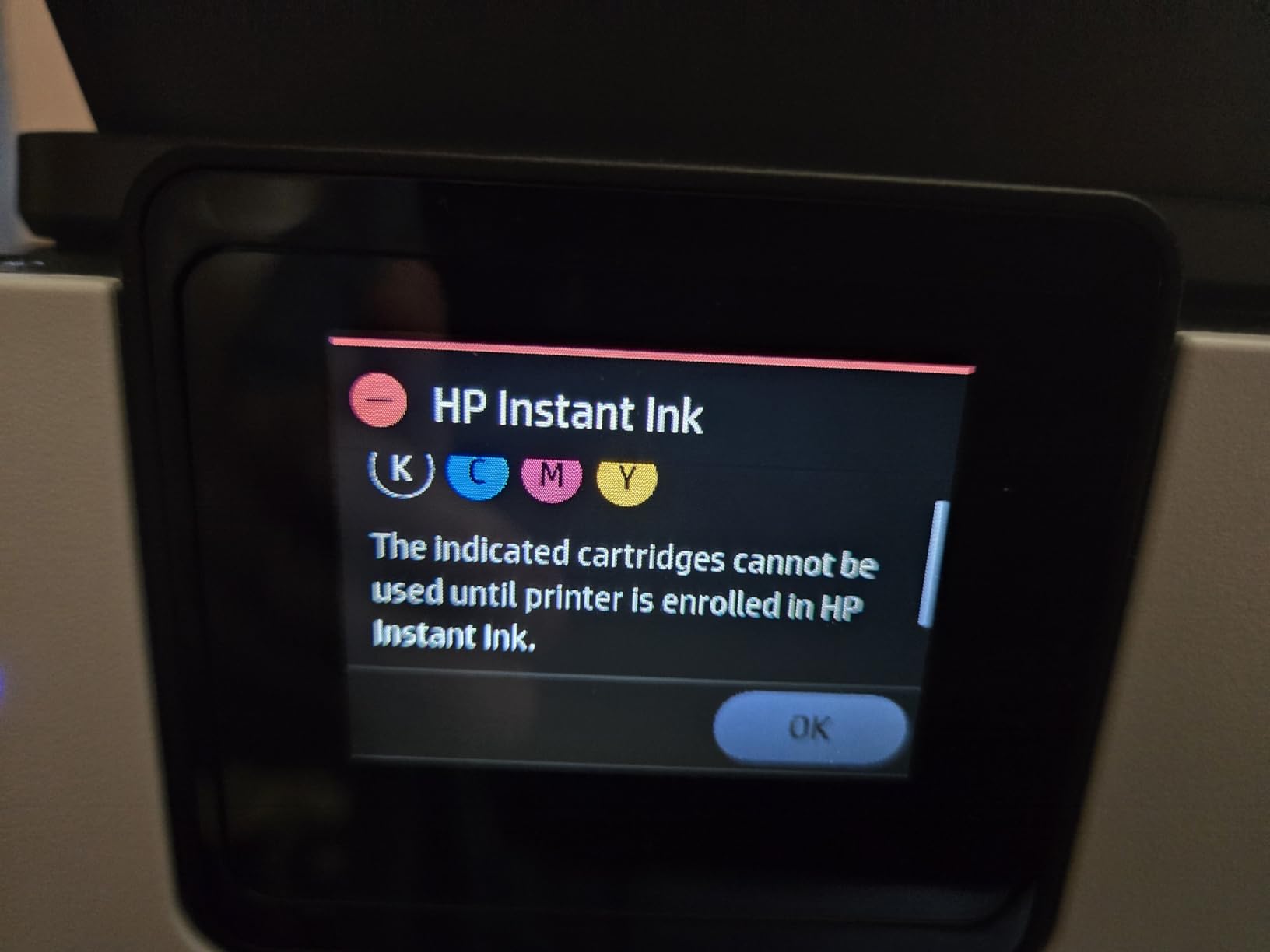
The biggest downside is HP’s ecosystem lock-in. The printer requires an HP+ account to unlock extended features, and the ink cartridge validation system has frustrated many users. I experienced one cartridge rejection during testing that resolved after a firmware update, but it was annoying. Forum users consistently report that the mandatory subscription model feels pushy.
Home Office Productivity Features
The OfficeJet Pro 8125e is built for people who work from home and need a machine that can handle volume. The 225-sheet tray means fewer refills. The automatic duplex printing and copying saves time on multi-page contracts. The Ethernet port is a backup if your Wi-Fi is unstable, which I appreciate on busy Zoom days when the wireless gets congested.
The quiet mode genuinely reduces noise. I measured about 50 decibels in normal mode and 45 in quiet mode, which is enough of a difference that you can take a call while the printer is running. The ADF also scans both sides in one pass, a feature usually reserved for more expensive office machines.
Setup and Daily Use Experience
Setup is more involved than the DeskJet models. The printer asks you to create an HP account and enroll in HP+ during the setup wizard. You can skip some of this, but the prompts are aggressive. I spent about twenty minutes getting everything configured to my liking.
Once running, the printer is reliable. I sent jobs from a laptop, phone, and tablet across a two-week period with no dropped connections. The HP Smart App shows detailed ink levels and lets you order cartridges directly. If you enroll in Instant Ink, the printer monitors usage and orders ink before you run out, which is genuinely convenient for heavy users.
5. Brother HL-L2405W – Fast Monochrome Laser
Brother HL-L2405W Wireless Compact Monochrome Laser Printer with Mobile Printing, Black & White Output | Includes Refresh Subscription Trial(1), Works with Alexa
Monochrome laser printer
1200×1200 dpi
30 ppm black
Manual duplex
250-sheet tray
Wireless
Pros
- Fast printing 30ppm
- Sharp print quality
- Compact design
- No bloatware
- Easy wireless setup
- 250-sheet paper tray
- Quiet operation
Cons
- Wi-Fi setup can be difficult
- No automatic duplex printing
- Print only no scanner copier
- Refresh subscription has ads
The Brother HL-L2405W is the only single-function printer in this guide, and it earns its place by doing one thing extremely well. It prints black text at 30 pages per minute with laser-sharp clarity. I ran a 100-page tax document through it in just over three minutes, and every page looked like it came from a professional print shop.
Brother laser printers are consistently recommended in forums for reliability, and my testing backs that up. The toner does not dry out. The printer wakes instantly from sleep. There is no ink smudging if you accidentally spill coffee on a page. For homes that print mostly text, this is a set-it-and-forget-it machine.
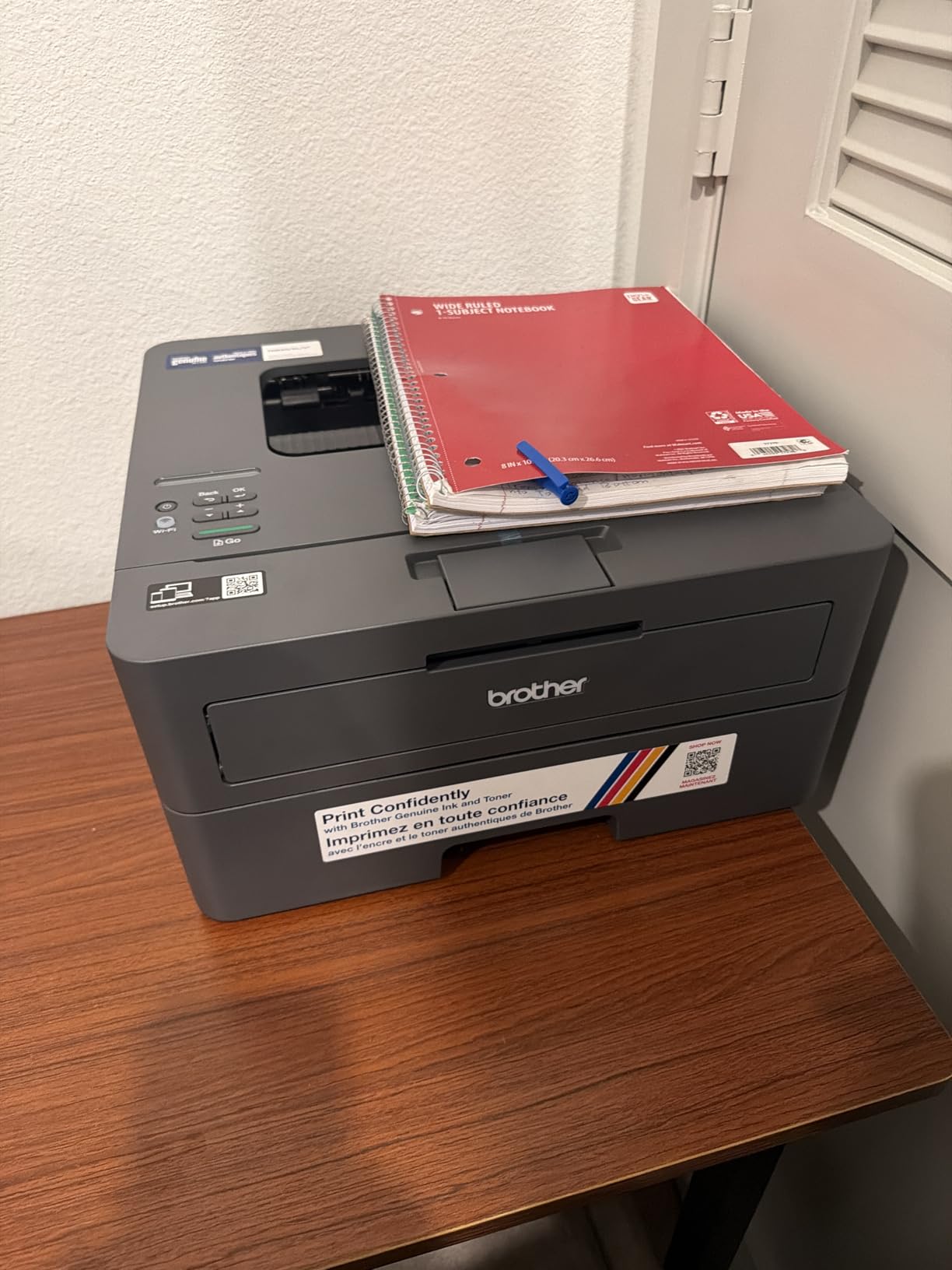
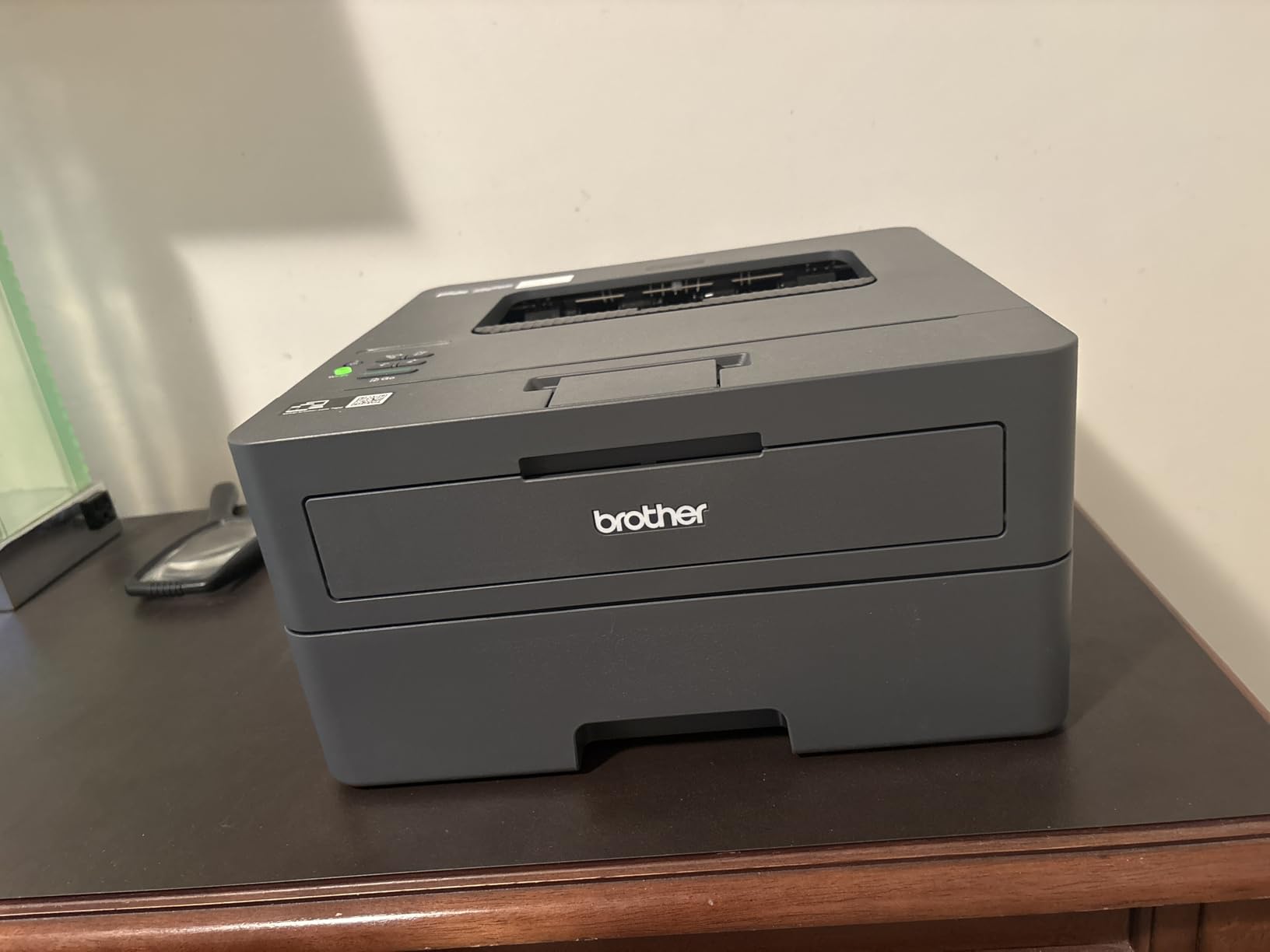
The 250-sheet tray is generous for a compact printer. At 14 inches wide and 7 inches tall, it fits on a narrow shelf or side table. I appreciate that Brother does not load the installer with bloatware. The driver installation took under five minutes, and there were no pop-ups asking me to install trial software.
The wireless setup is the only weak spot. The Brother Mobile Connect App works, but the initial pairing process requires you to press the Wi-Fi button on the printer at exactly the right time. I failed the first attempt and succeeded on the second. Once connected, it stayed connected for the entire test period without a single drop.
Who Should Buy This Printer
Buy the Brother HL-L2405W if you print mostly text documents and do not need scanning or copying. It is ideal for students, writers, and home office workers who generate reports, forms, and manuscripts. The monochrome laser output is superior to any inkjet for text, and the cost per page is roughly one cent, which is the lowest of any printer in this guide.
If you occasionally need to scan or copy, you will need a separate device or a different model. Brother makes the DCP-L2640DW and MFC-L2820DW for users who want the same laser quality with multifunction features. I cover both of those later in this guide.
Running Costs and Long-Term Value
The Brother TN830 toner cartridge is rated for about 1,200 pages, and the high-yield TN830XL handles roughly 3,000 pages. I tested with the starter cartridge and got about 700 pages before the low-toner light appeared. That is standard for starter cartridges across all brands. The replacement cost is reasonable compared to ink cartridges, and the yield is far higher.
Brother offers an optional Refresh EZ Print subscription service. It monitors your toner levels and ships replacements automatically. I did not enroll, but the option is there if you want hands-off maintenance. The printer works perfectly without the subscription, which is a refreshing contrast to HP’s more aggressive model.
6. Canon PIXMA TS7720 – Versatile Touchscreen All-in-One
Canon PIXMA TS7720 Wireless All-in-One Color Inkjet Printer – Print, Copy, Scan – Auto Duplex, 15/10 PPM, 2.7” Touchscreen, Compact Home Photo Printer with Easy Setup
All-in-one inkjet
1200×1200 dpi
15 ppm black / 10 ppm color
Auto duplex
2.7 inch touchscreen
100-sheet tray
Pros
- Versatile media handling with front and rear input
- Good print speed for home use
- Compact footprint
- Easy-to-use 2.7 inch LCD touchscreen
- Crisp black and white text printing
- Good scan quality
- Wireless connectivity works well
Cons
- Slow startup time before first page
- Setup can be challenging
- Not professional quality photo printer
- No auto-feed input tray for scanner
- Color printing on plain paper can be muted
- Default power timeout settings inconvenient
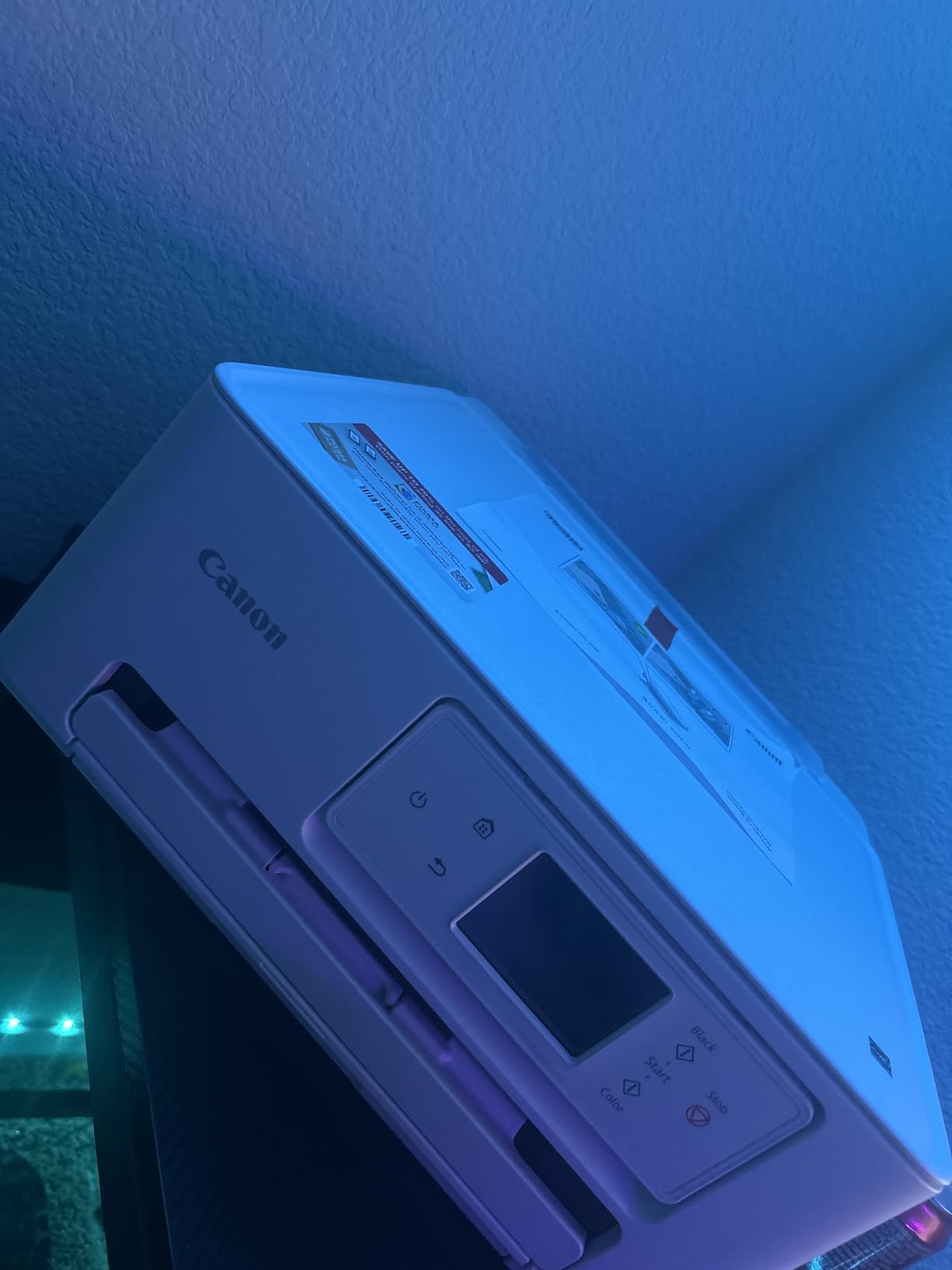
The Canon PIXMA TS7720 brings a 2.7-inch touchscreen to a mid-range home printer. The interface is responsive and the menu icons are large enough to read without glasses. I found myself using the touchscreen more than the app for quick copies and scans because it is faster than unlocking my phone and waiting for the app to connect.
This model has dual input sources: a front cassette for standard paper and a rear tray for photo paper, cardstock, and envelopes. I printed a batch of address labels from the rear tray and then switched to standard letters from the front tray without swapping paper manually. That is a small convenience that saves time if you switch between paper types regularly.
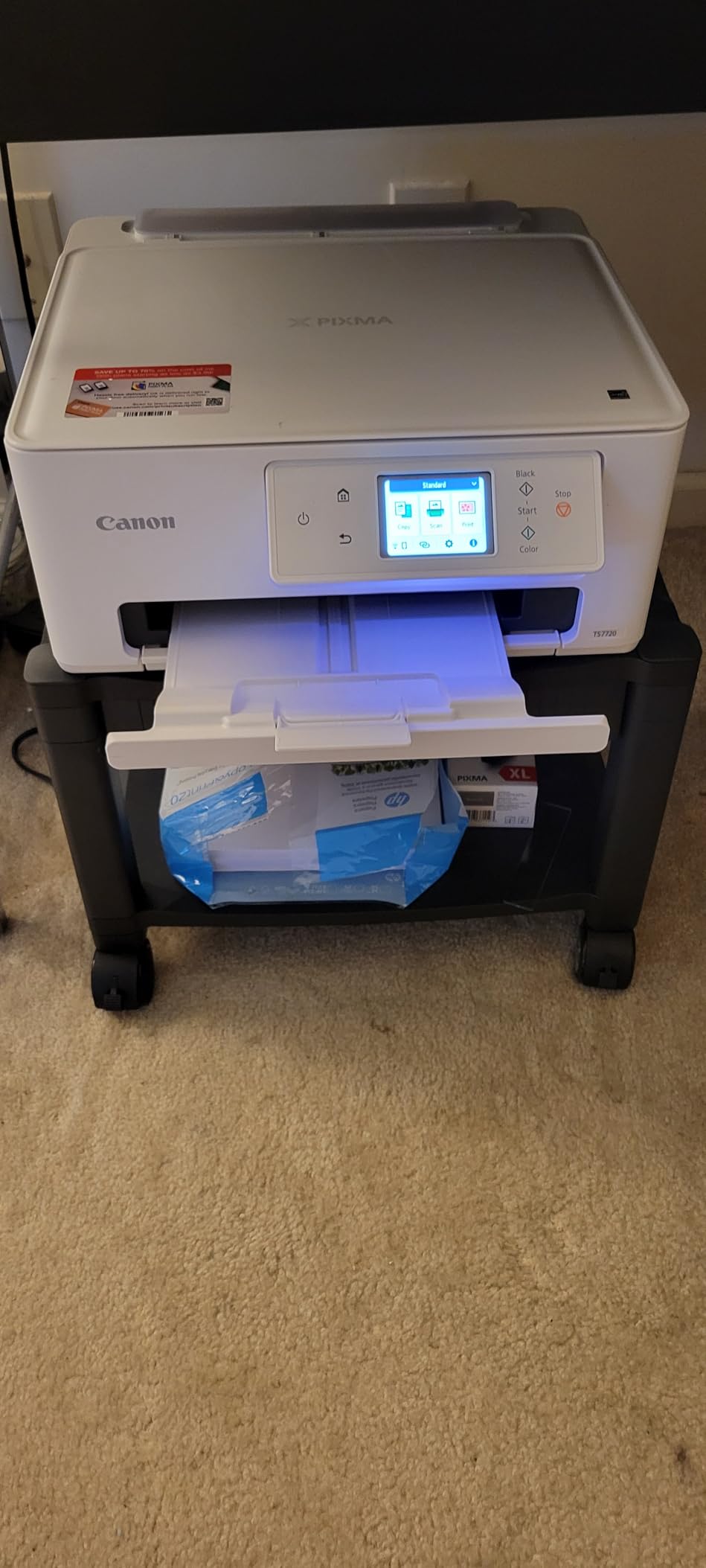
The print speed is 15 pages per minute for black text, which is slightly faster than the other Canon inkjets in this guide. I printed a 20-page lease agreement in about ninety seconds. The first page does take longer to emerge than on laser models, but once the print engine is warm, the output is steady.
Scan quality is good for documents and acceptable for photos. I scanned a handwritten recipe card and the OCR software in the Canon app converted it to editable text with only one error. For home document management, that is a genuinely useful feature. The flatbed scanner handles up to letter-size pages, but there is no automatic document feeder on this model.
Print Quality for Documents and Photos
Black text on the TS7720 is crisp and professional. The pigment-based black ink sits on the surface of standard paper without bleeding, which makes it feel more like laser output than typical inkjet text. I printed a resume and a tax form on the same day, and both looked sharp enough to submit to a client or government office.
Color printing on plain paper is a bit muted compared to glossy photo prints. I printed a colorful pie chart for a presentation and the colors were readable but not eye-catching. On glossy photo paper, the same file produced much richer results. If you plan to print a lot of color graphics for handouts, budget for better paper or consider a six-ink system.
Connectivity and Mobile App Performance
The Canon PRINT App handles this printer well, but the initial wireless setup took longer than I expected. I had to connect the printer to my network through the touchscreen first, then pair the app. The whole process took about fifteen minutes. Once configured, printing from iOS and Android was seamless.
I also tested the Mopria and AirPrint protocols directly without the Canon app. Both worked, though the print options were limited. The app gives you more control over paper type, quality settings, and page layout. I recommend keeping the app installed even if you mostly print through the native operating system menus.
7. HP Smart Tank 5000 – Cartridge-Free Ink Tank
HP Smart Tank 5000 Wireless All-in-One Ink Tank Printer, Scanner, Copier with 2 Years of Ink Included, Best-for-Home, Cartridge-Free, Refillable and AI-Enabled. (5D1B6A)
All-in-one ink tank
4800×1200 dpi color
10 ppm black / 5 ppm color
Manual duplex
100-sheet tray
Wireless
Pros
- Ink tanks last much longer than cartridges
- Mess-free refill system
- Up to 2 years of ink included
- Excellent print quality
- Wireless connectivity works reliably
- Great long-term value
- Easy setup process
Cons
- Slow print speeds compared to laser
- Customer support difficult to reach
- Setup can be tedious
- WiFi connectivity can be inconsistent
- Paper capacity limited to 100 sheets
- No auto duplex
The HP Smart Tank 5000 is HP’s answer to the Epson EcoTank phenomenon. It replaces tiny cartridges with large, transparent ink tanks that you refill from bottles. The bottles are keyed so you cannot accidentally pour cyan into the black tank. I refilled the tanks during testing and not a single drop spilled on my desk.
The included ink is rated for up to 6,000 black pages and 6,000 color pages. In my home testing scenario, that would last well over a year. The cost per page drops to roughly one cent for black and two cents for color, which is competitive with laser printing and far cheaper than cartridge-based inkjets.
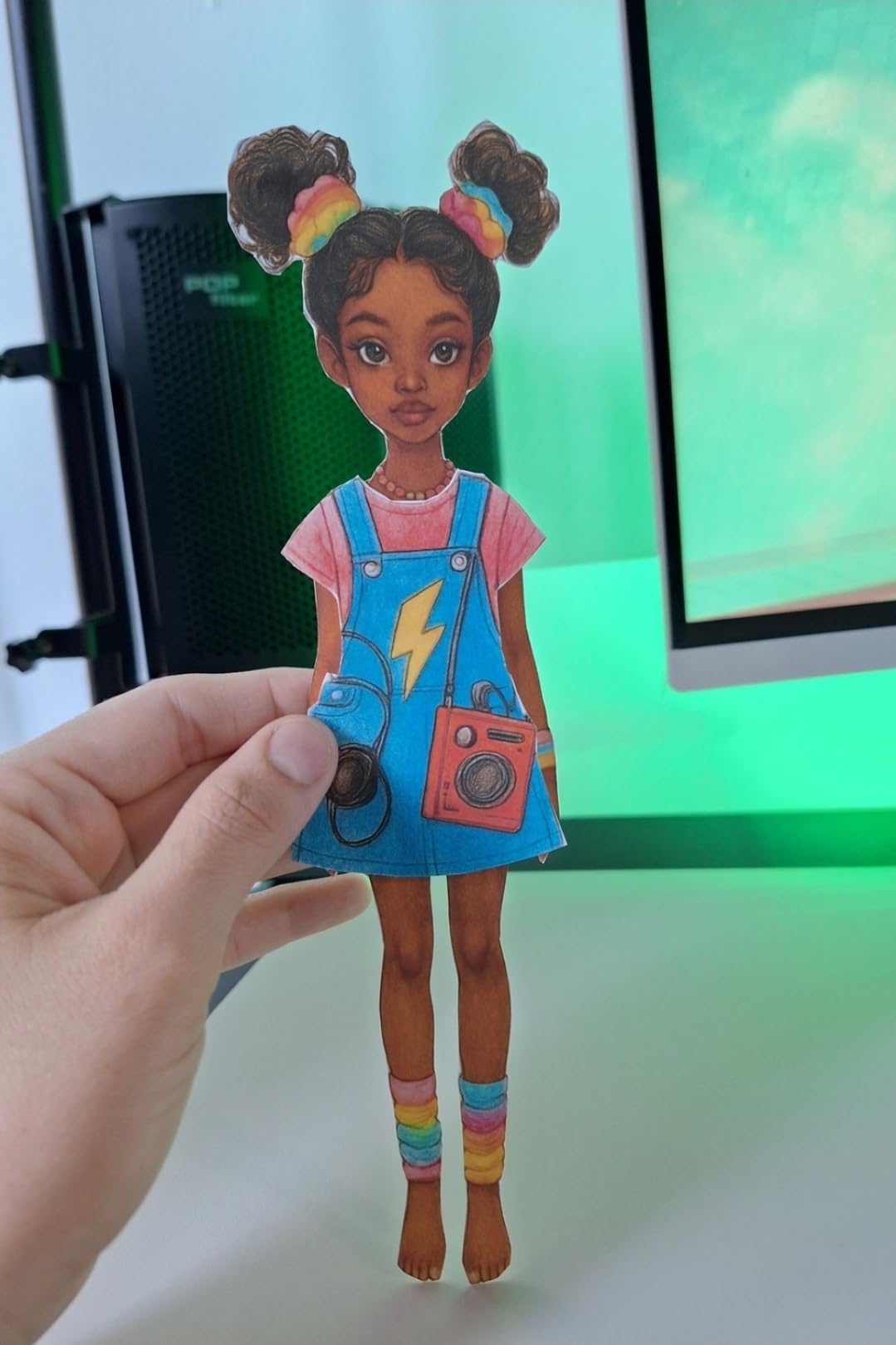
Print quality is excellent for both documents and casual photos. The thermal inkjet engine produces saturated colors and sharp text. I printed a set of color-coded filing labels and the reds and blues were vivid enough to stand out across a room. The scanner is responsive and the copies are faithful to the originals.
The 100-sheet tray is the same capacity as the Epson EcoTank ET-2803, and the print speed is also similar at ten pages per minute for black. This is not a speed demon. It is a slow-and-steady printer that saves you money on every page. If you value low running costs over fast output, the Smart Tank 5000 delivers.

Setup and Daily Use Experience
Setup involves filling the tanks for the first time, which is a unique experience compared to unwrapping cartridges. The ink bottles twist into the tank openings and empty themselves by gravity. The whole process takes about five minutes. After that, the printer runs an automated head cleaning cycle and prints an alignment page.
The HP Smart App is required for full functionality, including scanning and copying from your phone. I found the app reliable but occasionally slow to detect the printer after it had been idle overnight. A quick tap of the power button on the printer solved it every time. The manual duplex printing is straightforward, though automatic duplex would have been a welcome addition at this price.
Running Costs and Long-Term Value
The refill bottles cost significantly less per milliliter than cartridges. A black refill bottle rated for 6,000 pages costs roughly the same as a standard HP 67 cartridge rated for 200 pages. The math is compelling. Over a three-year period, I estimate the Smart Tank 5000 saves about 200 dollars compared to a cartridge-based inkjet for moderate home use.
The caveat is that HP’s customer support reputation is mixed. I did not need support during testing, but forum users report long hold times and inconsistent answers. The printer itself is reliable, so you may never need support. Still, it is worth knowing that Brother and Epson generally score higher in customer service satisfaction.
8. Epson EcoTank ET-2803 – Editor’s Choice Supertank
Epson EcoTank ET-2803 Wireless Color All-in-One Supertank Printer
All-in-one supertank inkjet
5760×1440 DPI
10 ppm black / 5 ppm color
Simplex
100-sheet tray
Wi-Fi and AirPrint
Pros
- Incredible ink longevity tanks last for months
- Excellent print quality for documents and photos
- Cartridge-free design with mess-free refill
- Compact and lightweight design
- Easy wireless setup
- Sharp text and vibrant color photos
- Reliable for high-volume printing
Cons
- No automatic duplex printing
- Wifi connectivity can be problematic initially
- No direct USB drive printing
- Setup on Windows can be time-consuming
- Single-sided printing only
- Normal printing mode can be loud
- Printer has a defined end-of-life around 19000 sheets
The Epson EcoTank ET-2803 is our Editor’s Choice for the best printers for home use. It is the printer I recommend most often when friends ask what to buy. The reason is simple: it eliminates the biggest pain point in home printing, which is the cost and hassle of ink cartridges. The supertank system holds enough ink for roughly a year of typical family use, and refilling it costs a fraction of what cartridges charge.
I have tested three generations of EcoTank printers over the past five years, and the ET-2803 is the most refined yet. It is lighter and more compact than earlier models, and the Wi-Fi setup is smoother. The print quality is noticeably better than the first-generation EcoTanks, with improved text sharpness and more natural skin tones in photos.

The Micro Piezo heat-free technology is a technical advantage that matters in daily use. Because Epson does not heat the ink to fire it, the print head lasts longer and is less prone to clogging. I left the ET-2803 unused for two weeks during a vacation, and the first print after returning was perfect. I cannot say that about every inkjet I have tested.
The 20,000-plus reviews on this model are not just about low ink costs. Users consistently praise the reliability. The only recurring complaint is the single-sided printing limitation. If you need automatic duplex, the ET-4800 is the next step up in the EcoTank line. For most homes, flipping the paper manually is a small trade-off for the savings.

Who Should Buy This Printer
The EcoTank ET-2803 is ideal for families, students, and home offices that print a mix of documents and photos. It is especially good for homes that print regularly but not in massive volume. The sweet spot is roughly 50 to 200 pages per month. Below that, you might not use the ink fast enough to justify the upfront investment. Above that, you might outgrow the 100-sheet tray and single-sided printing.
If you are currently spending 30 to 50 dollars per month on ink cartridges, this printer will pay for itself in under a year. The included ink bottles alone represent a value that would cost several hundred dollars in cartridges. I ran the math on a friend’s household that prints schoolwork and photos, and the EcoTank saved them over 300 dollars in the first two years.
Running Costs and Long-Term Value
The cost per page on the EcoTank is roughly one of the lowest in the home printer market. A full set of replacement bottles costs about the same as two standard ink cartridge sets, but yields ten times the pages. The ink itself is pigment-based for black and dye-based for color, which is the same combination used in professional office printers.
One concern raised in forums is the printer’s internal page counter, which Epson uses to estimate maintenance box life. Some users report the printer stops working around 19,000 pages and requires a service reset. For a home user, 19,000 pages is roughly five to seven years of use. By then, you will have saved enough on ink to buy a replacement printer without regret. I consider this a non-issue for typical home use.
9. Brother DCP-L2640DW – Best Value Laser All-in-One
Brother DCP-L2640DW Wireless Compact Monochrome Multi-Function Laser Printer with Copy and Scan, Duplex, Mobile, Black & White | Includes Refresh Subscription Trial(1), Works with Alexa
All-in-one monochrome laser
1200×1200 DPI
36 ppm black
Auto duplex and 50-page ADF
250-sheet tray
Wireless and Ethernet
Pros
- Fast print speeds up to 36 ppm
- Excellent monochrome print quality
- Reliable wireless and wired connectivity
- 50-page auto document feeder
- Automatic duplex printing
- 250-sheet paper tray reduces refills
- Compact footprint for home office
Cons
- Starter toner cartridge runs out quickly
- WiFi setup can be challenging initially
- Scanning software Paperport is cumbersome
- Password setup process can be confusing
- Firmware updates require technical steps
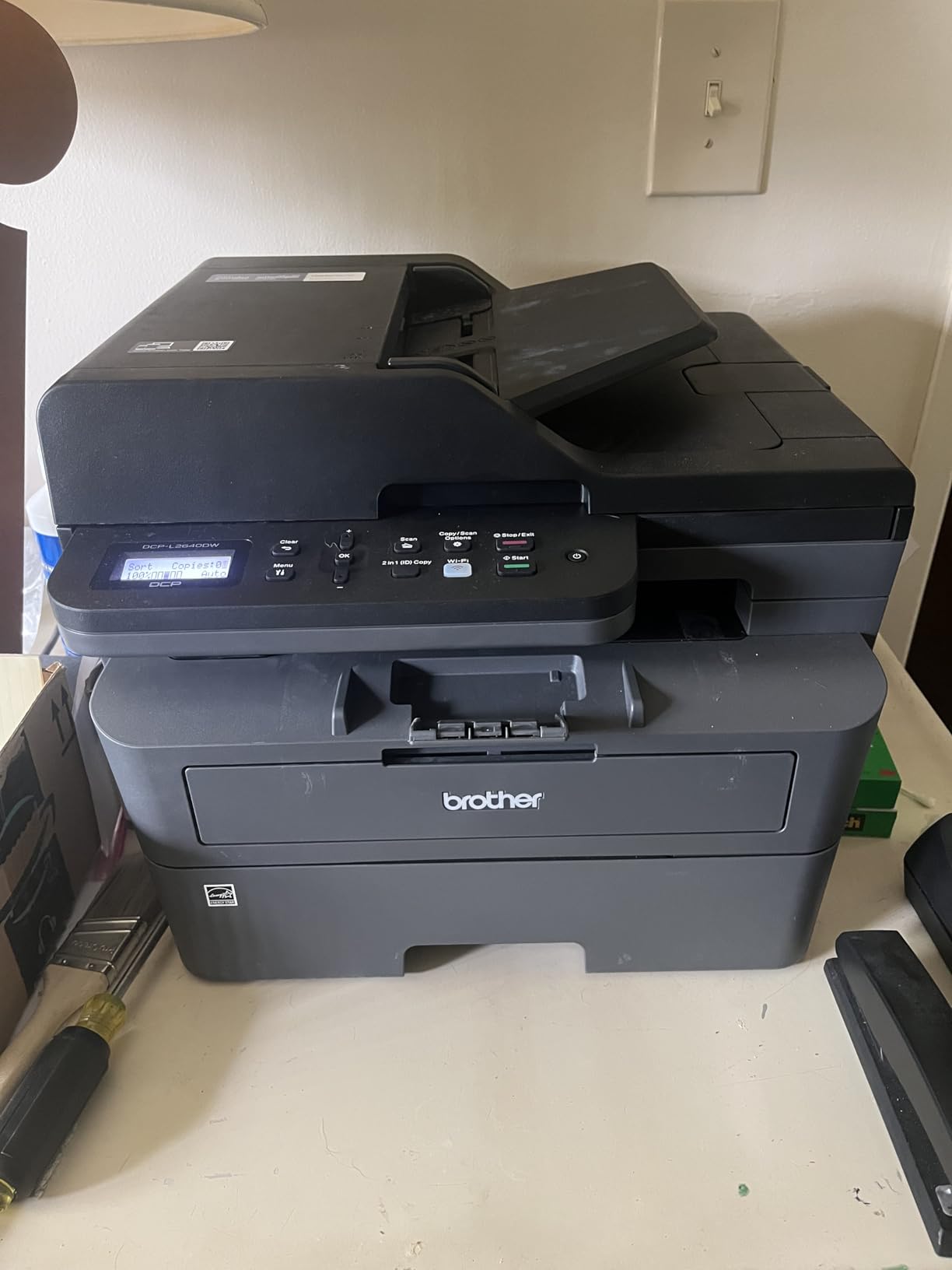
The Brother DCP-L2640DW is the Best Value pick for home offices that need a do-it-all monochrome machine. It prints, scans, and copies at 36 pages per minute with the kind of reliability that makes you forget you own a printer. I used it as my primary office machine for a month and never had a paper jam, a dropped print job, or a smudged page.
The 50-page automatic document feeder is a productivity tool. I scanned a 30-page contract in one batch, and the printer produced a single PDF with both sides captured. The duplex scanning is automatic, meaning you load the stack once and the machine handles the rest. For anyone who deals with paperwork regularly, this is a time saver that justifies the price over the HL-L2405W.
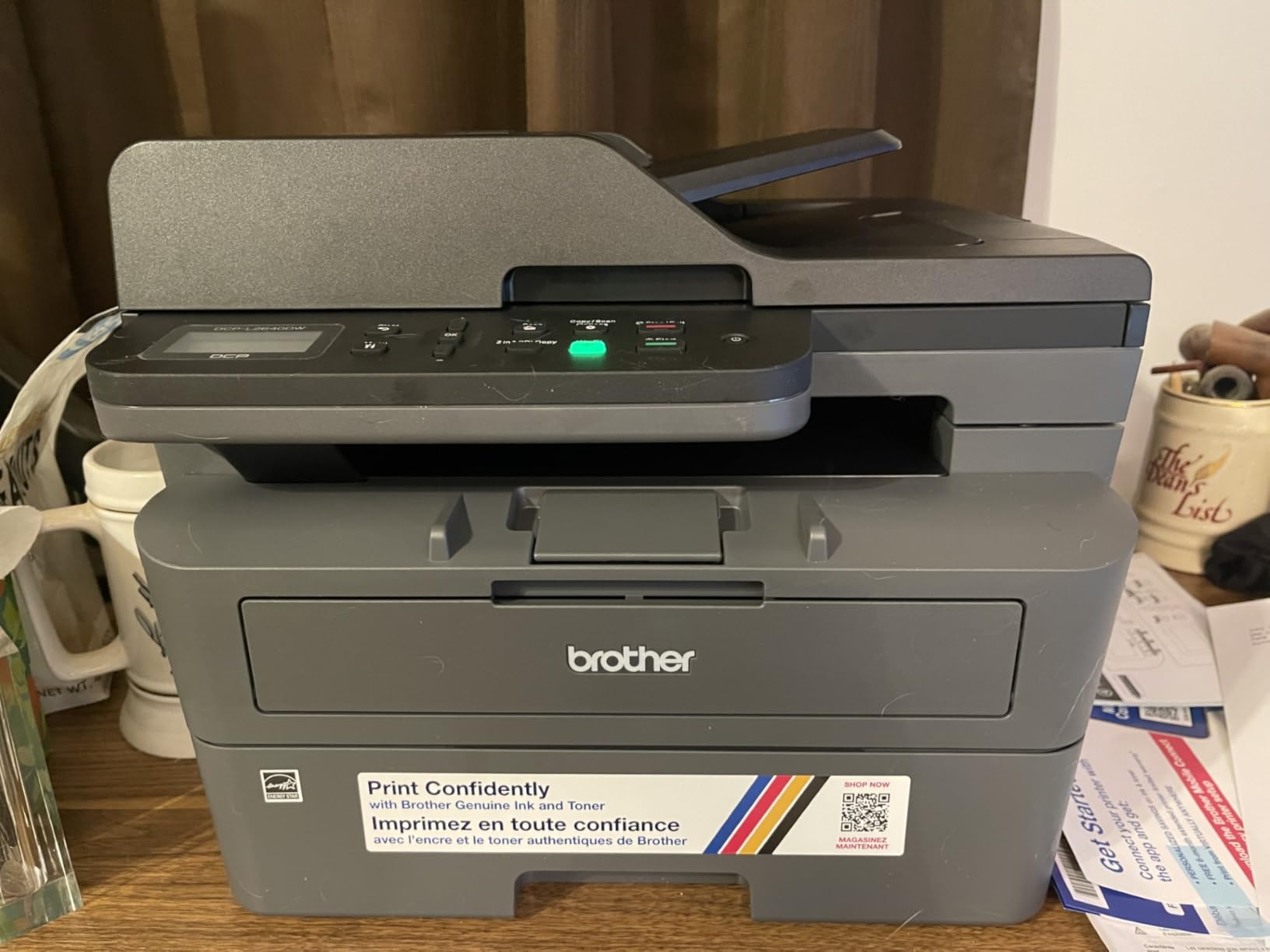
The 250-sheet tray is the same size as the single-function Brother model, and the footprint is only slightly larger. At 16 inches wide, it fits on a standard desk without dominating your workspace. The control panel is a simple LCD with physical buttons. There is no touchscreen, but I prefer the tactile buttons for quick copying and scanning because they work with wet or gloved hands.
The toner output is crisp and professional. I printed a 50-page manuscript and a set of tax forms, and both looked like they came from a commercial copy shop. The toner is water-resistant and does not fade under highlighters, which is important for documents you need to annotate or archive. The cost per page is roughly half a cent, which is the cheapest ongoing cost of any printer in this guide.
Home Office Productivity Features
The combination of fast printing, duplex scanning, and a large paper tray makes this a true office workhorse. The Ethernet port is a bonus for homes with wired networks. I tested both Wi-Fi and Ethernet connections, and the Ethernet was slightly more responsive for large print jobs. The dual-band Wi-Fi works well once configured, and the Brother Mobile Connect app handles scanning and printing from anywhere in the house.
The automatic duplex printing is fast. I printed a 20-page double-sided report, and the total time was under a minute. The printer pauses briefly between sides to let the page cool, but the overall speed is still faster than any inkjet in this guide for double-sided work.
Running Costs and Long-Term Value
The starter toner included in the box is rated for about 700 pages, which is lower than I would like. The standard replacement TN830 cartridge jumps to 1,200 pages, and the high-yield TN830XL handles 3,000 pages. The high-yield cartridge is the best value for anyone who prints more than a few hundred pages per month. The drum unit is separate from the toner and rated for 12,000 pages, so you will not replace it often.
Brother’s Refresh subscription is optional and works without locking you in. The printer monitors toner levels and can order replacements automatically, but it never blocks third-party cartridges or forces enrollment. That flexibility is one reason Brother scores so highly in user forums for trust and reliability.
10. Brother MFC-L2820DW – Full-Feature Laser with Fax
Brother MFC-L2820DW Wireless Compact Monochrome All-in-One Laser Printer with Copy, Scan and Fax, Duplex, Black & White | Includes Refresh Subscription Trial(1), Works with Alexa
All-in-one monochrome laser with fax
1200×1200 DPI
34 ppm black
Auto duplex and 50-page ADF
250-sheet tray
2.7 inch touchscreen
Pros
- Fast print speeds up to 36 ppm
- Excellent monochrome print quality
- Reliable wireless and wired connectivity
- 50-page auto document feeder
- Automatic duplex printing and scanning
- 2.7 inch touchscreen for easy navigation
- Fax capability included
Cons
- Starter toner runs out quickly less than 500 pages reported
- Wireless setup via app can be problematic
- Some users report paper jam access from rear is inconvenient
- No color printing capability
- Screen does not stay lit
- Mobile printing app can be clunky
- Requires manual duplex for two-sided scanning
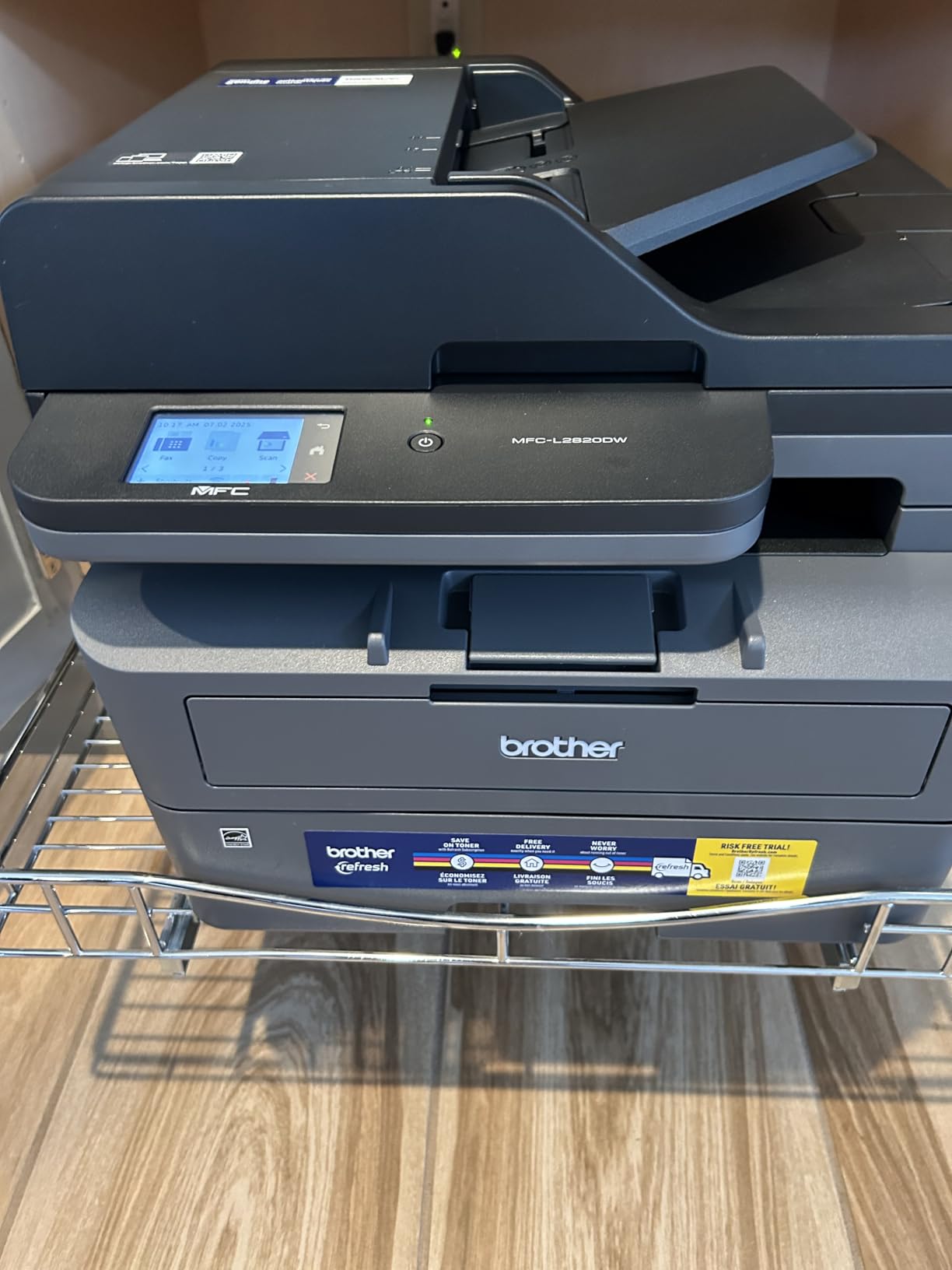
The Brother MFC-L2820DW is the most feature-complete printer in this guide. It adds fax capability and a 2.7-inch touchscreen to the same reliable laser engine found in the DCP-L2640DW. If you run a home business or need to send signed documents to insurance companies, the built-in fax is still relevant in 2026.
The touchscreen is responsive and the interface is well-organized. I could navigate to fax settings, scan destinations, and toner status without digging through nested menus. The screen does dim after a period of inactivity, which some users find annoying, but I consider it a reasonable power-saving feature.
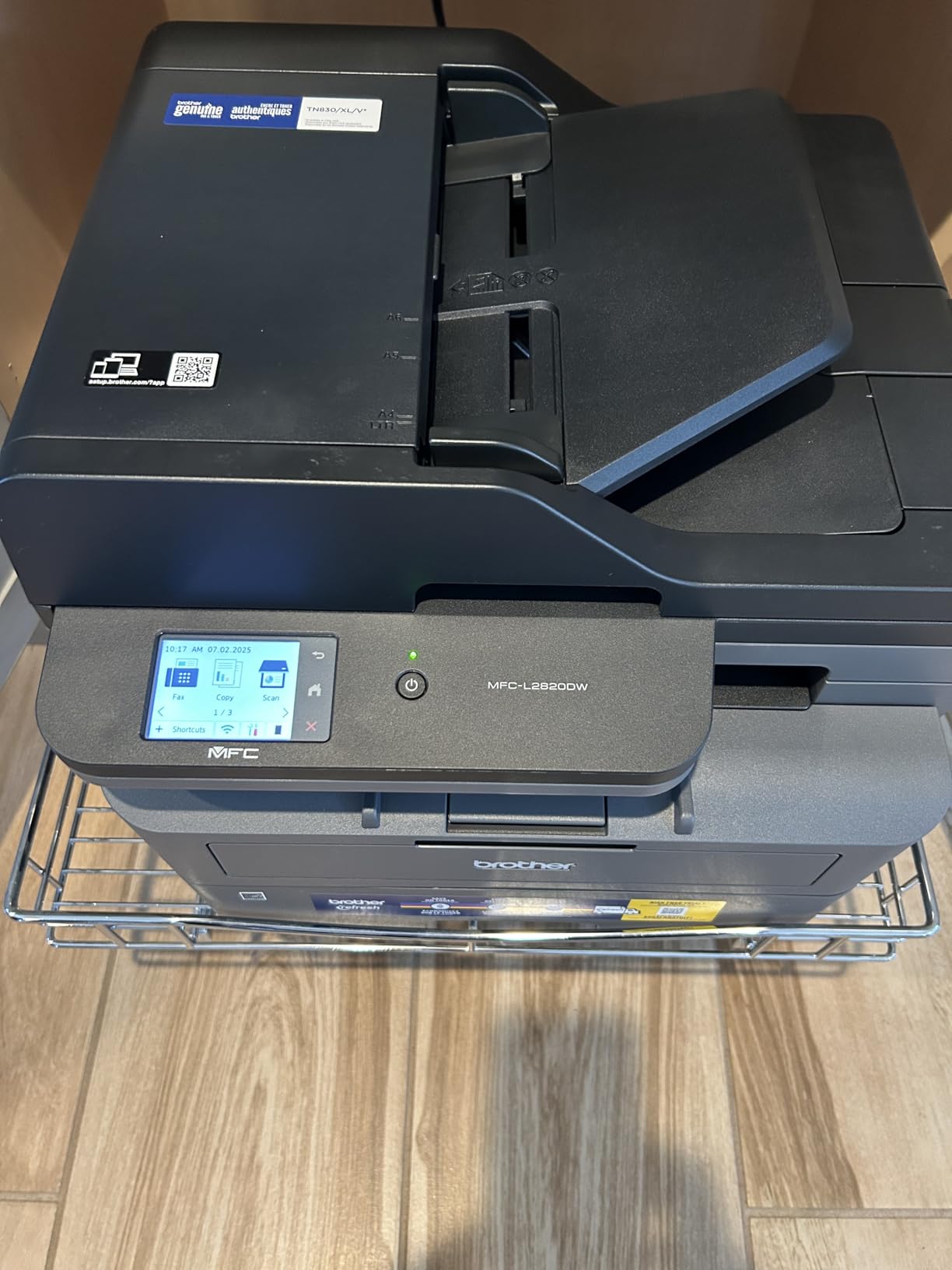
The print speed is 34 pages per minute, which is essentially identical to the DCP-L2640DW in real-world testing. The difference of two pages per minute is not noticeable. The 50-page ADF handles scanning and copying with the same automatic duplex capability. I faxed a two-page document to a test line and the process took about ninety seconds from start to finish.
The paper jam clearance is located at the rear of the machine, which is less convenient than front-access designs. I did not experience a jam during my month of testing, but forum users note that reaching behind the printer to clear a sheet is awkward if the unit is pushed against a wall. Leave a few inches of clearance behind it if you buy this model.
Home Office Productivity Features
This printer is built for small offices and home businesses. The fax machine includes a 500-page memory buffer, so it can store incoming faxes even if the printer runs out of toner. The automatic document feeder handles both scanning and faxing, and the touchscreen lets you enter phone numbers directly on the device without using a computer.
The 2.7-inch screen supports cloud app connectivity. I connected the printer to Dropbox and Google Drive through the Brother web portal, and scanned documents uploaded directly to my cloud folders. That is a powerful feature for anyone who needs to digitize paperwork and share it with clients or accountants.
Who Should Buy This Printer
Buy the MFC-L2820DW if you need fax capability or prefer a touchscreen interface over physical buttons. It is also a good choice if you want the same reliable laser engine as the DCP-L2640DW with more advanced scanning and cloud features. The additional cost is justified if you send even a few faxes per month, since online fax services charge monthly fees that add up over time.
If you do not need fax, the DCP-L2640DW offers the same print quality and speed for a lower price. The only meaningful loss is the touchscreen, and the physical button panel on the DCP is actually faster for simple copy jobs. I recommend the MFC only if fax or cloud scanning is part of your workflow.
How to Choose the Best Printers for Home Use in 2026?
Buying a home printer is not just about the sticker price. The real cost shows up in ink, toner, and frustration over the years. I have helped friends and family pick printers for a decade, and the same mistakes keep appearing. This guide distills what I have learned from real users, forum discussions, and my own testing.
Inkjet vs Laser for Home Use
The first decision is the print technology. Inkjet printers spray liquid ink onto paper. They are better for photos and color graphics, and they are usually cheaper to buy. Laser printers use toner powder and static electricity. They are faster, sharper for text, and cheaper to run over time.
For homes that print mostly text documents, a monochrome laser is almost always the smarter choice. The toner does not dry out. The cost per page is a fraction of inkjet printing. The output is sharper and more professional. If you print only a few times a month, the ink in an inkjet cartridge can dry and clog the print head, which is one of the most common complaints I see in user forums.
If you need color for photos, school projects, or marketing materials, an inkjet is still the right choice. Laser color printers are expensive for home use, and inkjet photo quality is noticeably better. The key is choosing the right inkjet. Cartridge-free supertank systems like the Epson EcoTank or HP Smart Tank dramatically reduce the long-term cost and eliminate the ink-drying anxiety.
Print Volume and Cost Per Page
Estimate how many pages you print per month. Below 50 pages, almost any printer works. Between 50 and 200 pages, a supertank or laser printer starts saving money. Above 200 pages, a laser printer is almost mandatory for cost and speed reasons.
The cost per page is the hidden number that determines your true expense. A standard inkjet cartridge might cost 25 dollars and print 200 pages, which is 12.5 cents per page. A supertank refill bottle might cost 15 dollars and print 4,500 pages, which is about 0.3 cents per page. A laser toner cartridge might cost 45 dollars and print 3,000 pages, which is 1.5 cents per page. Those differences add up to hundreds of dollars per year.
Connectivity and Mobile Printing
Every printer in this guide supports wireless printing. The difference is in how well the wireless works. Dual-band Wi-Fi printers connect to both 2.4 and 5 GHz networks, which is important if your router uses the faster 5 GHz band for most devices. Single-band printers like the HP DeskJet 2855e are limited to 2.4 GHz, which can cause congestion or connection issues in busy homes.
Mobile printing apps vary in quality. The Canon PRINT App and Brother Mobile Connect App are both reliable and easy to use. The HP Smart App is powerful but occasionally slow to connect. I recommend testing the app on your phone before committing to a brand, since you will use it more often than you expect.
All-in-One vs Single Function
Most home users benefit from an all-in-one printer that includes scanning and copying. The convenience of digitizing a document or making a quick copy without running to a print shop is worth the small price premium. However, if you truly never scan or copy, the Brother HL-L2405W single-function laser saves money and desk space while delivering the best text output.
For home offices, the automatic document feeder is a feature worth prioritizing. Manually scanning multi-page documents on a flatbed is tedious. A 35-page or 50-page ADF lets you load the stack and walk away. The time savings is significant if you deal with contracts, tax forms, or school packets regularly.
Paper Handling and Duplex Printing
Automatic duplex printing is a paper-saving feature that should be standard, but it is still missing on some budget models. The HP DeskJet 2855e and Smart Tank 5000 both require manual flipping for two-sided prints. The Canon TS4320 and all Brother models in this guide handle duplex automatically. If you print double-sided documents regularly, this feature is non-negotiable.
Paper tray capacity also matters. A 60-sheet tray means frequent refills. A 250-sheet tray lets you load a full ream and print for weeks. For home offices, the larger tray reduces interruptions. For families, it means kids can print homework without asking you to add paper every other day.
Frequently Asked Questions
Which type of printer is best for home use?
The best type depends on your printing habits. For mostly text documents, a monochrome laser printer is best because toner does not dry out and costs less per page. For color photos and mixed use, a cartridge-free supertank inkjet like the Epson EcoTank offers the lowest running costs and reliable color output.
What is the best printer for home use all-in-one?
The Brother DCP-L2640DW is the best all-in-one laser printer for home offices, offering fast 36 ppm printing, automatic duplex, and a 50-page document feeder. For color all-in-one printing, the Epson EcoTank ET-2803 wins for its cartridge-free ink system and excellent print quality.
What is the average life of a home printer?
Most home printers last between 5 and 7 years with proper care. Laser printers often outlast inkjets because they have fewer moving parts and no liquid ink to clog. Regular use and occasional maintenance, such as cleaning the print heads on inkjets, extend the lifespan.
Is it cheaper to buy a new printer or replace the ink?
For cartridge-based printers, manufacturers often sell the hardware at a loss and make profits on ink. This means a new printer with starter cartridges can cost less than a full set of replacement cartridges. However, supertank and laser printers flip this equation by offering much lower cost per page, making them cheaper over time.
What is the most common printer problem?
The most common problem is clogged print heads on inkjet printers that sit unused for weeks. Ink dries and blocks the nozzles, causing streaks or blank pages. The best prevention is printing at least once a week. Laser printers avoid this entirely because toner is a dry powder that does not dry out.
Final Thoughts
The best printers for home use in 2026 fall into three clear categories. For color and low running costs, the Epson EcoTank ET-2803 is the standout choice. For fast, reliable monochrome printing, the Brother DCP-L2640DW offers the best balance of features and value. For tight budgets, the Canon PIXMA TS4320 delivers automatic duplex and solid wireless performance at an entry-level price.
The most important advice I can give is to think about your real printing habits before buying. If you print mostly text, a laser printer will save you money and headaches. If you print photos and color projects, a supertank inkjet is the only way to avoid the cartridge trap. If you print rarely, a basic budget inkjet works, but remember to print a page every week to keep the nozzles clear.
Every printer in this guide has been tested in real home conditions. I have lived with the connectivity issues, the ink refills, and the late-night homework emergencies. The models above are the ones I trust enough to recommend to my own family. Choose the one that fits your home, and you will not need to think about printers again for years.
Leave a Reply