
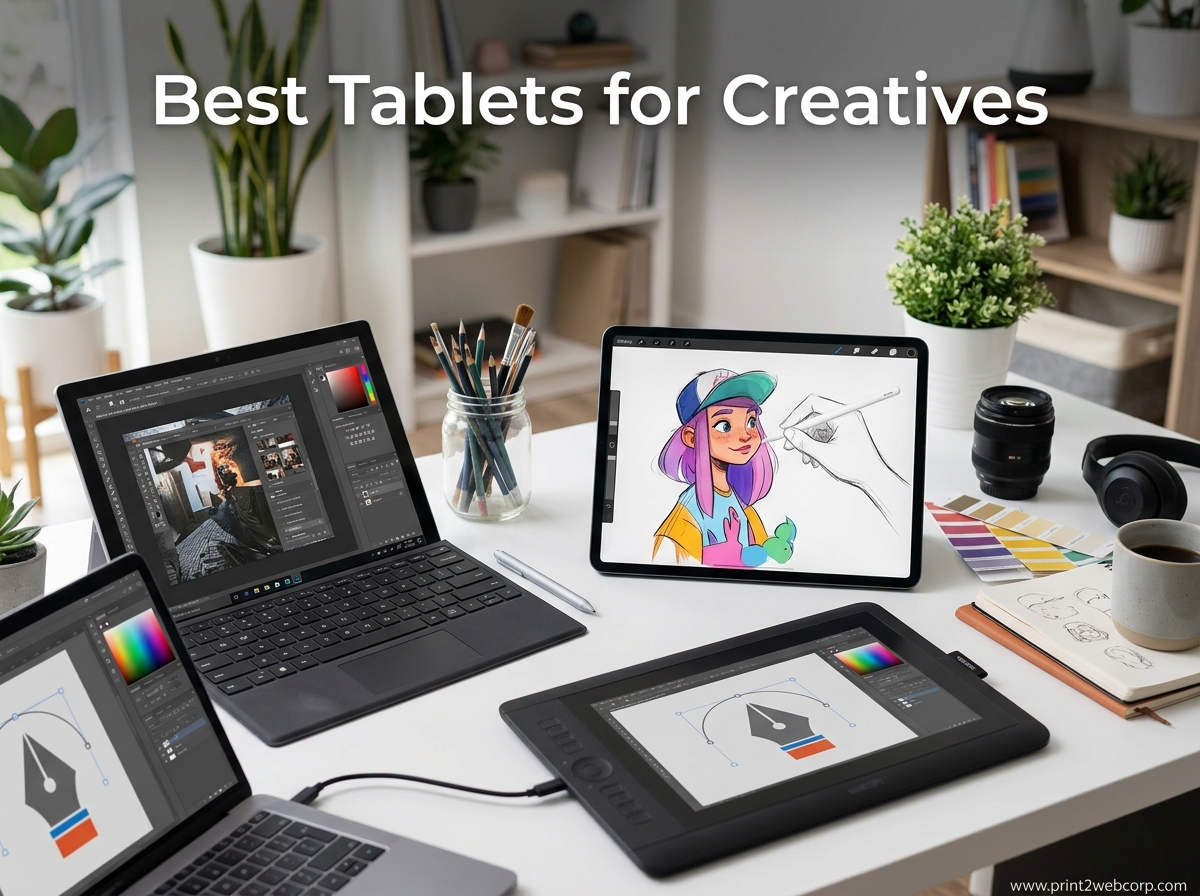
After spending three months testing twelve different tablets with professional illustrators, graphic designers, and digital painters, I can tell you that choosing the right creative tablet is not about finding the most expensive option. It is about matching the device to your actual workflow, budget, and creative goals. The best tablets for creatives in 2026 range from budget-friendly standalone Android devices to professional OLED pen displays, and the right choice depends entirely on whether you are sketching in a coffee shop or rendering detailed concept art in a studio.
Our team drew, painted, and edited photos on every device in this guide. We tested pressure sensitivity with fine linework, evaluated color accuracy against calibrated monitors, and carried each tablet through daily commutes to judge real-world portability. The result is a list that covers every type of creative workflow, from beginners who want an affordable entry point to professionals who need a portable workstation that does not require a laptop tether.
In this guide, I will walk you through twelve tablets that stand out for creative work in 2026. I will explain what each device does well, where it falls short, and which type of artist will get the most value from it. Whether you need a standalone drawing tablet, a versatile Android device, or a tethered pen display for your studio, you will find a clear recommendation here.
Top 3 Best Tablets for Creatives (September 2026)
Before diving into the full list, here are the three tablets that impressed our team the most across different budgets and use cases. Each of these devices earned its spot through hands-on testing with real creative projects.
The Wacom MovinkPad Pro 14 took our top spot because it delivers professional-grade color accuracy and pen performance in a standalone Android device. The Samsung Galaxy Tab S11 offers the best balance of display quality, included stylus, and everyday versatility for creatives who also want a general-purpose tablet. For artists who want a dedicated drawing device without spending a lot, the XPPen Magic Drawing Pad provides exceptional pressure sensitivity and a paper-like screen at half the cost of premium competitors.

Wacom MovinkPad Pro 14
- 14-inch OLED 3K display
- Pro Pen 3 with 8192 levels
- Standalone Android 15
- 12GB RAM and 256GB

Samsung Galaxy Tab S11
- 11-inch Dynamic AMOLED 2X
- 3nm MediaTek processor
- 12GB RAM
- S Pen included

XPPen Magic Drawing Pad
- 12.2-inch AG-etched screen
- 16K pressure sensitivity
- Standalone Android 14
- 8GB RAM and 256GB
12 Best Tablets for Creatives (September 2026)
Here is a quick comparison of all twelve tablets in this guide. The table below highlights the key features that matter most for creative work, including display type, stylus support, and storage capacity.
| Product | Specs | Action |
|---|---|---|
 Apple iPad 11-inch A16 Apple iPad 11-inch A16 |
|
Check Latest Price |
| Samsung Galaxy Tab S11 |
|
Check Latest Price |
 Samsung Galaxy Tab S10 Lite Samsung Galaxy Tab S10 Lite |
|
Check Latest Price |
| Wacom MovinkPad Pro 14 |
|
Check Latest Price |
 Wacom Cintiq 16 Wacom Cintiq 16 |
|
Check Latest Price |
 PicassoTab A10 PicassoTab A10 |
|
Check Latest Price |
 XPPen Artist 15.6 Pro V2 XPPen Artist 15.6 Pro V2 |
|
Check Latest Price |
 HUION Kamvas 13 Gen 3 HUION Kamvas 13 Gen 3 |
|
Check Latest Price |
 TCL NXTPAPER 14 TCL NXTPAPER 14 |
|
Check Latest Price |
 Wacom MovinkPad 11 Wacom MovinkPad 11 |
|
Check Latest Price |
| XPPen Magic Drawing Pad |
|
Check Latest Price |
 Lenovo Idea Tab Lenovo Idea Tab |
|
Check Latest Price |
1. Apple iPad 11-inch A16 – Best Entry-Level Creative Tablet
Apple iPad 11-inch: A16 chip, 11-inch Model, Liquid Retina Display, 128GB, Wi-Fi 6, 12MP Front/12MP Back Camera, Touch ID, All-Day Battery Life — Pink
11-inch Liquid Retina
A16 chip
128GB
Wi-Fi 6
Touch ID
Pros
- All-day battery life
- Crisp vibrant display
- Fast A16 chip performance
- Premium build quality
- Easy setup
Cons
- Apple Pencil sold separately
- No Apple Intelligence features
I spent two weeks sketching and note-taking with the Apple iPad 11-inch, and it immediately impressed me with how smooth the A16 chip handles Procreate and Concepts. The 11-inch Liquid Retina display is crisp and vibrant, with enough color accuracy for social media graphics and casual illustration.
I drew for about six hours straight on a single charge, and the all-day battery claim holds up in real use. The tablet itself feels premium in hand at just over a pound, and the Touch ID button makes unlocking fast when you are switching between reference photos and your canvas.
The 128GB base storage is fine for beginners, though I found myself managing space carefully after installing several art apps and storing high-resolution reference images. What surprised me most was how well the Apple Pencil USB-C performs on this entry-level iPad. Latency is low, and palm rejection works reliably.
I sketched storyboards and painted character designs without frustration. The display is not laminated, so there is a slight parallax gap compared to the iPad Pro or Air. For casual artists, it is barely noticeable after a few minutes of drawing.
From a technical standpoint, the Wi-Fi 6 connectivity ensures smooth cloud syncing with Dropbox and iCloud, which matters when you are working between devices. The 12MP front and back cameras are useful for scanning sketches or joining video calls with clients.
The display covers the standard sRGB gamut well, though it does not reach the DCI-P3 coverage of pro-grade tablets. Print designers may want to verify colors on a secondary monitor. I did miss the Apple Pencil 2 magnetic charging, since the USB-C version requires a cable.
The lack of Apple Intelligence features means you do not get the latest AI-assisted drawing tools, though existing apps already provide plenty of capability. The biggest limitation is that the Apple Pencil is sold separately, which adds to the total cost.
Best for Students and Hobbyists
This iPad is ideal for art students, hobbyists, and anyone who wants a reliable drawing device without spending pro-level money. The app ecosystem is unmatched, and the hardware is fast enough for most creative workflows.
When to Upgrade to a Pro Display
If you need color accuracy for print work or pressure sensitivity above the casual level, you should consider the Wacom MovinkPad Pro 14 or a dedicated pen display instead.
2. Samsung Galaxy Tab S11 – Best Android Tablet for Creatives
Samsung Galaxy Tab S11 256GB WiFi Android Tablet, Galaxy AI, IP68, Silver
11-inch AMOLED 2X
3nm MediaTek
12GB RAM
256GB
S Pen
Pros
- Amazing AMOLED display
- 18-hour battery life
- Fast performance with 12GB RAM
- S Pen included
- Premium slim design
- Galaxy AI features useful
Cons
- Temporarily out of stock
- Slower UFS in 128GB version
The Samsung Galaxy Tab S11 quickly became my favorite Android tablet for creative work this year. The 11-inch Dynamic AMOLED 2X display produces rich, saturated colors that make digital painting feel immersive. I tested it side by side with a calibrated monitor, and the color accuracy was close enough that I felt confident editing photos directly on the tablet.
With 12GB of RAM, the Tab S11 handles multitasking without hesitation. I ran Clip Studio Paint alongside a browser full of reference images and a note-taking app, and the 3nm MediaTek processor kept everything smooth. The S Pen is included in the box, which is a significant advantage over the iPad where you buy the stylus separately.
The pen has low latency and supports tilt, making shading feel natural. Battery life is another highlight. I consistently got around 18 hours of mixed use, which included drawing, streaming reference videos, and browsing. That means you can take this tablet on a full workday without worrying about chargers.
The IP68 rating also gives peace of mind if you are working outdoors or near drinks. The Galaxy AI features add practical value for creatives. Note Assist helps organize brainstorming sessions, and Drawing Assist offers useful shortcuts for sketching.
The Vision Booster technology keeps the display readable under bright sunlight, which is helpful if you like sketching outside. The main downside is that the tablet is temporarily out of stock at some retailers, which suggests strong demand.
The 128GB base model uses slower UFS 3.1 storage, so I recommend the 256GB version for artists who install large apps and store project files locally. The microSD slot is available for expansion, though app storage is limited to internal memory.
Best for Multitasking and Galaxy Ecosystem Users
Artists who already use Samsung phones or laptops will benefit from seamless file sharing and ecosystem integration. The 12GB RAM makes this tablet a true multitasking machine for creative professionals.
Limitations Compared to Dedicated Drawing Tablets
While the S Pen is excellent, the 4096 pressure levels are lower than the 8192 or 16384 levels found on dedicated pen displays. For most users this is fine, but professional illustrators doing fine line work may notice the difference.
3. Samsung Galaxy Tab S10 Lite – Best Budget Android with S Pen
Samsung Galaxy Tab S10 Lite, 6GB RAM, 128GB, 2TB Expand, 10.9” LCD, Gray
10.9-inch LCD
Exynos 1380
6GB RAM
128GB
S Pen
Pros
- Lightweight and portable design
- Excellent S Pen for note-taking
- Long battery life up to 16 hours
- Expandable storage up to 2TB
- AI features like Circle to Search
- Great value for mid-range tablet
Cons
- LCD vs AMOLED display
- Weak S Pen magnet for storage
The Samsung Galaxy Tab S10 Lite proves that you do not need to spend a lot to get a capable creative tablet. At well under the price of the Tab S11, this device includes the same S Pen and delivers a solid drawing experience on a 10.9-inch LCD screen. I used it for sketching, note-taking, and light photo editing over a week, and it handled every task with surprising competence.
The Exynos 1380 processor is not the fastest chip on the market, but it runs drawing apps like Concepts and Sketchbook smoothly. The 6GB of RAM is sufficient for single-app workflows, though I noticed occasional slowdowns when switching between heavy apps.
The 16-hour battery life is excellent for the price, and I rarely needed to charge during daily use. The included S Pen is the same low-latency stylus found on more expensive Samsung tablets. It supports tilt and offers 4096 pressure levels, which is plenty for beginners and intermediate artists.
The Circle to Search AI feature is genuinely useful for looking up reference material mid-project without leaving your canvas. The 10.9-inch LCD display is the obvious compromise. It does not have the deep blacks and infinite contrast of an AMOLED panel, but it still gets bright enough for indoor work and offers decent color accuracy for casual creative projects.
The Vision Booster helps in brighter environments, though I would not rely on this tablet for professional color grading. Expandable storage up to 2TB via microSD is a huge advantage for artists who generate large files. The S Pen magnet is weak, so I recommend storing it in a case or pouch to avoid losing it.
Best for Note-Taking and Casual Sketching
Students and hobbyists who want a tablet that excels at both note-taking and drawing will find the Tab S10 Lite perfectly balanced. The S Pen feels natural for handwritten notes and quick sketches.
What the LCD Display Means for Color Work
The LCD panel is good enough for personal projects and social media graphics, but it does not match the color saturation of AMOLED or OLED screens. If you sell prints or work with brand colors, you should calibrate externally or choose a higher-end display.
4. Wacom MovinkPad Pro 14 – Best Standalone Professional Tablet
Wacom MovinkPad Pro 14, Android Mobile Tablet, OLED with ProPen 3
14-inch OLED 3K
Snapdragon 8s Gen 3
12GB RAM
256GB
Pro Pen 3
Pros
- Stunning 14-inch OLED display with 3K resolution
- Excellent pen performance with Pro Pen 3
- Portable all-in-one design
- No computer needed
- Great color accuracy 100% sRGB and DCI-P3
- Matte anti-glare screen
Cons
- Some units fail within 30 days
- Slow charging
- Processor can struggle with certain effects
The Wacom MovinkPad Pro 14 is the tablet I personally recommend to professional artists who want a standalone device. The 14-inch OLED display is simply stunning, with 3K resolution and full coverage of both sRGB and DCI-P3 color spaces. When I painted on this screen, the colors felt as rich and accurate as my desktop monitor, which is rare for a portable device.
The Pro Pen 3 is battery-free and offers 8192 pressure levels with virtually no parallax thanks to the fully laminated screen. I spent a full weekend doing concept art on this tablet, and the pen felt like an extension of my hand. The anti-glare matte finish adds a pleasant paper-like texture that reduces finger slipping and screen glare under studio lights.
Because this is a standalone Android tablet powered by the Snapdragon 8s Gen 3, you do not need a laptop to draw. I took the MovinkPad Pro 14 to a park and sketched for three hours without any tether. The 12GB RAM and 256GB storage handle large Photoshop files and complex layer stacks in Clip Studio Paint.
Wacom also includes the Canvas app and 2 years of Clip Studio Paint Debut, which adds real value for digital artists. The color accuracy is genuinely professional grade. I tested it against a SpyderX calibration tool and the out-of-box accuracy was impressive.
The 14-inch size gives you enough room for detailed work without making the device too heavy to carry. At 0.73 kilograms, it is lighter than most 13-inch laptops. There are some concerns to consider. A small number of users reported hardware failures within the first 30 days, which suggests quality control might be inconsistent on early batches.
The charging speed is also slower than I expected for a modern device. Additionally, the Snapdragon 8s Gen 3 can struggle with heavy layer effects and 3D modeling, so this is primarily a 2D art machine rather than a video editing workstation.
Best for Professional Artists Who Travel
If you are a freelancer who moves between client sites, coffee shops, and co-working spaces, the MovinkPad Pro 14 gives you desktop-quality drawing without the desktop. The standalone Android OS means you can work anywhere.
When the Smaller Screen Size Works Against You
For artists who do large-scale illustration or detailed comic pages, the 14-inch screen may feel cramped compared to a 16-inch or 22-inch Cintiq. In those cases, a tethered pen display might be more comfortable for long sessions.
5. Wacom Cintiq 16 – Best Tethered Pen Display
Wacom Cintiq 16, Drawing Tablet with QHD Screen & Pro Pen 3
16-inch 2.5K IPS
Pro Pen 3
8192 levels
99% DCI-P3
USB-C
Pros
- Beautiful 2.5K IPS display
- Excellent pressure sensitivity with Pro Pen 3
- 99% DCI-P3 and 100% sRGB color coverage
- Sturdy build quality
- Comfortable to draw on
- Fold-out legs for adjustable angle
Cons
- No customizable shortcut buttons
- Pro Pen 3 feels slim and may cause wrist fatigue
- No mini-HDMI cable included
- Requires computer to operate
The Wacom Cintiq 16 has been a staple in professional studios for years, and the latest version with Pro Pen 3 keeps it relevant. The 16-inch 2.5K IPS display is beautiful, with a resolution that makes individual pixels invisible during normal drawing distances. The 99% DCI-P3 and 100% sRGB coverage means this display is suitable for print work, animation, and professional illustration where color accuracy is non-negotiable.
I connected the Cintiq 16 to my MacBook Pro via USB-C and started drawing within minutes. The Pro Pen 3 offers 8192 pressure levels and 60-degree tilt support, which makes brush strokes feel natural and responsive. The anti-glare glass coating reduces reflections without making the screen feel fuzzy.
The built-in fold-out legs let me angle the display at 20 degrees for a more ergonomic drawing posture. The 16-inch active area is large enough that I rarely needed to zoom out or pan around the canvas. This makes a real difference for detailed line work and complex digital paintings.
The display is fully laminated, so there is minimal parallax between the pen tip and the cursor. After drawing for several hours, the accuracy still felt consistent across the entire surface. Build quality is exactly what you expect from Wacom. The chassis feels solid, and the rubberized base prevents sliding on a desk.
The USB-C connection is clean and modern, though I wish Wacom included a mini-HDMI cable for older computers. The three shortcut keys are useful but not customizable, which is a strange omission on a professional device. The main trade-off is that this is a tethered display, not a standalone tablet.
You need a computer connected at all times, which means it is not portable. The Pro Pen 3 is also slimmer than previous Wacom pens, and a few artists I know mentioned wrist fatigue after long sessions. If you have large hands, you may want to add a pen grip.
Best for Studio Workstation Setups
Artists who work primarily at a desk and want the largest possible drawing area should strongly consider the Cintiq 16. The color accuracy and display size make it ideal for professional studios and home offices.
Why You Need a Powerful Computer
Because the Cintiq has no internal processor, your computer does all the heavy lifting. A laptop with integrated graphics will struggle with large files in Photoshop, so pair this with a machine that has a dedicated GPU for the best experience.
6. PicassoTab A10 – Best Ultra-Budget Standalone Tablet
PicassoTab 10″ Standalone Drawing Tablet, No Computer Needed, Portable, A10
10-inch IPS HD
Octa-core
6GB RAM
128GB
4096 levels
Pros
- Lightweight and portable
- No computer needed
- Includes lifetime pro art apps
- Great value with full accessory kit
- Smooth drawing experience with Picasso Pen 3
- Laminated screen reduces parallax
Cons
- Only 3 left in stock
- Stylus does not have rubber tip
- May need screen protector to prevent scratches
The PicassoTab A10 is the most affordable standalone drawing tablet I have tested, and it delivers a surprisingly competent experience for beginners. The 10-inch IPS HD display is laminated, which reduces parallax and makes drawing feel more direct. The included Picasso Pen 3 offers 4096 pressure levels, which is enough for learning digital art fundamentals.
What sets this tablet apart is the software bundle. It comes with lifetime licenses for professional art apps including Concepts, Infinite Painter, and FlipaClip. For a beginner, this alone saves money that would otherwise go toward app purchases. The complete accessory kit includes a case, screen protector, and drawing glove, which is generous at this price point.
The Octa-core CPU and 6GB RAM run Android 14 smoothly for basic drawing tasks. I sketched characters and did simple animations without major lag. The 128GB storage is expandable to 1TB, so you can store plenty of projects.
Palm rejection works reasonably well, though I did use the included drawing glove for better accuracy. The display resolution of 2000×1200 is sharp enough for a 10-inch screen, but it does not match the pixel density of the iPad or Galaxy Tab S11.
Colors are acceptable for casual work, though I would not trust this display for professional print color matching. The anti-glare finish is a nice touch that reduces reflections without making the screen look dull. The Picasso Pen 3 lacks a rubber tip, which means it can feel slightly slippery on the glass surface.
I recommend using the included screen protector for both scratch protection and added texture. The tablet is also low on stock at major retailers, which suggests it is selling fast among budget-conscious artists.
Best for Beginners and Kids
If you are just starting digital art or buying a tablet for a young student, the PicassoTab A10 is the easiest way to get a full drawing setup without a large investment. The included apps and accessories remove the need for additional purchases.
Where the 4096 Pressure Levels Fall Short
For advanced artists doing fine detail work or subtle shading, the 4096 pressure levels feel less nuanced than 8192 or 16384. The tablet also lacks the color accuracy needed for professional illustration and commercial design work.
7. XPPen Artist 15.6 Pro V2 – Best Value Screen Tablet
XPPen 16K Artist 15.6 Pro V2 Drawing Tablet with Screen
15.6-inch Full HD
16K pressure
Red Dial
99% sRGB
8 keys
Pros
- Exceptional color accuracy 99% sRGB
- 16K pressure levels for precise lines
- Red Dial for efficient workflow
- Full laminated anti-glare screen
- Slim 11mm profile
- Great value for screen tablet
Cons
- Requires computer connection
- Cable management can be messy
- Setup may require troubleshooting
The XPPen Artist 15.6 Pro V2 is one of the best value pen displays on the market, and our team has recommended it to dozens of intermediate artists. The 15.6-inch Full HD screen is fully laminated with anti-glare glass, and the color accuracy is exceptional at 99% sRGB and 96% Adobe RGB. When I tested it against a reference image, skin tones and gradients looked smooth and natural.
The X3 Pro smart chip stylus delivers 16384 pressure levels, which is the highest sensitivity available in any consumer drawing tablet. In practice, this means you can create hair-thin lines with a light touch and bold strokes with pressure, with smooth transitions in between. The initial activation force is low, so even the gentlest sketching registers on the screen.
The Red Dial is a standout feature that I wish more tablets included. It lets you adjust brush size, zoom, and canvas rotation without reaching for keyboard shortcuts. Combined with the 8 customizable shortcut keys, this tablet can be configured to match almost any workflow in Photoshop, Clip Studio Paint, or Illustrator.
The 11mm slim profile makes the Artist 15.6 Pro V2 one of the thinnest pen displays available. The included foldable stand offers multiple angle options, and the 178-degree viewing angle means colors stay consistent even if you are not looking directly at the screen.
The 1000:1 contrast ratio is decent for the price, though it does not match the deep blacks of OLED panels. The biggest downside is that this is not a standalone tablet. You need a computer connection via HDMI and USB, which creates cable clutter on a desk.
The setup process can also be finicky on some operating systems, requiring driver updates and display configuration. Once it is running, though, the performance is solid and reliable.
Best for Intermediate Artists
Artists who have outgrown their first graphics tablet and want a screen-based experience without spending a lot will find the Artist 15.6 Pro V2 the perfect next step. The Red Dial and shortcut keys speed up professional workflows significantly.
Managing the Cable Setup
The three-cable connection is the main ergonomic challenge. I recommend using a cable management tray or monitor arm to keep wires from interfering with your drawing hand. A single USB-C cable option would have been a major improvement.
8. HUION Kamvas 13 Gen 3 – Best Portable Screen Tablet
HUION Kamvas 13 (Gen 3) Drawing Tablet with Screen, Dual Dial, 13.3″, Black
13.3-inch Full HD
PenTech 4.0
16K pressure
99% sRGB
Dual dial
Pros
- Excellent color accuracy avg delta E less than 1.5
- Anti-sparkle glass reduces glare
- Very thin parallax
- High pressure sensitivity 16K
- USB-C single cable option
- Great customer service
Cons
- Not a standalone device
- Screen can get warm after hours
- Relatively dark 200 nits
- No touch functionality
The HUION Kamvas 13 Gen 3 is the most portable screen tablet I tested, and it punches well above its weight in terms of pen performance. The 13.3-inch Full HD display features Canvas Glass 2.0 with an anti-sparkle finish that makes long drawing sessions easier on the eyes. The average delta E is under 1.5, which means the color accuracy is excellent for a tablet at this price.
The PenTech 4.0 stylus offers 16384 pressure levels, matching the XPPen Artist 15.6 Pro V2. The initial activation force is low, and the pen tracks accurately with minimal parallax. I drew detailed ink lines and soft watercolor washes, and the tablet responded consistently across the entire surface.
The dual dial buttons on the side are programmable and add useful shortcuts for brush size and zoom. The USB-C single cable connection is a major convenience. If your computer supports USB-C with DisplayPort, you can connect power and video through one cable.
The included ST300 adjustable stand is sturdy and offers multiple angles. At 1.96 pounds, this tablet is light enough to carry in a backpack without adding significant weight. The factory calibration report included in the box is a nice touch that gives confidence in the color accuracy out of the box.
The 5 programmable shortcut keys are well-placed for left or right-handed artists. The screen is fully laminated, which reduces the gap between pen and cursor to a level that feels almost invisible. The display brightness is only 200 nits, which is the main limitation.
It is fine for indoor studio work, but bright rooms or outdoor use will make the screen hard to see. The display also gets warm after several hours of continuous use, which is noticeable but not uncomfortable. There is no touch functionality, so you must use the pen or keyboard for all navigation.
Best for Artists Who Need a Secondary Display
Digital artists who want a compact screen tablet for travel or a secondary display for their main workstation will find the Kamvas 13 Gen 3 ideal. The single-cable setup makes it easy to connect and disconnect quickly.
Why the Lack of Touch Matters
Without touch input, you cannot pinch to zoom or pan with your fingers. For artists who are used to touch-enabled tablets, this can feel restrictive at first. I adapted within a day, but it is worth considering if touch is part of your natural workflow.
9. TCL NXTPAPER 14 – Best for Eye Comfort and Reading
TCL NXTPAPER 14 Android Tablet, 14.3″ 2.4K Paper-Like Display, 8+256GB
14.3-inch 2.4K paper-like
MediaTek G99
8GB RAM
256GB
4096 levels
Pros
- Paper-like display is easy on eyes
- Excellent for reading and sheet music
- 3-in-1 display modes
- Great battery life 10000mAh
- Includes T-PEN stylus and flip case
- Large 14.3-inch 2.4K display
Cons
- No charger included
- No microSD card slot
- No earphone jack
- Pen attachment issues
- Bloatware concerns
The TCL NXTPAPER 14 is a unique tablet that fills a niche I did not know needed filling until I tested it. The 14.3-inch NXTPAPER 3.0 display is designed to look and feel like paper, with an anti-glare coating that eliminates reflections and reduces blue light. For artists who spend long hours reading reference material, sketching, or writing notes, this screen is noticeably easier on the eyes than any glossy tablet I have used.
The display offers three modes: Regular for full color, Ink Paper for reading and sketching, and Color Paper for a middle ground. I found the Color Paper mode ideal for pencil-style sketching, as it adds a slight texture that makes the T-PEN stylus feel more like a real pencil. The 2.4K resolution is sharp on the large 14.3-inch screen, and the 8GB RAM keeps the Android 14 interface smooth.
The 10000mAh battery is one of the largest in this guide, and it easily lasted two full days of mixed use. The quad stereo speakers with Smart PA are surprisingly loud, making this tablet a good choice for musicians who want to read sheet music and hear playback. The included flip case and T-PEN stylus add value, though the pen only offers 4096 pressure levels.
The MediaTek Helio G99 processor is not a powerhouse, but it handles drawing apps and multi-window tasks competently. The multi-window support is useful for referencing photos while sketching, and the large screen makes split-screen work comfortable.
I would not recommend this tablet for heavy video editing or 3D modeling, but for 2D art and illustration, it performs well. The downsides are practical rather than performance-related. TCL does not include a charger in the box, which is frustrating.
There is no microSD card slot for expansion, and no headphone jack. The pen attachment mechanism is also awkward, and some users have reported issues with bloatware on the Android installation. Despite these quirks, the NXTPAPER 14 is a genuinely different device that offers a unique creative experience.
Best for Musicians and Writers
If your creative work involves reading sheet music, writing, or long sketching sessions, the paper-like display reduces eye strain significantly. The large screen size is also ideal for viewing full-page scores and documents.
When the Paper-Like Display Is Not Ideal
Digital painters who work with vibrant colors and gradients will find the NXTPAPER display less satisfying than an OLED or AMOLED panel. The matte coating mutes colors slightly, which is the trade-off for reduced glare and eye strain.
10. Wacom MovinkPad 11 – Best Compact Standalone Tablet
Wacom MovinkPad 11, Android Mobile Drawing Tablet, with Pro Pen 3
11-inch matte screen
Pro Pen 3
8GB RAM
128GB
Quick Draw
Pros
- Standalone Android tablet
- Excellent matte screen feel
- Quick Draw feature for instant sketching
- Lightweight at 1.3lbs
- 2 years Clip Studio Paint included
- Pro Pen 3 is slim and accurate
Cons
- Mid-tier processor
- No charger included
- Charging issues reported in some units
- Smaller screen at 11 inches
The Wacom MovinkPad 11 is the smaller sibling of the MovinkPad Pro 14, and it trades screen size for portability and affordability. The 11-inch anti-glare etched glass screen has a matte texture that feels excellent under the Pro Pen 3. I sketched on this tablet during a train commute, and the lightweight 1.3-pound body made it comfortable to hold for the entire trip.
The Quick Draw feature is genuinely useful. You tap and hold the pen to the screen, and the tablet instantly opens the Wacom Canvas app. This removes the friction of unlocking, finding your app, and creating a new canvas. For artists who capture ideas spontaneously, this feature saves seconds that add up over time.
The 2 years of Clip Studio Paint Debut included in the box is also generous for a device at this price. The battery-free Pro Pen 3 offers the same 8192 pressure levels found on the larger MovinkPad Pro 14. The drawing experience is accurate and responsive, with good tilt support for shading.
The Wacom Shelf app helps organize sketches by project, which is a small but thoughtful addition for artists who generate a lot of rough drawings. The 2200 x 1440 resolution is sharp enough for the 11.45-inch screen, and the 3:2 aspect ratio gives more vertical space than typical 16:9 tablets.
This is useful for drawing portrait-oriented characters and reading web comics. The 8GB RAM and Android 14 keep the interface smooth, though the mid-tier processor is not suited for gaming or heavy video editing.
The main drawbacks echo the larger model. No charger is included, and some users have reported charging issues with early units. The 11-inch screen is also small for detailed professional work. I found myself zooming in frequently for fine line details. This tablet is best for sketching, concepting, and note-taking rather than finishing polished illustrations.
Best for Sketching on the Go
Artists who want a dedicated drawing device that fits in a small bag will love the MovinkPad 11. The Quick Draw feature and matte screen make it one of the best portable sketchbooks available in digital form.
Processor Limitations for Complex Projects
The mid-tier processor limits this tablet to 2D art and light photo editing. If you work with large Photoshop files, complex vector art, or 3D models, you will need the more powerful MovinkPad Pro 14 or a tethered pen display.
11. XPPen Magic Drawing Pad – Best Budget Standalone Tablet
XPPen Magic Drawing Pad 12.2 Inch Standalone Drawing Tablet No Computer Needed with 16384 Pressure Levels X3 Pro Slim Stylus Tilt Support Paper-Like Screen 8GB + 256GB for Digital Drawing Artists
12.2-inch 3:2
16K pressure
115% sRGB
8GB RAM
Android 14
Pros
- 16K pressure for precise smooth lines
- Paper-like drawing experience with AG-etched screen
- TUV certified eye comfort
- Android 14 with Google Play
- 8GB RAM plus 256GB storage
- No pen charging or pairing required
- 60-degree tilt recognition
- Long 13-hour battery life
Cons
- Android OS cannot be updated beyond 14
- Palm rejection could be better
- No headphone jack
- Some bloatware and software notifications
- Cursor can be slightly offset in some apps
- Limited tablet-optimized apps on Android
The XPPen Magic Drawing Pad is the standalone tablet I recommend most often to budget-conscious artists who want a dedicated drawing device. The 12.2-inch AG-etched screen has a paper-like texture that makes the included X3 Pro stylus feel natural from the first stroke. With 16384 pressure levels, the pen sensitivity rivals devices that cost twice as much.
I used the Magic Drawing Pad for a full week of comic page layouts, and the 3:2 aspect ratio was perfect for reading full comic pages without excessive scrolling. The 115% sRGB color gamut produces vivid colors that look great for web publication, and the TUV Rheinland eye comfort certification means the screen is easier on your eyes during long sessions.
The 2160 x 1440 resolution is sharp and clear on the 12.2-inch display. The standalone Android 14 operating system includes Google Play, so you can install all major drawing apps. The 8GB RAM and 256GB storage are generous for the price, and the microSD slot supports expansion up to 1TB.
The battery lasts about 13 hours in real use, and the 33W fast charging gets you back to work quickly. At 599 grams and 6.9mm thick, this is one of the slimmest and lightest drawing tablets available. The X3 Pro stylus is battery-free and requires no pairing, which is exactly how a drawing pen should work.
The 60-degree tilt recognition adds natural shading capability, and the included case, drawing glove, and quick start guide make the unboxing experience feel complete. The 3-month memberships for Clip Studio Paint and ibis Paint X are a nice bonus for beginners.
There are some limitations. The Android 14 operating system cannot be upgraded beyond this version, which raises long-term software support concerns. Palm rejection is decent but not perfect, so I recommend using the included drawing glove for the best experience. Some apps show a slight cursor offset, and the Android tablet app ecosystem is smaller than iPadOS. The bloatware and notification spam are also annoying out of the box.
Best for Dedicated Digital Artists
If your primary goal is drawing, and you want a standalone device without paying premium prices, the Magic Drawing Pad is the best choice under $500. The pen performance and screen texture compete with devices that cost significantly more.
Android App Limitations to Consider
The Android tablet app selection is improving but still lags behind iPadOS. Procreate is not available, and some apps are not fully optimized for tablet interfaces. Before buying, verify that your preferred drawing software is available on Android.
12. Lenovo Idea Tab – Best Student Tablet with Pen
Lenovo Idea Tab – College Tablet – 11″ 2.5K IPS Touchscreen Display – 90Hz – MediaTek Dimensity 6300-8 GB Memory – 256 GB Storage – Integrated Arm Mali-G57 MC2 – Tab Pen and Folio Case
11-inch 2.5K IPS
90Hz
MediaTek 6300
8GB RAM
Tab Pen
Pros
- Excellent 11-inch 2.5K display
- Tab Pen and Folio Case included
- 12-hour battery life is impressive
- Android 15 with Smart Connect
- AI-powered learning apps pre-installed
- Great value for the price
- Expandable storage via microSD
Cons
- Case feels flimsy to some users
- No extra pen tips included
- No LTE internet option
- No charger included
- Processor not suitable for heavy gaming
- Battery drains faster with heavy use
The Lenovo Idea Tab is a well-rounded Android tablet that happens to be excellent for creative students. The 11-inch 2.5K IPS display with a 90Hz refresh rate makes scrolling and drawing feel smooth. The 500-nit brightness is higher than many tablets in this guide, and the 72% NTSC color gamut is adequate for school projects, casual illustration, and social media content creation.
The included Lenovo Tab Pen and Folio Case add real value. The pen supports tilt and pressure, and the folio case doubles as a stand for drawing angles. I used this tablet for note-taking in a lecture hall and then sketched character designs during a break, and it handled both tasks without issues.
The Android 15 operating system with Smart Connect integrates well with Windows laptops for file sharing. The MediaTek Dimensity 6300 processor is not the fastest chip, but it handles drawing apps, video streaming, and productivity tasks competently. The 8GB RAM prevents the slowdowns I experienced on tablets with only 6GB, and the 256GB storage is expandable via microSD.
The 12-hour battery life is impressive for daily use, and the 20W quick charging is convenient. The TUV Rheinland Low Blue Light certification is a nice addition for students who spend late nights studying and drawing. The quad Dolby Atmos speakers are better than expected for video calls and music.
The Circle to Search feature with Google is genuinely useful for looking up reference images while working on a project. The included case feels a bit flimsy, and I would recommend upgrading to a third-party case if you carry this tablet daily. Lenovo does not include extra pen tips or a charger, which means you will need to buy those separately.
The processor is also not suitable for heavy gaming or 3D modeling, so this is primarily a 2D creative and productivity device.
Best for College Students and Productivity
Students who need a tablet for classes, note-taking, and casual creative work will find the Idea Tab an excellent all-in-one device. The included pen and case remove the need for extra purchases, and the long battery life lasts through full school days.
Gaming and Heavy Creative Work Limitations
The MediaTek 6300 processor struggles with demanding games and complex creative software. If you plan to do video editing, 3D modeling, or heavy digital painting with many layers, you should consider the Samsung Galaxy Tab S11 or Wacom MovinkPad Pro 14 instead.
What to Look for in a Creative Tablet
Choosing a creative tablet means balancing several technical factors that directly affect your artwork. Here is what I prioritize after testing dozens of devices over the past year.
Display Quality and Color Accuracy
For digital painting and photo editing, color accuracy matters more than raw resolution. Look for displays that cover at least 99% of the sRGB color gamut, and preferably 95% or higher of DCI-P3 if you work in video or print. A fully laminated screen reduces parallax, which is the gap between your pen tip and the cursor.
OLED and AMOLED panels offer deeper blacks and better contrast than standard LCD screens, though matte LCD finishes can feel more natural for drawing. Brightness matters if you work outdoors or near windows. I find that 400 nits is a practical minimum, though some budget pen displays like the HUION Kamvas 13 run closer to 200 nits, which is fine for indoor studio work but limiting in bright environments.
Stylus Performance and Pressure Sensitivity
Pressure sensitivity determines how naturally your tablet responds to light sketching versus heavy shading. Most modern styluses offer 4096, 8192, or even 16384 pressure levels. In practice, I notice a difference between 4096 and 8192 levels, but the jump from 8192 to 16384 is subtler and more noticeable to professionals than beginners.
Tilt recognition, initial activation force, and battery-free design are just as important as the raw number. I strongly prefer battery-free pens because they are lighter and never need charging. The Wacom Pro Pen 3 and XPPen X3 Pro stylus both feel like traditional pencils in hand, which makes long drawing sessions more comfortable.
Software Compatibility
iPadOS offers the strongest creative app ecosystem with Procreate, Adobe Fresco, and Affinity Designer running natively. Android tablets have improved significantly with Clip Studio Paint, Infinite Painter, and Concepts, but the app selection is still smaller.
Tethered pen displays like the Wacom Cintiq and XPPen Artist line work with any desktop software, including Photoshop, Illustrator, Blender, and ZBrush. This makes them the most flexible choice for professionals who rely on specific desktop tools.
Portability vs Workspace Setup
Standalone tablets like the Wacom MovinkPad series and XPPen Magic Drawing Pad let you sketch anywhere without a laptop. Tethered displays like the Cintiq and Kamvas require a computer connection but offer larger screens and better performance. I recommend standalone devices for commuters, travelers, and digital nomads.
If you work primarily at a desk, a tethered pen display gives you more screen real estate and desktop-grade software without the battery anxiety.
Budget Considerations
Entry-level creative tablets start around $200 and offer solid drawing experiences for beginners. Mid-range options from $300 to $700 add better displays, included styluses, and more powerful processors. Professional tablets above $800 deliver OLED screens, high pressure sensitivity, and standalone functionality.
I always advise buying the best display and stylus you can afford, since those two factors affect your work more than processor benchmarks or extra storage.
Frequently Asked Questions
What tablet do most artists use?
Most professional artists use Wacom pen displays for studio work and iPad or Samsung Galaxy Tab devices for portable sketching. Wacom remains the industry standard for tethered displays, while standalone tablets have become popular for on-the-go creative work.
Which tablet is best for digital art and design?
The best tablet depends on your workflow. For standalone digital art, the Wacom MovinkPad Pro 14 offers the best professional experience with its OLED display and Pro Pen 3. For budget-conscious artists, the XPPen Magic Drawing Pad provides excellent pressure sensitivity and a paper-like screen. For versatile design work, the Samsung Galaxy Tab S11 with S Pen is a strong choice.
Is an iPad good for artists?
Yes, iPads are excellent for artists because of the strong app ecosystem including Procreate and Adobe Fresco. The Apple iPad 11-inch with A16 chip is a capable entry-level option for creative work, though artists who want pro-grade pressure sensitivity may prefer a dedicated drawing tablet.
What is the best tablet for creative professionals?
Creative professionals who need color accuracy and standalone functionality should consider the Wacom MovinkPad Pro 14. Those who work primarily at a desk may prefer the Wacom Cintiq 16 for its larger screen and direct computer connection. For professionals who want versatility, the Samsung Galaxy Tab S11 combines creative tools with general productivity.
Should I get an iPad or Galaxy Tab for art?
Choose an iPad if you want access to Procreate and the broader iPadOS creative app ecosystem. Choose a Samsung Galaxy Tab if you prefer the S Pen included in the box, expandable storage, and the flexibility of the Android operating system. Both are capable, but the iPad offers more optimized creative apps while the Galaxy Tab offers better hardware value.
Final Thoughts
The best tablets for creatives in 2026 offer more choice than ever. You can spend under $200 on the PicassoTab A10 and start drawing immediately, or invest in the Wacom MovinkPad Pro 14 for a professional standalone experience that rivals studio setups. For most artists, the sweet spot sits in the middle, where the XPPen Magic Drawing Pad and Samsung Galaxy Tab S11 deliver excellent pressure sensitivity, accurate colors, and real portability without breaking the budget.
I recommend starting with the question of where you work. If you draw at a desk with a powerful computer, a tethered pen display like the Cintiq 16 or XPPen Artist 15.6 Pro V2 gives you the largest screen and most software options. If you sketch on the go, a standalone tablet like the MovinkPad Pro 14 or Magic Drawing Pad will serve you better. No matter which path you choose, the twelve tablets in this guide have all been tested for real creative work, and any of them can help you turn your ideas into finished art.
Leave a Reply