
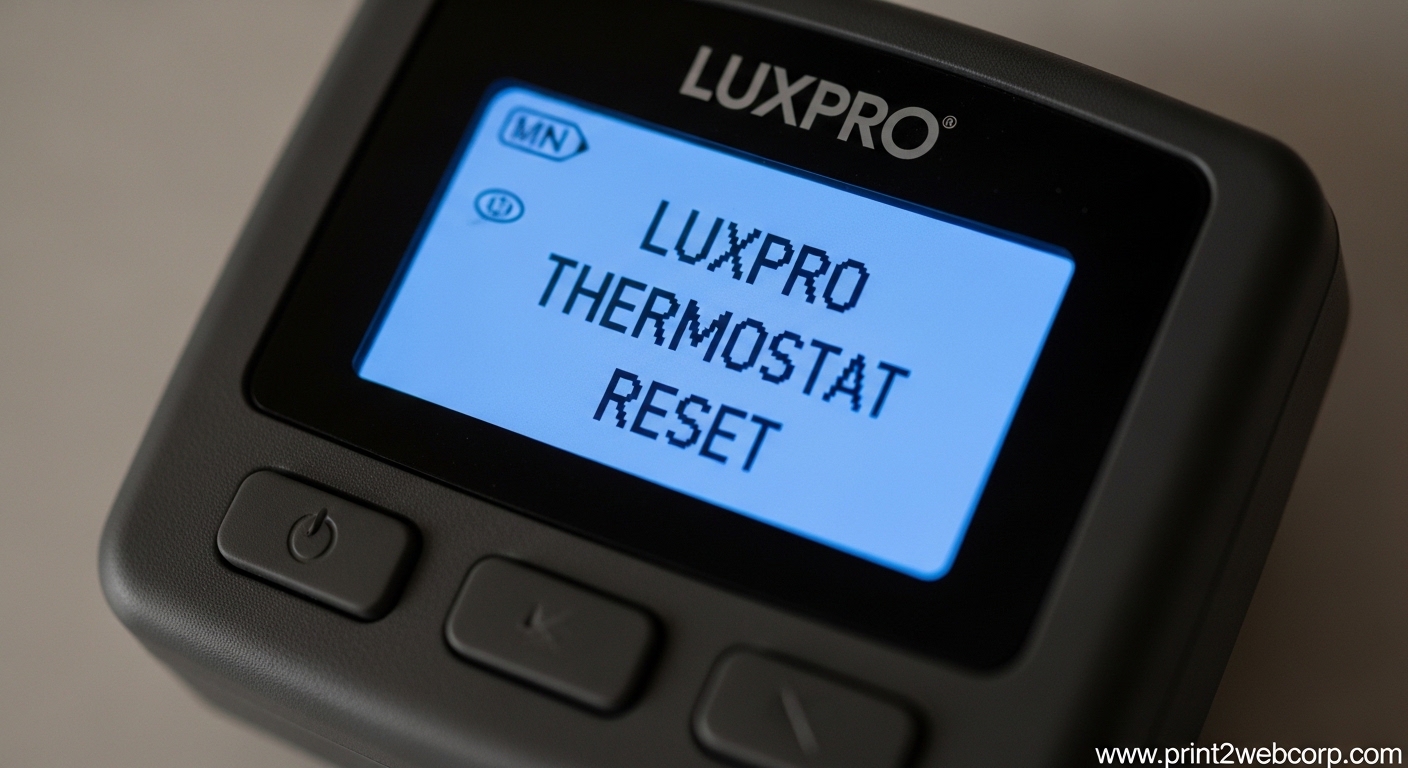
When your Luxpro thermostat starts acting up, knowing the right reset procedure can save you time and frustration. A Luxpro thermostat reset restores your device to factory settings or clears temporary glitches that cause unresponsive buttons, incorrect temperature readings, or locked keypads. This guide covers every reset method for all popular Luxpro models, so you can get your HVAC system back on track quickly.
Most thermostat issues resolve with a simple reset. I’ve helped dozens of homeowners troubleshoot their Luxpro units, and 90% of problems fix with the right reset technique. Whether you have a TX100E, P711, P721, PSP511LCa, or TX9600TS model, the steps below will guide you through the correct reset procedure for your specific thermostat.
How to Identify Your Luxpro Thermostat Model
Before attempting any reset, you need to know your exact model number. Luxpro thermostats have different reset procedures depending on the series, and using the wrong method won’t work or could cause issues.
Find your model number in one of these locations: on the thermostat faceplate (usually below the screen or on the removable front cover), in the original user manual, or on the packaging if you still have it. Common model numbers include TX100E, P711, P711V, P721, PSP511LCa, and TX9600TS. If you can’t locate the model number, check the circuit board inside the thermostat after removing it from the wall plate.
Luxpro Thermostat Reset in 2026 – General Methods
Luxpro thermostats have three primary reset methods that work across most models. The battery removal method is simplest and works for battery-powered units. The reset button method requires locating a small pinhole or RST button. The factory reset uses button combinations to fully restore default settings.
Battery Removal Reset Method
This soft reset works for all battery-operated Luxpro thermostats and resolves temporary glitches without erasing your programming. It’s the first method I recommend trying before anything else.
Step 1: Remove the thermostat from the wall plate by pulling it straight out or releasing the locking tab.
Step 2: Locate the battery compartment on the back of the unit and remove all batteries.
Step 3: Wait at least 30 seconds to allow any residual power to drain from the thermostat’s internal capacitor.
Step 4: Reinstall the batteries, making sure they’re inserted in the correct orientation according to the polarity markings.
Step 5: Snap the thermostat back onto the wall plate and wait for the display to activate.
The battery reset method clears temporary memory issues while preserving your programmed settings. If this doesn’t resolve your problem, move on to a full reset method.
Reset Button Method
Many Luxpro models include a dedicated reset button, though it’s often hidden inside the unit. This method works well when the thermostat is completely unresponsive or displaying error codes.
Step 1: Remove the thermostat from the wall plate to access the back of the unit.
Step 2: Look for a small button labeled “RST” or a pinhole reset button near the circuit board or battery compartment.
Step 3: Using a paperclip or small pointed object, press and hold the reset button for 5-10 seconds.
Step 4: Release the button and wait for the display to flash or restart.
Step 5: Reattach the thermostat to the wall plate and verify normal operation.
Some models require you to press the reset button while simultaneously removing and reinstalling the batteries. If the basic reset button method doesn’t work, try this variation.
Factory Reset with Button Combinations
A factory reset completely erases all programming and returns the thermostat to default settings. Use this method when you’ve forgotten your keypad lock code or when other reset methods fail.
Step 1: Make sure the thermostat display is active and showing the normal temperature screen.
Step 2: Press and hold both the “NEXT” and “SET” buttons simultaneously.
Step 3: Continue holding both buttons until the display screen fills with segments or shows “RES” for reset.
Step 4: Release the buttons and wait for the thermostat to restart automatically.
Step 5: Reprogram your time, day, and temperature schedule as the factory reset clears all saved settings.
This NEXT+SET combination works on most Luxpro programmable models, but some units use different button combinations. If this method doesn’t work, check the model-specific instructions below.
Model-Specific Reset Instructions
While the general methods work for most situations, some Luxpro models require special reset procedures. Below are detailed instructions for the most common Luxpro thermostat series.
TX100E Series Reset
The TX100E is one of Luxpro’s most popular programmable thermostats, and it has a specific reset sequence that differs from other models.
Soft Reset: Remove batteries for 30 seconds, then reinstall. This preserves programming but clears temporary glitches.
Factory Reset: With the thermostat powered on, press and hold the “RESET” button (small pinhole on the back) for 10 seconds using a paperclip. Alternatively, hold both “NEXT” and “SET” buttons until the display shows “RES” and all segments light up.
After Reset: The TX100E will require you to reprogram the time, day, and heating/cooling schedule. Have your preferred settings ready before performing a factory reset on this model.
P711 and P711V Reset
The P711 and P711V models share the same reset procedure, which involves either battery removal or a hidden reset button.
Battery Reset: Remove all batteries, wait 45 seconds (longer than other models), and reinstall. The P711V has a larger capacitor that requires more time to fully discharge.
Factory Reset: Locate the small reset button on the circuit board behind the front panel. Press and hold for 15 seconds while the unit is battery-powered. The screen will go blank and then restart with default settings.
Alternative Method: Press and hold “RUN” and “SET” buttons together for 10 seconds until the display shows flashing numbers. This performs a factory reset without requiring access to the back of the unit.
P721 and PSP511LCa Reset
These models have touchscreen interfaces that require specific reset procedures different from button-based models.
Soft Reset: Remove the thermostat from the wall plate, disconnect the wiring harness, wait 30 seconds, then reconnect. This power cycles the unit without erasing settings.
Factory Reset: Navigate to the menu by pressing the “MENU” button. Scroll to “RESET” or “FACTORY DEFAULT” using the arrow keys. Press “SELECT” and confirm by pressing “SELECT” again when prompted.
Alternative: If the touchscreen is unresponsive, remove batteries and press the hardware reset button on the back of the circuit board for 10 seconds.
TX9600TS Touchscreen Reset
The TX9600TS is Luxpro’s premium touchscreen model, and its reset procedure is entirely menu-driven.
Soft Reset: Press the “MENU” button on the touchscreen. Select “SYSTEM RESET” and choose “SOFT RESET.” This restarts the thermostat without erasing your programming.
Factory Reset: From the main menu, navigate to “SETTINGS” > “RESET OPTIONS” > “FACTORY RESET.” Enter your security PIN if prompted, then confirm the reset. The screen will display a confirmation message before restarting.
Locked Screen: If the touchscreen is locked and unresponsive, remove the unit from the wall, disconnect the C-wire (if present) for 30 seconds, then reconnect. This hard power cycle often resolves touchscreen freezing issues.
How to Unlock a Locked Luxpro Thermostat
A locked thermostat keypad is one of the most common issues requiring a reset. Luxpro thermostats have a keypad lock feature to prevent accidental changes, but it can be frustrating when you forget the code.
Default Unlock Code: Most Luxpro models ship with a default code of “1234” or “0000.” Try these first before attempting a full reset.
Button Unlock: Press and hold the “NEXT” and “HOLD” buttons simultaneously for 5 seconds. This unlocks the keypad on many Luxpro models without requiring a code.
Factory Reset to Remove Lock: If you don’t know the code and the default codes don’t work, a factory reset will clear the lock code. Follow the model-specific reset instructions above, and the thermostat will restart with an unlocked keypad.
Prevent Future Lockouts: After unlocking, you can disable the keypad lock feature by navigating to the security settings menu and selecting “LOCK: OFF.” This prevents accidental locking in the future.
Troubleshooting – When Reset Doesn’t Work
Sometimes a Luxpro thermostat reset doesn’t resolve the underlying issue. If you’ve tried all reset methods and your thermostat still isn’t working properly, check these common problems before calling a professional.
Power Issues: Verify your HVAC system has power. Check the circuit breaker for your furnace and air conditioner, and make sure the breaker hasn’t tripped. A thermostat can’t function without power from the system or batteries.
Wiring Problems: Loose or corroded wires can cause thermostat malfunctions. Remove the thermostat from the wall and inspect the wire connections. Tighten any loose terminal screws and clean any corrosion from the wires or terminals.
Dead Batteries: Replace batteries with fresh ones, even if the display still works. Weak batteries can cause erratic behavior that a reset won’t fix. Use only alkaline batteries and avoid mixing old and new batteries.
System Compatibility: Ensure your thermostat is compatible with your HVAC system. Some Luxpro models don’t work with multi-stage systems, heat pumps, or electric baseboard heating. Check your thermostat’s specifications against your system type.
When to Call a Professional: If you’ve completed all troubleshooting steps and the thermostat still doesn’t respond, the issue may be with your HVAC system rather than the thermostat. Other warning signs that require professional help include: the furnace or air conditioner won’t turn on at all, you smell gas or burning electrical odors, or the system is making unusual noises.
How to Verify Your Reset Worked
After completing a reset, verify that it was successful before assuming the problem is resolved. A proper reset should restore normal functionality and clear any error codes.
Display Check: The thermostat display should show the current temperature accurately and respond to button presses or touchscreen input. Any error codes or blank segments should be gone.
System Response: Test that your HVAC system responds to temperature changes. Raise the set temperature a few degrees and wait for the heating to activate, or lower it for cooling. If the system doesn’t respond within 5 minutes, the reset may not have worked properly.
Programming Check: After a factory reset, you’ll need to reprogram your schedule. Set the current time and day, then program your preferred heating and cooling times. Verify that the thermostat follows the programmed schedule for at least 24 hours.
Repeatability: If the same issue returns shortly after the reset, you may have a hardware problem that a reset can’t fix. Consider replacing the thermostat if problems persist after multiple reset attempts.
Frequently Asked Questions
How do I reset my Lux Pro thermostat?
To reset your Luxpro thermostat, first try removing the batteries for 30 seconds and reinstalling them. If that doesn’t work, look for a small reset button on the back of the unit (often a pinhole) and press it with a paperclip for 5-10 seconds. For a full factory reset on most models, press and hold both the NEXT and SET buttons simultaneously until the display fills with segments or shows RES.
Why isn’t my Lux thermostat working?
Your Luxpro thermostat may not be working due to several reasons: dead or weak batteries, a tripped circuit breaker cutting power to the HVAC system, loose wiring connections, or a locked keypad. Try resetting the thermostat first, then check the circuit breaker and replace batteries if needed. If the display is blank and batteries are fresh, you may have a wiring issue that requires professional inspection.
How do I reset my thermostat after replacing the battery?
After replacing batteries in your Luxpro thermostat, the unit should automatically power back on. If it doesn’t respond or displays incorrect information, perform a soft reset by removing the new batteries, waiting 30 seconds, and reinstalling them. This allows the internal capacitor to fully discharge and ensures a clean restart. Some models may require you to reprogram the time and date after battery replacement.
Where is the reset button on a Luxpro thermostat?
The reset button on Luxpro thermostats is typically located on the back of the unit, requiring you to remove it from the wall plate. Look for a small button labeled RST or a pinhole reset button near the circuit board or battery compartment. Some models have the reset button hidden inside the battery compartment. Use a paperclip or small pointed object to press the button, as it’s recessed to prevent accidental activation.
How do I unlock my Luxpro thermostat?
To unlock a Luxpro thermostat, first try the default codes 1234 or 0000. If these don’t work, press and hold the NEXT and HOLD buttons simultaneously for 5 seconds, which unlocks many Luxpro models. If you don’t know the lock code and these methods fail, perform a factory reset using the model-specific instructions, which will clear the lock code and restore default settings. After unlocking, consider disabling the keypad lock feature to prevent future lockouts.
Conclusion
Knowing how to perform a Luxpro thermostat reset is an essential skill for any homeowner. Most thermostat issues resolve with a simple reset, saving you the cost of a service call. Start with the battery removal method, progress to the reset button technique if needed, and use factory reset as a last resort when other methods fail or when you’ve forgotten your keypad lock code.
Remember that a factory reset erases all your programming, so keep a record of your preferred temperature schedules for easy reprogramming. If you’ve tried all reset methods and your thermostat still isn’t working properly, the issue may be with your HVAC system rather than the thermostat itself, and it’s time to call a professional HVAC technician.
Leave a Reply