
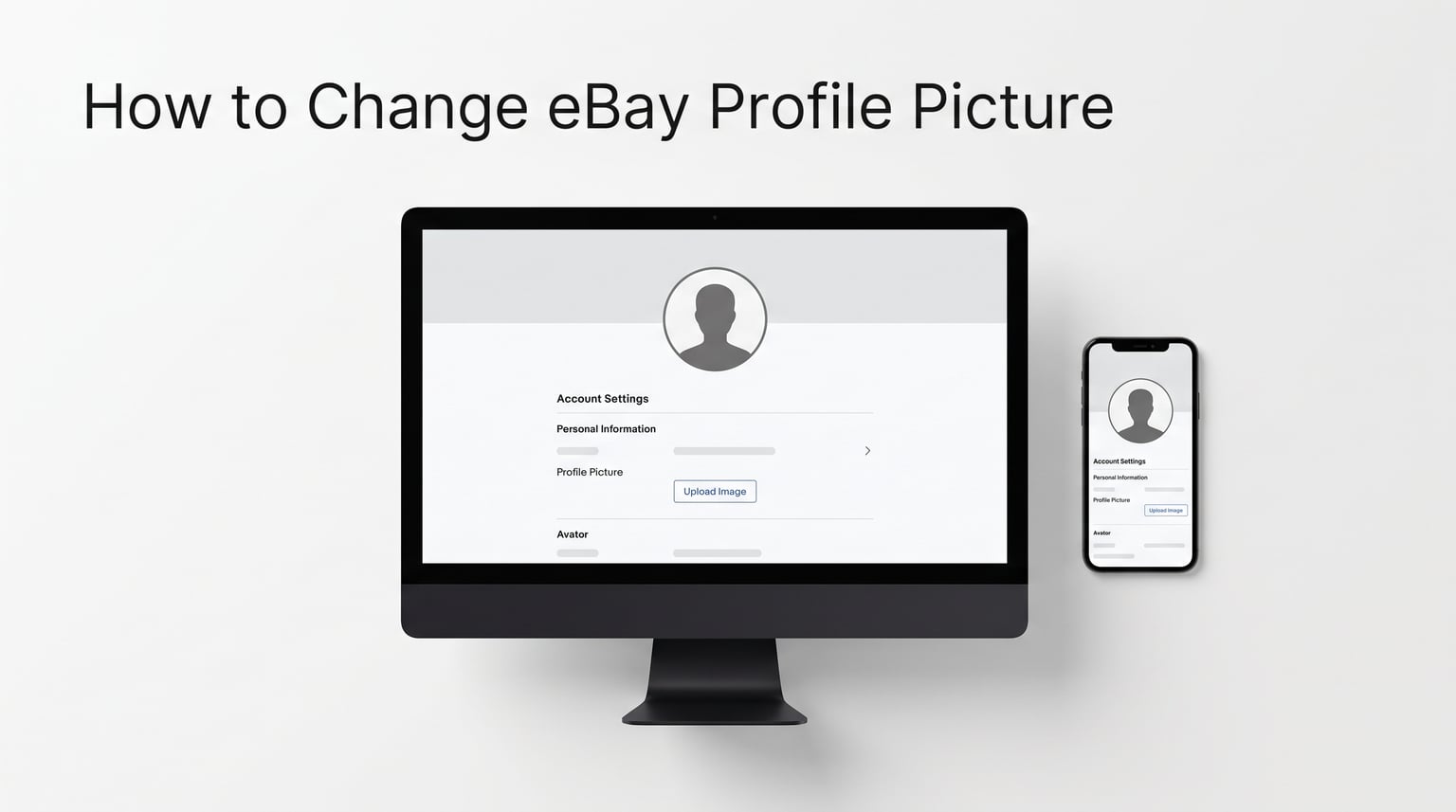
Last updated: October 2026. This guide reflects the current eBay desktop and mobile browser interface as of 2026.
Your eBay profile picture is the first thing buyers and fellow sellers notice when they land on your account. Yet plenty of users, from casual buyers to active sellers, are unsure how to change eBay profile picture settings, especially with the platform’s evolving interface and the well-known limitation that the eBay mobile app cannot update profile photos. If your current avatar is outdated, blurry, or missing entirely, this walkthrough will get you sorted in just a few minutes.
Whether you want to swap in a professional headshot, upload a business logo for your eBay store, or simply replace a photo you took years ago, the process is straightforward once you know where to look. The catch is that the steps differ depending on your device, and the eBay mobile app will not let you touch your profile picture at all. You need a browser, and on a phone that means switching to desktop site mode.
I have tested every method below on both desktop and mobile to make sure the instructions match what you will actually see on screen. Along the way, you will also find eBay profile picture requirements, photo selection tips, common mistakes to avoid, and a troubleshooting section covering the frustrating reset bug that many Reddit users have reported. Let us get your profile looking sharp.
Highlights From This Guide:
Quick direct answer for featured-snippet speed readers.
Desktop step-by-step using the My eBay dashboard and Edit profile pencil icon.
Correct mobile browser method (Chrome and Safari with Desktop Site mode), including why the eBay app cannot do this.
eBay profile picture requirements covering size, resolution, format, and policy.
Photo selection tips, common mistakes, and troubleshooting for uploads that fail or reset.
Quick Answer: How to Change eBay Profile Picture in Under a Minute
To change your eBay profile picture, sign in to eBay on a desktop or mobile browser (not the app), go to My eBay, select your username at the top, and click Edit profile. Click the pencil icon on your current photo, upload a new image (JPEG, PNG, GIF, BMP, or TIFF at 300×300 pixels or larger), and select Done Editing to save. The photo appears across your profile, listings, and feedback page.
That is the short version. The detailed walkthroughs below cover each device, plus the seller-specific considerations and the specs you need to avoid a rejected upload.
Why Changing Your eBay Profile Picture Matters
On a marketplace where buyers cannot meet you in person, your profile picture does the heavy lifting of a first impression. eBay displays it next to your username on your listings, your feedback page, and your public profile, which means it shows up at exactly the moments a buyer is deciding whether to trust you with their money.
Sellers with a clear, professional photo, or a recognizable business logo, signal that they are established and serious. Forum discussions on r/eBaySellerAdvice and the eBay Community consistently show that buyers notice profile pictures before purchasing, even if they do not always admit it. A blank default avatar, by contrast, reads as either a brand-new account or an inactive one, and both raise quiet doubts.
For business sellers, the profile picture is part of a wider branding system that includes your eBay store logo, cover photo, and profile description (About section). Keeping that system consistent, using the same logo across your storefront and profile, helps repeat buyers find and remember you. It also ties into broader selling strategy; if you are working on listing quality and response times, an updated profile photo rounds out the professional image.
Even casual buyers benefit. A real photo makes interactions in messages and feedback feel more human, and it helps the people you trade with recognize you across transactions. In short, the few minutes it takes to change eBay profile picture settings pay off every single time someone views your account.
How to Change eBay Profile Picture on Desktop
The desktop website is the easiest and most reliable way to change eBay profile picture settings. Every option is visible, there is no need to toggle any desktop site mode, and the upload process tends to be the most stable. If you have access to a laptop or desktop, start here.

Sign in to eBay. Open ebay.com in Chrome, Firefox, Edge, or Safari, then sign in with your usual credentials. Make sure you are on the full website, not a redirected mobile view.
Open My eBay. Hover over or click your name at the top-left of the homepage. From the drop-down menu, select My eBay to reach your account dashboard.
Go to your profile page. In the My eBay dashboard, click your username (or the profile link) to open your public eBay profile page. This is the page buyers see.
Select Edit profile. On your profile page, look for the Edit profile option, usually near your name and current avatar, and click it to enter editing mode.
Click the pencil icon. Hover over your current profile picture (or the default avatar placeholder). A small pencil icon appears in the corner of the photo. Click it to open the upload dialog.
Upload your new image. Browse your computer and choose the photo you want. Confirm that the file is a supported format (JPEG, PNG, GIF, BMP, or TIFF) and at least 300×300 pixels. Crop or reposition if eBay offers an editor.
Save with Done Editing. Once the image looks right, click Done Editing (or Save). Your new profile picture is now live across your profile, listings, and feedback page.
If the new photo does not appear immediately, refresh the page or clear your browser cache. eBay sometimes caches the old image for a short while, which is a common cause of the “it didn’t save” confusion covered later in the troubleshooting section.
That is the full desktop flow. It works identically whether you are a buyer or a seller, because the profile picture is tied to your account, not to a specific store. The next section explains how to do the same thing from a phone, where the process is a little less obvious.
How to Change eBay Profile Picture on a Smartphone
Here is the part that trips up most people: you cannot change your eBay profile picture from inside the eBay mobile app. This has been confirmed by eBay sellers and community threads, and it is the single most common frustration on r/eBaySellerAdvice. The app simply does not expose the Edit profile option for your account photo. The good news is that there is a reliable workaround using any mobile browser.

The method below works on both iPhone (Safari) and Android (Chrome). The key is switching your browser to Desktop Site mode so that eBay loads the full website, which includes the Edit profile controls the mobile app hides.
Open a mobile browser. Launch Chrome on Android or Safari on iPhone. Do not use the eBay app for this step.
Go to ebay.com and sign in. Type the full URL, then log in with your eBay username and password when prompted.
Enable Desktop Site mode. In Chrome, tap the three-dot menu (top-right on Android) and check Desktop site. In Safari on iPhone, tap the aA icon in the address bar, then select Request Desktop Website. The page reloads as the full desktop version.
Navigate to My eBay. Tap the menu or your name at the top of the page and choose My eBay to open your account dashboard.
Open your profile and tap Edit profile. Tap your username to reach your profile page, then tap Edit profile near your current avatar.
Tap the pencil icon and upload. Tap the pencil icon on your profile photo. Your phone’s file picker opens; choose a new image from your gallery or camera roll that meets the eBay profile picture requirements.
Tap Done Editing to save. Confirm the upload by tapping Done Editing. Your updated photo is now saved to your account.
If the desktop toggle does not stick the first time, refresh the page after enabling it. On some older Android devices the Chrome desktop site checkbox occasionally resets, so a second attempt usually resolves it. Once the full site loads, the rest of the flow mirrors the desktop instructions exactly.
One more note for mobile users: after you change eBay profile picture on your phone, the eBay app may continue showing the old photo because of caching. Logging out of the app and signing back in forces it to fetch the new image. This sync issue is a known platform quirk, and the troubleshooting section covers it in more detail.
eBay Profile Picture Requirements: Size, Resolution, and Format
eBay keeps its profile image rules simple, but breaking them is the most common reason an upload fails or looks low quality. Knowing the eBay profile picture requirements ahead of time saves you a failed attempt and a second photo edit.
Recommended dimensions: 300 x 300 pixels, square aspect ratio.
Minimum resolution: 72 dpi. Lower resolutions appear blurry on retina and high-DPI screens.
Accepted file formats: JPEG, PNG, GIF, BMP, and TIFF. (WEBP and HEIC from modern phones may need conversion to JPEG first.)
Maximum file size: Keep the file under 5 MB. Larger files upload slowly or time out on mobile data.
Content policy: No borders, no text overlays (a small watermark is allowed), and the image must comply with eBay’s user photo policy. Offensive, copyrighted, or misleading images are removed.
If your phone shoots in HEIC (default on newer iPhones), use the Photos app’s export option or a free converter to save a JPEG copy before uploading. GIF files animate in some views but display as a static first frame in others, so treat GIF as decorative rather than essential.
Can I Change Profile Picture as a Seller on eBay?
Yes, sellers follow the exact same steps as buyers to change eBay profile picture settings. The profile photo is tied to your account, not your store, so the desktop and mobile browser instructions above apply whether you sell occasionally or run a full-time eBay business.

Where sellers should think a little harder is the choice between a personal headshot and a business logo. Casual sellers and individuals tend to do well with a friendly, well-lit face photo because it humanizes the transaction. Business sellers, especially those running an eBay Store subscription, often benefit from uploading their logo as the profile picture to keep branding consistent with the store logo and cover photo.
Whatever you choose, keep it consistent. A logo that matches your storefront, packing slips, and social accounts helps repeat buyers recognize you across touchpoints. Pairing an updated photo with a strong profile description (About section) and a high feedback rating creates the kind of trust signal that turns first-time browsers into returning customers.
One clarification that comes up often in the eBay Community: your profile picture is different from your eBay Store logo and cover photo. Those storefront elements are managed separately in the Store design settings. This guide covers only the account-level profile photo that appears on your listings and feedback page.
Tips for Choosing the Best eBay Profile Picture
Picking the right image matters as much as knowing where to upload it. A great eBay profile picture builds buyer confidence instantly, while a poor one can quietly undermine an otherwise strong seller account.
Use a clear, well-lit face photo. Natural daylight or soft indoor lighting avoids harsh shadows. Show most of your face so buyers can read your expression.
Aim for a plain or white background. Cluttered backgrounds distract from you and can look unprofessional at small thumbnail sizes.
Smile genuinely. A real, relaxed smile reads as approachable and trustworthy. Avoid stiff, passport-style neutrality.
Skip sunglasses, hats, and pets for a personal seller photo. Buyers want to see the person they are dealing with.
For business sellers, use your logo. A clean, high-resolution logo signals an established brand and matches your storefront identity.
Shoot at 300×300 pixels or larger. Start with a bigger image (600×600 or more) so eBay can downscale it cleanly without pixelation.
Crop tightly to the subject. At thumbnail size, a tight head-and-shoulders crop is far more recognizable than a full-body shot.
Common Mistakes to Avoid When You Change eBay Profile Picture
Most failed uploads and “it didn’t work” complaints trace back to a handful of avoidable mistakes. Run through this checklist before and after you change eBay profile picture settings to save yourself a second attempt.
Uploading a blurry or low-resolution image. Anything under 72 dpi looks soft on modern screens. Start with a sharp original.
Forgetting to tap Done Editing or Save. The upload is not final until you confirm. Many users close the page too early and wonder why nothing changed.
Using an unsupported file format. HEIC and WEBP from recent phones may be rejected. Convert to JPEG first.
Trying to change it inside the eBay mobile app. The app does not support profile photo edits. Always use a browser with Desktop Site mode on mobile.
Not cropping the image. eBay may center the photo automatically, but a pre-cropped square image gives you full control over how it looks.
Using an inappropriate or policy-violating image. Borders, text overlays, and copyrighted material can get the photo removed. Stick to eBay’s user photo policy.
Troubleshooting Common eBay Profile Picture Issues
Even when you follow every step correctly, eBay’s platform sometimes throws up glitches. These are the most reported issues from the eBay Community and Reddit, along with proven fixes.
eBay Profile Picture Not Saving
If you upload a photo and it appears to save but then reverts to the old image, the most likely cause is a browser or app cache. First, refresh the profile page and wait a minute, since eBay’s CDN can lag. If that fails, clear your browser cache and cookies, sign back in, and repeat the upload. On the mobile app, the cached old photo is the usual culprit, so log out of the app completely and sign back in to force a fresh fetch.
Profile Picture Keeps Resetting or Disappearing
This is a well-known bug reported repeatedly on r/Ebay, where a user uploads a photo and it “instantly resets.” The reliable workaround shared by the community is to upload the image on the desktop website (not mobile), confirm it saved, then log out of every device and sign back in. If the reset persists, try a different browser or a wired connection, since intermittent mobile data can interrupt the upload mid-transfer.
Upload Failed Error
An “upload failed” or “image not accepted” message usually points to a file problem. Check that the format is JPEG, PNG, GIF, BMP, or TIFF, confirm the file is under 5 MB, and make sure the dimensions are at least 300×300 pixels. HEIC files from iPhones are the most frequent offender; convert one to JPEG and the upload typically goes through on the next attempt.
New Photo Not Showing on Listings or Feedback
eBay propagates profile picture changes across its pages with a short delay. The new image usually appears on your profile page first, then on listings and feedback within a few minutes to an hour. If it still has not updated after an hour, clear your browser cache and revisit the page in a private or incognito window to confirm the change is actually live server-side rather than cached locally.
FAQs
How do I change my eBay profile picture?
Sign in to eBay on a desktop or mobile browser (not the app), go to My eBay, click your username to open your profile, select Edit profile, click the pencil icon on your photo, upload a new image (JPEG, PNG, GIF, BMP, or TIFF at 300×300 pixels or larger), and click Done Editing to save.
Can I change my eBay profile picture on the mobile app?
No. The eBay mobile app does not support changing your profile picture. You must use a mobile browser (Chrome or Safari), enable Desktop Site mode, sign in to ebay.com, and follow the same Edit profile steps as on desktop.
What size is the eBay profile picture?
eBay recommends a 300 x 300 pixel square image at a minimum of 72 dpi. Starting with a larger image (600×600 or more) gives eBay room to downscale cleanly for thumbnails without losing sharpness.
What image format does eBay accept for profile pictures?
eBay accepts JPEG, PNG, GIF, BMP, and TIFF files. HEIC (default on newer iPhones) and some WEBP files may need to be converted to JPEG before uploading. Keep the file under 5 MB.
How do I remove my profile picture from eBay?
Go to My eBay, open your profile by clicking your username, select Edit profile, and click the pencil icon on your current photo. Choose the remove or delete option to clear the image, then save. Your account reverts to the default eBay avatar.
Why won’t my eBay profile picture save?
The most common cause is caching. Refresh the page, clear your browser cache and cookies, and try again. If you are using the mobile app, log out and sign back in to force it to fetch the new image. Also confirm the file format and size meet eBay’s requirements.
Why does my eBay profile picture keep resetting?
This is a known eBay platform bug reported on Reddit and the eBay Community. The reliable fix is to upload the photo from the desktop website, confirm it saved, then log out of all devices and sign back in. Using a different browser or a stable wired connection can also help.
Can I use a business logo as my eBay profile picture?
Yes. Business sellers frequently use their logo as the account profile picture to keep branding consistent with their eBay Store logo and cover photo. Make sure the logo is high-resolution, at least 300×300 pixels, and free of text overlays that violate eBay’s user photo policy.
What makes a good eBay profile picture?
A clear, well-lit face photo with a plain or white background, a genuine smile, and a tight head-and-shoulders crop. Avoid sunglasses, hats, and cluttered backgrounds. Business sellers should use a clean, high-resolution logo that matches their storefront branding.
How often can I change my eBay profile picture?
eBay does not publish a strict limit on how often you can change your profile picture. You can update it as frequently as you like, though frequent changes can make it harder for repeat buyers to recognize you. For consistency, pick a strong image and keep it for a while.
Conclusion
Changing your eBay profile picture comes down to a single reliable path: sign in through a browser, open My eBay, head to your profile, click Edit profile, hit the pencil icon, upload your image, and confirm with Done Editing. The desktop site handles this natively, while smartphones require a mobile browser with Desktop Site mode enabled because the eBay app simply cannot edit profile photos.
If you are a casual buyer, a friendly face photo makes your interactions feel more human. If you are a seller, a clear headshot or a consistent business logo strengthens the trust signals that turn browsers into repeat customers. Stick to the 300×300 pixel minimum, use a supported format like JPEG or PNG, and remember to log out and back in if a new photo does not appear right away.
Take five minutes today to change eBay profile picture settings on your account and give your presence on the platform the refresh it deserves. A sharp, current photo is one of the simplest upgrades you can make to how buyers see you on eBay in 2026.
Leave a Reply